Write SQL with Spark, the AI helper in Query Studio
Spark is the AI helper built into the Query Studio editor. Describe the data you need in plain words, and Spark reads the schema of the connection, drafts the SQL, and explains it. You review the draft, put it in the editor, and run it like any other query. This guide connects a model provider, asks Spark for a real query, and uses Tab completion while you type.
In this guide
You will learn how to connect an LLM provider from Query Studio, ask Spark for a query in plain words, review the draft and run it, complete a statement with Tab, and manage the providers in Settings → LLM providers.
The steps were run on a PostgreSQL 16 source with an Anthropic model and with a local Ollama server.
Quick information
Goal |
Draft and run SQL from a plain-language question with Spark in Query Studio |
Audience |
Data engineers, analysts, and Gluesync administrators |
Level |
Basic |
Time required |
About 20 minutes |
Area |
Control Plane → Query Studio, and Settings → LLM providers |
Applies to |
Gluesync 2.3 |
Before you begin
Make sure that:
-
A pipeline has a SQL-capable agent that you can open in Query Studio. The examples use a PostgreSQL source with the tables
shop.customers,shop.orders, andshop.order_items; -
You can sign in to the Control Plane as a Super Admin to add the model provider;
-
You have access to a model that supports tool calling: an API key for OpenAI, Anthropic, or Azure OpenAI, an OpenAI-compatible endpoint, or an Ollama server that Core Hub can reach;
-
For a cloud provider, Core Hub can open outbound HTTPS connections to the provider’s API.
|
Gluesync does not host a model. Spark sends your question, and the schema details it looks up, to the provider you configure. Choose a provider that your data policy allows. See AI models and LLM providers for each provider type and its network requirements. |
Guide steps
UI
-
Sign in to the Control Plane as a Super Admin and open Query Studio;
-
Select the round Spark launcher at the bottom right of the editor, if the panel Spark in Query Studio is not open yet;
-
Select Connect an LLM provider.
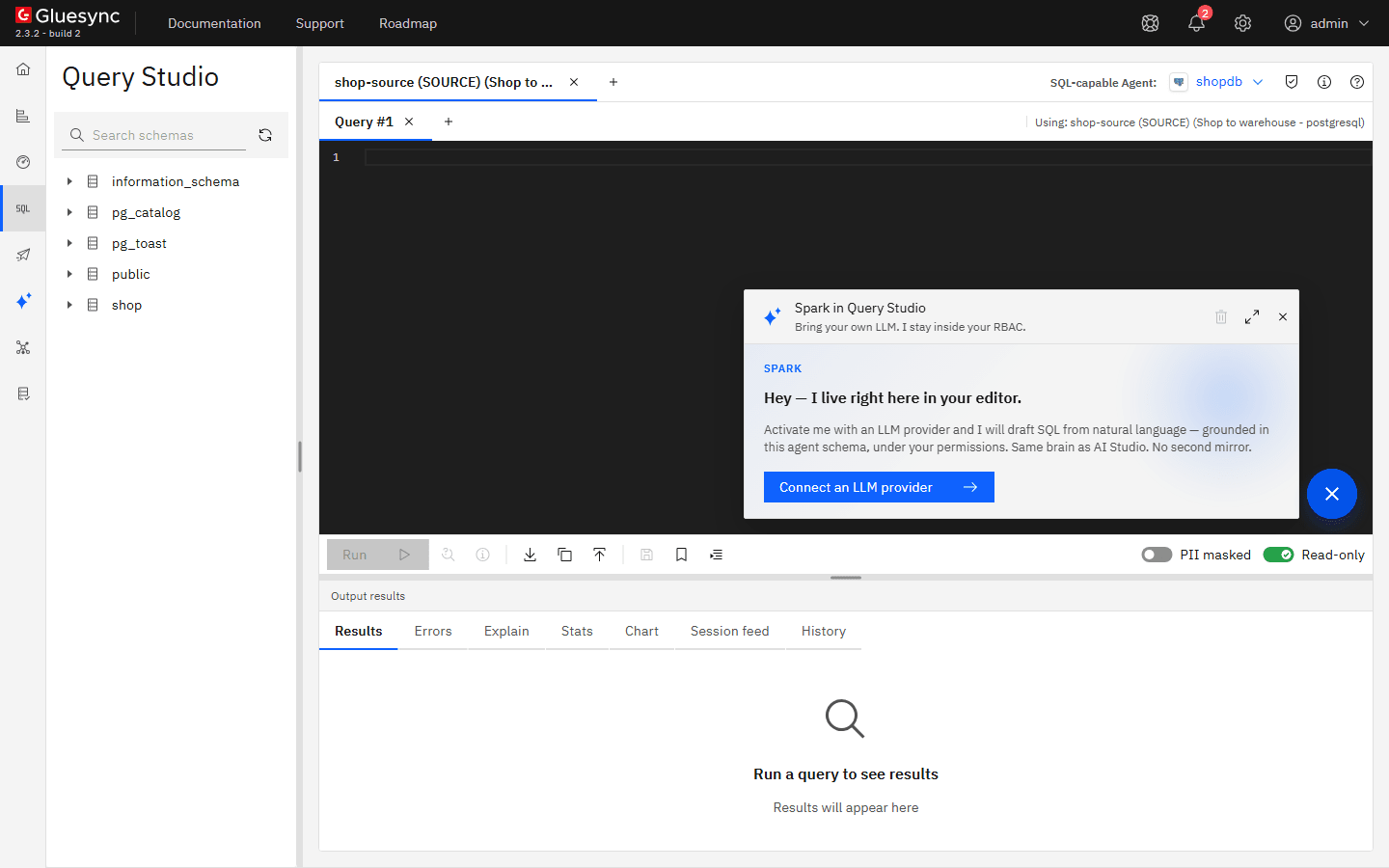
The Add LLM provider dialog opens over Query Studio.
The example connects Anthropic. The other provider types use the same dialog.
-
In Name, enter a name for the provider, for example
Anthropic; -
In Provider, choose Anthropic. The list also offers OpenAI, OpenAI compatible, Azure OpenAI, and Ollama;
-
In Default model, type the model name, for example
claude-sonnet-5, and press Enter, or pick it from the list; -
In API key, paste your Anthropic API key. The key is stored encrypted in Core Hub and is never shown again;
-
Leave Base URL empty. The field shows the default endpoint
https://api.anthropic.com/v1, and you change it only to go through a proxy; -
Select Add provider.
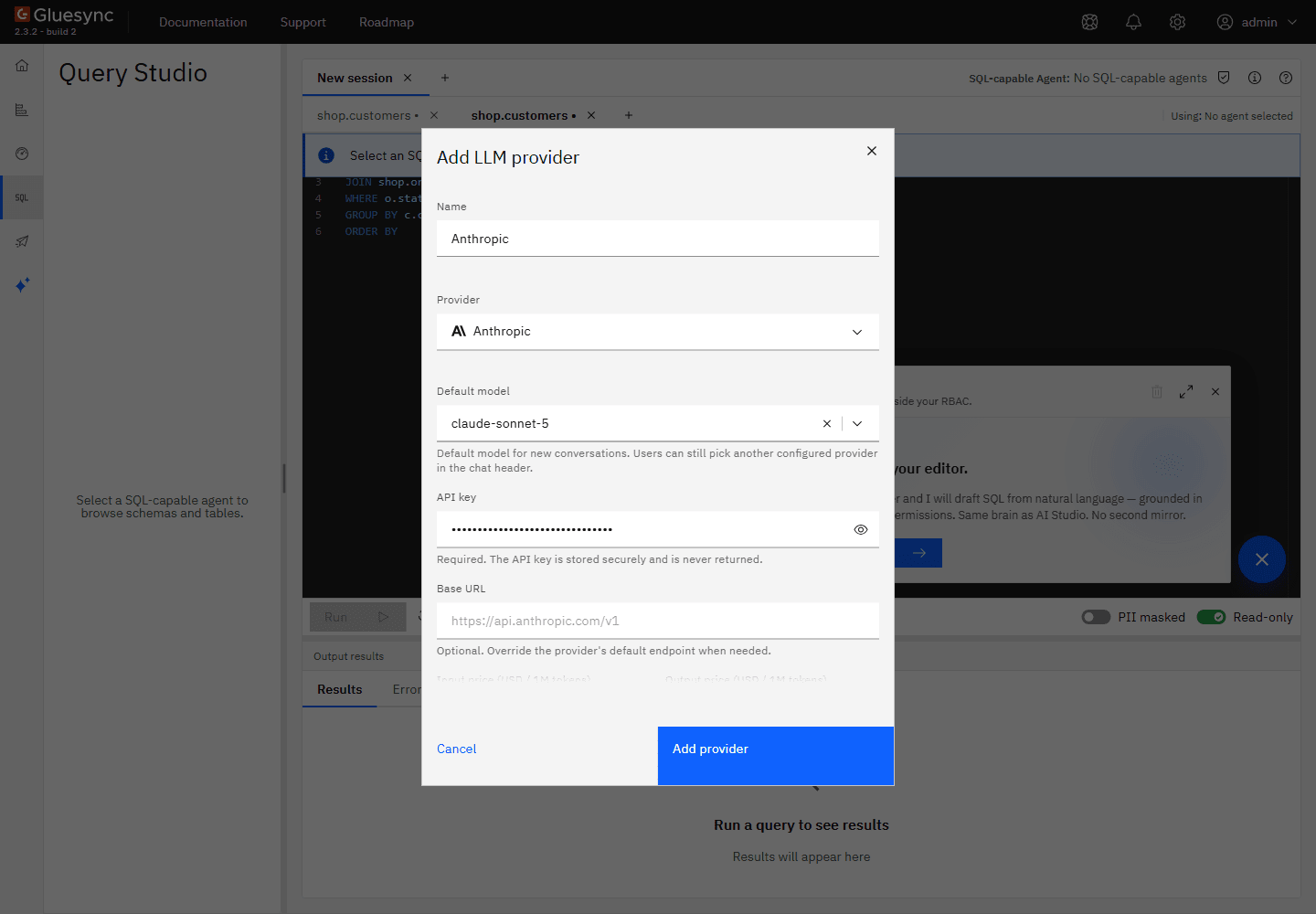
|
Add provider stays disabled until the dialog has a name, a default model, and, for a cloud provider, an API key. If it stays disabled after you type a model name, select Default model and press Enter. |
|
Core Hub waits up to three minutes for each answer of the model. In the test for this guide, small models on a server without a GPU either did not answer in time or drafted SQL with table and column names that do not exist. Use a cloud model, or a local model on a host with a GPU. See Local models with Ollama for the hardware notes. |
UI
-
Start from an empty editor tab: select + (New query tab) next to the editor tabs;
-
In the Spark panel, select the field Ask where data lives or describe a query…;
-
Describe the result you want, for example
Show the 10 customers with the highest total of paid orders, with their country; -
Select the send arrow;
-
Wait while the panel shows Drafting SQL…;
-
Select the expand icon in the panel header to read the whole answer.
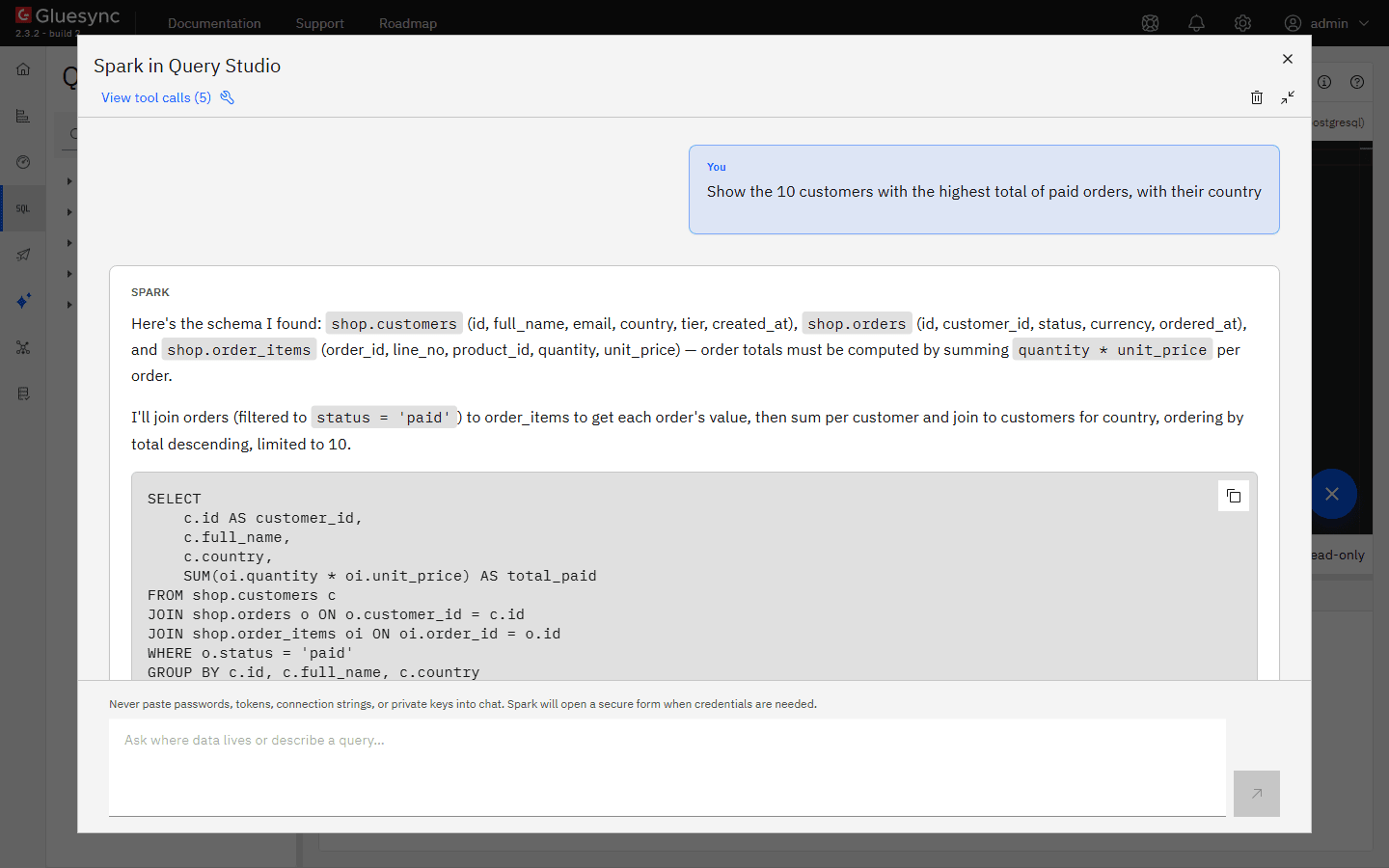
|
Spark also reads the SQL that is already in the editor. When the editor holds a query, Spark reviews that query instead of writing a new one. Start a new query tab for a new question, and keep the query in the editor when you want Spark to check or change it. |
UI
-
Read the proposed SQL. Check that the schema, table, and column names exist in the schema browser on the left, and that the filter matches what you asked;
-
Select Insert into editor to add the SQL at the cursor, or Replace query to replace everything in the editor;
-
Close the Spark panel with the launcher;
-
Select Run.
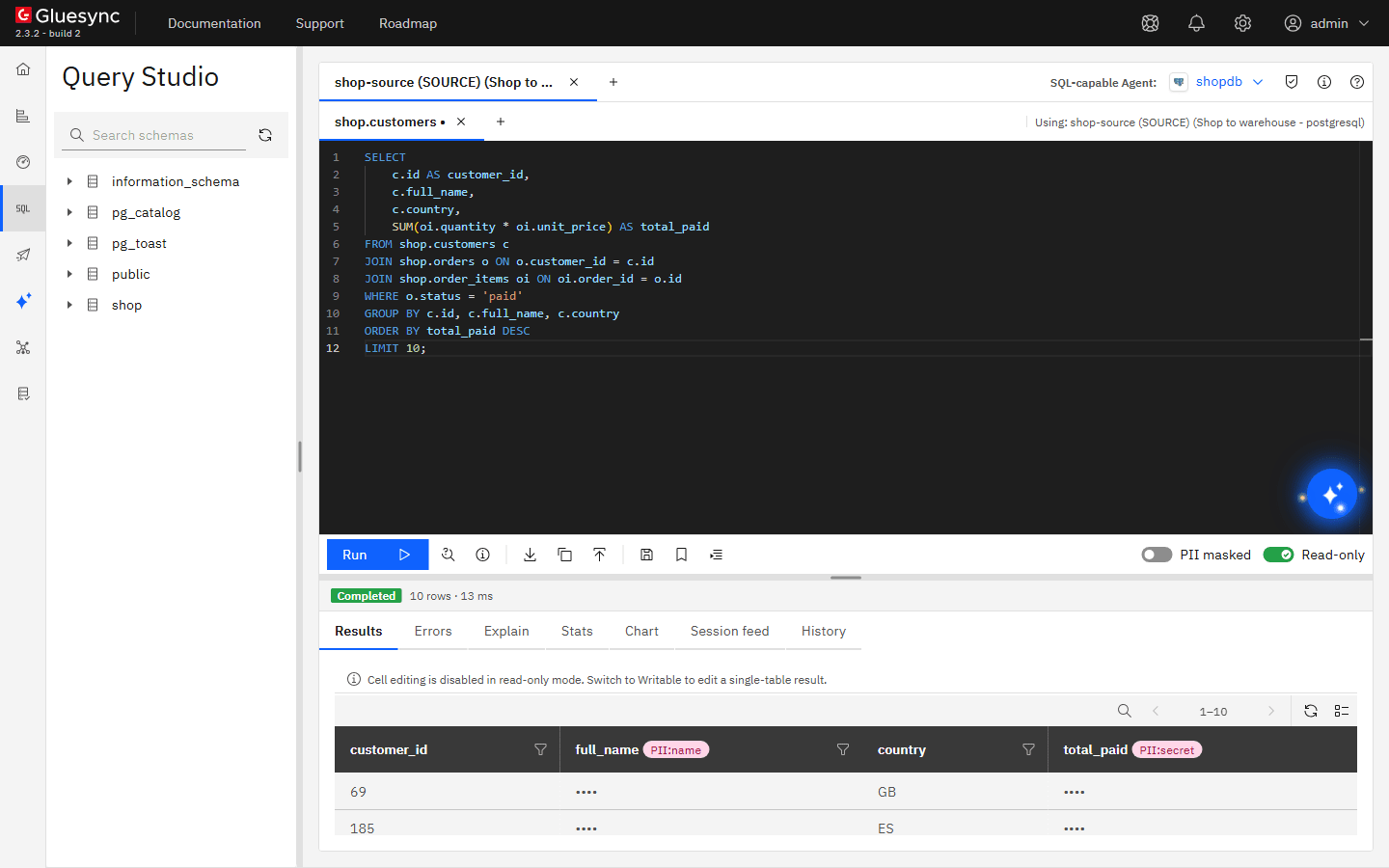
|
If the draft is not right, ask a follow-up question in the same conversation, for example to change the filter or to add a column, or edit the SQL yourself. Select the bin icon (Clear conversation) in the panel header to start over. |
UI
-
Open a new query tab;
-
Type the start of a statement, for example
SELECT c.country, COUNT(DISTINCT o.id) AS paid_orders, then press Enter; -
Type
FROM shop.customers cand press Enter; -
Pause, and read the gray suggestion after the cursor;
-
Press Tab to accept it.
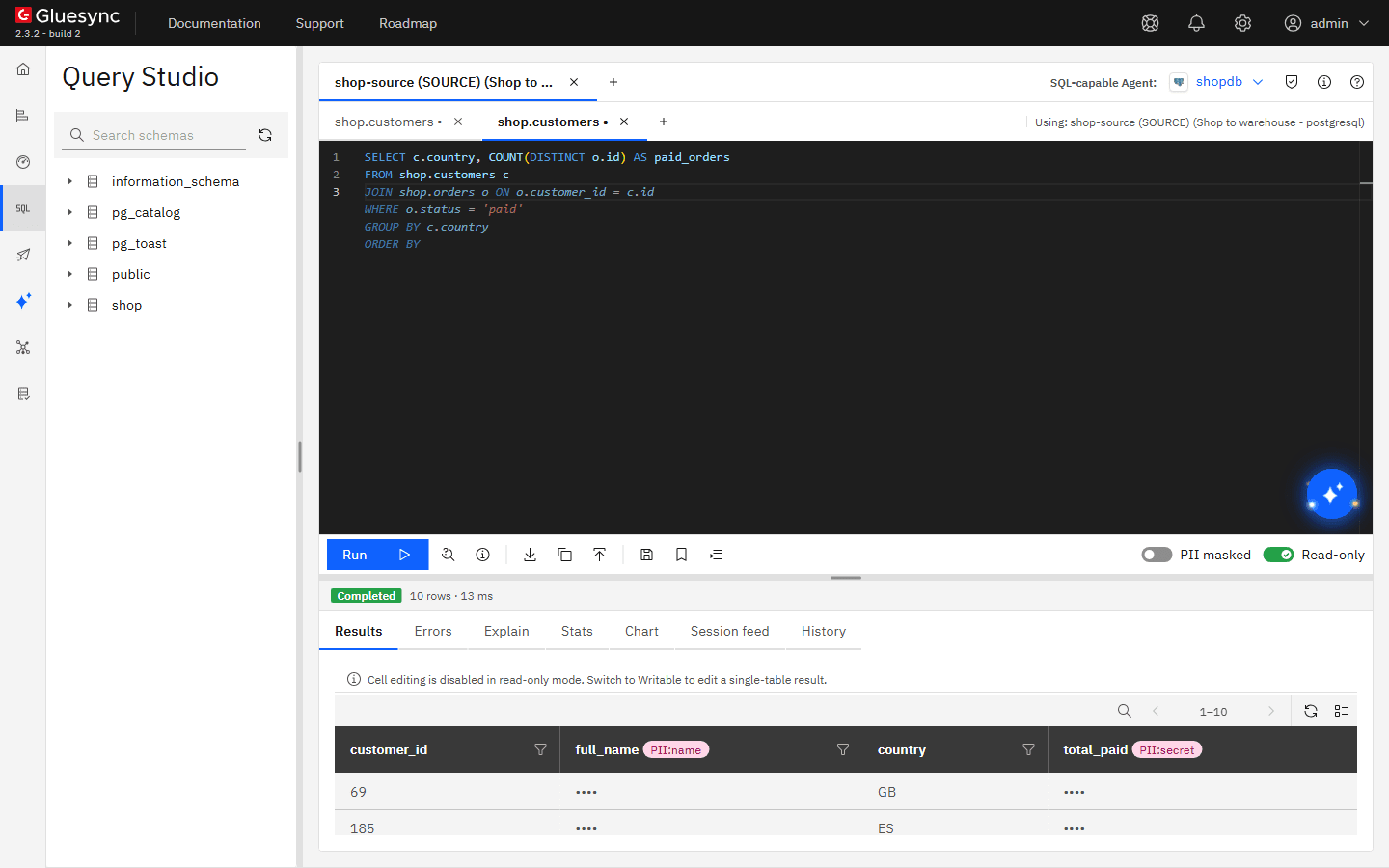
|
The gray suggestion appears when the regular autocomplete list of the editor is closed, for example at the start of a new line. While that list is open, Tab picks the selected entry of the list instead. |
UI
-
Select the gear icon (Settings) in the top bar;
-
Select LLM providers;
-
On the Providers tab, read the list of providers.
|
A conversation keeps the provider it started with. After you disable or change a provider, select Clear conversation in the Spark panel before you ask again. |
What the Spark panel offers
| Control | What it does |
|---|---|
Sample questions |
Scan this schema for hidden PII, Where can I find the customers data?, and Help me retrieve the latest orders with out-of-stock items. are offered until you ask your first question |
Expand icon |
Opens the conversation in a large view, with View tool calls in its header |
Bin icon (Clear conversation) |
Starts a new conversation |
Insert into editor |
Adds the proposed SQL at the cursor, without running it |
Replace query |
Replaces the content of the editor with the proposed SQL, without running it |
Never paste passwords, tokens, connection strings, or private keys into the chat; the panel reminds you of this above the question field.
Troubleshooting
| Problem | Possible cause | What to do |
|---|---|---|
The panel shows Connect an LLM provider |
No model provider is configured |
As a Super Admin, select Connect an LLM provider and add one |
Add provider stays disabled |
A required field is empty, or a typed model name was not confirmed |
Fill Name and, for a cloud provider, API key; type the model in Default model and press Enter |
After about three minutes: Spark could not respond. Check your LLM provider or retry. |
The model did not answer in time, for example a local model on a server without a GPU |
Use a faster model, a cloud provider, or a host with a GPU, then select Retry |
Right after you ask: Spark could not respond. Check your LLM provider or retry. |
The conversation still uses a provider that was disabled or deleted |
Select Clear conversation and ask again |
The draft fails with |
The draft has no schema name, or names a table or column that does not exist |
Check the names in the schema browser, then ask again with the schema name, for example |
|
The query |
Run |
No gray suggestion appears while you type |
The autocomplete list of the editor is open |
Press Enter to start a new line, then pause |
|
Optional, for advanced users
The Core Hub log names the cause of Spark could not respond: |
Related guides
Contact MOLO17 Support if you need assistance with Spark or Query Studio.