Set up an Apache Cassandra target
Apache Cassandra is a wide-column database that spreads each table over nodes by its partition key. The Cassandra agent of Gluesync is a target only: it writes every source row with the DataStax Java driver, for the snapshot and for live changes. This guide prepares a keyspace, a role and its permissions, creates the target connection, maps the primary key of a PostgreSQL table to a Cassandra primary key, and copies the data. It shows how inserts, updates and deletes land, which consistency level is used, how to size the write batches, and how to read the errors you are most likely to meet.
In this guide
You will find the datacenter name, create a keyspace with a replication setting, and create a role that has only the permissions Gluesync needs. You will create the Cassandra connection, let Gluesync create two tables from the field mapping (one with a single key, one with a composite key), run a snapshot and CDC, and check the rows with cqlsh. Then you will see how the key columns become the partition key and the clustering columns, what an update of a missing row does, how Cassandra answers deletes, and how to change the batch settings. A symptom, cause and fix table closes the guide.
Quick information
Goal |
Replicate PostgreSQL tables to Cassandra tables and confirm inserts, updates and deletes |
Audience |
Data engineers and Cassandra administrators |
Level |
Intermediate |
Time required |
About 60 minutes |
Area |
Control Plane → Data pipelines → Entities; Cassandra → |
Applies to |
Gluesync 2.3 |
Before you begin
Make sure that:
-
You have a source that Core Hub can read with CDC. This guide uses PostgreSQL with
wal_level = logical(see Set up a PostgreSQL WAL source) and two tables,public.driversandpublic.results; -
You have an Apache Cassandra cluster that Core Hub can reach on port
9042. The agent supports Cassandra 2.1 and later. This guide was tested with Cassandra 5.0.3 on one node; -
The cluster has password authentication on. The agent needs a user name and a password. To restrict the role as shown in step 1,
authenticatorisPasswordAuthenticatorandauthorizerisCassandraAuthorizerincassandra.yaml. A change of these settings needs a restart of the node; -
You can sign in to the Control Plane with a role that can create pipelines, and you can run
cqlshas a superuser.
|
Gluesync only writes to Cassandra. The agent has no source role, so it cannot read changes from Cassandra. See Cassandra agent and Target Cassandra for the reference. |
Guide steps
CLI
-
Find the name of the datacenter. You enter it in the connection. A wrong name does not stop the connection test (see the troubleshooting table):
SELECT data_center FROM system.local; -
Create a keyspace. Use the datacenter name of step 1 in the replication map, with the replication factor that your availability needs. A test node takes
1. A production datacenter of three nodes usually takes3:CREATE KEYSPACE gluesync WITH replication = {'class': 'NetworkTopologyStrategy', 'dc1': 1}; -
Create a role that can sign in, and give it the permissions on that keyspace:
CREATE ROLE gluesync WITH PASSWORD = '<a strong password>' AND LOGIN = true; GRANT SELECT ON KEYSPACE gluesync TO gluesync; GRANT MODIFY ON KEYSPACE gluesync TO gluesync; GRANT CREATE ON KEYSPACE gluesync TO gluesync; -
Check the grants:
LIST ALL PERMISSIONS OF gluesync;
|
When the role |
SQL
Create two tables in PostgreSQL. public.drivers has a single-column key. public.results has a composite key and a text column, which needs a choice in the field mapping (see Data type notes):
CREATE TABLE public.drivers (
  id         int PRIMARY KEY,
  first_name varchar(1000),
  last_name  varchar(1000),
  email      varchar(1000)
);
INSERT INTO public.drivers
  SELECT g, 'First' || g, 'Last' || g, 'driver' || g || '@example.com'
  FROM generate_series(1, 1000) g;

CREATE TABLE public.results (
  race_id     int,
  driver_id   int,
  position    int,
  notes       text,
  points      numeric(6,2) DEFAULT 12.5,
  fastest     boolean DEFAULT false,
  finished_at timestamp DEFAULT now(),
  PRIMARY KEY (race_id, driver_id)
);
INSERT INTO public.results (race_id, driver_id, position, notes)
  SELECT 1, g, g, 'n' FROM generate_series(1, 20) g;
The Gluesync user of the PostgreSQL connection needs SELECT on both tables and the REPLICATION attribute (see Set up a PostgreSQL WAL source).
UI
-
Open Data pipelines;
-
Select the + button (Create pipeline), or Create your first pipeline on a new installation. The Agents setup wizard opens on 1. Setup source;
-
Select the PostgreSQL CDC agent tile, enter the connection of your PostgreSQL database, then select Test and continue and Next;
-
On 2. Setup target(s), search for
cassandraand select the Cassandra agent tile. The form that opens is titled Cassandra; -
Enter Host name / Address (a node of the cluster) and Port (
9042); -
Enter Keyspace (
gluesync), Username (gluesync) and Password; -
Enter Datacenter (
dc1). The field is required: the form shows Required until you fill it;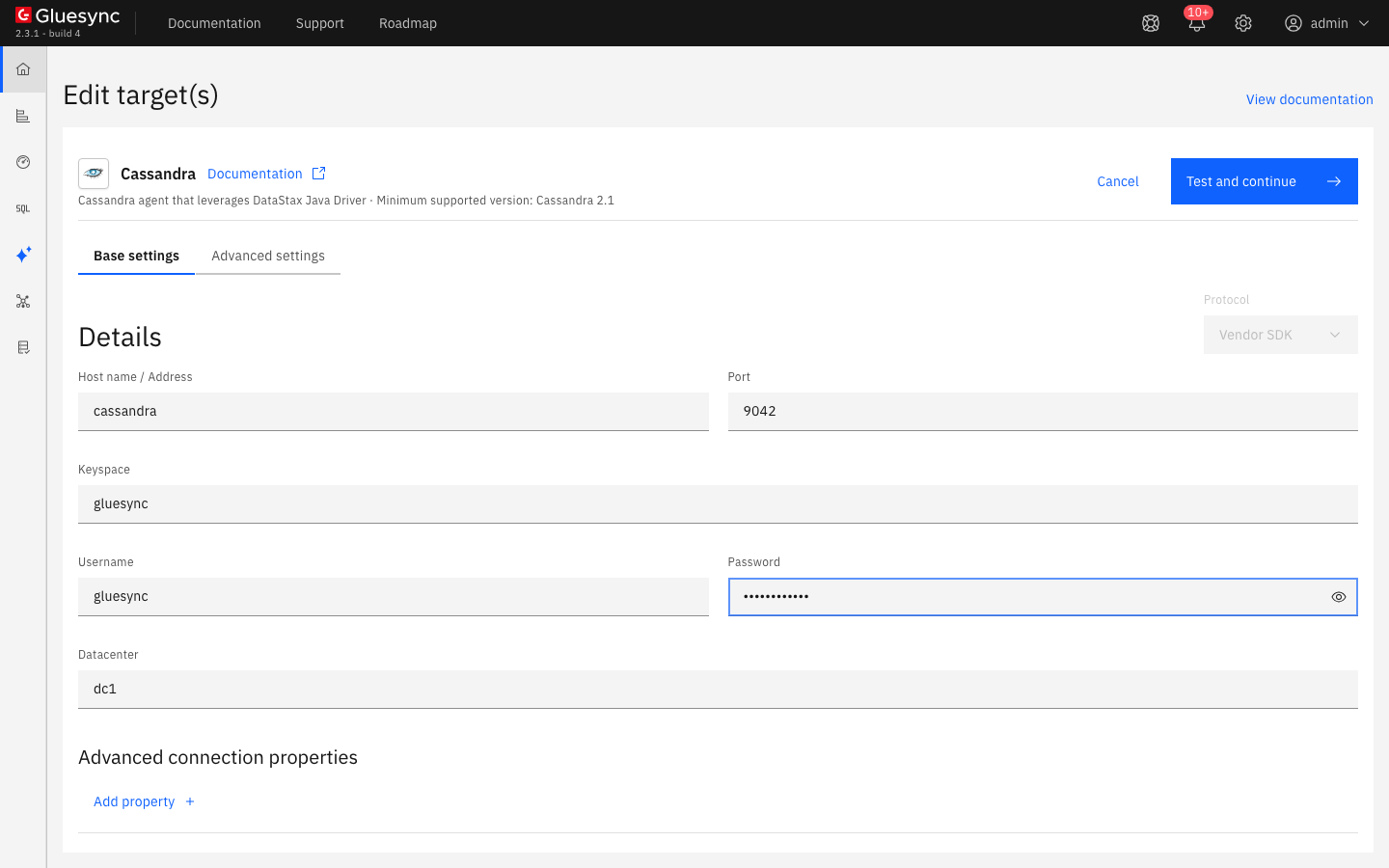
-
Optional: turn on Enable TLS under Security and use Upload 'trust store' file when the cluster uses TLS. Additional hosts takes more nodes of the same cluster. Under Advanced connection properties, Add property offers Connection Timeout (30 seconds by default);
-
Select Test and continue, then Next;
-
On 3. Ready, enter a Pipeline name and select Finish.
|
|
UI
-
In the pipeline, select Entities. The Add entities page opens;
-
In the Object browser, expand the schema
publicand tickdrivers. The Field mapping dialog opens; -
Under Target, open Target Database. The list shows every keyspace of the cluster. Select
gluesync; -
Open Target Table, type
driversand select Create table "drivers". The mapping shows the Cassandra type of every column. Thevarchar(1000)columns becometext; -
Select Confirm. The dialog Create table drivers shows the
CREATE TABLEstatement that Gluesync will run. Review it, then select Create table drivers; -
Repeat for
results: Target Databasegluesync, Target Tableresults, Create table "results". The fieldnotesshows the error Missing required field (see Data type notes). Open its Target type, selectvarchar, and enter255in Length. The error goes away; -
Select Confirm. The dialog Create table results shows the statement. Check the
PRIMARY KEYline, then select Create table results;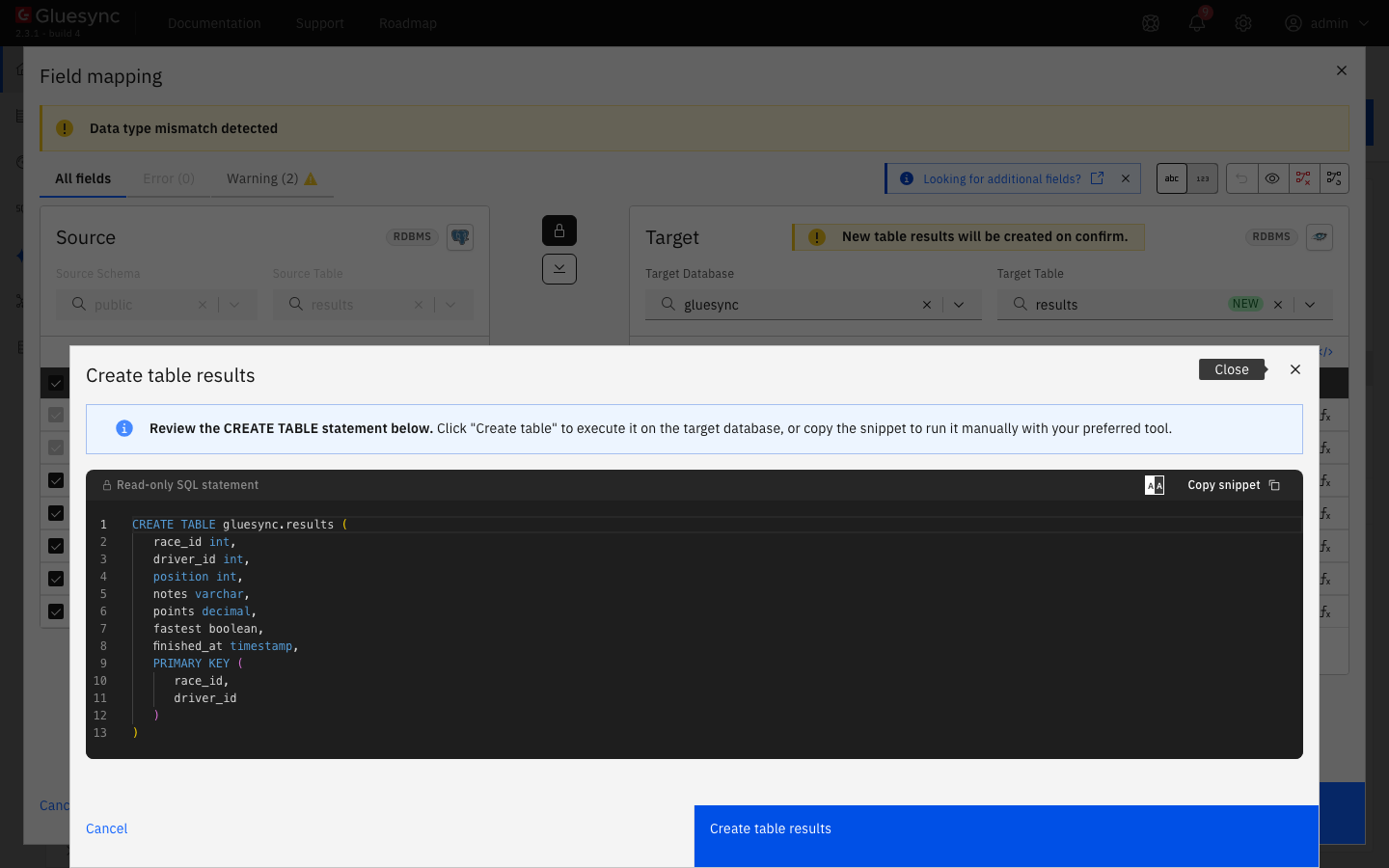
-
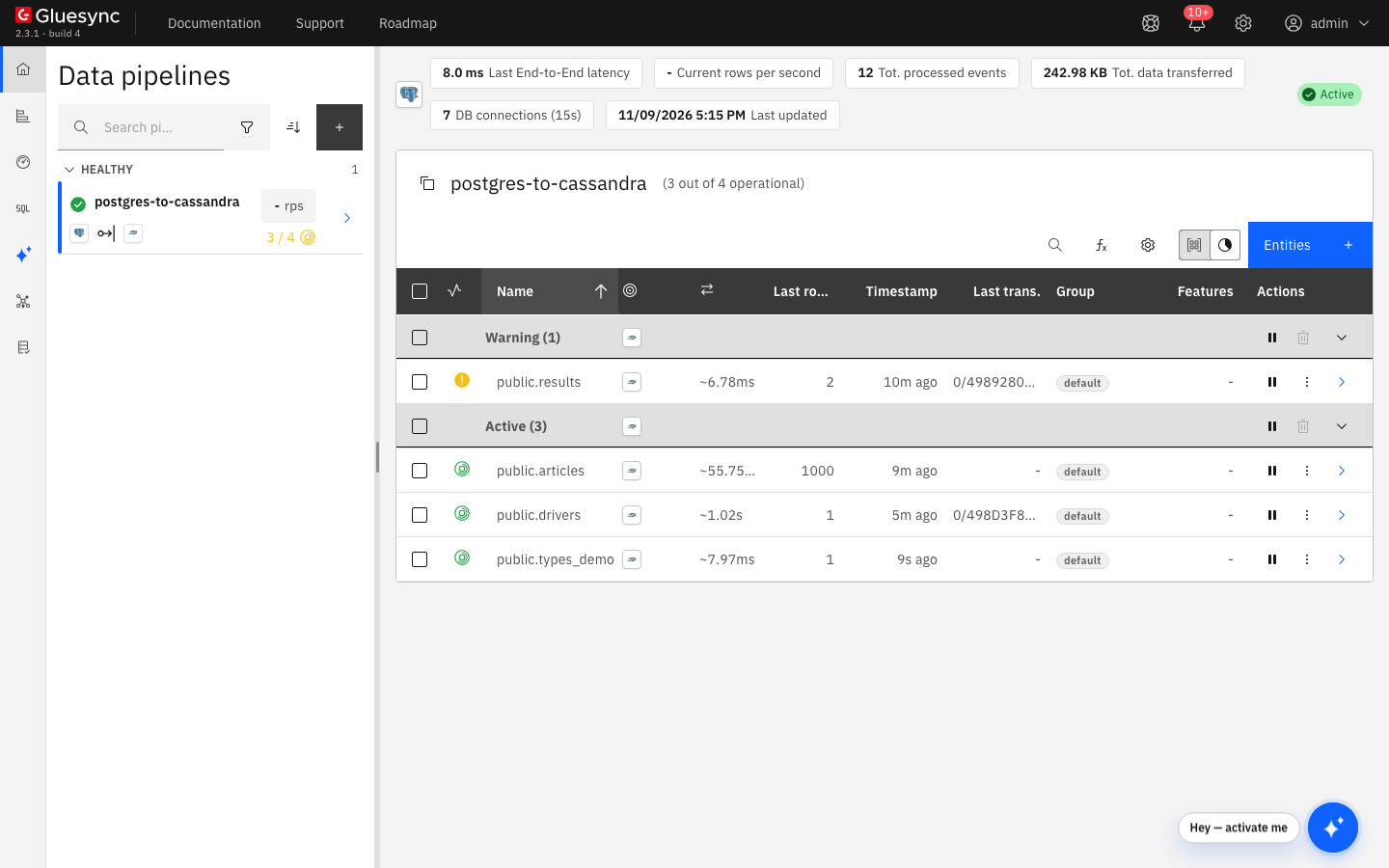
Select Confirm and continue. The entities
public.driversandpublic.resultsare in the Hold group.
To map to a table that already exists, select it in Target Table instead of Create table. The field list of such a table is alphabetical, because Cassandra returns the columns in that order. Gluesync links the fields by name.
UI
-
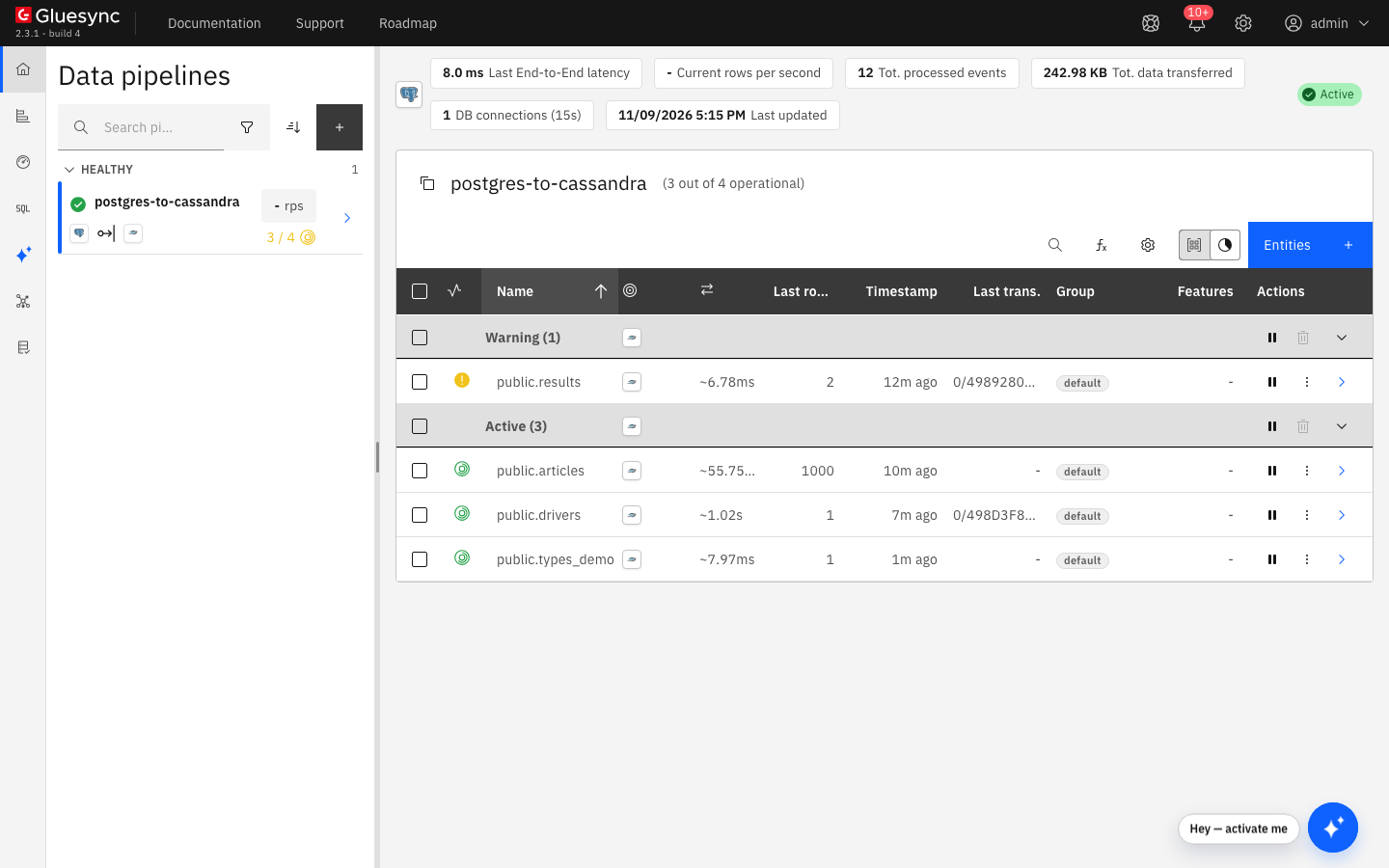
In the Hold group header, select the start icon (Start). The dialog Sync changes (CDC) opens for both entities;
-
In Start from, keep Full copy (marked Recommended for the first start) and keep Keep and merge under Data already in the target;
-
Select Start entity.
CLI
-
Count the rows in Cassandra:
SELECT count(*) FROM gluesync.drivers; SELECT count(*) FROM gluesync.results; -
Change the source. These statements update, insert and delete rows, and the last two work on the composite key:
UPDATE public.drivers SET first_name = 'Changed' WHERE id = 1; INSERT INTO public.drivers VALUES (2001, 'New', 'Driver', 'new@example.com'); DELETE FROM public.drivers WHERE id = 2; UPDATE public.results SET points = 25.00, notes = 'podium' WHERE race_id = 1 AND driver_id = 3; DELETE FROM public.results WHERE race_id = 1 AND driver_id = 20; -
A few seconds later, read the rows in Cassandra:
SELECT id, first_name FROM gluesync.drivers WHERE id IN (1, 2, 2001);
SELECT race_id, driver_id, points, notes FROM gluesync.results
  WHERE race_id = 1 AND driver_id IN (3, 20);
SELECT count(*) FROM gluesync.drivers;
SELECT count(*) FROM gluesync.results;
UI
The agent writes each group of changes as one logged batch (see How the agent writes). Two entity settings size it.
-
In the pipeline, open the three-dot menu of an entity and select Edit settings;
-
Open the Entity tab. Max batch size in kb is
5and Max Write Batch Size is1000by default;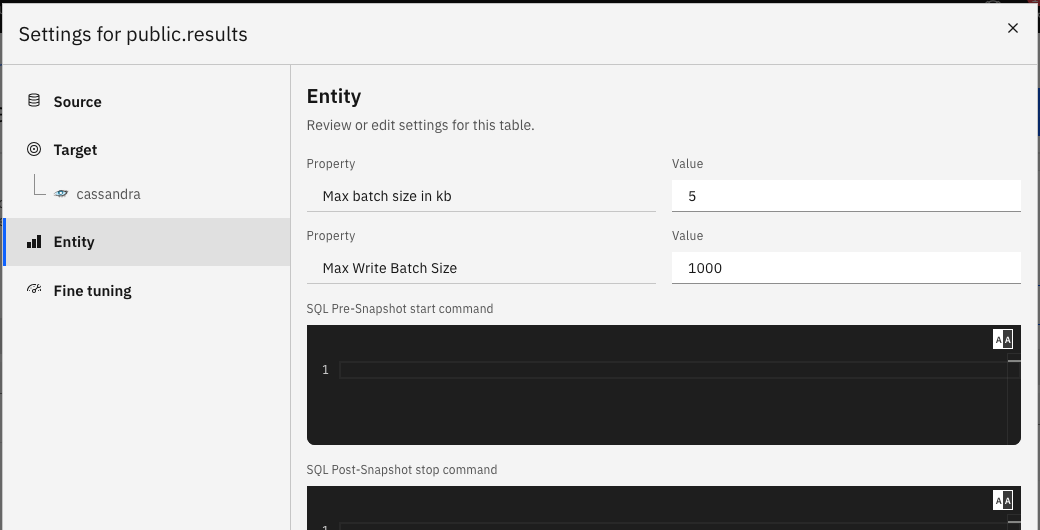
-
Change a value. Pause the entity before you edit it and start it again after you confirm;
-
Select Confirm and continue.
On the target, Edit target has an Advanced settings tab with the key Disable truncate on target table before snapshot inserts. It is off by default. Turn it on to stop Gluesync from running TRUNCATE on the table before the snapshot inserts.
Primary keys
A Cassandra primary key is the partition key plus the clustering columns. Gluesync takes the key of the field mapping, which is the primary key of the source table, and writes the same columns in every UPDATE and DELETE:
-
Create table builds the
PRIMARY KEYclause from the source key, in its order. In our test, the key(race_id, driver_id)gavePRIMARY KEY (race_id, driver_id):race_idis the partition key anddriver_idis a clustering column. A one-column key is the partition key alone; -
For a different layout, such as a composite partition key, create the table with
cqlshand select it in Target Table. The key columns of the mapping must be the whole Cassandra primary key, partition key and clustering columns together. A mismatch fails withPRIMARY KEY part … found in SET part(see the troubleshooting table); -
Cassandra does not let you change a primary key. A source update of a key column is written as a delete of the old row and an insert of the new one. In our test, setting
id = 9005on the rowid = 6removed the row 6 and created the row 9005, and the same worked for a clustering column ofresults; -
For discovery, the agent reports the partition key as the physical key of a table. For a table with a composite key, Core Hub then shows Hybrid Keys Conflict Detected with a message such as
We detected a legacy hybrid key configuration for table gluesync.results. Physical keys: [race_id], Configured logical keys: [driver_id, race_id].Inserts, updates and deletes on the composite key worked in our test, so you can leave the warning. For tables without a primary key, see Choose keys for tables without a primary key.
How updates and deletes land
Cassandra writes are upserts, and Gluesync uses that:
-
An insert is a CQL
INSERT, an update is a CQLUPDATE … SET … WHERE <key>, and a delete is aDELETE … WHERE <key>; -
A CQL
UPDATEcreates a row that does not exist, with only the columns it sets. To avoid a row that misses its other columns, the agent reads the target row by its key first when a change carries only part of the columns, and writes the whole row with anINSERTwhen the row is not there. In our test, we deleted the row 5 in Cassandra, updated itslast_namein PostgreSQL, and the row came back with all its columns; -
A delete leaves a tombstone. Cassandra removes it at a compaction after
gc_grace_seconds, which is864000(10 days) on the tables Gluesync created in our test. Until then, a read of the table skips the row but the tombstone still counts toward the tombstone thresholds of a read; -
A snapshot that starts with Empty the table first runs
TRUNCATEon the table. Keep and merge overwrites the rows with the same key.
How the agent writes
The agent writes each group of changes of the same operation as one LOGGED batch, which Cassandra applies atomically. A batch is cut by payload and by rows: no batch holds more than Max Write Batch Size rows, and the chunks follow Max batch size in kb.
Cassandra has two limits on a batch, batch_size_warn_threshold (5 KiB by default) and batch_size_fail_threshold (50 KiB by default). In our test, on one node with the defaults:
| Max batch size in kb | Batch size that Cassandra measured | Result |
|---|---|---|
|
11 to 12 KiB |
Cassandra logged a warning |
|
112 KiB |
Cassandra refused the batch with |
|
Not measured |
No batch warning in the Cassandra log. 1000 rows copied. |
Cassandra counts the size of a batch with its own overhead, so it is larger than the value you set. Keep Max batch size in kb well below the batch_size_warn_threshold of your cluster. The reference page Target Cassandra says the same.
Consistency level
Gluesync has no setting for the consistency level and does not set one in the agent. Every statement uses the default of the DataStax Java driver bundled with the agent (version 4.19.3 in our test), which is LOCAL_ONE, with the datacenter that you entered in Datacenter as the local datacenter. A write is acknowledged when one replica of that datacenter has it. For stronger guarantees, repair the cluster on a schedule and keep a replication factor of 3 on each datacenter.
Data type notes
The Field mapping dialog proposes a Cassandra type for each source column. These are the types that our PostgreSQL columns got by default, and the value that arrived in Cassandra:
| PostgreSQL type | Cassandra type | Note |
|---|---|---|
|
|
Same range. |
|
|
|
|
|
|
|
|
|
|
|
|
|
|
|
|
|
The mapping shows Data type mismatch detected: Cassandra keeps an instant in UTC, with millisecond precision. |
|
|
Converted to UTC: |
|
|
|
|
|
The default is |
|
|
Arrives as JSON text. |
|
|
|
The target type list offers text, inet, varchar, uuid, timeuuid, boolean, blob, smallint, int, tinyint, varint, float, double, bigint, decimal, date, time and timestamp.
For the source types text, bytea, uuid, jsonb and inet, the field mapping starts with the error Missing required field and a Length of 0, and Confirm stays disabled. In our test, this cleared the errors:
-
text,uuidandjsonb: set Target type tovarcharand enter a Length, such as255,36and4000. The column is created astext, which has no limit in Cassandra; -
byteaandinet: keepblobandinetand enter any Length, such as255and45. The generatedCREATE TABLEhas no length for these types.
Troubleshooting
| Problem | Possible cause | What to do |
|---|---|---|
Failed to save with |
The user name or the password is wrong. |
Check them with |
Failed to save with |
The host name does not resolve from Core Hub. |
Use a name or address that Core Hub can resolve. Inside a container, |
Failed to save with |
The Port field is empty. The edit form of an existing connection does not fill it with the default. |
Enter |
Failed to save with |
The keyspace does not exist, or its name is misspelled. |
Run |
Test and continue succeeds, but an entity stops with |
Datacenter does not match a datacenter of the cluster. The driver finds no node in the local datacenter. In our test, the connection test passed with a wrong name. |
Run |
The field mapping shows Missing required field and Confirm is disabled |
A target type has a Length of |
See Data type notes. |
The field mapping shows Invalid additional column fields |
A Length is set on a |
Change Target type to |
Create Target Table notification: |
The role has no |
Run |
Query Validation Error notification: |
The table was created by another role, and the role of Gluesync has no |
Run |
Query Validation Error notification |
Max batch size in kb is too high for the cluster. A batch of 112 KiB was refused in our test. |
Pause the entity, set Max batch size in kb lower, for example |
Cassandra logs |
The batches are above |
Lower Max batch size in kb until the warning stops, or raise |
|
The Cassandra table has a primary key with more columns than the key of the mapping, for example |
Make the Cassandra primary key the same columns as the source key. Create the table from the field mapping, or drop it and create it again with the same key, then run a snapshot with Empty the table first. |
Hybrid Keys Conflict Detected notification on an entity with a composite key |
The agent reports the partition key as the physical key, and the mapping has all key columns. |
None needed. Writes work. See Primary keys. |
A source update of a row that is missing in Cassandra creates the whole row |
This is the designed behavior: the agent writes the row image when the row is not on the target. |
None needed. |
A deleted row is still counted by a very large scan, or the disk does not shrink after a big delete |
Cassandra keeps tombstones until a compaction after |
Wait for the compaction. Do not lower |
The notification for a missing MODIFY looks like this: