Automate Gluesync with the REST API, MCP, and webhooks
Gluesync can be driven from scripts, from an automation tool, and from an AI assistant. This guide creates a Personal API Token, uses it to list pipelines and to start, stop, and measure an entity over the REST API, routes Core Hub webhooks into n8n to send alerts and restart a failed entity, and connects an MCP client, including the case where the endpoint answers 403 Invalid Host behind your own hostname.
In this guide
You will learn how to create a token with the scopes a job needs, call the REST API and read its error codes, receive platform webhooks in n8n and route an alert to email and to a chat-style endpoint, let n8n call the REST API to restart a failed entity, connect an MCP client with a token, and allow a custom hostname on the MCP endpoint.
Quick information
Goal |
Automate Gluesync operations and alerts over the REST API, webhooks, and MCP, with tokens that can do only what each job needs |
Audience |
Gluesync administrators, DevOps engineers, and integration developers |
Level |
Advanced |
Time required |
About 90 minutes |
Area |
Control Plane → Settings → Account → Personal API Tokens; Core Hub REST API; Core Hub MCP server |
Applies to |
Gluesync 2.3 |
Before you begin
Make sure that:
-
You can sign in to the Control Plane with a user that can create Personal API Tokens, and you can reach Core Hub over HTTPS from the machine where you run
curl; -
A pipeline with at least two entities exists. This guide uses a pipeline called Automation demo with the entities
customers,orders, andheartbeat, and a pipeline that is not in production, because the guide starts and stops entities; -
For the alert part, you have Docker on the host that runs Gluesync, an SMTP server that Core Hub and n8n can reach (the guide uses Mailpit), and an HTTP endpoint that accepts a JSON
POST(the guide uses webhook-tester as a stand-in for a Slack-style incoming webhook); -
For the last part, you have a Core Hub behind a reverse proxy and a hostname that you control. If you want to rehearse first, run a second Core Hub of your own, so that you never change the settings of the one you use every day;
-
curlandjqare installed.
|
Commands use |
Guide steps
Part 1: Call the REST API with a Personal API Token
UI
A Personal API Token lets a script act as you without your password. Each token carries permission scopes, and Core Hub enforces them on every request.
-
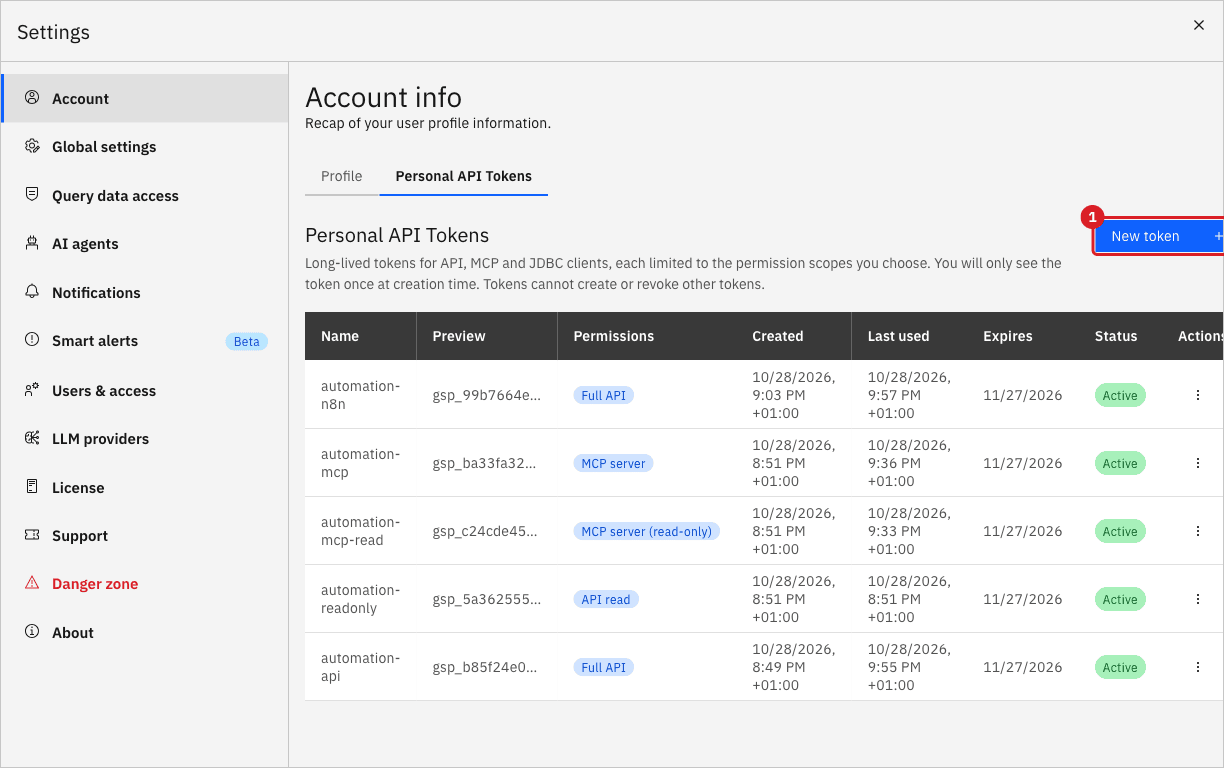
Select the Settings gear icon in the header, then Account, then the Personal API Tokens tab;
-
Select New token.
-
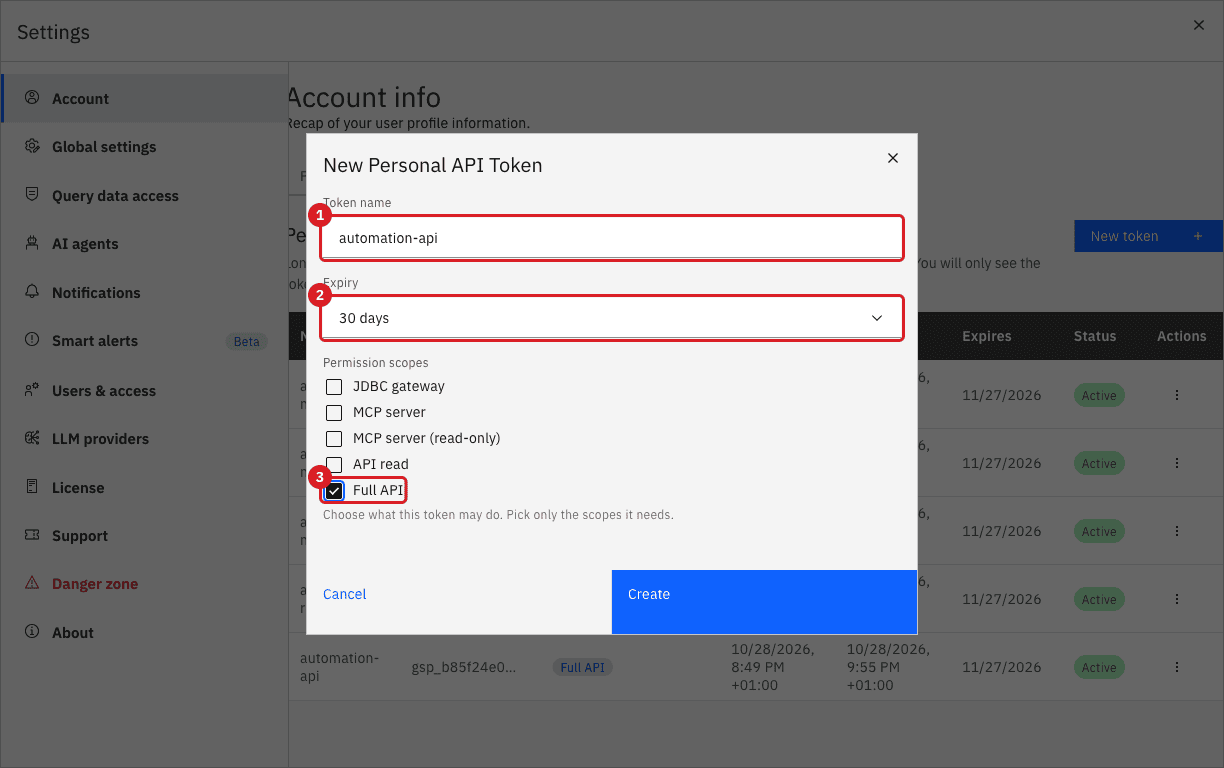
In Token name, enter
automation-api; -
Keep Expiry at 30 days, or choose 7 days, 90 days, or Never;
-
Under Permission scopes, select Full API. This job needs to start and stop entities. A job that only reads would use API read;
-
Select Create.
-
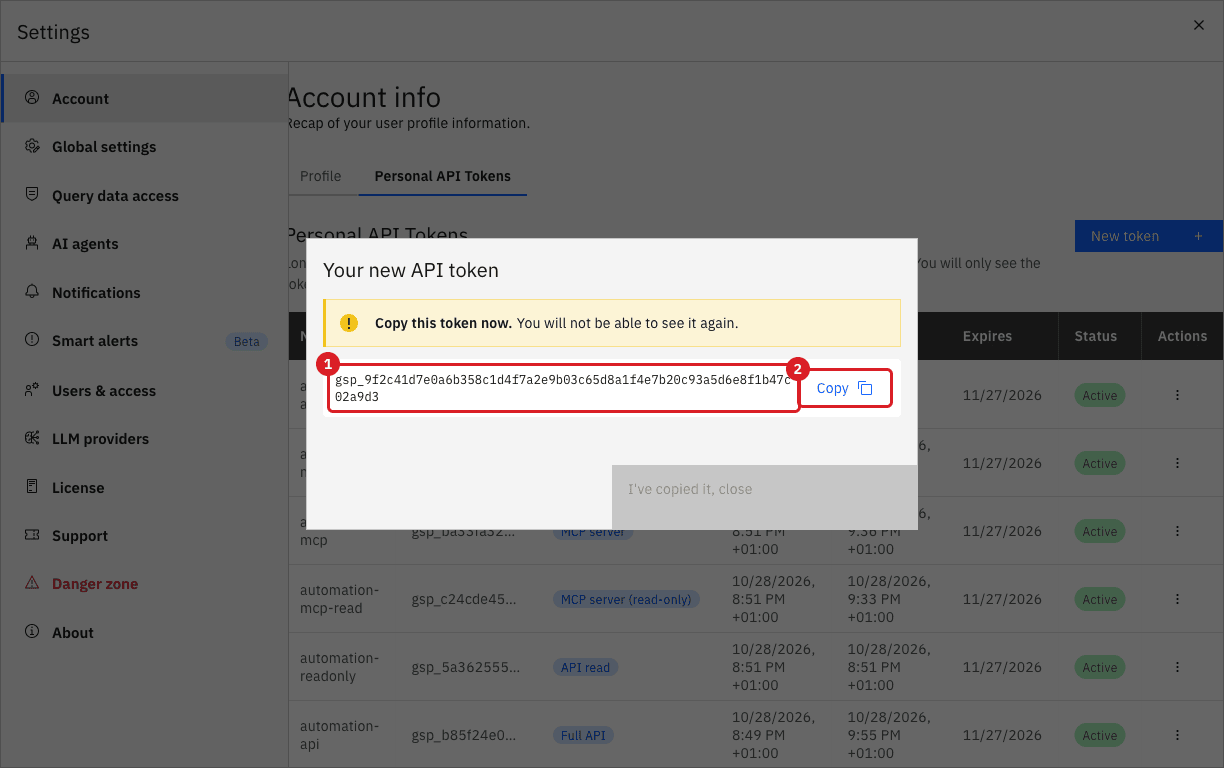
Select Copy (2) and keep the token (1) in your secret store. Core Hub shows it only once and keeps only a hash. Then select I’ve copied it, close.
|
Tokens cannot create, revoke, or delete other tokens, whatever their scopes. Create and delete tokens from a Control Plane session. |
CLI
-
In your shell, store the address and the token. Use a secret manager or an environment file that only you can read, not a script that goes into a repository:
export GLUESYNC_URL=https://localhost export GLUESYNC_TOKEN='gsp_…' # the value you copied -
Ask Core Hub who the token belongs to and which scopes it has:
curl -sk "$GLUESYNC_URL/authentication/me" \
  -H "Authorization: Bearer $GLUESYNC_TOKEN"
curl -sk "$GLUESYNC_URL/api-tokens/current-scope" \
  -H "Authorization: Bearer $GLUESYNC_TOKEN"
API
-
List the pipelines and find the ID of Automation demo:
curl -sk "$GLUESYNC_URL/pipelines" -H "Authorization: Bearer $GLUESYNC_TOKEN" \ | jq -r '.[] | select(.name=="Automation demo") | "\(.id) \(.name)"' -
Keep the ID in a variable and list the entities of the pipeline. Commands take the entity ID, not its name:
export PIPELINE_ID=9ae3b3bd curl -sk "$GLUESYNC_URL/pipelines/$PIPELINE_ID/entities" \ -H "Authorization: Bearer $GLUESYNC_TOKEN" \ | jq -r '.[] | "\(.entity.entityId) \(.entity.entityName)"' -
Read the runtime status of the entities:
curl -sk "$GLUESYNC_URL/pipelines/$PIPELINE_ID/entities-status" \
  -H "Authorization: Bearer $GLUESYNC_TOKEN" \
  | jq -c '.[] | {entityId, isSyncActive, isMigrationActive, isBusy, error: (.errorState.errorType // null)}'
API
Pass the entity ID in the repeatable entity query parameter. The example loads orders with a snapshot, then stops it.
-
Start the entity with a snapshot:
export ENTITY_ID=8f2edc67 curl -sk -X POST "$GLUESYNC_URL/pipelines/$PIPELINE_ID/commands/sync/start?entity=$ENTITY_ID&withSnapshot=true" \ -H "Authorization: Bearer $GLUESYNC_TOKEN" -
Wait a few seconds, then read the status again:
curl -sk "$GLUESYNC_URL/pipelines/$PIPELINE_ID/entities-status" \ -H "Authorization: Bearer $GLUESYNC_TOKEN" \ | jq -c '.[] | select(.entityId=="'$ENTITY_ID'") | {entityId, isSyncActive}' -
Stop the entity:
curl -sk -X POST "$GLUESYNC_URL/pipelines/$PIPELINE_ID/commands/sync/stop?entity=$ENTITY_ID" \
  -H "Authorization: Bearer $GLUESYNC_TOKEN"
|
|
API
-
Read the JSON metrics of the pipeline:
curl -sk "$GLUESYNC_URL/pipelines/$PIPELINE_ID/metrics" \ | jq -c '{pipelineId, totalItemsCount, orders: .entitiesMetrics["'$ENTITY_ID'"][0].snapshotMetrics}' -
Read the Prometheus metrics of the whole Core Hub and keep the lines of your pipeline:
curl -sk "$GLUESYNC_URL/metrics" | grep "pipelineId=\"$PIPELINE_ID\"" | grep '^gluesync_last_rows_count'
|
|
UI API
Give each job its own token, with the least access that works.
-
In Personal API Tokens, select New token, enter
automation-readonly, and select the scope API read; -
Call a read endpoint and a write endpoint with the new token:
export READ_TOKEN='gsp_…' curl -sk -w ' [%{http_code}]\n' "$GLUESYNC_URL/pipelines/$PIPELINE_ID/entities-status" \ -H "Authorization: Bearer $READ_TOKEN" curl -sk -w ' [%{http_code}]\n' -X POST "$GLUESYNC_URL/pipelines/$PIPELINE_ID/commands/sync/stop?entity=$ENTITY_ID" \ -H "Authorization: Bearer $READ_TOKEN" -
Optionally, limit a token to one pipeline. The Control Plane form has no agent field, so create this token from a session. Log in, then send the agents of the pipeline in
scopes:SESSION=$(curl -sk -X POST "$GLUESYNC_URL/authentication/login" -H 'Content-Type: application/json' \ -d '{"username":"<user>","password":"<password>"}' | jq -r .apiToken) curl -sk -X POST "$GLUESYNC_URL/api-tokens" -H "Authorization: Bearer $SESSION" -H 'Content-Type: application/json' \ -d '{"name":"automation-n8n","expiresInDays":30,"permissionScopes":["gluesync.api"], "scopes":[{"pipelineId":"<pipeline-id>","agentId":"<source-agent-id>"}, {"pipelineId":"<pipeline-id>","agentId":"<target-agent-id>"}]}' | jqA pipeline-wide command, such as start or stop, needs every agent of the pipeline in the token scope. The response carries the token once, in the
tokenfield; -
Call another pipeline with the limited token.
The following answers are the ones that you should handle in a client. Error bodies are JSON with a message, except the confirmations of the command endpoints, which are plain text.
| Status | When it happens | What to do |
|---|---|---|
|
A start, stop, redo, or snapshot command was dispatched, even for an entity that does not exist. |
Read |
|
A parameter is invalid. For example |
Fix the request. |
|
The token is missing, malformed, or deleted: |
Create a new token. Do not retry with the same value. An expired token is refused in the same way. |
|
The token scope does not allow the request ( |
Use a token with the scope the message names, or a Control Plane session for token management. |
|
The pipeline does not exist: |
Check the pipeline ID. |
|
The request reached Core Hub but failed. For example, reading an entity ID that does not exist answers |
Read the |
Part 2: Route Core Hub webhooks through n8n
CLI
Skip this step if you already run n8n and Core Hub can reach it. Run n8n on the Docker network of your Gluesync kit, so that Core Hub calls it by its container name and n8n calls Core Hub, Mailpit, and the chat endpoint the same way.
-
Save this file as
docker-compose.ymlin a folder of its own.gluesync-netis the network of the kit:services: n8n: image: docker.n8n.io/n8nio/n8n:latest # pin a version in production container_name: n8n restart: unless-stopped ports: - "127.0.0.1:5678:5678" environment: - TZ=Europe/Rome - GENERIC_TIMEZONE=Europe/Rome - N8N_SECURE_COOKIE=false # only because the editor is served over plain HTTP on localhost volumes: - n8n_data:/home/node/.n8n networks: - gluesync-net volumes: n8n_data: networks: gluesync-net: external: true -
Start it:
docker compose up -d
curl -s http://127.0.0.1:5678/healthz
|
Publishing the port on |
UI
The fields, events, signing secret, delivery log, and dead letters of Core Hub webhooks are explained in Send platform events to webhooks. This step only sets the values that this guide needs.
-
Select the Settings gear icon, Notifications, and the Webhooks tab, then select Add webhook;
-
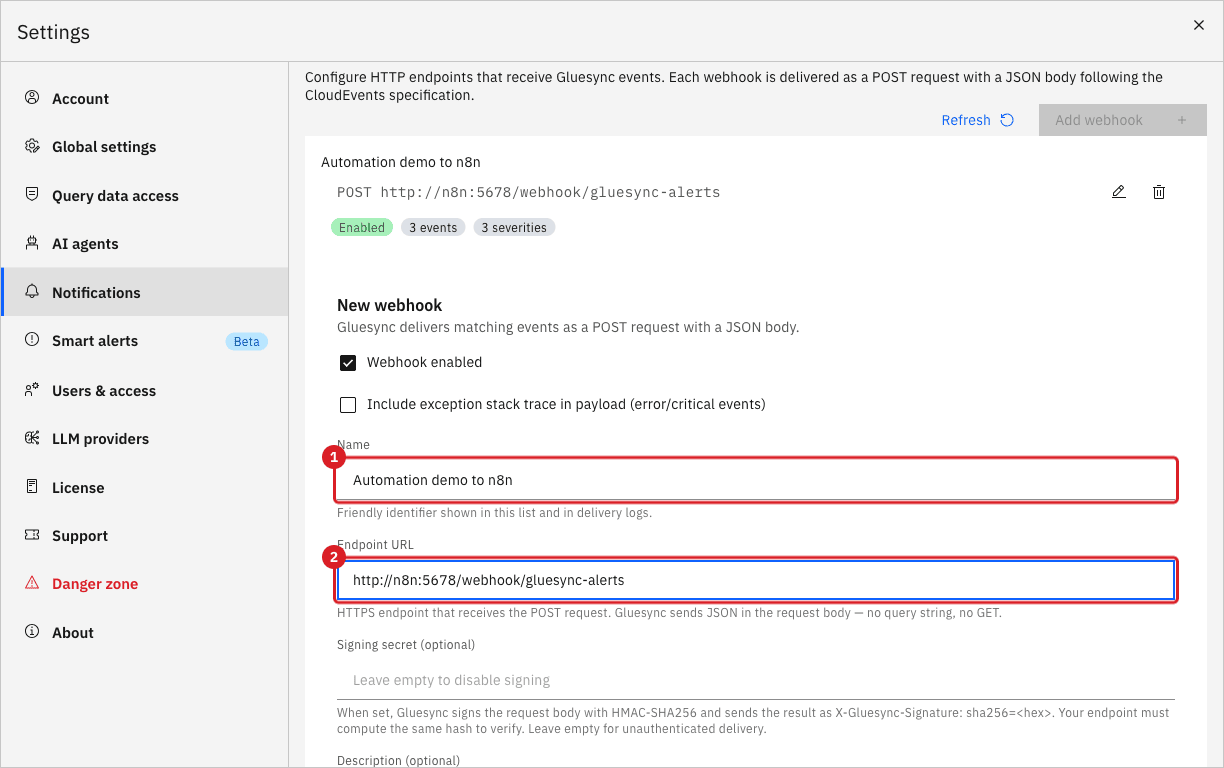
In Name, enter
Automation demo to n8n; -
In Endpoint URL, enter
http://n8n:5678/webhook/gluesync-alerts.gluesync-alertsis the path that the n8n Webhook node will use. Always enter the address that Core Hub can reach from its own network, not the one your browser uses.
-
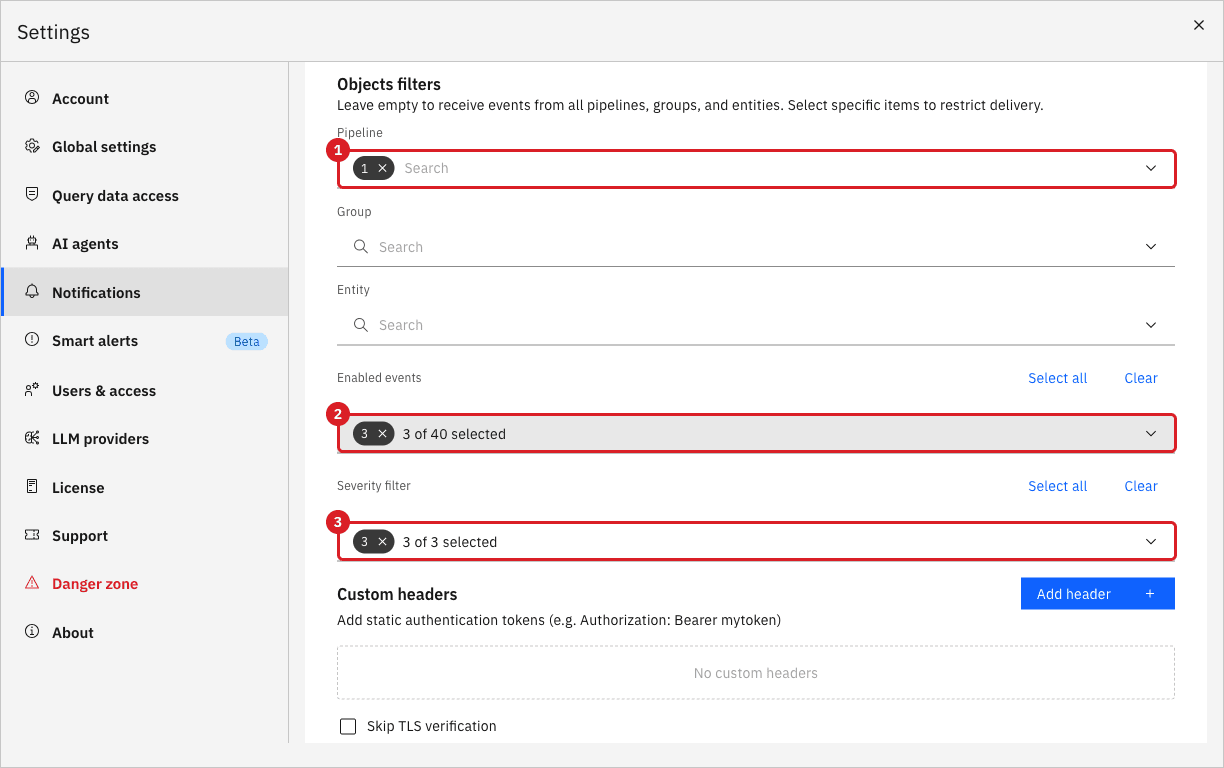
Under Objects filters, select the pipeline Automation demo;
-
In Enabled events, tick Entity Snapshot Failed, Pipeline Error, and Pipeline Error Resolved;
-
In Severity filter, tick Critical, Info, and Warning.
-
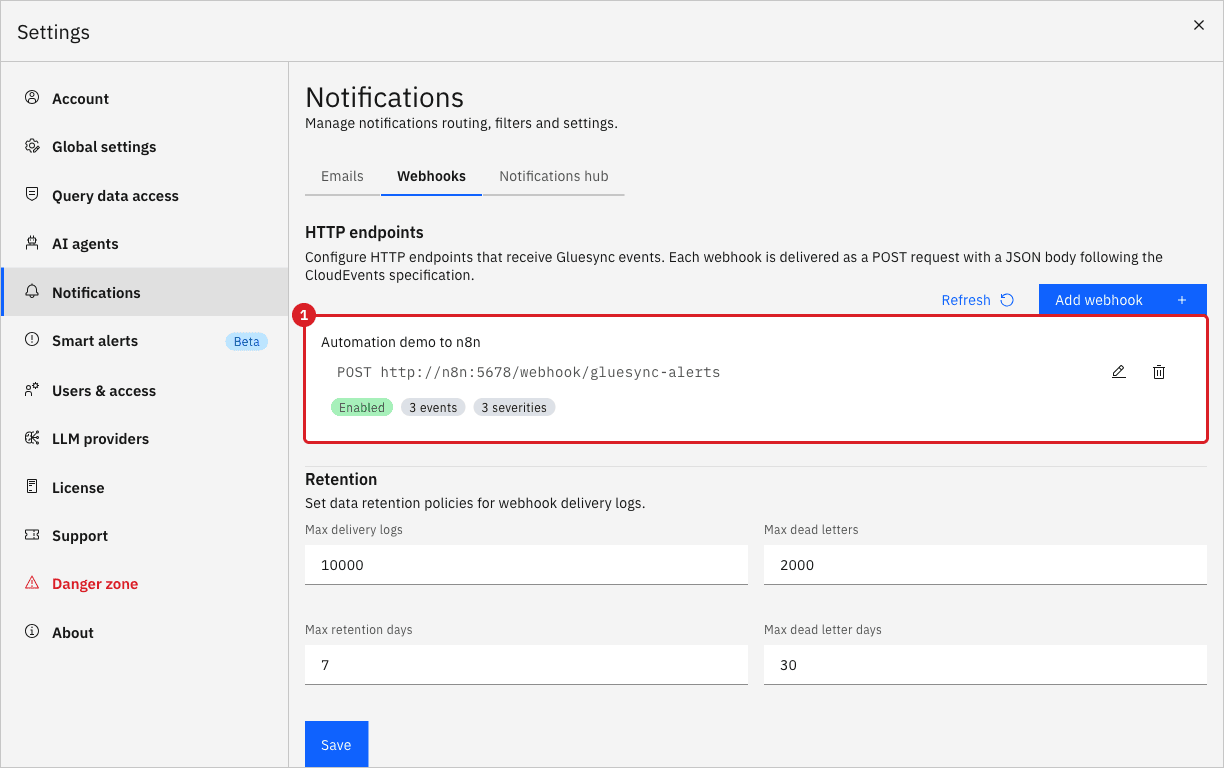
Select Create webhook. Do not select Send test yet: n8n has no workflow to receive it.
|
Select at least one severity and one event: a webhook with none selected receives nothing. Every failed write attempt sends a |
CLI
The workflow receives each event, picks the recipient by pipeline, sends an email, and posts a message to a chat-style endpoint.
| n8n node | Type and settings | What it does |
|---|---|---|
Gluesync event |
Webhook node, method |
Receives the CloudEvents JSON from Core Hub. The event is under |
Pick recipient |
Edit Fields (Set) node with |
|
Email the owner |
Send Email node with an SMTP credential (host |
Sends |
Post to chat |
HTTP Request node, |
The Slack-style call. For a real Slack channel, use the Incoming Webhook URL of the channel instead. |
-
Save the SMTP credential for Mailpit as
credentials.json. n8n stores it encrypted when you import it:[ {"id": "mailpit-smtp", "name": "Mailpit SMTP", "type": "smtp", "data": {"user": "gluesync", "password": "gluesync", "host": "mailpit", "port": 1025, "secure": false, "disableStartTls": true}} ] -
Save the workflow below as
alerts.json. Replace<session-id>with the ID of your chat-style endpoint:alerts.json
[{ "id": "gluesync-alert-routing", "name": "Gluesync alert routing", "settings": {"executionOrder": "v1"}, "nodes": [ {"id": "n1", "name": "Gluesync event", "type": "n8n-nodes-base.webhook", "typeVersion": 2, "position": [0, 200], "webhookId": "6f1e1c6a-2f4e-4d5a-9a52-0d9c0f3b1a01", "parameters": {"httpMethod": "POST", "path": "gluesync-alerts", "responseMode": "onReceived", "options": {}}}, {"id": "n2", "name": "Pick recipient", "type": "n8n-nodes-base.set", "typeVersion": 3.4, "position": [260, 60], "parameters": {"assignments": {"assignments": [{"id": "a1", "name": "recipient", "type": "string", "value": "={{ $json.body.pipelineName === 'Automation demo' ? 'automation-team@example.test' : 'ops@example.test' }}"}, {"id": "a2", "name": "subject", "type": "string", "value": "={{ '[' + $json.body.severity + '] ' + $json.body.pipelineName + ' / ' + $json.body.entityName + ': ' + $json.body.type }}"}, {"id": "a3", "name": "text", "type": "string", "value": "={{ $json.body.message }}"}]}, "includeOtherFields": true, "options": {}}}, {"id": "n3", "name": "Email the owner", "type": "n8n-nodes-base.emailSend", "typeVersion": 2.1, "position": [520, 60], "parameters": {"fromEmail": "gluesync-alerts@example.test", "toEmail": "={{ $json.recipient }}", "subject": "={{ $json.subject }}", "emailFormat": "text", "text": "={{ $json.text }}", "options": {}}, "credentials": {"smtp": {"id": "mailpit-smtp", "name": "Mailpit SMTP"}}}, {"id": "n4", "name": "Post to chat", "type": "n8n-nodes-base.httpRequest", "typeVersion": 4.2, "position": [780, 60], "parameters": {"method": "POST", "url": "http://webhook-tester:8080/<session-id>", "sendBody": true, "specifyBody": "json", "jsonBody": "={{ JSON.stringify({ text: $('Pick recipient').item.json.subject + ' - ' + $('Pick recipient').item.json.text }) }}", "options": {}}} ], "connections": {"Gluesync event": {"main": [[{"node": "Pick recipient", "type": "main", "index": 0}]]}, "Pick recipient": {"main": [[{"node": "Email the owner", "type": "main", "index": 0}]]}, "Email the owner": {"main": [[{"node": "Post to chat", "type": "main", "index": 0}]]}} }] -
Copy the files into the container and import them. The credential goes first. Then publish the workflow and restart n8n, because n8n registers the production webhook when it starts:
docker cp credentials.json n8n:/tmp/credentials.json docker cp alerts.json n8n:/tmp/alerts.json docker exec n8n n8n import:credentials --input=/tmp/credentials.json docker exec n8n n8n import:workflow --input=/tmp/alerts.json docker exec n8n n8n publish:workflow --id=gluesync-alert-routing docker restart n8n -
In the Control Plane, open the webhook Automation demo to n8n with its pencil icon, select Send test, and check the receivers.
SQL UI
Use a test entity: this step makes a target table reject writes. The guide uses the entity heartbeat, which copies automation_src.heartbeat to shop_automation.heartbeat.
-
Optional: create the test entity. Skip this if you already have an entity that you can break. In the source database, run
CREATE SCHEMA automation_src; CREATE TABLE automation_src.heartbeat (id integer PRIMARY KEY, note varchar(100) NOT NULL, created_at timestamp NOT NULL DEFAULT now());. In the target database, runCREATE TABLE shop_automation.heartbeat (id integer PRIMARY KEY, note varchar(100) NOT NULL, created_at timestamp NOT NULL);. Then add the entity heartbeat to the pipeline in the Control Plane; -
Start the entity if it is not running (see the start and stop step);
-
In your database tool, connect to the target database and run:
ALTER TABLE shop_automation.heartbeat ADD CONSTRAINT automation_demo_block CHECK (false) NOT VALID; -
Connect to the source database and add a row, so that the entity must write:
INSERT INTO automation_src.heartbeat (id, note) VALUES (103, 'fails on target'); -
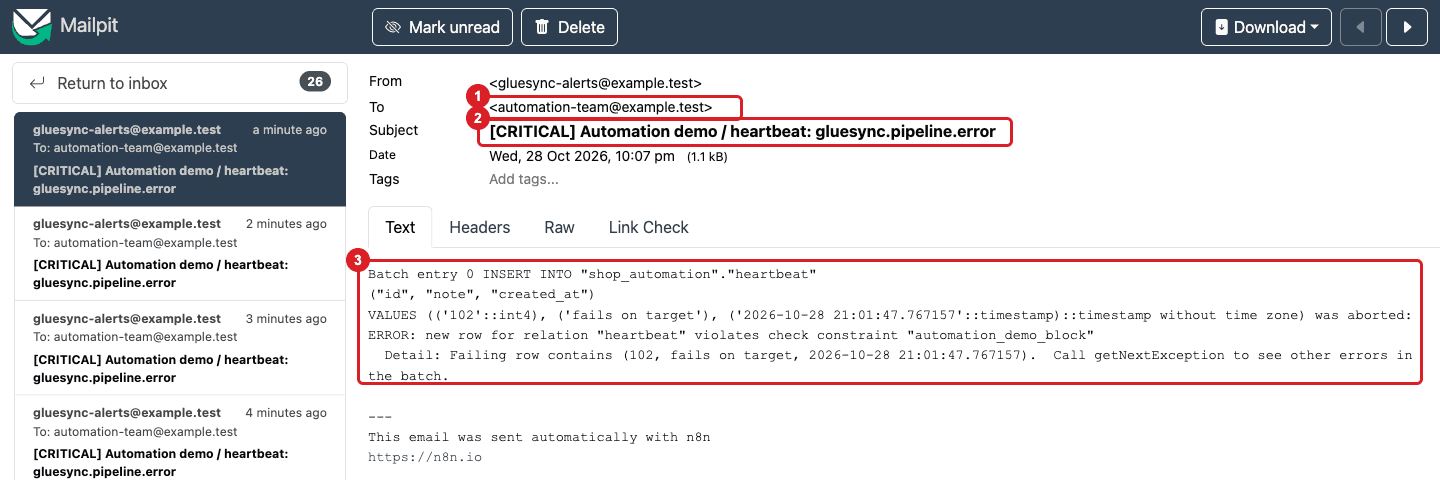
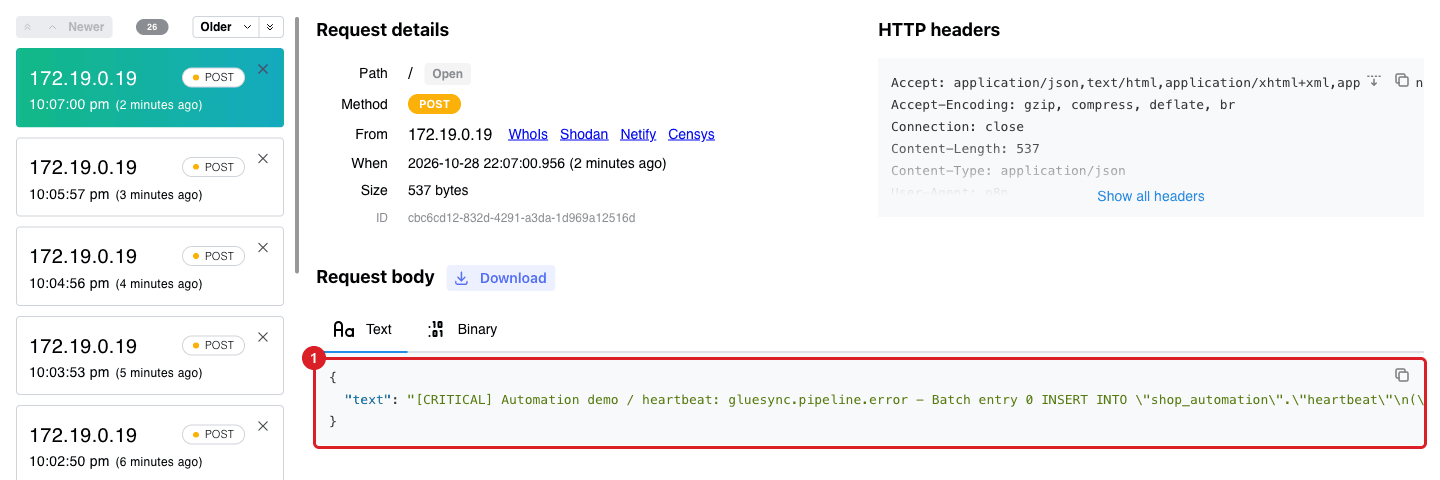
Within a minute, open Mailpit and the chat endpoint, then open the pipeline in the Control Plane.
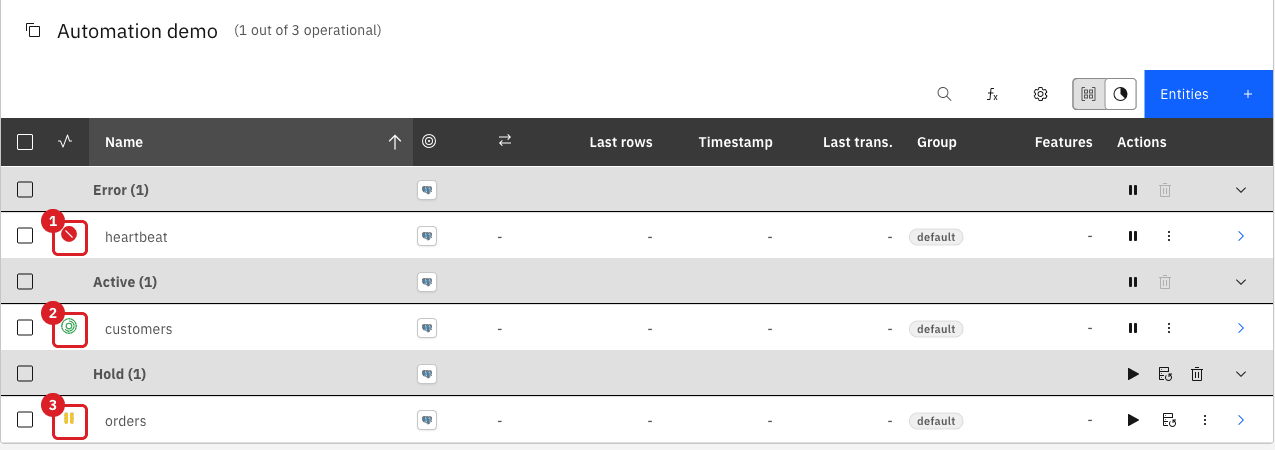
|
The |
|
One failure sends many events. To avoid a flood, filter the events in the webhook (fewer Enabled events), group them in n8n, or use the burst prevention of the email notifications described in Set up email alerts. |
CLI API
The second workflow is the reverse direction: n8n calls the REST API. Every 5 minutes it reads entities-status and, for each entity that has an errorState, stops the entity, waits 5 seconds, and starts it again. A short failure that clears by itself is gone by the next run, so only an entity that is still in error is restarted.
-
Create a token for n8n with the Full API scope, limited to the two agents of the pipeline, as in the optional part of the error-codes step. A token that reaches every pipeline is wider than this job needs;
-
Save the token as a Header Auth credential in
token-credential.json. Do not commit this file:[ {"id": "gluesync-token", "name": "Gluesync automation token", "type": "httpHeaderAuth", "data": {"name": "Authorization", "value": "Bearer gsp_…"}} ] -
Save the workflow below as
restart.json. Replace<pipeline-id>with the ID of your pipeline:restart.json
[{ "id": "gluesync-restart-failed-entities", "name": "Gluesync restart failed entities", "settings": {"executionOrder": "v1"}, "nodes": [ {"id": "b1", "name": "Every 5 minutes", "type": "n8n-nodes-base.scheduleTrigger", "typeVersion": 1.2, "position": [0, 200], "parameters": {"rule": {"interval": [{"field": "minutes", "minutesInterval": 5}]}}}, {"id": "b2", "name": "Read entity status", "type": "n8n-nodes-base.httpRequest", "typeVersion": 4.2, "position": [260, 200], "parameters": {"method": "GET", "url": "https://gluesync-core-hub:1717/pipelines/<pipeline-id>/entities-status", "authentication": "genericCredentialType", "genericAuthType": "httpHeaderAuth", "options": {"allowUnauthorizedCerts": true}}, "credentials": {"httpHeaderAuth": {"id": "gluesync-token", "name": "Gluesync automation token"}}}, {"id": "b3", "name": "Is the entity in error?", "type": "n8n-nodes-base.if", "typeVersion": 2.2, "position": [520, 200], "parameters": {"conditions": {"options": {"caseSensitive": true, "leftValue": "", "typeValidation": "strict", "version": 2}, "conditions": [{"id": "c1", "leftValue": "={{ !!$json.errorState }}", "rightValue": "", "operator": {"type": "boolean", "operation": "true", "singleValue": true}}], "combinator": "and"}, "options": {}}}, {"id": "b4", "name": "Stop entity", "type": "n8n-nodes-base.httpRequest", "typeVersion": 4.2, "position": [780, 200], "parameters": {"method": "POST", "url": "=https://gluesync-core-hub:1717/pipelines/{{ $json.pipelineId }}/commands/sync/stop?entity={{ $json.entityId }}", "authentication": "genericCredentialType", "genericAuthType": "httpHeaderAuth", "options": {"allowUnauthorizedCerts": true}}, "credentials": {"httpHeaderAuth": {"id": "gluesync-token", "name": "Gluesync automation token"}}}, {"id": "b5", "name": "Wait 5 seconds", "type": "n8n-nodes-base.wait", "typeVersion": 1.1, "position": [1040, 200], "parameters": {"amount": 5, "unit": "seconds"}}, {"id": "b6", "name": "Start entity", "type": "n8n-nodes-base.httpRequest", "typeVersion": 4.2, "position": [1300, 200], "parameters": {"method": "POST", "url": "=https://gluesync-core-hub:1717/pipelines/{{ $('Is the entity in error?').item.json.pipelineId }}/commands/sync/start?entity={{ $('Is the entity in error?').item.json.entityId }}&withSnapshot=false", "authentication": "genericCredentialType", "genericAuthType": "httpHeaderAuth", "options": {"allowUnauthorizedCerts": true}}, "credentials": {"httpHeaderAuth": {"id": "gluesync-token", "name": "Gluesync automation token"}}} ], "connections": {"Every 5 minutes": {"main": [[{"node": "Read entity status", "type": "main", "index": 0}]]}, "Read entity status": {"main": [[{"node": "Is the entity in error?", "type": "main", "index": 0}]]}, "Is the entity in error?": {"main": [[{"node": "Stop entity", "type": "main", "index": 0}], []]}, "Stop entity": {"main": [[{"node": "Wait 5 seconds", "type": "main", "index": 0}]]}, "Wait 5 seconds": {"main": [[{"node": "Start entity", "type": "main", "index": 0}]]}} }] -
Import and publish it, and restart n8n:
docker cp token-credential.json n8n:/tmp/token-credential.json docker cp restart.json n8n:/tmp/restart.json docker exec n8n n8n import:credentials --input=/tmp/token-credential.json docker exec n8n n8n import:workflow --input=/tmp/restart.json docker exec n8n n8n publish:workflow --id=gluesync-restart-failed-entities docker restart n8n -
Break the entity as in the previous step and wait for the next 5-minute run;
-
Check that Core Hub received the commands, and that the status shows the restart:
curl -sk "$GLUESYNC_URL/pipelines/$PIPELINE_ID/entities-status" \ -H "Authorization: Bearer $GLUESYNC_TOKEN" | jq -c '.[] | select(.errorState)' -
Remove the cause. In the target database, run:
ALTER TABLE shop_automation.heartbeat DROP CONSTRAINT automation_demo_block;
|
Core Hub retries failed writes by itself, and a restart does not fix a cause that is still there. Use this workflow as a safety net for entities that stay in error, and keep the alert email from the previous step so that a person looks at the cause. If the cause persists, the workflow restarts the entity at every run, which is why the interval is 5 minutes and not shorter. |
Part 3: Connect an MCP client
UI API
The Core Hub MCP server is part of Core Hub. It authenticates every call with your token and applies your role, so a client can do only what the token allows. Core Hub accepts a token with the scope MCP server (all tools) or MCP server (read-only), and a token with an MCP scope cannot call the REST API.
-
Create a token named
automation-mcp-readwith the scope MCP server (read-only), as in the first step; -
Open Settings, then AI agents, and read the Streamable HTTP address under Connect. This is the URL for your client.
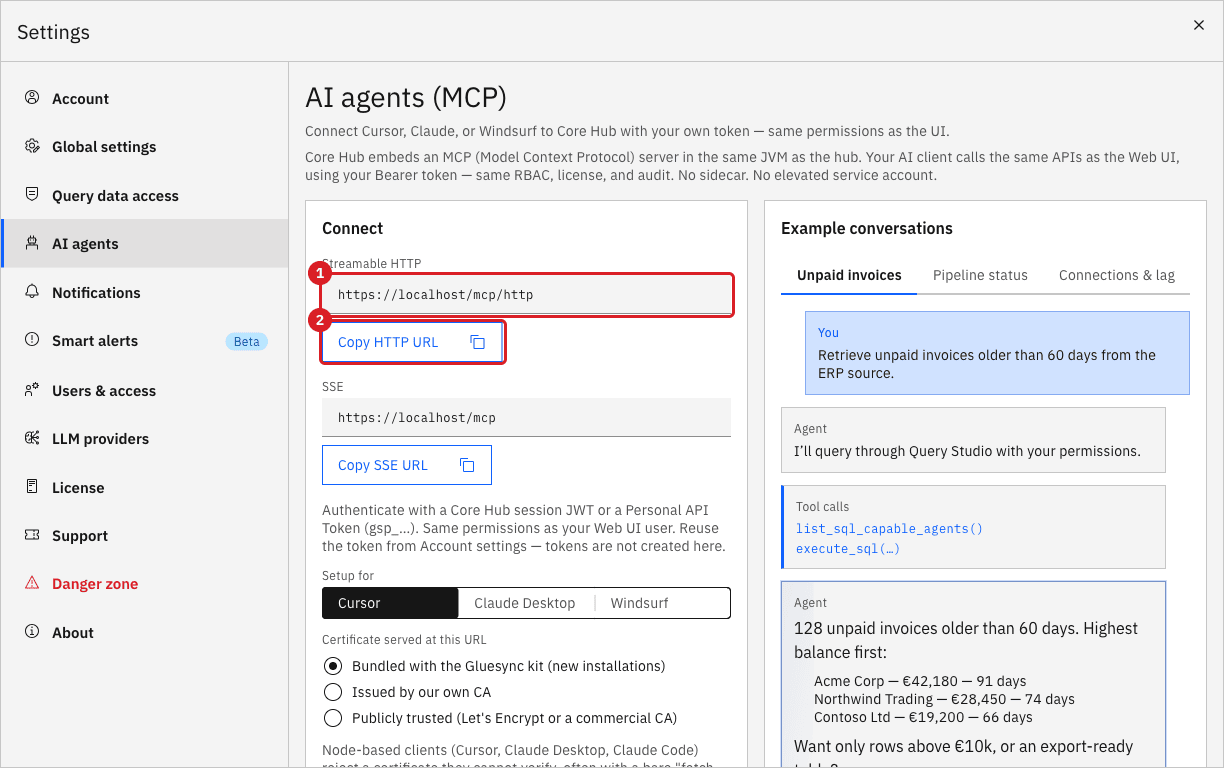
-
Open a session with plain JSON-RPC. The first call answers with the session ID in the
mcp-session-idresponse header, and every later call sends it back:export MCP_TOKEN='gsp_…' MCP="$GLUESYNC_URL/mcp/http" SID=$(curl -sk -D - -o /dev/null -X POST "$MCP" \ -H "Authorization: Bearer $MCP_TOKEN" -H 'Content-Type: application/json' \ -H 'Accept: application/json, text/event-stream' \ -d '{"jsonrpc":"2.0","id":1,"method":"initialize","params":{"protocolVersion":"2025-03-26","capabilities":{},"clientInfo":{"name":"curl","version":"1"}}}' \ | grep -i '^mcp-session-id' | awk '{print $2}' | tr -d '\r') curl -sk -o /dev/null -X POST "$MCP" -H "Authorization: Bearer $MCP_TOKEN" -H "Mcp-Session-Id: $SID" \ -H 'Content-Type: application/json' -H 'Accept: application/json, text/event-stream' \ -d '{"jsonrpc":"2.0","method":"notifications/initialized"}' -
Call a tool.
get_pipeline_statusreads the health of every entity of a pipeline:curl -sk -X POST "$MCP" -H "Authorization: Bearer $MCP_TOKEN" -H "Mcp-Session-Id: $SID" \ -H 'Content-Type: application/json' -H 'Accept: application/json, text/event-stream' \ -d '{"jsonrpc":"2.0","id":2,"method":"tools/call","params":{"name":"get_pipeline_status","arguments":{"pipeline_id":"9ae3b3bd"}}}' \ | jq -r '.result.content[0].text | fromjson | .by_status' -
Call
get_system_conditions. It lists problems that affect the whole Core Hub, such as the link to Gluesync Connect being down, and answers[]when everything is healthy:curl -sk -X POST "$MCP" -H "Authorization: Bearer $MCP_TOKEN" -H "Mcp-Session-Id: $SID" \ -H 'Content-Type: application/json' -H 'Accept: application/json, text/event-stream' \ -d '{"jsonrpc":"2.0","id":3,"method":"tools/call","params":{"name":"get_system_conditions","arguments":{}}}' -
Ask the read-only token to change something:
curl -sk -X POST "$MCP" -H "Authorization: Bearer $MCP_TOKEN" -H "Mcp-Session-Id: $SID" \ -H 'Content-Type: application/json' -H 'Accept: application/json, text/event-stream' \ -d '{"jsonrpc":"2.0","id":4,"method":"tools/call","params":{"name":"stop_sync","arguments":{"pipeline_id":"9ae3b3bd","entity_ids":["8f2edc67"]}}}' -
Optionally, use a real client. The MCP Inspector command line works with the same URL and header (tested with version 0.17):
NODE_TLS_REJECT_UNAUTHORIZED=0 npx -y @modelcontextprotocol/inspector@0.17.2 --cli "$GLUESYNC_URL/mcp/http" \ --transport http --header "Authorization: Bearer $MCP_TOKEN" \ --method tools/call --tool-name get_system_conditionsNODE_TLS_REJECT_UNAUTHORIZED=0is only for the self-signed kit certificate. Do not use it with a certificate you can verify.
|
|
403 Invalid Host behind your own hostnameConfig CLI
When a reverse proxy forwards the name your clients use, such as gluesync.example.test, in the Host header, the MCP endpoint checks it against an allow-list that holds only localhost, 127.0.0.1, and [::1]. This protects the endpoint from DNS rebinding. Rehearse on a second Core Hub, so that you do not change the settings of the one you use. Traefik is used here; any proxy that keeps the Host header behaves the same.
-
Start a second Core Hub with its own Traefik that routes the hostname
gluesync.example.testto it. Give it a compose project name, a network, and a published port of its own. This is the Traefik dynamic configuration used in the test.passHostHeadermakes the proxy forward the name it received, which is what real deployments do. Do not set anyGLUESYNC_MCP_*variable yet:http: routers: corehub: entryPoints: [websecure] rule: "Host(`gluesync.example.test`)" service: corehub tls: {} services: corehub: loadBalancer: passHostHeader: true servers: - url: "https://gluesync-core-hub:1717" -
On the second Core Hub, create a token with the scope MCP server (read-only) and keep it in
$HUB2_TOKEN; -
Make the name resolve to the proxy. Add
127.0.0.1 gluesync.example.testto your hosts file, or letcurlresolve it for one command with--resolve. In the example, the proxy is published on port 443:curl -sk -i -X POST https://gluesync.example.test/mcp/http \ --resolve gluesync.example.test:443:127.0.0.1 \ -H "Authorization: Bearer $HUB2_TOKEN" -H 'Content-Type: application/json' \ -H 'Accept: application/json, text/event-stream' \ -d '{"jsonrpc":"2.0","id":1,"method":"initialize","params":{"protocolVersion":"2025-03-26","capabilities":{},"clientInfo":{"name":"curl","version":"1"}}}'
|
Optional, for advanced users
You do not need the Core Hub log to follow this guide. If you look, Core Hub logs the allowed hosts at startup and a warning that names the refused host, so you see at once what to add: |
GLUESYNC_MCP_ALLOWED_HOSTSConfig
-
Add the hostname, without a scheme or a path, to the environment of the Core Hub container:
services:
  gluesync-core-hub:
    environment:
      - GLUESYNC_MCP_ALLOWED_HOSTS=gluesync.example.test
Use a comma to list several hostnames. Matching ignores case and port, and wildcards are not supported;
-
Recreate the Core Hub container so that it reads the variable, and wait until the Control Plane answers again:
docker compose up -d gluesync-core-hub -
Repeat the request of the previous step.
-
Only for a client that sends an
Originheader, such as a web page or a browser-based MCP client, test the origin too:curl -sk -o /dev/null -w '%{http_code}\n' -X POST https://gluesync.example.test/mcp/http \ --resolve gluesync.example.test:443:127.0.0.1 -H 'Origin: https://ai.example.test' \ -H "Authorization: Bearer $HUB2_TOKEN" -H 'Content-Type: application/json' \ -H 'Accept: application/json, text/event-stream' \ -d '{"jsonrpc":"2.0","id":1,"method":"initialize","params":{"protocolVersion":"2025-03-26","capabilities":{},"clientInfo":{"name":"curl","version":"1"}}}' -
To accept that origin, add
GLUESYNC_MCP_ALLOWED_ORIGINS=https://ai.example.testto the sameenvironmentlist and recreate the container;
|
Once you set |
If you cannot change the Core Hub environment yet, have the reverse proxy send Host: localhost for the paths under /mcp. That rewrite keeps working after you set the variables.
Clean up
-
In the target database, drop the constraint if it is still there, and stop the test entities;
-
In Personal API Tokens, open the actions menu of every token created for this guide and delete it, or delete them with
curl -sk -X DELETE "$GLUESYNC_URL/api-tokens/<token-id>" -H "Authorization: Bearer $SESSION"(204on success); -
In Notifications and Webhooks, delete the webhook Automation demo to n8n;
-
Remove the test containers (
docker compose downin the n8n folder and in the folder of the second Core Hub).
Troubleshooting
| Problem | Possible cause | What to do |
|---|---|---|
Every call answers |
The token was copied incompletely, was deleted, or has expired, or you sent a login response instead of a token. |
Create a new token and copy the whole |
|
The token scope is narrower than the call: |
Use a token with the scope that the message names. |
The command answers |
You passed an entity name or an ID that does not exist, or the entity was already in that state. |
Use the entity ID from |
The webhook shows Success on Send test but n8n has no execution |
The workflow is not published, n8n was not restarted after publishing, or the URL uses the host that your browser uses. |
Check the path ( |
n8n cannot call Core Hub |
The kit certificate is self-signed, or the token has the wrong scope. |
Keep |
Mailpit receives no email |
The SMTP credential points to |
Use the host that n8n reaches on the Docker network ( |
MCP |
The hostname that your proxy forwards is not in the allow-list. |
Set |
MCP |
A browser-based client sends an origin that is not allowed. |
Set |
Related guides
Contact MOLO17 Support if you need assistance with the Core Hub REST API, MCP, or webhooks.