Move a DBMoto or Syniti Replicate setup to Gluesync
You already run replications in DBMoto (now Syniti Replicate) and want the same tables in Gluesync without re-creating hundreds of entities by hand. This guide converts the metadata XML of your DBMoto setup into a YAML file, creates the entities in a pipeline with Gluesync Automator, starts the replication and checks it with SQL. It also states, item by item, what the converter carries over and what you have to finish yourself.
|
From now on this guide says Syniti Replicate. Everything in it applies to DBMoto and to Syniti Data Replication as well. |
In this guide
You will learn how to convert a metadata XML file, read the generated YAML before you use it, sign in to Automator and create the entities in an existing pipeline, remove the columns that Syniti Replicate did not map, start the first copy and the live replication, and compare the target with the source. A mapping table translates every Syniti Replicate concept into its Gluesync counterpart, and a second table lists what the converter does not do and what to do instead.
The examples use a pipeline named DBMoto demo. Its source is a PostgreSQL database with the tables shop.customers and shop.orders, and its target is a PostgreSQL schema named dbmoto_demo. The metadata XML describes what a Syniti Replicate administrator would have configured:
| In Syniti Replicate | What it does |
|---|---|
Replication |
Copies |
Replication |
Copies |
Replication |
Disabled. |
Mirroring schedules |
One replication mirrors every 60 seconds, another every hour. |
Quick information
Goal |
Create Gluesync entities from a Syniti Replicate (DBMoto) metadata XML, start them, and know exactly what is left to configure by hand |
Audience |
Teams migrating from Syniti Replicate or DBMoto to Gluesync |
Level |
Intermediate |
Time required |
About 45 minutes |
Area |
Metadata converter → Gluesync Automator → Control Plane → Pipelines |
Applies to |
Gluesync 2.3 |
Before you begin
Make sure that:
-
You have the metadata XML export of your Syniti Replicate (DBMoto) installation, the file whose root element is
<metadata>; -
You have a Gluesync pipeline with a source agent and a target agent, both with a saved connection to your databases (this guide uses DBMoto demo). The converter never reads or creates connections and credentials, so this part is always yours. See Pipelines if you have to create it;
-
You can sign in to Core Hub with a user that can create entities;
-
You downloaded Gluesync Automator and, for the online converter, you have the 12-character unique identifier of your Gluesync kit (the Gluesync Kit ID), shown on the download page linked from your trial email;
-
The target schema exists. Automator can create the missing tables, not the schema.
|
Gluesync is not a scheduler. Syniti Replicate runs jobs at intervals, such as every 30 seconds or every day. Gluesync captures changes continuously and delivers them as they happen, so the intervals of your mirroring jobs are not recreated and you should not try to reproduce them with polling intervals. Do not set an entity polling interval of minutes or hours to imitate a schedule: the changes are not lost, but they arrive late, and the delay grows when the source produces more changes than one block per interval can carry. If you really need an action at a given time, such as a nightly snapshot, use Schedules & events. |
|
You do not need to clean the XML first. In the test for this guide the groups and the disabled replication were handled by the converter (see Understand what the converter does). A source table that no replication uses is not skipped: the converter writes it in a separate file whose name ends with |
Guide steps
UI
Use the online converter, which needs nothing installed. If you prefer to run the converter yourself, use the command-line alternative below.
-
Enter your Gluesync Kit ID;
-
Choose your XML file under Syniti Replicate metadata XML;
-
Leave Include target schemas as it is, or clear it (see the tip below the screenshot);
-
Select Convert XML, keep the page open until the job ends, and download the ZIP file.
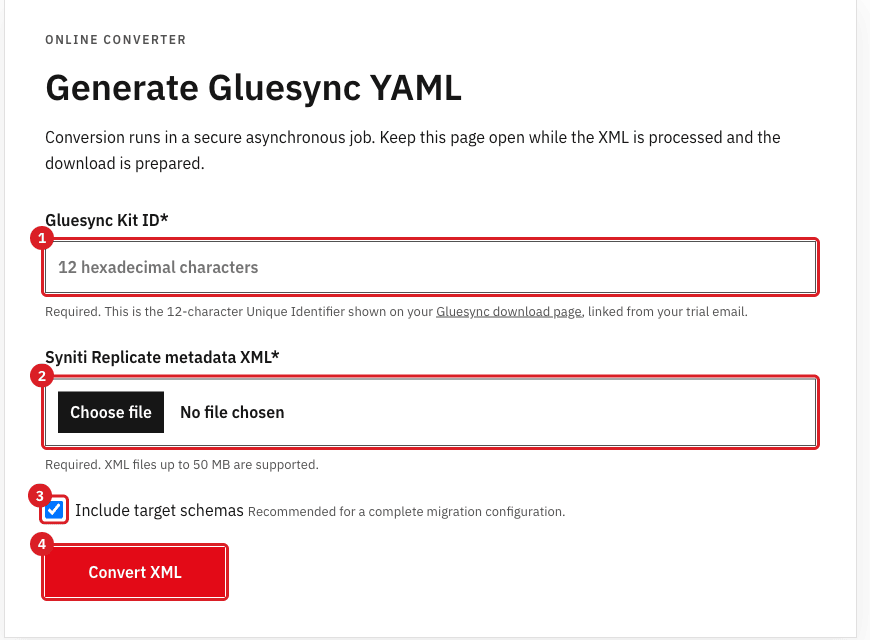
Unzip the file. It holds one or more .yaml files and a conversion_report.txt.
Command-line alternative. The converter is part of the open-source Gluesync Bootstrapper. It needs Python 3 and PyYAML (pip install pyyaml):
git clone https://gitlab.com/molo17-public/gluesync/gluesync-bootstrapper.git
cd gluesync-bootstrapper
python3 dbmoto-converter/parse_dbmoto_metadata_xml.py /path/to/metadata.xml \
  --output-dir ./converted \
  --template table-list-template-basic.yaml \
--no-include-targets|
Include target schemas ( |
Config
Never import a converted file without reading it. Open conversion_report.txt, then the YAML file whose header says Source database connection: followed by your source connection. With several targets for the same schema, the converter writes one file for each, and the file name contains the connection names. For the sample metadata the file is shop_dbmoto_demo.yaml; its head looks like this (long lists of column attributes are shortened):
# Generated from DbMoto metadata XML
# Source database connection: Shop_PostgreSQL
# Source database: shop
# Schema: shop
# Tables converted: 2
# Tables disabled (commented out): 1

shop:
  target: dbmoto_demo           # target schema
  tables:
    whitelist:                  # source tables, one entity each
    - customers
    - orders
    custom:
      customers:
        name: clients           # target table
        columns:
        - name: id
          type: integer         # type names exactly as in the metadata
          isNullable: false
        - name: client_name     # target column ...
          sourceName: full_name # ... fed by this source column
          type: character varying
          dataLength: 100
        - name: credit_limit    # not mapped in Syniti Replicate, still listed
        # ...
        keys:
        - id
        groupId: Shop sync
      orders:
        name: orders_archive
        columns:
        - name: order_id
          sourceName: id
        # ...
        - name: amount_cents    # from the expression [amount] * 100
        whereClause: status <> 'cancelled'   # the refresh filter
        keys:
        - id
        # Chains usage detected, you can enable it by uncommenting this
        # chainId: Orders chain

# THE FOLLOWING TABLES ARE DISABLED IN DBMOTO (ReplStatus=3)
# ... the whole disabled replication, commented out
Check these points, and fix them in the file now if needed:
-
target:: the target schema. The default template that the converter uses gives every source schema nameddbothe target schemapublic, whatever the metadata says. Correct it if your target schema is notpublic; -
type:: Automator uses the type names as they are in the metadata to create missing target tables. A name Gluesync does not recognise, such as the PostgreSQL-internalint4, produces avarchar(1024)column. Use standard names such asinteger,character varying,numeric,timestamp without time zone; -
keys:: the converter reads the primary key flags of the metadata. When there are none it falls back to the key of the mapped target table, and as a last resort to all columns of the table. Replace such a list with the columns that identify a row (see [virtual-pk]); -
sourceNameandnameundercolumns: they show which source column feeds which target column; -
Commented blocks: disabled replications and chains stay commented out. Remove the
#only if you want them (see Understand what the converter does).
UI
-
Start Gluesync Automator. It opens
localhost:8080in your browser; -
In CoreHub URL, enter the address of your Core Hub, for example
https://localhost; -
Enter your Username and Password;
-
Keep Enable TLS selected, and keep Skip certificate verification selected only if Core Hub uses a self-signed certificate;
-
Select Sign in.
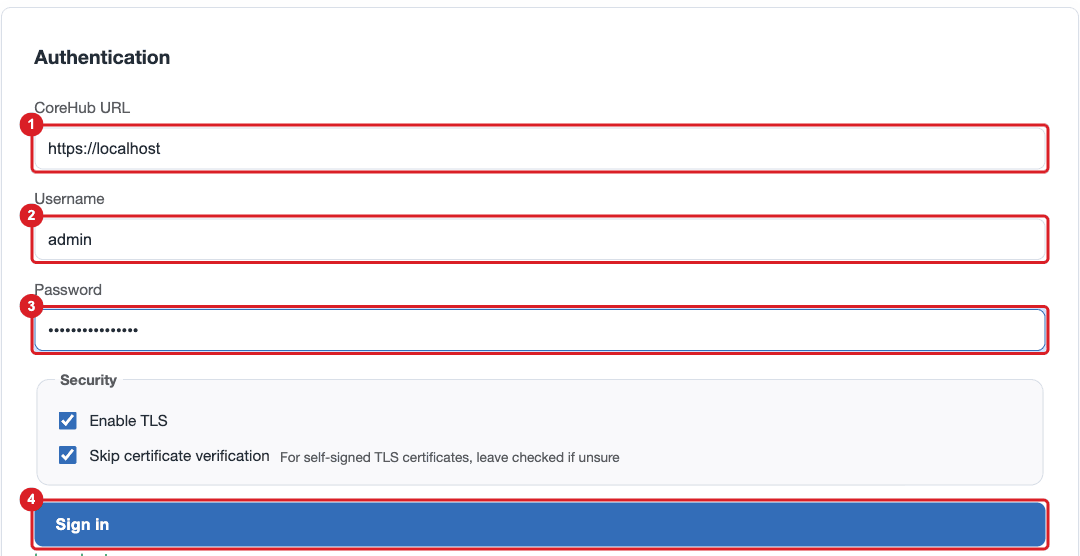
UI
-
Select the Settings tab;
-
Under Global settings, check that Create missing tables automatically is selected, so that Automator creates the target tables from the column definitions of the YAML. Clear it if the target tables already exist;
-
Leave Enable scheduling for created entities selected. It only applies schedules that the YAML itself contains, and the converted files contain none of your Syniti Replicate schedules.
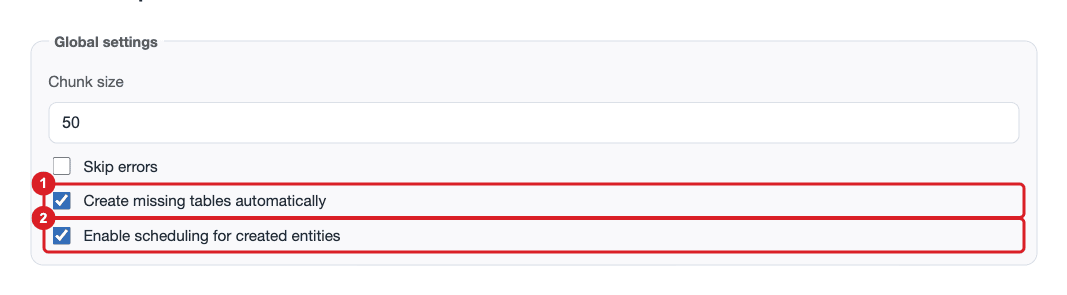
UI
-
Select the Import & clone tab;
-
Under Create entities from YAML (single pipeline), choose your pipeline in Pipeline;
-
Under YAML configuration or pipeline backup (ZIP with UDFs), choose the source-side YAML file you reviewed;
-
Select Start entity creation;
-
Follow the Execution log at the bottom of the page until it ends.
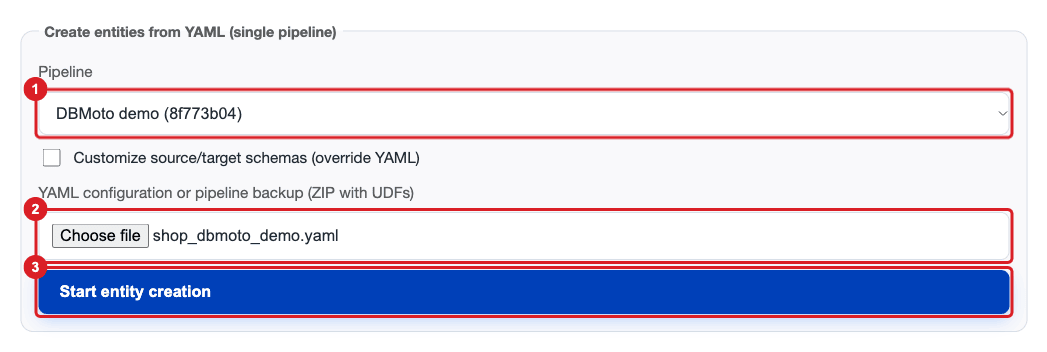
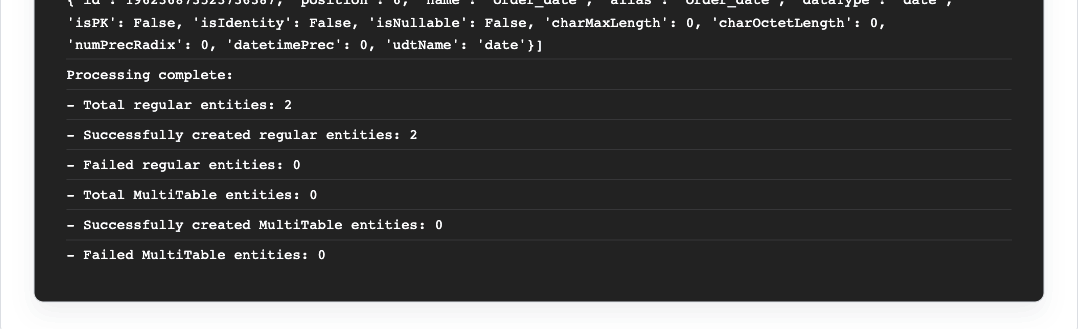
The log is long. Look for the group line near the top, for example Creating new group: Shop sync, and for the summary at the end:
UI
-
Sign in to the Gluesync Control Plane;
-
Open the pipeline DBMoto demo;
-
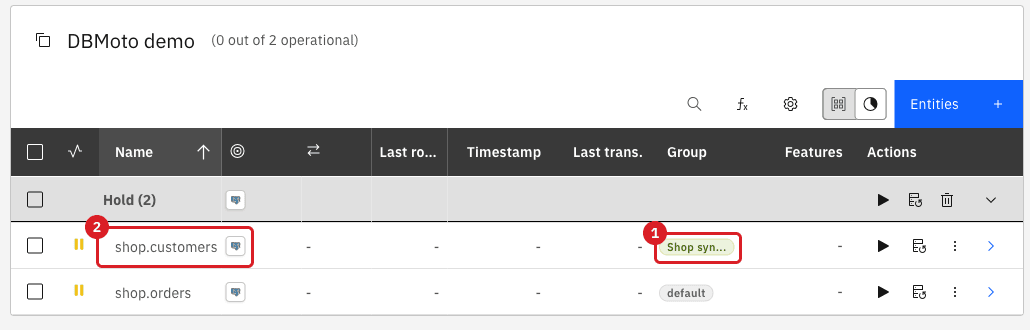
Check the entity list.
UI
The converter lists every source column, also those that Syniti Replicate did not map, and it cannot translate expressions. Open each entity and finish its mapping.
-
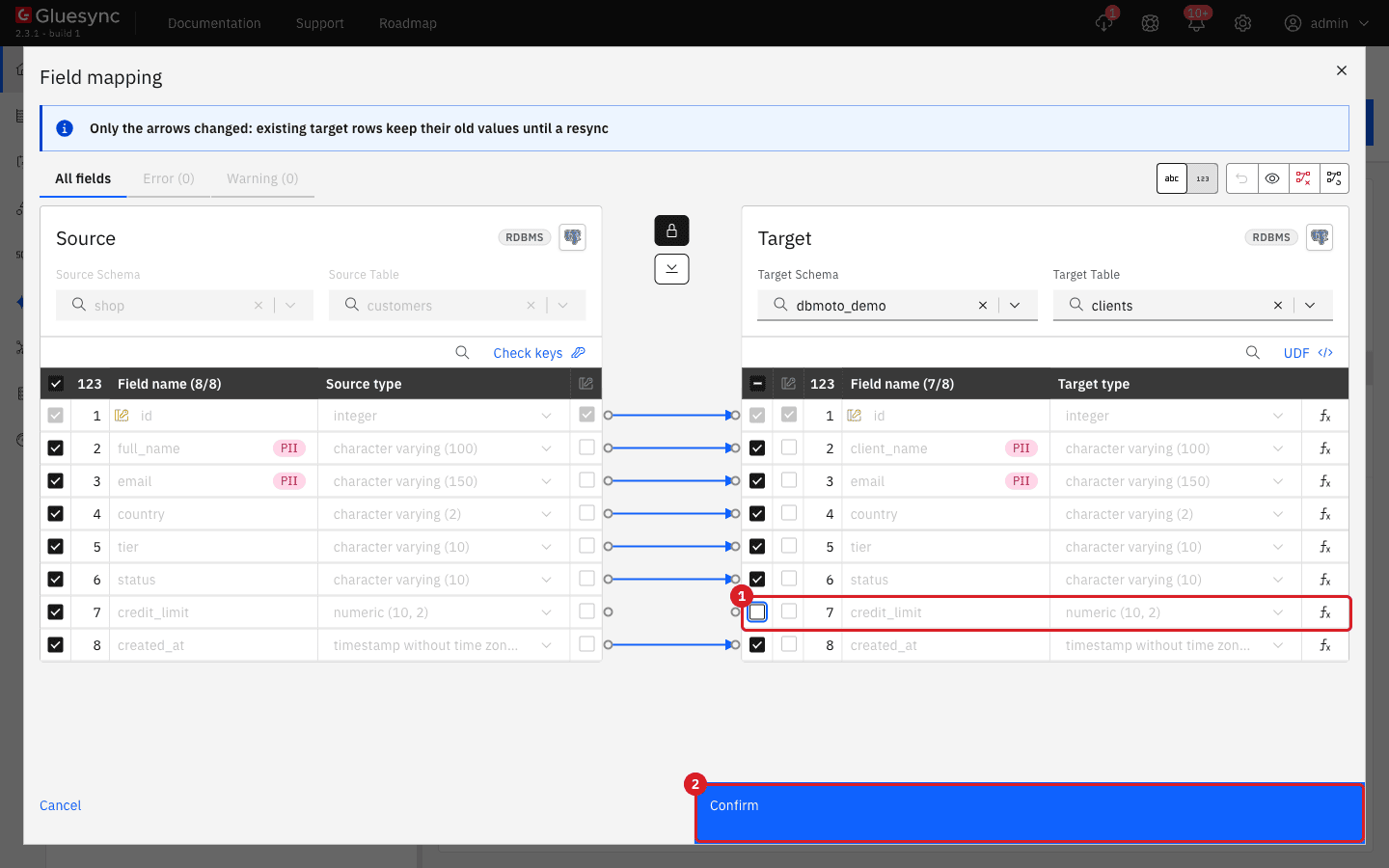
In the row of
shop.customers, select the three-dot menu, then Edit mapping; -
Check the renamed column: the arrow runs from
full_nametoclient_name; -
On the target side, clear the check box of
credit_limit, the column that Syniti Replicate did not map; -
Select Confirm, then Confirm and continue;
-
In the row of
shop.orders, select the three-dot menu, then Edit mapping, and look at the last target field.
The target field amount_cents is listed, without an arrow and cleared. It is the column that Syniti Replicate fills with [amount] * 100. Gluesync creates the column but has nothing to write in it:
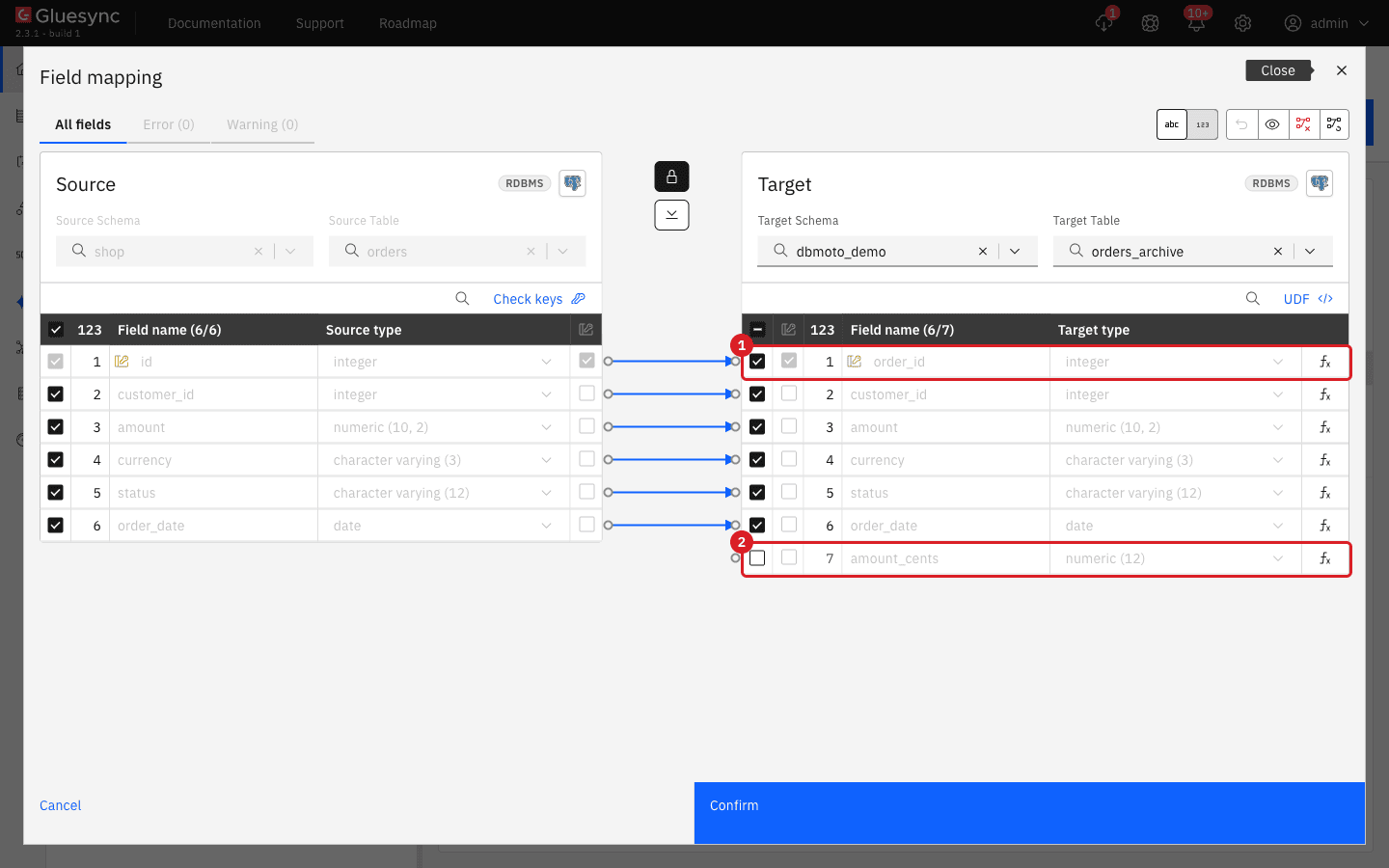
Leave amount_cents as it is for now, and close the editor with the Close button (X) at the top right. To fill it, rebuild the expression with a custom field function or a user-defined function (see Finish what the converter does not do).
UI
Do this for each entity, one after the other.
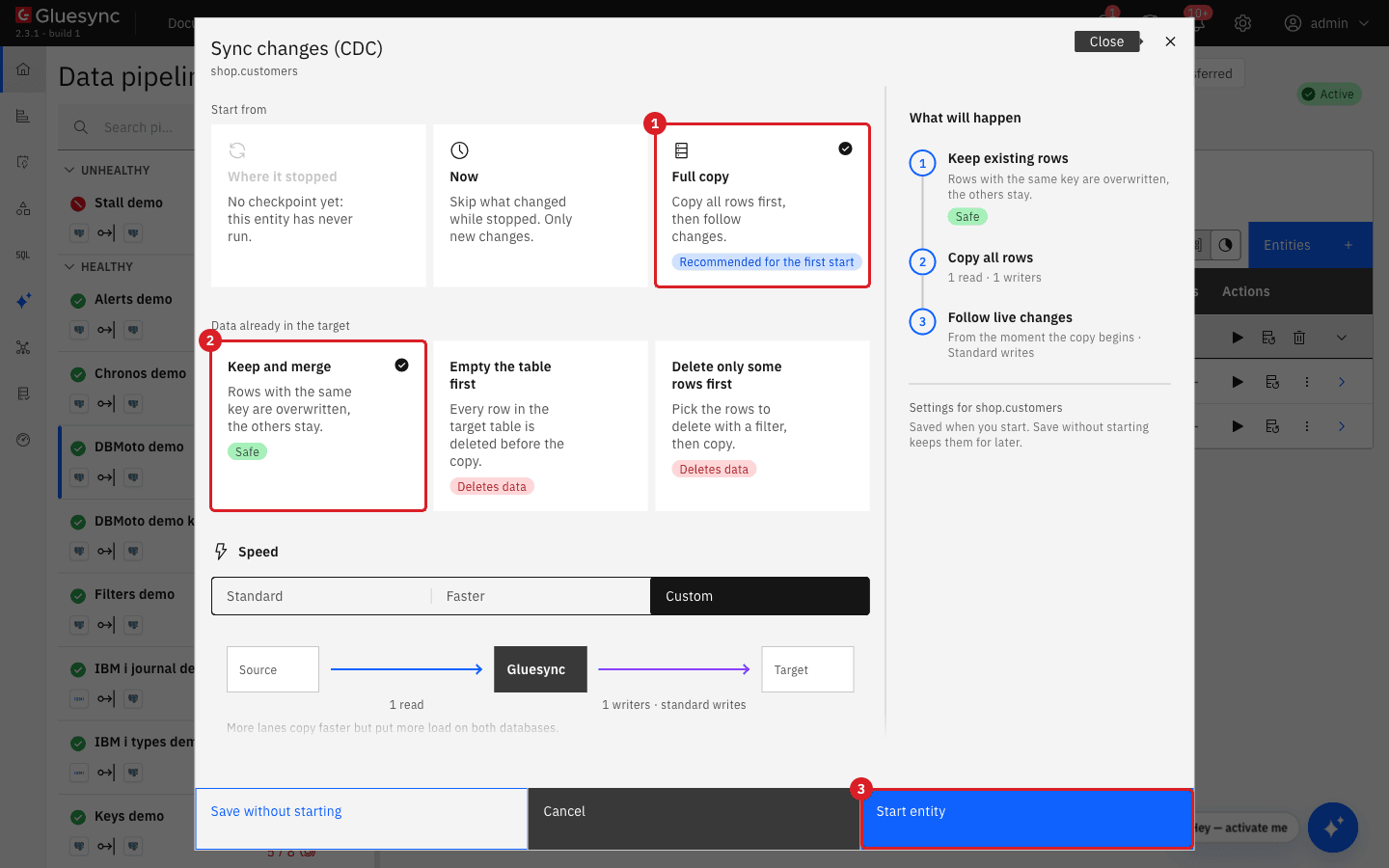
-
In the row of the entity, select the play button;
-
In Sync changes (CDC), keep Start from on Full copy, and Data already in the target on Keep and merge;
-
Select Start entity.
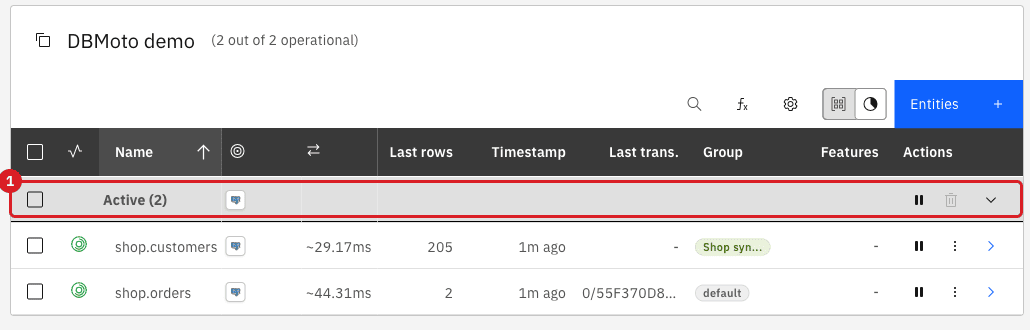
SQL
Skip this step if you verify the data your own way. Run the queries below on the source and on the target, with Query Studio or any SQL client. They compare row counts and a checksum of the key columns:
-- Source database
SELECT count(*), md5(string_agg(id || '|' || full_name || '|' || email || '|' || country, ',' ORDER BY id))
FROM shop.customers;
SELECT count(*), md5(string_agg(id || '|' || amount || '|' || status, ',' ORDER BY id))
FROM shop.orders WHERE status <> 'cancelled';

-- Target database
SELECT count(*), md5(string_agg(id || '|' || client_name || '|' || email || '|' || country, ',' ORDER BY id)),
       count(credit_limit)
FROM dbmoto_demo.clients;
SELECT count(*), md5(string_agg(order_id || '|' || amount || '|' || status, ',' ORDER BY order_id)),
       count(amount_cents)
FROM dbmoto_demo.orders_archive;
In the test run for this guide, the counts and the checksums were identical (205 customers, 800 orders), credit_limit was empty on all target rows (count(credit_limit) is 0) and amount_cents was empty too.
To see live changes, change a row on the source and read it on the target a few seconds later:
INSERT INTO shop.orders VALUES (99002, 1, 20.00, 'EUR', 'cancelled', current_date);
-- a few seconds later, on the target:
SELECT order_id, amount, status FROM dbmoto_demo.orders_archive WHERE order_id = 99002;
-- remove the test row on the source when you are done:
DELETE FROM shop.orders WHERE id = 99002;
The row arrives although its status is cancelled: the refresh filter of Syniti Replicate became a snapshot WHERE clause, so it limits the first copy only. Live changes are not filtered. To filter them too, use a target filter (see Filter rows with a snapshot WHERE clause and target filters).
Understand what the converter does
Every Syniti Replicate concept has a counterpart in Gluesync. The Converted column says whether the converter, followed by Automator, creates it for you.
| Syniti Replicate (DBMoto) | Gluesync | Converted | Notes |
|---|---|---|---|
Source connection ( |
Source agent and its connection, in a pipeline |
No |
You create the pipeline and the connections. The converter only writes the database type and version in the report and never reads the stored credentials. |
Target connection |
Target agent and its connection, in the same pipeline |
No |
Same as above. |
Schema of a table |
Source schema, and the target schema in |
Yes |
Taken from the schemas of the two tables of each replication. See the check of |
Replication (source table to target table) |
Entity named |
Yes |
One entity per enabled replication. |
Table that no replication uses |
Entity, if you import the file |
Separate file |
Written in a file whose name ends with |
Disabled replication ( |
None |
Left commented out |
Appears in a commented block at the end of the YAML. |
Group (type 0) |
Group |
Yes |
Automator creates the group and assigns the entity to it. Groups only organise entities and apply settings to many of them. See Groups and chains. |
Chain (group of type 1, ordered replications) |
Chain |
Left commented out |
Written as a commented |
Target table with another name |
Target table in |
Yes |
The entity writes to the renamed table. |
Field mapping (source field to target field) |
Arrow in the field mapping, |
Yes |
A renamed column keeps its link to the source column. |
Field that has no mapping |
Arrow to the column with the same name |
Not as in Syniti Replicate |
The column is replicated anyway. See Finish what the converter does not do. |
Mapping with an expression or script ( |
Field function or user-defined function |
No |
The target column is created, without arrow. See Finish what the converter does not do. |
|
Source column |
Yes |
Detected in the metadata, and the target column is fed from |
Primary key |
|
Yes |
Read from the primary key positions of the fields. |
Virtual primary key |
Logical key |
No |
Not read as a key. See [virtual-pk]. |
Refresh filter |
Snapshot WHERE clause ( |
Yes |
Applies to the snapshot only. |
Data types, length, precision, scale, nullability |
|
Yes |
Type names are copied as they are. |
Refresh and mirroring |
Full copy (snapshot) and Sync changes (CDC) |
You start them |
See the last step of the guide. |
Refresh and mirroring schedules, mirroring interval |
None; Gluesync streams continuously |
No |
See the first note in Before you begin. Use Schedules & events for timed actions. |
Conflict resolver, priority, block sizes, commit mode and other replication properties |
Entity settings (Options, Edit settings), insert conflict strategy |
No |
Review them and set the Gluesync equivalents yourself. See Insert conflict strategy. |
IBM i journal position (receiver, journal, sequence number) |
Journal checkpoint file |
Written as a file |
One |
Finish what the converter does not do
| Gap | What you see | What to do |
|---|---|---|
Columns that Syniti Replicate did not map |
They appear in the YAML and in the field mapping, and they are copied under their own name. If the target table is created by Automator, it gets them too. |
Clear the column in Edit mapping as in the guide, or delete its entry from |
Expressions and scripts |
The target column exists, has no arrow, and stays empty ( |
Rebuild the logic with a custom field function or a user-defined function in the Fields Editor. Custom field functions and UDFs are written in Java, so DBMoto scripts cannot be moved as they are. The Bootstrapper repository also holds |
Virtual primary key |
If the metadata flags no key, the converter writes a list of all columns as |
Set |
Primary key of a renamed column |
The entity works, but the target table that Automator creates has no primary key constraint (the key column has another name than the one in |
Add the primary key to the target table in the database. Replication, updates and deletes work without it, but the constraint protects the data. |
Mirroring intervals |
Nothing is created. |
Do nothing: Gluesync delivers changes as they happen. |
Disabled replications and chains |
Commented out in the YAML. |
Uncomment a block only if you need it, then import again. |
IBM i journal checkpoints |
|
Keep them for the cutover; Automator does not use them. |
Connection credentials and agent settings |
Nothing is created. |
Create and test them in the pipeline before the import. |
Example: virtual primary key. The source table dbmoto_src.event_log has no primary key, and Syniti Replicate identified a row by event_no and line_no. Set the two columns as the keys in the YAML, then import the file as in the guide:
dbmoto_src:
  target: dbmoto_demo_keys
  tables:
    whitelist:
    - event_log
    custom:
      event_log:
        name: event_log
        columns:
        - name: event_no
          type: integer
        # ... the other columns
        keys:
        - event_no
        - line_no
In the test run, an update and a delete of single rows on the source reached the target correctly, and the counts matched.
Troubleshooting
| Problem | Possible cause | What to do |
|---|---|---|
The ZIP has fewer YAML files than the report says ( |
Two schemas get the same file name, for example when a source and a target connection use catalogs with the same name, and the second file replaces the first. |
Convert with Include target schemas cleared ( |
The Automator log says |
You imported a YAML file of a target schema. Its header says |
Import the file whose header names your source connection. |
Entities exist for tables that Syniti Replicate never replicated |
You imported a file ending with |
Delete the unwanted entities in the Control Plane, and import only the files you need next time. |
The entity is refused with |
The metadata has no key flags, the converter wrote all columns, and the source table has a real primary key. |
Set |
A target column was created as |
The type name of the metadata is not a standard SQL type name, for example |
Drop the created target table, replace the type names in the YAML, and import again. |
The target schema is |
The source schema is named |
Edit |
The Pipeline list of Automator does not show your pipeline |
The pipeline does not exist yet, or Automator is signed in to another Core Hub. |
Create the pipeline first, or sign out and sign in again. |
The target table keeps the wrong types after you corrected the YAML |
A previous run, also one that failed, had already created the table, and Automator reuses an existing table. |
Drop the table in the target database, then import again. |
A column that Syniti Replicate did not map is in the target |
The converter lists unmapped source columns. |
Clear the column in Edit mapping (see the guide), or remove it from |
An expression column stays empty |
The converter cannot translate expressions and scripts. |
Create a custom field function or a user-defined function for the column. |
Related guides
Contact MOLO17 Support if you need assistance with moving a Syniti Replicate or DBMoto setup to Gluesync.