Monitor pipelines in Grafana with the Core Hub metrics dashboard
The Gluesync installation kit ships with Grafana and Prometheus already connected to Core Hub. This guide opens the Core Hub metrics dashboard from the Control Plane and directly in the browser, filters it to one pipeline, generates real traffic so the panels fill with data, and shows how to read the panels that matter day to day.
In this guide
You will learn how to open Metrics & Insights, sign in to Grafana, find the Core Hub metrics dashboard, use the Pipeline, Entity and Source agent filters and the time range, read the throughput, latency, JDBC connection and JVM panels, and recognise a panel that is empty because Core Hub does not publish that series.
Quick information
Goal |
Watch a running pipeline in Grafana and read its main health panels |
Audience |
Gluesync administrators and operators |
Level |
Basic |
Time required |
About 30 minutes |
Area |
Control Plane → Metrics & Insights → Core Hub metrics |
Applies to |
Gluesync 2.3 |
Before you begin
Make sure that:
-
You installed Gluesync with the default installation kit, which includes Grafana and Prometheus. If you run your own Grafana, see Grafana dashboards;
-
A pipeline is running in CDC. This guide uses the Shop orders pipeline with the entities
customersandorders, started as described in Start a snapshot and CDC replication from the Control Plane; -
You can sign in to Grafana with the kit default
admin/password; -
The pipeline has changes to replicate. If it has none, a test environment where you can run SQL on the source lets you generate traffic in an optional step.
|
Grafana has its own login, separate from the Control Plane login. If your browser warns about the certificate when you open the Control Plane or Grafana, the installation uses a self-signed certificate: accept it for this host. |
Guide steps
UI
-
Sign in to the Gluesync Control Plane;
-
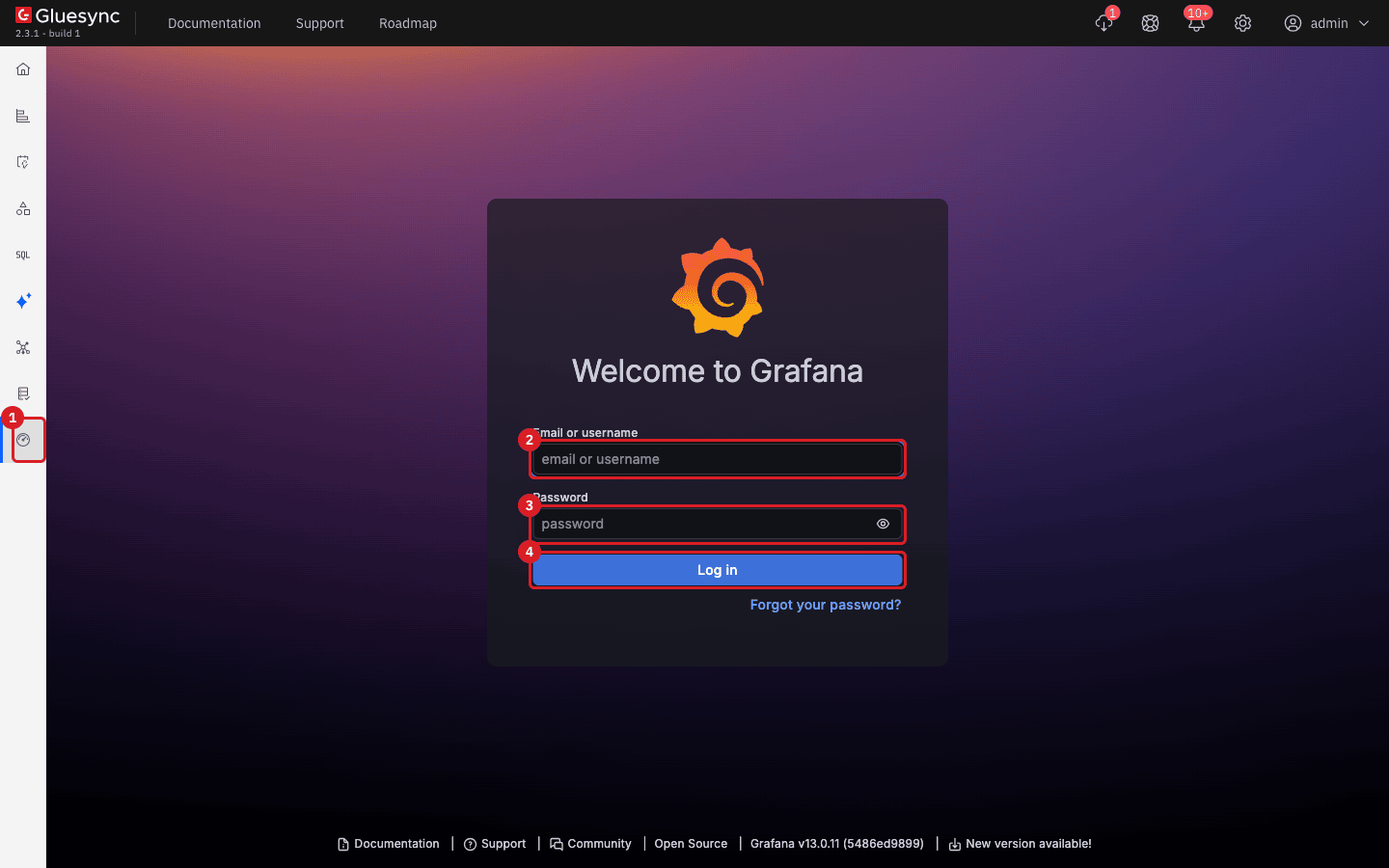
In the left menu, select Metrics & Insights (the gauge icon);
-
If Grafana shows its login form inside the Control Plane, enter
adminin Email or username andpasswordin Password, then select Log in.
UI
-
In a new browser tab, open
https://localhost/grafana. Use the address of your Gluesync host instead oflocalhost; -
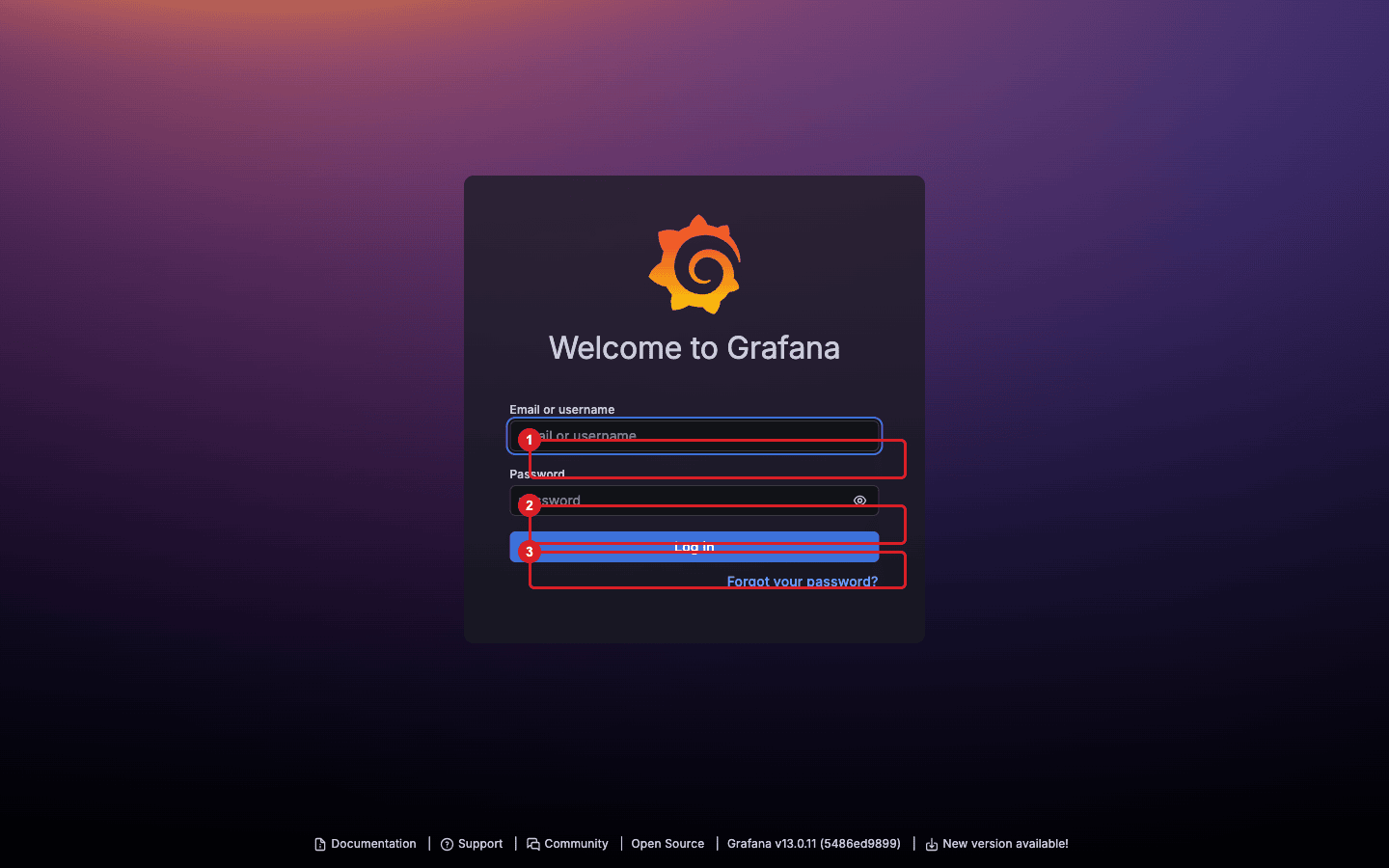
If Grafana asks you to sign in, enter
adminandpassword, then select Log in. A session you opened through the Control Plane is reused: the same browser is already signed in; -
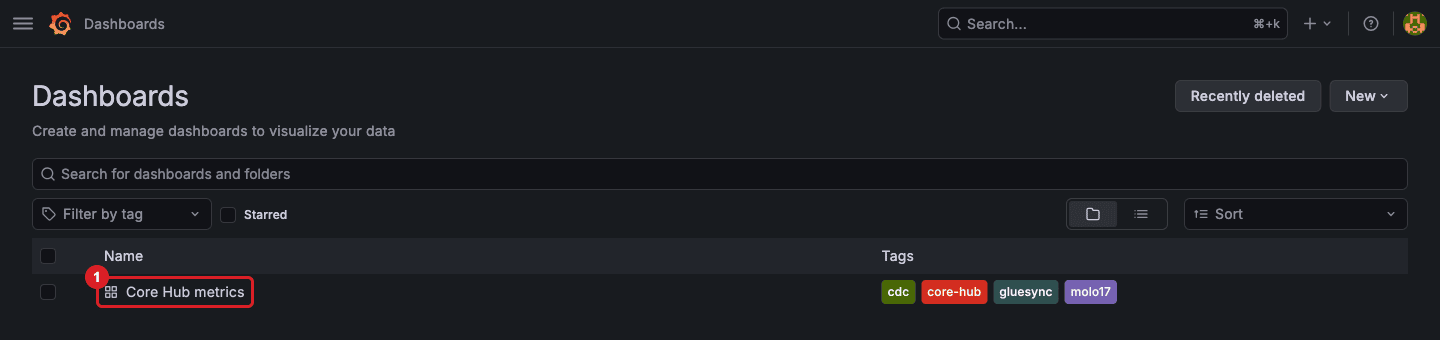
Open the Grafana menu and select Dashboards;
-
Select Core Hub metrics.
SQL
Skip this step if your pipeline already replicates live changes: the dashboard shows that traffic. A pipeline with no changes draws flat lines, so in a test environment you can create some traffic yourself. Run this loop for a few minutes on a machine that can reach the source database. It inserts 3000 orders and updates 2000 of them every few seconds, which Core Hub delivers to the target through CDC. Replace the connection parameters with yours, and set PGPASSWORD so that psql does not prompt on every pass.
for i in $(seq 0 59); do
  NEXT=$((100000 + i * 3000))
  psql -q -h <source-host> -U <user> -d shop <<SQL
INSERT INTO shop.orders (id, customer_id, amount, currency, status, order_date)
  SELECT g, 1 + (g % 200), round((random() * 500)::numeric, 2),
         (ARRAY['EUR','USD','GBP'])[1 + (g % 3)], 'new', current_date
  FROM generate_series($NEXT, $NEXT + 2999) g;
UPDATE shop.orders
  SET status = (ARRAY['paid','shipped','delivered','cancelled'])[1 + (id % 4)],
      amount = amount + 1
  WHERE id BETWEEN $NEXT AND $NEXT + 1999;
SQL
  sleep 3
done
While it runs, check on the target that the rows arrive:
-- run on the target
SELECT count(*) FROM shop.orders;UI
-
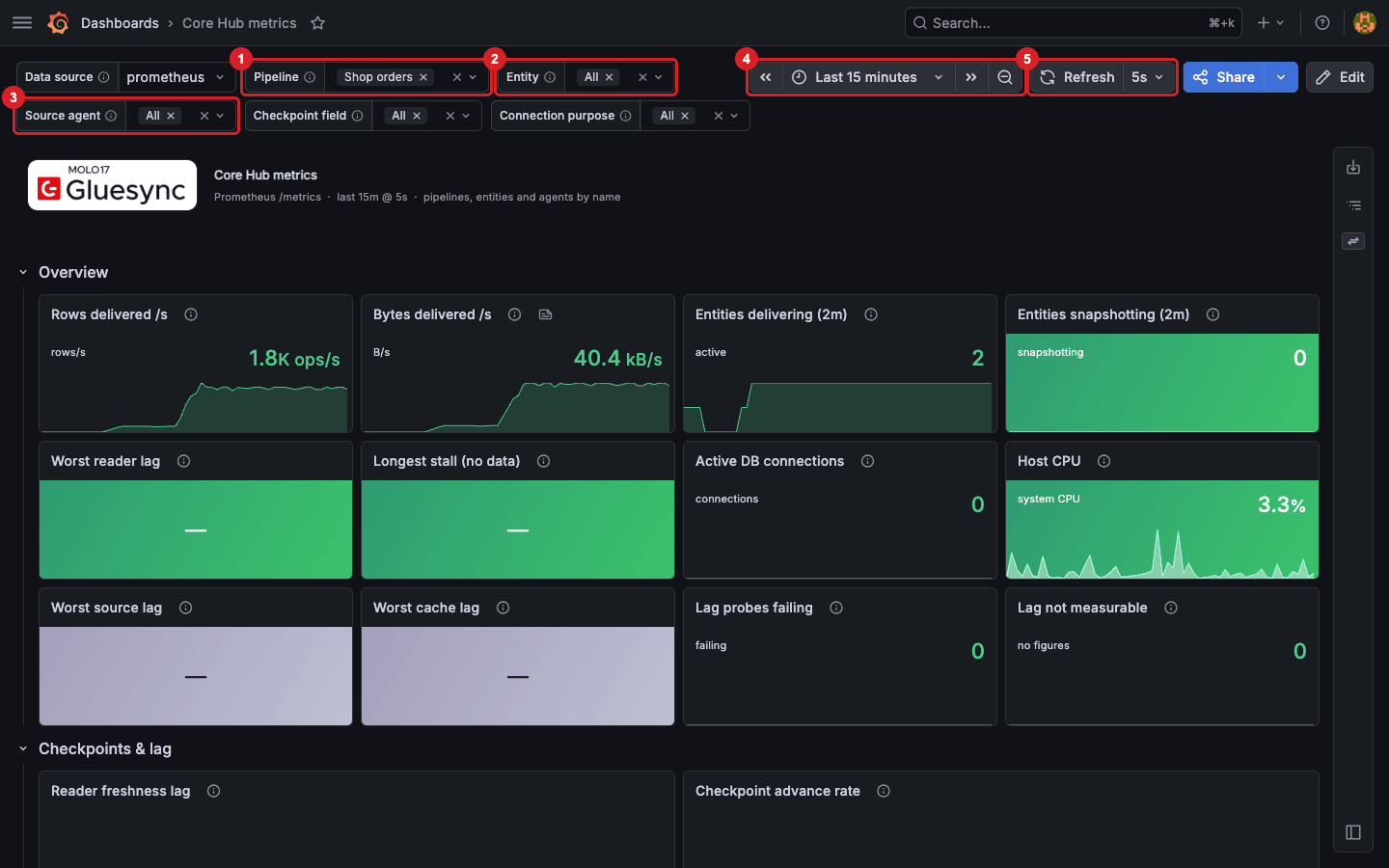
In Pipeline, select Shop orders. Every panel now shows only that pipeline. The list contains the pipelines that delivered at least one row;
-
In Entity, leave All to compare the entities, or select one entity such as
ordersto see only its table; -
Leave Source agent, Checkpoint field and Connection purpose on All for now;
-
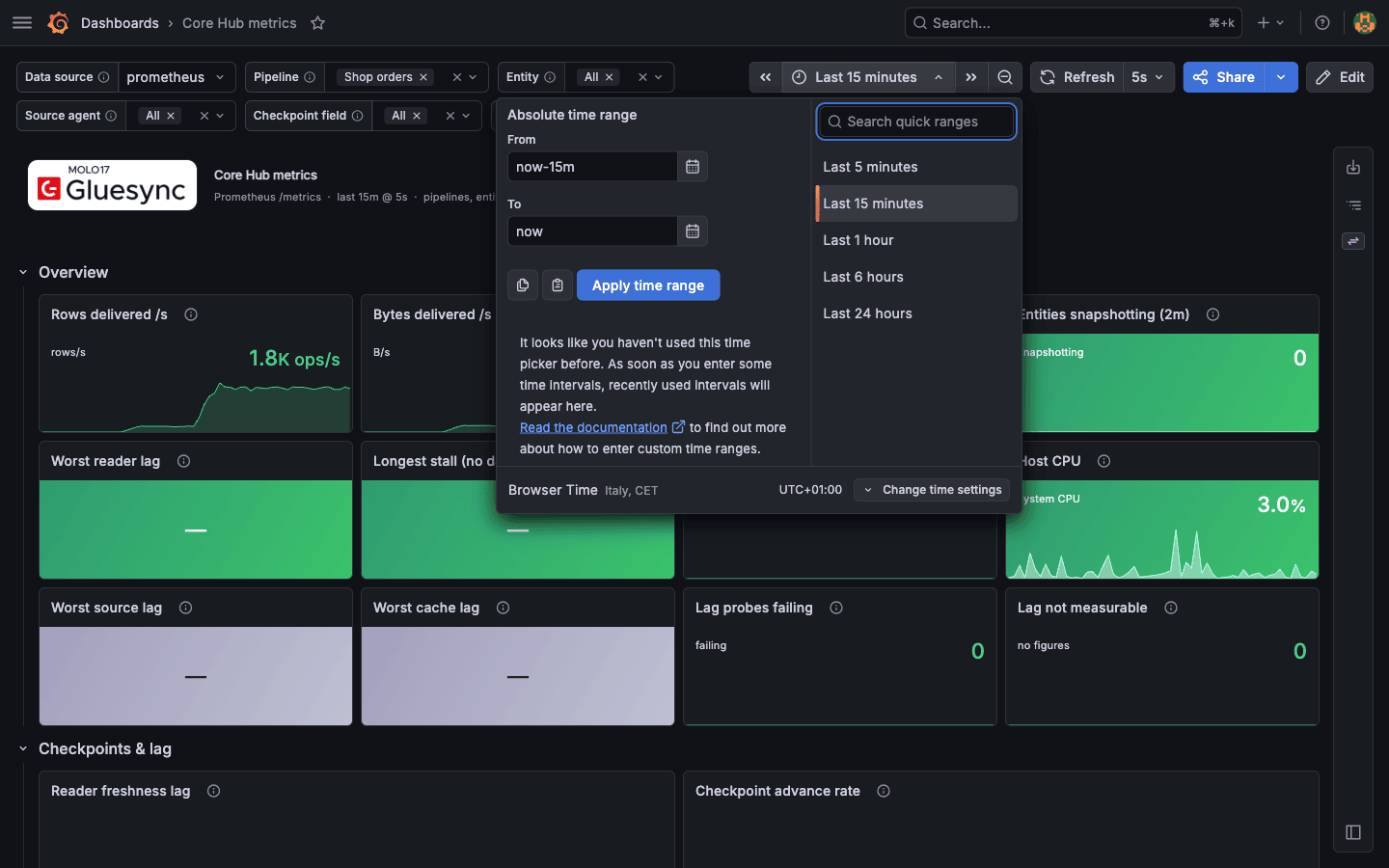
Select the time picker (Last 15 minutes) to change the window, and the 5s arrow next to Refresh to change how often the panels reload.
|
Source agent lists the source connectors that publish a checkpoint. For the PostgreSQL pipeline in this guide it offers only All, because no checkpoint series exists (see Checkpoint age and entity lag). |
UI
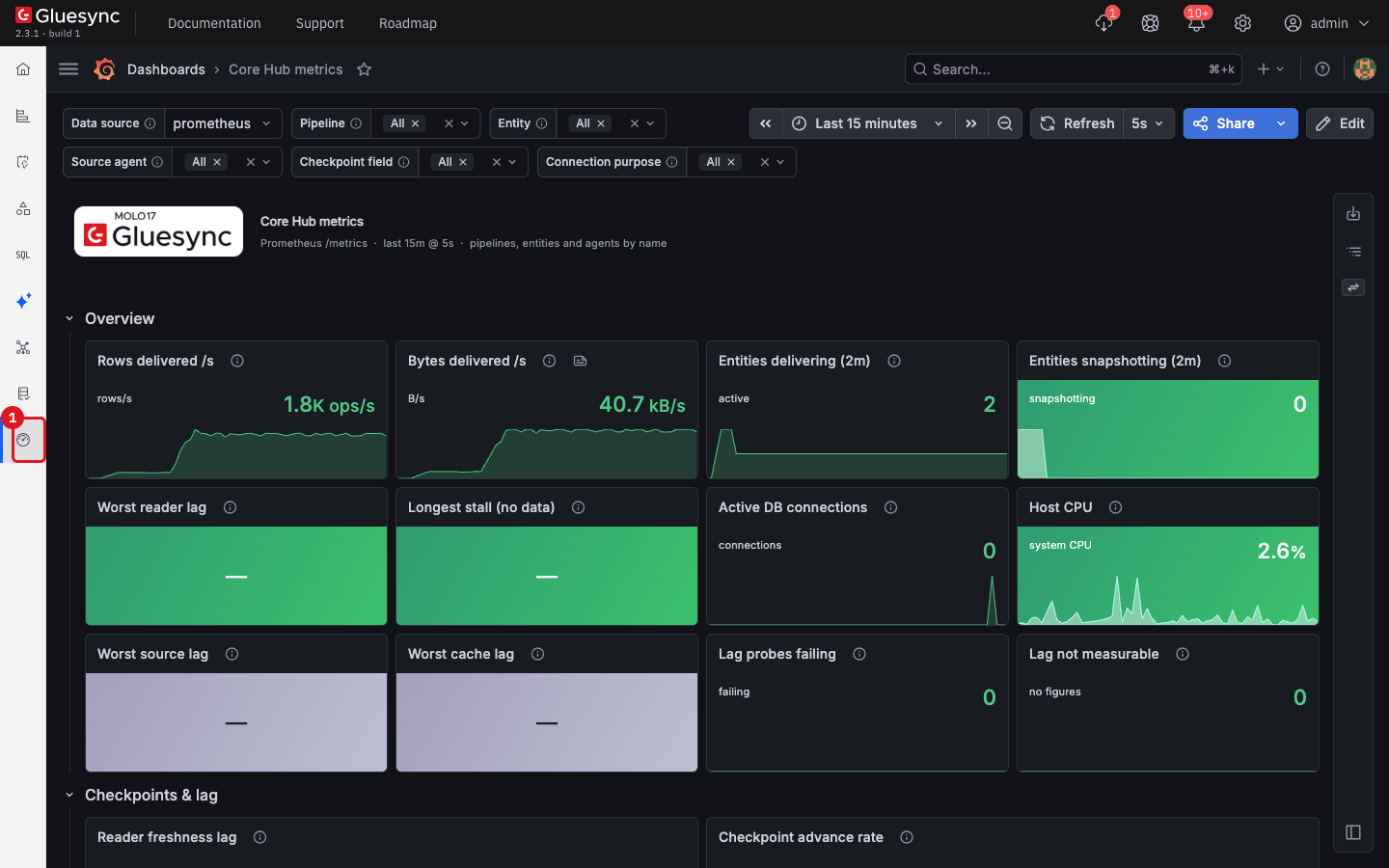
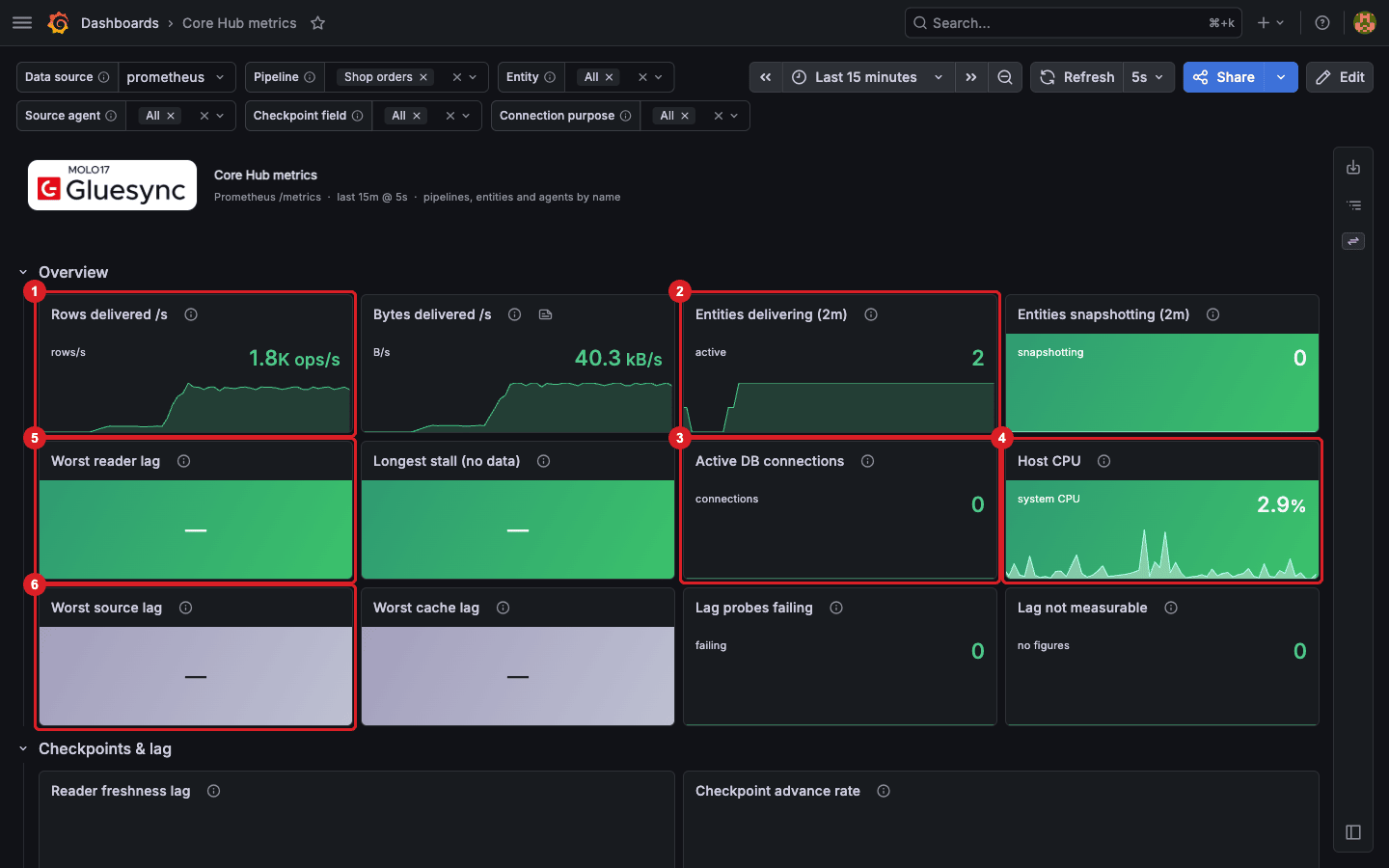
The Overview section answers one question: is data moving and is anything wrong right now? With the traffic loop running, read these panels. The info icon on each panel title shows what it measures.
| Panel | What it shows | What it showed in the example |
|---|---|---|
Rows delivered /s |
Rows delivered to the targets per second, summed over the selected pipeline and entities |
About 1.8K rows/s while the loop ran, and a flat line before it started |
Bytes delivered /s |
Payload delivered to the targets per second |
About 40 kB/s |
Entities delivering (2m) |
Entities that delivered at least one row in the last two minutes |
2 ( |
Entities snapshotting (2m) |
Entities whose initial snapshot is still advancing. |
0 |
Active DB connections |
JDBC connections currently borrowed from Core Hub’s pools, for every purpose (pipeline tasks, Query Studio, Query Forge) |
0 or 1 |
Host CPU |
System-wide CPU load of the Core Hub host |
2% to 7% |
UI
-
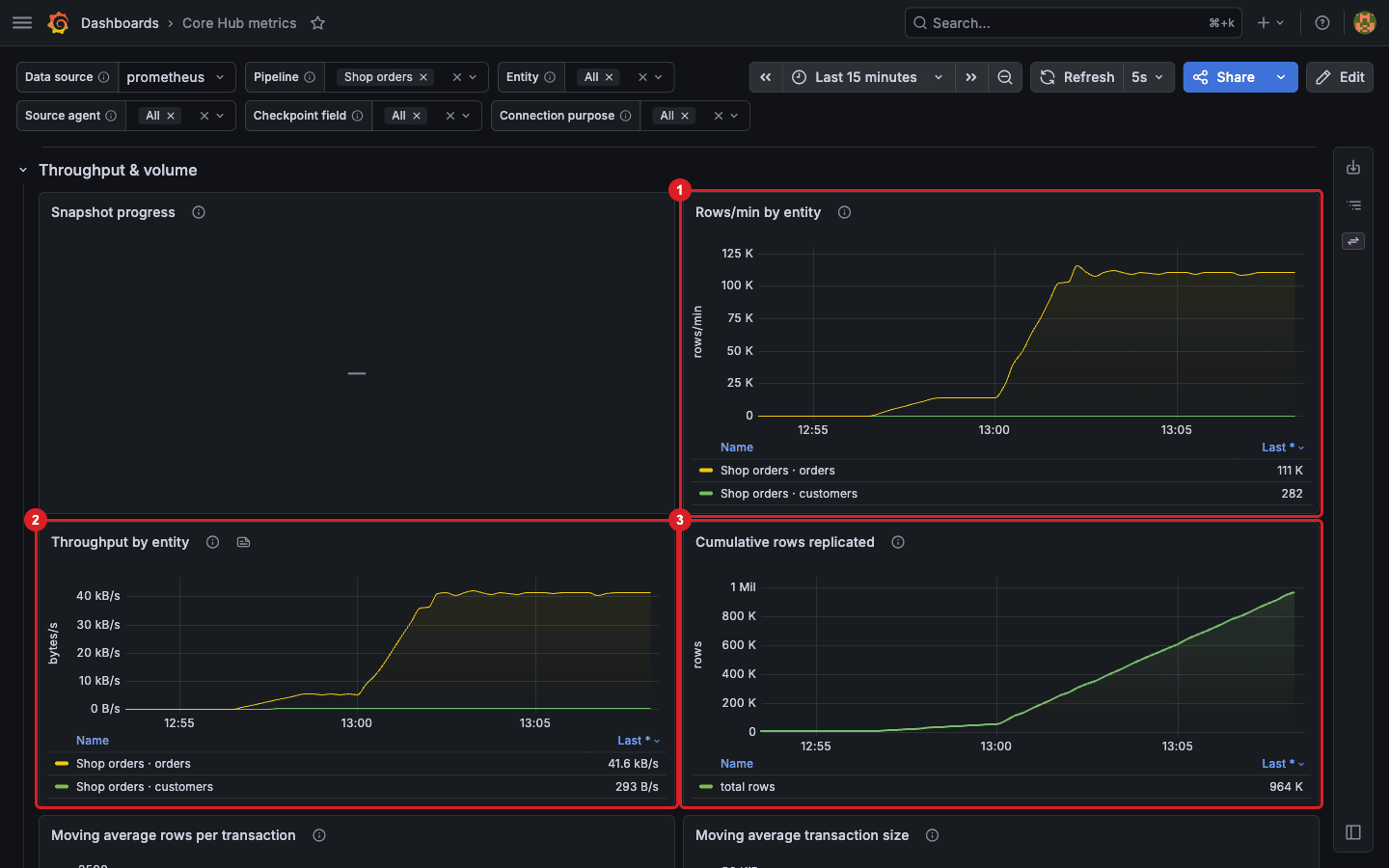
Scroll to Throughput & volume;
-
In Rows/min by entity, find which entity carries the volume. The legend lists each entity with its latest value;
-
In Throughput by entity, compare the payload rate. An entity with moderate rows but a high byte rate has wide rows;
-
In Cumulative rows replicated, read the total of rows delivered in the window.
|
Snapshot progress stays empty here because no entity is copying. It fills during an initial snapshot (see Start a snapshot and CDC replication from the Control Plane). |
UI
-
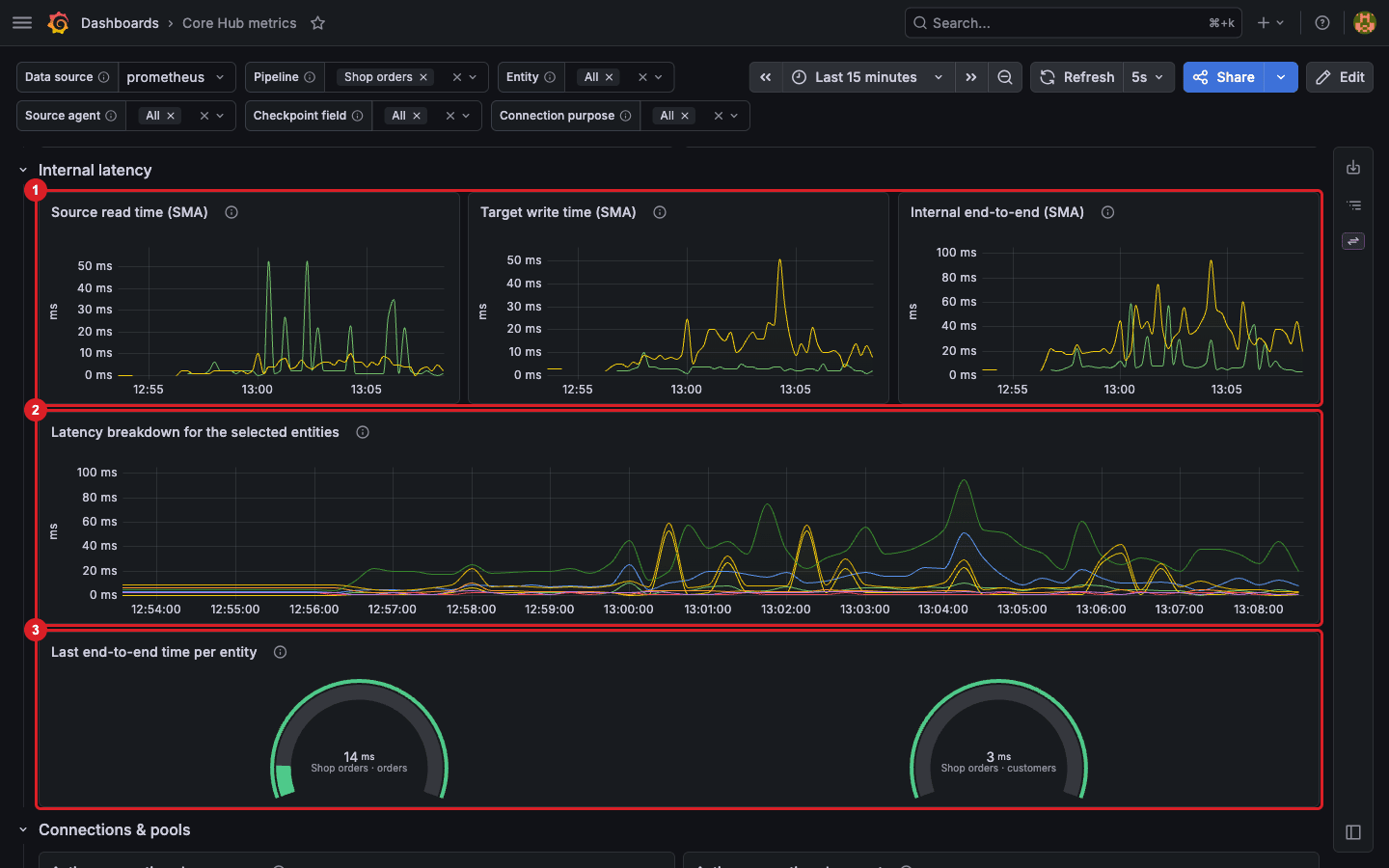
Scroll to Internal latency;
-
Read Source read time (SMA) and Target write time (SMA): the moving average of the time spent reading from the source and writing to the target. A high write time with a low read time points at the target;
-
Read Internal end-to-end (SMA): the time Core Hub spends on a change after it is read. It is not the source-to-target freshness;
-
Read Latency breakdown for the selected entities, which draws read, write, storage and end-to-end side by side. Narrow Entity to one or two tables to read it clearly;
-
Read Last end-to-end time per entity: the latest measurement for each entity.
UI
-
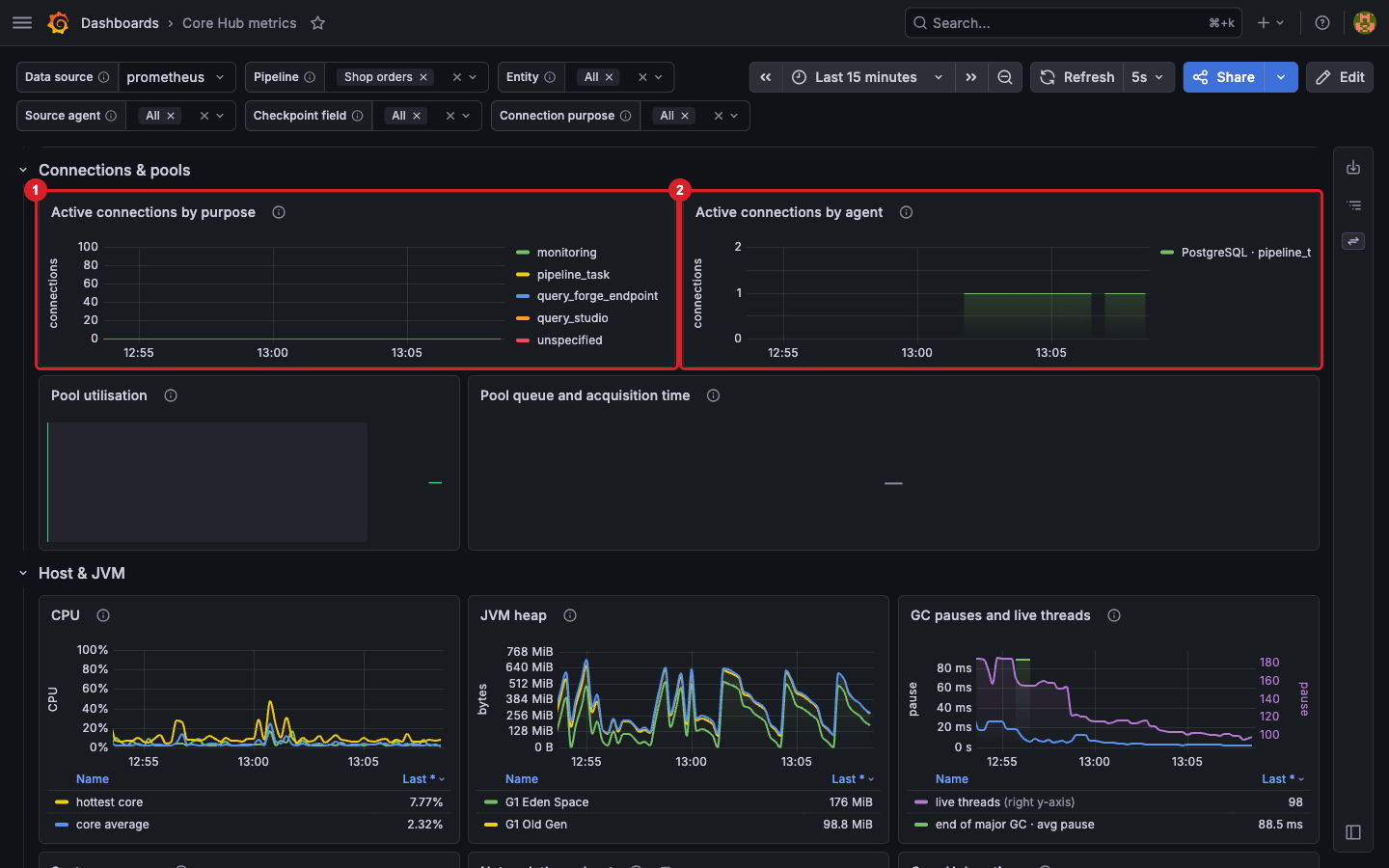
Scroll to Connections & pools;
-
In Active connections by purpose, read how many JDBC connections are borrowed for pipeline tasks, Query Studio, Query Forge endpoints and monitoring. A rising
query_studioorquery_forge_endpointband means ad-hoc queries compete with replication for your database; -
In Active connections by agent, read the same connections per connector. One pipeline task connection appears for the PostgreSQL pipeline;
-
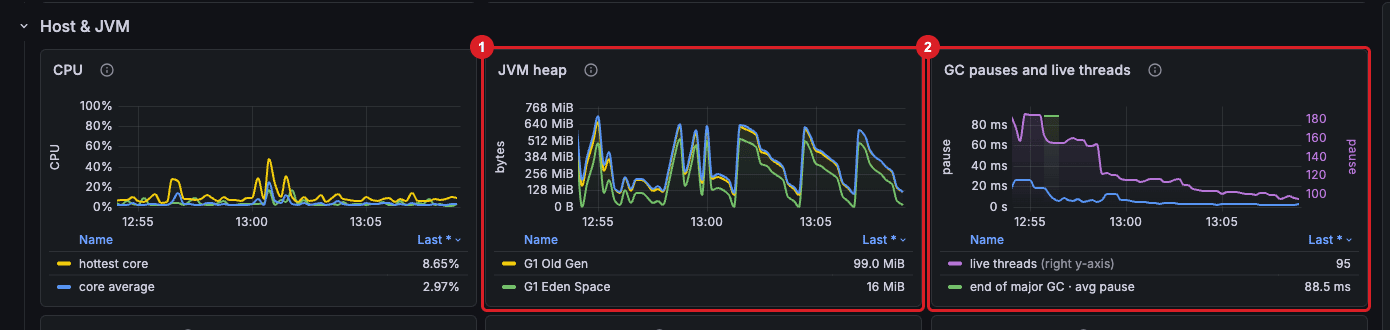
Scroll to Host & JVM, then read JVM heap: a saw-tooth in the Eden space with a stable Old Gen is normal, while an Old Gen that keeps climbing after each collection is a leak signature;
-
Read GC pauses and live threads: the average pause per collection and the live thread count.
|
Pool utilisation and Pool queue and acquisition time are empty in this setup because no HikariCP pool metrics are published. They fill only when the matching pools exist. |
UI + SQL
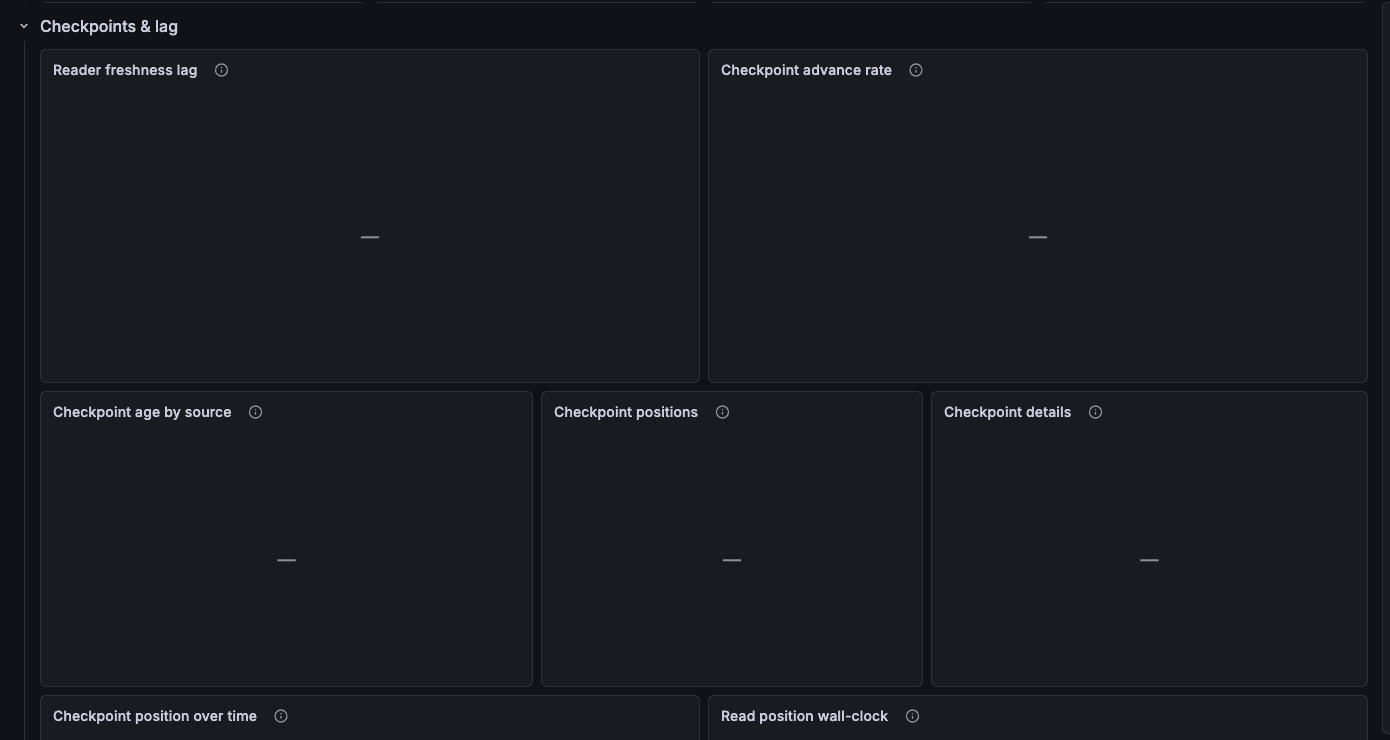
Two sections measure how far behind the source a pipeline is: Checkpoints & lag (checkpoint age, shown by Reader freshness lag) and Entity lag — source backlog and cache backlog (Time behind the source, Time waiting in the local CDC cache). Their stats in the Overview are Worst reader lag, Worst source lag and Worst cache lag.
-
Scroll to Checkpoints & lag;
-
Read Reader freshness lag: the seconds between now and the CDC position persisted by the source reader. Rising values mean the reader is falling behind;
-
Scroll to the entity lag section and read Time behind the source and Time waiting in the local CDC cache. High cache lag with low source lag means the target write path is the bottleneck.
In the example, every one of these panels shows a dash: for the PostgreSQL pipeline Core Hub published no checkpoint and no lag series. To confirm that a series is not exported, and not merely quiet, ask Prometheus:
-
In Query, enter
gluesync_read_checkpoint_age_secondsand run the query.
UI
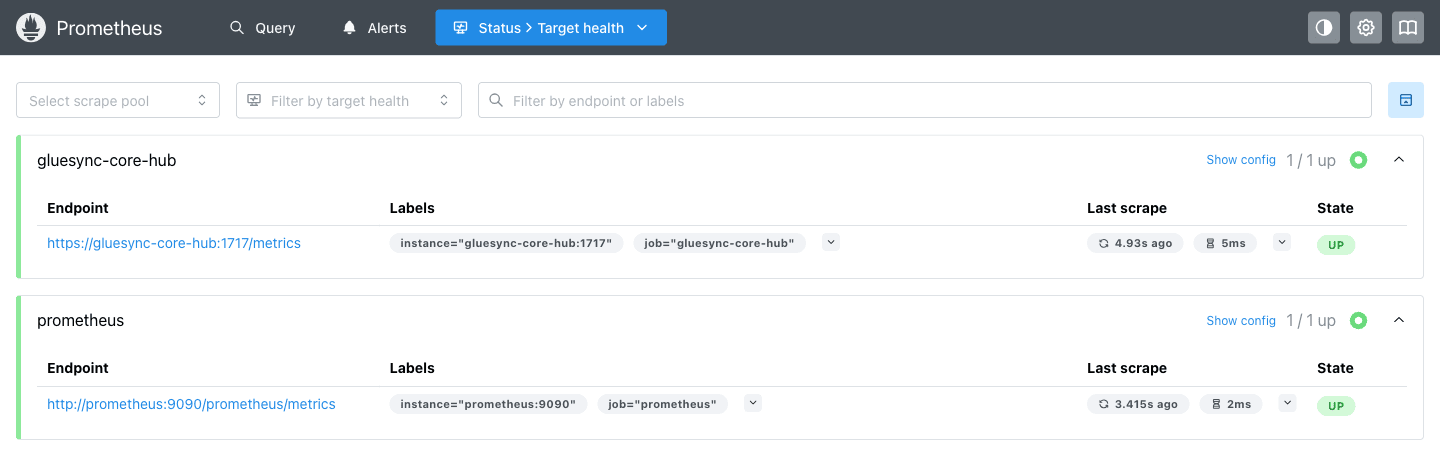
Do this when many panels are empty at once, or when nothing moves.
-
Select Status, then Target health (or open
https://localhost/prometheus/targets); -
Find the
gluesync-core-hubjob and read its State and Last scrape.
SQL
-
Stop the loop (press Ctrl+C) if it is still running;
-
Delete the test rows on the source. CDC deletes them on the target:
-- run on the source DELETE FROM shop.orders WHERE id >= 100000; -
Wait until the counts are equal again:
-- run on the source, then on the target
SELECT count(*) FROM shop.orders;
Troubleshooting
| Problem | Possible cause | What to do |
|---|---|---|
Grafana asks for a login again |
Grafana has its own session, separate from the Control Plane |
Sign in with |
Pipeline does not list your pipeline |
The pipeline has not delivered a row yet in the window |
Start its entities (see Start a snapshot and CDC replication from the Control Plane) and wait for the next refresh |
Rows delivered /s stays at zero |
No changes reach the source, the entity is on hold, or the time range does not include the activity |
Check that the entity is Active, run the traffic loop, and select a range such as Last 15 minutes |
Several panels show a dash |
The series is not published for your connector, or Prometheus is not scraping Core Hub |
Query the metric name in Prometheus, then check Status → Target health |
Source agent offers only All |
No checkpoint series exists, and the list is built from it |
Expected for connectors without a persisted checkpoint; filter by Pipeline and Entity instead |
A deleted entity still appears in the panels, sometimes under its identifier |
Prometheus keeps the old series for the selected window |
Wait until the time range moves past the deletion, or shorten the range |
The |
Prometheus cannot reach Core Hub on the network, or the certificate is rejected |
Read the error shown for the target in Target health, and check that Core Hub is running |
Related guides
Contact MOLO17 Support if you need assistance with Grafana or Core Hub metrics.