Pipeline Maintenance Mode
Maintenance Mode allows you to safely put an entire pipeline on hold, suppressing unwanted errors when your source or target databases are temporarily unreachable or undergoing scheduled maintenance.
|
How-to guides
For step-by-step walkthroughs tested on a running Gluesync, see the how-to guides Diagnose and recover a stalled pipeline or entity and Handle schema changes on a live replication. |
Overview
When performing scheduled maintenance on your databases or experiencing an unexpected connection outage, Gluesync will naturally try to reconnect, which might generate a high volume of connection errors in your logs and Notifications and alerts. Maintenance Mode solves this by explicitly telling the Core Hub to suspend all operations for that specific pipeline.
While a pipeline is in maintenance mode, the following restrictions apply to protect your configuration and data integrity:
-
All entities within the pipeline are immediately paused.
-
Entities become strictly read-only: they cannot be edited, started, or deleted.
-
Error notifications regarding database connectivity for this pipeline are safely suppressed.
When to use Maintenance Mode
Use Maintenance Mode when:
-
Performing scheduled database maintenance (backups, updates, etc.)
-
Experiencing planned database outages
-
Conducting system upgrades or migrations
-
Debugging connection issues without wanting to see constant error notifications
When NOT to use Maintenance Mode
-
When you need to actively replicate data - use regular pipeline controls instead
-
For temporary network glitches - let Gluesync handle reconnection automatically
-
For Gluesync platform updates - use the update process instead which automatically handles everything without requiring manual intervention. Checkpoints are preserved during the update process.
| We recommend using Maintenance Mode only when necessary, stressing that it is not required before applying platform updates. |
Activating Maintenance Mode
You can activate this feature directly from the Gluesync Control Plane UI.
-
In the left menu, select Data pipelines and open the pipeline you wish to pause.
-
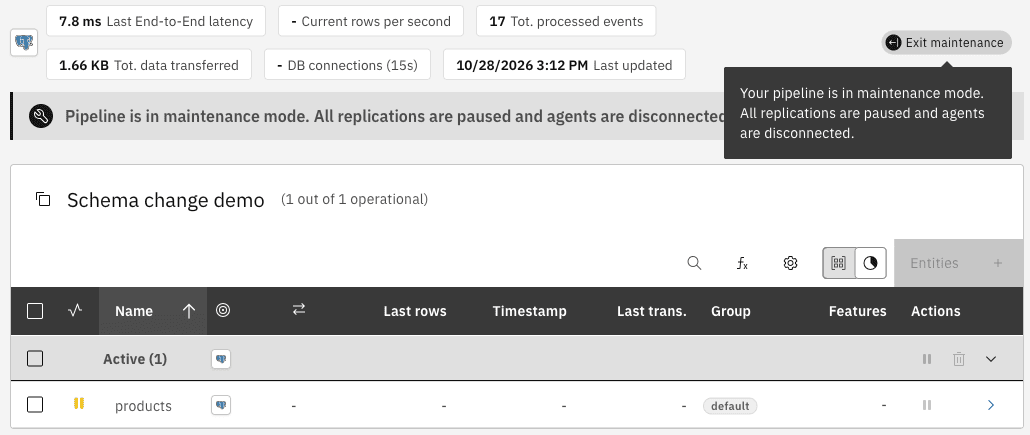
Select the Pipeline settings gear icon above the entity list, then select Enter maintenance.
-
Select Confirm. The dialog says that all replications are paused and that all agents are disconnected from their databases.
-
Check that the status chip of the pipeline reads In maintenance.

Once activated, the UI will clearly indicate that the pipeline is currently in maintenance, and all interactive controls for its underlying entities will be locked.
Deactivating Maintenance Mode
When your databases are back online and the environment is stable, you can safely resume normal operations.
-
Open the pipeline that is in maintenance.
-
Hover over the In maintenance chip until it reads Exit maintenance, and select it. The Pipeline settings gear menu offers Exit maintenance too.
-
Select Confirm.
|
Upon deactivating maintenance mode, previously active entities are automatically restarted. |
The pipeline will unlock, and you will regain full control over editing, starting, or deleting your entities. Normal error reporting and connection handling will also be restored.
FAQ
Why does exiting maintenance mode take so long?
Leaving maintenance is not a switch: Core Hub has to bring the whole pipeline back. After you confirm Exit maintenance, it does the following (in the latest 2.3 releases the web request returns at the first step and the rest runs in the background):
-
Marks the pipeline as no longer in maintenance, and answers your request at once.
-
Reconfigures the agents of the pipeline, one after the other. Each agent reopens its connection to the database, checks it, and loads the metadata of its entities.
-
Restarts the entities that were running when you entered maintenance. Each one reads its checkpoint again and reconnects to the source and the target.
The time grows with the number of entities, and with how long the databases take to answer. A pipeline with a few entities is back in seconds. A pipeline with hundreds of entities, or with a database that is still starting or is slow to open connections, can take many minutes.
What do I see while the pipeline is coming back?
The status of the pipeline is On warm-up (Warming up in the pipeline list), with the tooltip Your pipeline is warming up. Kindly wait while system components are brought online. The entities return one by one: the counter in the pipeline list (for example 0 / 1039) grows as they become operational. Entities that you had paused before entering maintenance stay paused. When the whole pipeline is back, a notification Pipeline <name> resumed from maintenance appears.
It has been a long time. What should I check?
-
Look at the pipeline status. On warm-up with the counter still growing means that it is working: wait.
-
Open the notifications of the pipeline. If an agent cannot connect, the status shows Warm-up failed, check the notification for details of the error. A new attempt will be made in … and the notification names the cause, for example a database that is still down or a wrong credential. Core Hub retries on its own after 10, 20 and 30 seconds and then every 5 minutes, so fixing the cause is enough: you do not need to exit maintenance again.
-
Check that the source and the target databases accept connections from the Core Hub host. Your database maintenance must be finished before you exit maintenance.
-
If you changed host names, certificates or passwords during the maintenance window, update the connection of the agent accordingly: the agent reconnects with the saved settings.
Should I enter maintenance mode again, or stop the pipeline, to "unstick" it?
No. Entering maintenance while the exit is running cancels it, and the next exit starts from the beginning. A second exit request while one is running does nothing. Wait for the warm-up to finish or for the notification that names the cause.
I see Check connection failed … Jetty idle timeout expired after exiting maintenance, but my database is fine
This message comes from earlier 2.3 releases, where the exit ran inside the web request and the request was cut after 10 minutes on large pipelines. The error is misleading: the database is not the problem, and the exit could stop half-way. Update to the latest Gluesync 2.3 release: the exit now runs in the background and the request returns at once. See the release notes.
Do I lose data or checkpoints while in maintenance mode?
No. Entering maintenance stops the entities, keeps their checkpoints, and closes the database connections of the agents. On exit, the entities that were running resume from their checkpoint. As for any pause, keep the change log of the source (for example the WAL of PostgreSQL or the journal receivers of IBM i) long enough to cover the window.
Can I make exits faster?
Keep pipelines to a size that you can bring back quickly: if a pipeline holds hundreds of entities, consider splitting it into several pipelines, so that a maintenance window affects fewer entities. Make sure that the Core Hub host can reach both databases with low latency, and that both databases are up before you exit.
|
Optional, for advanced users
You do not need the logs to follow the progress. If you want to see it in the Core Hub log, look for |