Import entities from a file
Importing a file creates many entities of a pipeline at once, from a YAML or ZIP file, instead of selecting the tables one by one. Every table of the file is checked against the pipeline, and you choose which entities to add, fix what needs fixing, and save them. Nothing is written to the pipeline until you confirm. The import is available from Core Hub 2.3.2.
Where to find it
The import is on the New Entity page of a pipeline, the page where you select tables in the Objects Browser. Its breadcrumb reads Add entities. The Selected entities pane on the right offers it in two places:
-
Import entities, in the header of the pane.
-
Or import them from a file, under No entities selected, while you have not selected any table yet.
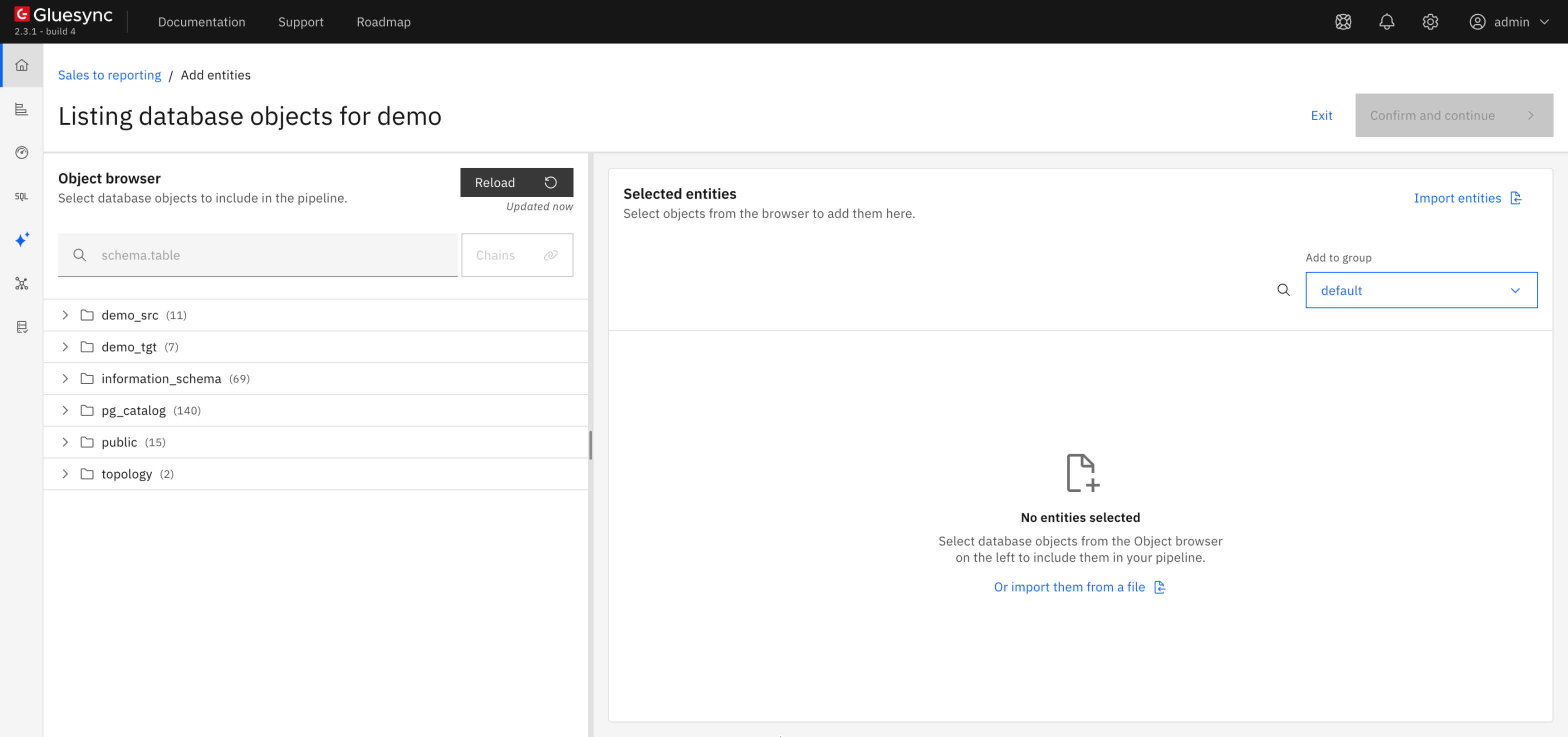
Both open the Import entities from YAML or ZIP dialog.
The import is not offered when you edit an entity that is already saved. On the New Entity page the buttons stay disabled:
-
until the source and the target agent of the pipeline have both loaded;
-
while a chain you built on the page is selected;
-
while imported entities are being saved.
Who can import entities
Importing creates entities, so it needs the permission to create entities. The SUPER ADMIN and MANAGER roles have it; the VIEWER role does not see the import. See User management and role-based access control.
A ZIP can carry Custom Field Functions that the pipeline does not have yet. Compiling and publishing them from the dialog with Compile and publish needs the permission to manage Custom Field Functions, which both SUPER ADMIN and MANAGER have. See Import a ZIP with UDFs and Custom Field Functions.
Files you can import
| File | What the import accepts |
|---|---|
YAML file |
A |
ZIP file |
A |
The file is read in your browser: it is not uploaded to Core Hub. What the import builds from it is sent to Core Hub: the entities, to be checked and then saved, and the code of the UDFs and Custom Field Functions that a ZIP carries, to be compiled.
You can start from either of these files:
-
The export of a pipeline from the Gluesync Automator: under Export a single pipeline, Export entities gives the YAML file, or a ZIP when the pipeline has UDFs or Custom Field Functions, and Pipeline backup gives the ZIP of the pipeline. A ZIP that holds several pipelines is refused, and so is the ZIP of Full backup under Export all when it holds more than one pipeline: import the export of a single pipeline.
-
A YAML written for the Bootstrapper, from its schema template.
The keys the import reads, and what it does with each one, are described in Entity import file reference. Start with File structure and How keys are treated.
Import the file
-
On the New Entity page of the pipeline, select Import entities in the Selected entities pane.
The Import entities from YAML or ZIP dialog opens.
-
Drag the file onto Drag and drop a .yaml, .yml or .zip file here, or click to choose one, or click it and choose the file.
Reading the file… shows while the file is read. When it is read, Validate becomes available. If the file cannot be imported, the drop zone says why, for example Choose a .yaml, .yml or .zip file., The file is larger than 100 MB. or The file is not UTF-8 text. Save it as UTF-8 and choose it again. For a ZIP, the drop zone shows the first problem found in it.
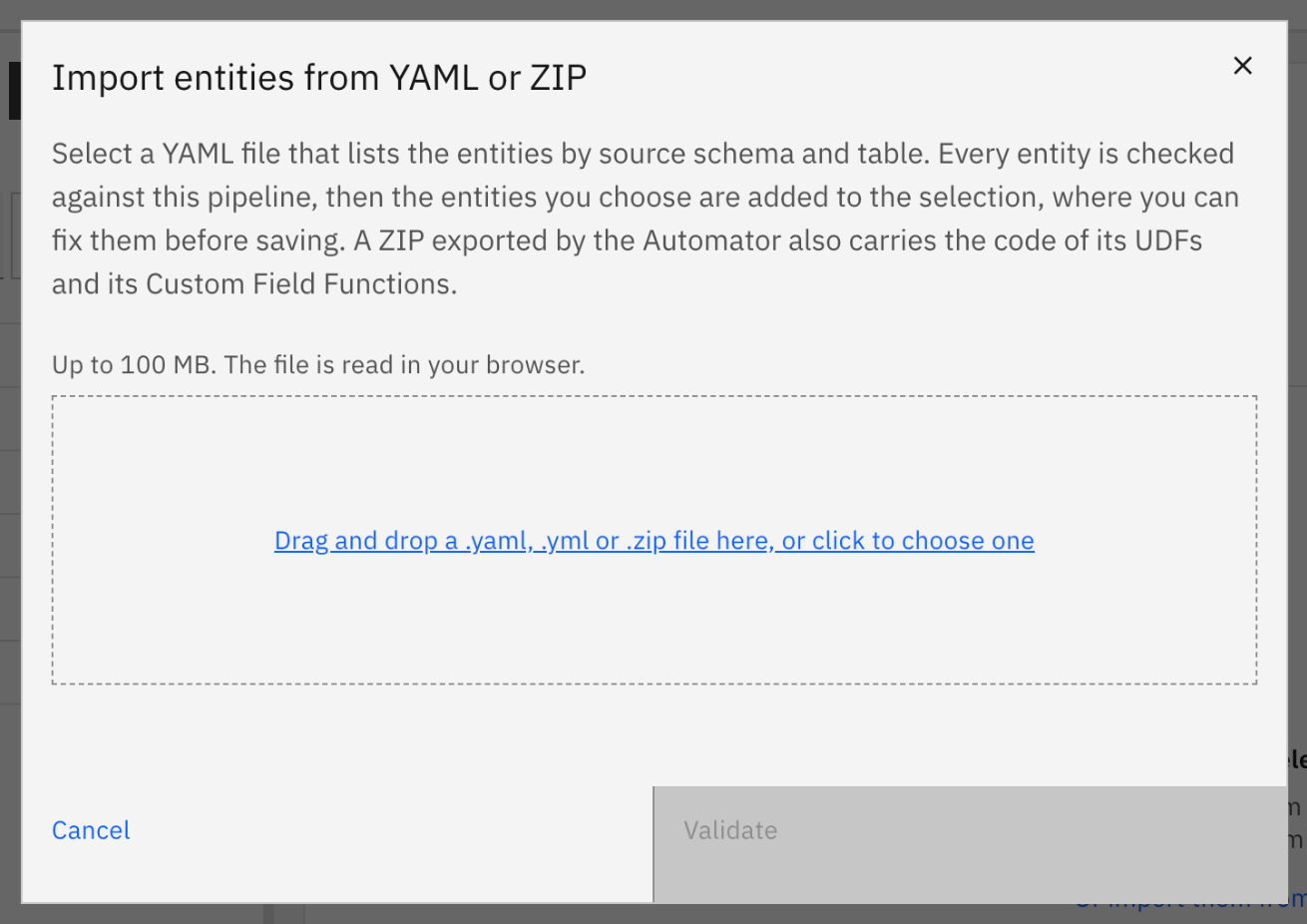
-
Select Validate.
A progress bar shows the three phases of the check: Reading the file, Reading the source and target tables, then Checking the entities with Gluesync, with the count of tables or entities done. As the dialog says, Nothing is changed while the file is validated. To stop the check and choose another file, select Cancel.
-
Wait for the results.
The dialog widens to a sheet with one row per entity the file describes. Review the rows as described in Review the results.
If the file describes no table the import can read, the dialog says No entity can be imported from this file. and lists the reasons under File. Fix the file, then select Choose another file. If the file describes tables but none of them can be added, for example because every row is Unsupported, the results open and say No entity can be added. Fix the file and try again.
Review the results
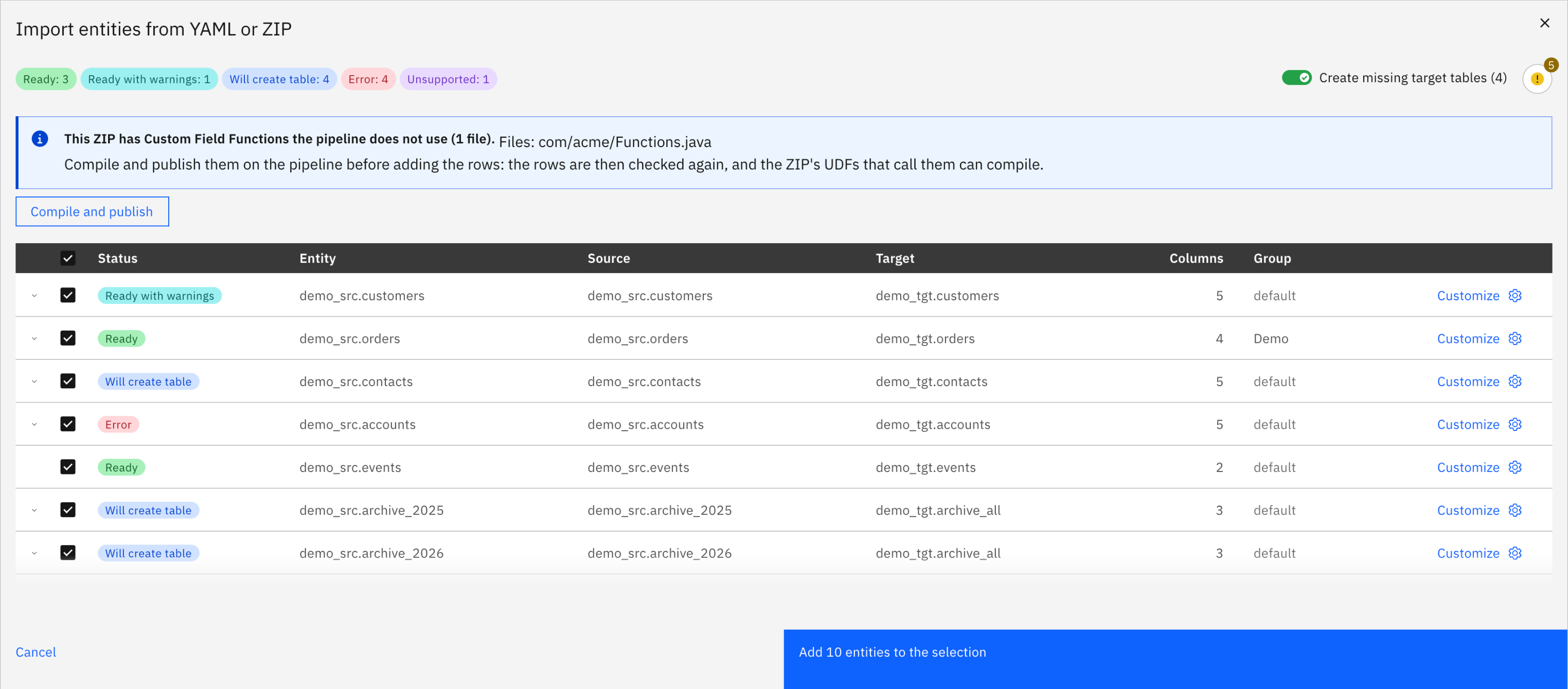
The results list each entity the file describes, with its Status, Entity, Source, Target, Columns and Group, and a Customize button. A group the file does not name shows the group selected on the page, in a lighter color. Tags next to the status mark a row you have Customized, a row In chain name, and a row Already selected on the page.
Expand a row to see its findings, each with what to do about it, any correction you can make under the row (see Fix a row before adding it), and, for a table the import creates, its CREATE statement, which you can copy.
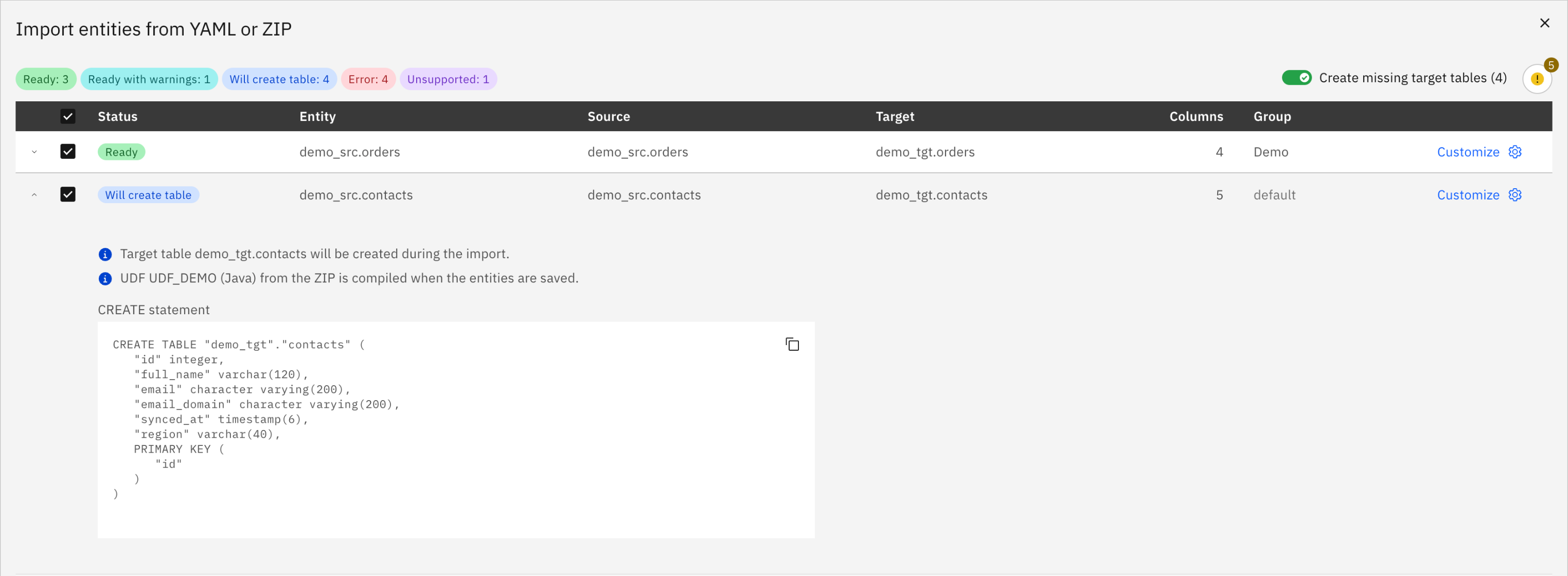
Above 100 rows, the results are split into pages of 100 rows; you can show 50, 100 or 200 rows per page.
Statuses
| Status | What it means | What to do |
|---|---|---|
Checking |
Gluesync is checking the row again, after you customized or corrected it. |
Wait for the check to end. While ticked rows are being checked, the add button reads Checking n entities… and is disabled. |
Ready |
The entity can be saved as it is. |
Nothing. |
Ready with warnings |
The entity can be saved, but the import applies part of the file differently from what it says, or leaves part of it out. |
Expand the row and read the warnings. Fix what matters to you in the file, under the row, or on the page after you add the entity. |
Will create table |
The target table does not exist yet. The import creates it, from the source columns, when you save the entities. This status is shown on relational targets while Create missing target tables is on. |
Expand the row to check the CREATE statement. The row can also have warnings: read them there too. |
Already exists |
The pipeline already has an entity with this name. The row starts unticked. |
Leave the row out, or tick it, add it, and give the entity another name in Entity settings before saving. |
Error |
The entity has an error that must be fixed before it can be saved. |
Expand the row. If a correction is shown under it, make it there (see Fix a row before adding it). Otherwise add the row and fix the entity on the page with Field mapping or Entity settings, or fix it first with Customize. Some errors, such as an invalid |
Unsupported |
The file asks for something the import does not support, such as an unlocked schema, a write policy other than the default, or a chain the pipeline cannot run. The row cannot be ticked or customized. |
Change the file and import it again, or create this entity by hand on the New Entity page. |
Not validated |
Gluesync could not check the entity, for example because the request failed or because Core Hub cannot read one of its values. |
Expand the row and read the message. If Core Hub cannot read a value, correct it in the file. Otherwise import the file again. |
A chain of the file shows as a single row, Chain of n tables, with its tables under it. See Chains.
Filter the rows by status
Above the rows, a chip for each status shows how many entities have it, for example Ready: 12. Select one or more chips to show only the rows with those statuses; select a chip again to turn it off. While a filter is on, a line says how many rows are shown, for example Showing 2 of 5 entities., and Show all rows turns the filter off. Ticked rows that the filter hides are added too, and the line says so.
File findings
Findings about the file as a whole, rather than about one table, are behind a round button above the rows. Its icon and count show how many findings there are and how serious the worst one is, and its tooltip reads Show the file findings (n). Selecting it opens a notification titled File with the findings; selecting it again (Hide the file findings (n)) closes it.
Create missing target tables
On a relational target, when some target tables do not exist yet, the switch Create missing target tables (n) is shown above the rows. n counts each table once, even when several tables of the file write to it. The switch starts on: the import creates the tables when you save the entities, from the source columns, and those rows show Will create table. See Target table creation.
Turned off, those rows have no target table: they show an error, and you choose or create their target with Customize or on the page.
|
Changing the switch can discard your work on the rows that create a table, so Discard your changes? asks first. Turning the switch off loses your customizations of those rows; the corrections you made under them are kept. Turning it on again loses the customizations and corrections you made to those rows while it was off. |
How the import builds a table it creates (primary key, nullability, types and lengths) is described in Target tables the import creates.
Which rows are ticked
When the check ends, the rows are ticked as follows:
-
Every row that can be added is ticked, Error rows included, because you can fix them on the page before saving.
-
A row that would duplicate an entity starts unticked: an Already exists row, a row that replicates the same source table to the same target table as an entity of the pipeline, and an entity that is already on the page, and a row whose entity name an entity on the page already uses. You can tick it.
-
Unsupported rows cannot be ticked, and neither can Error rows that only a change to the file can fix. A row waiting for a correction under it cannot be ticked until you make the correction, except a Bulk operations correction: that row is ticked, and you can also fix it on the page after adding it.
The checkbox in the table header ticks every row that can be added among the rows the status filter shows, on every page of the results.
Fix a row before adding it
Some findings can be fixed in the dialog, without editing the file. The correction shows when you expand the row. Each correction changes only what this import adds: the file itself is not changed.
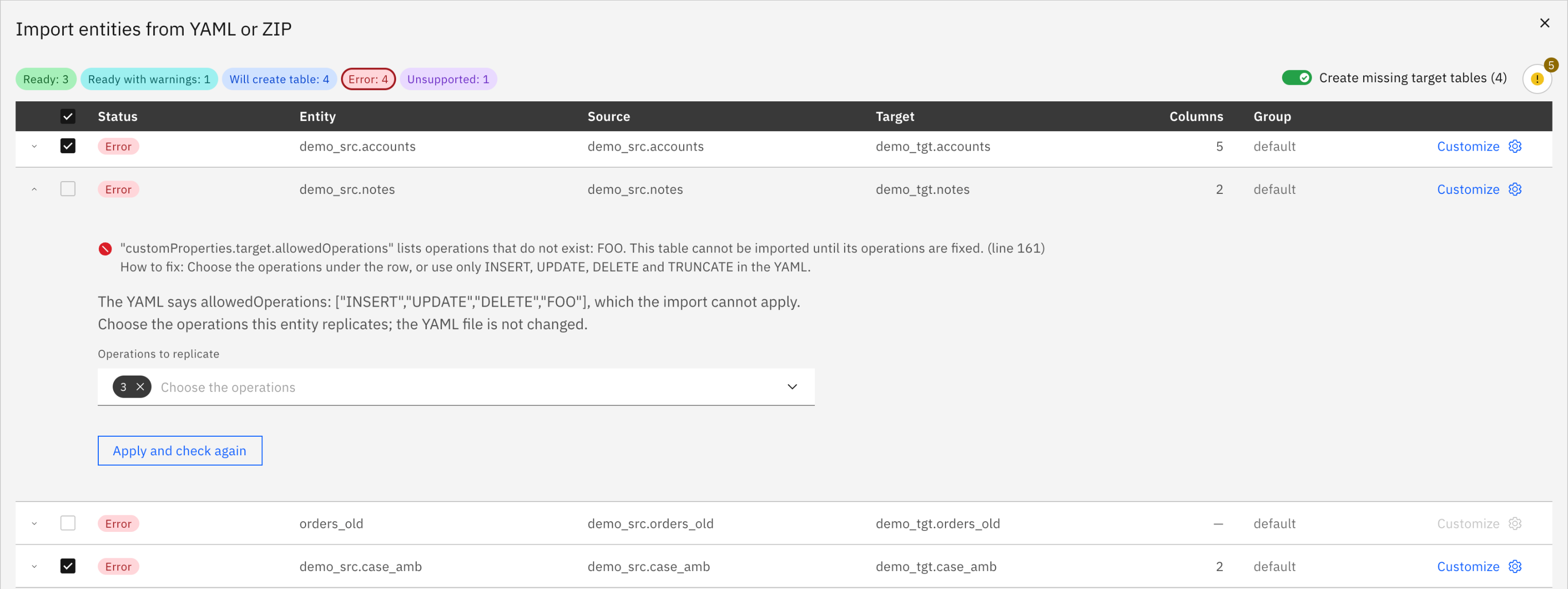
| Correction | When it shows | What you do |
|---|---|---|
Source table |
The source schema or the source table the file names is not found. |
Choose the Source schema and the Source table to import instead, then select Apply and check again. |
Operations |
The file lists operations to replicate that the import cannot apply. |
Choose them in Operations to replicate, then select Apply and check again. Choose at least one operation: to replicate nothing, clear the operations in the entity settings after the import. See Allowed Operations. |
Snapshot only |
The file sets snapshot only to a value the import cannot read as true or false. |
Tick or clear Snapshot only: copy the existing data once, without streaming changes, then select Apply and check again. |
Target keys |
The file lists target keys the target table cannot take. |
Select the button under the row. It reads Use the table’s key (…) when the target table has a primary key, Use the keys of the mapping (…) when the mapping gives the keys, or Leave out "targetKeys" when neither does; in that case, mark the keys in Field mapping afterwards. |
Filter conditions |
A condition of the filter, or of the delete filter run before the snapshot, cannot be applied as written. |
For each condition, choose the Operation, and the Value when the operation takes one, or tick Remove this condition; then select Apply and check again. A condition the import cannot read, or a delete filter that the target does not run, offers no choice: Apply and check again removes it. See Filter rows with a snapshot WHERE clause and target filters and Selective deletion ahead of snapshot. |
Bulk operations |
The file turns on bulk operations together with a target scalar function, which Core Hub refuses. |
Select Turn bulk operations off for this entity. See Write strategies. |
UDF check |
The pipeline could not be asked about a UDF the row uses. |
Select Check the UDF again. Nothing is changed on the pipeline. |
When several tables of the same schema have the same problem with operations, snapshot only or bulk operations, the correction also offers Apply to the n tables of this schema with the same setting.
After a correction the row is checked again, and its status changes accordingly.
Customize a row
Customize opens Field mapping, the Fields Editor, on the entity of the row, so you can change its mapping before adding it. When you confirm, the row is checked again and gets the Customized tag. When a row cannot be customized, the button’s tooltip says why, for example Field mapping is still loading the pipeline. while the page is still loading.
If you close the dialog after customizing or correcting rows, Discard your changes? asks first: Discard changes closes the dialog without adding any entity, Keep editing goes back to the results.
Add the entities and save
Adding the rows puts their entities on the New Entity page, next to any table you selected by hand. Nothing is saved until you confirm the page.
-
Under the rows, select Add n entities to the selection.
If one of these entities is already selected on the page, Replace entities already selected? opens first and lists them. Select Replace n entities to replace their configuration on the page with the import’s, or Cancel to go back.
The dialog closes and the entities appear in the Selected entities pane. Nothing is saved yet.
-
Review the entities on the page.
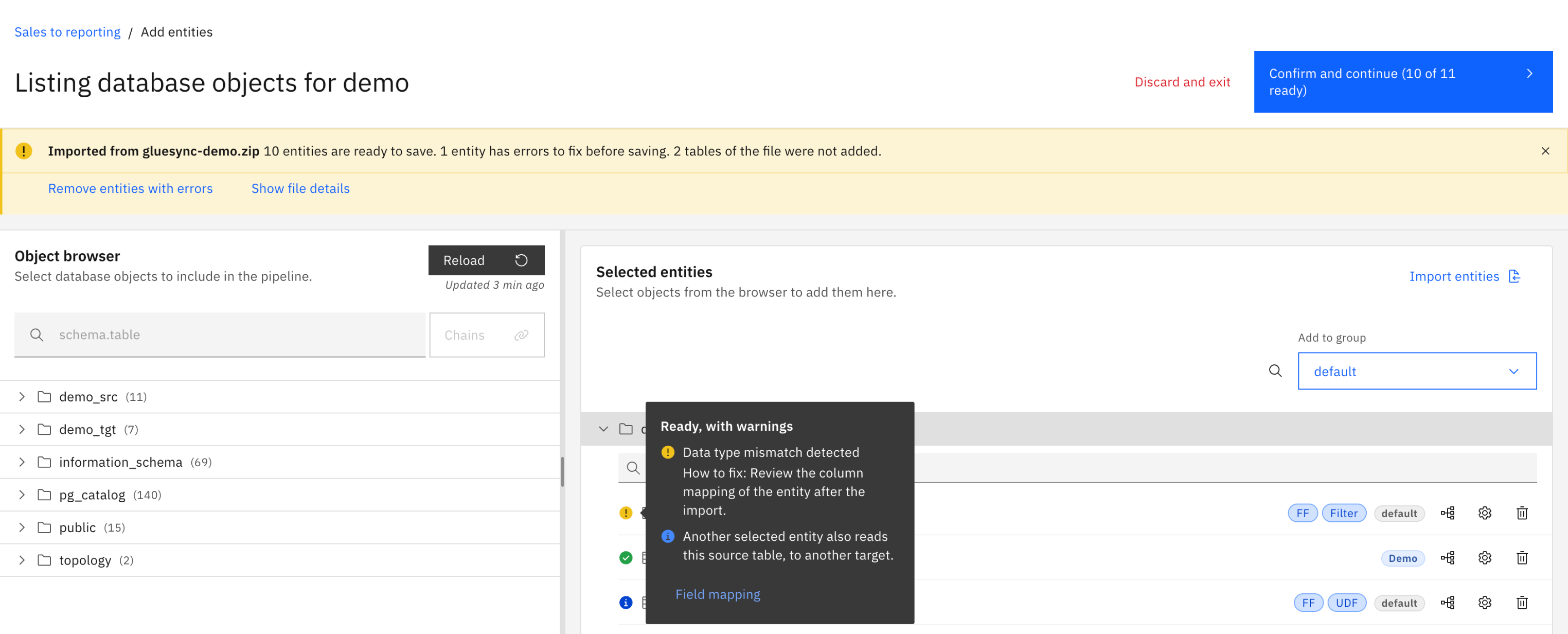
A banner titled Imported from file name says how many entities are ready to save, how many have errors to fix before saving, and how many tables of the file were not added. Show file details lists the file findings and the Tables not added. Remove entities with errors removes from the page every imported entity that still has errors.
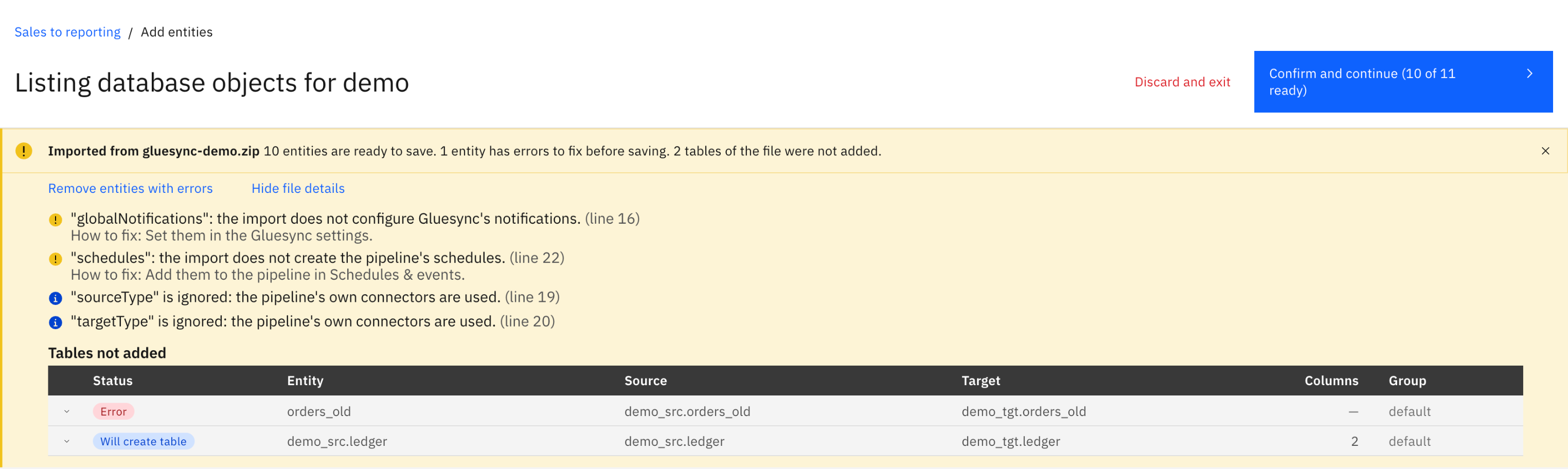
An icon next to each imported entity opens its status: Ready, Ready, with warnings, Ready, the target table is created when saving, or To fix before saving, with its findings. Where a finding can be fixed on the page, a Field mapping or Entity settings button there opens the dialog that fixes it.
-
Select Confirm and continue.
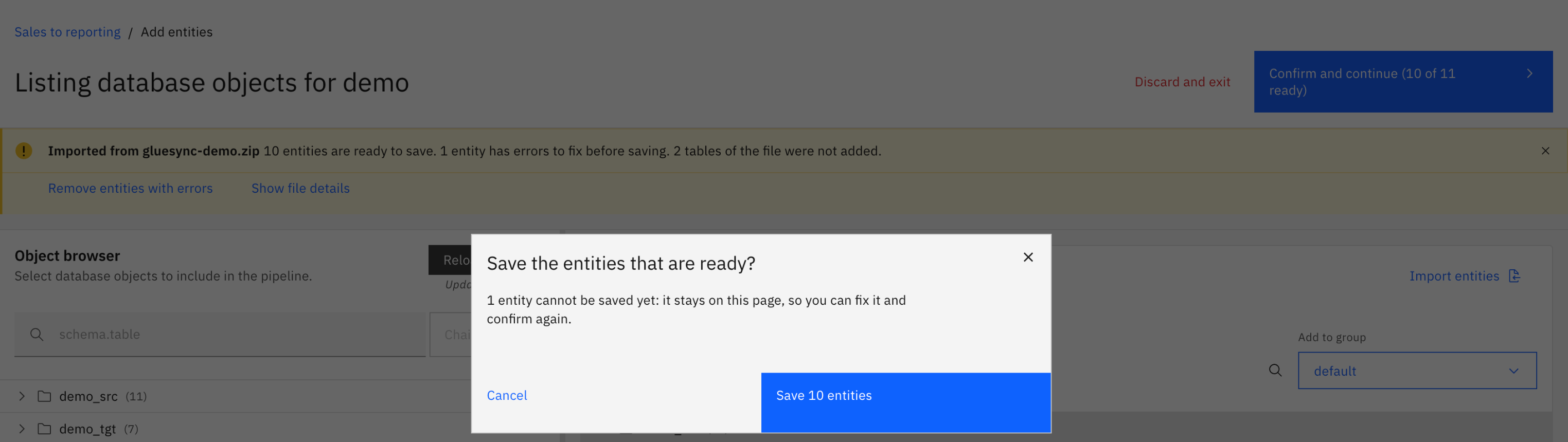
When some entities cannot be saved yet, the button reads Confirm and continue (n of m ready), and Save the entities that are ready? opens first. It says that the other entities stay on the page, so that you can fix them and confirm again. Select Save n entities.
A progress bar shows the step the save is in, with its own count: Compiling the UDFs of a ZIP, Checking the entities with Gluesync, Creating the target tables when the import creates some, Saving the entities, then Computing the logical partitions when the file asks for them. Meanwhile the Selected entities pane says Saving….
-
Check the outcome.
If every entity was saved without a warning, the page closes and you are back on the pipeline. Otherwise you stay on the page, as described in When some entities are not saved.
What the save does
The save runs in this order:
-
The entity names are checked against the pipeline again, and the field functions against the Custom Field Functions the pipeline has now. An entity whose name was taken since the import is not saved.
-
The chains of the file are saved, each as one entity (see Chains).
-
The UDFs of a ZIP are compiled.
-
The entities are checked again with Core Hub.
-
The groups the file names are found on the pipeline by name, or created.
-
The missing target tables are created.
-
The entities are saved.
-
The logical partitions the file asks for are computed. A problem with them is a warning: the entity stays saved. See Logical partitioning for snapshot tasks.
Each table of the file becomes an entity of its own, except the tables of a chain, which together become one entity.
When some entities are not saved
One entity that fails does not stop the others. The saved entities leave the page; the others stay on it, and the banner lists them under Not saved by the last confirmation, with a Result for each. Saved entities that have a warning are listed under Saved with warnings by the last confirmation.
| Result | Meaning |
|---|---|
Created |
The entity was saved. |
Failed |
Core Hub refused to save the entity, or to create its group or its target table. The message says why: fix the entity on the page and confirm again. |
Unknown |
No answer came back in time, so the entity may or may not have been saved. Check the entity list of the pipeline before you import again. |
Not imported |
The entity was not sent to be saved. Either Core Hub refused it when it was checked again, its name was taken since the import, or its UDF did not compile: the message says why. Or the save stopped before it because the pipeline is in maintenance or warming up: try again when the pipeline is running or stopped. |
See also Pipeline Maintenance Mode.
Start the entities
The import creates the entities but does not start them: no snapshot and no change data capture runs until you start each entity, as for an entity you create by hand. See Start a snapshot and CDC replication from the Control Plane.
When two or more tables of the file write to the same target table, start their snapshots with Keep and merge under Data already in the target. Empty the table first deletes every row in the target table before the copy, including the rows the other entities wrote. Delete only some rows first deletes the rows its filter matches, whichever entity wrote them. The last two options are offered only on targets that support them.
Import a ZIP with UDFs and Custom Field Functions
A ZIP can also carry the code of the pipeline’s UDFs and of its Custom Field Functions. The import reads one YAML file from it, the UDF sources of one agent, and the Custom Field Functions. Files that configure agents and notifications are ignored, with a finding. The full layout is in ZIP layout.
|
The ZIP’s UDFs and Custom Field Functions are Java or Kotlin code, and they are compiled on Core Hub when you save the entities or select Compile and publish. Import only ZIPs you trust, and check the code they carry first. |
UDFs
The UDF a table names is compiled from the ZIP when you select Confirm and continue, then linked to the entity. Its name decides how:
-
A name the pipeline does not use: the UDF is compiled under that name.
-
A name of a UDF of the pipeline that no entity uses: the ZIP’s code replaces it, with a warning.
-
A name of a UDF that another entity of the pipeline uses, that an earlier table of the file already takes, or that an imported entity still on the page has compiled: the ZIP’s code is compiled as a copy with a generated name, linked to this entity.
A UDF of the pipeline is never linked only because its name matches. When the ZIP has no file for a UDF the YAML names, or when you import the YAML alone, that UDF is neither compiled nor linked.
If Core Hub refuses to compile a UDF, the entity stays on the page with Core Hub’s message. If an entity is refused after its UDF was compiled, that UDF is deleted again; when the outcome of the save is unknown, the UDF is kept, since the entity may exist. A UDF you compile in Customize is compiled on Core Hub at once; it is deleted again if you do not add the row.
|
When the ZIP’s code replaces an unused UDF of the pipeline and the entity is then refused, the UDF is deleted and the pipeline’s earlier code is not restored. If you still need that code, export the pipeline before you save. |
Custom Field Functions
When the ZIP has Custom Field Functions and the pipeline has none installed, the results say This ZIP has Custom Field Functions the pipeline does not use (n files). and list the files. Rows that call these functions show an error until the functions are published on the pipeline.
Select Compile and publish to publish them on the pipeline. Publish them before you fix any row: when you have already customized or corrected rows, Compile and publish the Custom Field Functions? asks first, because once the functions are published the file is checked again and those customizations and corrections are lost.
Compiling and publishing the Custom Field Functions… shows until the publication ends, and the dialog cannot be closed meanwhile. Then the file is checked again against the published functions.
If the publication fails, the dialog says why, for example CoreHub refused the ZIP’s Custom Field Functions; nothing was published. or The publication did not end within 5 minutes; it may still finish on CoreHub. Where it helps, Check again checks the file again against what is on the pipeline now.
The import never replaces Custom Field Functions the pipeline has installed. When they differ from the ZIP’s, the rows are checked against the pipeline’s, and a finding says so. A version that was compiled on the pipeline but never installed is not protected: when it differs from the ZIP’s, Compile and publish replaces it. To use the ZIP’s, publish them in Custom Field Functions, then import the file again. See Custom Field Functions.
Chains
The tables of the file that share a chainId become one chain: a single entity that replicates them together, saved as described in Groups and Chains. Chains come only from chainId in the file. How the file declares them is in Table keys.
A chain can be imported only when:
-
the source and the target of the pipeline are both relational databases;
-
the source connector of the pipeline supports chains;
-
all the tables of the chain belong to one source schema.
Otherwise the chain is Unsupported, and its findings say which condition fails. In Core Hub 2.3.2 the sources that support chains are SQL Server, SAP HANA, Sybase (log reader), Databricks and GridGain: a chain from any other source, such as PostgreSQL, Oracle or MySQL, is refused.
In the results a chain is a single row, Chain of n tables, and each of its tables carries the In chain name tag. You tick or untick the chain as a whole. On the page, removing one table of the chain removes the whole chain, and the chain’s settings are read-only until it is saved.
A chain does not read its settings as a single table does: it reads them from its last table only, with defaults of its own. See Settings of a chain.
Chains are saved before any other entity. If a target table of the chain cannot be created, the chain is not saved; the tables created before it stay, and the next save uses them.
While imported entities are on the page, you cannot build a chain by hand. A chain you built by hand, in turn, keeps the import disabled.
Import the same file again
You can import a file again, for example after fixing it or to add tables you left out the first time.
-
The entities you have already saved show as Already exists and start unticked. To create a second entity from the same table, tick the row, add it, and give it another name in Entity settings.
-
A row that replicates the same source table to the same target table as an existing entity starts unticked too, with a warning.
-
An entity that is still on the page from the earlier import is replaced only after Replace entities already selected?.
While entities of an earlier import are still on the page, a second import joins it: the banner takes the name of the new file and keeps the findings of both. Once no entity of the earlier import is left on the page, a new import starts on its own.
Limitations
-
No schedules. The import creates no schedule of the pipeline, of a group or of an entity. A finding reports the schedules of the file; add them afterwards in Schedules and events.
-
No unlocked schemas. A table with
unlockedSchematurned on is Unsupported. See Unlock Schema. -
Default write policies only. A table that sets a write policy other than Core Hub’s default is Unsupported. See customProperties.
-
New entities only. The import is not offered when you edit a saved entity.
-
No export. The Control Plane does not export entities to a file. Use the Gluesync Automator to export a pipeline.
-
Entities are not started. No snapshot and no change data capture runs until you start each entity. See Start the entities.
-
YAML 1.2. The file is read as YAML 1.2, while the Automator reads YAML 1.1. Write flags as
trueandfalse:yes,no,onandoffdo not mean the same in every key, and insnapshotOnlyandskipDeletionthey are errors to fix before the row can be added. See How the import reads flags. -
One pipeline per ZIP. A ZIP that holds several pipelines is refused.
What the import applies, ignores or refuses key by key, and where it differs from the Automator, is in Differences from the Automator.