Set up a ClickHouse target for snapshots and CDC
ClickHouse does not update or delete rows in place. Gluesync works with that design: on a ReplacingMergeTree table, every insert, update and delete becomes a new row with a higher version, and a delete is a row marked as deleted. This guide creates a ClickHouse user with only the grants Gluesync needs, creates the table that fits this model, copies a PostgreSQL table with a snapshot and keeps it in sync with CDC, shows how an update and a delete look in the table, and lists the errors you are most likely to meet on a new setup.
In this guide
You will create a database and a user with least grants, connect the ClickHouse target, create a ReplacingMergeTree(_version, _is_deleted) table and map a source table to it, run a snapshot, and follow inserts, updates and deletes with CDC. You will read the same table with and without FINAL, check it in Query Studio, tune the batch size and the writers, and see what changes when you write into a table that is not a ReplacingMergeTree. A table at the end lists the errors that were reproduced for this guide.
Quick information
Goal |
Replicate a PostgreSQL table to ClickHouse with a snapshot, then keep it in sync with change data capture (CDC), and read the current rows |
Audience |
Data engineers and database administrators who own a ClickHouse server |
Level |
Intermediate |
Time required |
About 40 minutes |
Area |
ClickHouse → SQL; Control Plane → Pipelines → ClickHouse target → Base settings and Advanced settings; entity → Edit settings |
Applies to |
Gluesync 2.3 |
Before you begin
Make sure that:
-
You have a ClickHouse server that Core Hub can reach over HTTP on port
8123, or over HTTPS, and you can run SQL on it as an administrator. The Control Plane shows 24.X as the minimum supported version. This guide was tested with ClickHouse 26.8. ClickHouse is a target only: you need another database as the source; -
You have a source that Core Hub can read with CDC. This guide uses PostgreSQL 16 with
wal_level = logical, set up as in Set up a PostgreSQL WAL source; -
You can sign in to the Control Plane with a role that can create pipelines;
-
You have a source table with a primary key. This guide uses a PostgreSQL table
public.orderswith 200,000 rows. Its columns areid bigint(primary key),customer varchar(50),amount numeric(12,2),status varchar(20),created_at timestamptz,ship_date date,paid boolean,tags text[]andnote text.
|
The statements and the messages quoted in this guide were run and captured against ClickHouse 26.8 and the Control Plane that ships with Gluesync 2.3. |
Guide steps
SQL
Gluesync does not need an administrator. Connect to ClickHouse as an administrator and run the statements below. Replace the password.
-
Create the database and the user:
CREATE DATABASE IF NOT EXISTS analytics; CREATE USER gluesync IDENTIFIED BY '<a strong password>'; -
Give the user the rights on the target database.
SELECTlets Gluesync read the metadata of the tables,INSERTis the write path,TRUNCATEis used by the snapshot option Empty the table first, andCREATE TABLElets Gluesync run the statement of the Create table dialog:GRANT SELECT, INSERT, TRUNCATE, CREATE TABLE ON analytics.* TO gluesync; -
Give the user the three read rights that schema discovery uses. Without them the object browser cannot list the target:
GRANT SELECT ON information_schema.schemata TO gluesync; GRANT SELECT ON information_schema.tables TO gluesync; GRANT SELECT ON system.parts TO gluesync; -
Check the result:
SHOW GRANTS FOR gluesync;
|
|
UI
-
In the Control Plane, select Create your first pipeline, or the + button of the pipeline list if you already have pipelines. The Agents setup wizard opens;
-
In 1. Setup source, choose the PostgreSQL CDC agent tile and fill Base settings: Host name / Address, Port, Database name, Username and Password of your source database. Select Test and continue, then Next;
-
In 2. Setup target(s), choose the ClickHouse agent tile and fill Base settings:
-
Host name / Address: your ClickHouse server;
-
Port:
8123, the HTTP port; -
Database name:
analytics; -
Username and Password: the user of step 1;
-
-
Select Test and continue. The target appears with the user and the address. Select Next, enter a Pipeline name and select Finish.
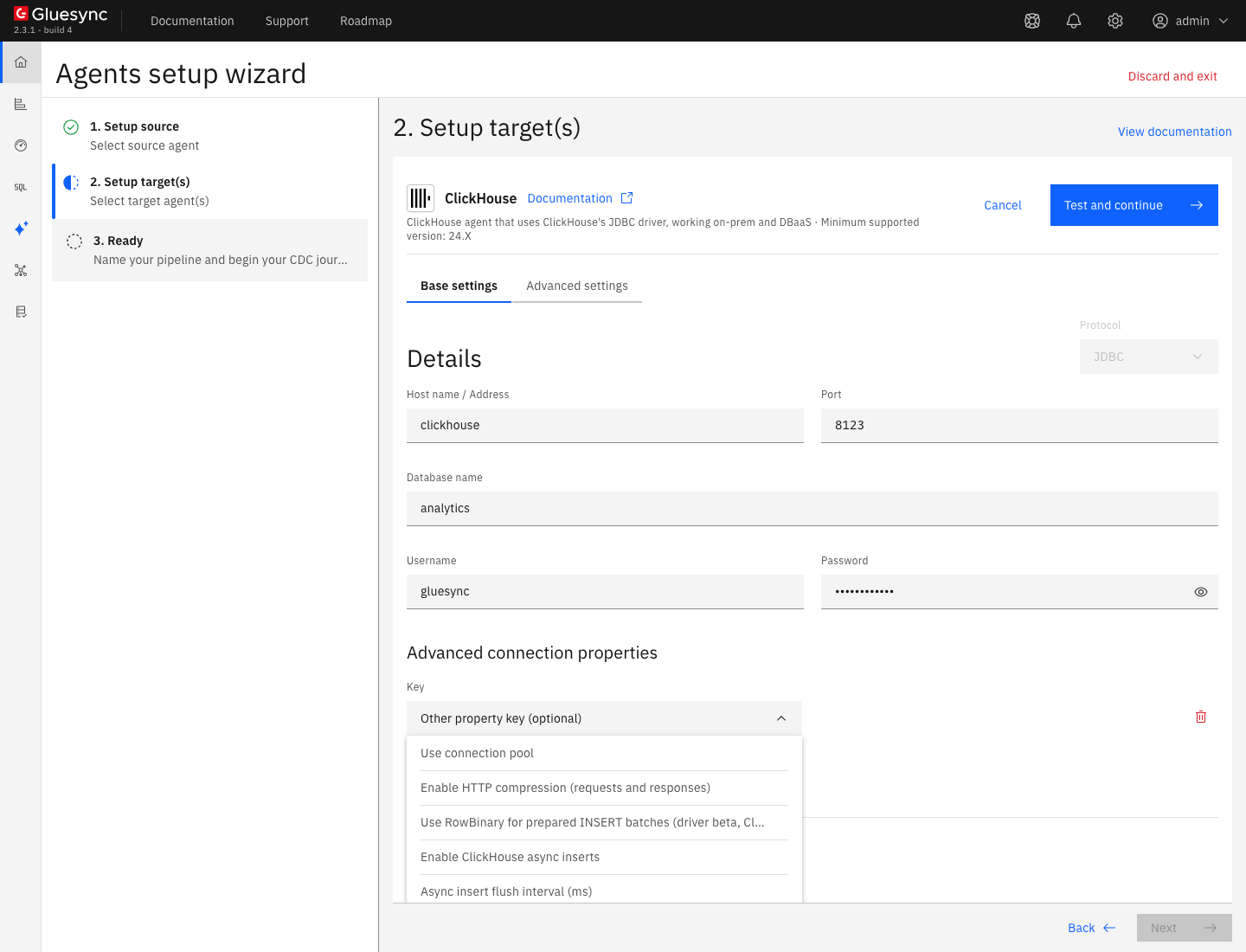
For TLS, turn on Enable TLS and, for a certificate that Core Hub does not trust, Trust server certificate. The port is then the HTTPS port of your server. The ClickHouse target reference lists every option and the REST API setup.
SQL
A target table that Gluesync can write with versions and tombstones is a ReplacingMergeTree whose last two engine arguments are _version and _is_deleted, ordered by the key of the source table. The two columns are owned by the connector: Gluesync writes _version as epoch nanoseconds on every row and _is_deleted as 1 on a delete.
The Create table dialog of the entity step proposes such a table. Its statement lists every column as Nullable(…), adds the two technical columns and a PRIMARY KEY on the source key:
`_version` UInt64 DEFAULT toUnixTimestamp64Nano(now64(9)),
`_is_deleted` UInt8 DEFAULT 0,
PRIMARY KEY (`id`)
On a default ClickHouse server, running that statement fails, because the key column is proposed as Nullable(Int64) and a MergeTree sorting key cannot be nullable. The notification Create Target Table shows:
Create target table execution error: Code: 44. DB::Exception: Sorting key contains nullable columns, but merge tree setting `allow_nullable_key` is disabled. (ILLEGAL_COLUMN)
Create the table yourself instead. This also lets you choose the sorting key, the partitioning and the types:
CREATE TABLE analytics.orders
(
    id Int64,
    customer Nullable(String),
    amount Nullable(Decimal(12, 2)),
    status LowCardinality(Nullable(String)),
    created_at Nullable(DateTime64(6, 'UTC')),
    ship_date Nullable(Date32),
    paid Nullable(Bool),
    tags Array(Nullable(String)),
    note Nullable(String),
    `_version` UInt64 DEFAULT toUnixTimestamp64Nano(now64(9)),
    `_is_deleted` UInt8 DEFAULT 0
)
ENGINE = ReplacingMergeTree(`_version`, `_is_deleted`)
ORDER BY id;Every entity needs a key. A source table without a primary key is rejected in the next step with the errors No key on the source and No key on the target, unless you choose the key columns with Check keys.
UI
-
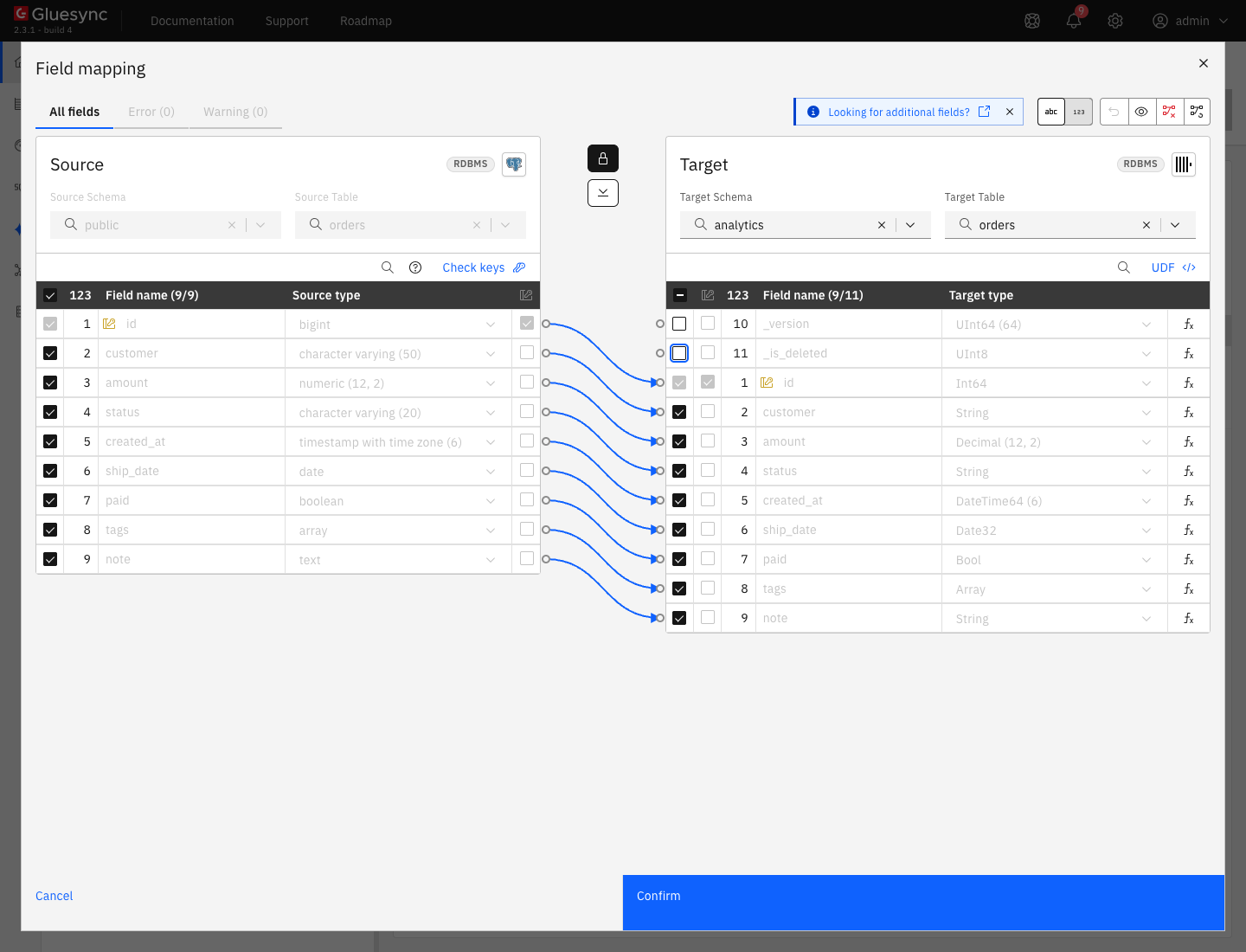
In the pipeline, select Entities. The Add entities page opens with the Object browser of the source. Expand the schema
publicand select the tableorders. The Field mapping dialog opens; -
Under Target, select the Target Schema
analytics. The list shows only the databases that the Gluesync user can see. Then select the Target Tableordersfrom the list of existing tables. The dialog draws one arrow for each source column; -
The technical columns
_versionand_is_deletedappear in the target with no arrow, and the dialog shows the error Field function is required or define a UDF. Clear the check box at the start of both rows. The connector fills them, so they must not be mapped; -
Select Confirm, then Confirm and continue.
If you let Gluesync create a table for a source column of type text, the Length of the String column shows 0 with the error Missing required field. Clear the field with Ctrl+A and Delete, then press the down arrow once. The value becomes -1, which means no limit, and the error goes away.
UI + SQL
-
On Hold, select the start options button, the one next to the play button. The Snapshot (copy-only) dialog opens;
-
Keep Keep and merge under Data already in the target. It writes every row again as a new version of its key. Empty the table first runs
TRUNCATE TABLEbefore the copy, needs theTRUNCATEgrant, and asks you to confirm with I understand that rows in the target will be deleted; -
Select Start snapshot.
The dialog has a Speed section. Under Custom, the Write method of this target is Standard with the label This target has no bulk load, and you can set the number of Writers during the copy. Step 7 shows what the number changes.
Check the target when the snapshot ends:
SELECT count() FROM analytics.orders;
SELECT count() AS n, uniqExact(id) AS keys FROM analytics.orders FINAL;SQL
-
Select the play button of the entity. The Sync changes (CDC) dialog opens. Keep Where it stopped, which continues from the last checkpoint, and select Start entity. The entity becomes Active;
-
On the source, insert, update and delete one row each:
INSERT INTO orders VALUES (300001, 'cdc-customer', 12.34, 'NEW', now(), current_date, true, ARRAY['x','y'], 'inserted'); UPDATE orders SET status = 'SHIPPED', amount = 999.99 WHERE id = 5; DELETE FROM orders WHERE id = 6; -
After a few seconds, read the three keys twice, as stored and as current:
SELECT id, status, amount, _is_deleted FROM analytics.orders WHERE id IN (5, 6, 300001) ORDER BY id, _version;
SELECT id, status, amount FROM analytics.orders FINAL WHERE id IN (5, 6, 300001) ORDER BY id;
SELECT count() FROM analytics.orders FINAL;
In short:
-
an insert or an update adds a row with a higher
_versionand_is_deleted=0; -
a delete adds a row with the key, a higher
_versionand_is_deleted=1; -
FINALreturns the last version of each key and hides the keys whose last version is a tombstone; -
the old versions stay in the table until ClickHouse merges the parts, and the tombstones stay until a merge that cleans them. A plain
SELECTtherefore counts rows thatFINALdoes not.
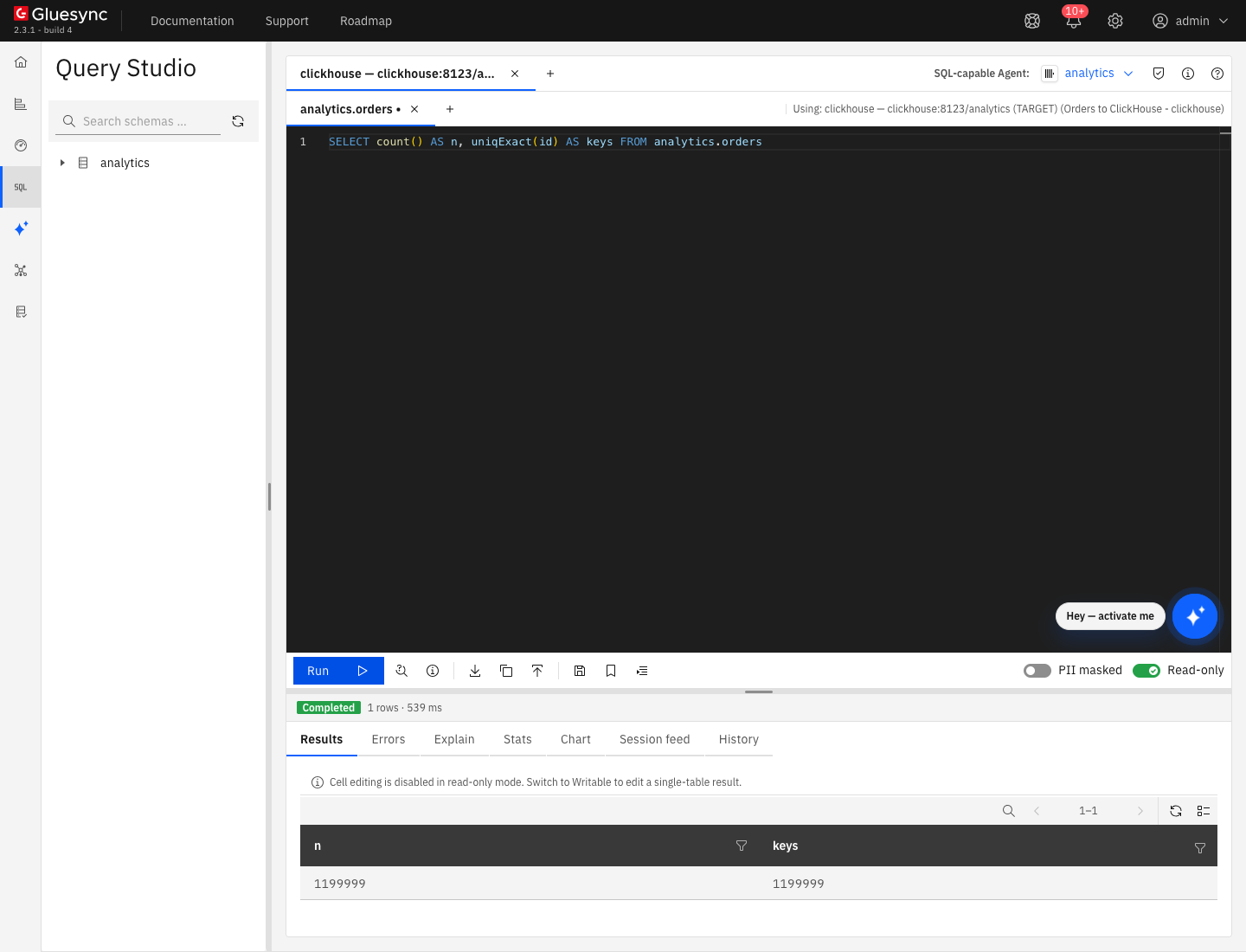
The Control Plane reads the table in the way that FINAL does, so a count in Query Studio matches the current rows. Step 6 shows it.
UI
-
In the left bar, select Query Studio. At the top right, open the SQL-capable Agent list and choose the ClickHouse target;
-
Enter a query and select Run:
SELECT count() AS n, uniqExact(id) AS keys FROM analytics.orders
To compare the target with the source key by key, use Find and fix row differences between source and target.
UI
This target has no bulk loader. Each flush is a multi-row INSERT … VALUES, and the connector writes a transaction in its own order. You can tune three things.
-
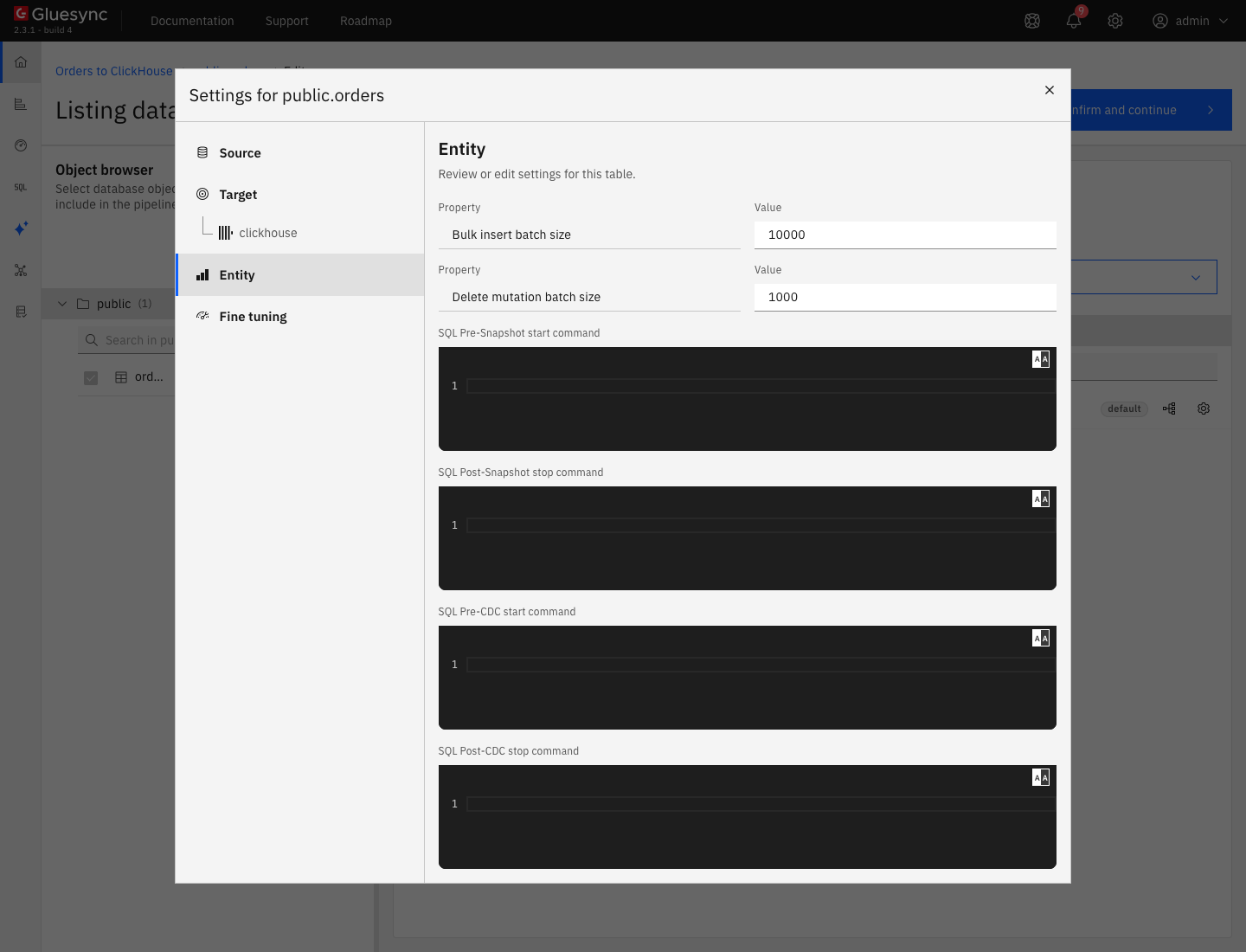
Batch size. Pause the entity, open the three-dot menu of the entity, select Edit settings, then the Entity tab. Bulk insert batch size (
10000by default) is the number of rows in oneINSERT. Delete mutation batch size (1000by default) is used only for a table written in append mode, see step 8; -
Writers. In the Snapshot (copy-only) dialog, under Speed and Custom, set Writers during the copy (1 to 10). The entity tab Fine tuning has a matching setting, Snapshot writing concurrency, with the same default of 2 and the same range;
-
Connection options. In the Advanced connection properties of the target, add Enable HTTP compression (requests and responses) (on by default) or Enable ClickHouse async inserts with Async insert flush interval (ms). The option Use RowBinary for prepared INSERT batches is a driver beta for ClickHouse 25.x and older: leave it off.
SQL + UI
You can map an entity to a table of another engine, for example a plain MergeTree that you already have. Gluesync then writes in append mode. This is what happens, reproduced with a second source table public.customers and this target table:
CREATE TABLE analytics.customers_append (id Int32, name Nullable(String), email Nullable(String))
ENGINE = MergeTree ORDER BY id;
After the first write, the notification center shows the warning ClickHouse table analytics.customers_append is written in append mode. It explains that every update is added as a new row and every delete runs as a DELETE mutation, and how to recreate the table as a ReplacingMergeTree.
Update, delete and insert one row each on the source, then read the table:
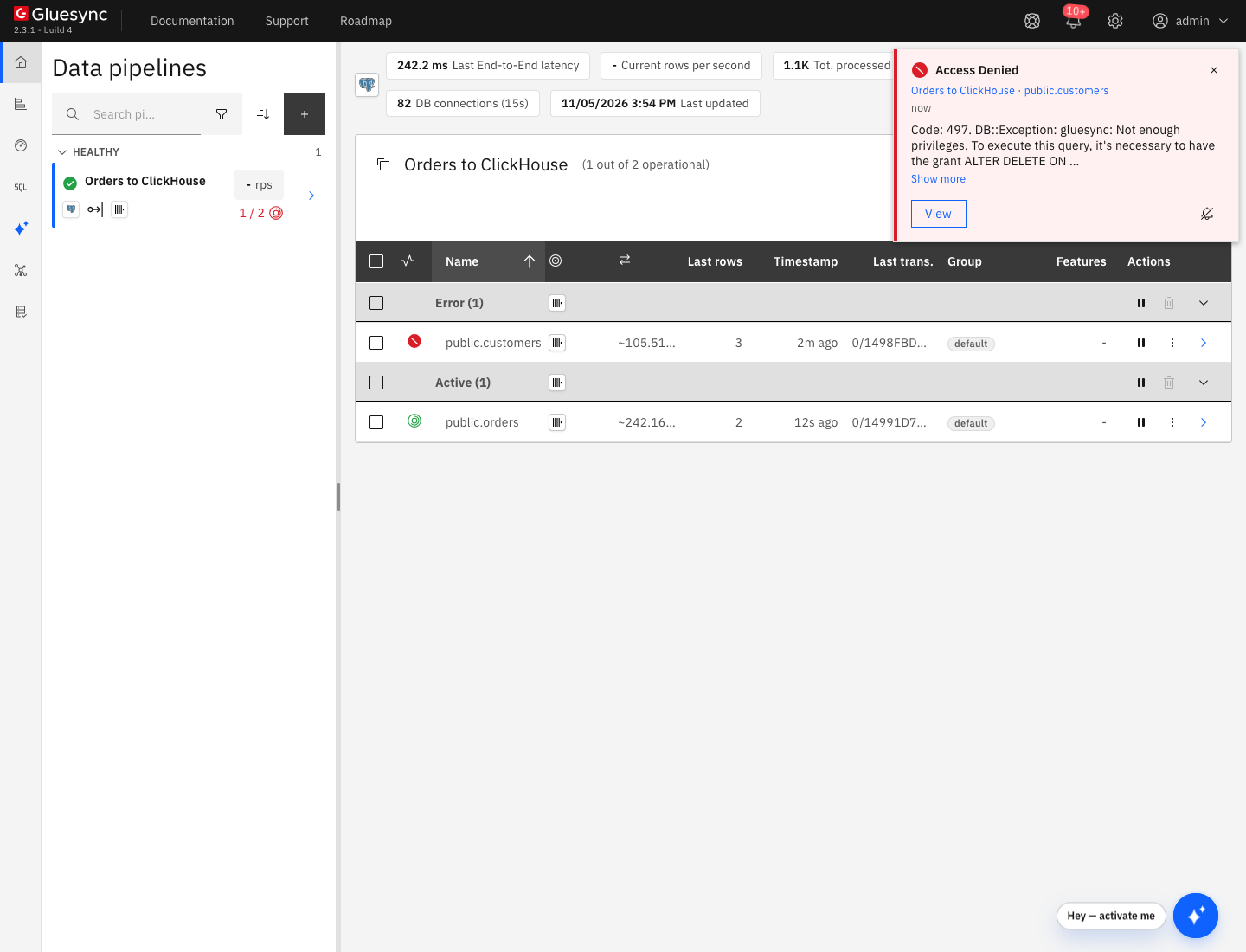
SELECT * FROM analytics.customers_append WHERE id IN (1, 2, 2001) ORDER BY id;The delete needs the ALTER DELETE grant. Without it the entity goes to Error. The Access Denied notification shows Code: 497. DB::Exception: gluesync: Not enough privileges. To execute this query, it’s necessary to have the grant ALTER DELETE ON analytics.customers_append. (ACCESS_DENIED). Run GRANT ALTER DELETE ON analytics.* TO gluesync;, and the entity writes again on its next retry. In the same test, a ReplacingMergeTree entity of the same pipeline kept receiving updates and deletes without that grant.
SQL + UI
Each error below was reproduced by removing one grant or changing one setting.
-
Remove one of the three discovery grants of step 1 and open Add entities. The object browser stays empty and the notification Schemas Fetch shows
Code: 497. DB::Exception: gluesync: Not enough privileges. To execute this query, it’s necessary to have the grant SELECT ON information_schema.schemata. (ACCESS_DENIED). Without the grant oninformation_schema.tables, the message namessystem.parts, because the view reads that table. Fix: run the threeGRANT SELECTstatements; -
Remove
TRUNCATE, and start a snapshot with Empty the table first. The entity goes to Error, retries every few seconds, and the notification Access Denied shows… it’s necessary to have the grant TRUNCATE ON analytics.orders. (ACCESS_DENIED). Fix:GRANT TRUNCATE ON analytics.* TO gluesync;. The next retry runs the snapshot; -
Save the connection with a wrong password. The page shows Failed to save:
The connection was saved, but agent <id> of pipeline <id> did not accept the new credentials: Code: 516. DB::Exception: gluesync: Authentication failed: password is incorrect, or there is no user with such name. (AUTHENTICATION_FAILED). A wrong port or an unknown host gives… did not accept the new credentials: Query request failed (attempt: 4, duration: 6ms, queryId: <id>), and a database that does not exist givesCode: 81. DB::Exception: Database nodb does not exist. (UNKNOWN_DATABASE). The wrong values are saved, and the pipeline shows On error withError: Unknown error. Please check agent clickhouse (<id>) logs in order to find more details. Fix: save the correct values with Test and continue, and the pipeline becomes healthy again; -
Create a table from the Create table dialog and get
Sorting key contains nullable columns: create the table yourself, as in step 3.
Data types
The default types that Gluesync proposes for a PostgreSQL source, as seen in the Field mapping dialog and in the table that you read back:
| Source type | ClickHouse type | Note |
|---|---|---|
|
|
Values written unchanged |
|
|
Kept exactly, for example |
|
|
|
|
|
|
|
|
Microseconds and the UTC instant are kept |
|
|
The date |
|
|
A |
The ClickHouse target reference lists the alternatives for each Gluesync type, such as Float32, FixedString, UUID and Time64.
Bulk and throughput settings
| Setting | Default | When to change it |
|---|---|---|
Bulk insert batch size (entity) |
10000 |
Raise it for wide tables with small rows, lower it when a single |
Delete mutation batch size (entity) |
1000 |
Only for tables written in append mode: the number of keys in one |
Writers during the copy (snapshot) |
2 |
Try it when the source and Core Hub are not the limit. In the test it did not help |
Enable HTTP compression (requests and responses) |
On |
Turn it off only on a very fast local network |
Enable ClickHouse async inserts |
Off |
Turn it on to let the server group small inserts. The setting Async insert flush interval (ms) is |
Disable truncate on target table before snapshot inserts |
Off |
An Advanced settings property of the target. Turn it on when the snapshot must never truncate the table |
Read Tune replication throughput for the settings that apply to every target. TLS for the HTTP connection is in Enable HTTPS and TLS to databases.
Troubleshooting
| Problem | Possible cause | What to do |
|---|---|---|
Schemas Fetch fails with |
The user cannot read the metadata views that the object browser uses |
|
Create Target Table fails with |
The Create table dialog proposes every column, key included, as |
Create the table yourself with a non-nullable key, as in step 3, and select it in Target Table |
The Field mapping dialog shows Field function is required or define a UDF for |
The two technical columns of the target table are not mapped |
Clear the check box of both rows |
The Length of a |
The source column is |
Clear the field and press the down arrow once to get |
No key on the source and No key on the target |
The source table has no primary key |
Choose the key columns with Check keys, or add a primary key to the source |
Access Denied with |
The snapshot option Empty the table first needs |
|
Access Denied with |
The table is written in append mode, and a delete is a |
|
Warning … is written in append mode |
The target table is not a |
Recreate the table with the two columns and the engine of step 3, then run a new snapshot |
Failed to save with |
Wrong user or password. The values are saved anyway |
Correct them and select Test and continue |
Failed to save with |
Wrong host or port, or a server that is not reachable from Core Hub |
Check the HTTP port ( |
Failed to save with |
Wrong Database name |
Create the database or correct the name |
A |
|
Read the table with |
Related guides
Contact MOLO17 Support if you need assistance with a ClickHouse target.