Set up a Microsoft Fabric Open Mirroring target
Open Mirroring lets a partner tool land change files in a folder of a Fabric mirrored database, and Fabric turns them into Delta tables. The Microsoft Fabric Open Mirroring agent is the Gluesync target that writes those files: one Parquet file per snapshot or per second of changes, with a row marker that says whether each row is an insert, an update or a delete. This guide prepares the Fabric side and the service principal, creates the connection and the pipeline, copies a PostgreSQL table with a snapshot and live changes, and shows how to read what the agent wrote and how to recognise the errors of a wrong secret, tenant or landing zone.
In this guide
You will give a Microsoft Entra service principal access to a Fabric workspace, copy the landing zone URL of an open mirrored database, and connect Gluesync to it. You will add a PostgreSQL table, check how its columns are typed, run a snapshot, follow live inserts, updates and deletes, and read the change file and the replication status that confirm the rows arrived. A table of errors that you can reproduce closes the guide.
Quick information
Goal |
Replicate a PostgreSQL table into a Fabric mirrored database through the landing zone, with a snapshot and CDC |
Audience |
Data engineers and Fabric workspace administrators |
Level |
Intermediate |
Time required |
About 45 minutes |
Area |
Fabric workspace and Microsoft Entra; Control Plane → Pipelines → Microsoft Fabric Open Mirroring target → Base settings and Advanced settings |
Applies to |
Gluesync 2.3 |
Before you begin
Make sure that:
-
You have a Microsoft Fabric workspace with a mirrored database created as an open mirrored database, and Core Hub can reach
onelake.dfs.fabric.microsoft.comover HTTPS. Microsoft Fabric Open Mirroring is a target only: you need another database as the source. This guide was tested with a PostgreSQL 16 source; -
You can register an application in Microsoft Entra, and you can add members to the Fabric workspace and change the Fabric tenant settings, or someone who can does it for you;
-
You can sign in to the Control Plane with a role that can create pipelines;
-
You have a source table with a primary key. This guide uses a PostgreSQL table
shop.orderswith 100,000 rows (id bigintprimary key and ten more columns of the types in the table at the end of step 4).
|
The Control Plane screens and the messages quoted here were captured against the Gluesync 2.3 release image and a real Fabric workspace. The Fabric and Entra portals change often, so follow the labels in your portal where they differ from the names below. |
Guide steps
UI
Gluesync signs in to Microsoft Entra as an application (a service principal) and writes to OneLake in its name. You prepare four things, and you note four values for step 3.
-
In the Microsoft Entra admin center, register an application and add a client secret. Note the Application (client) ID, the Directory (tenant) ID and the secret value. Copy the value when it is shown: Entra shows it only once;
-
In the Fabric workspace, select Manage access and add the application as a member with the Contributor role or higher;
-
In the Fabric Admin portal, under Tenant settings → Developer settings, allow service principals to use Fabric APIs, for this application;
-
Open the mirrored database and, on its Home page, copy the Landing zone URL. It has this form:
https://onelake.dfs.fabric.microsoft.com/<workspace id>/<mirrored database id>/Files/LandingZone
|
Use the secret value, not the secret ID. Entra lists both, and the secret ID is the usual cause of a failed sign-in. Step 7 shows the message. |
SQL
Any Gluesync source can feed this target. This guide uses PostgreSQL with the WAL change data capture agent, so connect to the source database as an administrator and run the statements below. Replace the password.
-
Turn on logical decoding and make room for one replication slot per entity. Restart PostgreSQL afterwards:
ALTER SYSTEM SET wal_level = logical; ALTER SYSTEM SET max_replication_slots = 20; ALTER SYSTEM SET max_wal_senders = 20; -
Create the user that Gluesync reads with:
CREATE USER gluesync WITH REPLICATION LOGIN PASSWORD '<a strong password>';
GRANT USAGE ON SCHEMA shop TO gluesync;
GRANT SELECT ON ALL TABLES IN SCHEMA shop TO gluesync;
UI
-
In the Control Plane, select Create your first pipeline, or the + button of the pipeline list if you already have pipelines. The Agents setup wizard opens;
-
In 1. Setup source, choose the PostgreSQL CDC agent tile and fill Base settings with the Host name / Address, Database name, Username and Password of the source. Select Test and continue. The source appears with a green check mark. Select Next;
-
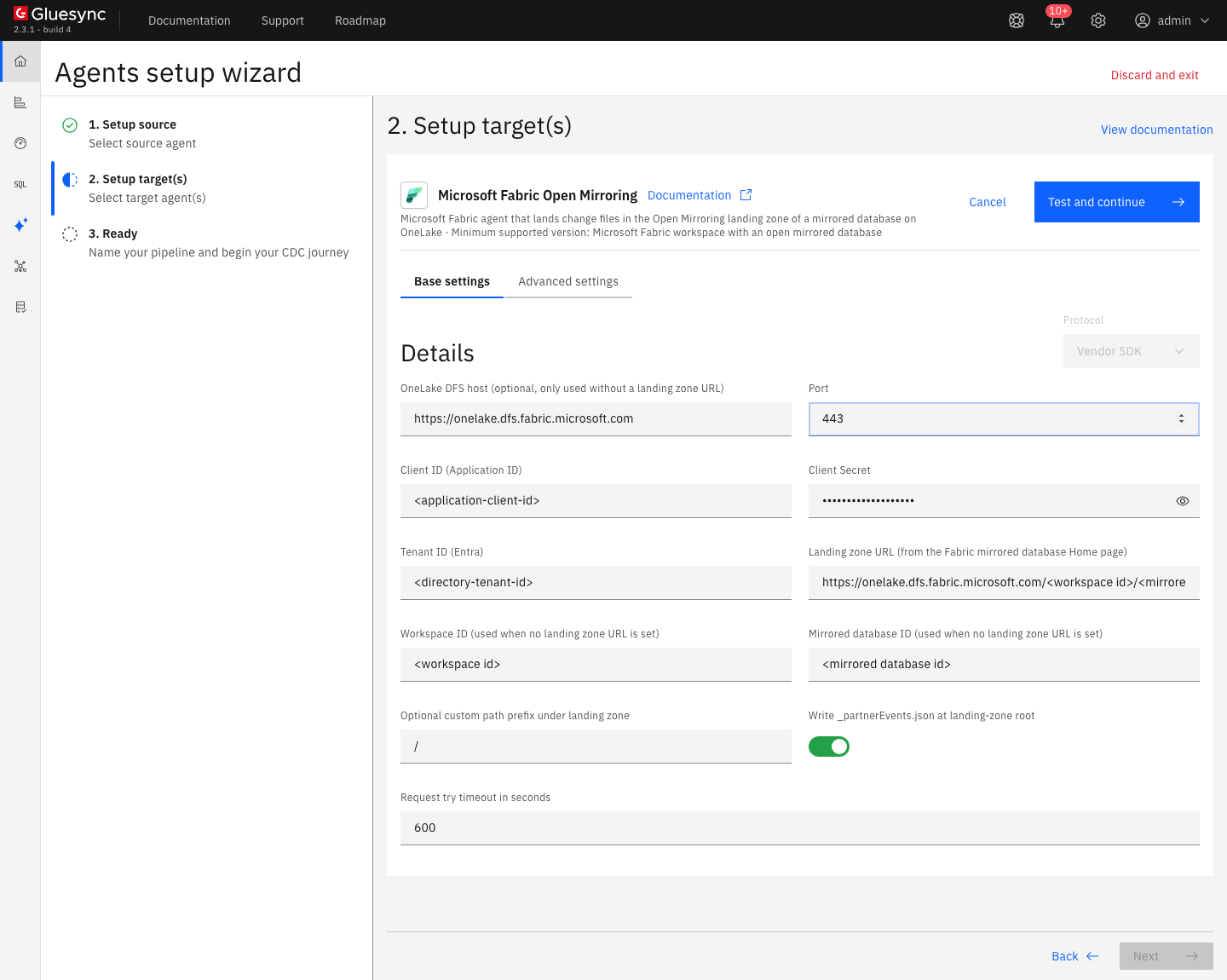
In 2. Setup target(s), choose the Microsoft Fabric Open Mirroring agent tile and fill Base settings:
-
Client ID (Application ID): the application (client) ID of step 1;
-
Client Secret: the secret value of step 1;
-
Tenant ID (Entra): the directory (tenant) ID of step 1;
-
Landing zone URL (from the Fabric mirrored database Home page): the URL of step 1. Paste it as it is. A trailing slash, a query string and the
abfss://form are accepted too; -
Workspace ID (used when no landing zone URL is set) and Mirrored database ID (used when no landing zone URL is set): the two IDs from the landing zone URL;
-
Optional custom path prefix under landing zone: enter
/;
-
-
Leave OneLake DFS host, Write _partnerEvents.json at landing-zone root and Request try timeout in seconds at their defaults. Select Test and continue. The target appears with a green check mark. Select Next, enter a Pipeline name and select Finish.
|
The form marks Workspace ID, Mirrored database ID and Optional custom path prefix under landing zone as required, although the landing zone URL alone is enough: when it is filled in, Gluesync ignores the two IDs. Paste the IDs, and enter |
See the Microsoft Fabric Open Mirroring target reference for every connection setting.
UI
An open mirrored database is an object store, so there is no table to create: each source table becomes a folder of Parquet files in the landing zone.
-
In the pipeline, select Entities. The Add entities page opens with the Object browser. Expand the source schema
shopand select the tableorders; -
Select the field mapping icon of the entity in Selected entities. The Field mapping dialog opens. Under Target, Target Schema (optional — maps to <Schema>.schema folder) is
shopand Target Table isorders. Read the target types, and select Confirm; -
Select Confirm and continue.
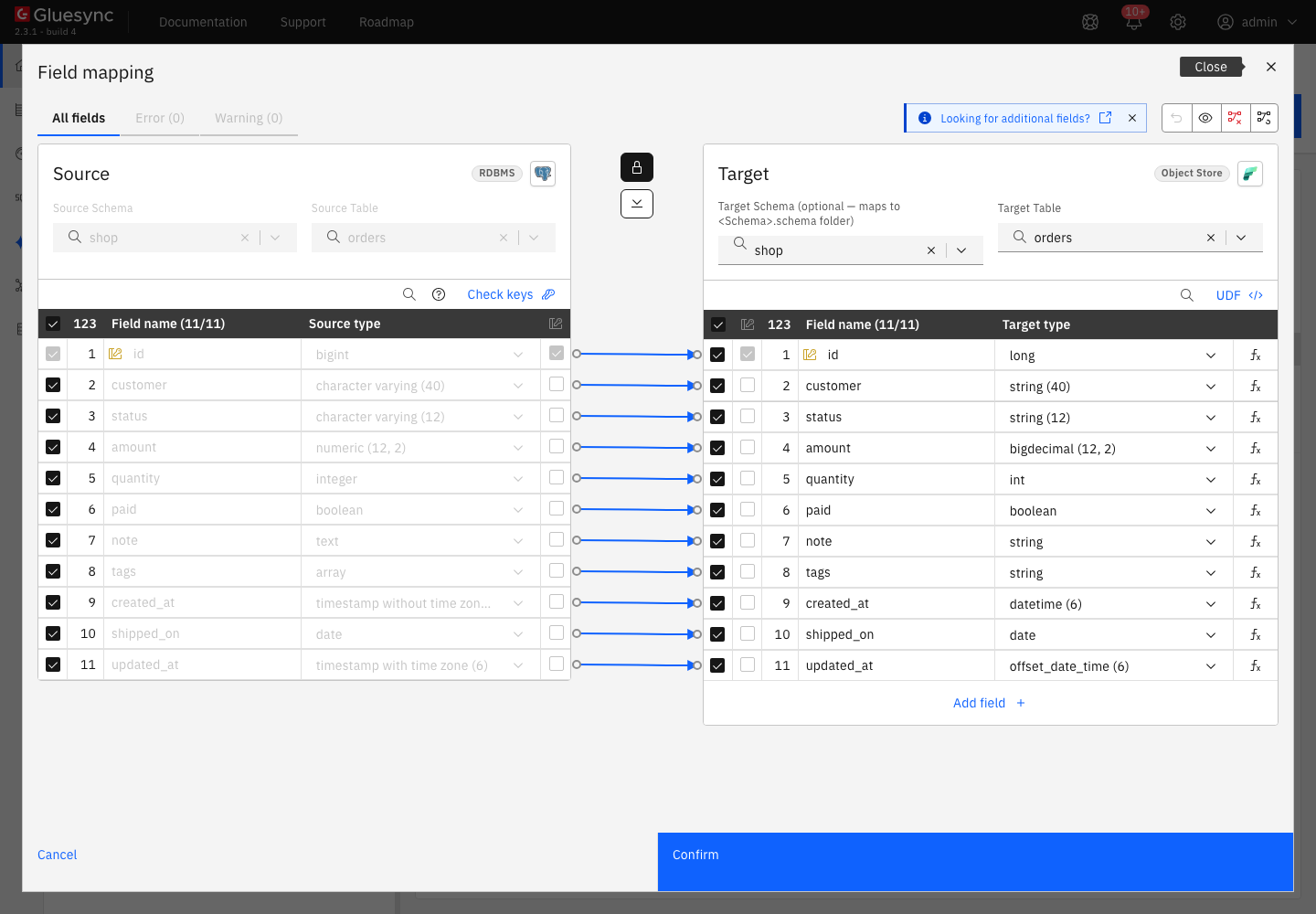
shop.schema/orders folder, with the proposed target types.The target schema becomes a folder name, and an empty target schema writes the table in the root of the landing zone. For the table of this guide the agent writes in Files/LandingZone/shop.schema/orders. Fabric shows a table of a <schema>.schema folder in that schema of the SQL analytics endpoint.
A table without a primary key shows Error in field mapping. Please review under its name in the object browser, and you cannot confirm it. Choose the keys first, as Choose keys for tables without a primary key explains. The full type matrix, including the alternative target types, is in the agent reference.
UI
The agent has no bulk mode. The snapshot streams its pages into one Parquet file per table, closes the file when it reaches the Maximum row count in Parquet file of the entity (1,000,000 rows by default) or when the snapshot ends, and uploads it.
-
In the pipeline, find the entity. On Hold, select the start options button, the one next to the play button. The Snapshot (copy-only) dialog opens;
-
Keep Keep and merge under Data already in the target and Standard under Speed;
-
Select Start snapshot.
The snapshot ends and the entity stays on Hold. Read the Core Hub log for the upload:
docker logs <core hub container> 2>&1 | grep -E "_metadata.json|Parquet saved"Do not start the snapshot again to "refresh" the table. Open Mirroring has no truncate and a new snapshot does not clear the table folder, so the files add to the ones in the folder. To start a table over, delete its folder in the landing zone first. The agent reference explains what the agent skips and why.
UI + SQL
-
Select the play button of the entity. The Sync changes (CDC) dialog opens. Keep Where it stopped, and notice Write method: Standard with the note This target has no bulk load. Select Start entity. The entity becomes Active;
-
On the source, insert, update and delete rows, and set a column to
NULL:INSERT INTO shop.orders VALUES (100001, 'new-customer', 'new', 12.50, 3, false, 'inserted', ARRAY['x'], now(), current_date, now()); UPDATE shop.orders SET status = 'shipped', amount = 99.99 WHERE id = 5; DELETE FROM shop.orders WHERE id = 6; UPDATE shop.orders SET note = NULL WHERE id = 8; -
After a few seconds, read the Last rows column of the entity and the Core Hub log. Then wait for Fabric to report the new rows under Monitor replication.
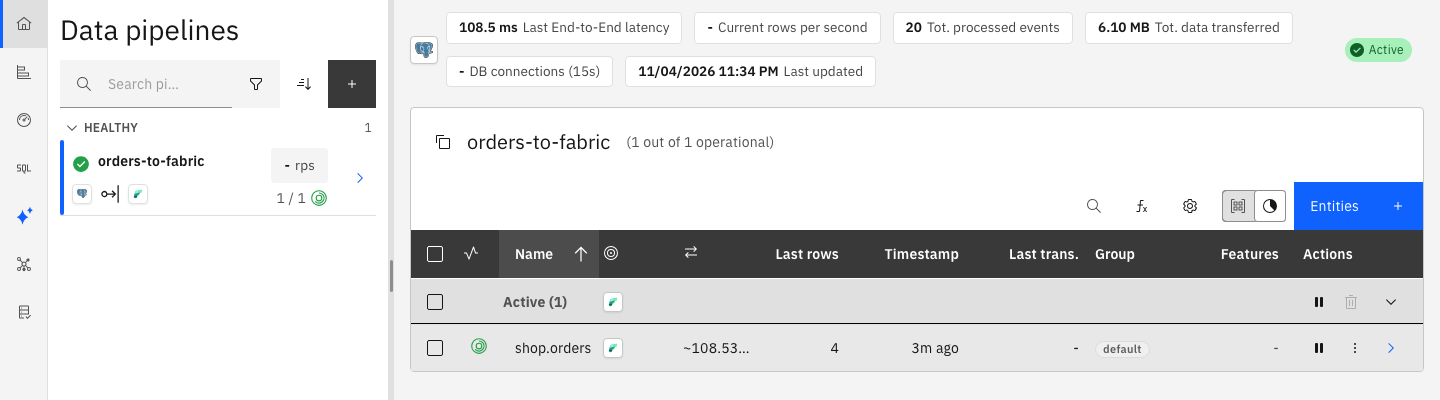
Inserts and updates carry the upsert marker, because the agent collects the changes of a table for Seconds a change file may collect commits before it is published (1 by default) and sends them as one file. A change that is sent twice after a restart is therefore harmless. Gluesync confirms a change to the source only when the file that holds it is on OneLake. Set the window to 0 to write one file per commit, with the insert marker 0 and the update marker 1: it lowers the delay to Fabric but also the rate, as the reference explains in Change files.
UI
The defaults suit most loads. To change one, edit the target and add it as an advanced property.
-
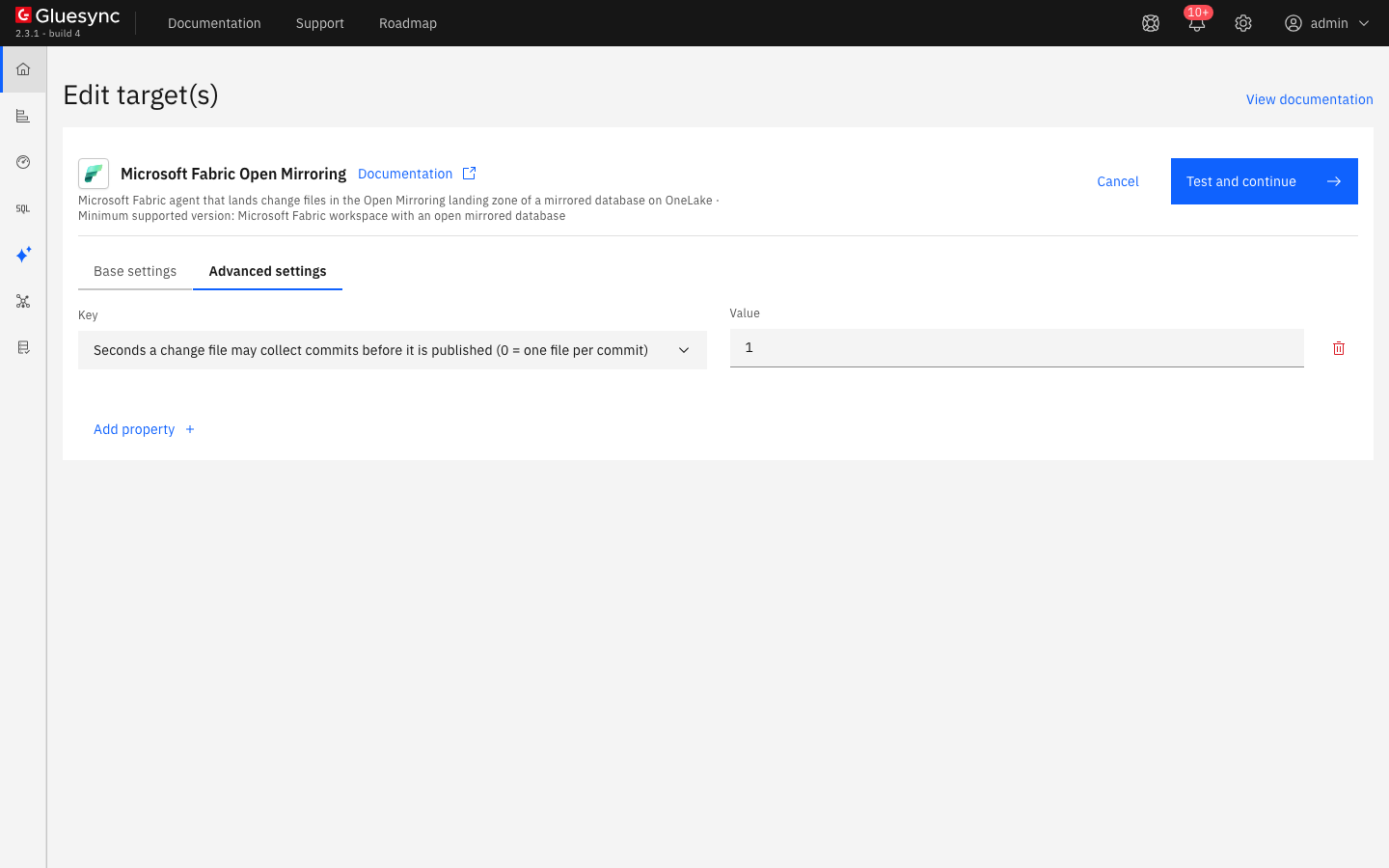
In the pipeline list, select the Fabric icon of the pipeline. The Edit target(s) page opens. Select Advanced settings;
-
Select Add property, open the Key list and choose the setting, for example Seconds a change file may collect commits before it is published (0 = one file per commit). Enter the value;
-
Select Test and continue.
UI
Each message below was reproduced on the target connection of step 3 by changing one value and selecting Test and continue. The notification Host Credentials Update Failed carries the text.
-
Use the secret ID instead of the secret value in Client Secret. The notification reads
Entra refused the service principal credentials (AADSTS7000215): the Client Secret is wrong: use the secret value, not the secret ID.Fix: copy the secret value. If it was not saved, add a new secret in Entra; -
Change Tenant ID (Entra) to a GUID that is not your tenant. The notification reads
Entra refused the service principal credentials (AADSTS900021): AADSTS900021: Requested tenant identifier '<id>' is not valid.Fix: copy the Directory (tenant) ID of the application; -
Use a mirrored database ID that does not exist in the landing zone URL. The notification reads
Check connection failed. Could not connect to host "https://onelake.dfs.fabric.microsoft.com" as user "<client id>". The landing zone <url> does not exist: check the workspace and the mirrored database item, and that the open mirrored database was created.The same text appears for an unknown workspace ID and for a custom path prefix whose folder does not exist. Fix: copy the URL from the Home page of the mirrored database again; -
Cut the URL after the database ID, or end it with another folder. The notification reads
'<url>' is not a Fabric Open Mirroring landing zone URL: the mirrored database item is missing.or… it must end with /Files/LandingZone.and addsCopy it from the Home page of the mirrored database. Fix: paste the whole URL; -
Put an ID that OneLake does not accept in the URL, such as the all-zero GUID. The notification Data Lake Storage reads
Status code 400, InvalidRequestUri. Fix: check both IDs in the URL.
Data types
The agent reads the type of each source column and writes one Parquet column of the matching type. The rules that matter most in practice:
| Source type | Parquet type | Note |
|---|---|---|
Integers, floating point numbers, |
|
Written unchanged |
|
|
Keep the precision and the scale of the source |
|
|
No length limit in Parquet |
|
|
A date, without a time |
|
Timestamp in microseconds |
Microsecond precision. The value is the UTC instant |
Arrays such as |
|
Open Mirroring asks for complex values as a JSON string |
The reference page lists every Gluesync type, the alternative target type of OFFSET_DATE_TIME and how times with an offset are written.
Bulk and throughput settings
The agent has no bulk mode, so the entity dialogs offer no bulk load for this target. The settings that matter are these:
| Setting | Default | When to change it |
|---|---|---|
Seconds a change file may collect commits before it is published |
|
Raise it for fewer, larger files and less work for Fabric, lower it to |
Rows after which an open change file is published |
|
Lower it to publish large transactions earlier |
Megabytes after which an open change file is published |
|
Lower it to limit the memory a table holds while it collects changes |
Maximum row count in Parquet file (entity) |
|
Lower it for very wide rows |
Parquet compression |
|
|
Read Tune replication throughput for the settings that apply to every target.
Troubleshooting
| Problem | Possible cause | What to do |
|---|---|---|
Required under Workspace ID, Mirrored database ID or Optional custom path prefix under landing zone, and Test and continue does nothing |
The form marks these three fields as required, even when the landing zone URL is filled in |
Enter the two IDs from the URL and |
|
The secret ID, an expired secret or a mistyped secret is in Client Secret |
Create a secret in Entra and copy its value at once |
|
Tenant ID (Entra) is empty or is not the directory ID of the application |
Copy the Directory (tenant) ID from the app registration |
|
A wrong workspace, mirrored database or prefix, or an item that is not an open mirrored database |
Copy the landing zone URL from the Home page of the mirrored database, and clear the prefix or use |
|
The URL is cut or ends with another folder |
Paste the URL up to |
Data Lake Storage notification with |
An ID in the URL is not a valid GUID or name for OneLake |
Check both IDs in the URL |
Error in field mapping. Please review in the object browser |
The source table has no primary key |
Choose the keys, see Choose keys for tables without a primary key |
The connection works, but a second snapshot adds rows to the files already in Fabric |
Open Mirroring has no truncate: a snapshot does not clear the table folder |
Delete the table folder in the landing zone before the snapshot to start a table over |
Related guides
Contact MOLO17 Support if you need assistance with a Microsoft Fabric Open Mirroring target.