Set up a Vertica source with epoch-based CDC
Vertica has no log that a client can read and no row triggers, so Gluesync captures changes another way. Every commit in Vertica has a number, the epoch, and Gluesync reads each table as it was at two epochs and sends the difference. It creates nothing in your database and only runs SELECT statements. This guide prepares Vertica, creates the connection and a pipeline to PostgreSQL, runs a snapshot and live changes, and shows what a TRUNCATE and a table without a key do.
In this guide
You will keep the history of the database long enough for CDC to read it, create a read-only login, and connect the Vertica source. You will add entities, copy two tables, change rows in Vertica and read them back on the target, and see a key change and a TRUNCATE arrive. You will also set the snapshot read parallelism and recognize the errors you are most likely to meet. A symptom, cause and fix table closes the guide.
Quick information
Goal |
Replicate Vertica tables to PostgreSQL with a parallel snapshot and epoch-based change data capture (CDC), and confirm inserts, updates, deletes and key changes |
Audience |
Data engineers and database administrators who own a Vertica database |
Level |
Intermediate |
Time required |
About 45 minutes |
Area |
Vertica → SQL; Control Plane → Pipelines → Vertica source → Base settings and Advanced settings; entity → start options |
Applies to |
Gluesync 2.3 |
Before you begin
Make sure that:
-
You have a Vertica 24.1 database, and you can run SQL on it as
dbadminor another superuser. Vertica is a source here, so you also need a target. This guide was tested with Vertica 24.1 Community Edition and a PostgreSQL 16 target; -
Core Hub can open a connection to Vertica on its client port,
5433by default; -
You can sign in to the Control Plane with a role that can create pipelines;
-
The tables you replicate have a primary key, or you can choose their keys. This guide uses a schema
saleswithcustomers(3 rows),orders(103 rows) andaudit_log(1 row, no key). The names are examples.
|
The messages quoted here were captured in the Control Plane and in the Core Hub log of a Core Hub 2.3 test lab with a Vertica 24.1 container. The agent reference describes the design in detail: Vertica source. |
Guide steps
SQL
CDC reads the database as of an older epoch. Vertica keeps that history only for HistoryRetentionTime seconds, and the default is 0: the Ancient History Mark (AHM) then follows the last good epoch within minutes, and an older epoch cannot be read any more. Connect as dbadmin and run:
-
Keep the history for a day. Gluesync needs at least one hour (
3600):ALTER DATABASE DEFAULT SET HistoryRetentionTime = 86400; -
Leave room for the sessions of the agent. The snapshot opens one connection for each parallel bucket of a table (four by default), and every entity needs sessions of its own for CDC:
ALTER DATABASE DEFAULT SET MaxClientSessions = 100; -
Create the login that Gluesync uses. It is not a superuser and has no role. Replace the password:
CREATE USER gluesync IDENTIFIED BY '<a strong password>'; GRANT USAGE ON SCHEMA public TO gluesync; GRANT USAGE ON SCHEMA sales TO gluesync; GRANT SELECT ON SCHEMA sales TO gluesync; -- Tables that are created later in the schema inherit the grants of the schema ALTER SCHEMA sales DEFAULT INCLUDE PRIVILEGES;USAGEonpublicis for the geospatial functions that the agent uses to readGEOMETRYandGEOGRAPHYcolumns. The agent reference lists it as a prerequisite. -
Check the setting and the epochs:
SELECT parameter_name, current_value
FROM configuration_parameters
WHERE parameter_name IN ('HistoryRetentionTime', 'HistoryRetentionEpochs');

SELECT current_epoch, ahm_epoch, last_good_epoch FROM v_monitor.system;
The schema sales is an example. Repeat the GRANT USAGE and GRANT SELECT statements for every schema you replicate. A schema the login cannot use does not appear in the Control Plane, see the troubleshooting table.
UI
-
In the Control Plane, select Create your first pipeline, or the + button of the pipeline list if you already have pipelines. The Agents setup wizard opens;
-
In 1. Setup source, search for
verticaand choose the Vertica agent tile. Fill Base settings:-
Host name / Address: the Vertica server, as Core Hub reaches it;
-
Port:
5433, or the client port of your server; -
Database name: the database to read;
-
Username and Password: the login of step 1;
-
-
Select Test and continue. The source appears as a card with the Vertica logo and
<user>@<host>:5433. Select Next; -
In 2. Setup target(s), search for
postgresand choose the PostgreSQL CDC agent tile. Fill the same five fields for your PostgreSQL database and select Test and continue, then Next; -
In 3. Ready, enter a Pipeline name and select Finish.
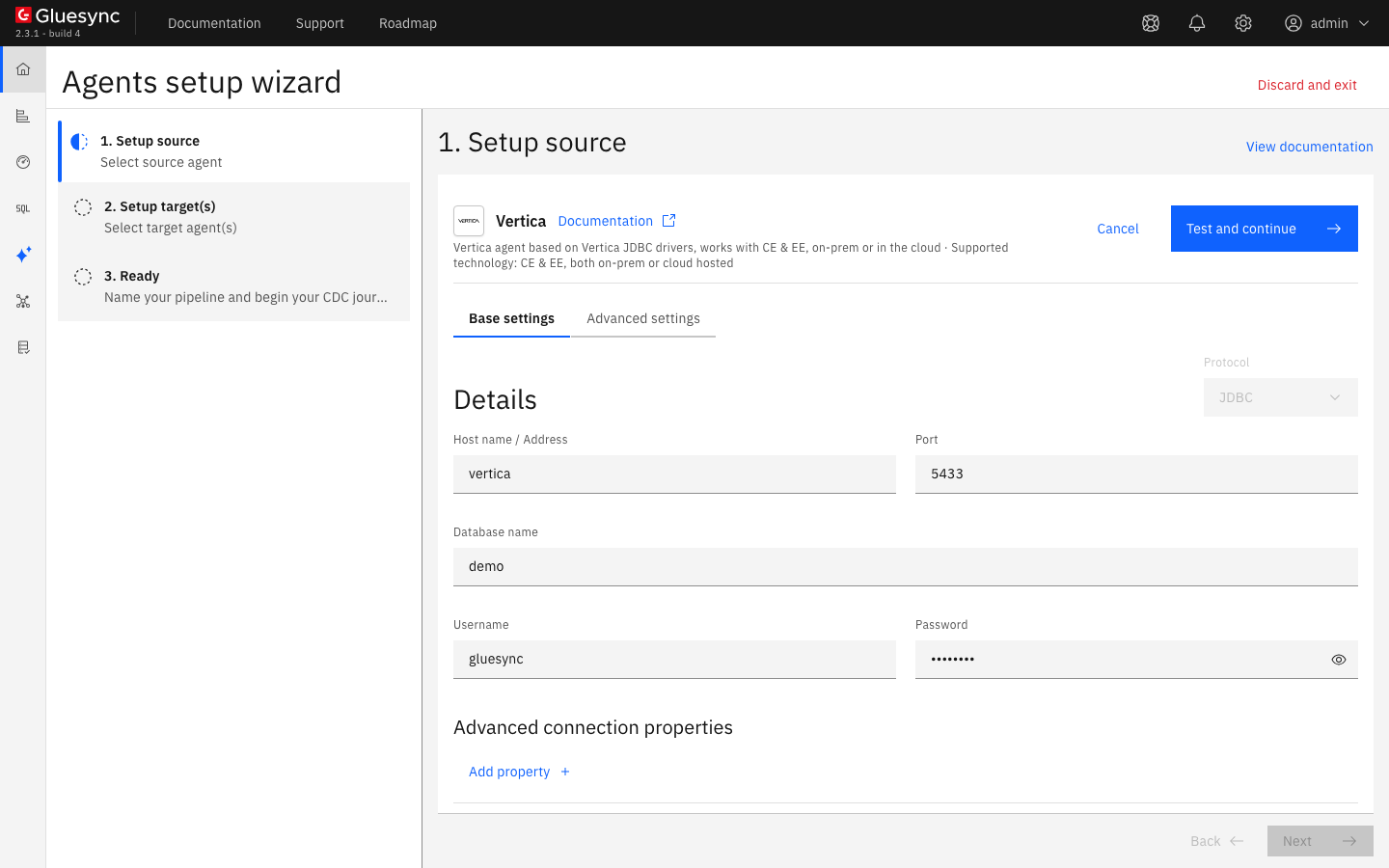
The Base settings tab has more options below the login:
-
Enable TLS and Trust server certificate under Security;
-
Connection string, Min connections count (at least 3) and Max connections count under Settings. The defaults are
5and25; -
Advanced connection properties, with the keys Use connection pool, Gluesync schema name (necessary for bulk operations) and Disable automatic schema creation. The last two belong to the Vertica target.
The same connection through the REST API is in the agent reference.
UI
-
In the pipeline, select Entities. The Add entities page opens with the Object browser. It lists the schemas that the login can use. Expand
sales; -
Select the table
orders. The Field mapping dialog opens; -
Under Target, choose the Target Schema
public. In Target Table typeordersand choose Create table "orders". The dialog shows New table orders will be created on confirm. and the proposed target types. The key columnidis marked as a key: the dialog says that the table has keys inherited from the primary key oforders; -
Select Confirm. The Create table orders dialog shows the Read-only SQL statement. Select Create table orders to run it on PostgreSQL;
-
Select the table
customersand repeat steps 3 and 4; -
Select Confirm and continue.
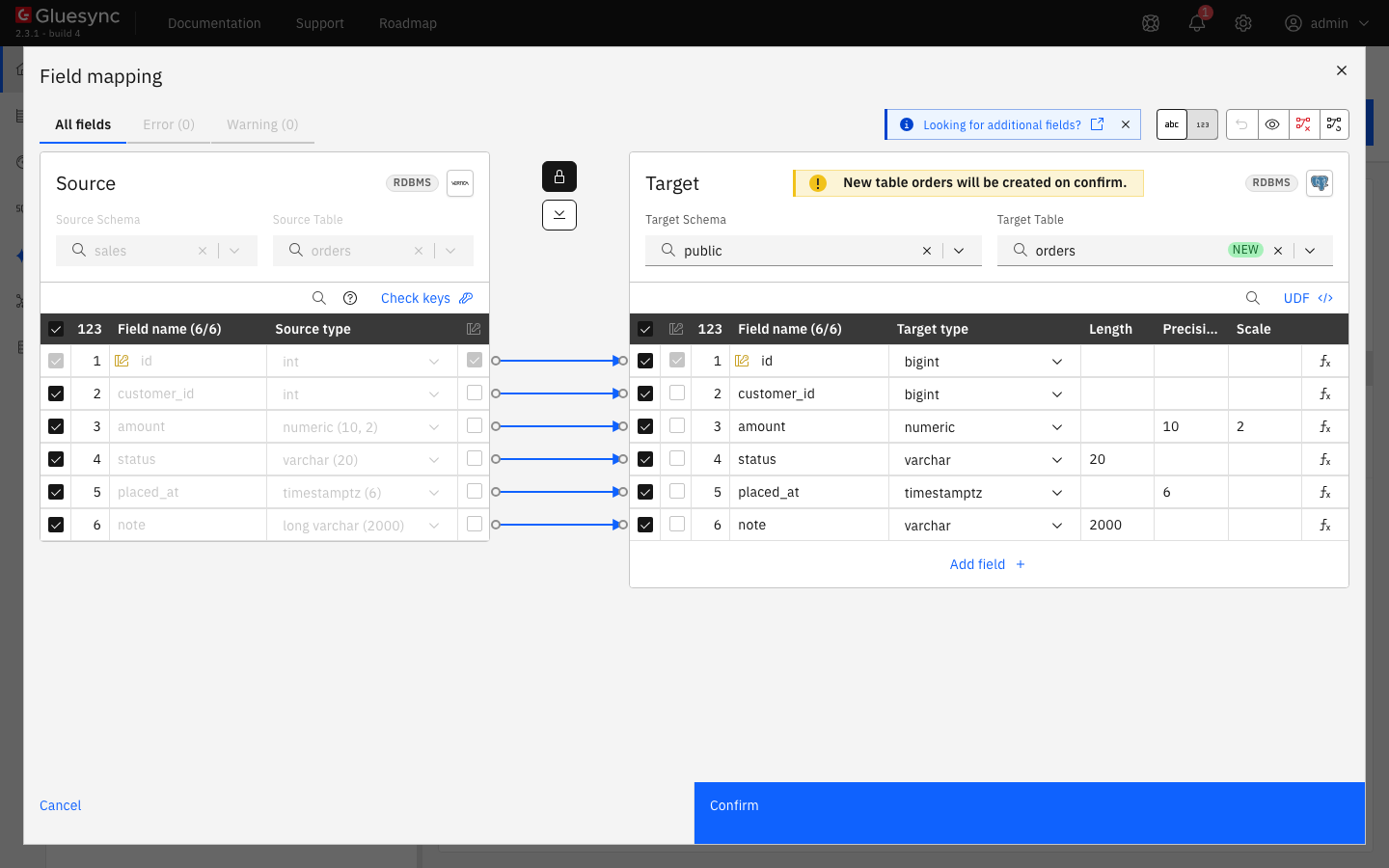
orders: Vertica types on the left, PostgreSQL types on the right, and id as the key.The statement for orders has this form:
CREATE TABLE "public"."orders" (
   "id" bigint,
   "customer_id" bigint,
   "amount" numeric(10, 2),
   "status" varchar(20),
   "placed_at" timestamptz,
   "note" varchar(2000),
   PRIMARY KEY ("id")
)A table with no primary key has no key column to inherit. In the Field mapping dialog the red banner There are multiple errors. Click View errors to see them all. shows and Confirm stays disabled. Select the key checkbox of the column or columns that identify a row, in the last column of the source field list, and Confirm works. CDC matches changes by key, so a key is the price of CDC on Vertica: Vertica does not have to enforce a primary key, and many tables have none. See Choose keys for tables without a primary key.
See Target table creation for the dialog.
UI + SQL
The snapshot reads each table AT EPOCH of one epoch, pinned when it starts, in parallel hash buckets. Rows that applications write while it runs are not lost: CDC delivers them afterwards.
-
In the pipeline, find the entity
sales.orderson Hold. Select the start options button, the one next to the play button. The Snapshot (copy-only) dialog opens; -
Keep Keep and merge under Data already in the target. It overwrites rows with the same key and keeps the others. Keep the Standard speed, which uses one read and two writers;
-
Select Start snapshot. Do the same for
sales.customers.
Then count the rows on both sides. On Vertica:
SELECT 'orders', count(*) FROM sales.orders
UNION ALL SELECT 'customers', count(*) FROM sales.customers;
On PostgreSQL:
SELECT 'orders', count(*) FROM public.orders
UNION ALL SELECT 'customers', count(*) FROM public.customers;
The Core Hub log shows how the table was read, at INFO level:
docker logs <core hub container> 2>&1 | grep -E "read in key order|Read completed"|
Compare the counts every time. If the target has fewer rows than the source, run the snapshot of that entity again with Keep and merge. Rows with the same key are overwritten, so a second run adds the missing rows and does not duplicate any. |
The placed_at column of orders is a timestamptz. The agent reads it converted to UTC, and PostgreSQL stores it as timestamp with time zone.
UI + SQL
-
Select the play button of
sales.orders. The Sync changes (CDC) dialog opens. Where it stopped is selected, because the snapshot left a checkpoint. Select Start entity. Do the same forsales.customers; -
On Vertica, as the owner of the tables, insert, update and delete one row each:
INSERT INTO sales.orders (id, customer_id, amount, status, placed_at, note) VALUES (1001, 2, 99.90, 'NEW', '2026-11-04 10:00:00+00', 'cdc insert'); COMMIT; UPDATE sales.orders SET status = 'PAID', amount = 11.00 WHERE id = 1; DELETE FROM sales.orders WHERE id = 2; COMMIT; -
After a few seconds, read the three keys on PostgreSQL:
SELECT id, status, amount, note FROM public.orders WHERE id IN (1, 2, 1001) ORDER BY id;
SELECT count(*) FROM public.orders;
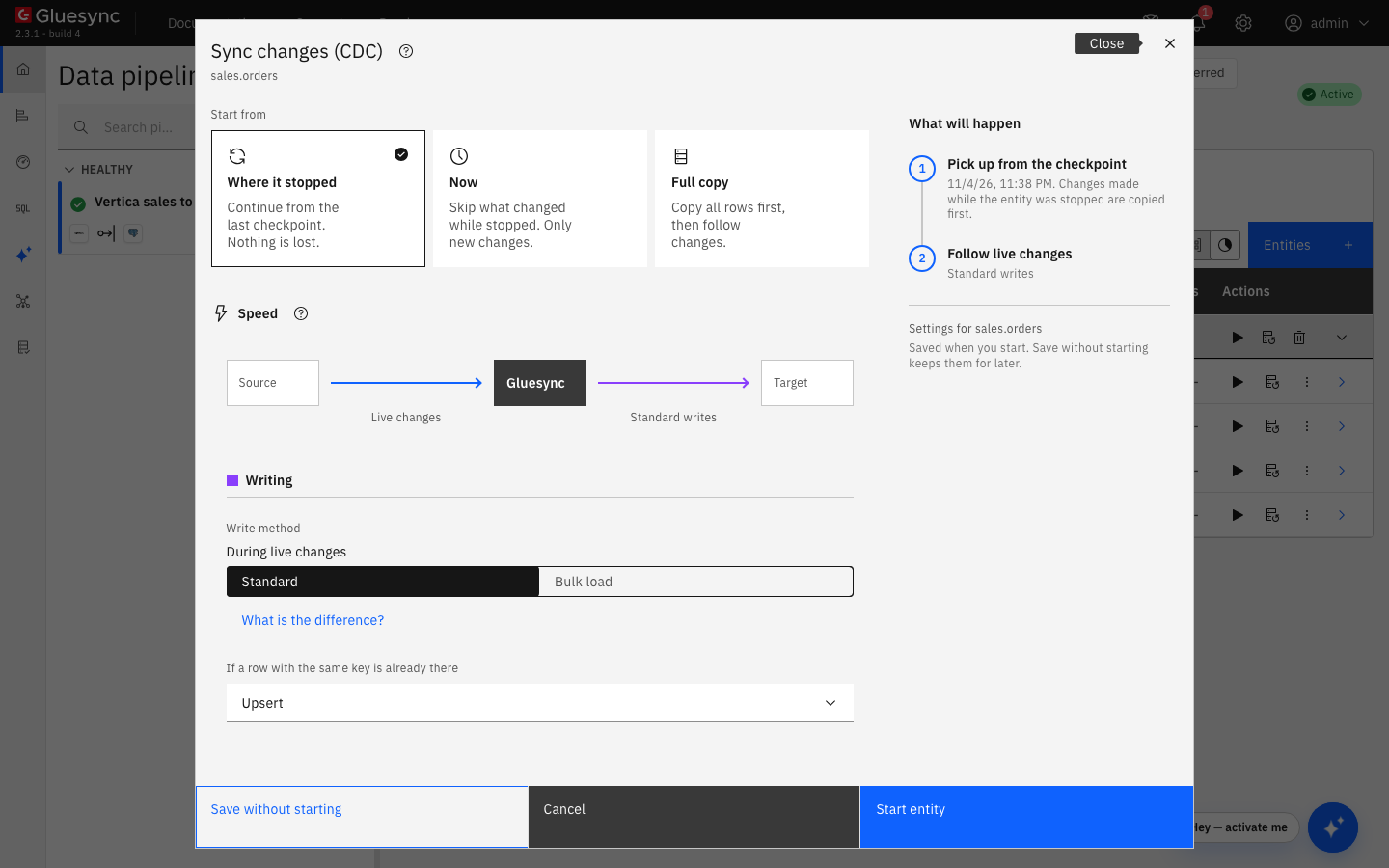
CDC polls the database at most once for each polling interval of the entity (500 ms by default) and delivers the net change of each window. A row that changes twice inside one window arrives once, with its last values.
SQL
Two operations behave differently from a log-based source.
-
Change a key. On Vertica run:
UPDATE sales.customers SET id = 30 WHERE id = 3;
COMMIT;
On PostgreSQL,
SELECT id, name FROM public.customers ORDER BY id;returns the rows1,2and30: the old key was deleted and the new one inserted; -
Truncate a table.
TRUNCATEremoves the history of the table together with its rows, so CDC cannot compare epochs any more. On Vertica run:TRUNCATE TABLE sales.orders; INSERT INTO sales.orders (id, customer_id, amount, status, placed_at, note) VALUES (2001, 1, 1.00, 'NEW', '2026-11-04 13:00:00+00', 'after truncate'), (2002, 2, 2.00, 'NEW', '2026-11-04 13:00:00+00', 'after truncate'); COMMIT; -
After a few seconds read
SELECT id FROM public.orders ORDER BY id;on PostgreSQL and look for the warning in the Core Hub log:docker logs <core hub container> 2>&1 | grep "cannot be read as changes"
|
Each |
UI
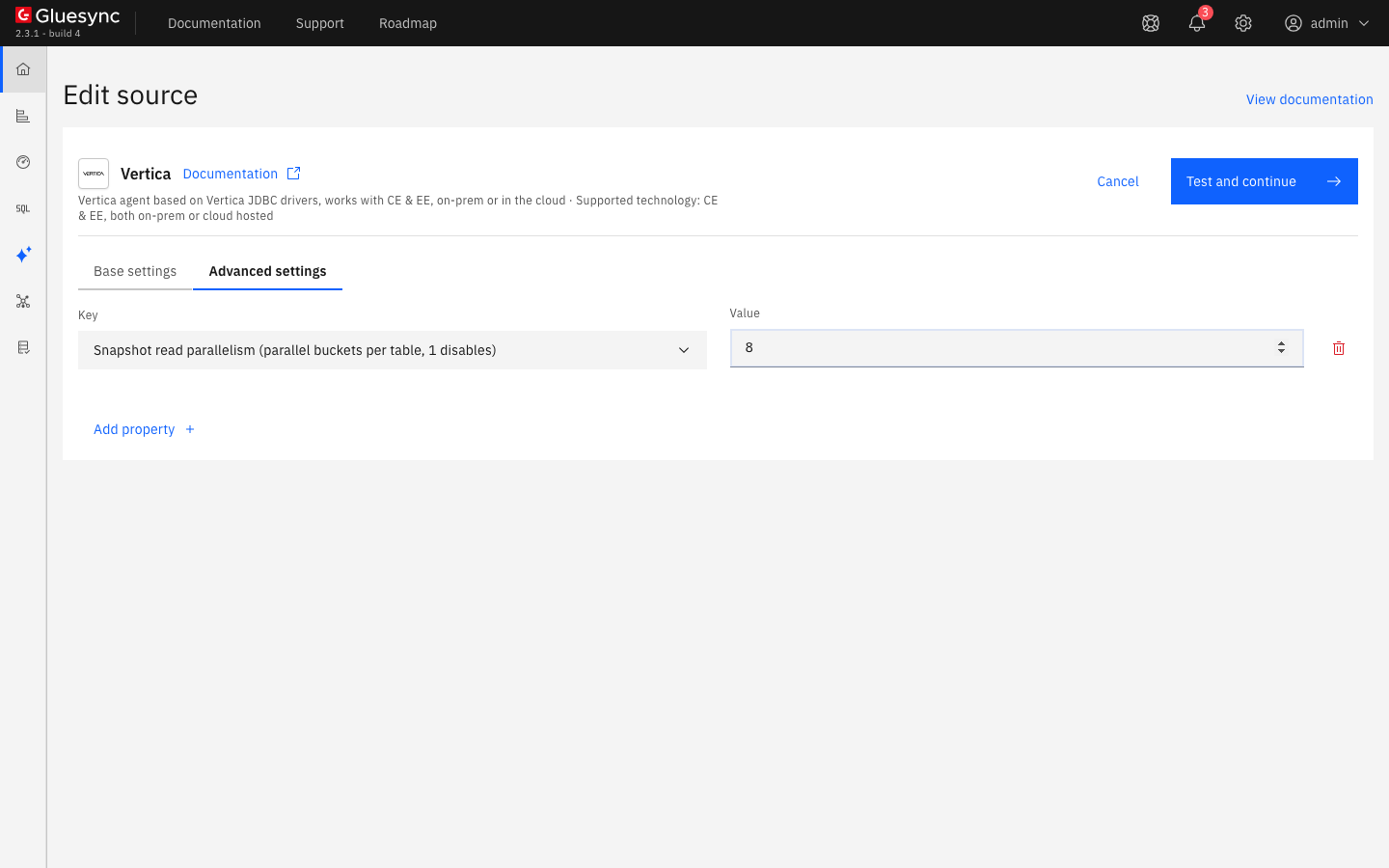
The snapshot reads a table in hash buckets, and each bucket has its own Vertica session. The default is four. To change it:
-
In the pipeline list, select the Vertica icon of the pipeline. The Edit source page opens. Select Advanced settings;
-
Select Add property and open the Key list. It offers these settings:
-
Source change retention in hours (not used by Vertica);
-
Technical fields;
-
Snapshot read parallelism (parallel buckets per table, 1 disables);
-
JDBC result buffer size in bytes;
-
Delete detection bucket size (removed keys held in memory per bucket);
-
Reload the table when its history is gone, instead of failing;
-
Minimum history retention in seconds required by the setup check;
-
-
Choose Snapshot read parallelism. The Value starts at
4. Enter8and select Test and continue.
For a large table, the options of the snapshot dialog matter as much as the source. Under Speed, Custom shows Read in parallel, which splits the table into ranges when you define partitions, and the number of writers, from 1 to 10. The write method of the target, Standard or Bulk load, is a separate switch for the copy and for live changes. Read Tune replication throughput and Filter rows with snapshot WHERE and target filters.
SQL + UI
Each error below was reproduced on the test lab.
-
Set
HistoryRetentionTimeto60, add an entity and select Confirm and continue. The page shows The entity could not be saved. and the notification Entity Upsert Failed withThe history of the database spans 60 seconds (HistoryRetentionTime), too little to read changes from: Gluesync needs at least 3600. A superuser sets it with ALTER DATABASE DEFAULT SET HistoryRetentionTime = 3600;Fix: run the statement of step 1; -
Add a table with an array column, such as
ARRAY[VARCHAR(20)], and let Gluesync create the PostgreSQL table. The Field mapping dialog proposes the typearray, and Create table fails withCreate target table execution error: ERROR: syntax error at or near "array". Fix: create the table yourself with the array type,tags text[], and choose it in Target Table. The mapping then showsarrayon both sides and the values arrive as{x,y}; -
Change the password in Edit source to a wrong value and select Test and continue. The page shows Failed to save:
The connection was saved, but agent <id> of pipeline <id> did not accept the new credentials: Failed to initialize pool: [Vertica][VJDBC](2248) FATAL: Authentication failed for username "gluesync". The wrong password is stored. Fix: enter the right one and select Test and continue again. The pipeline recovers by itself.
Data types
Vertica reports every integer type as int and every float type as float, both 64 bit. In the Field mapping dialog for a PostgreSQL target:
| Vertica type | PostgreSQL type proposed | Note |
|---|---|---|
|
|
64 bit |
|
|
The precision and the scale are kept |
|
|
The length is kept |
|
|
|
|
|
Read at UTC |
|
|
Create the target table yourself, with a type such as |
The agent reference lists the mapping of every Vertica type, including intervals, geospatial types, ROW and SET: Data types.
Troubleshooting
| Problem | Possible cause | What to do |
|---|---|---|
The entity could not be saved. with |
|
As a superuser run |
Failed to save with |
The user or the password is wrong. The connection is saved anyway |
Enter the right credentials and select Test and continue again |
A schema or a table is missing from the Object browser |
The login has no |
Run |
Confirm is disabled and the banner says |
CDC needs a key and Vertica does not require one |
Select the key checkbox of the columns that identify a row in the Field mapping dialog |
Failed to create table with |
The table has an array column and the proposed PostgreSQL type is |
Create the target table with an array type such as |
The target has fewer rows than the source after the snapshot |
The snapshot did not deliver every bucket |
Run the snapshot of the entity again with Keep and merge, then compare the counts again |
The log shows |
A |
Expected behavior. Avoid truncating replicated tables, or keep |
Related guides
Contact MOLO17 Support if you need assistance with a Vertica source.