Replicate a database to a data lake on S3 or Azure Data Lake Storage
A data lake target does not hold a copy of your table: it holds files. This guide builds a pipeline from PostgreSQL to an S3 bucket, then reads the files that Gluesync writes to see exactly how a snapshot, an insert, an update and a delete appear, how column types are decided, and how to get the current state of the table back with DuckDB.
In this guide
You will learn how to configure an S3 or S3-compatible target, choose the file format, add a table, check the Parquet column types, run a full copy, read the change files, query the latest state of each row, and change the folder layout and the file size. It also lists what is different for Azure Data Lake Storage Gen2 and for JSON files.
The guide builds on the Parquet files support FAQ, which explains file names, the _operation column and merging. It does not repeat those answers: it shows the steps and the files that result.
Quick information
Goal |
Replicate a table to a bucket as Parquet files and read the current state back |
Audience |
Data engineers and Gluesync administrators |
Level |
Intermediate |
Time required |
About 45 minutes |
Area |
Control Plane → Data pipelines → Agents setup wizard |
Applies to |
Gluesync 2.3 |
Before you begin
Make sure that:
-
You can sign in to the Gluesync Control Plane with a user that can create pipelines;
-
A PostgreSQL source with logical replication enabled is reachable from Core Hub, and you have a table with a primary key to replicate;
-
An S3 bucket, or an S3-compatible store such as MinIO, exists, and you have an access key and a secret key that can write to it;
-
Core Hub can reach the object store from its own network. Use the address that Core Hub sees, not the one that your browser sees;
-
DuckDB, or another engine that reads Parquet, can reach the bucket, so that you can check the files.
|
This guide was tested with a MinIO bucket named |
Guide steps
SQL
Skip this step if you already have a bucket and a table.
-
Create the bucket in your object store. With MinIO,
mc mb local/lakecreates a bucket namedlake; -
In the source database, create the schema and the table, and insert a few rows:
CREATE SCHEMA data_lake_demo;
CREATE TABLE data_lake_demo.invoices (
  id           integer PRIMARY KEY,
  customer     varchar(40) NOT NULL,
  quantity     smallint,
  units        bigint,
  amount       numeric(10,2),
  discount     numeric(12,4),
  rate         double precision,
  paid         boolean,
  invoice_date date,
  created_at   timestamp,
  updated_at   timestamptz,
  note         text);

INSERT INTO data_lake_demo.invoices
SELECT g, 'Customer ' || g, (g % 50)::smallint, g * 100000000::bigint, g * 10.25,
       round(g / 7.0, 4), g * 0.5, g % 2 = 0, DATE '2026-10-01' + g,
       TIMESTAMP '2026-10-01 08:30:15.123456' + g * interval '1 hour',
       TIMESTAMPTZ '2026-10-01 08:30:15.123456+00' + g * interval '1 hour',
       'note ' || g
FROM generate_series(1, 5) g;UI
-
In the Data pipelines page, select the + button above the list of pipelines to open the Agents setup wizard;
-
In 1. Setup source, select PostgreSQL CDC agent, enter the host, database, user and password of the source, and select Test and continue. Then select Next;
-
In 2. Setup target(s), scroll to the Object Store group and select AWS S3 & S3-like agent.
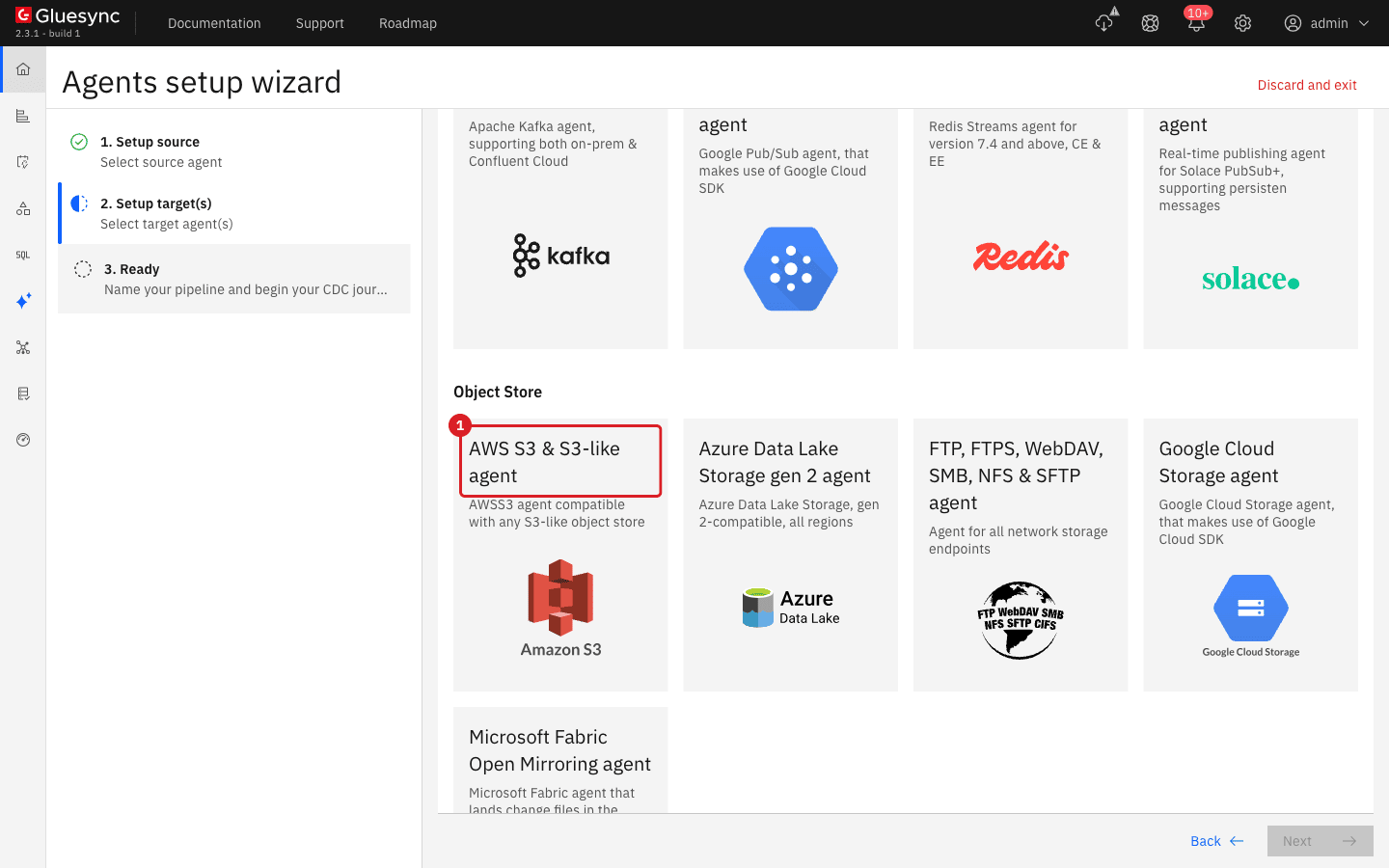
UI
-
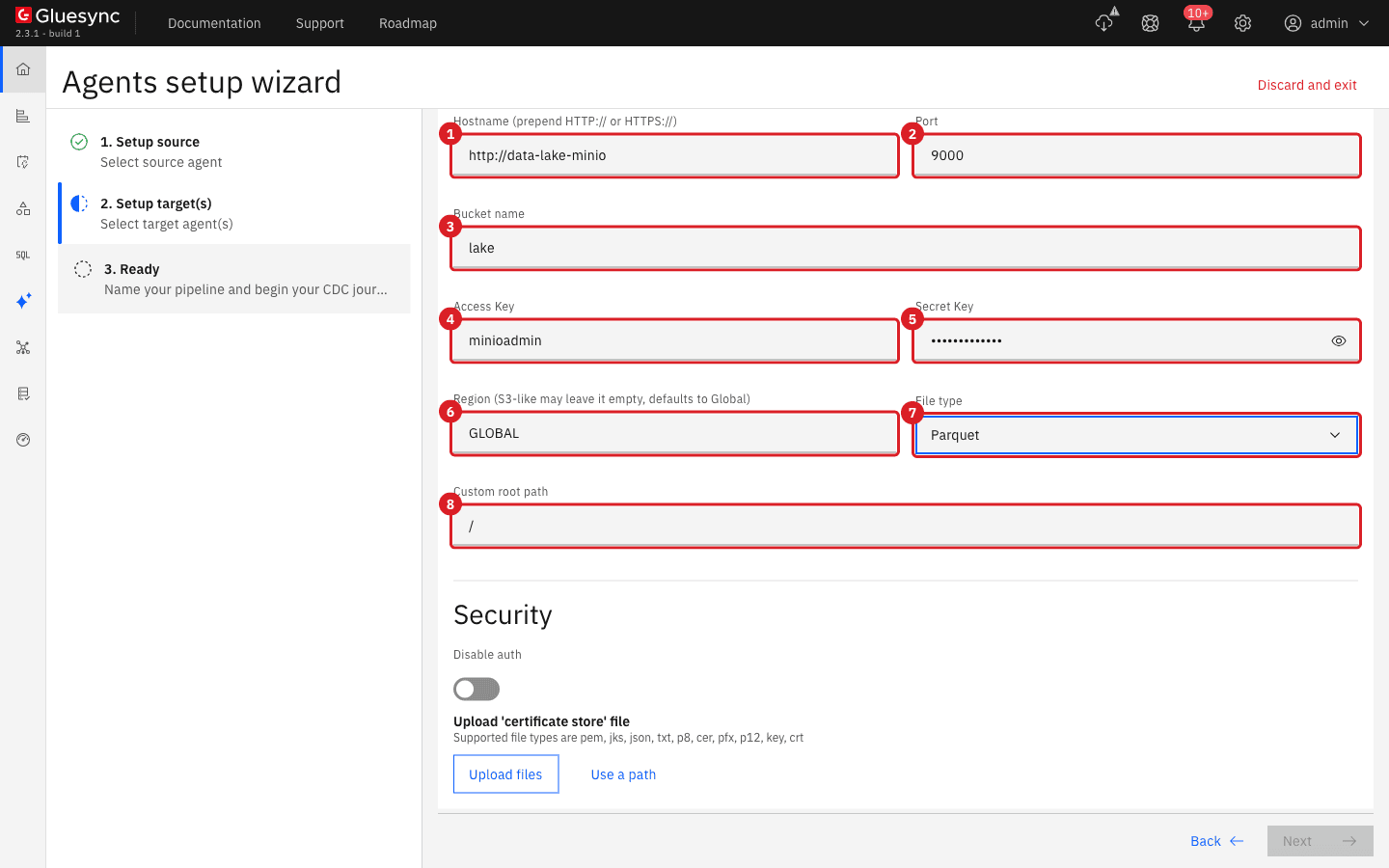
In Hostname (prepend HTTP:// or HTTPS://), enter the address of the store, with its scheme. For MinIO in the same Docker network this is
http://data-lake-minio; -
In Port, enter the port. The default is
443, the HTTPS port of AWS S3. MinIO uses9000; -
In Bucket name, enter the bucket;
-
In Access Key and Secret Key, enter the credentials;
-
Leave Region (S3-like may leave it empty, defaults to Global) as
GLOBALfor an S3-compatible store. For AWS S3, enter the region of the bucket; -
In File type, keep Parquet;
-
Leave Custom root path as
/to write at the top of the bucket, or enter a folder to write under it; -
Select Test and continue, then Next.
| File type | What the agent writes |
|---|---|
Parquet (default) |
One file per batch, named after the time it was written. Snapshot rows go to |
JSON |
One small object per row, named after the key of the row. There is no log: an update replaces the object and a delete removes it, so the bucket always shows the current rows. See Use JSON files instead of Parquet. |
CSV |
Files like the Parquet ones, written as text. The entity setting Maximum row count in CSV file limits their size. CSV was not tested for this guide. |
|
The file type belongs to the connection, not to the entity. Every table that uses this target writes the same format. To get Parquet for some tables and JSON for others, create two target connections. |
UI
-
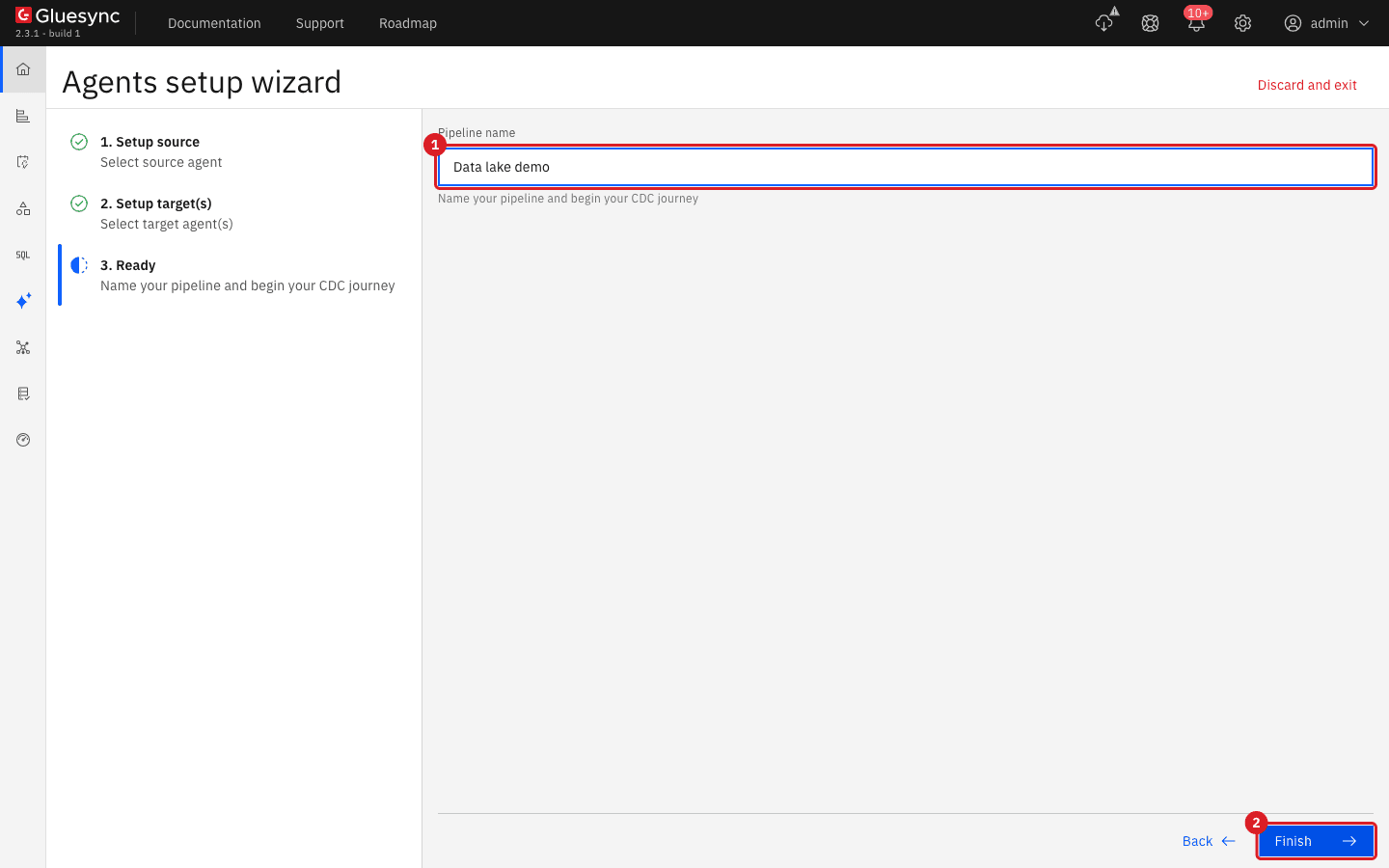
Enter the name of the pipeline in Pipeline name. This guide uses
Data lake demo; -
Select Finish.
UI
-
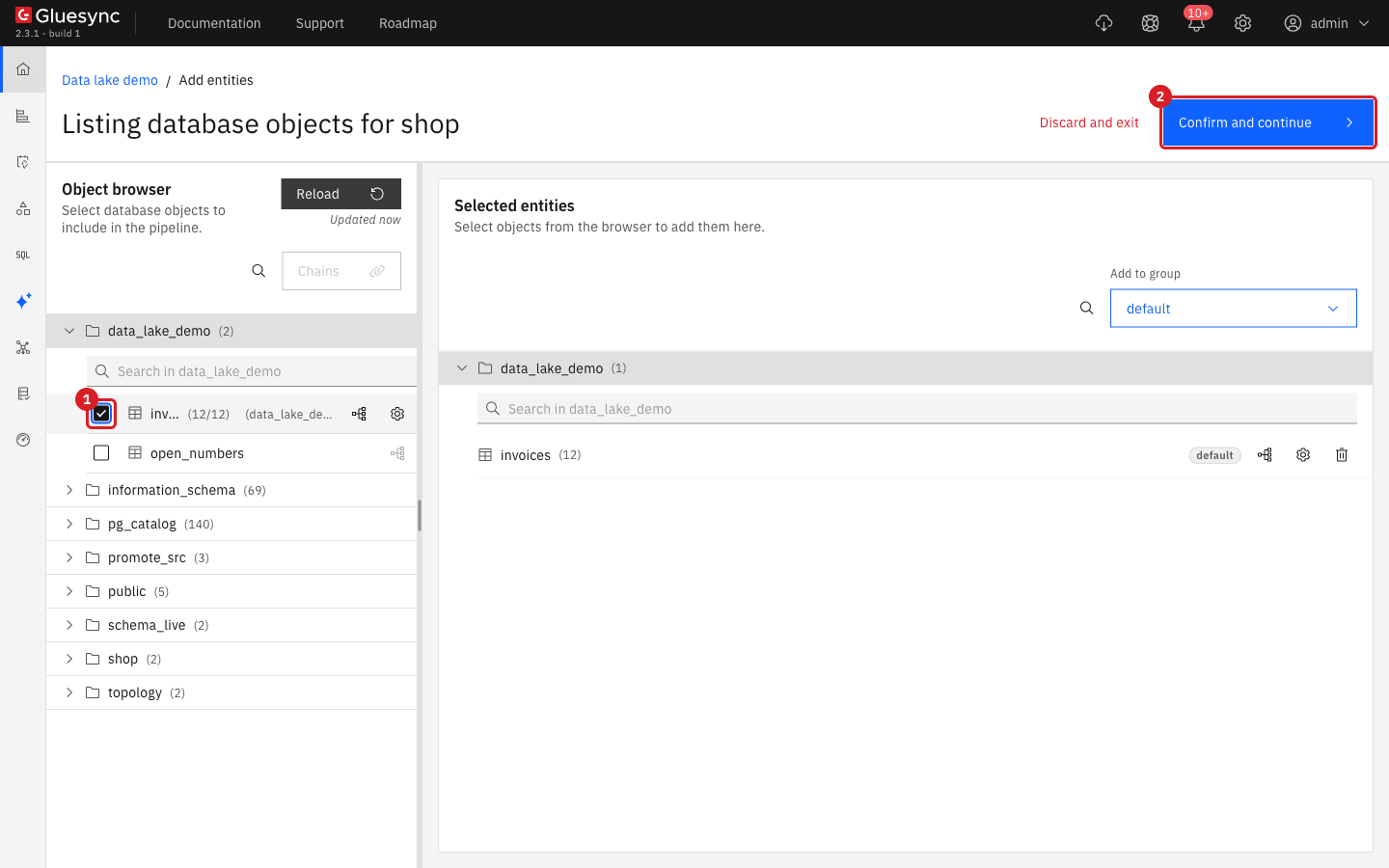
Select Entities +;
-
In the Object browser, open the schema of your table;
-
Select the check box of the table. This guide selects
invoices; -
Select Confirm and continue.
UI
The Parquet column types come from the Target type of each field. Gluesync fills it from the source column, so a table that you add with the default mapping gets typed columns.
-
Select the entity, then Edit;
-
In Selected entities, select the mapping icon next to the table to open Field mapping;
-
Read the Target type column (1). Select a type to see the types that you can choose;
-
Select Cancel if you do not want to change anything.
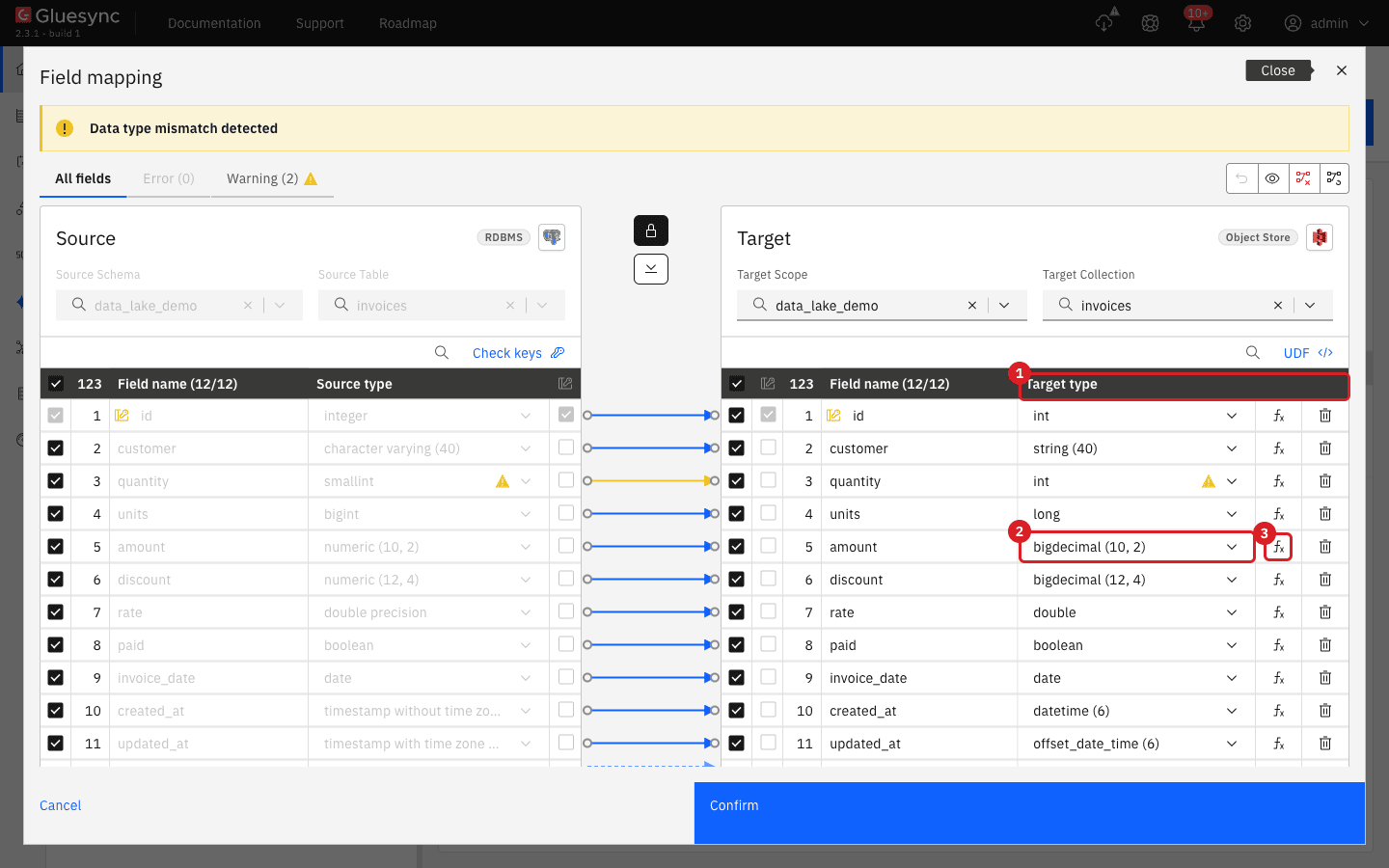
bigdecimal (10, 2) (2), becomes the precision and scale of the column. The fx button (3) applies a field function.| PostgreSQL column | Target type | Parquet column read back by DuckDB |
|---|---|---|
|
|
|
|
|
|
|
|
|
|
|
|
|
|
|
|
|
|
|
|
|
|
|
|
|
|
UI
-
Select the Start button of the entity;
-
In Start from, select Full copy;
-
In Data already in the target, keep Keep and merge;
-
Select Start entity.
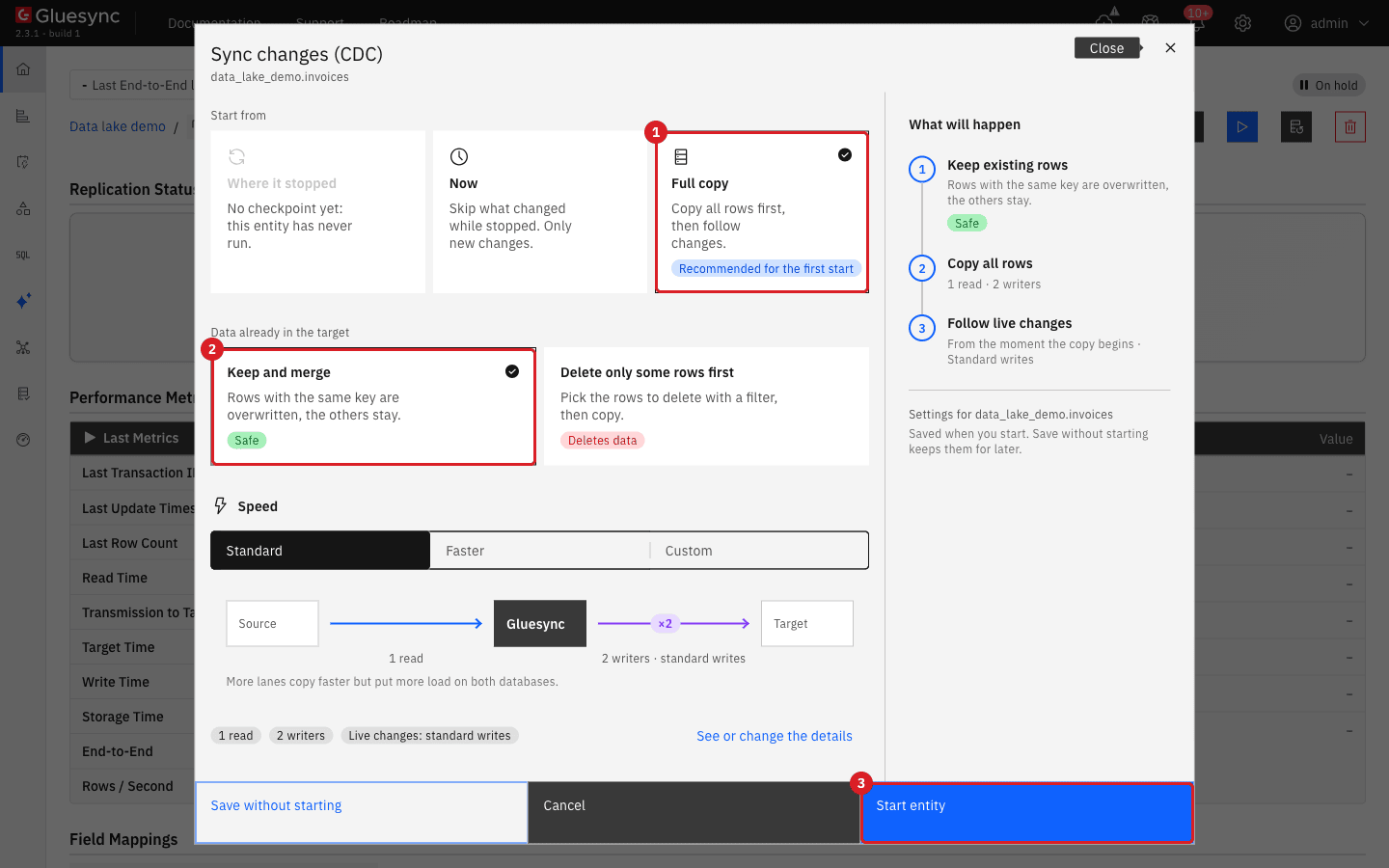
A second full copy of a table writes a new set of .snap files next to the first one. In the test, the two snapshot files of open_numbers were both still in the bucket after the second full copy. See the FAQ for retention.
|
CLI
Read the file with the engine that your analysts use. With DuckDB, configure the httpfs extension for your store first. For the MinIO bucket of this guide:
INSTALL httpfs; LOAD httpfs;
CREATE SECRET lake (TYPE s3, KEY_ID '<access key>', SECRET '<secret key>',
                    ENDPOINT 'localhost:9000', USE_SSL false, URL_STYLE 'path');

DESCRIBE SELECT * FROM read_parquet('s3://lake/data_lake_demo_invoices/*.snap');
SELECT * FROM read_parquet('s3://lake/data_lake_demo_invoices/*.snap') ORDER BY id;The columns are in the order of the entity, which is the order of the table. The technical columns come last. Parquet itself stores the key id as a required column and every other column as optional.
SQL
Run a transaction that inserts, updates and deletes one row each, then read the change file:
BEGIN;
INSERT INTO data_lake_demo.invoices VALUES (6, 'Customer 6', 6, 600000000, 61.50, 0.8571,
  3.0, true, '2026-10-07', '2026-10-01 14:30:15.123456', '2026-10-01 14:30:15.123456+00', 'note 6');
UPDATE data_lake_demo.invoices SET discount = 0.5, note = 'note 2 updated' WHERE id = 2;
DELETE FROM data_lake_demo.invoices WHERE id = 3;
COMMIT;
SELECT regexp_extract(filename, '([0-9T:.-]+)\.chng', 1) AS file, file_row_number AS row,
id, customer, quantity, discount, note, _operation, _value, _timestamp
FROM read_parquet('s3://lake/data_lake_demo_invoices/*.chng',
filename = true, file_row_number = true)
ORDER BY filename, file_row_number;_value is the position in the PostgreSQL WAL and _timestamp is the time in milliseconds since 1970. Both are text, like _operation. The new row of the update holds all the columns and the old values are not written: an update has no before image. The delete holds only the key.
SQL
By default, PostgreSQL sends only the key of a row that is deleted. To get the whole old row in the D row, set the replica identity of the source table to FULL. Then delete a row, change the key of another, and update a third:
ALTER TABLE data_lake_demo.invoices REPLICA IDENTITY FULL;
DELETE FROM data_lake_demo.invoices WHERE id = 4;
UPDATE data_lake_demo.invoices SET id = 50, note = 'note 5 new key' WHERE id = 5;
UPDATE data_lake_demo.invoices SET quantity = 22 WHERE id = 1;
Run the statements one at a time, with a few seconds between them, so that each one lands in its own file. Read the files with the query of the previous step.
| Source change | What the file holds |
|---|---|
|
One row with all the columns and |
|
One row with the new values of all the columns and |
|
Two rows in the same file with the same |
|
One row with |
|
|
SQL
The files are a log. Rebuild the table by keeping the last row of each key and dropping the keys whose last row is a delete. This is the query of the FAQ applied to the files of this guide:
SELECT * EXCLUDE (_operation, _value, _timestamp, filename, file_row_number, rn)
FROM (
  SELECT *, row_number() OVER (PARTITION BY id
                               ORDER BY filename DESC, file_row_number DESC) AS rn
  FROM read_parquet(['s3://lake/data_lake_demo_invoices/*.snap',
                     's3://lake/data_lake_demo_invoices/*.chng'],
                    union_by_name = true, filename = true, file_row_number = true)
)
WHERE rn = 1 AND _operation <> 'D'
ORDER BY id;Two details of the query matter in practice:
-
ORDER BY filename DESCputs the newest file first: the names are UTC times, so they sort in write order. Do not order by_value: snapshot rows have none. -
PARTITION BYmust list every column of the key of the entity.
UI
The default layout is one folder per entity at the top of the bucket (data_lake_demo_invoices/<time>.snap). To write the layout with raw/, changes or snapshot, year= and month= folders instead, turn on Use relative timestamp paths. The name is the opposite of what it does: with the option on, the agent writes the older layout described in the FAQ.
-
Open the pipeline, select the Settings gear above the entity list, then Edit target;
-
Select the Advanced settings tab, then Add property;
-
In Key, select Use relative timestamp paths. The other keys in the list are Create sidecar JSON companion file and Max concurrent uploads;
-
Turn the value on;
-
Select Test and continue.
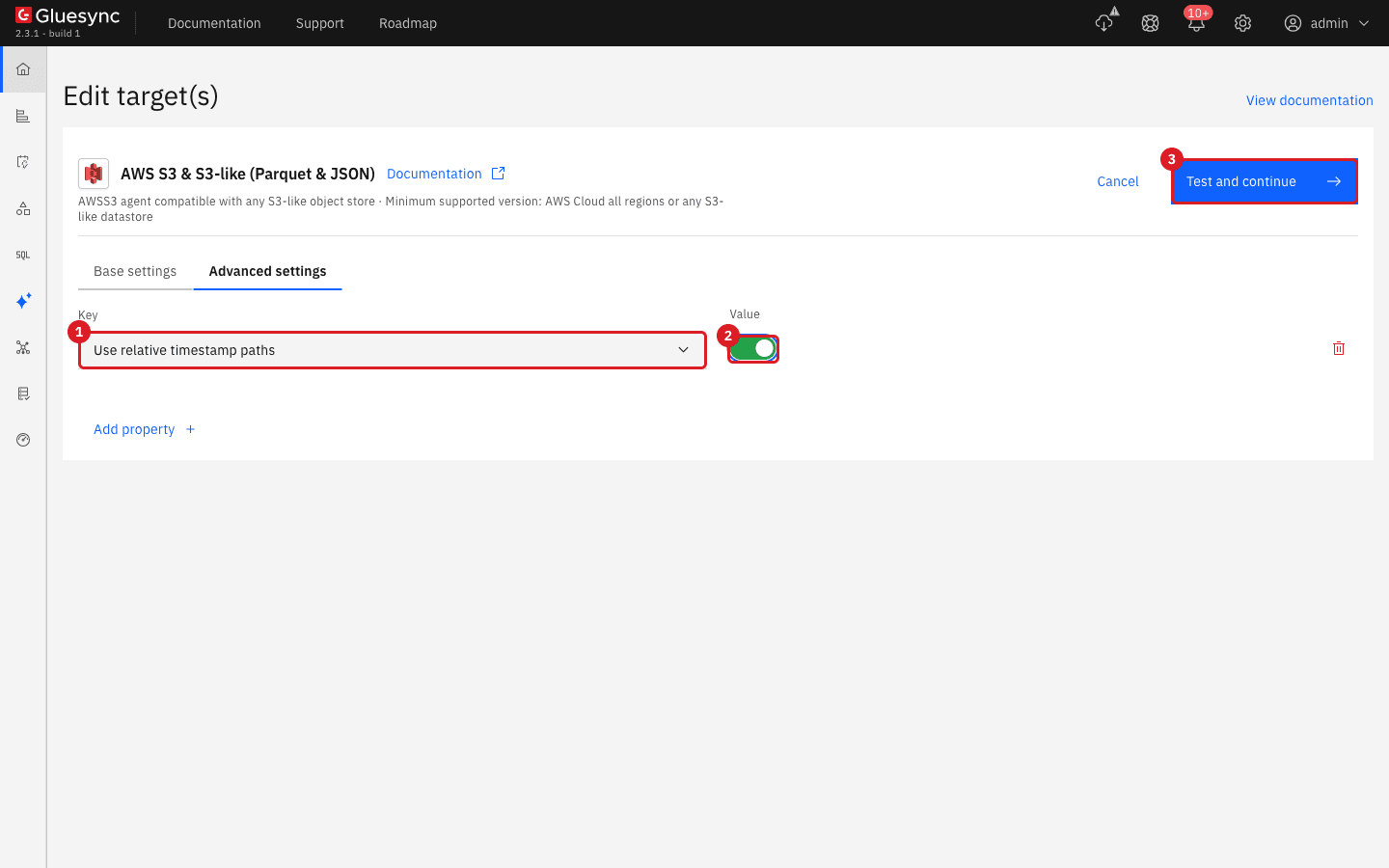
|
Choose the layout before the first start and keep it. Files that are already written stay where they are, so a folder that changes layout holds files in two places. If DuckDB reads the |
The Custom root path of the connection puts all these folders under a folder of the bucket instead of at its top.
UI
-
Open the entity, select Edit, then the gear icon next to the table;
-
Open the Entity tab. Maximum row count in Parquet file is
250000by default; -
Change the value if you need smaller or larger snapshot files, then select Confirm and continue.
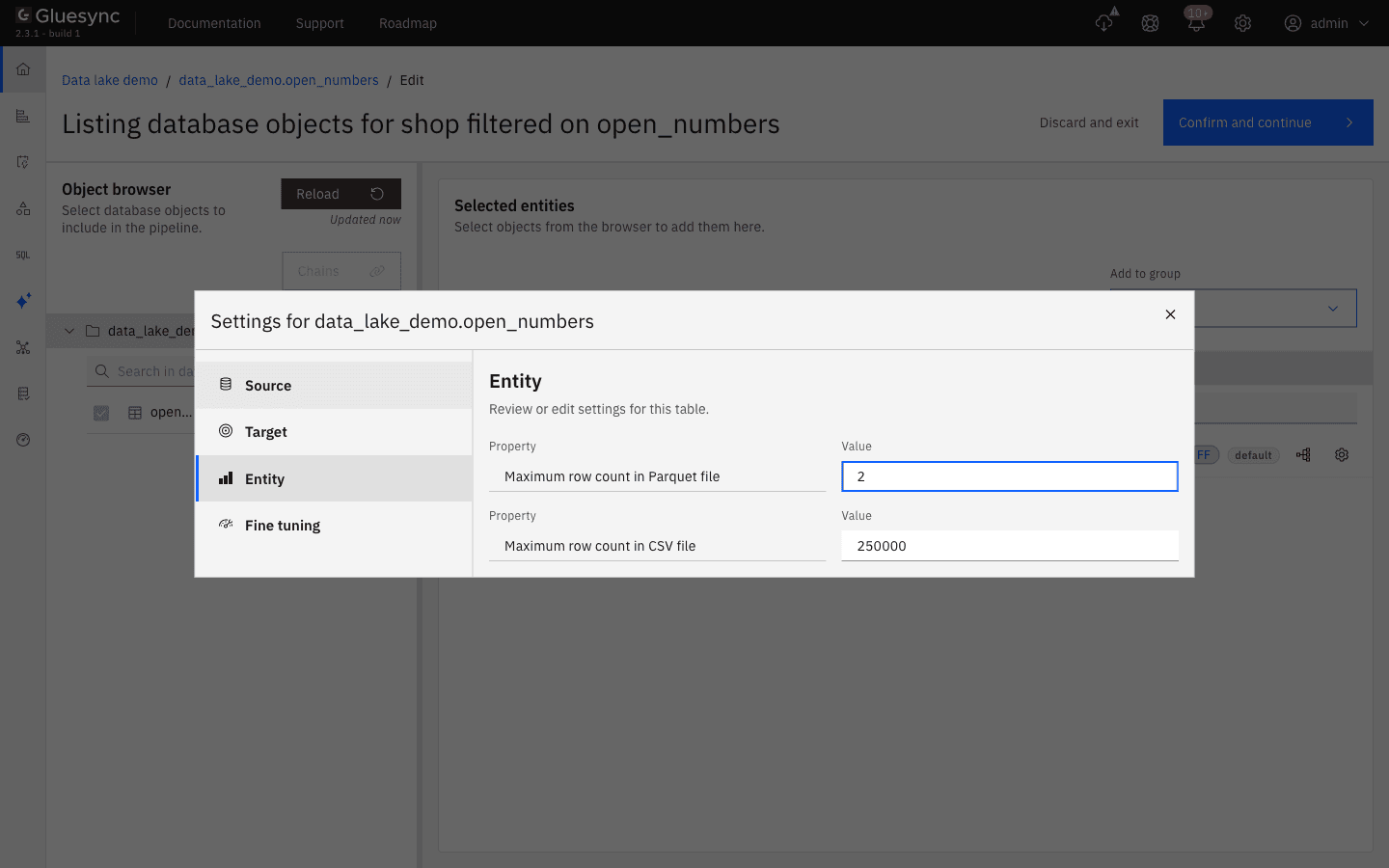
2 for the test.Change files are not affected: each batch of changes is its own file. In the test, ten inserts in ten transactions, committed a few hundred milliseconds apart with the default Polling interval of 500, gave ten change files with one row each. See the FAQ for how to get fewer, larger files.
Decimal columns without precision
A PostgreSQL numeric column declared without precision and scale (numeric alone) maps to a bigdecimal target type with no size. In the Parquet file the column is declared as DECIMAL(38,18), but the values are not scaled to 18 decimals. They come out wrong, silently:
| Value in the source | Value read back from Parquet | Why |
|---|---|---|
|
|
The digits |
|
|
Same. |
|
|
The value has more than 18 decimals and is 100 times too large. |
A column with a declared size, such as numeric(10,2) or numeric(12,4), is exact: the values in the tables above are all correct. There are two ways to avoid the wrong values:
-
Declare precision and scale on the source column, for example
numeric(12,4), and add the table again; -
Write the column as text. The target type cannot simply be changed to
string: Gluesync refuses it with Incompatible data types and disables Confirm. Apply the built-in field function Convert Decimal to String to the field and the type is accepted.
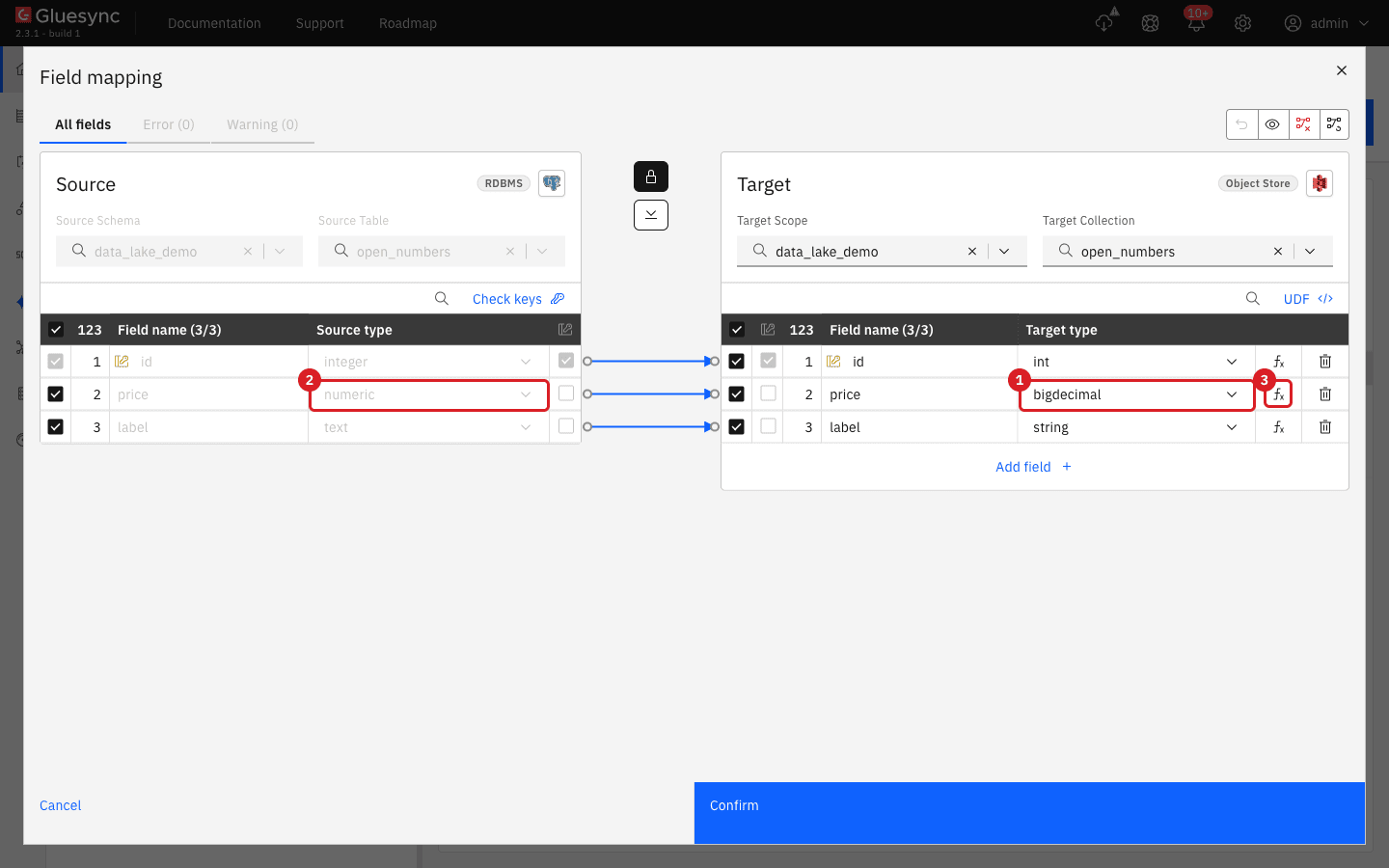
numeric column (2) has the target type bigdecimal (1) with no size. The fx button (3) opens the field functions.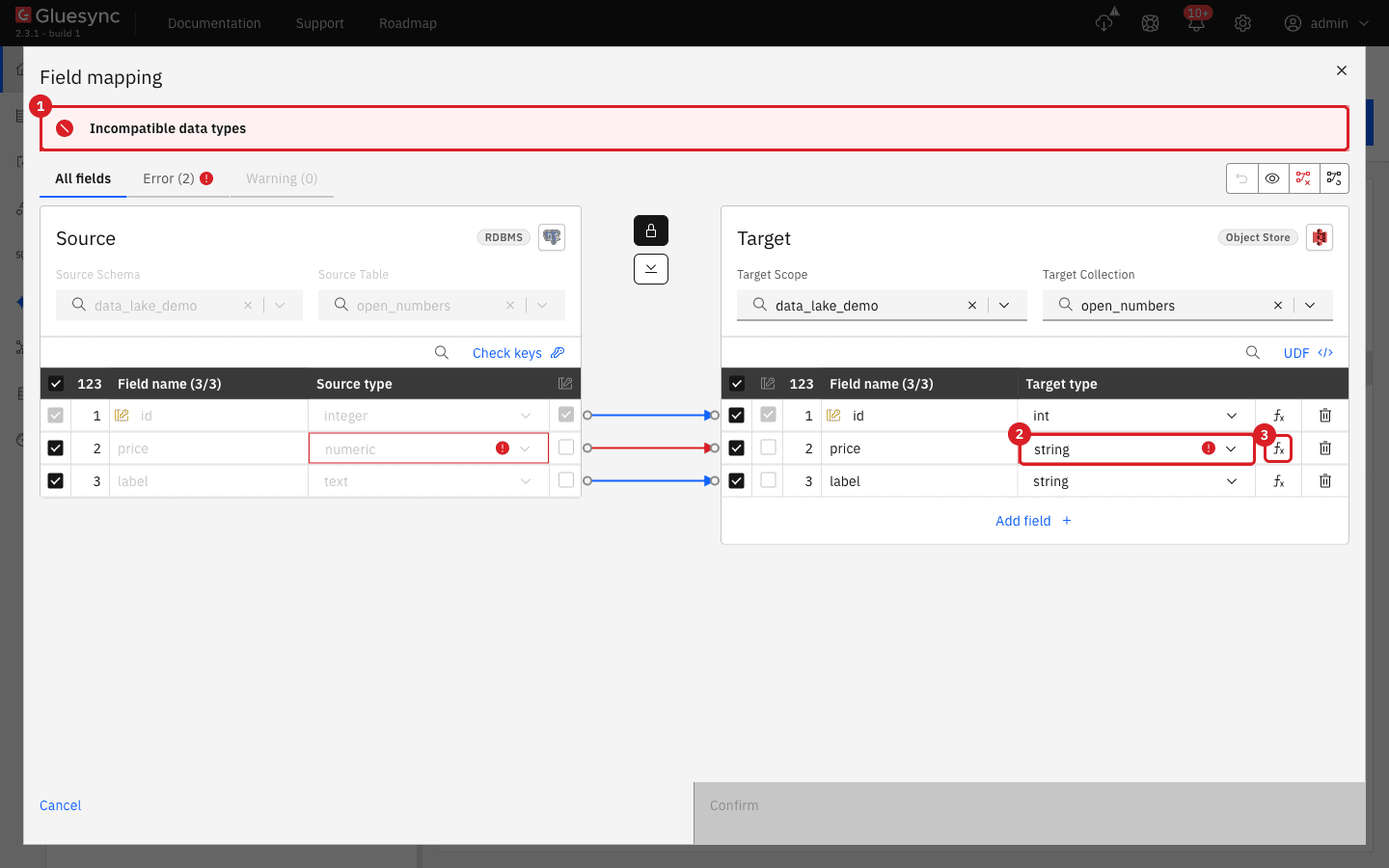
string alone (1) gives Incompatible data types (2). Apply Convert Decimal to String with the fx button (3).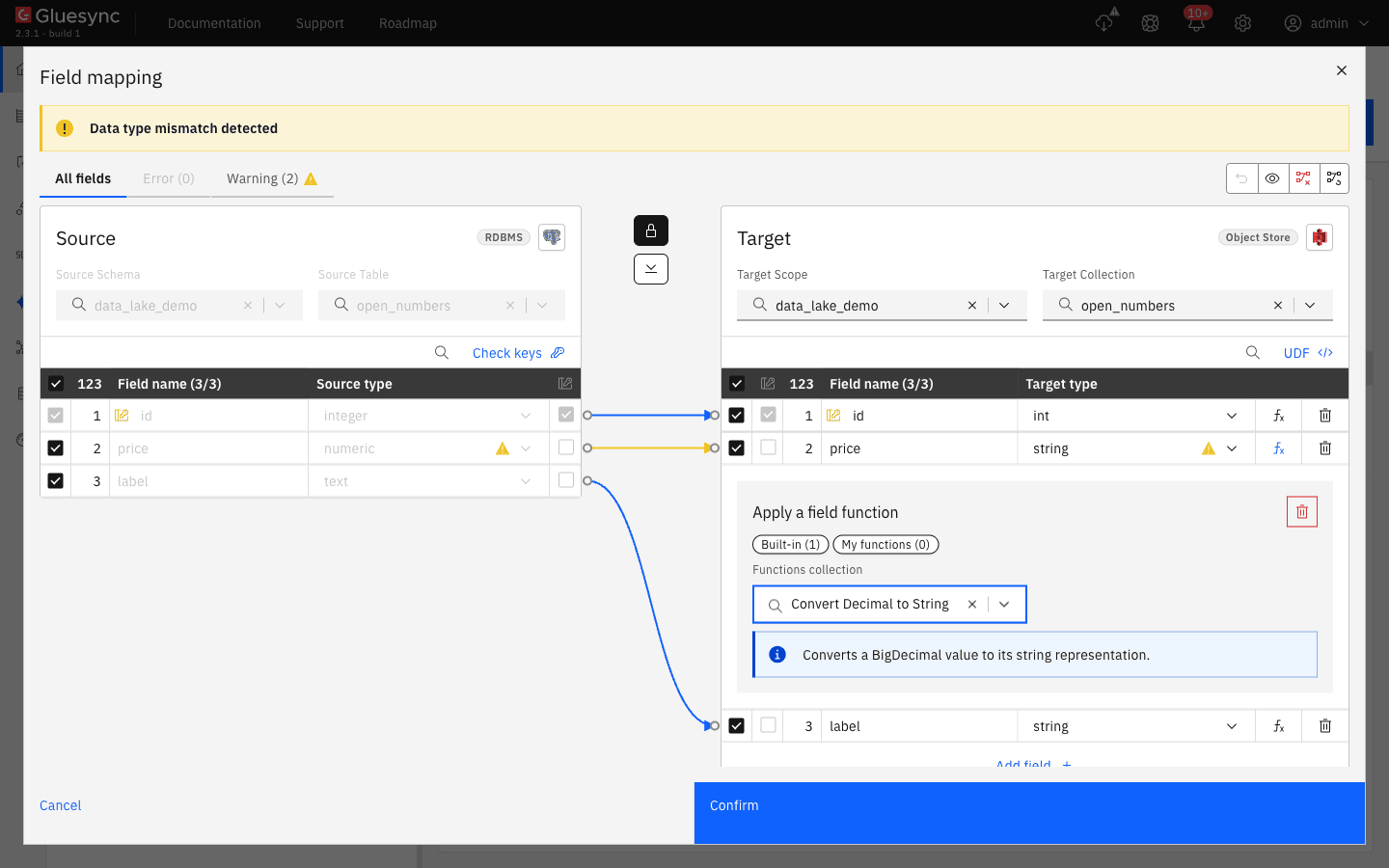
With the function applied before the first start, the Parquet column is text and the values are exact:
id  price         label           (price is VARCHAR in the file)
 1  10.25         two decimals
 2  0.5           one decimal
3 1234567.891 three decimals|
Set the target types and field functions before the first start of the entity. In the test, changing the target type of a column of an entity that had already written files made the next write fail with the entity error Target write failed class java.lang.String cannot be cast to class [B (notification title Class Cast). Exiting and entering maintenance mode did not clear it. Deleting the entity and adding the table again, with the new mapping chosen before the start, gives an entity that works. |
Use JSON files instead of Parquet
Create a second target connection, as in the steps above, and select JSON in File type. The test used a second pipeline, Data lake demo JSON, on a bucket named lake-json, with the same table. After a full copy the bucket holds one object per row of the table, and nothing else: no .snap or .chng files and no sidecar:
data_lake_demo/invoices/data_lake_demo::invoices::1
data_lake_demo/invoices/data_lake_demo::invoices::2
data_lake_demo/invoices/data_lake_demo::invoices::6
...- The object name is
<scope>/<collection>/<scope>::<collection>::<key>. The scope and the collection are the Target Scope and Target Collection of the Field mapping dialog, and the entity page shows the pattern in Document Key Preview (`data_lake_demo -
invoices :: id`). The object has no extension. Its content is the row:
{"id":2,"customer":"Customer 2","quantity":2,"units":200000000,"amount":"20.50","discount":"0.5000",
 "rate":1.0,"paid":true,"invoice_date":"2026-10-03","created_at":"2026-10-01T10:30:15.123456",
 "updated_at":"2026-10-01T10:30:15.123456Z","note":"json update"}
Numbers and booleans are JSON numbers and booleans. Decimals, dates and timestamps are text: ISO 8601 for dates and timestamps, with a Z for a timestamp with a time zone. The fields are in the order of the entity.
The bucket follows the table, so there is no history:
| Source change | Objects in the bucket |
|---|---|
|
A new object. |
|
The object of the row is replaced by the new row. There is no old version and no operation marker. |
|
The object of the old key is deleted and an object of the new key is created. Updating |
|
The object is deleted from the bucket. Deleting |
After the changes of the test (an update of 2, a delete of 7, an insert of 17 and a key change from 8 to 80), the bucket held the objects 1, 2, 6, 9 to 16, 17, 50 and 80, which are the rows of the source table.
|
JSON is the only file type where Gluesync deletes objects. Use it when the consumer needs the current state of each row and not the changes. Use Parquet when you need the history, or when the table is large: a JSON bucket has one object per row and the agent sends one request per row. |
What is different for Azure Data Lake Storage Gen2
The Azure Data Lake Storage gen 2 agent is in the same Object Store group of the wizard and writes the same Parquet, JSON and CSV files with the same names and layout. It was not run for this guide. The notes below come from the settings of the agent and from its reference page, and were not tested against a storage account.
| Setting | Value |
|---|---|
Host |
|
Container name |
The name of the container (the file system) that receives the files. |
User name and password |
The client ID and the client secret of an Azure application (service principal). Gluesync signs in with them to Microsoft Entra ID. |
Tenant Id |
The directory (tenant) of the application. |
File type, Custom root path |
As for S3. |
Request try timeout in seconds |
How long one request may run before the client abandons it and retries. The default is |
Emit FlushWithClose event for Event Grid triggers |
Agent setting, on by default. It lets Event Grid triggers see the file as complete. |
The service principal needs write access to the container. See Azure Data Lake Gen2 as a target for the roles and the Event Grid notes.
|
You cannot try this target with Azurite, the Azure storage emulator. Azurite answers the blob API, but it rejects the Data Lake ( |
Troubleshooting
| Problem | Possible cause | What to do |
|---|---|---|
The entity stops with Target write failed class java.lang.String cannot be cast to class [B |
A target type or a field function was changed on an entity that already wrote Parquet files |
Delete the entity, add the table again and choose the types before the first start. See Decimal columns without precision. |
Decimal values in the Parquet file are far too small or too large |
The source column is |
Declare precision and scale on the source column, or apply Convert Decimal to String. See Decimal columns without precision. |
Confirm is disabled with Incompatible data types when you pick |
Gluesync converts a number to text only through a field function |
Apply Convert Decimal to String to the field, or keep the numeric target type. |
A |
|
Cast it in the query: |
The query result has extra |
The older layout is on, and DuckDB reads the |
Ignore the columns or select the columns by name. They are the upload time. |
The same row appears several times in the files |
Every update, every delete and every full copy adds rows. Files are never merged or removed |
Use the current-state query, which keeps the newest row of each key. |
A delete is missing from the query result |
The row came back with a later |
Select both |
You expected the deleted row to be gone from the bucket |
Parquet files are never deleted. Only the JSON file type deletes objects |
Query the current state, or use JSON files. See Use JSON files instead of Parquet. |
Related guides
Contact MOLO17 Support if you need assistance with data lake targets.