Map IBM i data types to PostgreSQL without losing text, digits or dates
Gluesync reads every IBM i column with the type and the CCSID that the column declares, and writes it to the target with the type that the Field mapping dialog proposes. Most columns arrive unchanged, but a few do not: text tagged CCSID 65535 shows up as hex, a wrongly tagged column shows citt{ } pi`, a DECFLOAT column cannot be confirmed, a target column that is too narrow stops the entity, and a column with too few decimals rounds your numbers without a word. This guide shows what lands on PostgreSQL for each IBM i type, which setting changes it, and how to check every case with SQL.
In this guide
You will learn how to read what the IBM i declares for each column, change the target type before the table is created, choose how CCSID 65535 and FOR BIT DATA columns are read, correct a column that carries the wrong CCSID, remove trailing blanks, compare the target with the IBM i byte by byte, and find out when a value is rejected and when it is silently rounded. A mapping table at the end lists every IBM i type that we tested.
Quick information
Goal |
Get text, binary values, decimals, dates and timestamps from Db2 for IBM i to PostgreSQL exactly as you expect, and know where they would change |
Audience |
Data engineers and IBM i administrators who build and maintain pipelines from IBM i |
Level |
Advanced |
Time required |
About 60 minutes |
Area |
Control Plane → Pipelines → entity Options → Edit mapping; source agent → Edit source |
Applies to |
Gluesync 2.3 |
Before you begin
Make sure that:
-
You can sign in to the Gluesync Control Plane with a role that can edit pipelines;
-
A pipeline already has an IBM Db2 for IBM i source and a PostgreSQL target that Gluesync can read, and the IBM i tables you want to replicate are journaled with before and after images. This guide uses the pipeline IBM i types demo, the IBM i library
GSDOCSTYPand the PostgreSQL schemaibmi_types; -
The target tables do not exist yet, or you accept that you change their columns in the database when the guide says so;
-
You can run SQL on the target (for example in Query Studio) and on the IBM i (for example in ACS Run SQL Scripts or
STRSQL).
|
Optional: create the sample tables
Skip this if you already have tables with the columns you want to check. To repeat the examples of this guide, create a small library with a journal, then run the statements below in it from your own IBM i SQL session. The hexadecimal literals write the bytes of Journal each table with |
Guide steps
UI
-
Open Data pipelines and select your pipeline;
-
In the row of the entity, select Options (the three-dot icon), then Edit mapping;
-
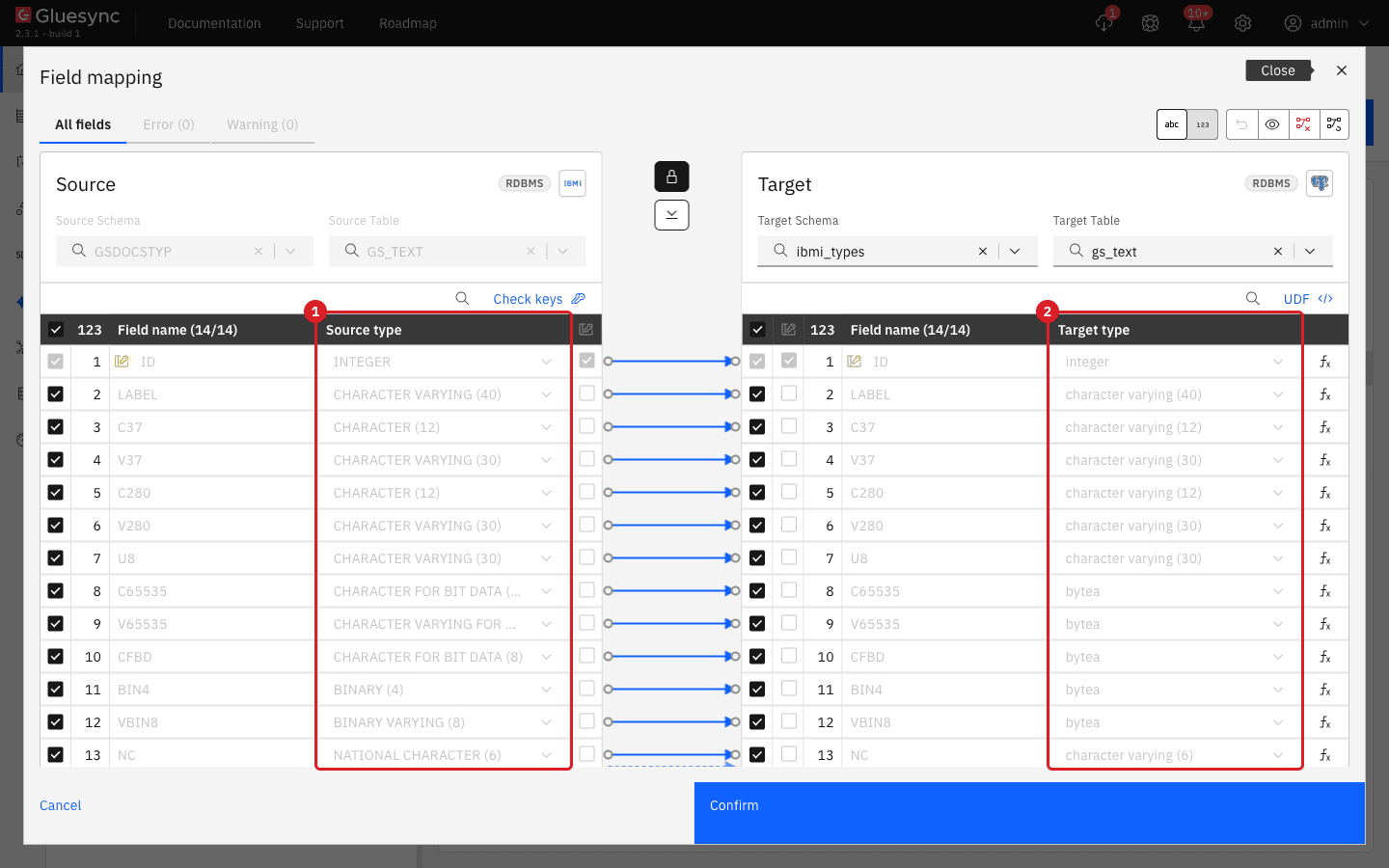
In the Field mapping dialog, read the Source type column: it shows the IBM i type with its length, for example
CHARACTER (12),CHARACTER FOR BIT DATA (12),DECIMAL (5, 2)orNATIONAL CHARACTER (6); -
Read the Target type column: it shows the type that Gluesync proposes for PostgreSQL.
-
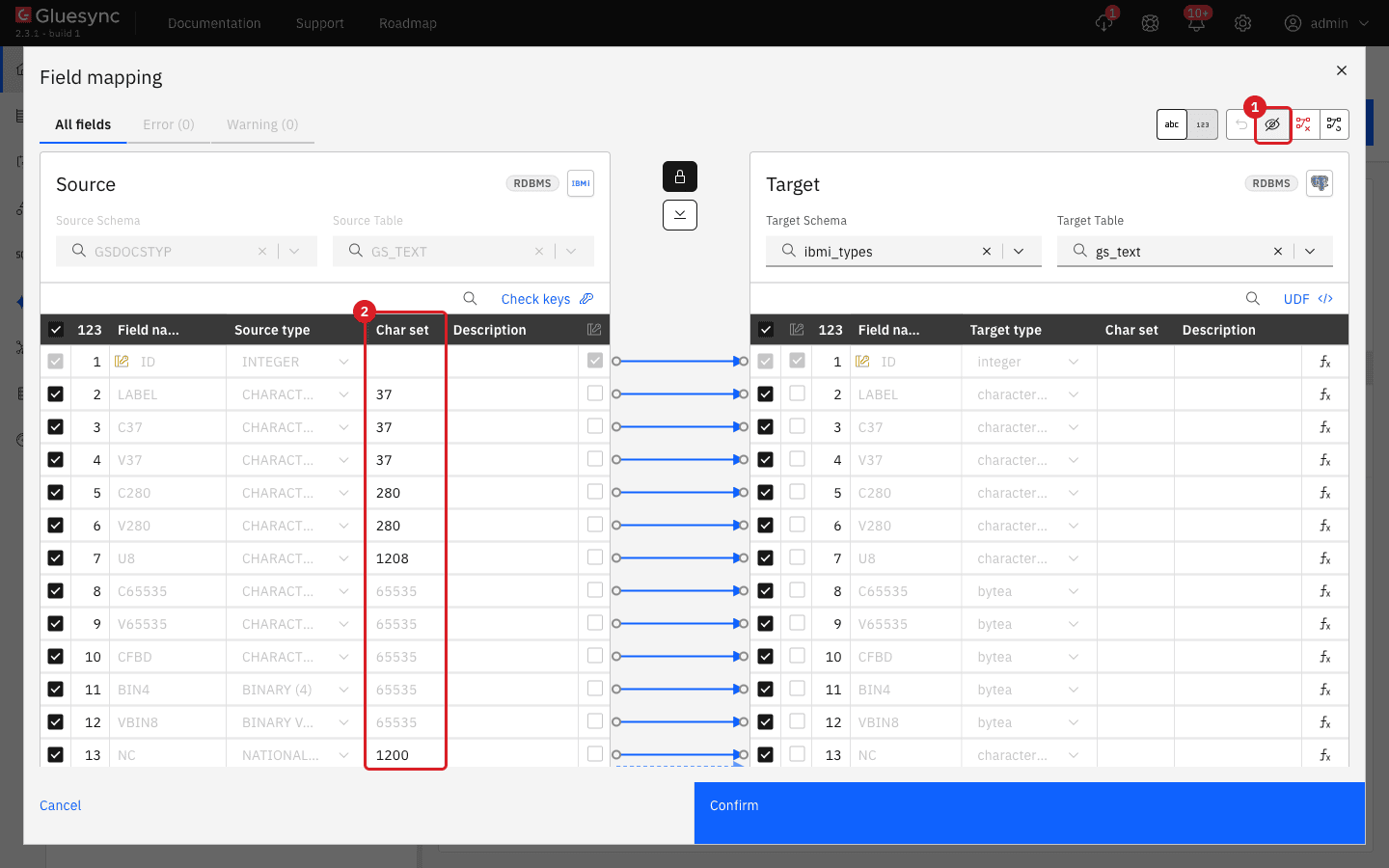
Select Show all columns (the eye icon, at the top right of the dialog);
-
Read the Char set column on the source side: it is the CCSID that the IBM i declares for each character column.
-
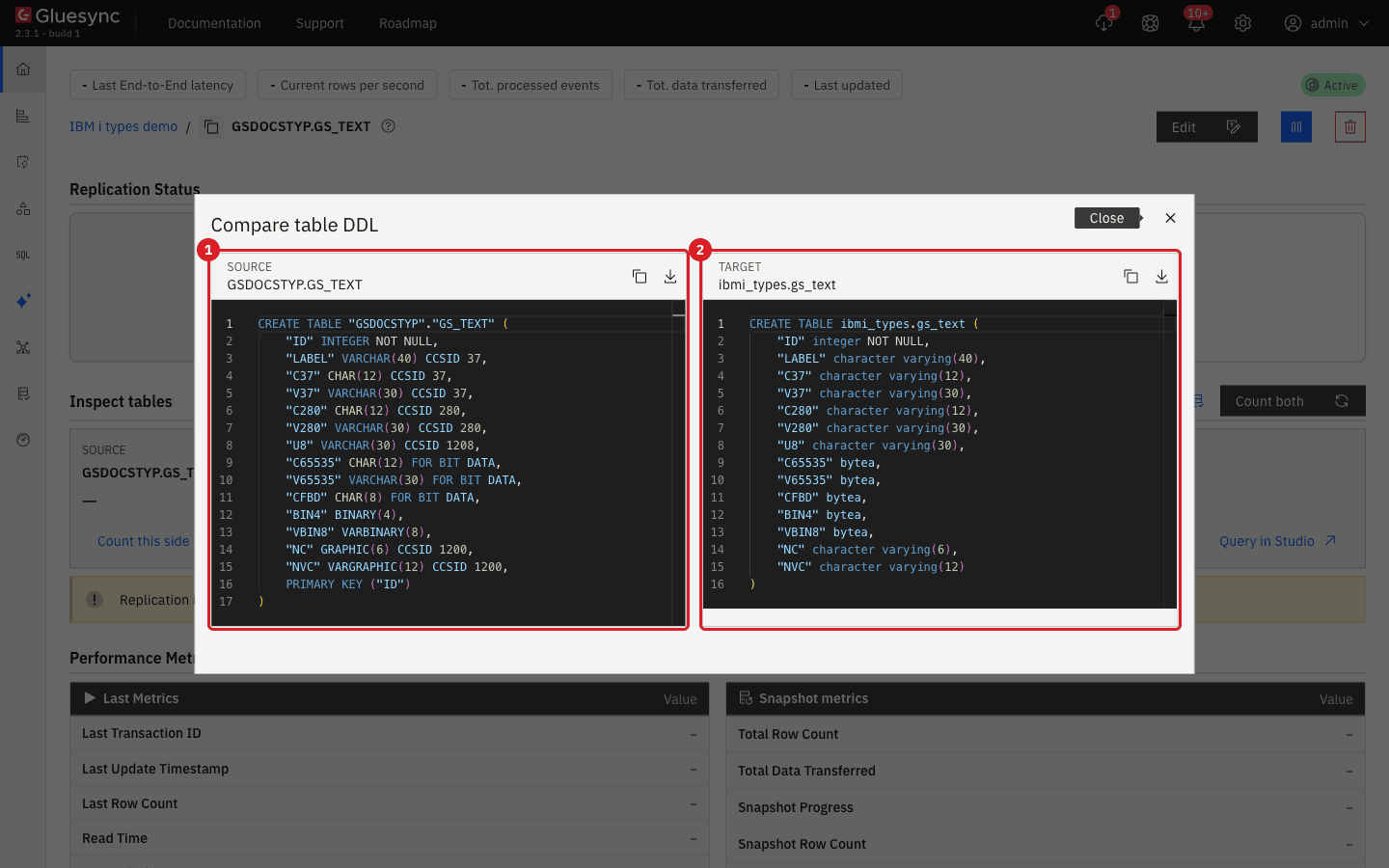
Close the dialog with Cancel, open the entity, and select Compare DDL in the Inspect tables section to see the IBM i
CREATE TABLEnext to the PostgreSQL one.
|
Gluesync keeps the IBM i column names, which are upper case, so on PostgreSQL they must be written between double quotes, for example |
UI
-
Add the entity: in the pipeline, select Entities, open the library, and select the table. The Field mapping dialog opens;
-
Select the Target Schema and enter a new name in Target Table;
-
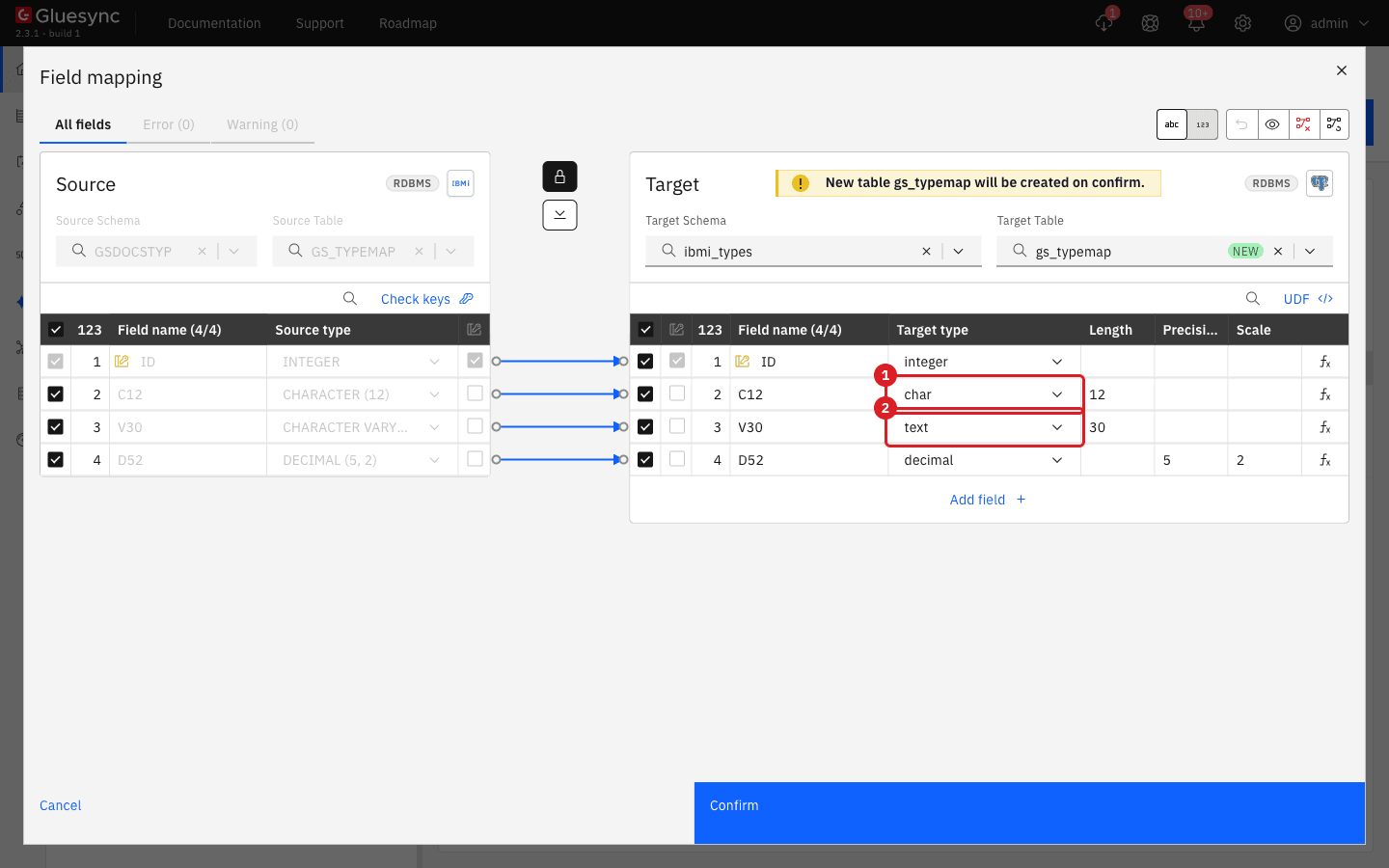
Select Create table "<name>". The dialog now lets you change the target types, because Gluesync creates the table;
-
In the row of the field, open Target type and select the type, for example
charfor aCHARcolumn that must stay padded, ortextfor a long text; -
For a
DECFLOATcolumn enter a Precision and a Scale that fit your values. Without them the dialog shows Missing required field and Confirm stays disabled; -
Select Confirm, review the generated
CREATE TABLEstatement, and select Create table.
|
A |
UI
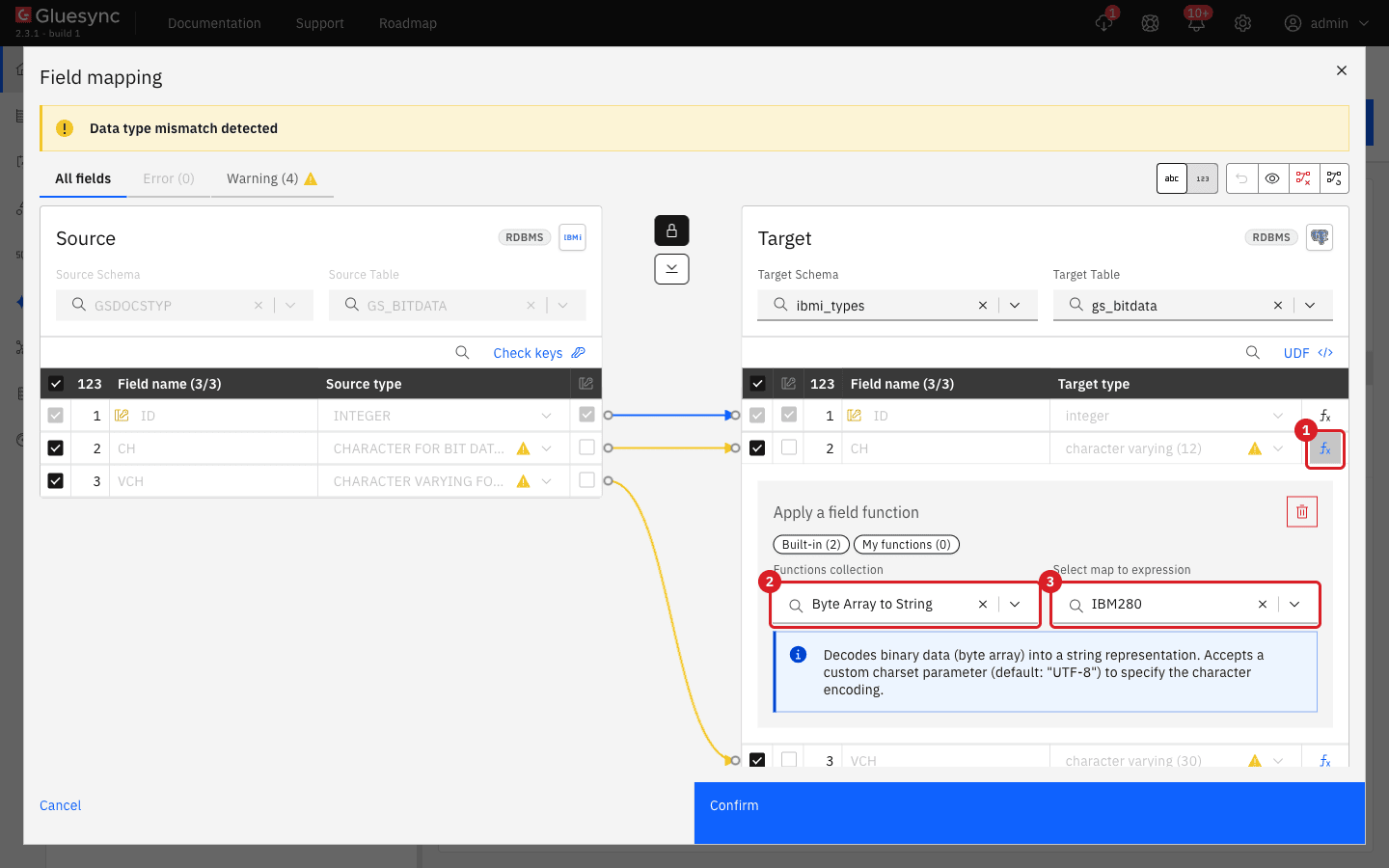
A column tagged CCSID 65535 (CHAR, VARCHAR or CHAR … FOR BIT DATA) holds bytes, and the IBM i does not say which code page they are in. Gluesync gives you three ways to read it. Pick one for the whole agent or for each column.
| Option | What lands on PostgreSQL | Use it when |
|---|---|---|
Default (Translate binary off) |
|
The column holds real binary data, or you do not know the code page. |
Byte Array to String field function with a code page |
|
You know the EBCDIC code page of the text, for example |
Translate binary on |
|
All the 65535 columns of the agent hold text in the code page that the IBM i connection uses. |
To use the field function:
-
In the Field mapping dialog of the entity, set the Target type of the column to
varcharand enter its Length; -
Select the fx icon at the end of the row;
-
In Functions collection, select Byte Array to String (it is listed under Built-in);
-
In Select map to expression, select the code page, for example
IBM280; -
Select Confirm.
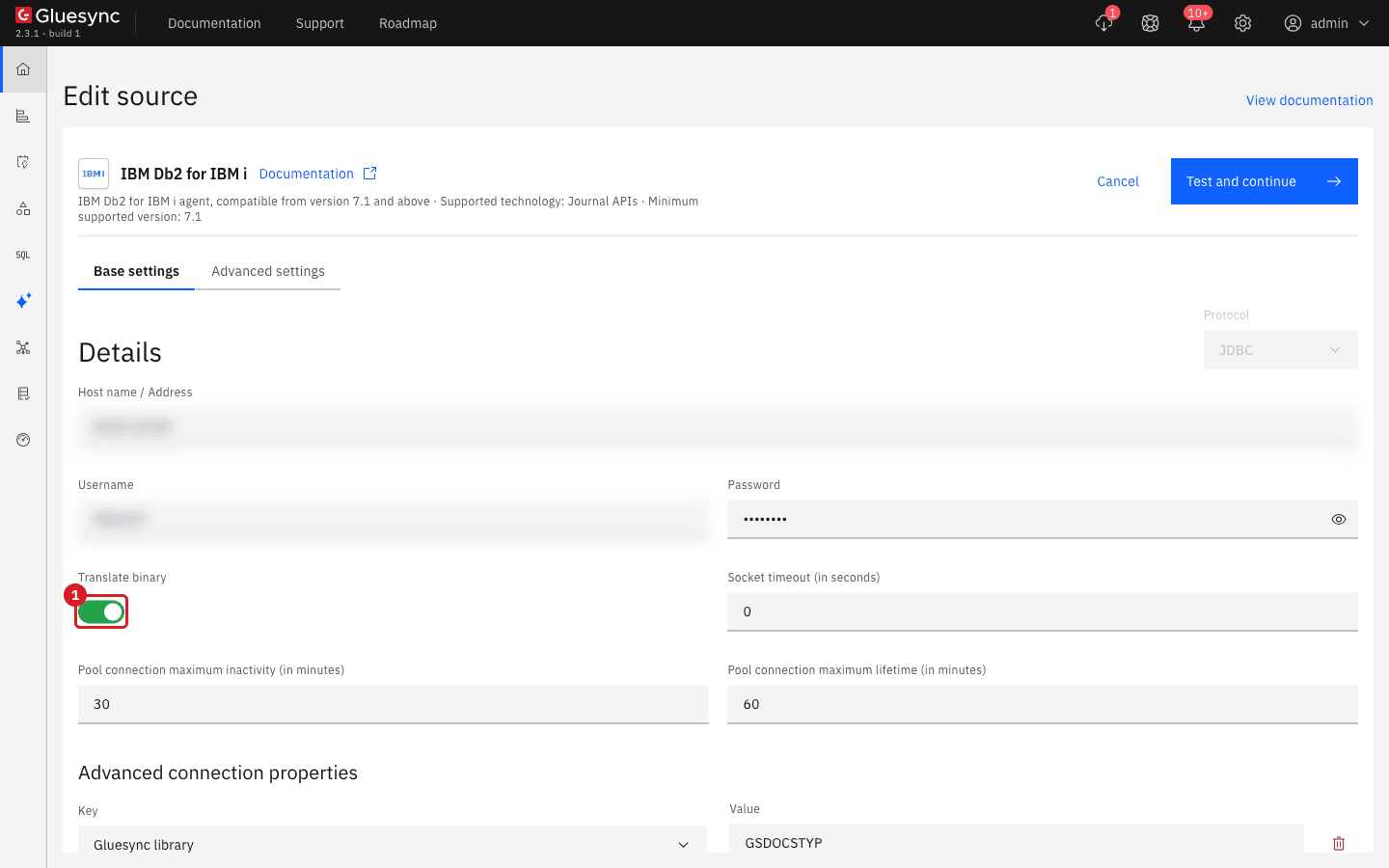
To use Translate binary instead:
-
Open the pipeline and select the IBM i agent icon at the top of the pipeline page. The Edit source page opens;
-
On the Base settings tab, turn on Translate binary;
-
Select Test and continue and finish the wizard;
-
Create the entities after this change, so that the new tables get
varcharfor these columns.
|
Translate binary does not give the same text in the snapshot and in CDC when the IBM i connection does not use CCSID 37. In our test, on an IBM i whose system language is Italian (the connection decodes with CCSID 280), the same bytes read |
UI
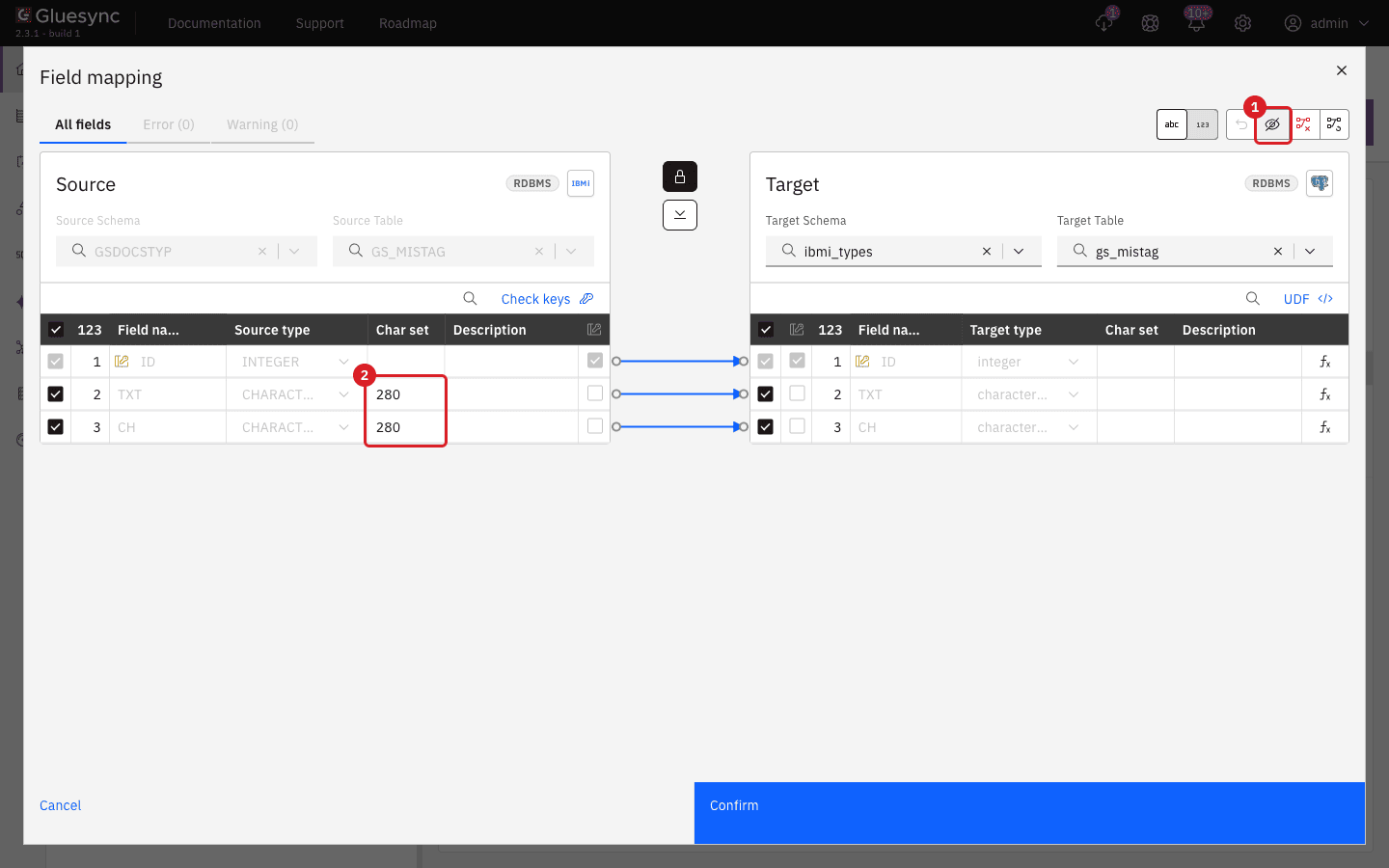
Sometimes an application writes the bytes of one code page into a column tagged with another, for example CCSID 280 data in a column tagged 37. The IBM i reads it as it is tagged and shows citt{ } pi`. Gluesync does the same, so tell it the real CCSID.
-
In the row of the entity, select Options, then Edit mapping;
-
Select Show all columns;
-
On the source side, in the Char set cell of the column, replace the CCSID with the real one, for example
280; -
Select Confirm, then Confirm and continue. The entity stops with the warning that a new resync is required;
-
Open the entity, select the play button (Start sync), choose Full copy under Start from, choose Empty the table first under Data already in the target, and select Start entity.
|
The override applies to the whole column. Rows that were stored correctly in CCSID 37 are decoded with 280 and turn wrong, so use it only when every row of the column holds data of the CCSID you enter. The agent applies it only to |
UI
A CHAR(12) column always holds 12 characters, and Gluesync copies them all: ABC reaches a varchar(12) column as ABC plus nine blanks. A VARCHAR keeps the blanks that were typed. If the blanks are in your way:
-
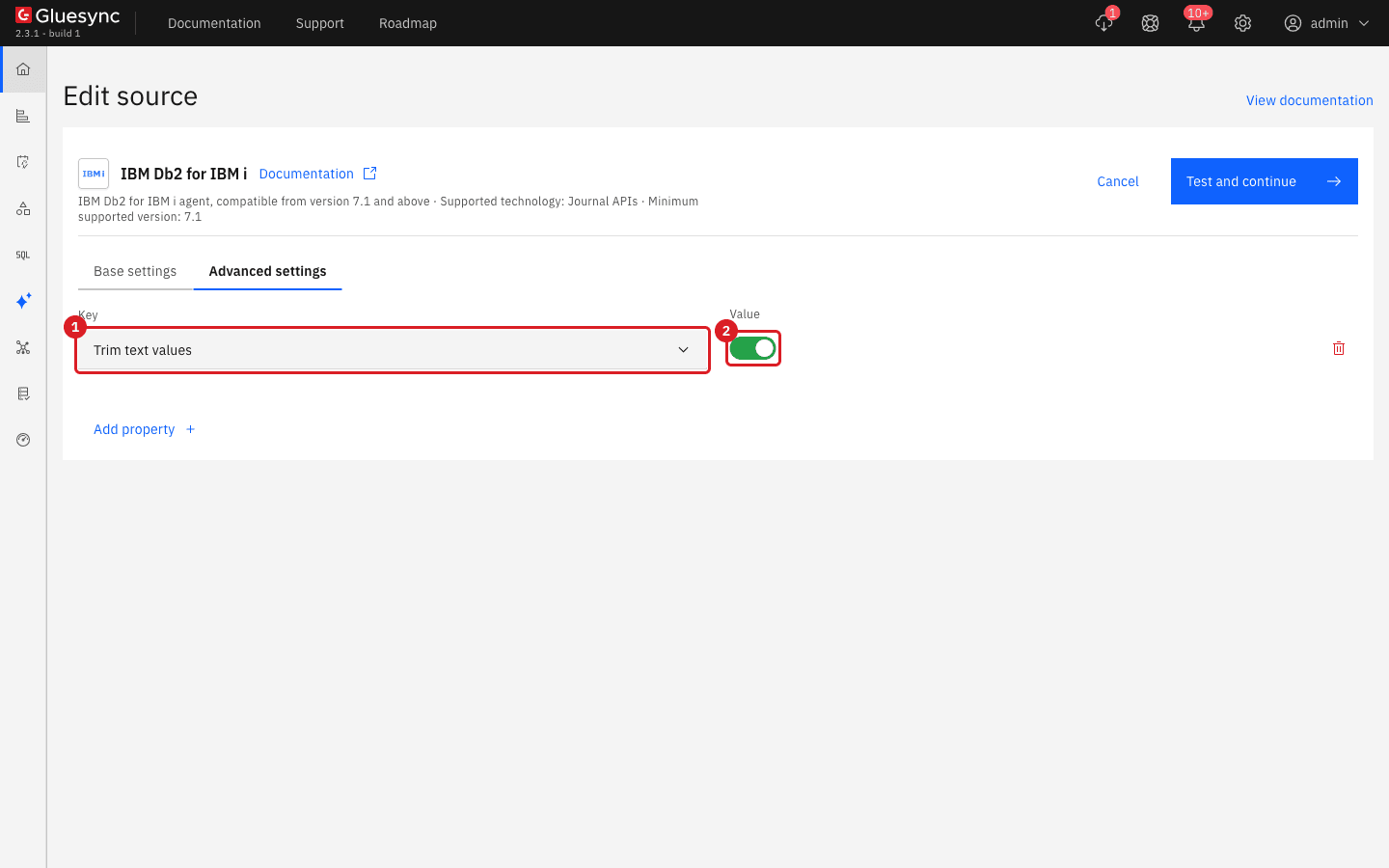
Open the source agent with Edit source and select the Advanced settings tab;
-
Select Add property, select the key Trim text values, and turn the switch on;
-
Select Test and continue and finish the wizard.
|
Trim text values applies to text columns with a real CCSID and to |
SQL
-
Start the entity with a snapshot, and insert, update or delete a few rows on the IBM i so that they also go through CDC;
-
On the IBM i, read the bytes of the columns to check:
SELECT ID, HEX(C65535), HEX(BIN4) FROM GSDOCSTYP.GS_TEXT ORDER BY ID; -
On the entity page, select Query in Studio under TARGET and run the same check on PostgreSQL:
SELECT "ID", "C37", "C280", encode("C65535", 'hex') AS c65535_hex, encode("BIN4", 'hex') AS bin4_hex FROM ibmi_types.gs_text WHERE "ID" IN (2, 3, 6) ORDER BY 1; -
Compare each hex string with the one from the IBM i.
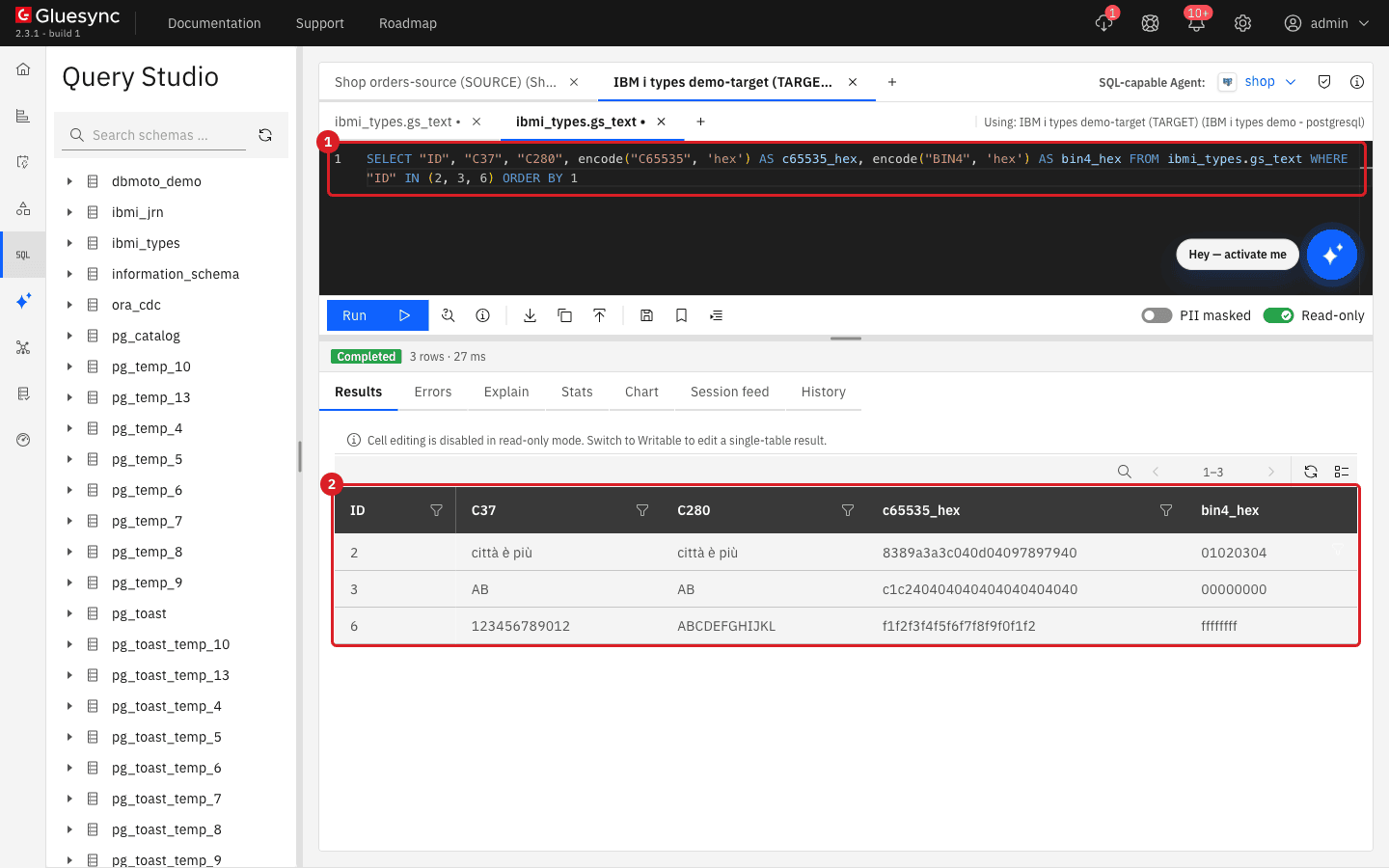
For the other types, use the same pattern: compare SELECT results on both sides for the columns that the reference table below flags.
UI
Gluesync does not compare the lengths of the source and the target columns when you pick an existing table, and neither the Error nor the Warning tab of the dialog reports a narrower target column. PostgreSQL then decides. In our test the target table was narrower than the IBM i table:
| IBM i value | Target column | What happened |
|---|---|---|
|
|
The write failed: |
|
|
The write failed: |
|
|
Written as `ABC `. PostgreSQL cuts the extra blanks without an error. |
|
|
Written as |
|
|
Written as |
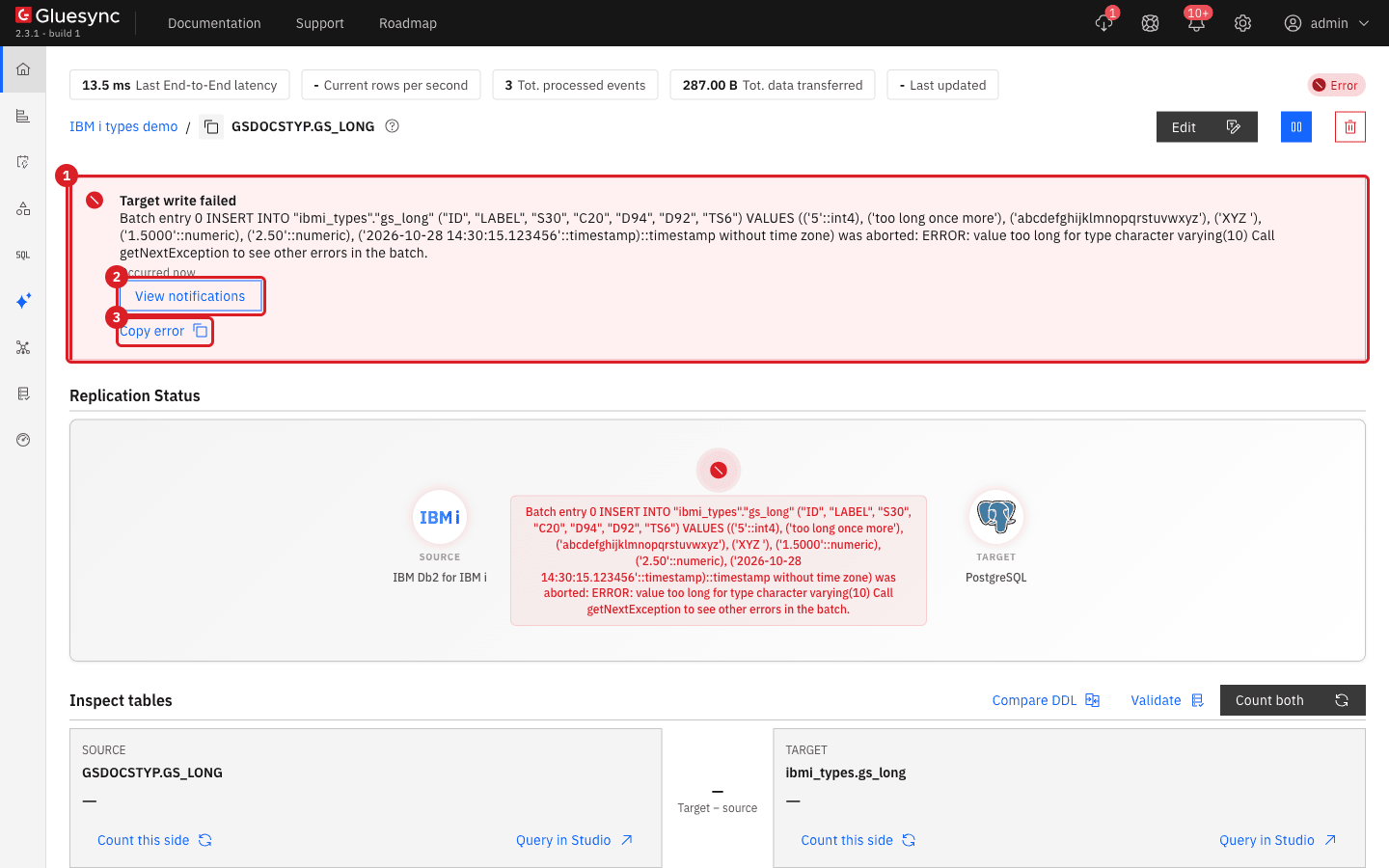
When a write fails, the entity page shows the error:
-
Open the entity. The banner Target write failed names the statement and the PostgreSQL error;
-
Select Copy error to copy it, or View notifications to see every occurrence;
-
Widen the target column in the database, for example
ALTER TABLE ibmi_types.gs_long ALTER COLUMN "S30" TYPE varchar(30). The entity does not recover by itself; -
On the entity page, select the pause button at the top right and confirm with Pause entity;
-
Select the play button (Start sync), keep Where it stopped under Start from, and select Start entity. The waiting changes are written and the entity returns to Active.
|
Silent rounding is not an error, so no banner or notification tells you. Compare the scale and precision of the target with the IBM i for every |
IBM i types and what they become on PostgreSQL
The table lists the types that we tested, with the type that Gluesync proposes when it creates the table on PostgreSQL. Gluesync reads the same value in the snapshot and in CDC unless the notes say otherwise.
| IBM i type | PostgreSQL type | Notes |
|---|---|---|
|
|
The limits ( |
|
|
Tested up to |
|
|
Same type as |
|
|
|
|
|
Confirm stays disabled until you enter Precision and Scale. The scale you enter rounds the values. |
|
|
Converted with the CCSID of the column, in the snapshot and in CDC. |
|
|
Bytes unchanged, byte by byte equal to |
|
|
Bytes unchanged. Translate binary does not change these. |
|
|
The source type is |
|
|
|
|
|
|
|
|
|
|
|
PostgreSQL keeps six digits. The snapshot rounds and CDC truncates, so the two can differ by one microsecond, and |
Not covered by this guide: CLOB, BLOB, DBCLOB, XML, DATALINK, ROWID, user-defined types and the GRAPHIC types with a double-byte CCSID other than 1200.
What each setting changes
| Setting | Where | Effect |
|---|---|---|
Translate binary |
Edit source → Base settings |
Reads every |
Trim text values |
Edit source → Advanced settings (Add property) |
Removes leading and trailing blanks from text values. |
Char set cell |
Field mapping → Show all columns |
Decodes a |
Target type, Length, Precision, Scale |
Field mapping, for a table that Gluesync creates |
Sets the column of the target table. It cannot be changed for a table that already exists: change the column in the database. |
Byte Array to String with a code page |
Field mapping → fx |
Turns the bytes of a |
|
The choices above are about PostgreSQL. For another target, the target type that Gluesync proposes for text, dates and numbers changes, so use Compare DDL and the Fields Editor before the first snapshot. The IBM i agent documentation recommends a Unicode type such as |
Troubleshooting
| Problem | Possible cause | What to do |
|---|---|---|
A text column shows |
The column is tagged CCSID 65535 (or is |
Apply Byte Array to String with the right code page in Field mapping, or retag the column on the IBM i with its real CCSID. |
Letters like |
The bytes are in one code page and the column is tagged with another (for example 280 data in a CCSID 37 column) |
Set the real CCSID in the Char set cell, or retag the column on the IBM i, then copy the table again. |
The same column reads differently in the snapshot and in CDC |
Translate binary is on and the IBM i connection does not use CCSID 37 |
Turn Translate binary off and use Byte Array to String with a code page. |
The entity stops with |
Translate binary is on and a |
Turn Translate binary off. Decode only the text columns with Byte Array to String. |
Confirm is disabled and the dialog says Missing required field for a |
|
Enter a Precision and a Scale wide enough for your values. |
Target write failed with |
The target column is narrower than the IBM i column |
Widen the column in the database, then start the entity again. |
Target write failed with |
The target precision is smaller than the digits of the value |
Widen the numeric column, then start the entity again. |
Numbers or seconds on the target are rounded |
The target scale or precision is smaller than the IBM i one, or the |
Use Compare DDL, set the scale to match, or keep six digits at most. Recreate the table and copy it again. |
Text still has blanks at the end |
|
Turn on Trim text values, or use the target type |
After editing the Char set the entity stops with a warning that a new resync is required |
Changing the mapping of a running entity invalidates the rows already copied |
Start the entity with Full copy and Empty the table first. |
Related guides
Contact MOLO17 Support if you need assistance with IBM i data types.