Fields Editor
Overview
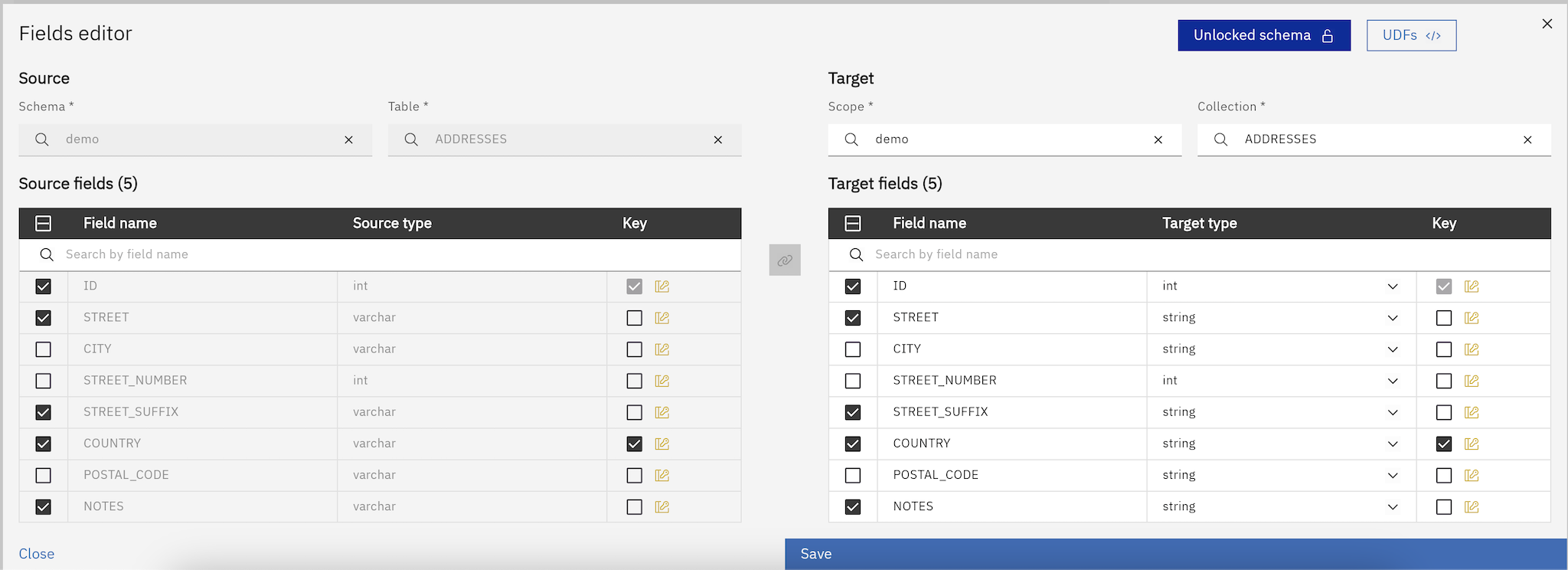
The Fields Editor, accessible from the Objects Browser, lets you review and control the fields (columns) of the source and the target table of a replication task. From here you decide what gets replicated, which source fields feed which target fields, and how keys and data type differences are handled.
The source table sits on the left, the target table on the right, and the mapping between them is drawn as arrows in the gutter between the two tables.
Key capabilities
-
Check or uncheck fields to include or exclude them from replication.
-
Map fields by drawing arrows between the source and the target table: 1:1, N:1, and 1:N.
-
Have arrows proposed by name or by ordinal position, then adjust them.
-
Define or adjust unique row identifiers when a physical primary key is not available or not discovered. See Logical Keys.
-
Detect, review, and fix data type mismatches with clear warnings and errors.
-
Change the target type and add fields where the target lets you define them (NoSQL, Event Streaming, Object Store, or a table Gluesync creates).
-
Select a different target schema and/or target table when needed.
-
Fill a target field with a field function, including target-side scalar functions. See Field functions.
-
Fill a target field with one of your own reusable functions, taking several source fields as input. See Custom Field Functions.
-
Attach a UDF to implement record-level transformations. See User Defined Functions.
-
See PII tags on classified columns. Tags are informational; they do not block mapping. Masking applies in Query Studio, not to replicated rows. See PII discovery and masking.
Mapping fields with arrows
Every relation between a source field and a target field is an arrow. The arrows are the mapping: what Gluesync writes to each target field follows from them.
Drawing and removing arrows
-
Draw an arrow: drag from the dot of a row, or from the row itself, to a row of the other table. You can also click a dot and then a row of the other table, or press Enter on a field of one table and then on a field of the other. Escape cancels an arrow you have started without closing the editor.
-
Remove an arrow: point at it or focus it with the keyboard. The arrow turns red and dashed, a tooltip names its two ends, and a trash button appears on it. Click the arrow or the trash button, or press Delete or Backspace. Both ends stay checked.
-
Undo: the Undo button of the toolbar, or Ctrl+Z (Cmd+Z on macOS) while the focus is in the gutter, undoes the last arrow removal, Clear mapping, or Reset mapping, one step at a time. Drawing an arrow, checking a field, or any other edit clears the steps that can be undone.
Dragging near the top or the bottom of the gutter scrolls the tables. An arrow whose end is scrolled out of view is drawn dashed and faded at the edge of the gutter. An arrow takes the validation color of its target field, so an arrow that leads to an error is easy to spot.
Mapping shapes
| Shape | What it does |
|---|---|
1:1 |
One source field feeds one target field. |
N:1 |
Several source fields feed one target field, which needs a function that takes those fields as arguments. The Custom Field Function picker offers only the functions with that number of parameters. Add a custom field function opens the editor with a new function already declared on those source fields, and binds it to the target field once you publish it. |
1:N |
One source field feeds several target fields. |
Source field without an arrow |
The source field is read but not written to any target field. |
Target field without an arrow |
The target field has no source data, so it needs a field function or the UDF to produce its value. Otherwise the Field function is required or define a UDF error blocks Confirm. Uncheck the field if you do not want to write it. |
Many-to-many groups of arrows (M:N) are refused.
A target field fed by an arrow cannot also take a fixed or technical value, and it cannot use a target-side scalar function. Remove the arrow first if the value must come from the target.
Proposed arrows
When the Fields Editor opens on a new entity, it proposes arrows for you. On an RDBMS target, a switch lets you choose how:
-
Matching by name: a target field gets an arrow from the source field with the same name, in the exact case first, then from a single case-insensitive match. An ambiguous name gets no arrow.
-
Matching by ordinal position: a target field gets an arrow from the source field in the same position. Extra fields stay without an arrow.
A proposal never builds an N:1 group: each target field receives at most one proposed arrow. When a target has no columns to show (Event Streaming, Object Store, a new NoSQL collection, or a table Gluesync creates), one target field is generated for each source field, named and typed after it and linked to it 1:1.
Checking a field again gives it back the arrow the current proposal suggests, as long as the field on the other side has no arrow yet.
Toolbar actions
The toolbar of the tables, next to the tabs, groups these actions:
| Action | Effect |
|---|---|
Undo |
Undoes the last arrow removal, Clear mapping, or Reset mapping, one step per click. |
Show all columns / Hide columns |
Shows or hides the optional columns, such as character set and description. |
Clear mapping |
Removes every arrow. Checked fields, field functions, and logical key marks stay. |
Reset mapping |
Brings back the initial situation: every field is checked again, the arrows are proposed again with the current matching mode, and logical key marks and field functions are removed. Field names, types, and the entity’s UDF stay. Undo restores everything the reset removed. |
Below the scroll-lock toggle in the gutter, Scroll to bottom jumps to the last row of both tables.
Keys and arrows
Keys follow the arrows. A primary key discovered in the database, or a field you mark as a logical key, passes its key to the field at the other end of its arrows, so you rarely need to mark both sides.
-
Physical primary keys cannot be unchecked.
-
A table that receives a key along an arrow takes no manual marks. When a new arrow makes your marks illegal, they are removed and a notice lists them.
-
A source primary key cannot be linked to a non-key field of a target that has a primary key. The editor refuses that arrow and tells you why. A proposal that would draw it is skipped and reported.
See Logical Keys for when and how to define keys yourself.
For a step-by-step walkthrough, see the how-to guide Choose keys for tables without a primary key.
For a comparison of the key choices, see the how-to guide Choose a key strategy: physical, logical, RRN or computed.
Data types
A target field without a type takes one from the source field of its first arrow.
-
Types you can change: on a NoSQL, Event Streaming, or Object Store target, on a table Gluesync creates, and on a field you added, the type menu lists every type of the target. The chosen type stays when you move the arrow, and validation checks it against the new source.
-
Types you cannot change: the fields of an existing RDBMS table keep the type defined in the database. To change it, change the table, or transform the value with a field function, a Custom Field Function, or a UDF.
-
NoSQL types: a NoSQL type is inferred from sample documents, so a timestamp stored as text is discovered as
string. When an arrow lands on a discovered field whose type would raise a hard type error, the field takes the first target type compatible with the source.
Adding fields
Add field is offered where the field list cannot be fully discovered (NoSQL, Event Streaming, and Object Store) and on the target of a table Gluesync creates. A field you add has no arrow until you draw one, so give it an arrow, a field function, or the UDF.
On an existing RDBMS table, add the column to the table in the database first. The Fields Editor lists it at the next discovery.
Validation: warnings and errors
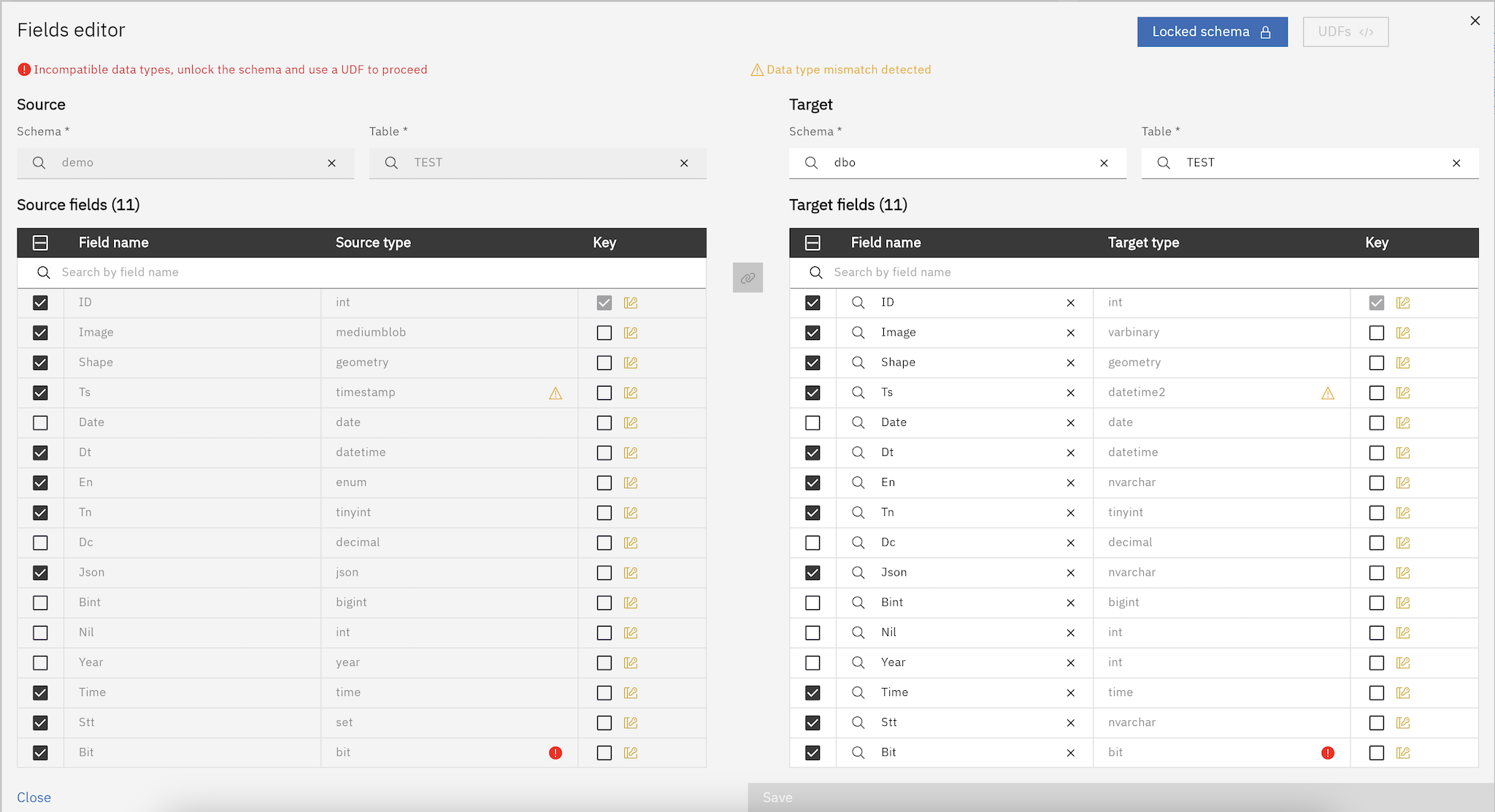
The Fields Editor continuously validates your configuration and highlights issues. The Error tab lists only the fields with an issue, and Confirm stays disabled while an error is left.
-
Warning: data types are from the same family (for example integer to bigint) and a cast is likely safe.
-
Error: the engine cannot infer a safe cast automatically (for example string mapped to date). These must be addressed before deployment.
To resolve errors where automatic casting is not possible:
-
Use a field function or a Custom Field Function to convert the value of a single field.
-
Write a UDF to parse or normalize the record into the correct target types. See UDFs.
-
Where the target type can be changed, pick a type that fits the source.
Usage steps
-
Open the replication task in the Objects Browser and open the Fields Editor.
-
Review the source and target field lists and the proposed arrows.
-
Check or uncheck the fields you want to include or exclude from replication.
-
Draw, move, or remove arrows until every target field is fed the way you want.
-
Give every target field without an arrow a field function, or rely on the UDF.
-
If no physical primary key is detected or suitable, define logical keys. See Logical Keys.
-
Address validations:
-
Fix warnings as needed (for example, confirm that an implicit cast is acceptable).
-
Resolve errors by adjusting arrows or target types, selecting a field function, configuring a Custom Field Function, or adding a UDF.
-
-
If required, select a different target schema or target table to match your deployment design.
-
Confirm, then save the entity.
Editing an existing entity
When you edit an entity, the Fields Editor loads the saved arrows and compares them with a fresh discovery:
-
A saved field that discovery no longer returns drops only its own arrows. The other arrows, field functions, and keys stay, and a warning tells you which arrows were dropped.
-
A saved target field that is gone from an RDBMS table stays in the list, tagged No longer in the database. Its only action is deletion, and the entity cannot be saved until you delete it.
-
On NoSQL, Event Streaming, and Object Store targets, saved fields that discovery does not return stay as added fields, with their arrows.
Entities saved with an unlocked schema in earlier releases are migrated the first time you edit them. See Migrating unlocked schemas.
For what happens when the structure of a source table changes, see the source schema changes FAQ.
For a step-by-step walkthrough, see the how-to guide Handle schema changes on a live replication.
Best practices
-
Prefer explicit logical keys when physical primary keys are missing or unsuitable.
-
Keep naming consistent: use clear, descriptive target field names and document any renames.
-
Use N:1 arrows with a Custom Field Function to compose one target field from several source fields, and keep a UDF for record-level logic.
-
Validate all warnings and clear errors before saving and deploying.
-
Test changes in a staging environment, then roll out gradually.
Troubleshooting
-
Missing primary key or keys: define logical keys to ensure updates and deletes work correctly (Logical Keys).
-
An arrow is refused: a source primary key cannot feed a non-key field of a target that has a primary key. Link it to a key field of the target instead.
-
A target field needs a producer: it has no arrow, so give it an arrow, a field function, or the UDF, or uncheck it.
-
Type errors: convert the value with a field function, a Custom Field Function, or a UDF, or pick a compatible target type where the type can be changed.
-
Unexpected nulls: confirm that every checked target field has an arrow or a producer, and that the UDF sets required fields and handles edge cases.
-
Target not found: pick a different target schema or table, or verify connectivity and permissions.