Set up a disaster-recovery pair
This guide shows how to pair two Gluesync sites so that one serves and the other follows it, ready to take over if the active site is lost. You set the pair up from the Control Plane with the guided setup when Gluesync Control installed your sites, or by hand with environment variables on Kubernetes, Docker Swarm or a compose file of your own, and you learn how to check the pair and how to turn it off.
In this guide
You will learn what a pair replicates and which ports it needs, how to start the first site and join the second with a pairing code, how the keys between the sites are exchanged without you handling them, how to check that the standby follows every database, how to turn the pair off from the active site and what to do with the standby, how to set the pair up by hand with every GS_DR_* variable, and how to fix a pair that stays in "Waiting for the other site".
How a pair works
A disaster-recovery (DR) pair is two complete Gluesync sites. The active site runs your pipelines and schedules. The standby site does not run them: it keeps a near-current copy of everything the active site stores, and its Core Hub serves nothing, including its Control Plane, until it takes over. When the active site is lost, you promote the standby, and it continues the pipelines from the positions it replicated.
Each site runs Core Hub and Chronos. Core Hub replicates six databases to the other site, about one second behind the writes:
| Database in the Replication table | What it holds |
|---|---|
Gluesync (pipelines and configuration) |
Pipelines, agents, connections, entities, users, tokens, checkpoints and the global configuration |
Notifications |
The notifications of the Control Plane |
Metrics |
The metrics history |
AI brain |
The data of the AI features |
Data comparison |
The results of data comparisons |
Chronos scheduler |
The schedules and jobs of Chronos |
Replication is physical and runs over one connection that the active site opens to the standby, so that two Core Hubs are all you need: no object storage and no shared disk. After a failover or a planned switchover the roles swap, and the new active site replicates into the old one. A promotion starts a new epoch, and a site that meets a newer epoch demotes itself, so two sites never run the same pipelines.
The failover is manual by default: an operator promotes the standby, with a planned switchover when both sites are healthy or with a forced promotion when the active site is down. An automatic failover with a witness is opt-in, see Witness mode.
Ports
Open these TCP ports between the two sites, in both directions, because the roles swap:
| Port | Used by | Purpose |
|---|---|---|
1718 |
Replication sink of the standby |
The active site streams its databases into the standby. Only the key of the other site is accepted, and the session can do nothing but SFTP |
1719 |
Control port |
Status, the exchange of the keys, switchover, handover and promotion. Calls between the sites are signed with the shared secret. Calls from an operator carry the operator token |
Port 1717, the Control Plane and the Core Hub API, is not used between the sites, but your users and the Chronos of each site reach the Core Hub of their own site through it. Gluesync does not move an address for you: after a failover, your users open the Control Plane of the site that took over.
Before you begin
Make sure that:
-
Both sites run the same Gluesync version, and you know which one will be the active site: it keeps its data and its pipelines, and the other one becomes the standby;
-
Both sites can reach each other on ports 1718 and 1719, and their clocks are synchronized, within a few seconds of each other (a request that is more than 60 seconds off is refused);
-
You have a backup of both sites, see Back up, restore and move Core Hub;
-
For the guided setup: both sites were installed with the installer on Docker Compose or Podman, and you are a Super Admin of both. The guided setup is not available on Docker Swarm, Kubernetes or a compose file that already has
GS_DR_*variables in the Core Hub service: use Set up by hand with environment variables for those.
| The standby site discards its own databases when it joins: its pipelines and settings are moved aside and replaced by the ones of the active site, and its users are replaced too. Join a site that you do not need to keep as an independent installation, or a fresh one. |
Guided setup with the Control Plane
The guided setup is for sites that Gluesync Control installed. The Conductor of each site edits the compose file of that site for you and restarts Core Hub and Chronos. You need the Control Plane of both sites, one after the other.
UI
-
Sign in to the Control Plane of the site that will be the active site;
-
Open Settings → Disaster Recovery;
-
Read the state of the tab.
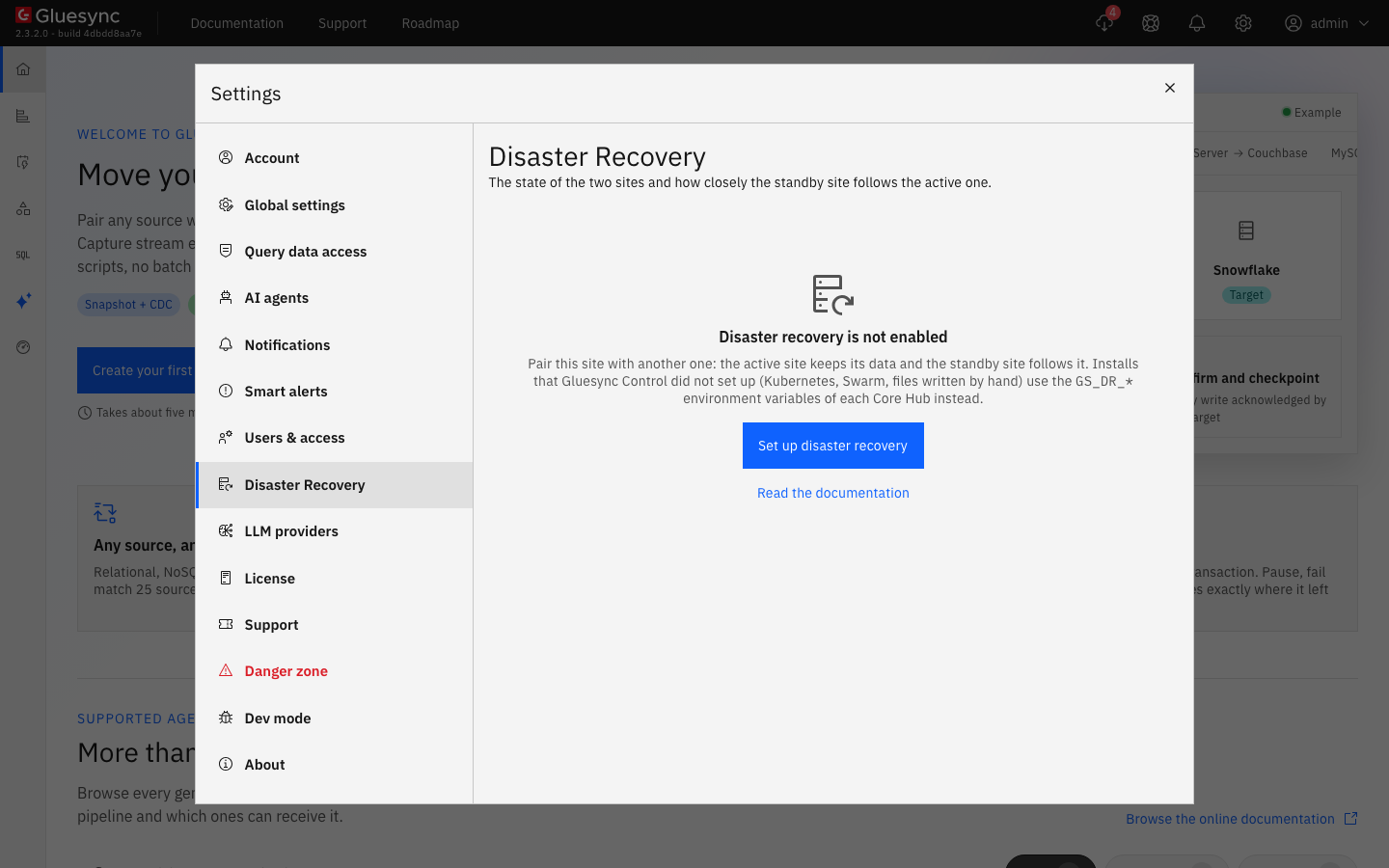
| Only a Super Admin sees the button. The Conductor also accepts a Manager when you call its API directly. |
UI
The first site keeps its data and becomes the active site.
-
On the site that will be active, select Set up disaster recovery;
-
Choose Start a new pair and select Continue;
-
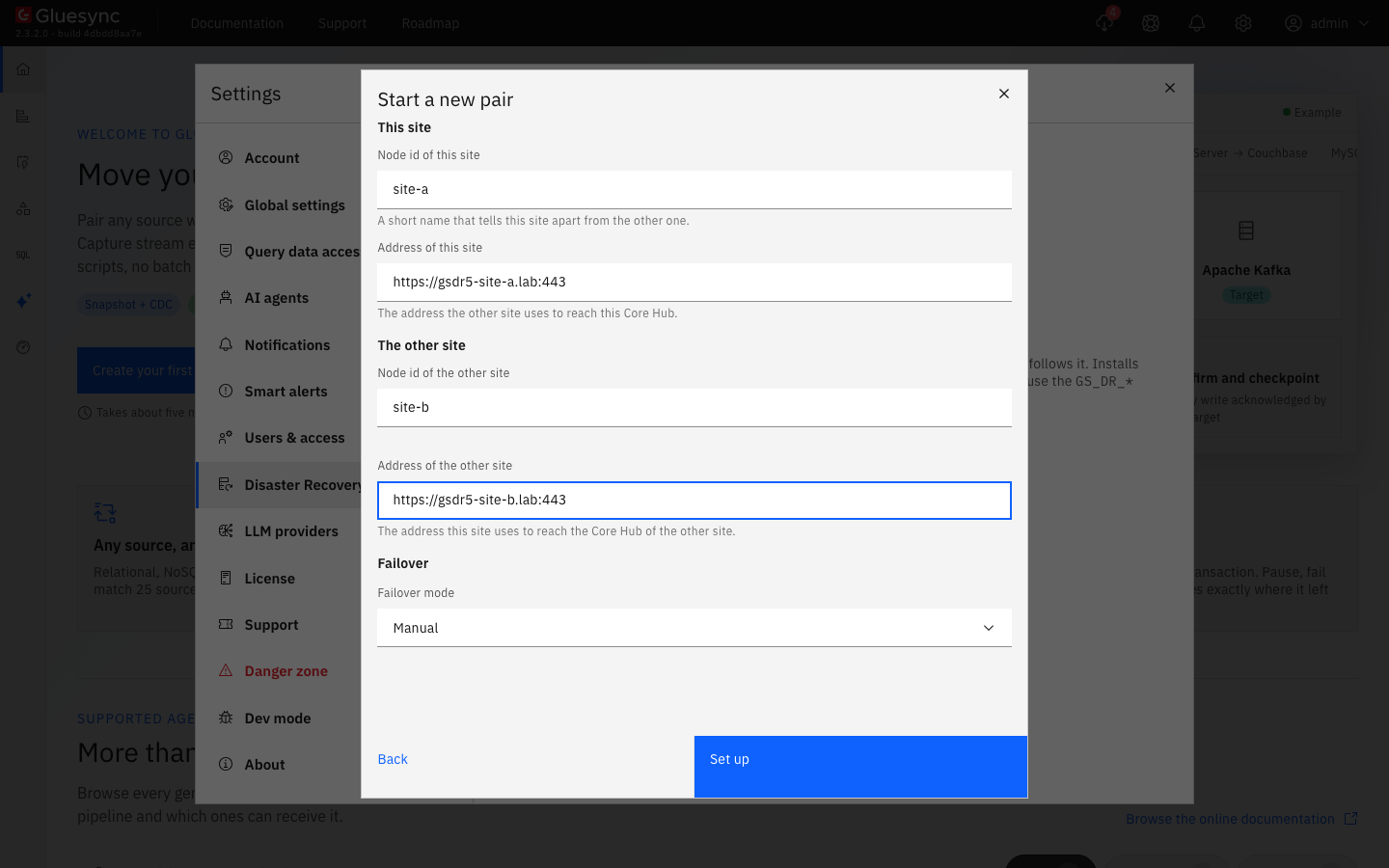
Fill in the form:
Field What to enter Node id of this site
A short name that tells this site apart from the other one: lower-case letters, digits and hyphens, up to 32 characters, starting with a letter or a digit. It is filled in from the host name
Address of this site
The address the other site uses to reach this Core Hub,
https://<host>:1717. Only the host is used: the sink and the control port are on the same hostNode id of the other site
The node id that you want the second site to have. It must differ from the one of this site
Address of the other site
The address this site uses to reach the Core Hub of the other site, with its port
Failover mode
Manual. Choose Witness only if you run a witness, see Witness mode
-
Select Set up;
-
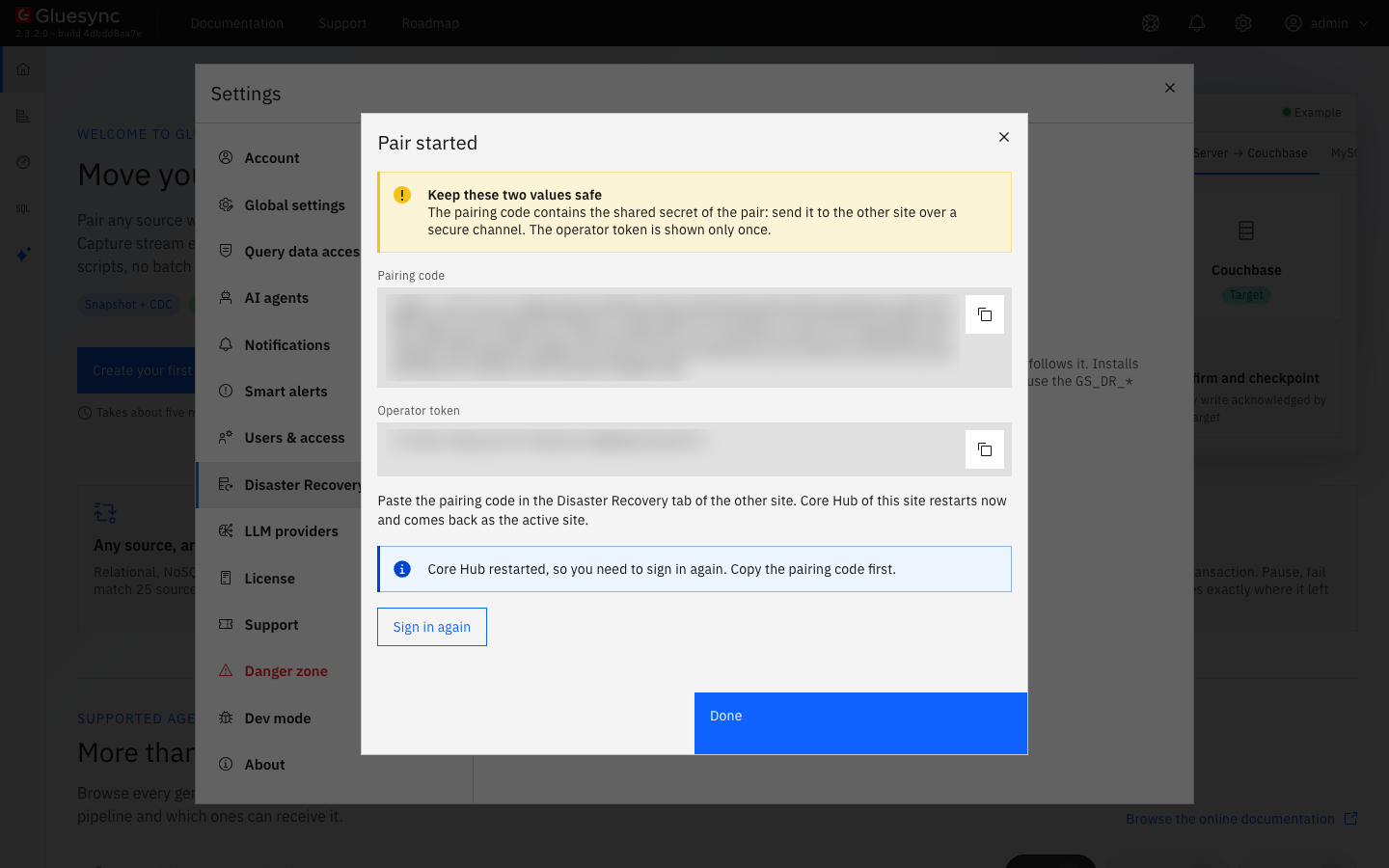
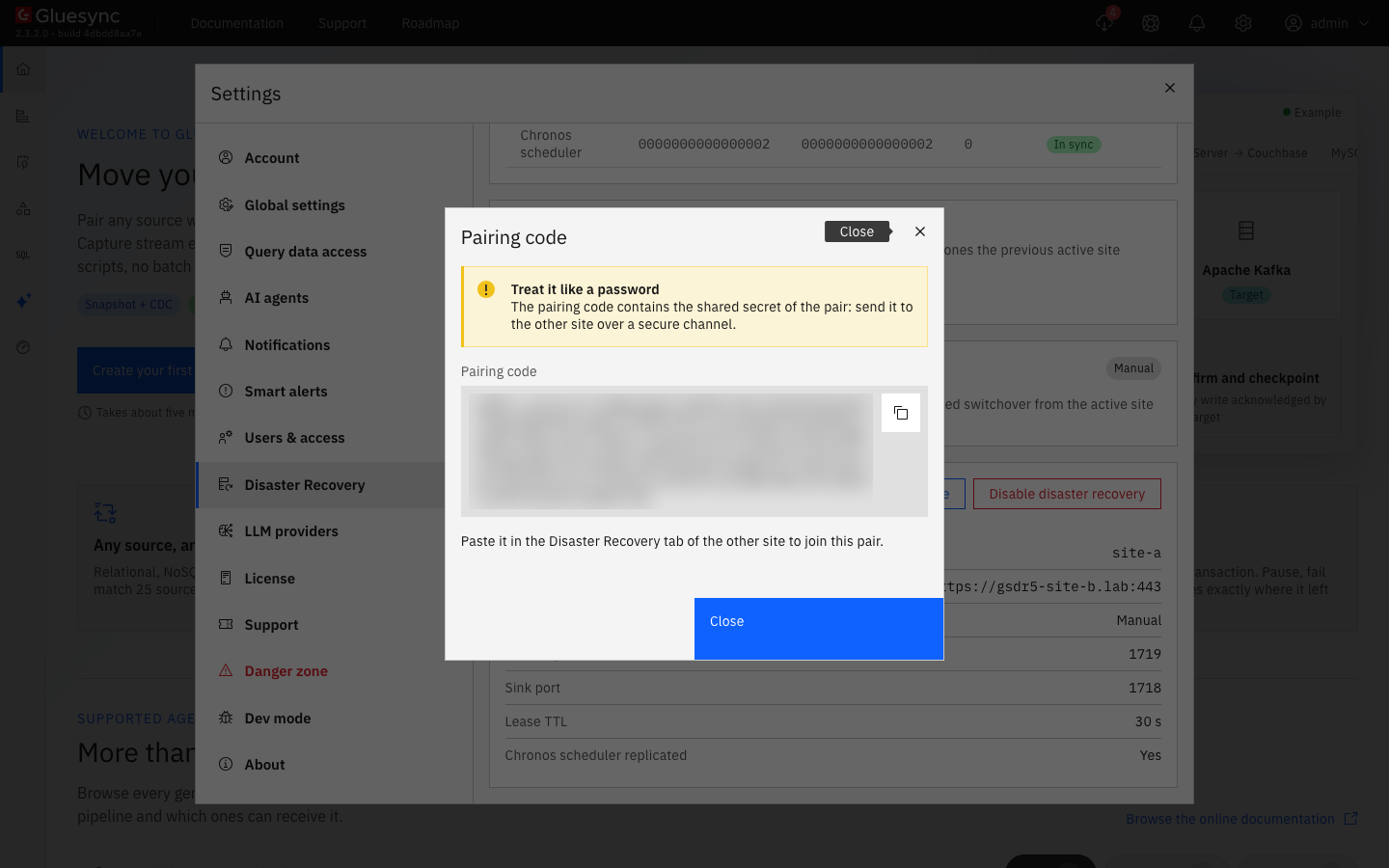
When Pair started opens, copy the Pairing code and the Operator token to a password manager;
-
Wait for Core Hub to restart. The restart ends every session, so the dialog says "Core Hub restarted, so you need to sign in again. Copy the pairing code first." The code and the token stay on screen until you select Sign in again;
-
Sign in again.
|
The pairing code starts with |
If you need the pairing code again, open Settings → Disaster Recovery on the active site and select Show pairing code. A Super Admin sees it on a site that the guided setup paired.
What the setup changed on this host:
-
It wrote
gluesync-dr.envnext to the compose file of the kit, readable by its owner only, with theGS_DR_*variables, the shared secret and the operator token. Only the Core Hub service reads it, throughenv_file, and the file holdsGS_DR_MANAGED_BY=conductor, which marks a pair set up with the guided setup; -
It published ports 1718 and 1719 on the Core Hub service, on the same host address as the ports it already published;
-
It mounted the data directory of Chronos into the Core Hub service, gave that data to the user of Core Hub, set
GS_DR_CHRONOS_DIR, and setGS_DR_CONTROL_URLon the Chronos service, so that Chronos runs only while its Core Hub is the serving active site; -
It set
stop_grace_period: 60son the Core Hub service, unless you had already set a longer one, so that replication can push its last writes when Core Hub restarts; -
It backed up the compose file, and the previous
gluesync-dr.envwhen there was one, underdr-backup/<date and time>/in the folder of the kit. If Core Hub does not start with the new settings, the Conductor puts the files back and recreates the services as they were.
UI
-
Sign in to the Control Plane of the other site, which is still an ordinary installation;
-
Open Settings → Disaster Recovery and select Set up disaster recovery;
-
Choose Join a pair and select Continue;
-
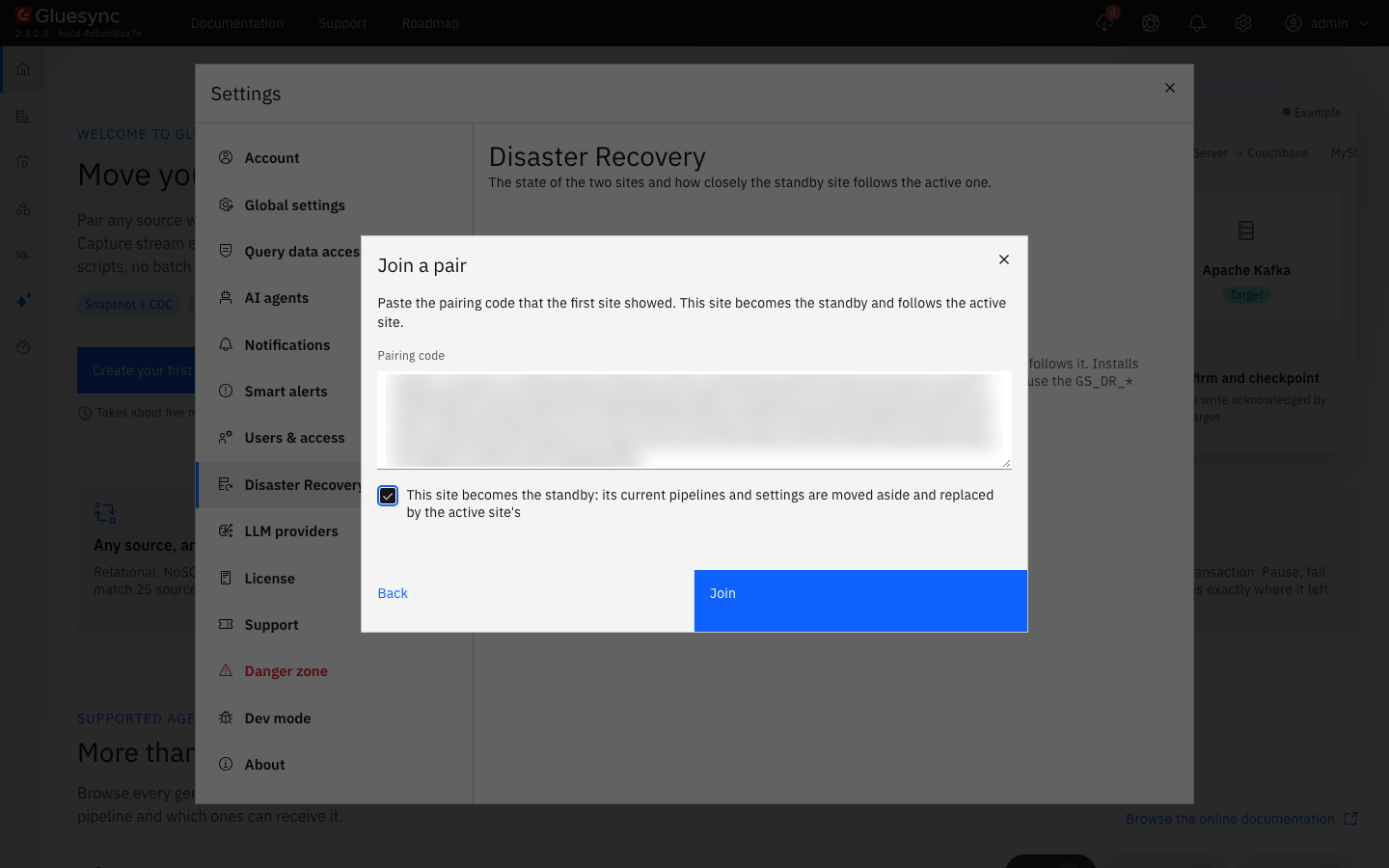
Paste the pairing code in Pairing code;
-
Tick the box that says that this site becomes the standby and that its current pipelines and settings are moved aside and replaced by the active site’s;
-
Select Join;
-
When Site joined opens, copy the Operator token of this site to your password manager and select Done.
The two sites then exchange their keys on their own, see How the keys work, and the standby takes the storage key and the token secret of the active site, see The storage key and the token secret.
UI + API
-
Open the Control Plane of the active site and select Settings → Disaster Recovery;
-
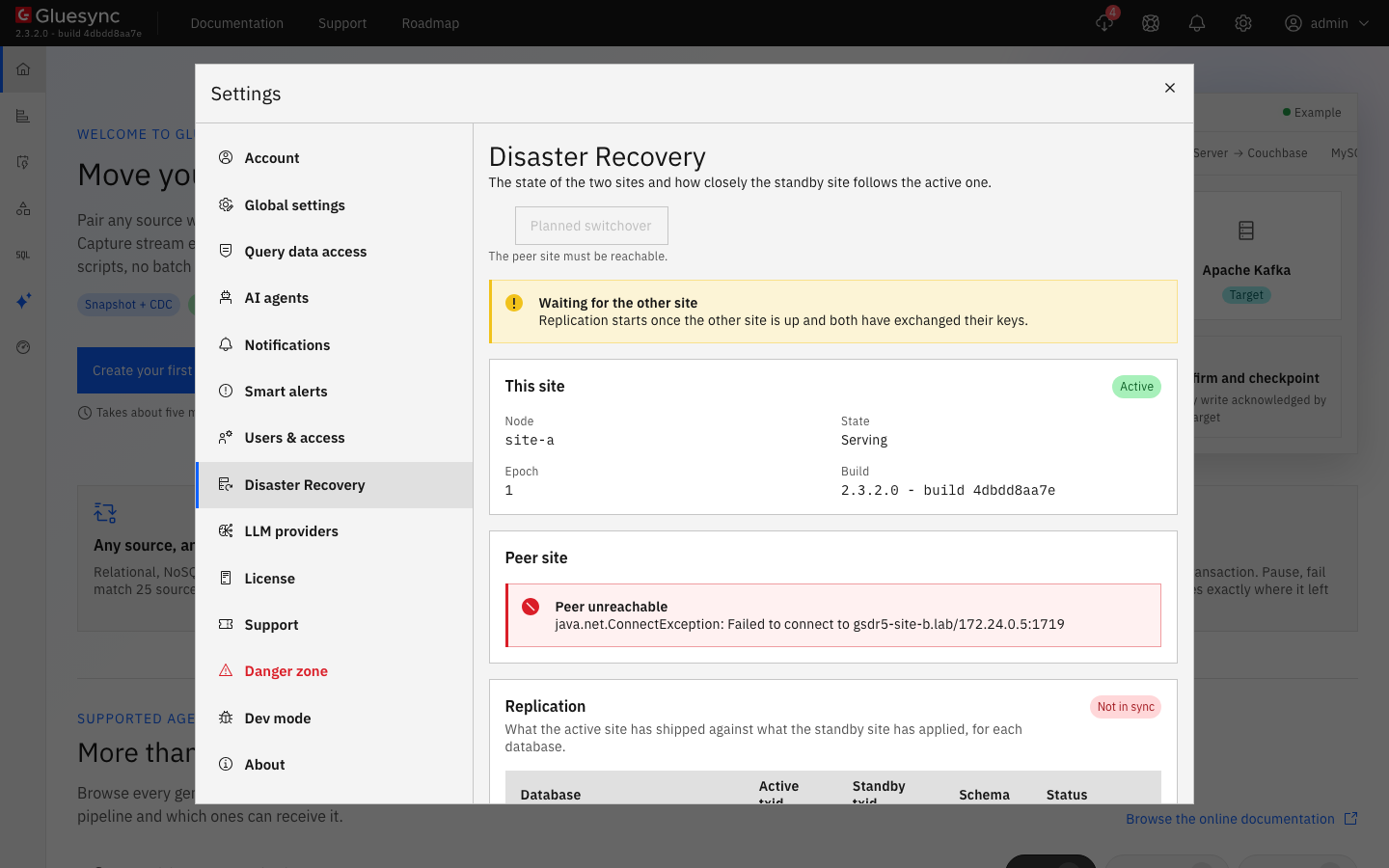
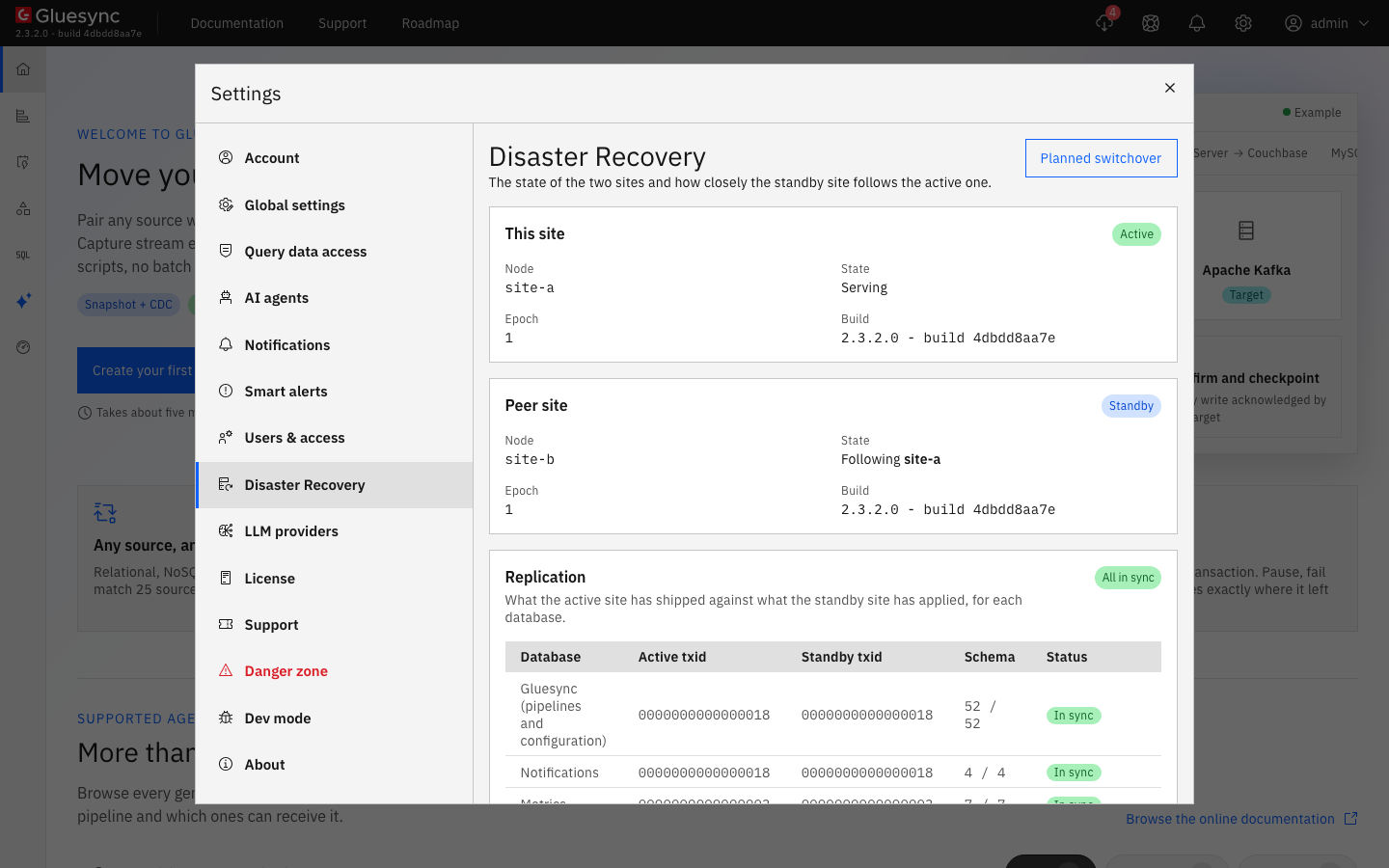
Check the two site cards: This site is Active and Peer site is Standby, and both show the same build;
-
Check that the warning "Waiting for the other site" is gone;
-
In the Replication table, check that the six databases are listed and that the table says All in sync. A database that Core Hub has not used yet, such as AI brain on a new installation, shows Not created yet: it is replicated once Core Hub creates it;
-
Read the status of each site with its operator token, and check
peerKeys:curl -k -H "Authorization: Bearer <operator token>" https://<site>:1719/dr/status
On a site that runs Core Hub with SSL, which is the default of the kit, the control port serves TLS with the certificate of Core Hub, so use https and -k with a self-signed certificate. Without SSL, use http.
Once the pair is ready, try a planned switchover while nothing is wrong, as described in Upgrade a disaster-recovery pair: it proves the path that you will need in an emergency.
Set up by hand with environment variables
Use this path on Kubernetes, on Docker Swarm, on a compose file that you manage yourself, or when the guided setup is not available. You set the same variables on the Core Hub service of each site, put the Chronos data where Core Hub can read it, and start the two sites. Nothing else is needed: the keys between the sites are exchanged automatically.
The variables
Set these on the Core Hub service of each site. Core Hub reads them at start, and refuses to start when one is invalid, with a log message that lists every problem under "Invalid disaster recovery settings".
| Variable | Required | Default | What it does |
|---|---|---|---|
|
Yes |
|
|
|
Yes |
None |
The id of this site: lower-case letters, digits and hyphens, up to 32, starting with a letter or a digit ( |
|
Yes |
None |
The base URL of the Core Hub of the other site, |
|
Yes |
None |
At least 32 characters, the same on both sites. It signs every request between them and is never printed |
|
Yes |
None |
At least 32 characters. The operator uses it as a bearer token on the control port of this site. It may differ between the sites |
|
On the first site, the first time |
|
Lets a site that has no state yet start as the active site. Without it, a first start whose peer does not answer waits for the operator as a standby. Set it on one site only, and remove it once the pair is up |
|
To protect Chronos |
Not set |
The data directory of Chronos as it is mounted in the Core Hub container. Its |
|
No |
|
|
|
In witness mode |
None |
The |
|
No |
|
The time to live of the witness lease, 10 to 600, and at least 20 with a witness |
|
No |
|
The port of the replication sink of this site |
|
No |
The host of |
|
|
No |
|
The port of the control server of this site |
|
No |
The host of |
The base URL of the control server of the other site, when it is published on another port or behind a proxy that terminates TLS |
|
No |
|
The address the control server listens on |
|
No |
|
The folder of the state of this site, the replica that the other site writes, and the Litestream configuration. It must survive a restart |
|
No |
|
The folder of the replication keys, see How the keys work |
|
No |
|
How many |
|
No |
|
The Litestream that comes with the Core Hub image |
|
No |
Not set |
A JKS or PKCS12 truststore that the certificate of the control server of the other site is checked against, and its password for a PKCS12 one. Without it, a site that runs with SSL accepts any certificate, because every request and answer is already signed with the shared secret |
|
No |
|
|
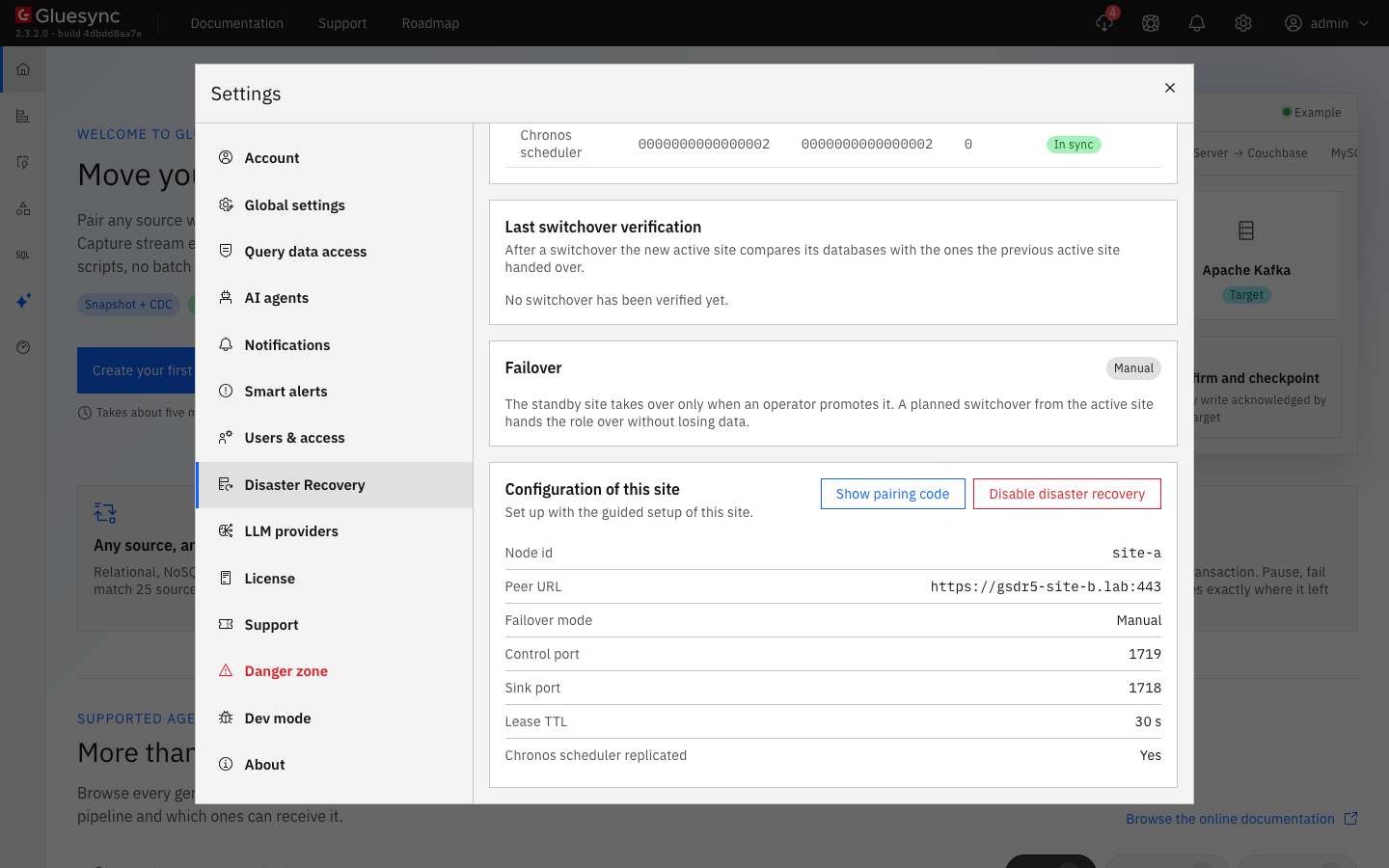
Core Hub does not read GS_DR_MANAGED_BY. It is the marker that the Conductor writes in gluesync-dr.env for a pair that it set up. A pair that you set up by hand does not have it, and the Conductor never edits or disables it: the Configuration of this site panel then says "Set with the GS_DR_* environment variables of this Core Hub. It cannot be changed from here."
Chronos has one variable of its own, GS_DR_CONTROL_URL, the URL of the control port of its own Core Hub (http://<core hub service>:1719, or https:// when Core Hub runs with SSL). Chronos asks it whether its Core Hub is the serving active site, and opens its database only while it is.
What each site needs
-
The shared secret and the operator token in a secret store, not in a file that you keep in your repository;
-
A persistent folder for
GS_DR_DIR, which holds the role of the site. Losing it loses the state of the site; -
The Chronos data directory mounted in both the Chronos container and the Core Hub container, and writable by the user of Core Hub. The Core Hub image runs as user 1017. Create
scheduler.dbin that folder and give it to that user before the first start if Chronos did not create it yet; -
Ports 1718 and 1719 published, and reachable from the other site;
-
A Core Hub that restarts by itself: a site that is fenced or has handed the role over exits with code 75 and comes back as a standby. Use
restart: unless-stoppedoron-failure, or the default restart policy of a Kubernetes Deployment; -
A stop grace period of 60 seconds on Core Hub (
stop_grace_period: 60s,terminationGracePeriodSeconds: 60), so that replication can push its last writes when Core Hub stops.
Compose
-
Generate the shared secret once, and an operator token for each site:
openssl rand -hex 32 # shared secret, the same on both sites openssl rand -hex 32 # operator token of site A openssl rand -hex 32 # operator token of site B -
On site A, add this to the Core Hub service and the Chronos service of your compose file. Site A is the first site, so it carries
GS_DR_BOOTSTRAP_ACTIVE:services: gluesync-core-hub: stop_grace_period: 60s restart: unless-stopped environment: GS_DR_ENABLED: "true" GS_DR_NODE_ID: site-a GS_DR_PEER_URL: https://site-b.example.com:1717 GS_DR_SHARED_SECRET: ${GS_DR_SHARED_SECRET} GS_DR_ADMIN_TOKEN: ${GS_DR_ADMIN_TOKEN} GS_DR_BOOTSTRAP_ACTIVE: "true" GS_DR_CHRONOS_DIR: /opt/gluesync/chronos ports: - "1717:1717" - "1718:1718" - "1719:1719" volumes: - ./data/core-hub:/opt/gluesync/data # holds GS_DR_DIR, <data dir>/dr - ./data/chronos:/opt/gluesync/chronos # the same folder as Chronos below gluesync-chronos: environment: GS_DR_CONTROL_URL: https://gluesync-core-hub:1719 volumes: - ./data/chronos:/app/data -
On site B, set the node id and the address of site A, use the operator token of site B, and leave out
GS_DR_BOOTSTRAP_ACTIVE:GS_DR_NODE_ID: site-b GS_DR_PEER_URL: https://site-a.example.com:1717 -
Put the values of
GS_DR_SHARED_SECRETandGS_DR_ADMIN_TOKENin the.envfile of each site, next to the compose file, readable by its owner only (chmod 600 .env). The shared secret is the same file content on both sites, the operator token differs.
The GS_DR_CONTROL_URL of the example uses https, because the kit runs Core Hub with SSL. Use http when Core Hub runs without SSL.
Kubernetes
Keep the secrets in a Kubernetes secret and read them into the Core Hub container. This fragment shows only what disaster recovery adds to the Core Hub workload of your chart. Adapt the names to it.
-
Create the secret on each cluster. The shared secret is the same in both, the operator token differs:
apiVersion: v1 kind: Secret metadata: name: gluesync-dr type: Opaque stringData: shared-secret: "<the shared secret>" admin-token: "<the operator token of this site>" -
Add the variables, the ports, the grace period and the volumes to the Core Hub pod:
spec: terminationGracePeriodSeconds: 60 containers: - name: core-hub env: - { name: GS_DR_ENABLED, value: "true" } - { name: GS_DR_NODE_ID, value: site-a } - { name: GS_DR_PEER_URL, value: "https://site-b.example.com:1717" } - { name: GS_DR_BOOTSTRAP_ACTIVE, value: "true" } # the first site only - { name: GS_DR_CHRONOS_DIR, value: /opt/gluesync/chronos } - name: GS_DR_SHARED_SECRET valueFrom: { secretKeyRef: { name: gluesync-dr, key: shared-secret } } - name: GS_DR_ADMIN_TOKEN valueFrom: { secretKeyRef: { name: gluesync-dr, key: admin-token } } ports: - { name: https, containerPort: 1717 } - { name: dr-sink, containerPort: 1718 } - { name: dr-control, containerPort: 1719 } volumeMounts: - { name: core-hub-data, mountPath: /opt/gluesync/data } - { name: chronos-data, mountPath: /opt/gluesync/chronos } volumes: - name: core-hub-data persistentVolumeClaim: { claimName: core-hub-data } - name: chronos-data persistentVolumeClaim: { claimName: chronos-data } -
Mount the same
chronos-dataclaim in the Chronos pod at its data directory (/app/data), and setGS_DR_CONTROL_URLon Chronos to the address of the Core Hub service on port 1719. Core Hub and Chronos read the same files, so use a claim that both pods can mount, aReadWriteManyone, or schedule the two pods on the same node; -
Expose ports 1718 and 1719 of Core Hub to the other cluster with a service that this site’s network allows, for example an internal load balancer, and use its address in the
GS_DR_PEER_URLof the other site. If the address of the sink or of the control port differs from the one of the Core Hub, setGS_DR_PEER_SINKandGS_DR_PEER_CONTROL_URLtoo; -
Do the same on the other cluster with
GS_DR_NODE_ID: site-b, the address of the first cluster, its own operator token, and withoutGS_DR_BOOTSTRAP_ACTIVE.
CLI
-
Start site A, wait until Core Hub answers, and check that it is active:
curl -k -H "Authorization: Bearer <operator token of site A>" https://site-a.example.com:1719/dr/status -
Start site B. It comes up as the standby: its Core Hub serves nothing, and its control port answers;
-
On site A, open Settings → Disaster Recovery and check the pair as in Check the pair;
-
On site A, remove
GS_DR_BOOTSTRAP_ACTIVEfrom the settings. A site that had lost its state would otherwise start as the active site if it could not reach its peer.
How the keys work
Replication needs two SSH keys on each side: the sink host key that the standby shows, and the replication key that the active site logs in with. You do nothing to exchange them.
-
Each Core Hub creates its own ed25519 sink host key and replication key at start, when they are missing, in
GS_DR_KEYS_DIR; -
As soon as the other site answers, each Core Hub asks it for its two public keys over the control port. The answer is signed with the shared secret, which is what makes the keys trusted, and each Core Hub writes them as
peer_sink_host.pubandpeer_replication.pub; -
The sink of a site accepts only the replication key of the other site, and a site connects to a sink only after it has pinned the host key of that sink.
File in GS_DR_KEYS_DIR |
What it is |
|---|---|
|
The key pair of this site’s replication client. Created at start, private key |
|
The key pair of this site’s sink. Created at start, private key |
|
The replication key of the other site: the only key this site’s sink accepts. Pinned over the control port |
|
The sink host key of the other site, which this site checks before it connects. Pinned over the control port |
The status of a site reports peerKeys: WAITING while one of the two peer files is missing, PINNED when both are there. In the Control Plane, a site that waits shows the warning "Waiting for the other site".
A key file that exists is never replaced, whatever the other site says. To rotate a key, stop the pair, delete the files of that key on one site, peer_*.pub on the other, and start the sites again: the next start creates and pins the new keys.
If you want to provision the keys yourself, for example from a secret store, create them with ssh-keygen and put them in GS_DR_KEYS_DIR on each site, with mode 0600 for the private keys:
ssh-keygen -q -t ed25519 -N '' -f replication_ed25519
ssh-keygen -q -t ed25519 -N '' -f sink_host_ed25519
Then copy replication_ed25519.pub of each site to the other as peer_replication.pub, and sink_host_ed25519.pub of each site to the other as peer_sink_host.pub. When all six files are there, the sites do not need to ask each other for keys.
The storage key and the token secret
Each installation has its own bootstrap-core-hub.json. Its storageKey encrypts the credentials that Core Hub stores, and its apiTokenSecret signs the API tokens. No database holds them, so they are not replicated. A standby with values of its own could not decrypt a single connection password after it takes over, and it would refuse the API tokens of the other site.
You do not copy the file between the sites:
-
While a site is the standby, it asks the active site for the two values over the control port. The request is signed with the shared secret, and the answer is encrypted with a key derived from it, so the values never cross the network in clear. Only the active site answers;
-
The standby writes the two values into its own
bootstrap-core-hub.json, keeps every other key of the file, and copies the file it had tobootstrap-replaced-<time>.jsoninGS_DR_DIR, readable by its owner only; -
A site that is promoted asks one last time, if it has not confirmed the values yet. It takes over even when the active site cannot answer, with a warning in its log.
The status of a site reports bootstrapAligned: true when the file holds the values that the site confirmed with the active site, false when the file changed since or could not be written, and no value until the site has confirmed. The active site of a new pair has no value, because it never asks.
When bootstrap-core-hub.json is mounted read-only, for example from a Kubernetes secret, the standby cannot write it. Give both sites the same file instead: a standby whose file already holds the values of the active site only confirms them.
API tokens are carried over to the site that takes over. Sessions of the Control Plane are not: after a failover or a switchover, users sign in again.
|
Core Hub writes in |
Witness mode
With GS_DR_FAILOVER_MODE=manual, the standby never takes over by itself: an operator decides. With witness, a third process holds a lease, and the standby promotes itself when it has lost the active site and the witness confirms that the active site no longer renews its lease. The active site stops serving by itself if it can reach neither the other site nor the witness for the lease time.
To use it, run the witness as a third Core Hub process with GS_DR_ENABLED=true, GS_DR_ROLE=witness, its own GS_DR_NODE_ID, the same GS_DR_SHARED_SECRET, a GS_DR_ADMIN_TOKEN and GS_DR_LEASE_TTL_SECONDS, on a host that both sites reach on port 1719 and that fails independently of them. On both sites, set GS_DR_FAILOVER_MODE=witness, GS_DR_WITNESS_URL and the same GS_DR_LEASE_TTL_SECONDS, at least 20. The guided setup offers the same choice with Witness, Witness address and Lease TTL (seconds). Everything else in this guide is the same.
Keep in mind that:
-
The lease time must be the same on the witness and on both sites. A standby whose lease time differs from the one the witness grants reports it, takes no lease and refuses a promotion until it restarts with the same value;
-
The witness needs a node id of its own, different from the ones of the two sites;
-
The witness serves plain HTTP, and every lease request and answer is signed with the shared secret. Reach it over a trusted network, or publish it behind a proxy that terminates TLS and use an
https://GS_DR_WITNESS_URL; -
A forced promotion is refused while the witness does not answer.
Turn the pair off
Disaster recovery is turned off one site at a time, and the order matters, because a standby has no Core Hub to sign in to.
UI
For a pair that you set up with the guided setup:
-
Open the Control Plane of the active site, and select Settings → Disaster Recovery;
-
In Configuration of this site, select Disable disaster recovery, and confirm;
-
Wait for "Core Hub is back".
The Conductor removes what the setup added: the GS_DR_* variables, the gluesync-dr.env file, the ports 1718 and 1719, the mount of the Chronos data, the control URL of Chronos and the grace period that it set. Anything else in the compose file stays. Core Hub and Chronos restart. The site is an ordinary installation again, with the data it held, and runs its pipelines.
A pair that you set up by hand is not touched by the Conductor: its panel has no Disable disaster recovery button. Remove the GS_DR_* variables where you set them, and restart Core Hub.
|
The dialog says that this disables disaster recovery on this site only. The standby is a separate step. |
CLI
The Core Hub of a standby does not run, so its Control Plane is not served, and the Conductor of that site authenticates every call with Core Hub. A Disable call to it is refused, with 401 or 503. You cannot disable the standby from its own UI while it is a standby. Choose one of these:
-
Retire the standby. Stop Gluesync on its host and remove the installation. The active site that you disabled does not need it;
-
Reuse the standby as an independent installation. Promote it, then disable it from its own Control Plane. A promoted standby runs the pipelines of the pair, so first stop the pipelines on the site that you disabled, or you would run every pipeline twice against the same source and target. Then:
-
Promote the standby with its operator token. The peer does not answer, so the promotion needs
force, which confirms that the other site is not active:curl -k -X POST -H "Authorization: Bearer <operator token of the standby>" "https://<standby>:1719/dr/promote?force=true" -
Wait until Core Hub of that site answers, and sign in to its Control Plane with the accounts of the pair;
-
Select Settings → Disaster Recovery → Disable disaster recovery, as on the first site.
-
A promotion without force is refused while the other site does not answer: "peer unreachable: confirm the active site is down (force)". Never force a promotion while the other site is running and active with DR on.
|
In witness mode, stop the standby before you disable the active site. A standby that sees the active site go away can take the lease and start the pipelines, while the site that you disabled still runs them. To reuse the standby in witness mode, start the witness and the standby again before you promote it, because a forced promotion is refused while the witness does not answer.
How this procedure is verified
The guided setup was run end to end in a lab of two sites, each a Docker host of its own that ran the default kit with Core Hub on SSL, Chronos, the Conductor and the reverse proxy, with a PostgreSQL pipeline under load and three Chronos jobs. The runs covered the setup of the first site under load, the join of the second site, both sites reporting PINNED with the keys created and pinned automatically, the standby following all six databases with every row identical to the active site, a planned switchover under load with the handover verified, the disable on the active site, and the promotion and disable of the waiting standby. The setup by hand was run with the same variables on a compose file, in manual and in witness mode.
Troubleshooting
| Problem | Possible cause | What to do |
|---|---|---|
|
The control port of the other site is not reachable from this site: the other site is not started, port 1719 is blocked, or |
Test |
The same message with the reason "answered 401 Unauthorized to the keys request" |
The shared secret differs between the sites, or the two sites have the same node id, or their clocks are more than 60 seconds apart |
Check that |
The log says that the keys answer of the peer is not signed with the shared secret |
Something answers on that address that is not the Core Hub of the pair, or the secrets differ |
Check the address and the secret. A key that was not signed is never pinned |
|
|
Give the file to the user of Core Hub with mode |
"Replication waits for the host key of the peer sink" |
The sink host key of the other site is not pinned yet |
Wait for |
The log of Core Hub says "Invalid disaster recovery settings" and Core Hub does not start |
A |
Fix every variable that the message lists, and start again. With the guided setup, the Conductor puts the previous files back and recreates the services |
A warning in the log says that a key "is readable by others and cannot be restricted" |
The sink host key is in a read-only folder or belongs to another user, and its permissions are too open |
Mount it with mode |
Both sites are standbys and nothing serves |
Neither site had |
Set |
The Set up disaster recovery button is disabled |
The guided setup is not available on this host: Docker Swarm, a service that is not found, Chronos data outside a volume or folder, or |
Read the reason under the button, or use Set up by hand with environment variables |
The setup is refused with "Another container action is in progress" |
The Conductor is already restarting a service |
Wait a minute, until the restart ends, and try again |
The join is refused: the pairing code is not valid, or is "of a version this Conductor does not know" |
The code was cut or changed when you copied it, or the two sites run different Gluesync versions |
Copy the code again in full, starting at |
The Control Plane of the second site does not open after the join |
Expected: a standby does not serve its Control Plane |
Open the Control Plane of the active site. After a failover, open the one of the site that took over |
The update of Core Hub or Chronos from the Control Plane or from the Conductor reports "Disaster recovery is enabled on this Core Hub" ( |
Updates of Core Hub and Chronos are refused on a site with DR enabled |
Upgrade the pair with Gluesync Control, one site at a time, as in Upgrade a disaster-recovery pair |
Related guides
Contact MOLO17 Support if you need assistance with setting up a disaster-recovery pair.