Promote pipelines from QA to production
This guide shows how to take a pipeline that works on a QA Core Hub and recreate it on a production Core Hub, where the hosts, users, passwords and schemas are different. You export it once, change only what differs, import it, start it and prove with SQL that the data arrives. The guide also covers cloning entities inside a pipeline and the errors that people meet most often when they import.
In this guide
You will learn which tools can export and import a pipeline, how to export a QA pipeline with Gluesync Automator, which lines of the export you must change for production, how to supply the passwords that an export never contains, how to validate and import the archive, how to start the pipeline and check the result in the databases, three ways to clone an entity inside a pipeline, what each known import error means and how to fix it, and a go-live checklist.
Quick information
Goal |
Recreate a tested pipeline (connections, entities, keys, filters and field functions) on a production Core Hub and start it |
Audience |
Gluesync administrators who run more than one Core Hub (DEV, QA, production) |
Level |
Intermediate |
Time required |
About 45 minutes for a pipeline with three entities |
Area |
Gluesync Automator → Backup & export, Import & clone; Control Plane → pipeline page |
Applies to |
Gluesync 2.3 |
Before you begin
Make sure that:
-
You have a QA Core Hub with the pipeline working and a production Core Hub that is empty or ready for it. Both run the same Gluesync version. A backup made on an older Core Hub and restored on a newer one (or the other way round) is the most common cause of odd import errors;
-
You can sign in to both Core Hubs as a user with the Super Admin role;
-
The production databases exist, are reachable from the production Core Hub, and the target tables exist, or you let Automator create them (Settings tab, Create missing tables automatically, on by default);
-
You have the production database host names, ports, user names and passwords from your password manager. The export never contains them;
-
You have Gluesync Automator on a workstation that can reach both Core Hubs. Download it from molo17.com. The version number is shown under the title in the top bar. See Gluesync Automator;
-
You have a plan for the first start in production: the target tables are empty, or you accept that rows with the same key are overwritten.
|
This guide was tested with a QA Core Hub and a second, separate production Core Hub in Docker, each with its own PostgreSQL source and target. The production hosts, database names, users, passwords and schemas all differ from QA, and so does the Core Hub storage key. The pipeline reads three tables: one with a target filter and a field function, one plain table, and one table without a primary key that uses a logical key. Names in your installation will differ. |
| What differs | QA | Production |
|---|---|---|
Source host and database |
|
|
Target host and database |
|
|
Users |
|
|
Passwords |
QA passwords |
Different passwords that you hold in your vault |
Schemas |
|
|
Choose how to export and import
Gluesync 2.3 has several ways to read a pipeline configuration. Only some can also write it back.
| Route | What it does | Use it for |
|---|---|---|
Gluesync Automator (web application you run on your workstation) |
Backup & export writes a ZIP (Pipeline backup) or a YAML file (Export entities). Import & clone validates and imports the ZIP (Import All), creates entities from YAML in an existing pipeline, imports connection settings only, or duplicates a pipeline. |
The normal way to promote a pipeline. This guide uses it. |
Core Hub REST API |
|
Scripts and CI jobs. You map agent IDs and schema names yourself. See Optional: promote with the REST API. |
Core Hub MCP tool |
Returns the same JSON as the REST call. Despite its name it is not YAML. Secrets are replaced by |
Reading a configuration from an AI client. See Core Hub MCP server. |
Control Plane |
The Control Plane has no menu to export or import a pipeline or to clone an entity. |
Checking the result, starting entities, editing a connection. |
Backups to Gluesync Connect |
Back up the whole Core Hub (databases, storage key, license) and restore it on the same host or a new machine. See Backups with Gluesync Connect. |
Disaster recovery. Do not use it to promote one pipeline: a restore replaces the target Core Hub. |
Guide steps
UI
-
Sign in to the QA Control Plane and open the pipeline;
-
In the Features column, note which entities have a filter (funnel icon) or a field function (fx icon). You will check that they survive the move.
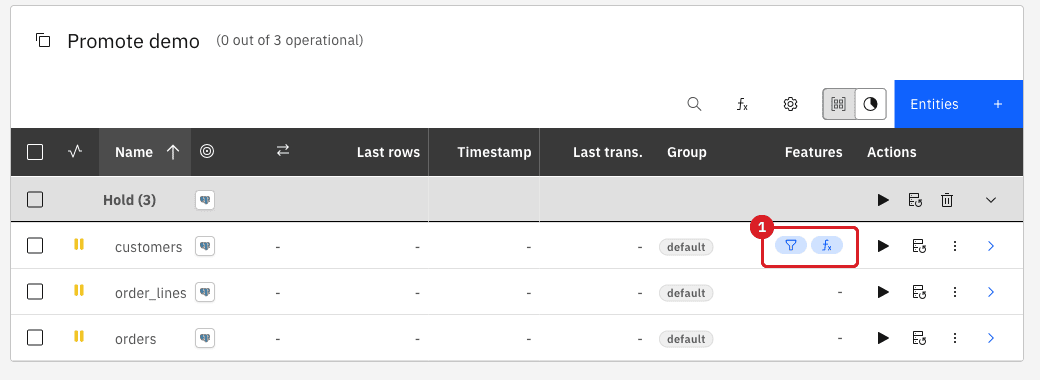
customers has a target filter and a field function.UI
-
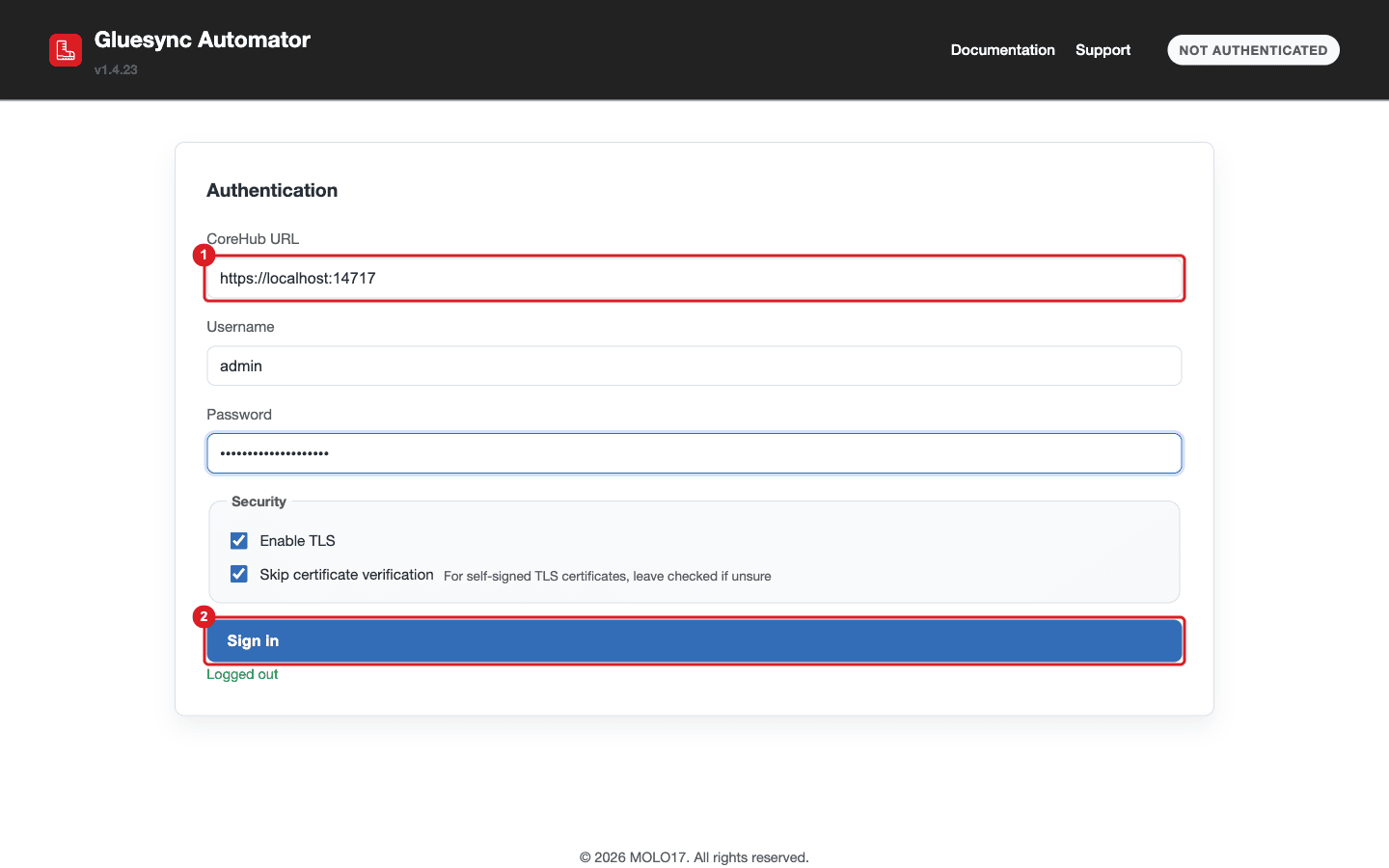
Start Automator and sign in to the QA Core Hub: enter the CoreHub URL with the port (for example
https://qa.example.com:1717), the Username and the Password. Keep Enable TLS on. Leave Skip certificate verification on only for self-signed certificates; -
Open the Backup & export tab;
-
Leave Include secrets unchecked (see the note below);
-
In Pipeline, choose the pipeline;
-
Click Pipeline backup. Your browser downloads
backup_<pipeline name>_<pipeline id>_<date>.zip. Export entities downloads only the YAML file of the entities; use it when the connections already exist in production.
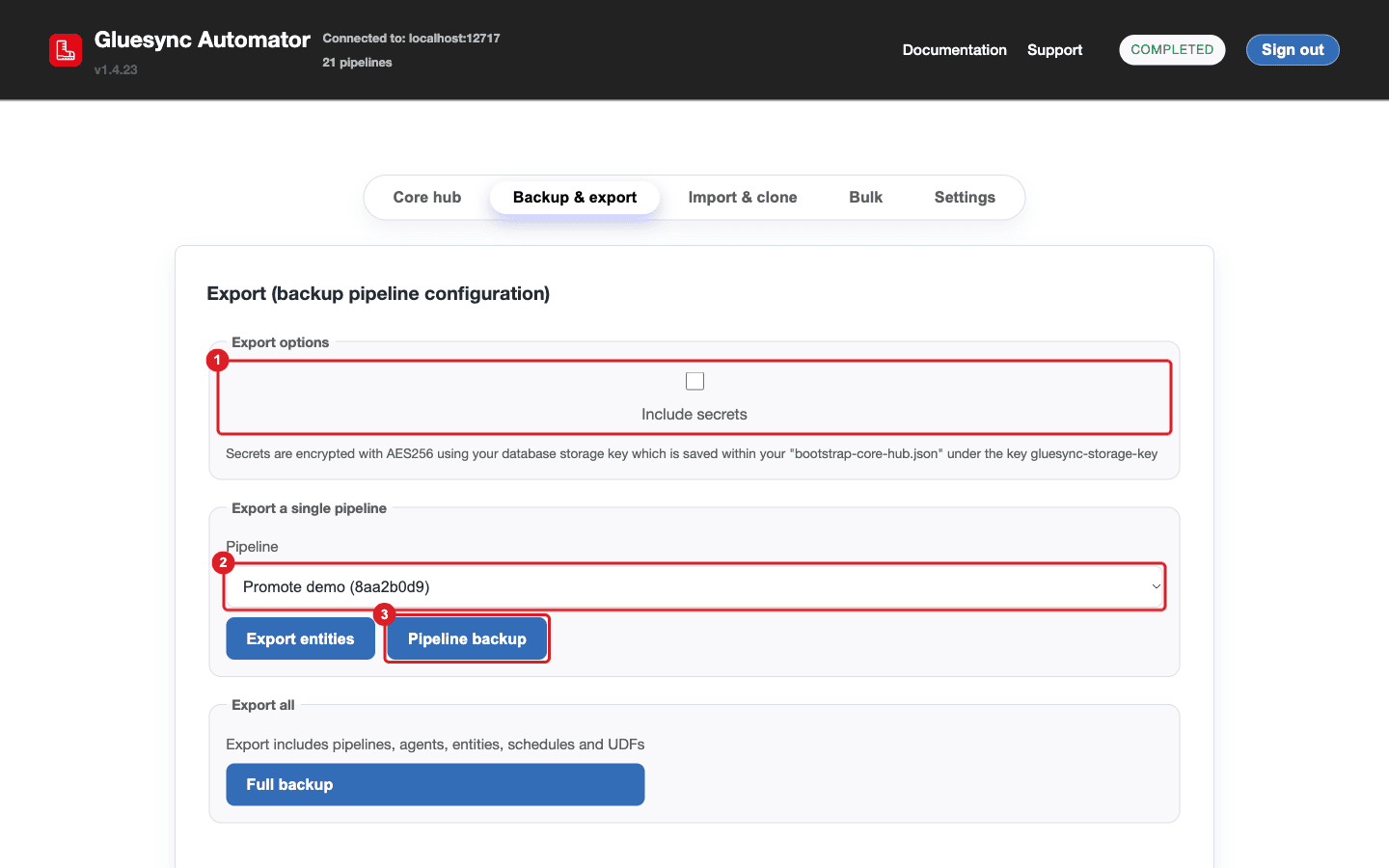
|
Include secrets keeps the passwords in the file, and on Gluesync 2.3 they are written in clear text (the hint under the check box mentions AES256, but the file we exported held the plain password). They are QA passwords and production needs its own, so you gain nothing and you create a sensitive file. Export without secrets. A file without secrets shows |
Config
-
Unpack the ZIP in an empty folder and delete the alert settings of QA, so that the import cannot send them to production:
mkdir work && cd work unzip "../backup_Promote demo_8aa2b0d9_20261028_210446.zip" rm pipeline_8aa2b0d9/global-config.yaml -
Open
pipeline_<id>/agents-config.yaml. For each agent, change the connection to the production values and type the production password. Do not changeagentType,agentTagoragentId:agents: - agentType: SOURCE agentTag: postgresql-cdc hostCredentials: connectionName: Promote demo-source host: pg-ledger.prod.internal # was pgsql-source port: 5432 databaseName: ledger # was shop username: prod_reader # was gluesync password: '<production source password>' # was '*******' -
Do the same for the
TARGETentry (pg-replica.prod.internal,replica,prod_writer); -
Open
pipeline_<id>/backup_<name>_<id>_<date>.yaml. The first key belowexportMetadatais the source schema, and itstarget:line is the target schema. Change both:sales: # was promote_src target: sales_replica # was promote_tgt sourceType: SQL targetType: SQL -
If a production table has another name, change
name:of that table (the target table) in the same file. The entity name isentityName:; -
Zip the folder again, with the
pipeline_<id>folder at the top of the archive:zip -r ../promote-demo-prod.zip pipeline_8aa2b0d9
|
Change the schema names in the YAML file itself. The Automator check box Customize source/target schemas (override YAML) does not rename them: it only picks which YAML section is read, and the |
|
Keep the production passwords out of shell history and shared folders: type them in an editor, and delete |
UI
-
In Automator click Sign out, then sign in to the production Core Hub. Automator holds one session at a time;
-
Open Import & clone. In Import a full backup click the file field and choose
promote-demo-prod.zip; -
Click Validate. Validation checks the structure, that the passwords were replaced and that each YAML file has a schema pair. It creates nothing;
-
Click Import All.
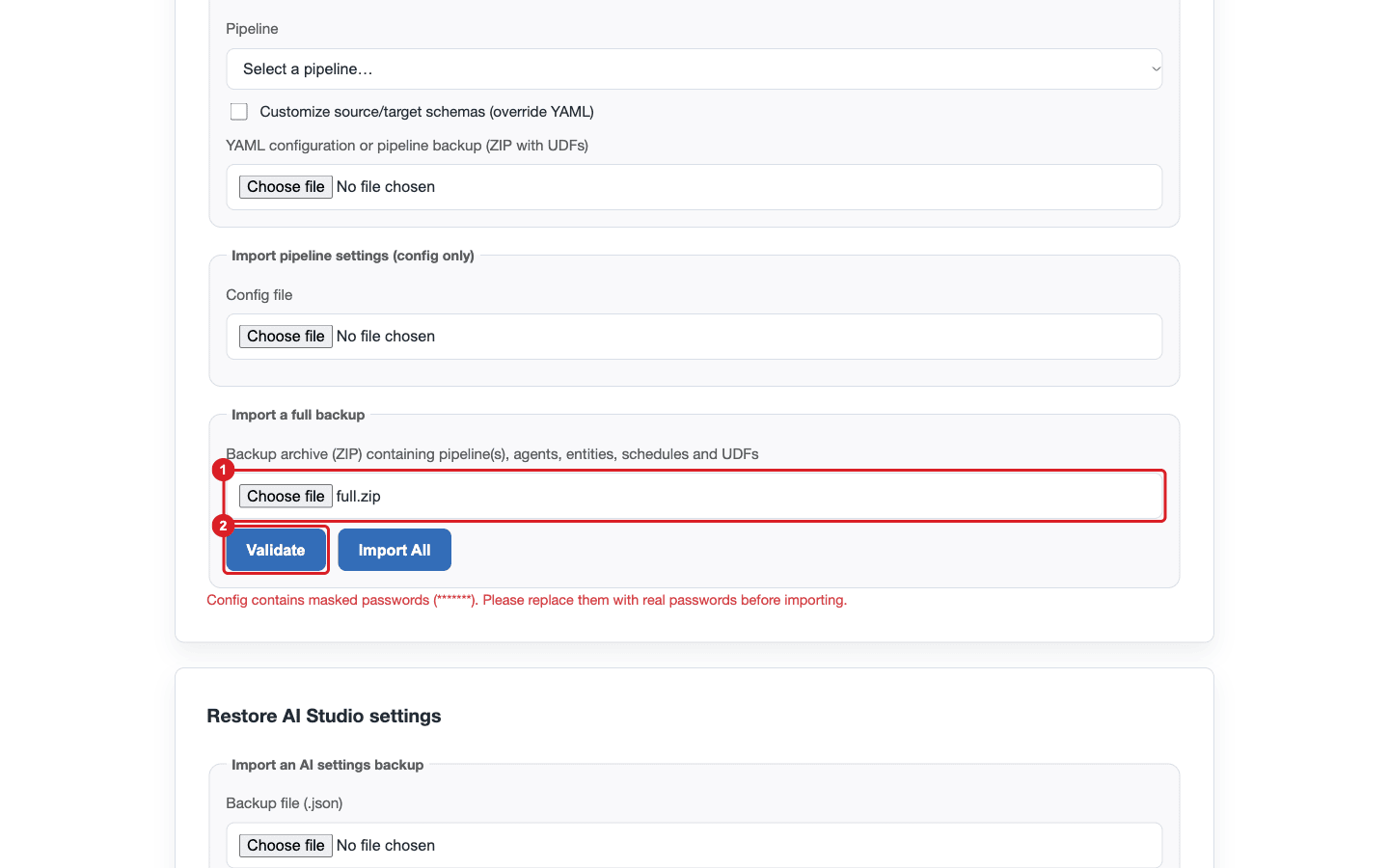
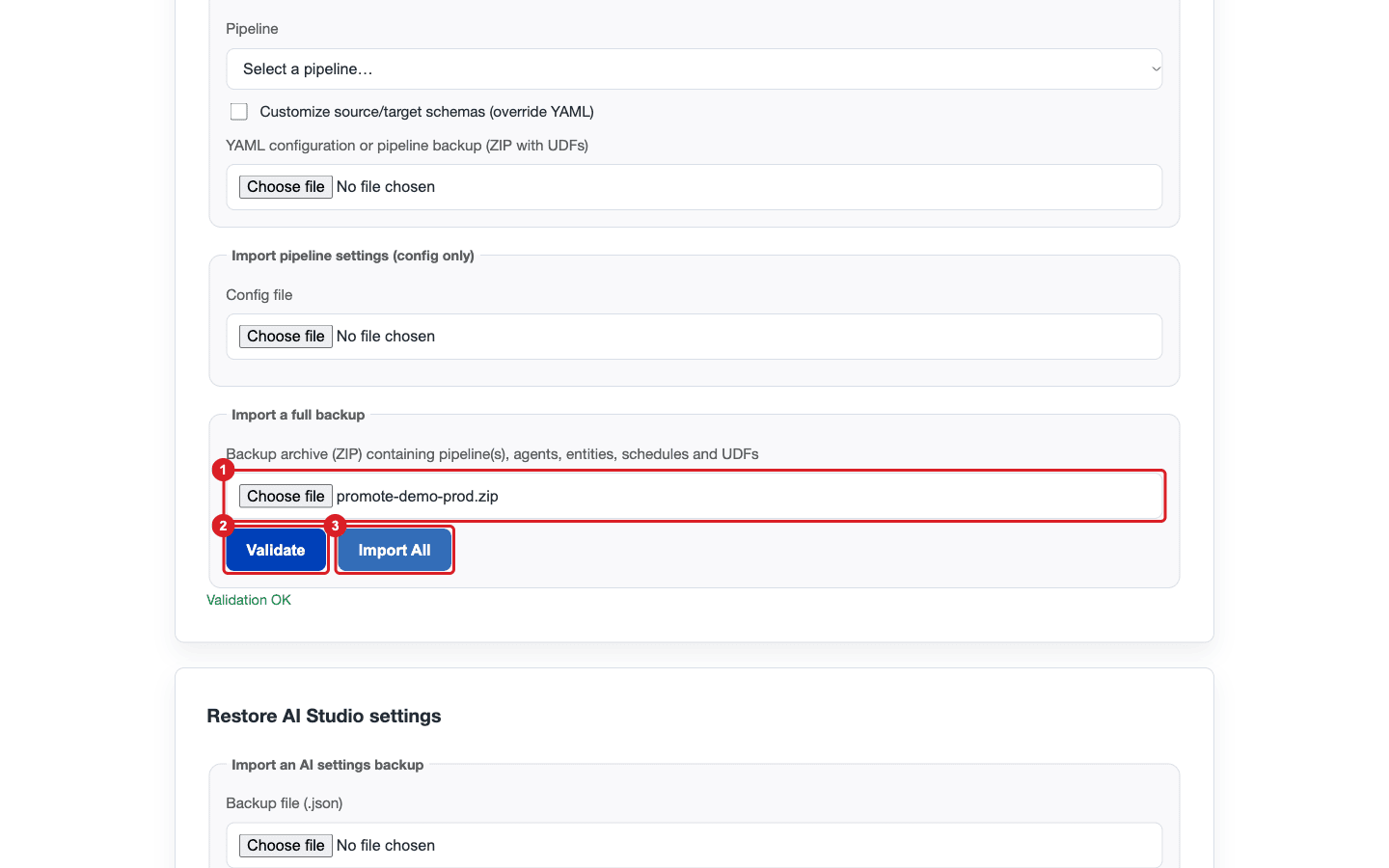
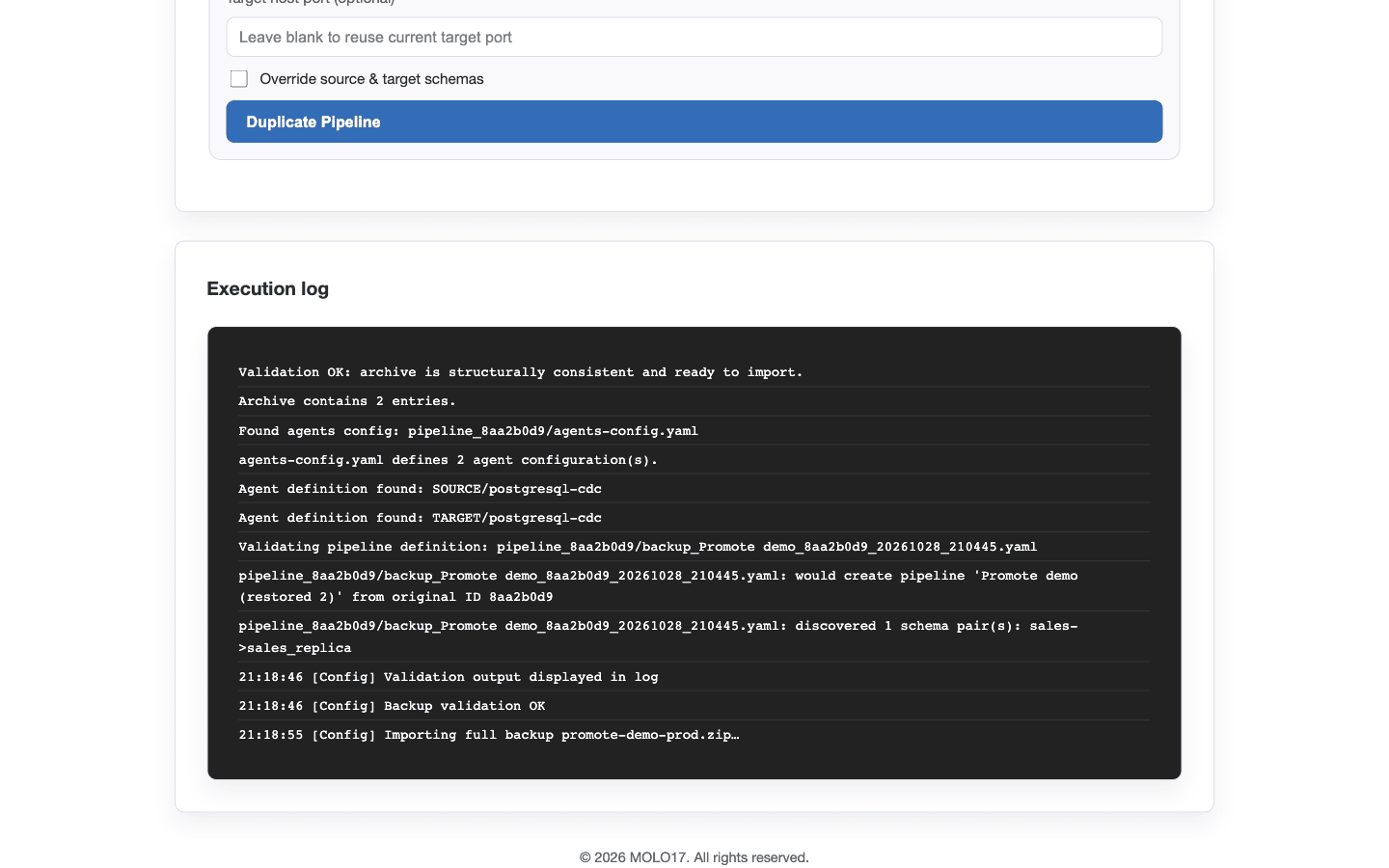
|
If production already has a pipeline with the same name, the import names the new one The Settings tab of Automator has Create missing tables automatically, on by default, so a missing target table is created. If your DBA creates the tables, create them first. With the option off, Automator assumes that all tables exist and creates the entities even if they do not (see the troubleshooting table). |
UI
-
Sign in to the production Control Plane and open the pipeline. All entities are on hold;
-
Check the Features column: the funnel and fx icons must be there, as in QA;
-
Open the gear menu of the pipeline, choose Edit source and read the connection: the host, database and user must be the production ones. Choose Test and continue to open a connection with the production password. Repeat with Edit target.
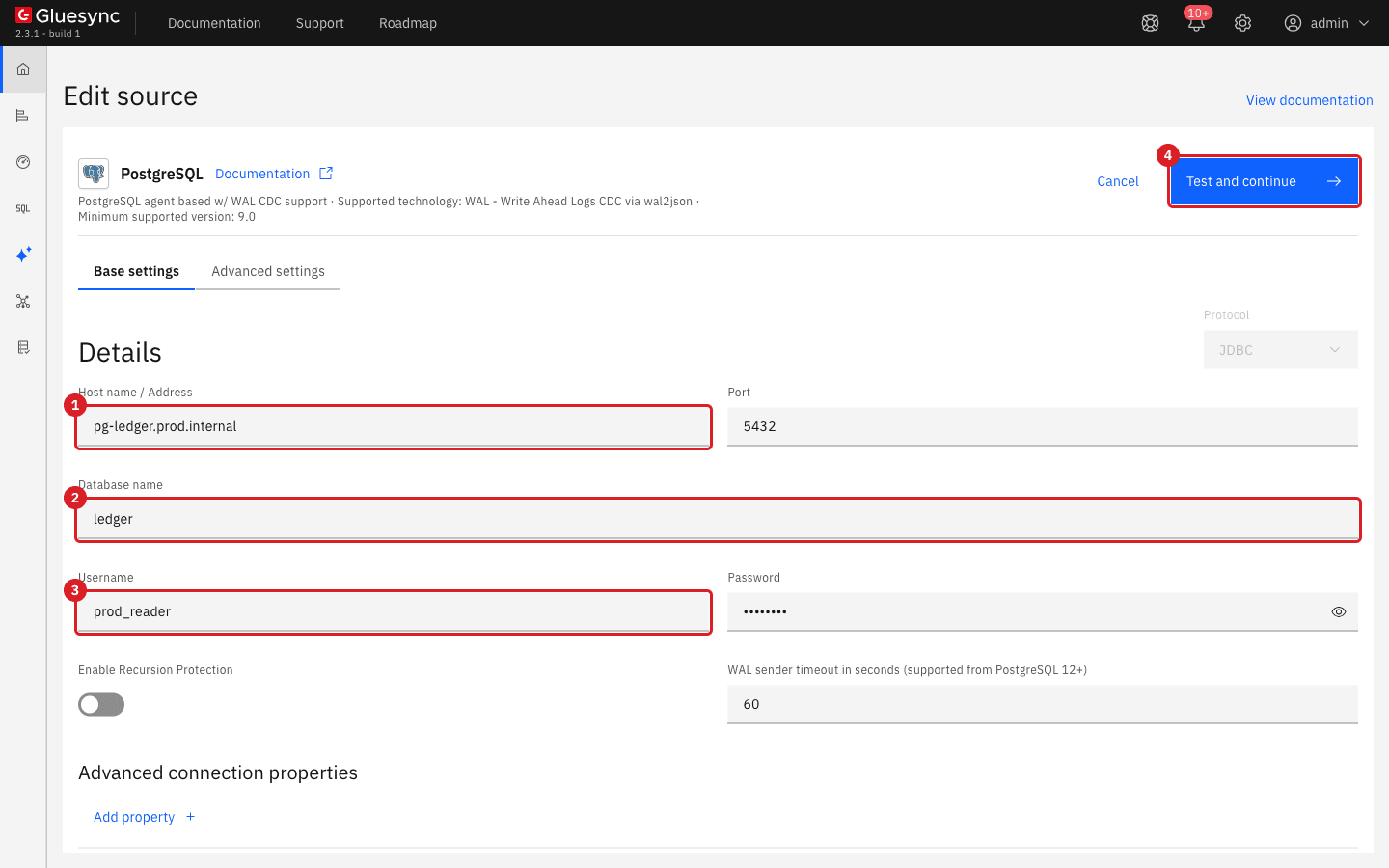
UI
-
In the pipeline page start an entity with the Start sync button (the play icon). In Sync changes (CDC) choose Full copy ("Recommended for the first start"). Keep Keep and merge under Data already in the target, or choose Empty the table first if the target tables hold test rows. Click Start entity. Repeat for the other entities;
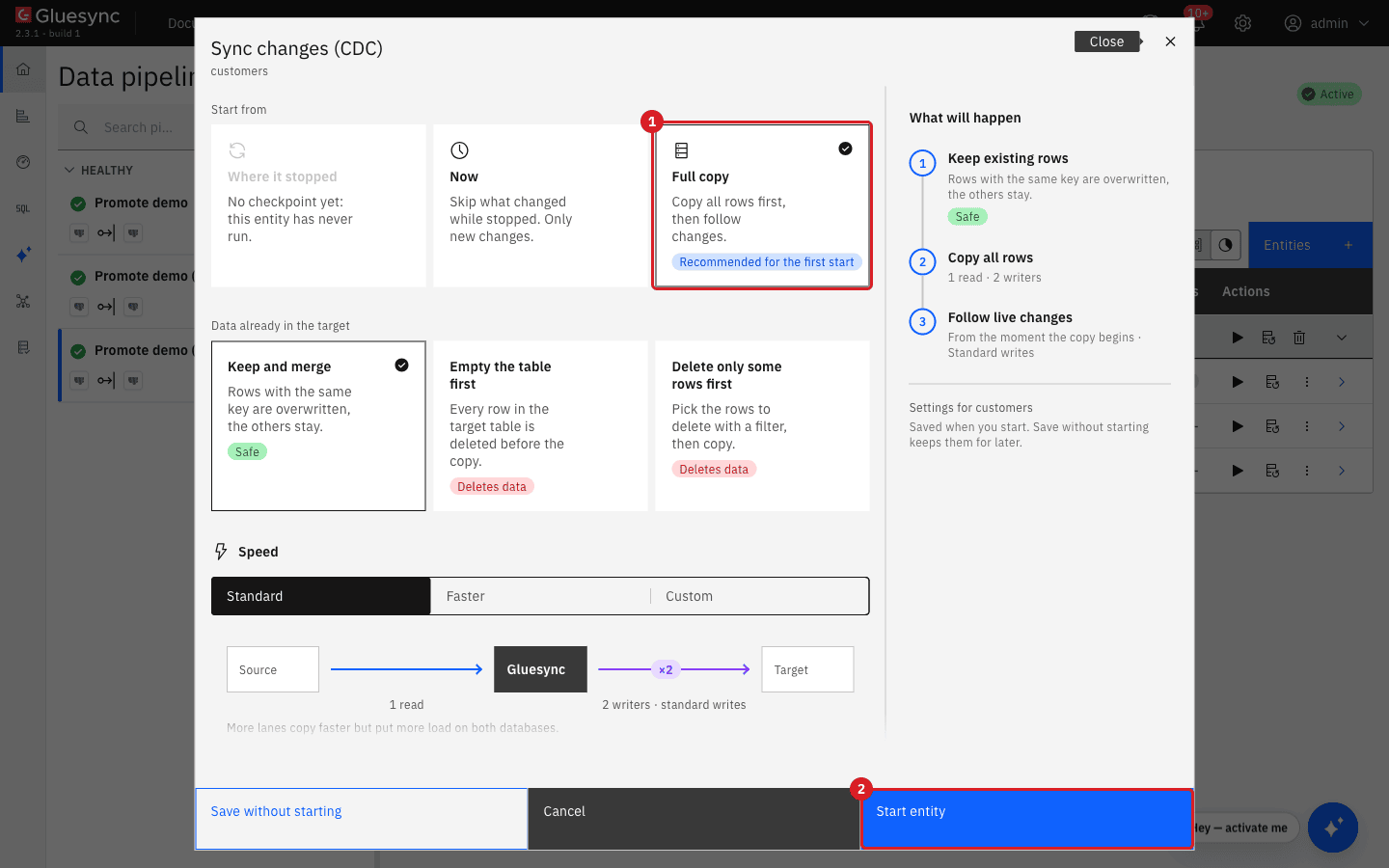
-
When the entities are active, compare the databases. On the production source:
SELECT status, count(*) FROM sales.customers GROUP BY status; -
On the production target:
SELECT 'customers' AS t, count(*) FROM sales_replica.customers UNION ALL SELECT 'orders', count(*) FROM sales_replica.orders UNION ALL SELECT 'order_lines', count(*) FROM sales_replica.order_lines; SELECT id, status, email FROM sales_replica.customers ORDER BY id LIMIT 3; -
Change data on the source, then read the target again. This proves that change data capture (CDC) works with the production connection, the filter and the logical key:
INSERT INTO sales.customers VALUES (31, 'New Active', 'new.active@prod.example.com', 'IT', 'gold', 'active', 500, now());
INSERT INTO sales.customers VALUES (32, 'New Inactive', 'new.inactive@prod.example.com', 'IT', 'gold', 'inactive', 500, now());
UPDATE sales.order_lines SET qty = 99 WHERE order_id = 1 AND line_no = 1;
DELETE FROM sales.order_lines WHERE order_id = 2 AND line_no = 2;
|
Do not start the QA and the production pipelines against the same databases. If you copy QA settings and forget to change a host, both pipelines write to the same target. |
Config
Sometimes you need a second entity from the same source table: another target table, another filter, an archive copy. There are three ways. The Control Plane has no clone button.
Way 1: Automator, YAML with a duplicate key. Use it when you want the filter, field functions and mapping of the original.
-
Export the production pipeline with Export entities;
-
Make a new file with only the schema header and one table block. Copy the whole block of the table you want to clone (with its
columns), then change these: the key (add@@2),name(the new target table),entityName, and addsourceTableNameand the filter you want. The whitelist must name the real source table, not the key with@@2:sales: target: sales_replica sourceType: SQL targetType: SQL tables: whitelist: - orders # the real source table custom: orders@@2: # unique key of the clone name: orders_eu # target table entityName: orders_eu sourceTableName: orders keys: - id columns: # the same columns list as in the orders block - source: id target: id # ... one entry per column, copied unchanged filter: clauses: - column: currency type: string operation: In value: EUR -
In Automator, Import & clone, Create entities from YAML (single pipeline): choose the production pipeline, leave Customize source/target schemas unchecked, choose the file and start the run. Create tables is on, so Automator creates
orders_eu.
Way 2: Core Hub MCP or REST, one call. create_entity takes the source and target agent IDs of the pipeline (from get_pipeline), a second target table and the key. It creates the target table (target_table_created: true) and the entity, on hold. It gives you no filter or field function: add them afterwards in the Control Plane.
{ "pipeline_id": "<production pipeline id>",
  "source_agent_id": "<source agent id>", "target_agent_id": "<target agent id>",
  "source_schema": "sales", "source_table": "orders",
  "target_schema": "sales_replica", "target_table": "orders_copy",
  "key_columns": ["id"], "entity_name": "orders_copy" }
Way 3: Duplicate pipeline. In Import & clone, Duplicate an existing pipeline copies a whole pipeline (agents, entities and schedules) into a new one in the same Core Hub. Give the new name and the source and target passwords. Use it for a second pipeline on the same databases, not to change schemas: in the test, Override source & target schemas was ignored and the copied entities still pointed at the original target schema, so two pipelines wrote to the same tables.
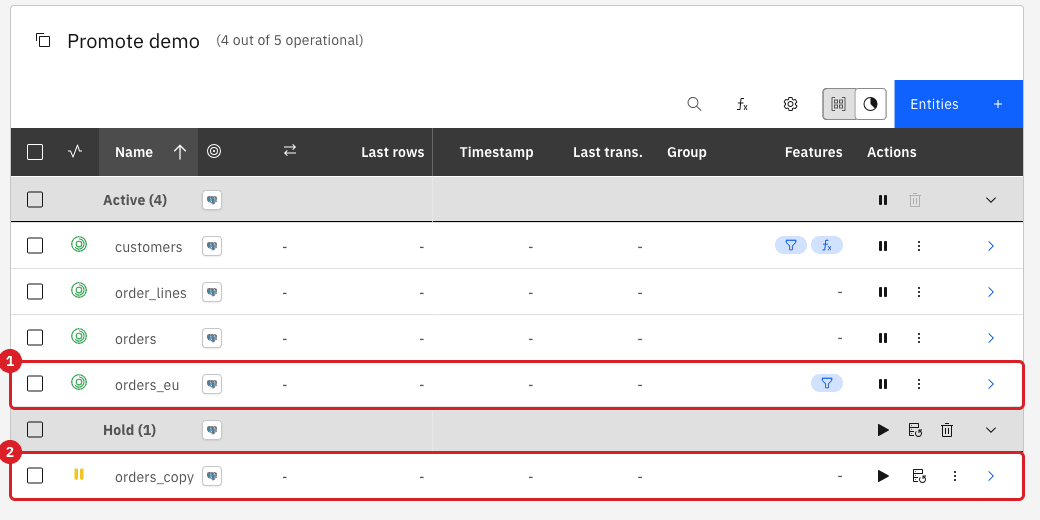
orders_eu (YAML, filter on currency). 2 orders_copy (MCP, on hold).Optional: promote with the REST API
Use this route in a script. It does not need Automator, but you map the IDs yourself.
-
On QA, read the configuration. A Super Admin gets the passwords with
include_secrets=true; without it they are<hidden>:curl -sk -H "Authorization: Bearer $QA_TOKEN" \ "https://qa.example.com:1717/pipelines/<qa pipeline id>/config" > promote-demo.json -
In production, create the pipeline and its two agents with their connections (the Control Plane, Automator Import pipeline settings (config only), the Duplicate an existing pipeline card with Clone entities off, or the MCP tools
create_pipeline,add_agent,assign_agent,attach_connection), then read itsagentsblock withGET /pipelines/<prod pipeline id>/config?include_secrets=true; -
In
promote-demo.jsonreplace the QA agent IDs with the production agent IDs (inagentsand in everyagentEntities), replace theagentsblock by the production one, and replace the QA schema names with the production ones; -
Send it:
curl -sk -X PUT -H "Authorization: Bearer $PROD_TOKEN" -H "Content-Type: application/json" \
  --data @promote-demo.json \
  "https://prod.example.com:1717/pipelines/<prod pipeline id>/config"
Known import errors and what to do
| Message or symptom | Cause | What to do |
|---|---|---|
|
The export was made without Include secrets, so |
Type the production passwords in |
|
The production Core Hub cannot reach the host in the file. Typical cause: the QA host name is still in |
Fix |
|
The exported YAML had no data type for the columns ( |
Use the current Automator (the version under the title; the banner |
|
The target table is missing. With Create missing tables off, Automator logs |
Create the tables with the DDL of the source (same columns and key), or switch Create missing tables automatically on in the Settings tab and import again. If a table in the YAML does not exist in production and should not, delete its entry from the |
|
The logical key (or the |
Change the schema key and |
|
The browser sent a request that Automator cannot read. The body of the answer names the field, for example |
Select a pipeline, choose the file again, keep Chunk size between 1 and 500, and run again. If it persists, update Automator and send the answer body to support. |
Import & clone reports |
The whitelist does not name the source table. For a cloned entry the whitelist must hold the real table name ( |
Fix the whitelist and run again. Read the Automator log: |
Field functions are missing after the import |
An old Automator did not export field functions (they were not in the YAML). |
Use the current Automator and export again. In the test the function |
|
Support has seen it when an agent was added twice to a pipeline: the first one stayed half-built inside Core Hub, and every entity creation tried to configure it. |
Restart the Core Hub container. The half-built agent is not saved and disappears. Clean the target tables and import again. |
Automator does not connect: |
|
Allow Automator in the firewall and the antivirus, check any proxy, and give the CoreHub URL with the port where Core Hub listens (for example |
The restore stops with a 500 on the production Core Hub, or entities look different |
QA and production run different Gluesync versions, or Automator is old. The Windows file properties of Automator can show an old number: read the version under the title in the web page. |
Bring both Core Hubs to the same version (see Upgrade Gluesync safely), update Automator, export again. |
|
The pipeline backup holds |
Delete |
Related guides
Contact MOLO17 Support if you need assistance with promoting pipelines between environments.