Query pipeline data with Query Studio and control who can access it
Query Studio is the SQL workbench built into the Control Plane. Use it to check what a pipeline has replicated, to answer a quick question about the data, and to fix a row in a scratch table, without leaving Gluesync. Because it reaches real databases, it also has its own access rules: this guide shows both how to query and how a Super Admin decides who can query what.
In this guide
You will learn how to open Query Studio on a pipeline connection, browse its schemas, run a filter, a join, and an aggregate on shop.customers and shop.orders, sort, page, chart, export, and save the results, and edit rows in a scratch table. Then you will see how personal data is masked, restrict a Viewer to one table, let a Manager unmask personal data, and confine a Manager who can write to one scratch schema.
Quick information
Goal |
Query pipeline data safely in Query Studio and control which users can query which tables |
Audience |
Data engineers and Gluesync administrators |
Level |
Intermediate |
Time required |
About 40 minutes |
Area |
Control Plane → Query Studio, and Settings → Query data access |
Applies to |
Gluesync 2.3 |
Before you begin
Make sure that:
-
A pipeline already has a PostgreSQL source and a PostgreSQL target, for example the connections Shop orders-source and Shop orders-target;
-
The source database has the tables
shop.customersandshop.orders. For the editing step you also need a table you can safely change; if you do not have one, the guide shows how to create a scratch table in the target database; -
You can sign in to the Control Plane as a Super Admin;
-
For the access steps, you have two users: a Viewer and a Manager (the examples use
qs-viewerandqs-analyst), and a second browser, or a private window, in which to sign in as them.
|
Query Studio uses the database credentials of the agent, on a connection of its own that is separate from the replication. In this guide every change is made in the table |
Guide steps
UI
-
Select Query Studio (the SQL icon) in the left sidebar;
-
Select the + next to the session tabs to open a new session;
-
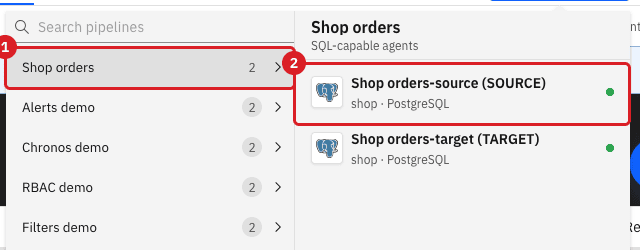
Open the SQL-capable Agent list, select the pipeline Shop orders, and then select Shop orders-source (SOURCE).
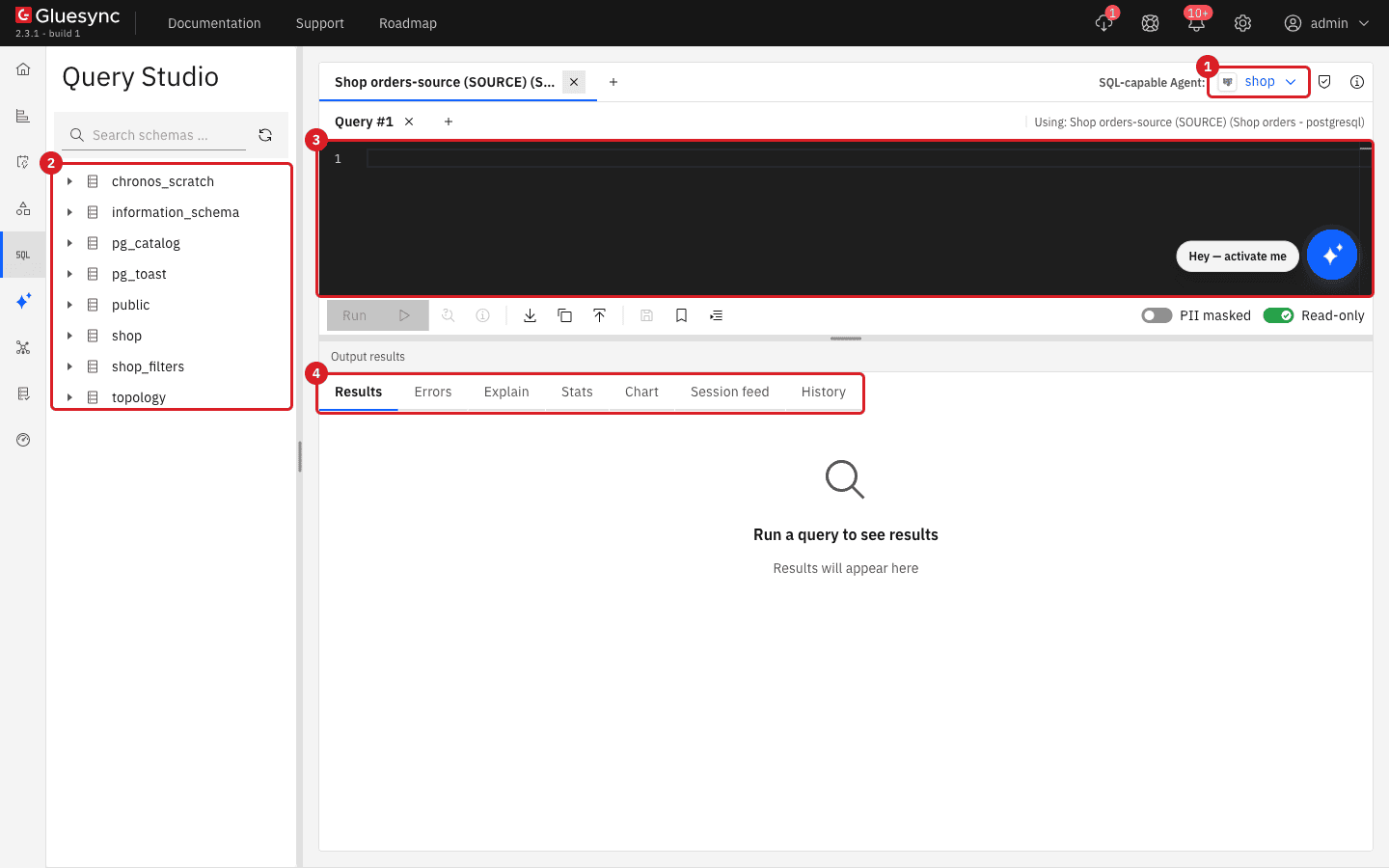
The workspace opens with the schema browser on the left, the SQL editor in the middle, and the result tabs below the editor.
|
Only SQL-capable agents are listed. Query Studio opens one session per agent, so you can keep the source and the target open side by side in separate session tabs. |
UI
-
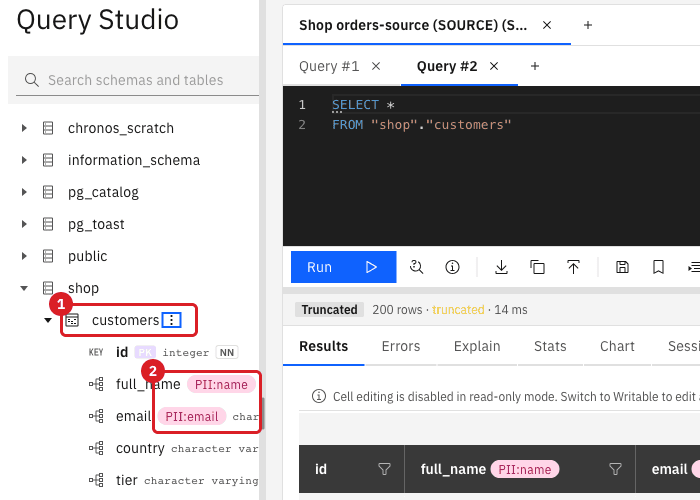
In the schema browser, expand the
shopschema; -
Select
customersto list its columns with their types, primary key, and personal data tags; -
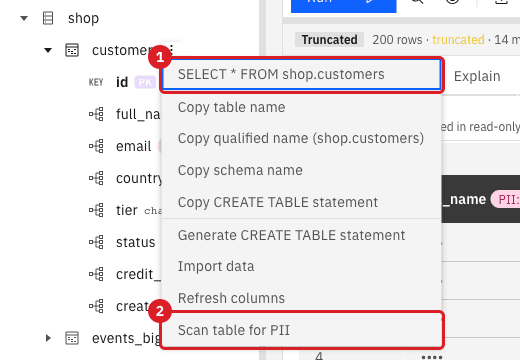
Select the three-dot menu next to
customersto see the table actions.
|
The table menu also copies the table name, the qualified name, or the schema name, copies or generates a |
UI
Query Studio runs the statement in the active editor tab. Run each of the three queries that follow in turn: select all text in the editor, paste the statement, and select Run (or press Ctrl+Enter, Cmd+Enter on macOS).
A filter. Which active Italian customers have the highest credit limit?
SELECT id, country, tier, status, credit_limit
FROM shop.customers
WHERE country = 'IT' AND status = 'active'
ORDER BY credit_limit DESC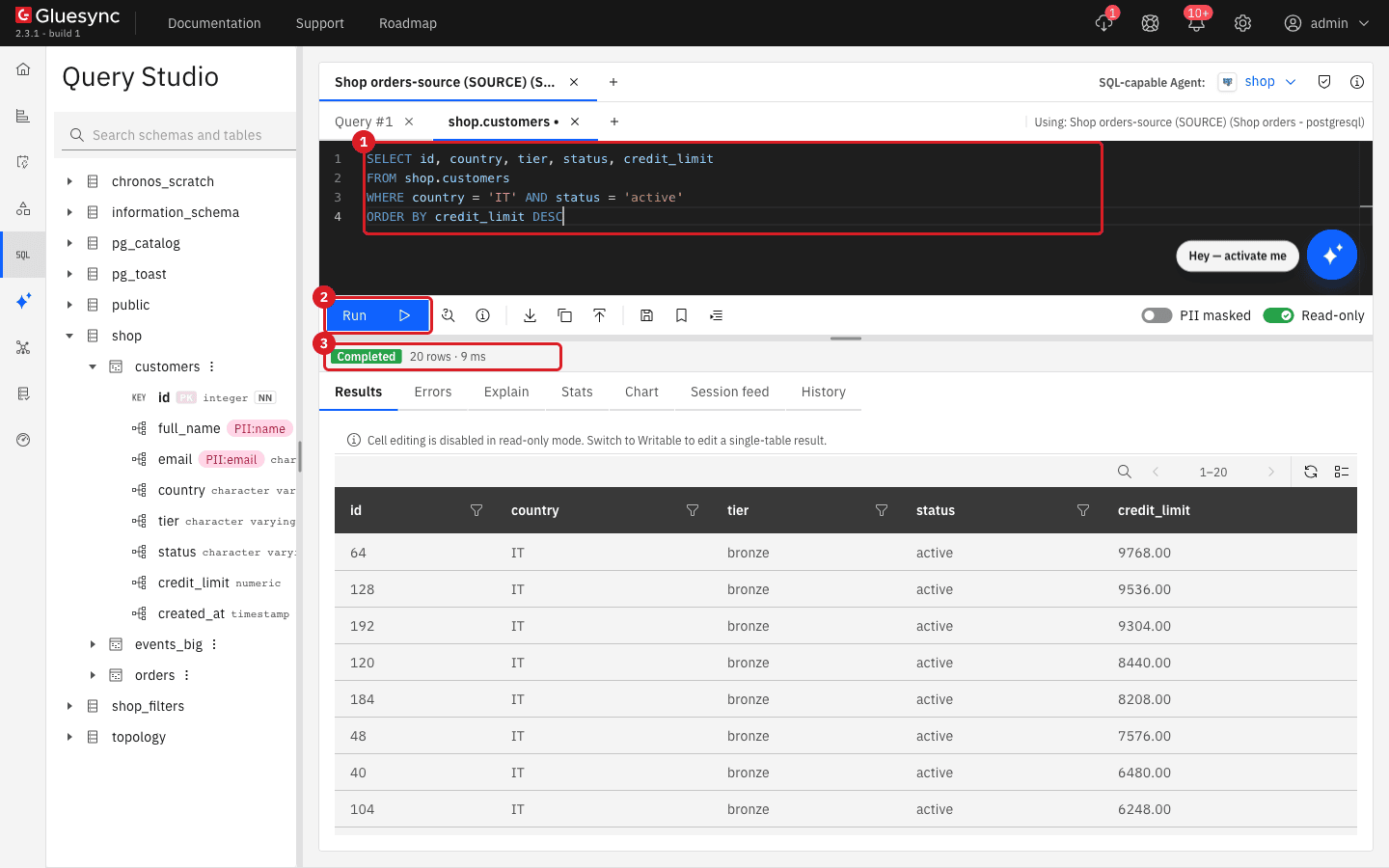
A join. Which paid orders belong to platinum customers?
SELECT c.id AS customer_id, c.country, o.id AS order_id, o.amount, o.currency, o.status
FROM shop.customers c
JOIN shop.orders o ON o.customer_id = c.id
WHERE c.tier = 'platinum' AND o.status = 'paid'
ORDER BY o.amount DESC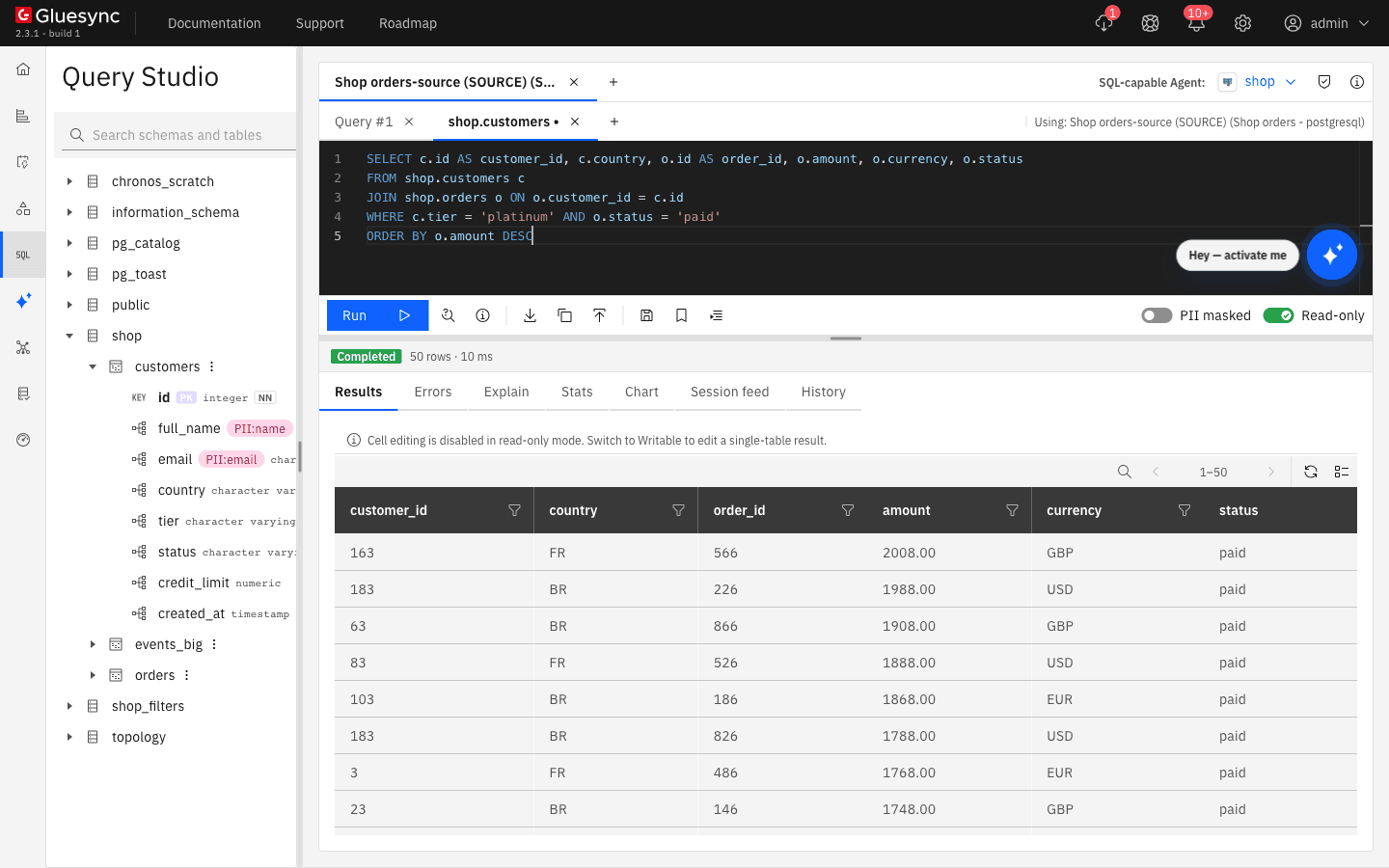
An aggregate. How much revenue does each country and currency bring in, excluding cancelled orders?
SELECT c.country, o.currency, COUNT(*) AS orders, SUM(o.amount) AS revenue
FROM shop.orders o
JOIN shop.customers c ON c.id = o.customer_id
WHERE o.status <> 'cancelled'
GROUP BY c.country, o.currency
ORDER BY revenue DESC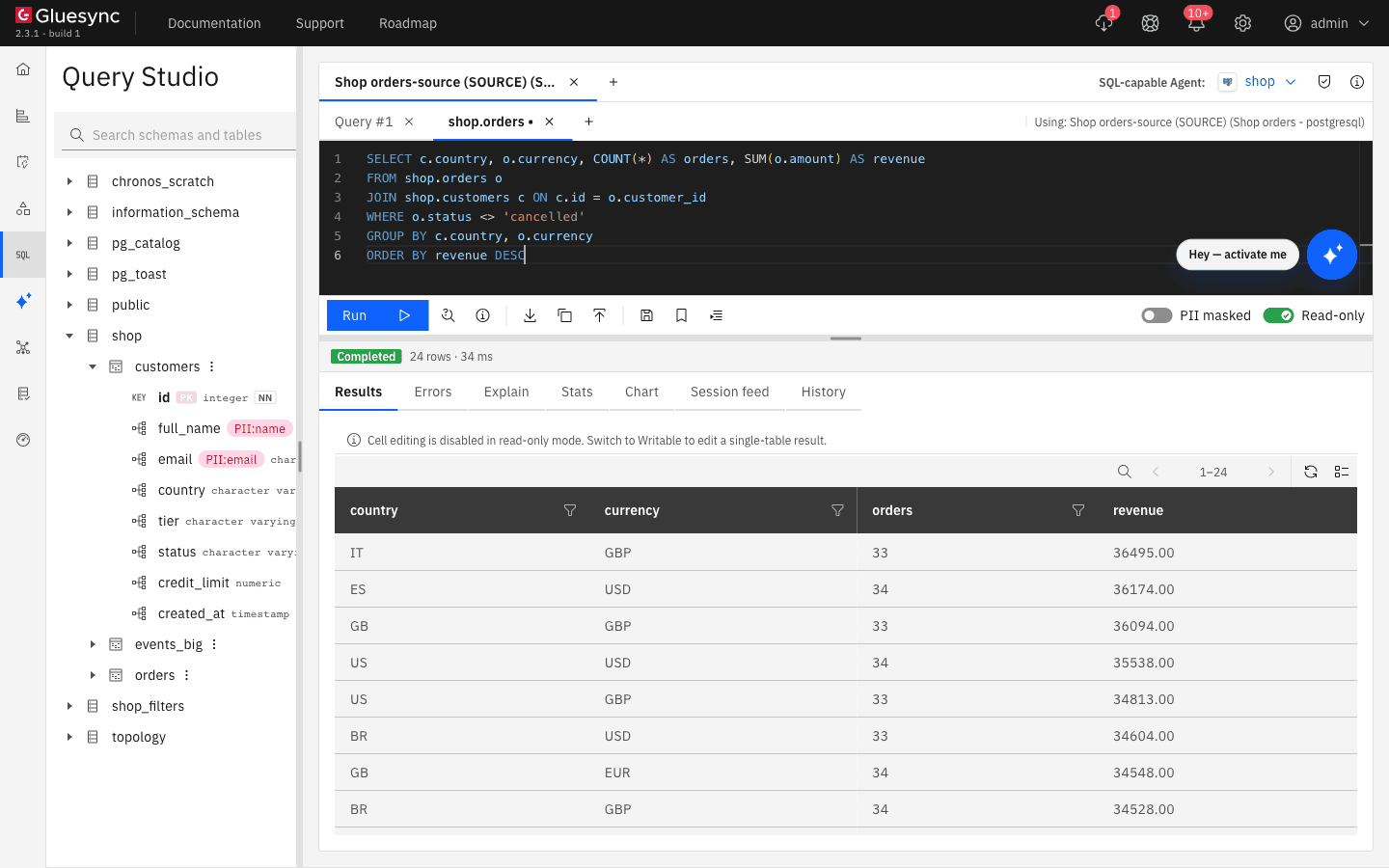
|
Read-only is on by default, so Query Studio refuses statements that change data. Format SQL in the toolbar rewrites the statement with one clause on each line and upper-case keywords. Explain shows the execution plan of the statement. |
UI
-
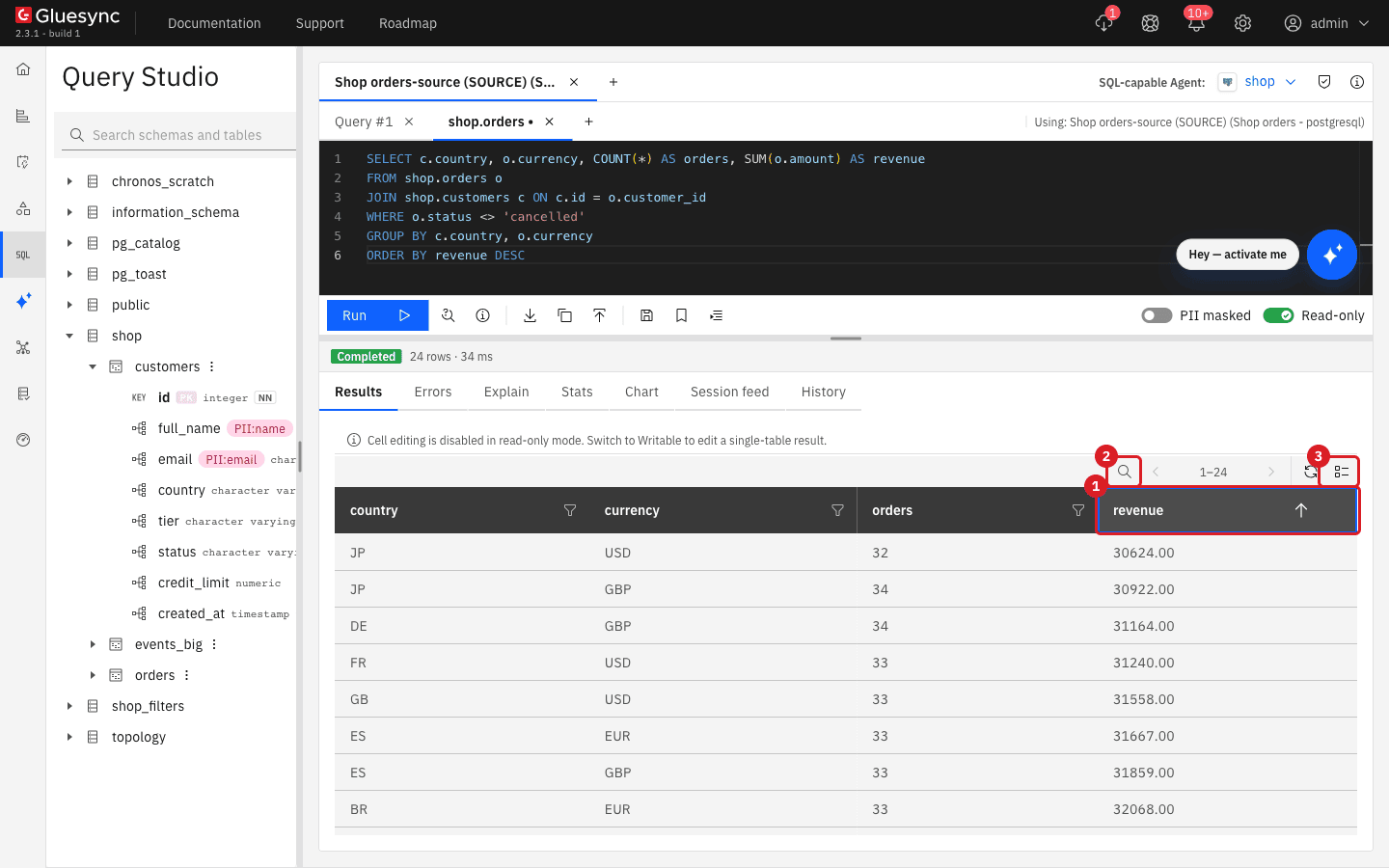
Select a column header, for example revenue, to sort the result by that column; select it again to reverse the order;
-
Select the magnifier icon above the grid and type a word, for example
GBP, to keep only the rows that contain it, or select the funnel in a column header to tick the values of that column to keep; -
Select the record icon at the right of the grid toolbar to read one row as a list of fields;
-
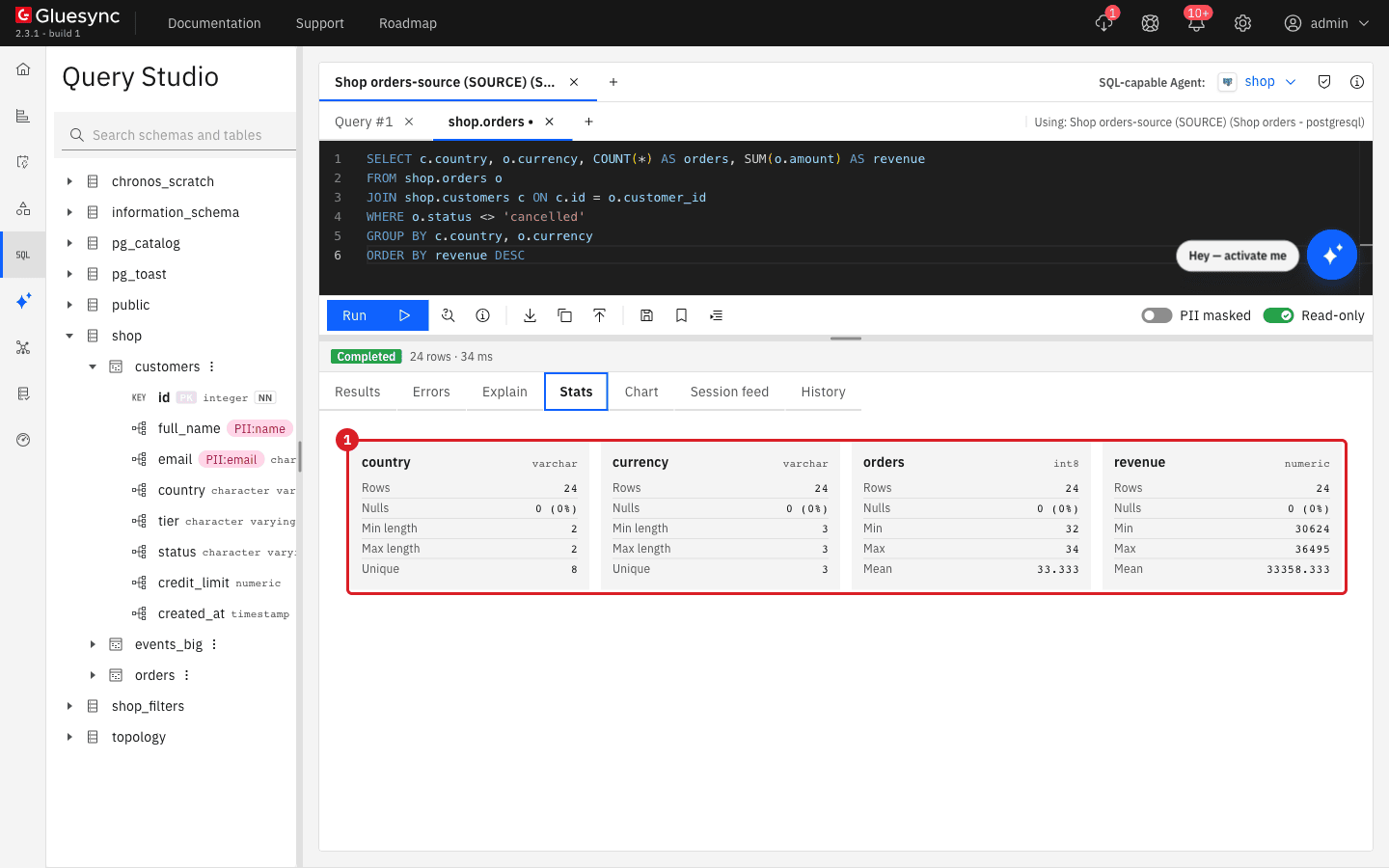
Select the Stats tab to see the minimum, maximum, and mean of numbers and the length and unique count of text for each column.
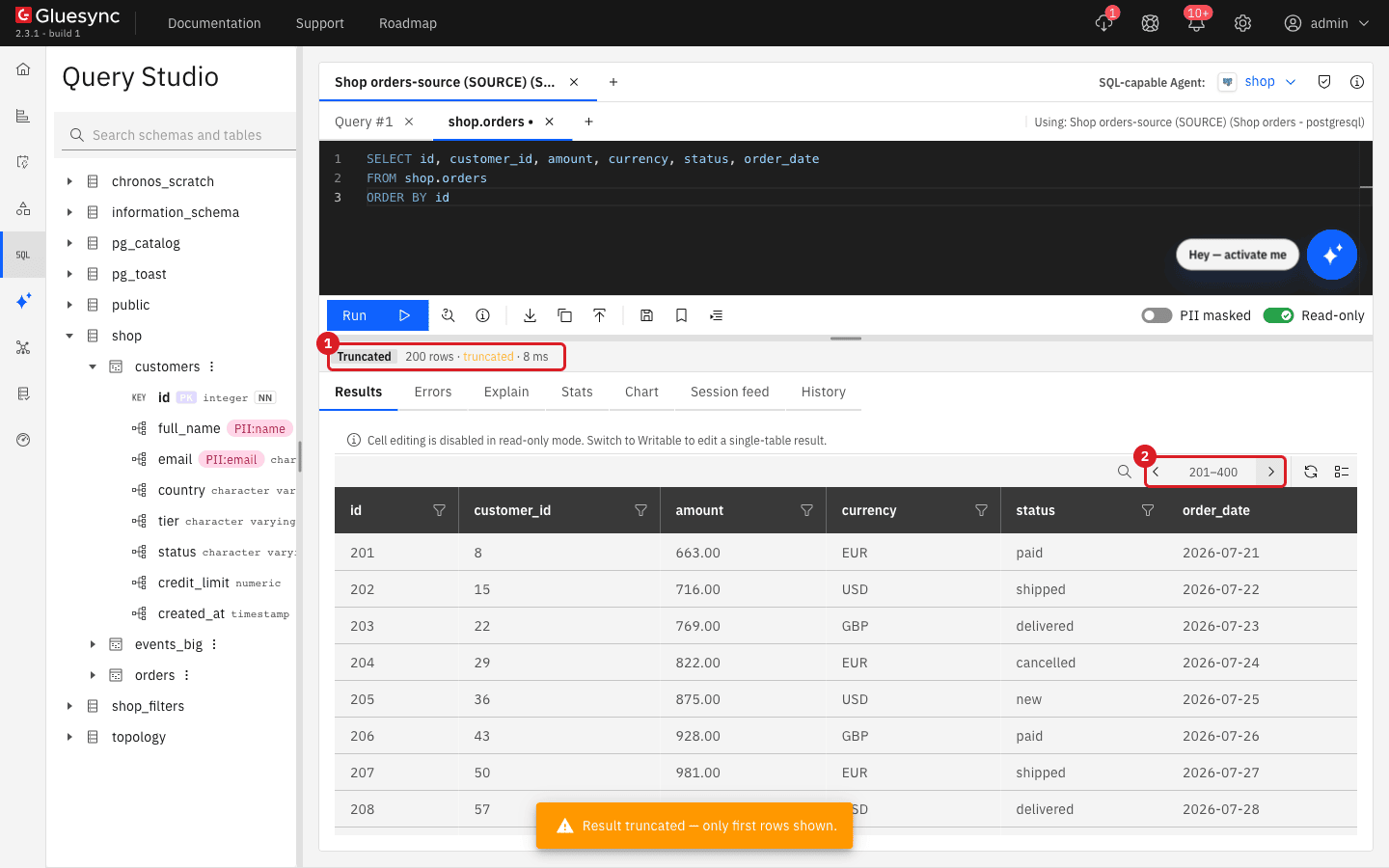
Large results arrive in batches. Run SELECT id, customer_id, amount, currency, status, order_date FROM shop.orders ORDER BY id: Query Studio shows the first 200 of the 1,000 rows and marks the result Truncated. Use the arrows in the grid toolbar to fetch the next rows.
UI
-
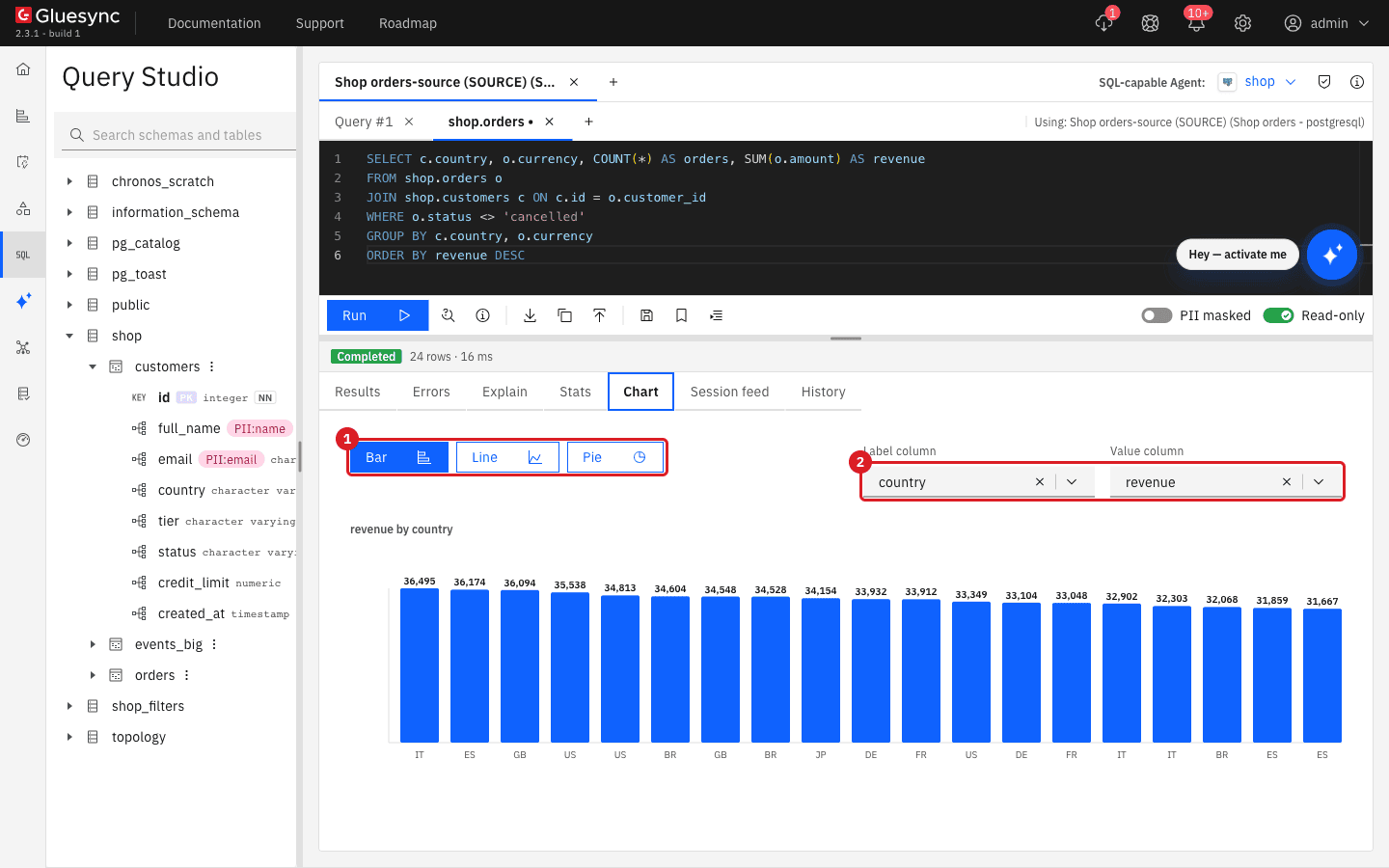
Run the aggregate query again;
-
Select the Chart tab;
-
Select Bar, Line, or Pie;
-
Pick the Label column and the Value column, for example
countryandrevenue.
|
The Chart tab charts one result for yourself. For prompt-driven charts and dashboards built from your connected data, see Visualize. |
UI
-
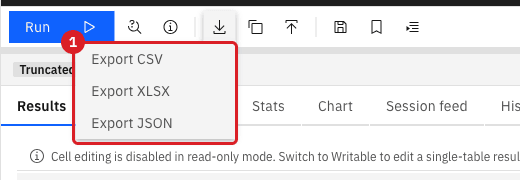
Select Export in the toolbar and choose Export CSV, Export XLSX, or Export JSON to download the result;
-
Or select Copy result and choose Copy as CSV, Copy as JSON, Copy as Markdown, Copy as HTML, Copy as XML, or Copy as INSERT… to put it on the clipboard.
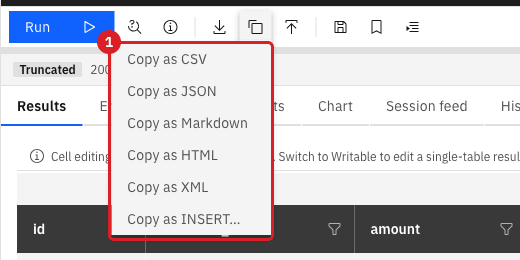
|
Exports and copies carry the masked values, not the originals. When you export the customer list with PII masked on, the file contains only the unclassified columns ( |
UI
-
Run the aggregate query;
-
Select Save query in the toolbar;
-
Enter Query name
Revenue per country and currency, an optional Description, and an optional Folder; -
Under Who can see this query, keep Personal (only me);
-
Select Save;
-
Select Saved queries to list your queries, and Query history to open the History tab.
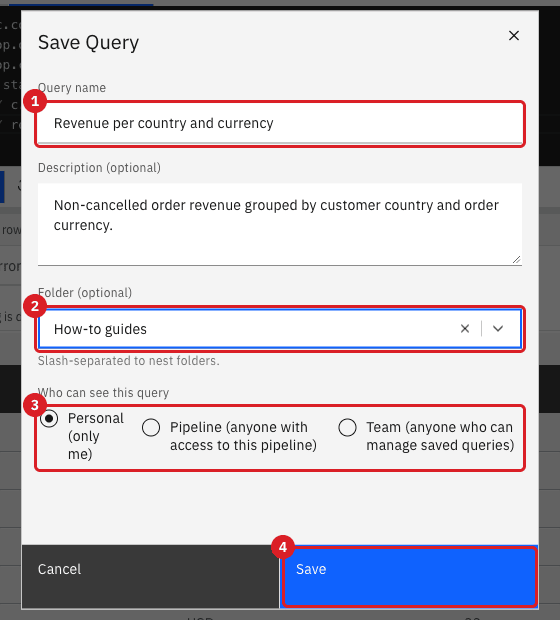
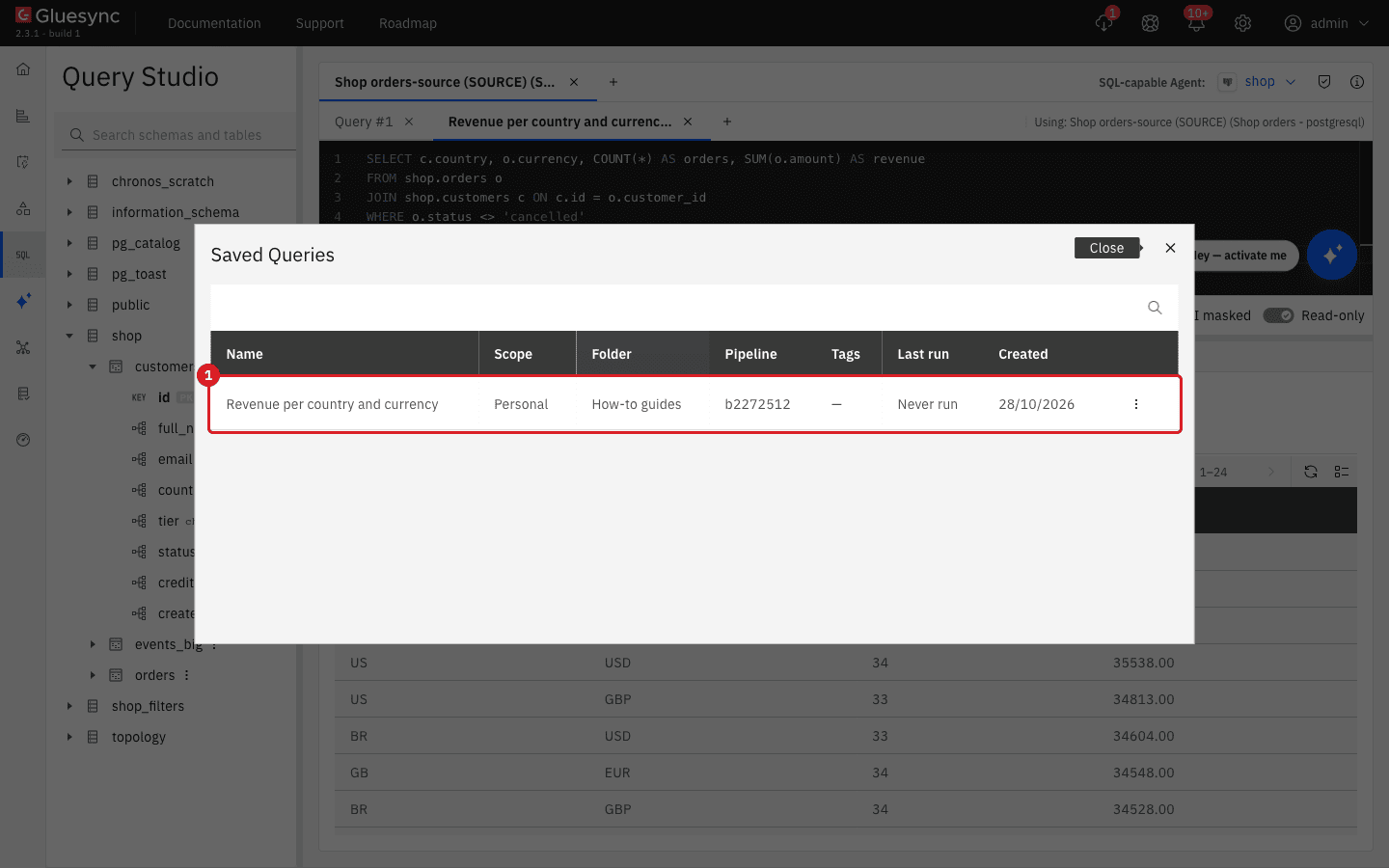
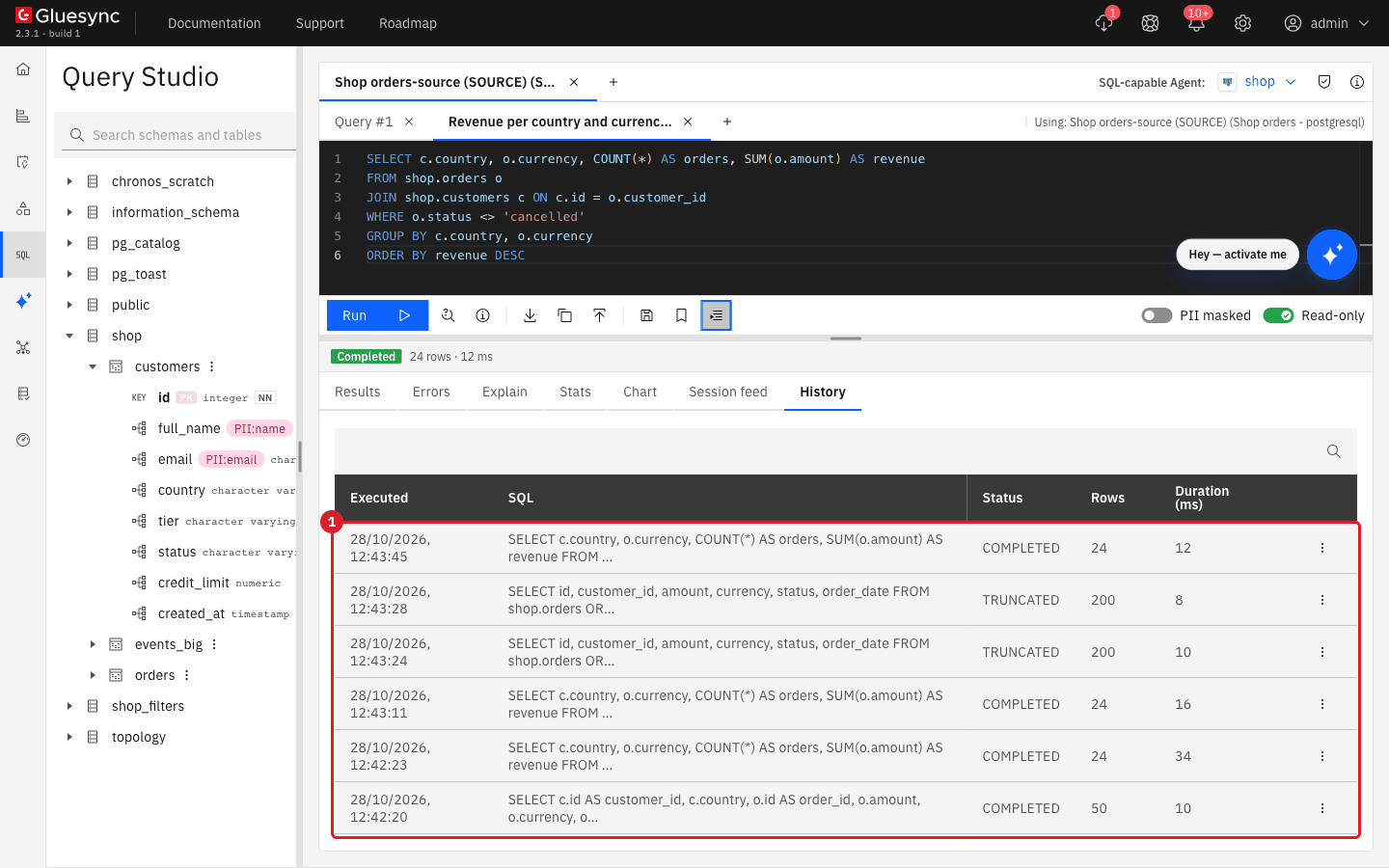
|
Next to each saved query, the three-dot menu offers Edit, View history, and Delete. Instead of Personal (only me), choose Pipeline (anyone with access to this pipeline) or Team (anyone who can manage saved queries) to share a query. A saved query can also run on a schedule: see Query Studio actions. |
UI
-
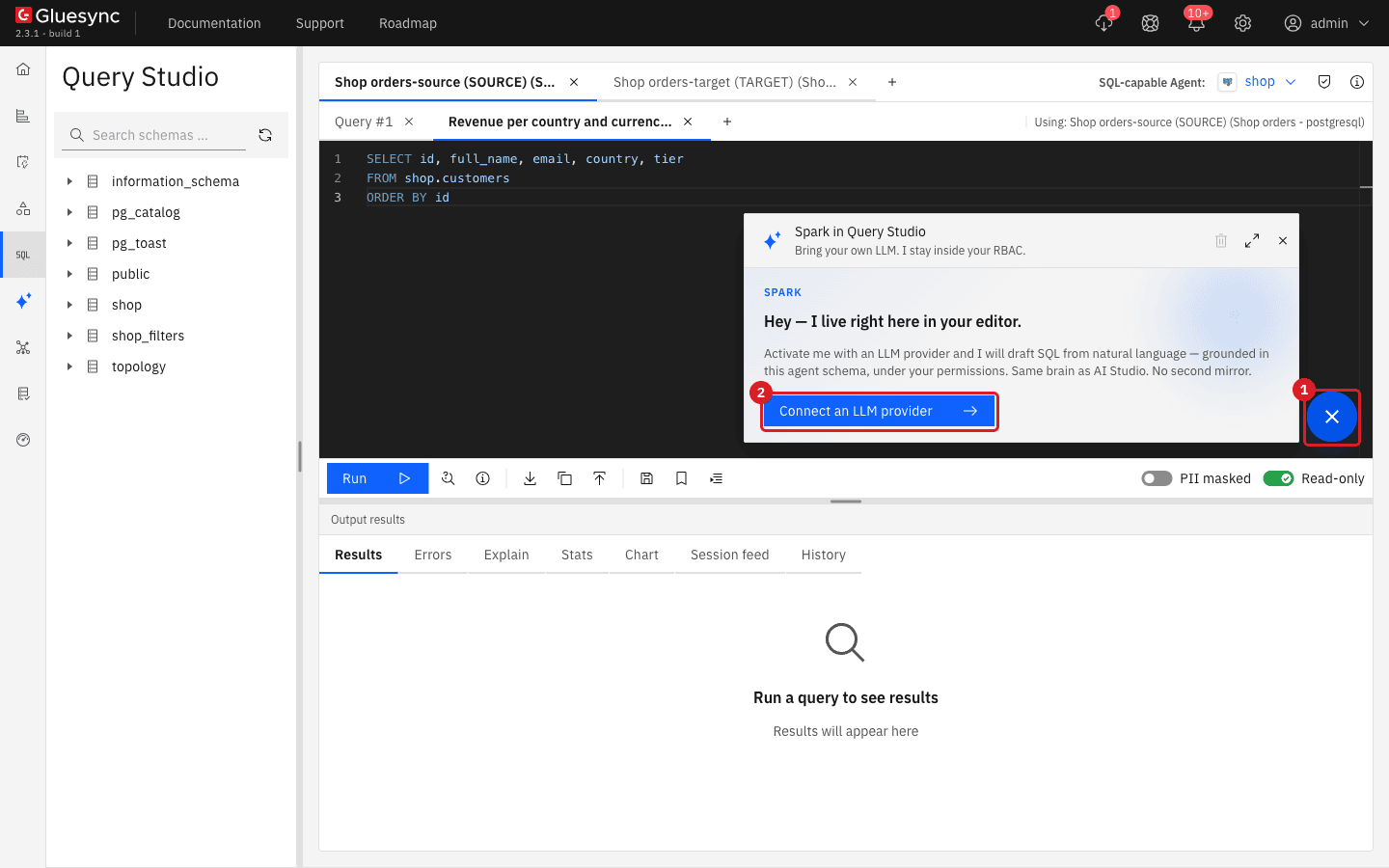
Select the round launcher at the bottom right of the editor;
-
Read the panel Spark in Query Studio.
|
This guide does not configure a model provider. To set one up and to learn what Spark can do, see AI models and LLM providers and Query Studio AI helper. |
UI
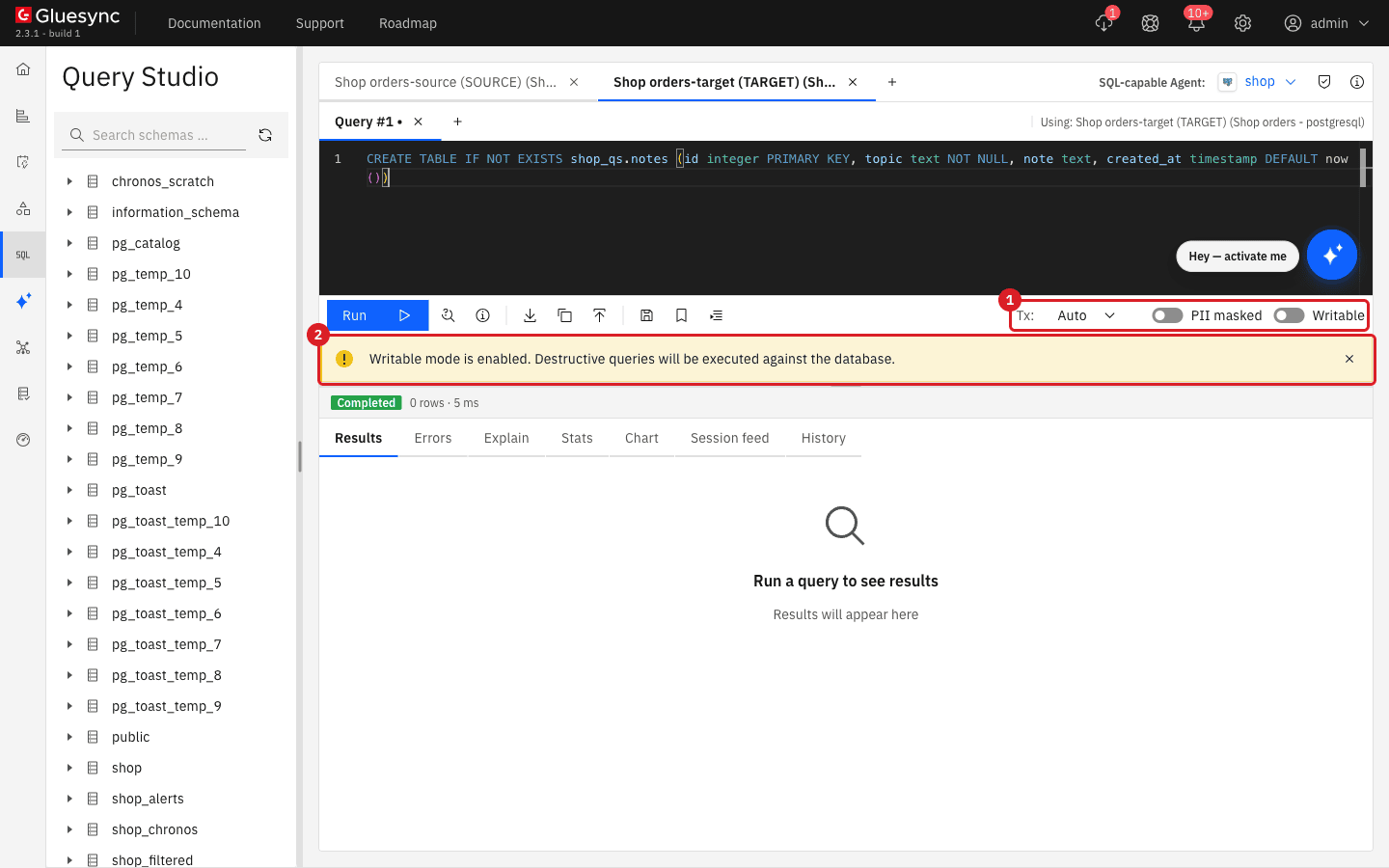
Do this on a table that you are allowed to change, never on the tables that a pipeline replicates. The example uses the table shop_qs.notes in the target database.
-
Open a new session and select Shop orders-target (TARGET);
-
Switch the Read-only toggle to Writable. A banner warns that destructive queries run against the database;
-
Optional: if you do not already have a table you can safely change, create a scratch one. Run each of these statements in turn:
CREATE SCHEMA IF NOT EXISTS shop_qsCREATE TABLE IF NOT EXISTS shop_qs.notes (id integer PRIMARY KEY, topic text NOT NULL, note text, created_at timestamp DEFAULT now())INSERT INTO shop_qs.notes (id, topic, note) VALUES (1, 'access', 'Policies are per user and per connection'), (2, 'export', 'CSV, XLSX and JSON downloads'), (3, 'history', 'Every run is recorded') -
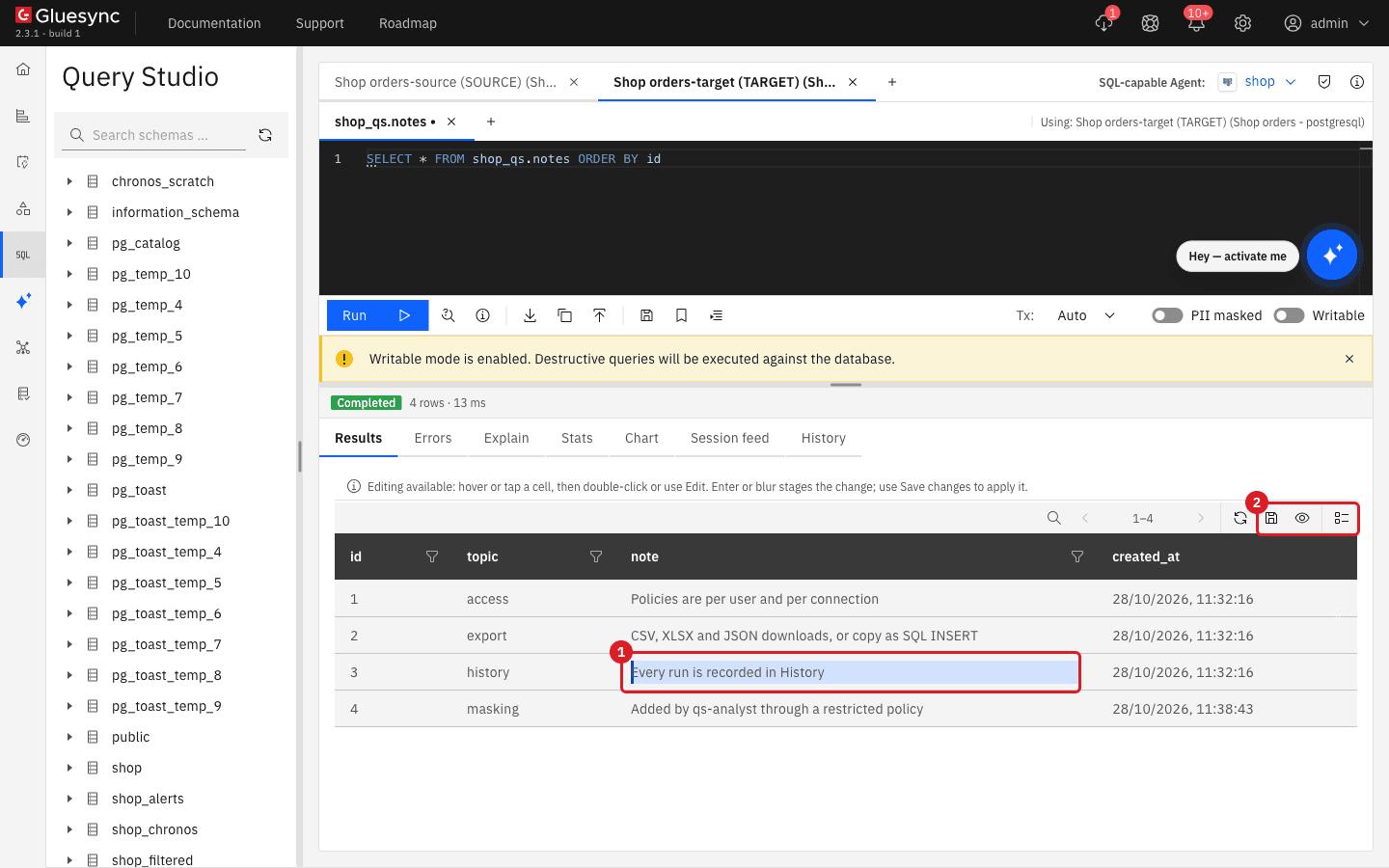
Run
SELECT * FROM shop_qs.notes ORDER BY id; -
Double-click the
notecell of row 3, typeEvery run is recorded in History, and press Enter; -
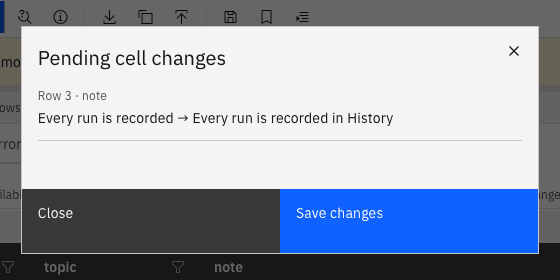
Select the eye icon in the grid toolbar to review the pending change, and then select Save changes.
|
Writable mode runs statements directly against the database. With Tx: Auto, each statement commits as soon as it runs. Switch back to Read-only when you finish. |
UI
Query Studio hides the values of columns that Core Hub classified as personal data.
-
Select the source session tab;
-
Run
SELECT id, full_name, email, country, tier FROM shop.customers ORDER BY id; -
Look at the
full_nameandemailcolumns; -
As a Super Admin, switch PII masked to PII visible and run the query again.
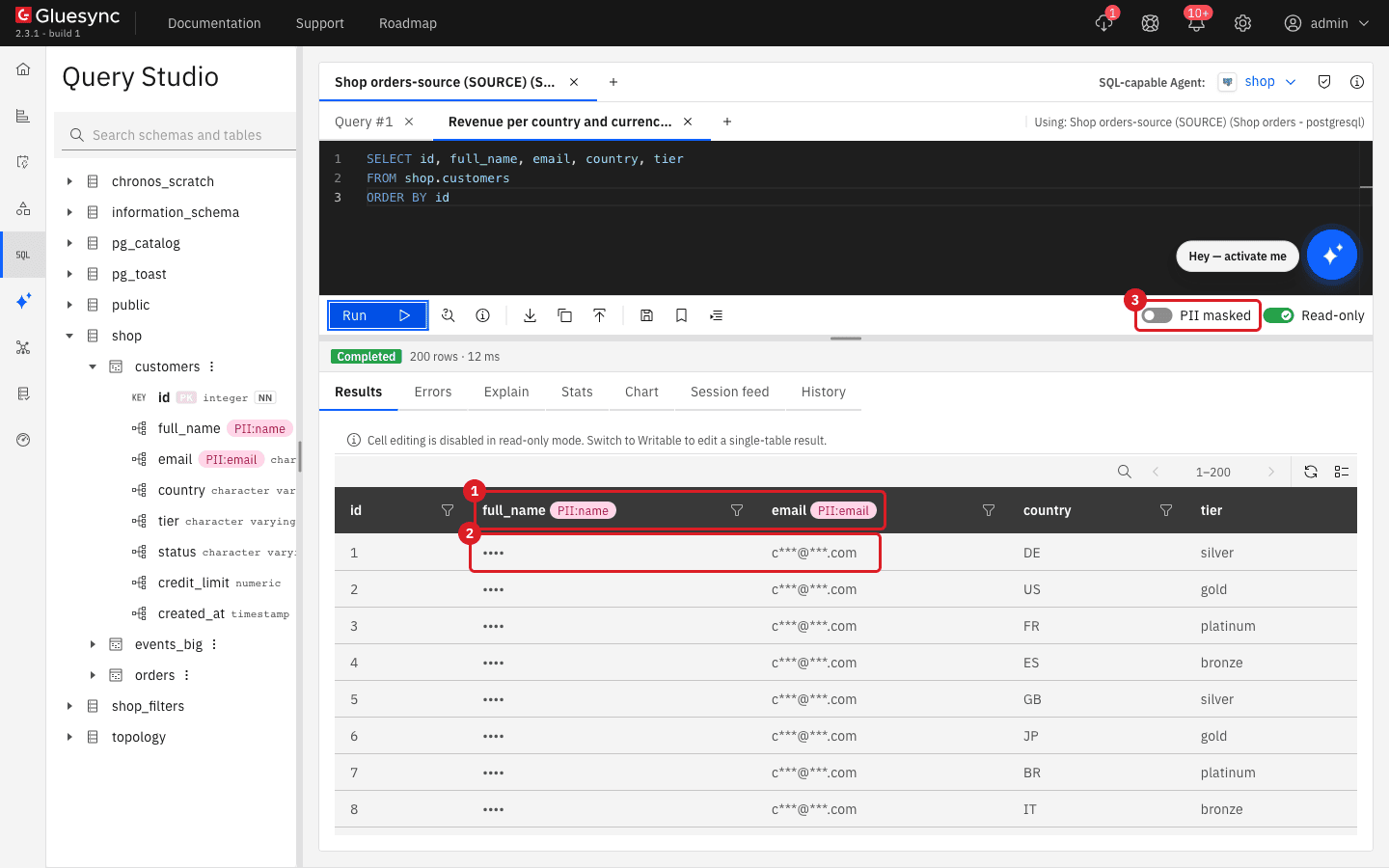
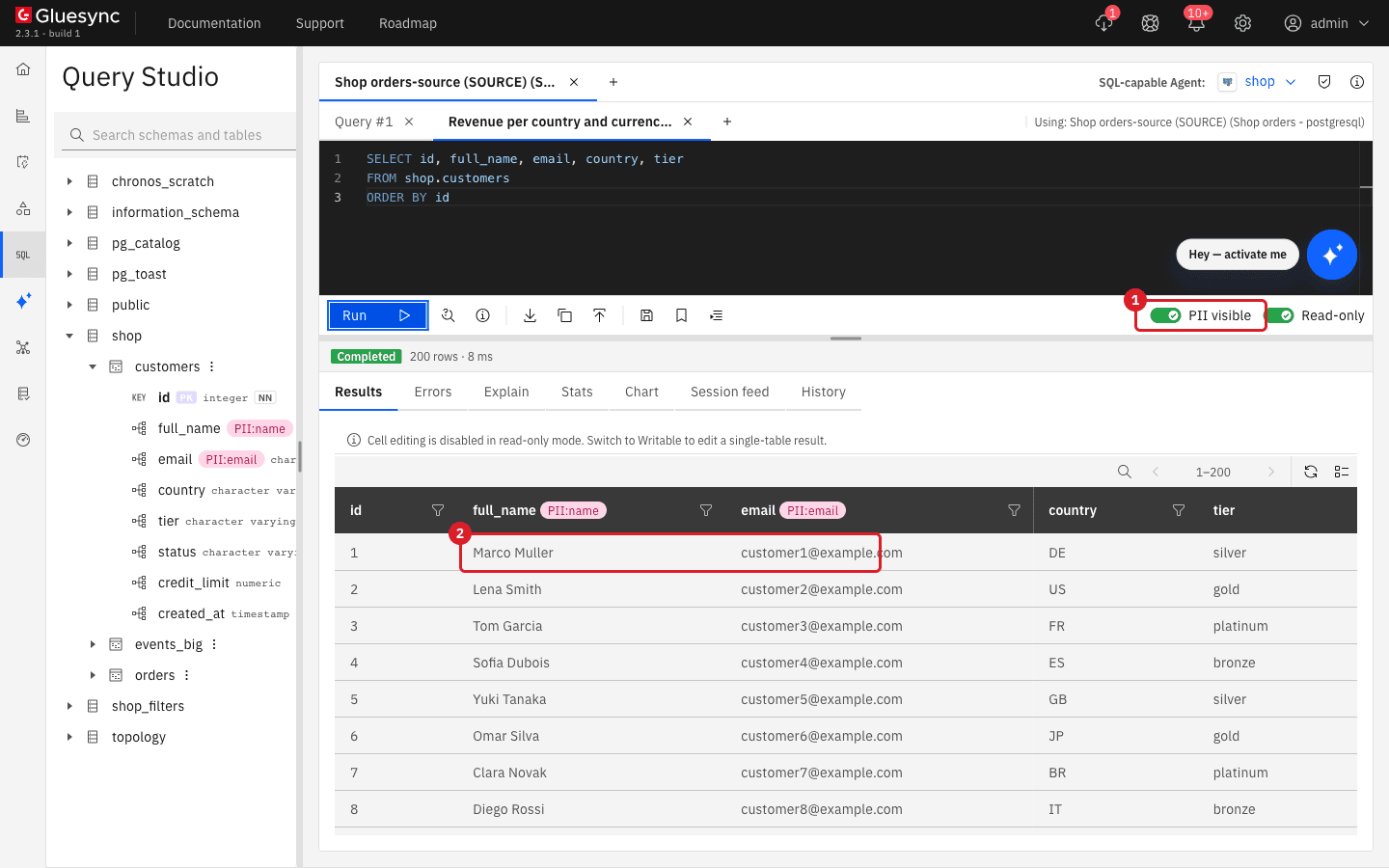
|
Masking is applied by Core Hub before the result reaches your browser. The PII visible switch is shown only to roles that may unmask data, and even then Core Hub unmasks only when the user has been granted it: see Let a Manager unmask personal data. For the full list of labels and how classification works, see PII discovery and masking. |
UI
Only a Super Admin sets who can query what. Policies are set per user and per connection.
-
In Query Studio, select the shield icon Manage query data access next to the agent list;
-
In Applies to, keep User;
-
In User, select the user to configure, for example
qs-viewer; -
In Connection, select the database connection to configure, for example
Shop orders-source.

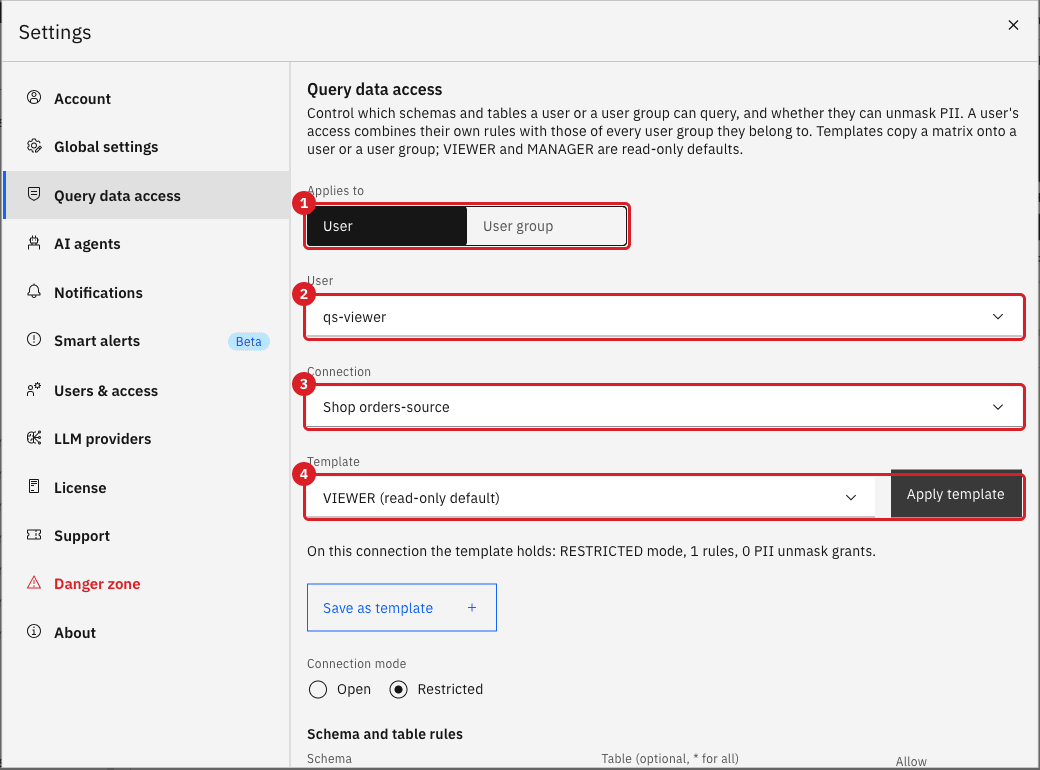
|
A Manager or a Viewer does not see the shield icon. The same screen has a User group switch to give one policy to several users at once: see Manage users, groups, and roles in Gluesync. |
UI
-
With
qs-viewerand Shop orders-source selected, set Connection mode to Restricted; -
Select Add rule, enter Schema
shopand Table (optional, * for all)orders, and switch Allow on; -
Select Save policy;
-
In the second browser, sign in as
qs-viewerand open Query Studio on Shop orders-source; -
Expand the
shopschema; -
Run
SELECT id, customer_id, amount, currency, status FROM shop.orders WHERE status = 'paid' ORDER BY amount DESC; -
Run
SELECT c.country, o.currency, SUM(o.amount) AS revenue FROM shop.orders o JOIN shop.customers c ON c.id = o.customer_id GROUP BY c.country, o.currency.
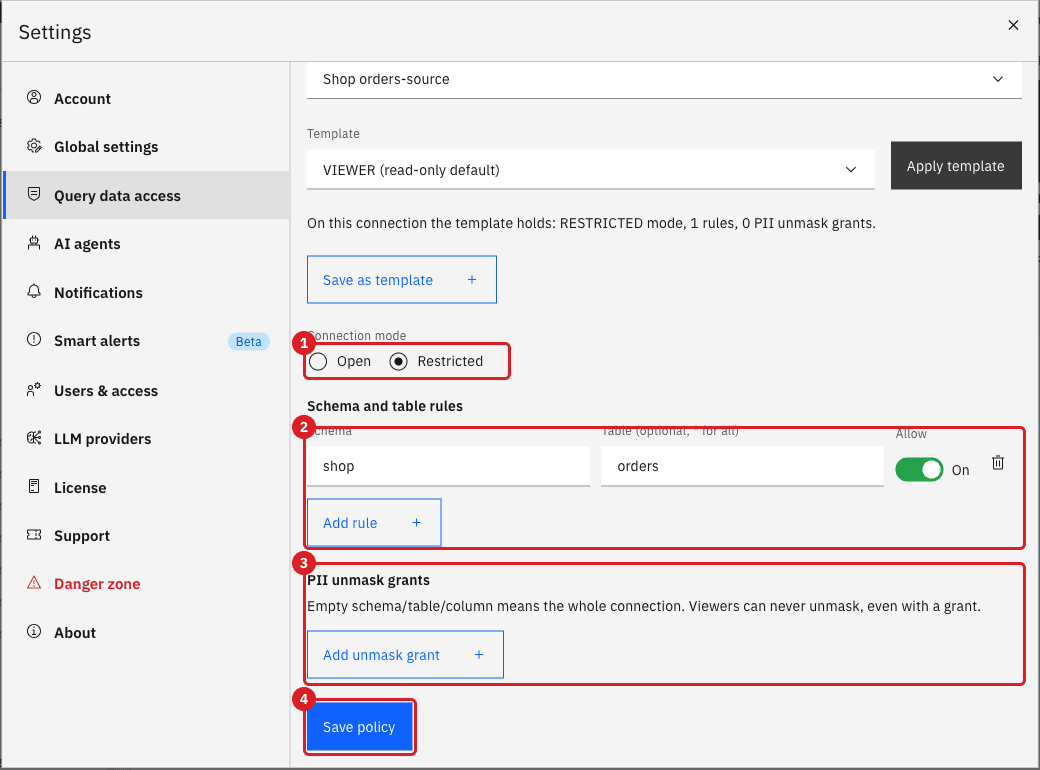
shop.orders (2), the PII unmask grants (3), and Save policy (4).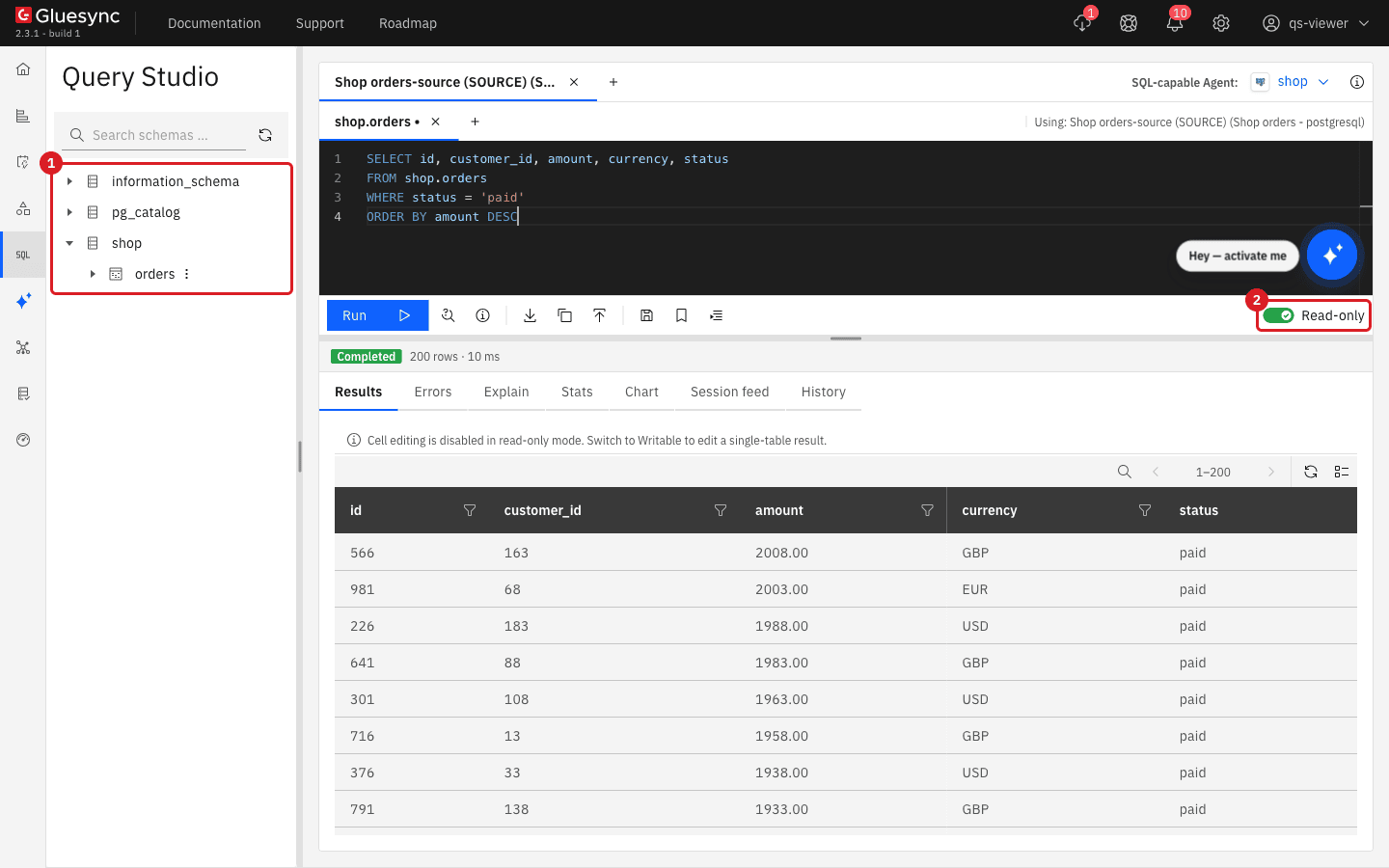
orders in the shop schema (1) and has no PII switch (2).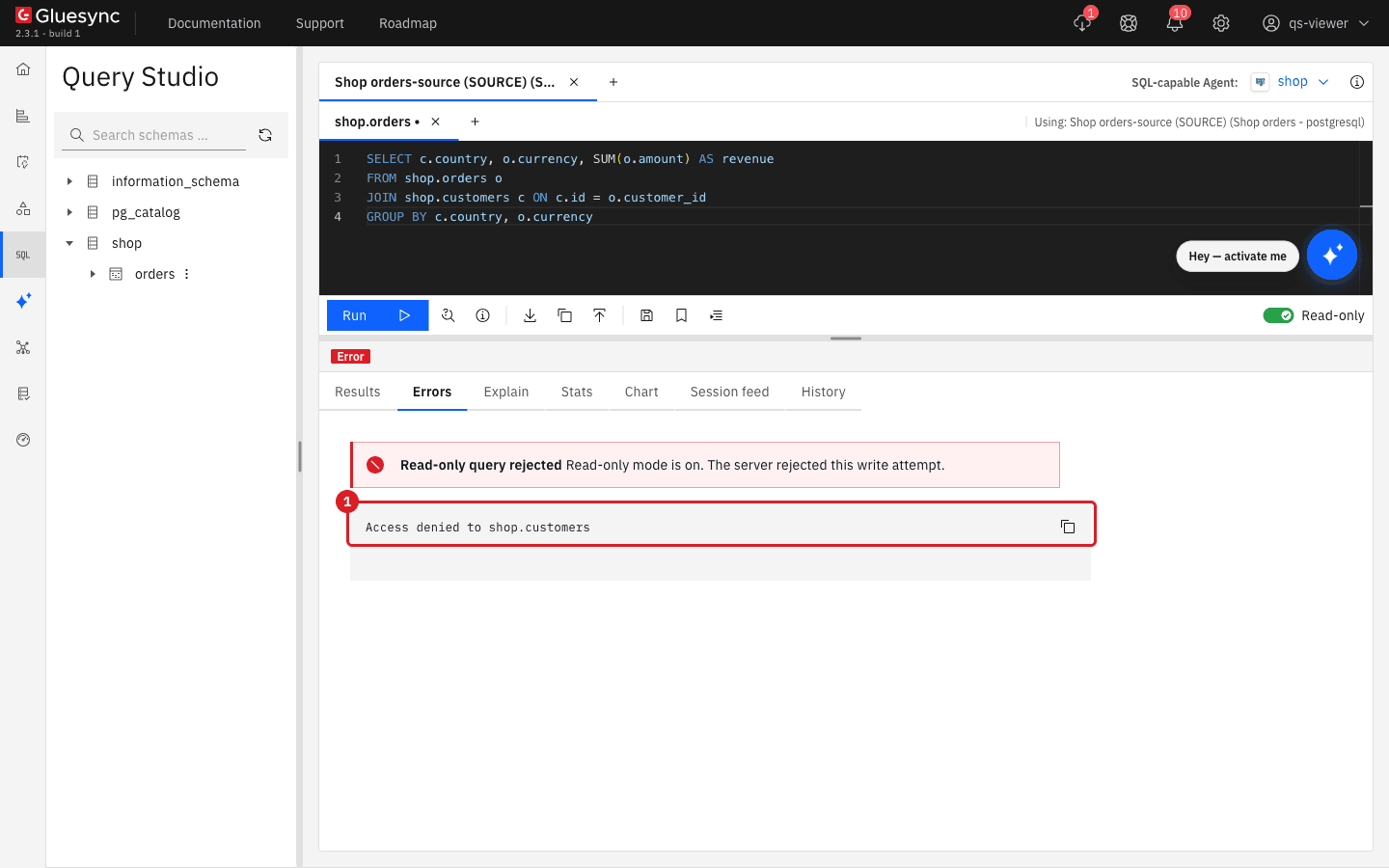
shop.customers is refused (1).|
Query Studio shows an access refusal under the heading Read-only query rejected. The line that matters is Access denied to <schema>.<table>. System schemas such as |
|
Two other patterns work with the same screen. Keep Open and add a rule with Allow switched off to deny one sensitive table (a denial always wins), or use Restricted and allow whole schemas by entering |
UI
-
As
qs-viewer, open a session on Shop orders-target (TARGET); -
Switch Read-only to Writable;
-
Run
UPDATE shop_qs.notes SET note = 'changed by qs-viewer' WHERE id = 1.
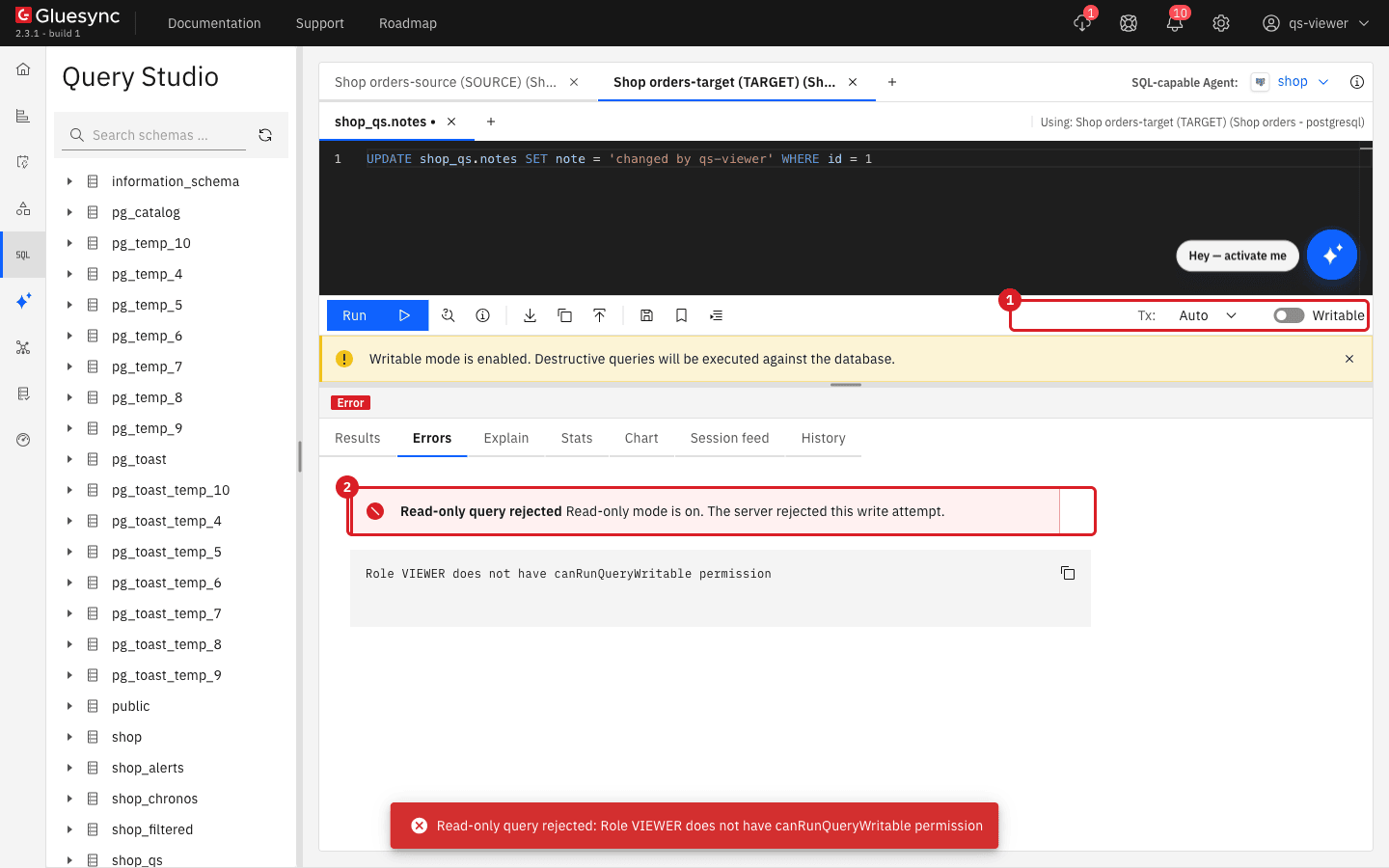
UI
A Manager can switch PII visible on, but Core Hub unmasks only the data the user has been granted.
-
As
qs-analyst(a Manager), open Query Studio on Shop orders-source; -
Switch PII masked to PII visible;
-
Run
SELECT id, full_name, email, country, tier FROM shop.customers ORDER BY id. -
As a Super Admin, open Settings → Query data access, select
qs-analystand the connection Shop orders-source, choose the template MANAGER (read-only default), and select Apply template; -
As
qs-analyst, reload Query Studio, switch PII visible on, and run the query again.
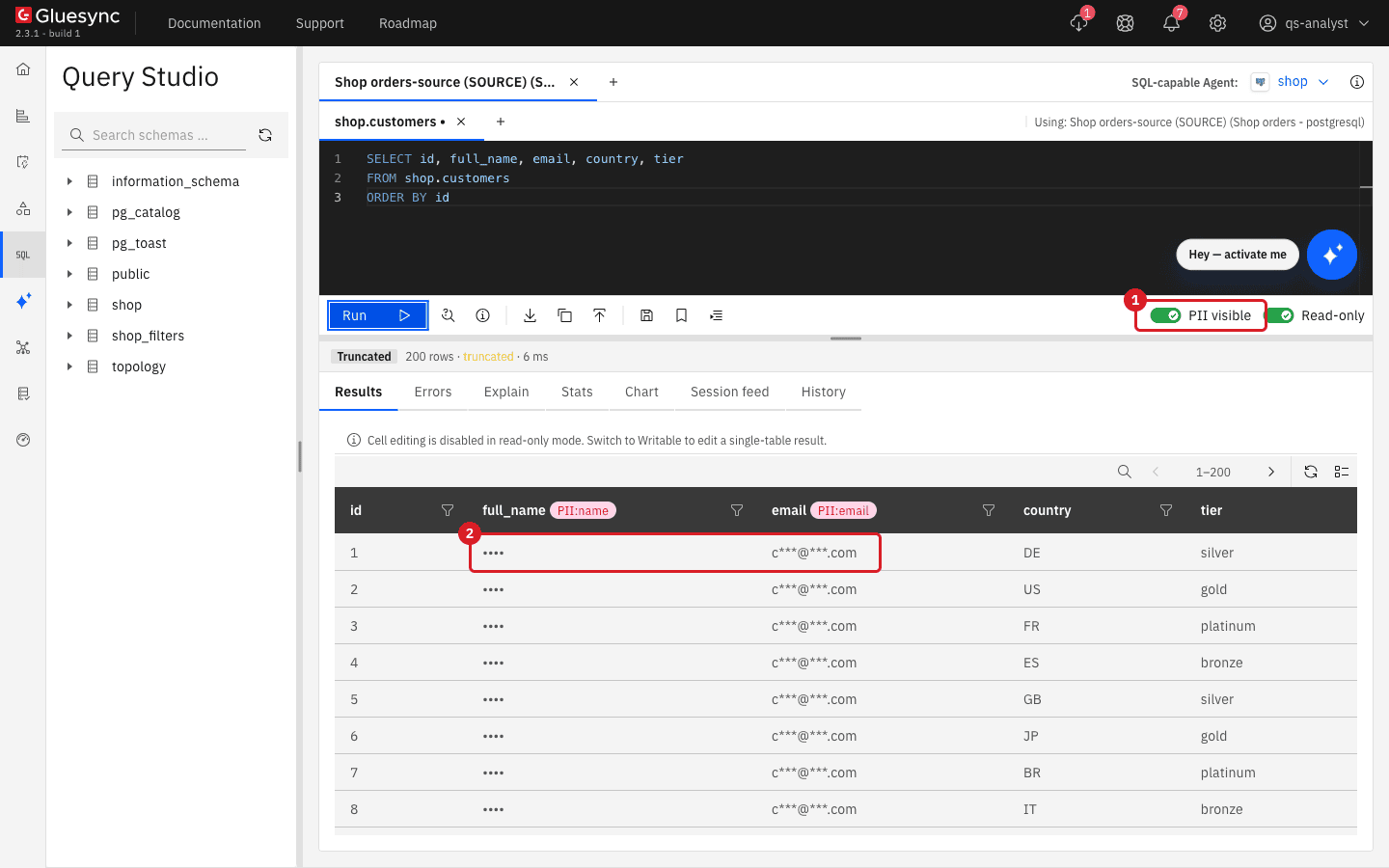
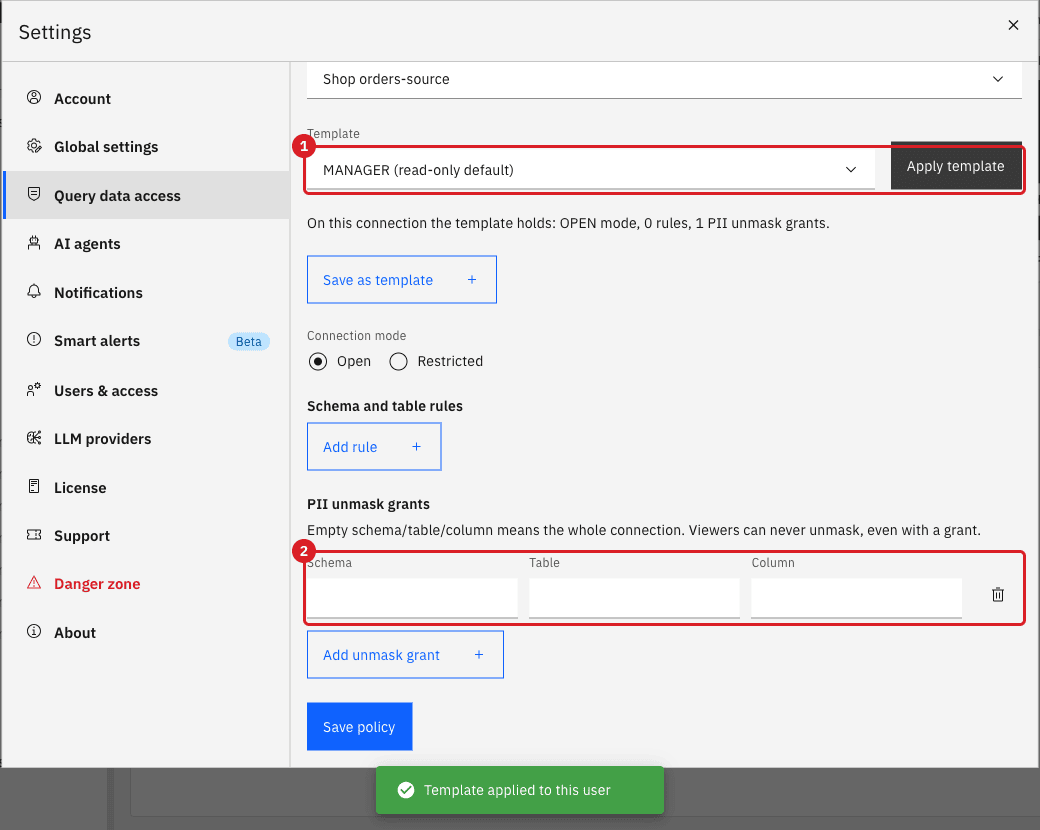
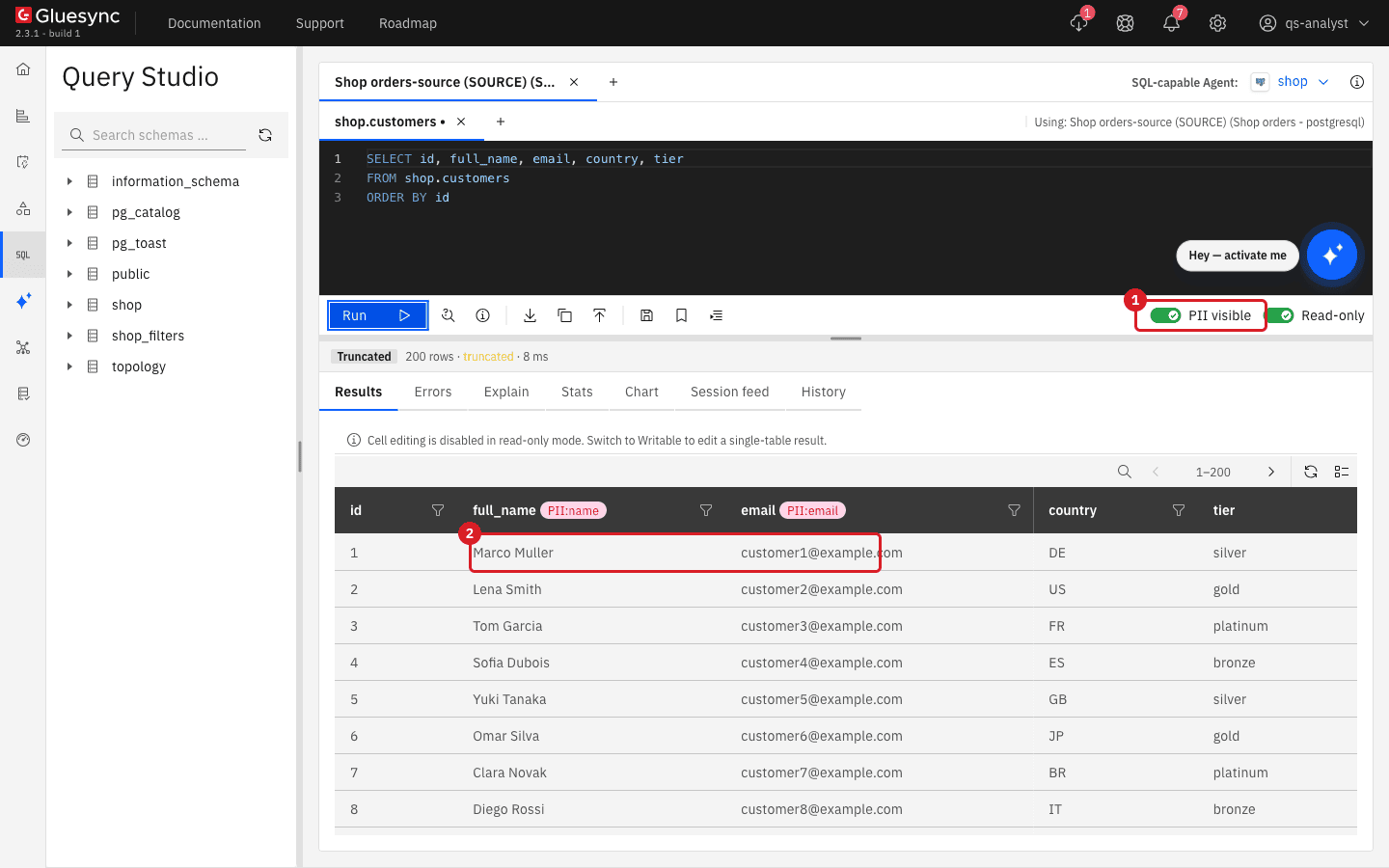
|
Apply template copies the template to every connection that has one and replaces the policies of the user on all of them. If |
UI
-
As a Super Admin, select
qs-analystand the connection Shop orders-target; -
Set Connection mode to Restricted;
-
Select Add rule, enter
shop_qsin Schema and*(all tables) in the Table field, and switch Allow on; -
If the matrix contains an empty PII unmask grants row, delete it, and select Save policy;
-
As
qs-analyst, open a session on Shop orders-target (TARGET); -
Run
SELECT * FROM shop_qs.notes ORDER BY id; -
Run
SELECT * FROM shop.customers LIMIT 5.
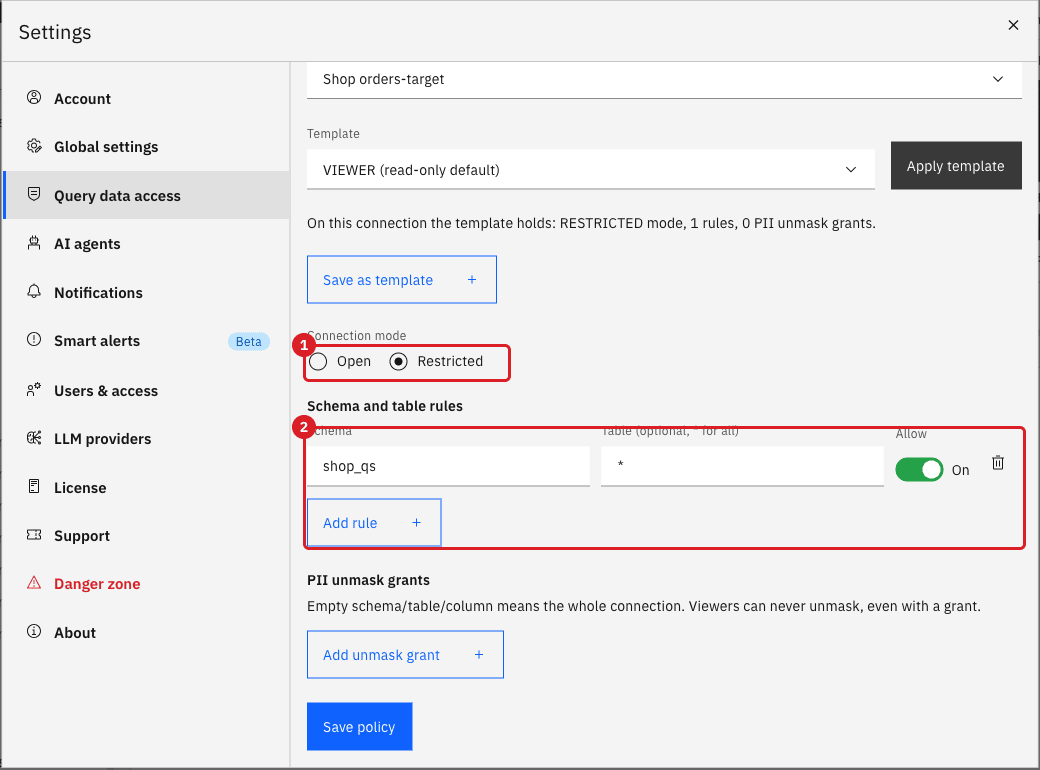
shop_qs (2).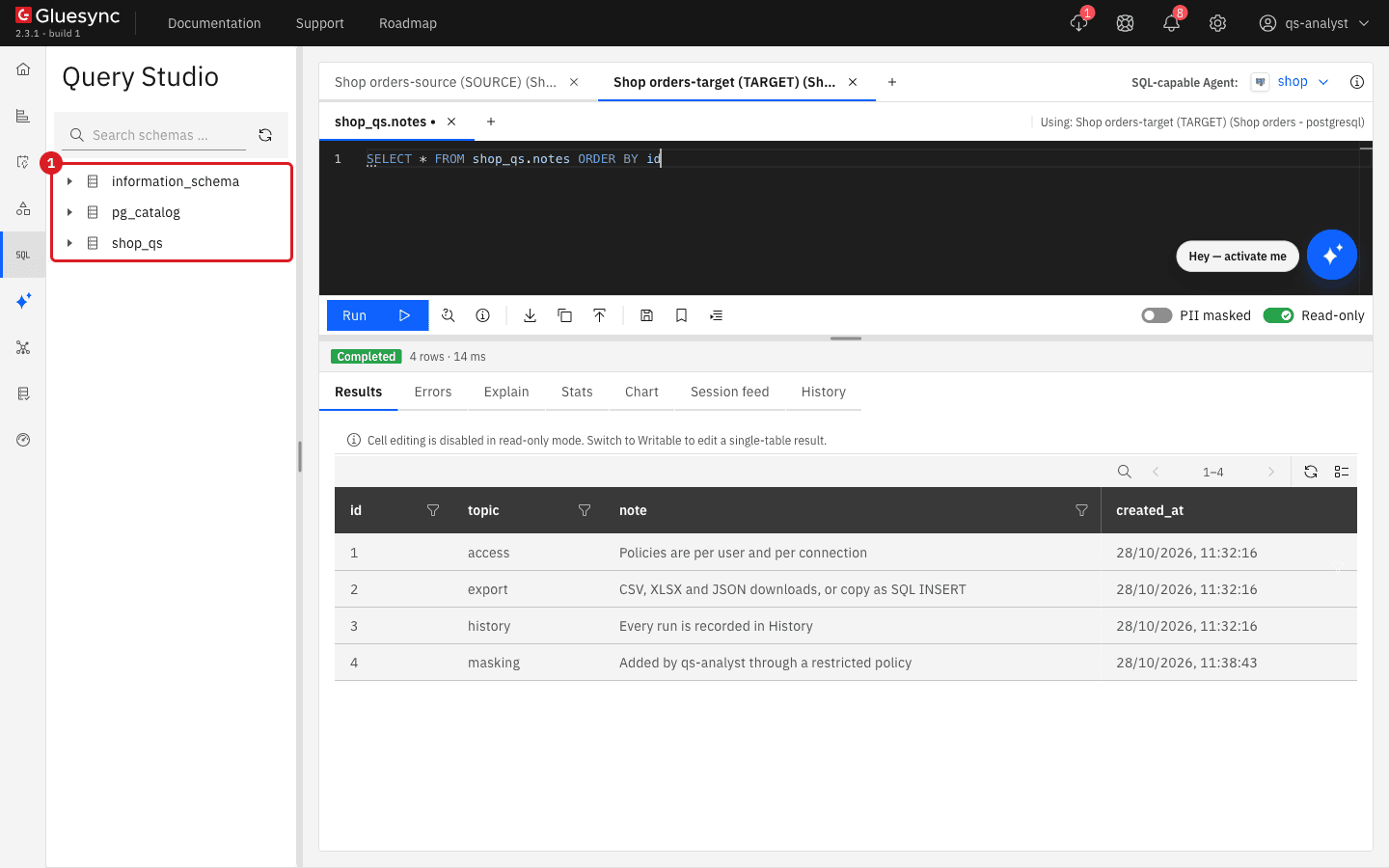
shop_qs (1) and can read the scratch table.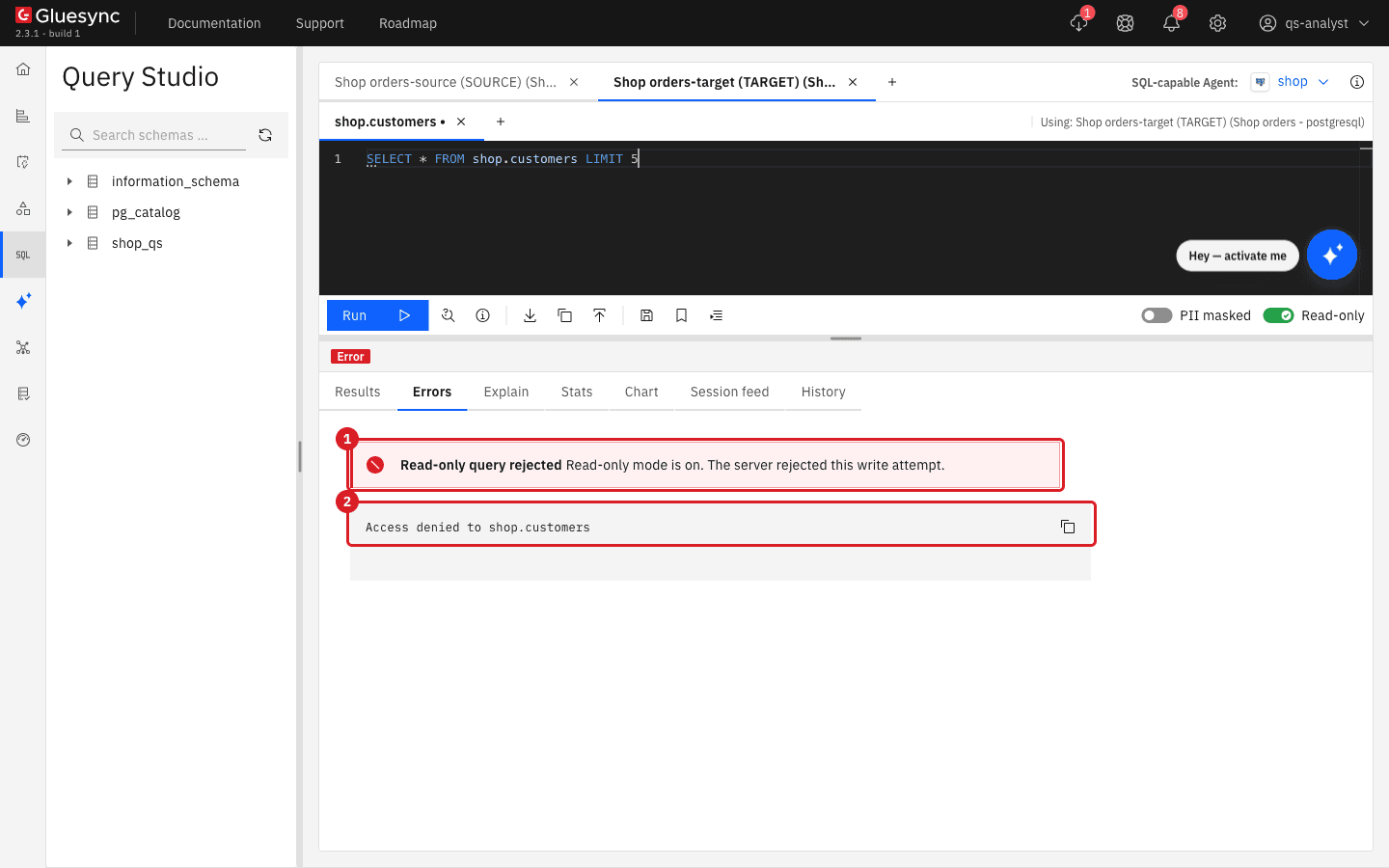
Who can do what in Query Studio
A user’s role sets the ceiling. A Query data access policy then narrows what that role can reach on each connection.
| Capability | Super Admin | Manager | Viewer |
|---|---|---|---|
Open Query Studio and run read-only SQL |
Yes |
Yes |
Yes |
Switch to Writable and run SQL that changes data |
Yes |
Yes |
No: Role VIEWER does not have canRunQueryWritable permission |
See the PII visible switch |
Yes |
Yes |
No |
Unmask personal data |
Always |
Only with an unmask grant |
Never |
Open Query data access |
Yes |
No |
No |
Is limited by Query data access rules |
No |
Yes |
Yes |
How a policy is applied:
-
A user without a policy on a connection is not restricted there. Policies are per user and per connection.
-
Restricted allows only the schemas and tables you add with Allow on. Open allows everything except what you deny.
-
A denial always wins over an allow. A schema-wide rule has no table, or
*as the table. -
System schemas such as
information_schemaandpg_catalogstay reachable. -
The Query data access screen states that its rules and grants cover Query Studio, AI SQL, and the Spark query tools, not only the editor.
Where Query Forge fits
Query Studio queries one agent at a time. Query Forge, in the left sidebar, is the federated, read-only SQL endpoint for BI tools and external JDBC clients; it works with Personal API Tokens scoped to pipelines and agents. This guide does not set it up. See Query Forge and Personal API tokens.
Troubleshooting
| Problem | Possible cause | What to do |
|---|---|---|
A schema or table is missing from the schema browser |
A Restricted policy, or a deny rule, hides it from your user |
Ask a Super Admin to check your policy for that connection in Settings → Query data access |
Read-only query rejected with Access denied to schema.table |
The rule matched a table that your policy does not allow; the heading is shown for every refusal |
Read the second line. If it names a table, ask a Super Admin to add an Allow rule |
PII visible is on but values are masked |
Your user has no unmask grant, or your role cannot unmask |
Ask a Super Admin for an unmask grant; a Viewer can never unmask |
Role VIEWER does not have canRunQueryWritable permission |
Your role cannot run SQL that changes data |
Use a Manager or a Super Admin account for writes |
Cell editing is disabled in read-only mode |
Read-only is on, or the result comes from more than one table |
Switch to Writable and run a |
The result shows Truncated and 200 rows |
Results arrive in batches of 200 rows |
Select the next-page arrow in the grid toolbar |
A restriction on another connection disappeared after Apply template |
The template replaced all policies of the user |
Apply the template first, then set the connection-specific rules again |
Related guides
Contact MOLO17 Support if you need assistance with Query Studio or its access rules.