Find and fix row differences between source and target
The target table has more rows, fewer rows, or different values than the source. This guide shows how to count the rows on both sides, compare them with Validator, read its report, recognise the usual causes of a difference, and fix one table without touching the other entities of the pipeline.
In this guide
You will learn how to count rows with Count both and with SQL, run Validator on an entity, read the counters and the row grid, decide which of eight common causes explains the difference, repair the rows with Reconcile, resync a single table with a one-time snapshot that uses Empty the table first, and confirm the result with a second Validator run.
Quick information
Goal |
Find out why a target table does not match its source, fix it, and prove that it matches |
Audience |
Gluesync users who run pipelines and have to answer "is my target complete and correct?" |
Level |
Intermediate |
Time required |
About 45 minutes |
Area |
Control Plane → Data pipelines → entity → Inspect tables, and Control Plane → Validator |
Applies to |
Gluesync 2.3 |
Before you begin
Make sure that:
-
You can sign in to the Gluesync Control Plane with a role that can start replication and reconcile data (see the note below);
-
You have a pipeline with a source agent, a target agent and one entity for each table (this guide uses a pipeline named Validate demo with the entities
customers,ordersandaudit_log); -
The target tables already exist and the entities have copied their data at least once;
-
You can run SQL against the source and the target database, for example with Query Studio.
|
Your role decides what you can do in Validator. A Viewer cannot open the row details, and only Managers and Super Admins can reconcile. If Reconcile is missing or refused, ask an administrator to run it. |
The examples use the Gluesync sample shop data, copied into a schema that is used only for this exercise (shop_validate on both databases), so that you can delete, edit and break rows freely. Every example in this guide was run on this copy.
| Table | Content |
|---|---|
|
Primary key |
|
Primary key |
|
No primary key. Columns |
|
Optional: create the practice copy
Skip this if you already have tables you can experiment on. To build the same copy, run the DDL below on both databases, then fill the source with the statements that follow. The Then create the pipeline, add one entity for each table (for |
|
Do not try the repair steps for the first time on production tables. Reconcile writes to the target, and Empty the table first deletes every row of the target table before the copy. |
Guide steps
UI
-
Open Data pipelines and select your pipeline;
-
In the row of the entity, select Open entity detail (the arrow at the end of the row);
-
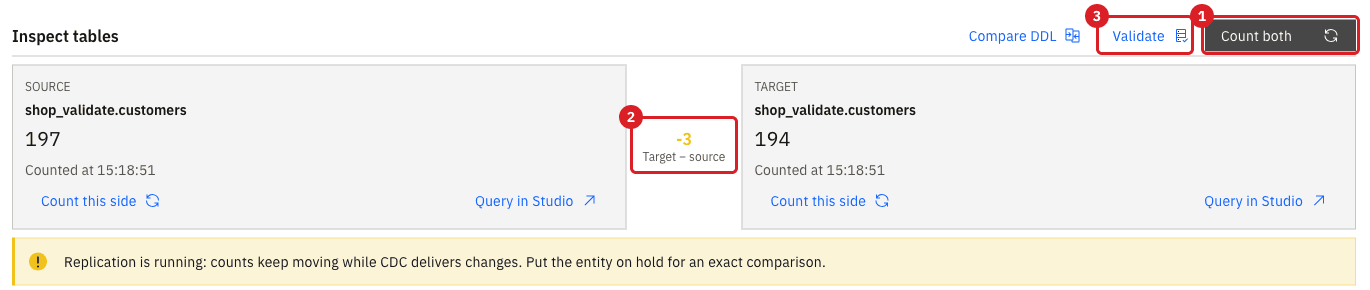
Find the Inspect tables section and select Count both.
|
While the entity is running, the page warns that counts keep moving while CDC delivers changes. For an exact comparison, pause the entity first (see Start, pause and restart an entity), count, and start it again afterwards. Count this side counts one database only, and Query in Studio opens a session on that side with a |
To count with SQL instead, run the same statement on the source database and on the target database, with the schema and table names of your entity:
SELECT count(*) FROM shop_validate.customers;A count is only a first signal. Two tables with the same number of rows can still differ. After a row of customers was edited by hand on the target, both sides still counted 190 rows, and audit_log counted 52 rows on both sides while four of those rows shared a key (see 6. Duplicate keys in a table without a primary key). For a key that is meant to be unique, count the copies of every key in the source:
SELECT event_id, count(*) AS copies
FROM shop_validate.audit_log
GROUP BY event_id
HAVING count(*) > 1;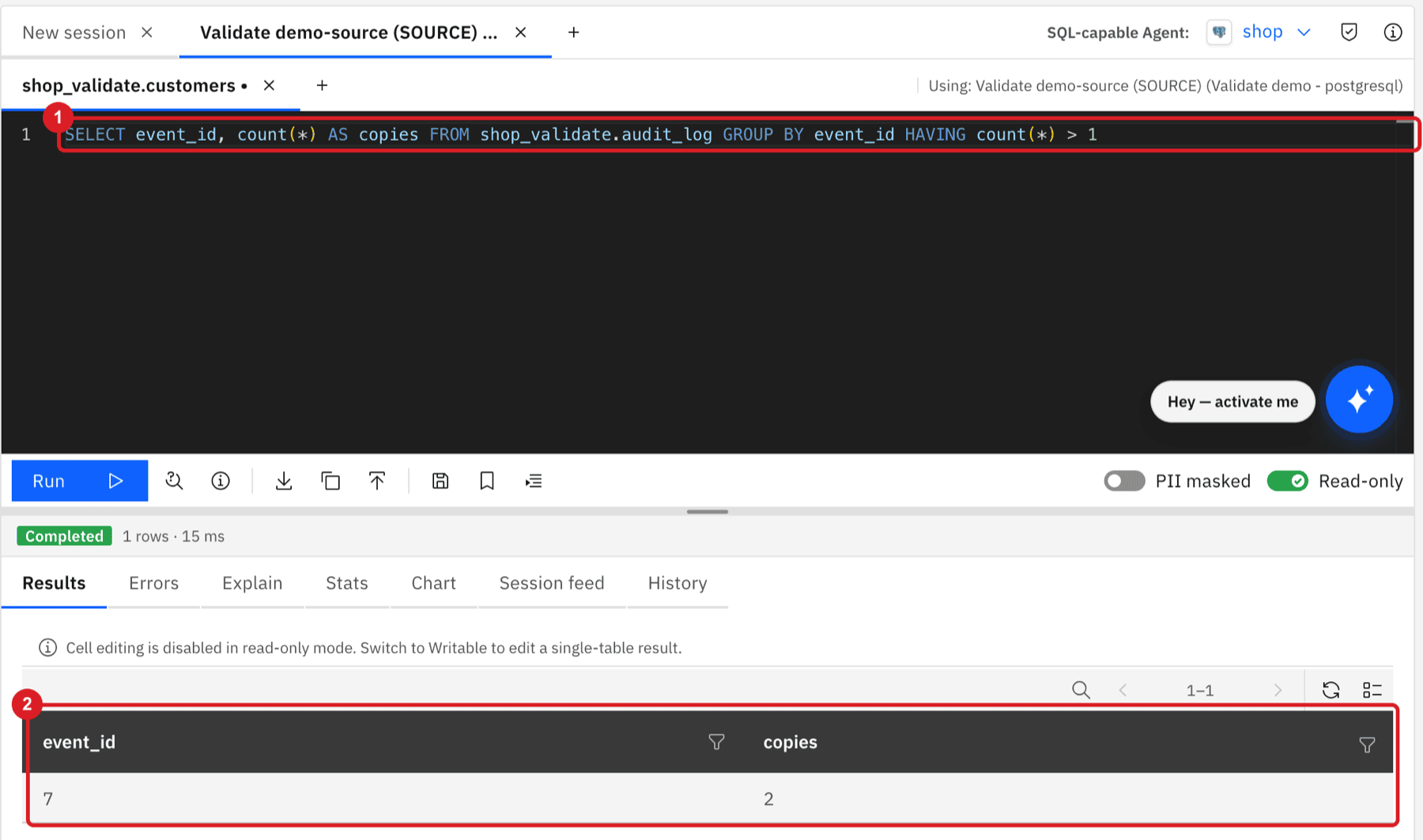
UI
-
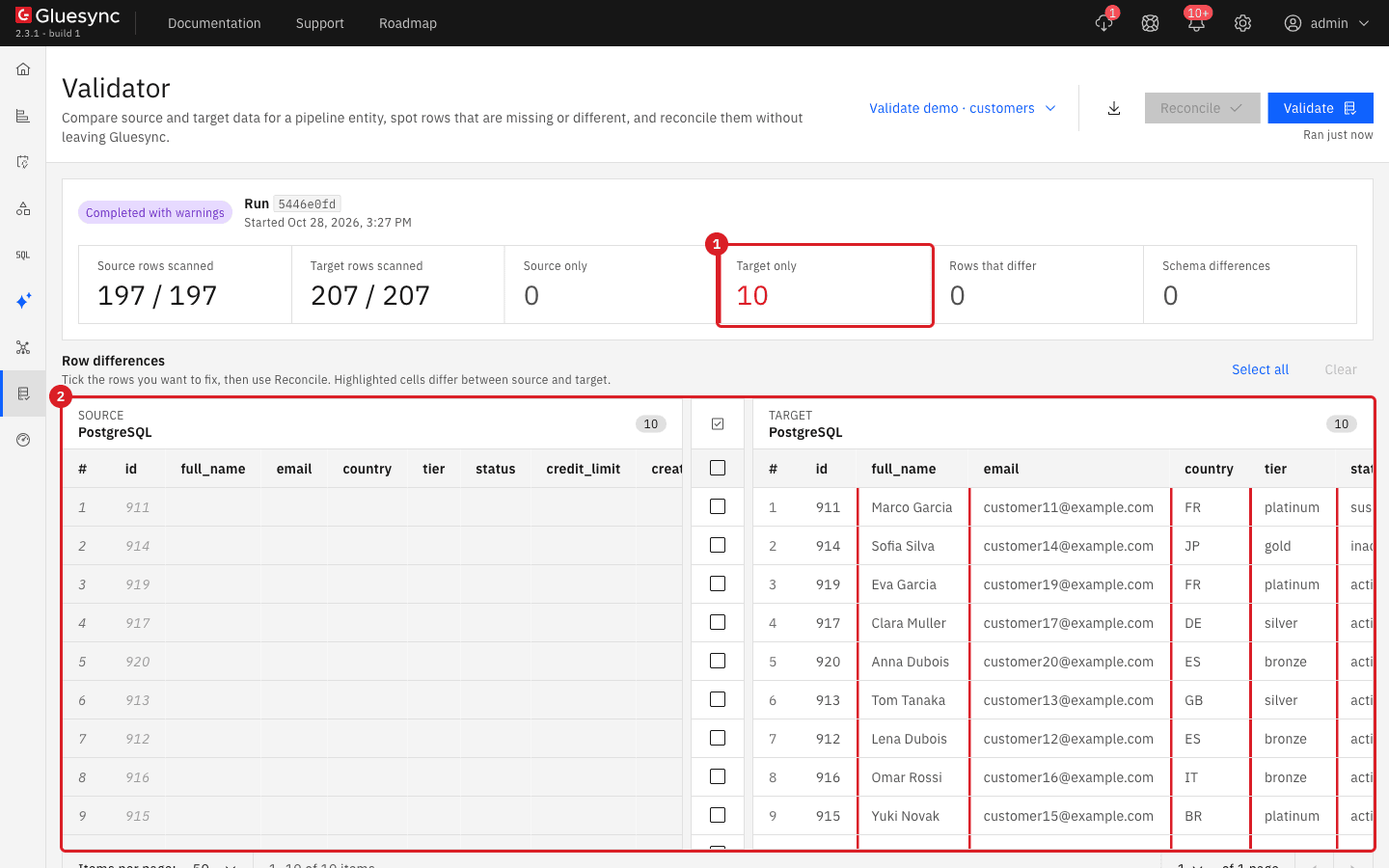
On the entity detail page, select Validate. Validator opens with the pipeline and the entity already selected. You can also open Validator from the side navigation, or select Options and then Validate in the entity row of the pipeline page;
-
On Validator, select Validate;
-
Review the Validator options dialog. For a first run keep the defaults;
-
Select Start validation.
The Validator options dialog has two tabs:
| Where | What it does |
|---|---|
General → Operations allowed when reconciling |
Three checkboxes: Insert rows missing in target, Delete rows missing in source and Update rows with mismatched values. They limit what Reconcile may write. All three are ticked by default. |
General → Count only |
Compares row counts only. It is fast, but row-level differences are not reported. |
General → Limits |
Max runtime (seconds), Max rows in results grid and Max differences. The run stops when a limit is reached. |
General → Advanced: query filters |
A WHERE condition and an ORDER BY column for each side. Use it to compare only the rows that should match (see 3. A target filter drops rows). |
Columns & rules |
The columns to compare (key columns are always compared) and value rules: Validate key uniqueness, Skip BLOB / CLOB columns, Skip byte-array columns, Trim surrounding whitespace, Ignore letter case, and the Date & time options. |
UI
-
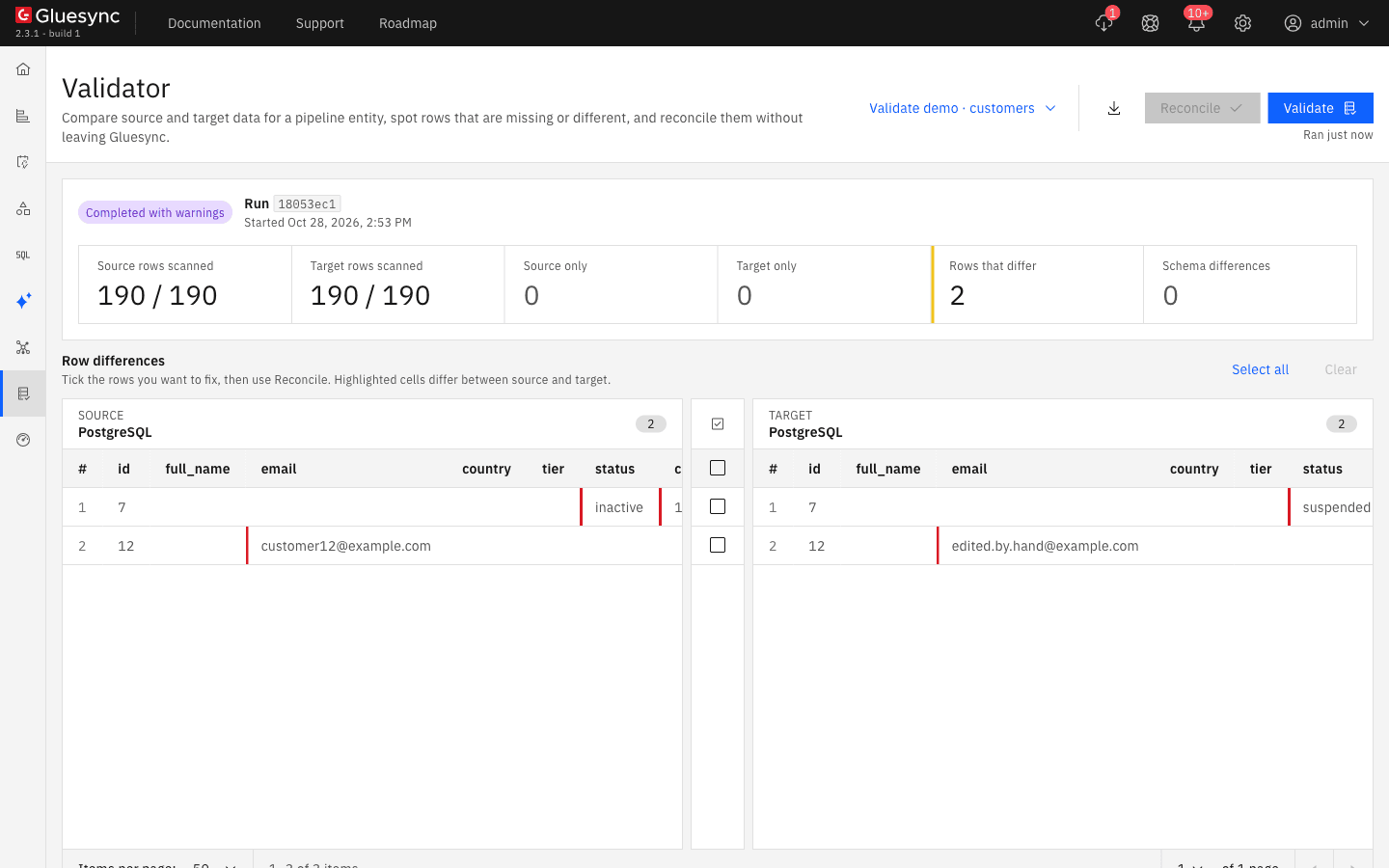
Read the status badge and the six counters at the top of the run;
-
Read the Row differences grid below them: the Source grid on the left, the Target grid on the right;
-
For a row that exists on both sides, look for the cells marked in red. They are the columns whose values differ.
| Counter in the Control Plane | Meaning | Name in the API |
|---|---|---|
Source rows scanned / Target rows scanned |
Rows read on each side, compared with the total each side holds. |
|
Source only |
The key exists in the source and not in the target. The target is missing a row. |
|
Target only |
The key exists in the target and not in the source. The target holds a row that the source no longer has, or never had. |
|
Rows that differ |
The key exists on both sides and at least one compared column has a different value. |
|
Schema differences |
A column cannot be compared (missing, or with a type that cannot be aligned). These are counted but are not repaired by Reconcile. |
|
(no counter) |
The same key appears more than once on one side. The status is Completed with warnings, the four counters can all be 0, and the keys are listed in the grid. |
|
UI
-
In the grid, tick the rows to repair, or select Select all above the grid;
-
Select Reconcile at the top of the page;
-
Read the confirmation message that appears at the bottom of the screen.
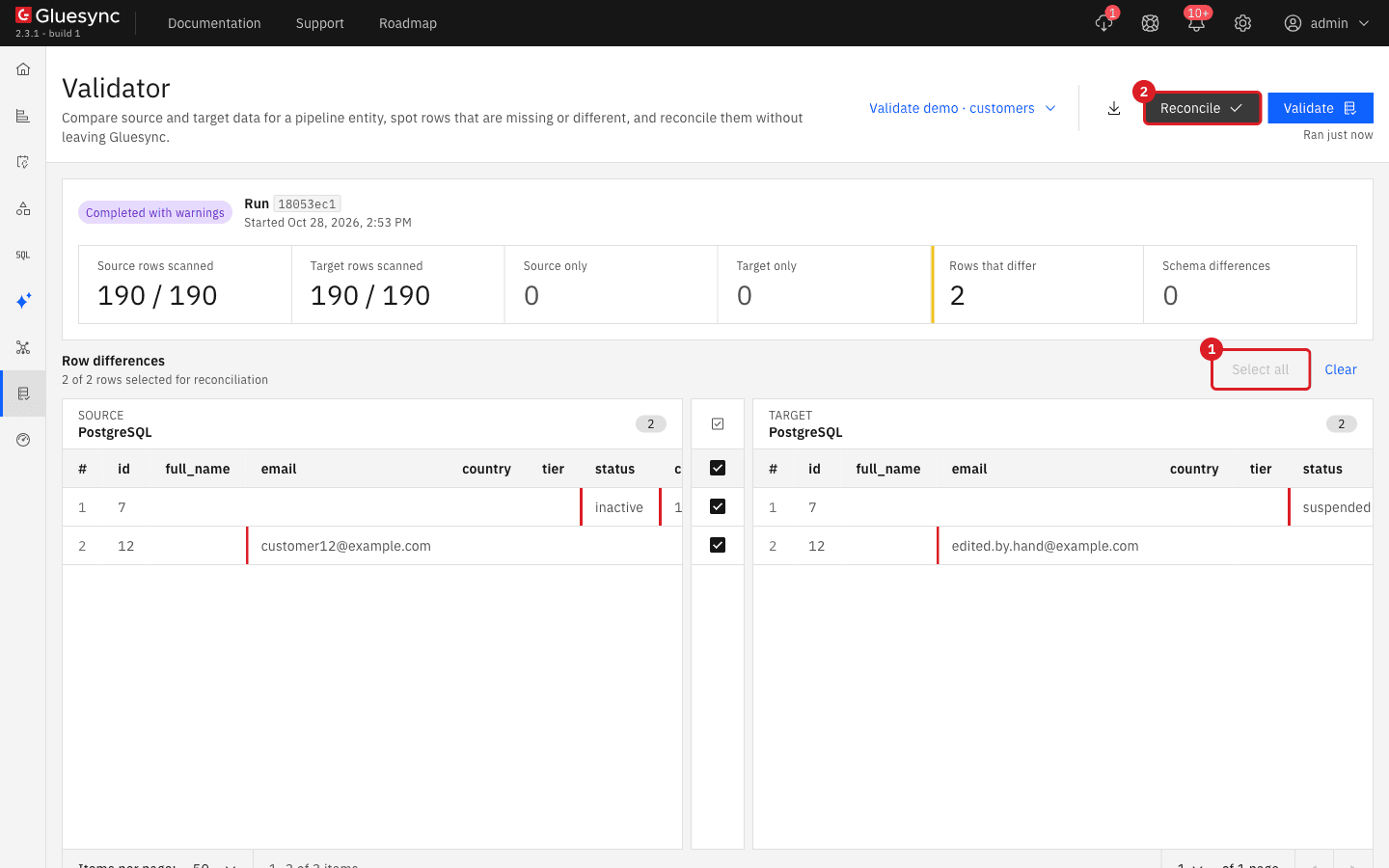
Reconcile changes only the target, never the source:
| Difference | What Reconcile does |
|---|---|
Source only |
Inserts the source row into the target. |
Target only |
Deletes the row from the target. |
Rows that differ |
Updates the target row with the source values. |
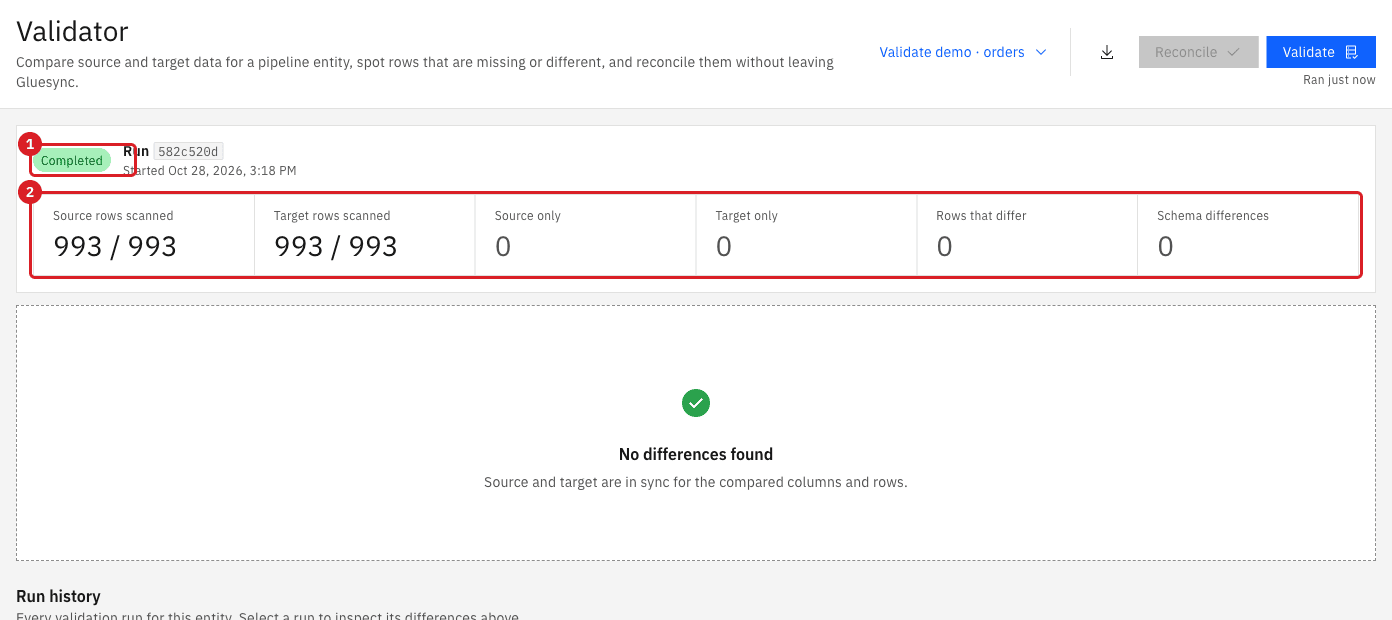
Run Validate again to confirm. In our examples the second run always ended as Completed, with 0 in every counter. The result of a run does not refresh itself after a repair: Validator still shows the old grid until you start a new run.
|
Reconcile repairs the data but not the cause. If a filter, a setting or a constraint produced the difference, the next change can produce it again. Read Find the cause of a difference before you reconcile in production. |
UI
Use this when many rows differ, or when you do not know which ones, and you want the target table to be an exact copy of the source.
-
On Data pipelines, pause the entity you want to resync (Stop sync, then Pause entity). The other entities keep running;
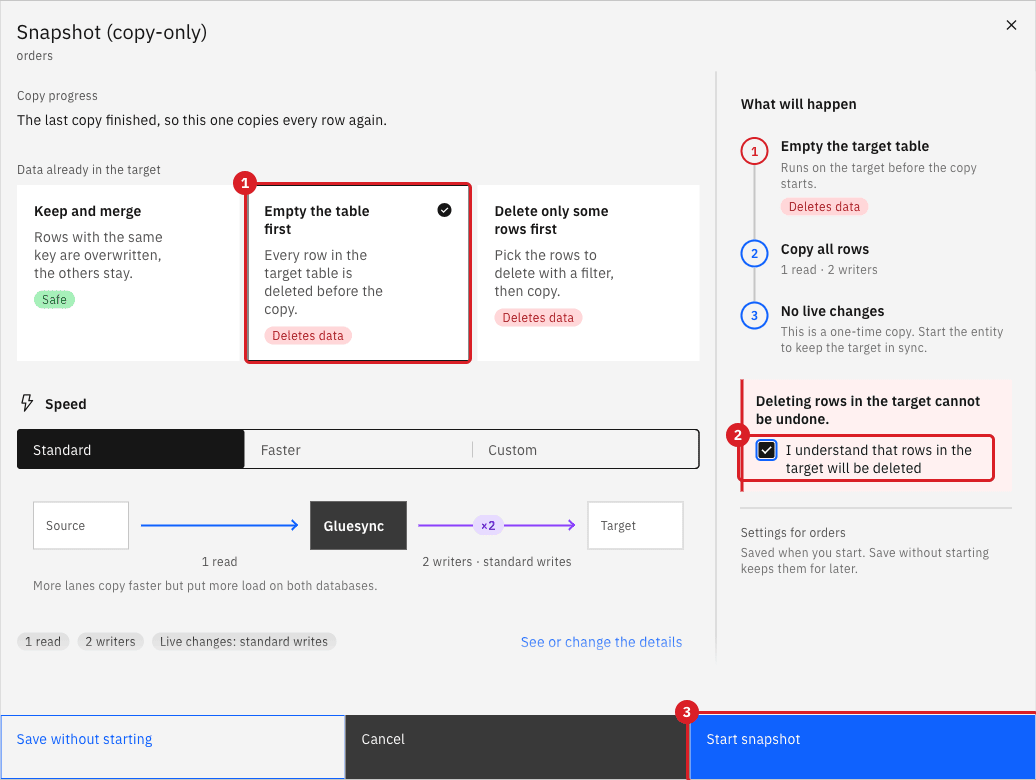
-
In the row of that entity, select Run one-time snapshot. The Snapshot (copy-only) dialog opens;
-
Under Data already in the target, select Empty the table first;
-
Tick I understand that rows in the target will be deleted;
-
Select Start snapshot;
-
When the snapshot has finished, start the entity again to resume live changes.
Then run Validate on the same entity:
|
Keep and merge, the default, overwrites rows that have the same key and leaves every other row of the target where it is, so it can never remove a stale row. Delete only some rows first deletes only the rows selected by the Selective deletion ahead of snapshot rule (see Selective deletion ahead of snapshot). Starting the entity from the Sync changes (CDC) dialog with Full copy and Empty the table first does the same copy and then follows live changes. |
Find the cause of a difference
Look at which counter moved and at the rows in the grid, then use the table to find the likely cause. Each cause below was reproduced on the practice copy.
| Cause | What Validator shows | How to detect it | How to fix it |
|---|---|---|---|
1. The entity was restarted with Now after rows were deleted in the source |
Target only: the deleted rows |
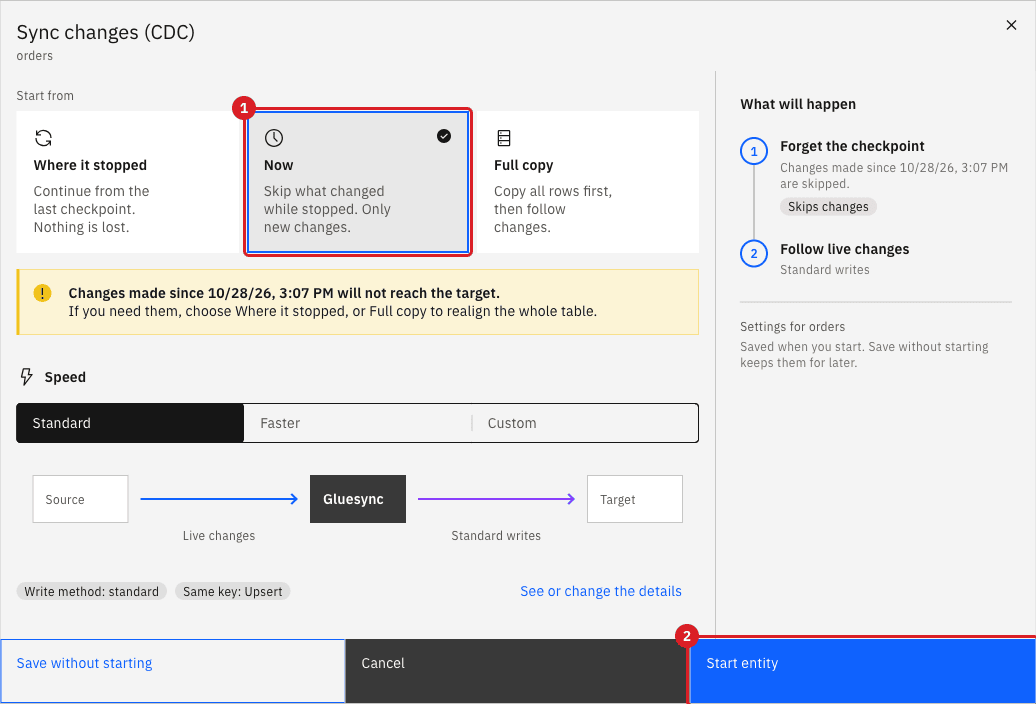
The Sync changes (CDC) dialog warned "Changes made since … will not reach the target" |
Reconcile, or a resync with Empty the table first |
2. A snapshot with Keep and merge after rows were deleted in the source |
Target only: the deleted rows |
The snapshot dialog says that rows with the same key are overwritten and the others stay |
Resync with Empty the table first, or Reconcile |
Source only: all the missing rows share a value |
The entity row shows a filter icon in Features; Edit settings → Target → Filter out incoming data |
Remove the filter and Reconcile, or give Validator the same WHERE condition on both sides |
|
Target only: the rows deleted in the source |
Edit settings → Fine tuning → Allowed operations shows fewer than four operations |
Allow Delete, then Reconcile |
|
5. A write to the target failed and the entity was restarted with Now |
Source only: the rows of the failed transaction and the ones behind it |
A red icon on the entity, and an |
Remove the cause on the target, then Reconcile |
Completed with warnings but all counters at 0, and the keys listed twice |
Check keys in Edit mapping; a |
Remove the duplicates in the source, then Reconcile |
|
Rows that differ, with equal row counts |
The cells in red in the grid |
Reconcile |
|
Rows that differ after a snapshot |
Edit settings → Fine tuning → On duplicate key |
Set Upsert and Reconcile, or resync |
1. The entity was restarted with Now after rows were deleted in the source
We paused customers, deleted ten rows in the source (DELETE FROM shop_validate.customers WHERE id BETWEEN 191 AND 200) and started the entity again with Now. Now skips everything that changed while the entity was stopped, so the deletes never reached the target.
Count both: source 190, target 200, difference 10. Validator (Completed with warnings): Source rows scanned 190 / 190, Target rows scanned 200 / 200, Target only 10, the ids 191 to 200. Reconcile answered Inserted: 0, deleted: 10, updated: 0, skipped: 0. and the next run was Completed with 190 rows on both sides.
To avoid it, restart with Where it stopped, which continues from the last checkpoint and applies the changes made in the meantime. Use Now only when you accept that the changes made while the entity was stopped are lost.
2. A snapshot with Keep and merge after rows were deleted in the source
We paused orders, deleted ten rows in the source (ids 991 to 1000) and ran a one-time snapshot with the default Keep and merge.
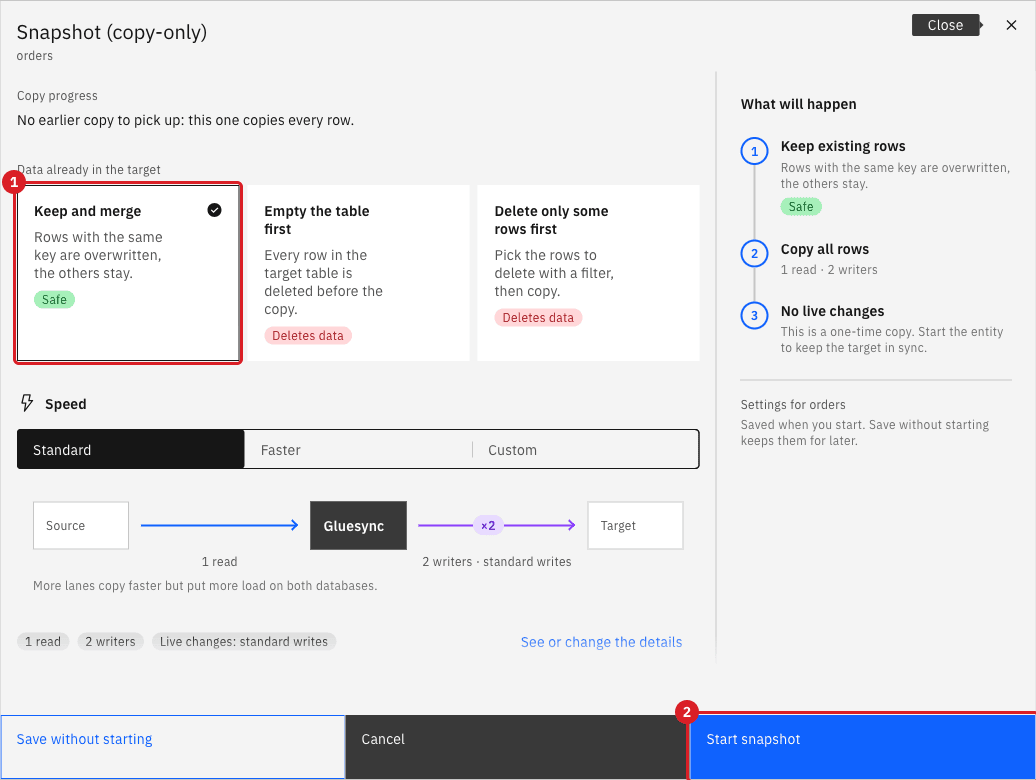
The snapshot finished without any error, and the target still had 1,003 rows against 993 in the source. Validator: Target only 10, the ids 991 to 1000. Fix it with the resync in the last step of this guide (Empty the table first), or with Reconcile.
3. A target filter drops rows
We added the filter tier != platinum to customers (Edit settings → Target → Filter out incoming data) and inserted ten customers in the source, five of them with the tier platinum.
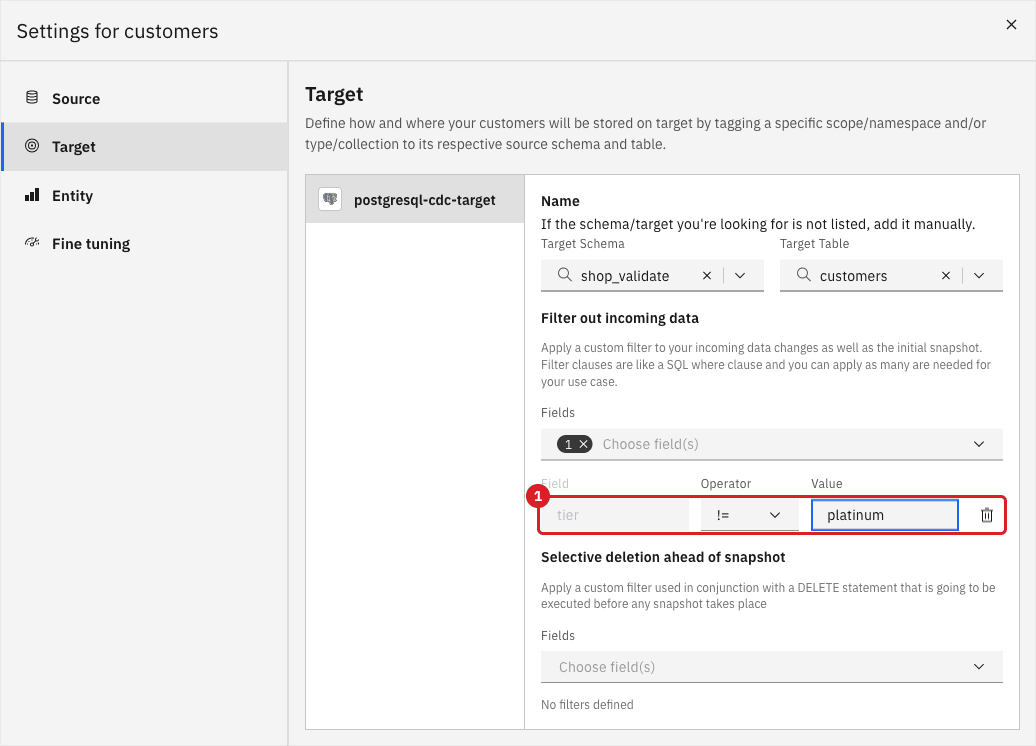
Count both: source 200, target 195. Validator: Source only 5, and every one of them has tier = platinum. When all the missing rows share one value, suspect a filter.
If the filter is intended, tell Validator to compare only the rows the filter lets through. In Validator options → General → Advanced: query filters enter the same condition in the WHERE condition of the source and of the target. The condition is written in the SQL dialect of each database.
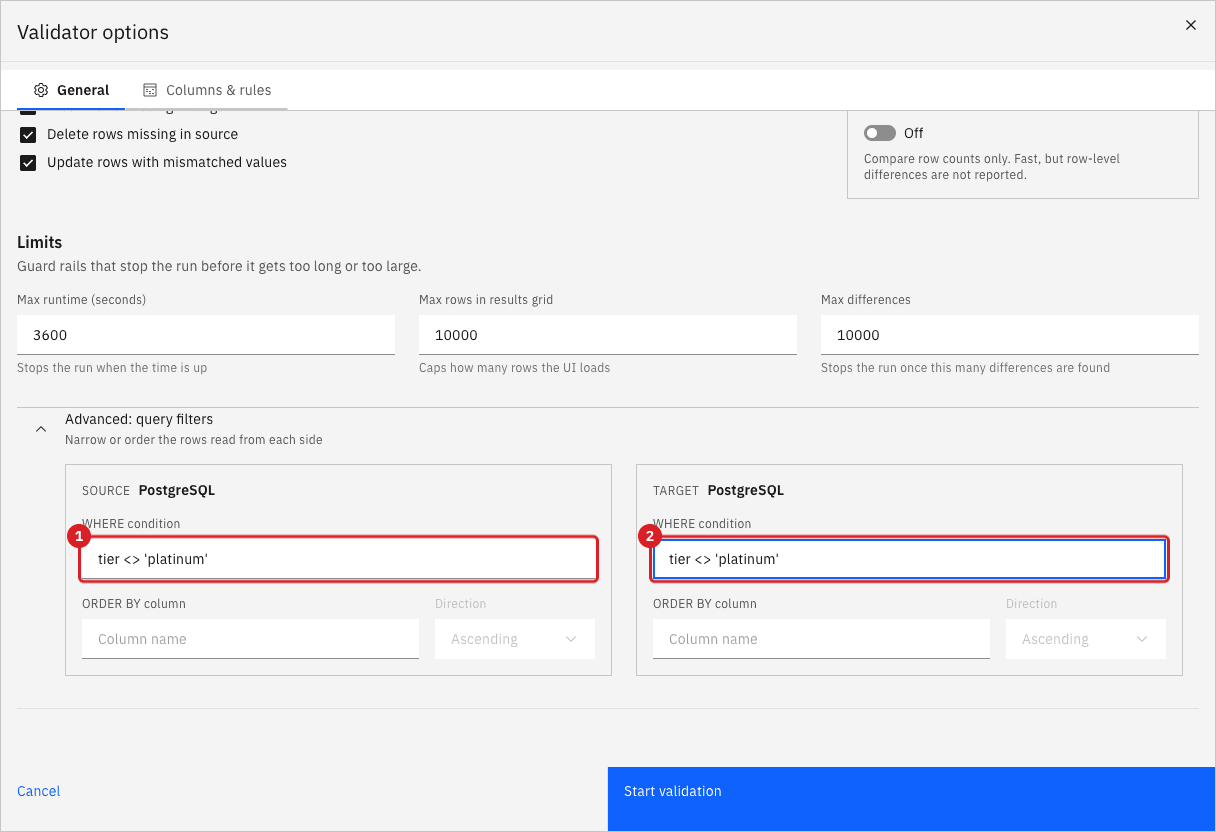
With that condition the run compared 148 rows on each side and finished Completed. If the filter is not intended, remove it (the trash icon of the filter row), save with Confirm and continue, start the entity again and Reconcile: the run answered Inserted: 5 and the next run compared 200 rows on both sides. Removing a filter does not copy the rows that were already dropped, which is why Reconcile is needed. For filters and their operators, see Filter rows with a snapshot WHERE clause and target filters.
4. Allowed operations has no Delete
We cleared Delete in Edit settings → Fine tuning → Allowed operations of customers, started the entity and deleted three rows in the source.
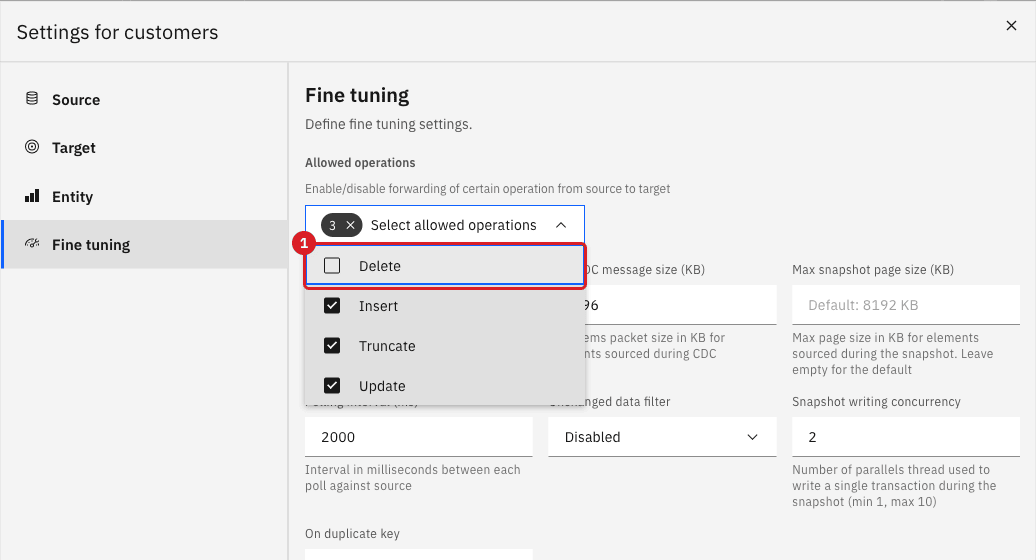
The entity ran without any error. Count both: source 197, target 200. Validator: Target only 3. Select Delete again, save, and Reconcile: the answer was Deleted: 3. If keeping the target rows is intended, as in an audit table, a Target only count is expected and you can leave Delete off. See Allowed operations.
5. A write to the target failed and the entity was restarted with Now
On the target we added a rule that the entity could not satisfy (ALTER TABLE shop_validate.orders ADD CONSTRAINT orders_amount_cap CHECK (amount < 5000)) and inserted three orders in the source: 120.00, 9999.00 and 80.00. The first was written. The second was refused by the target and the entity stopped on it, so the third waited behind it.
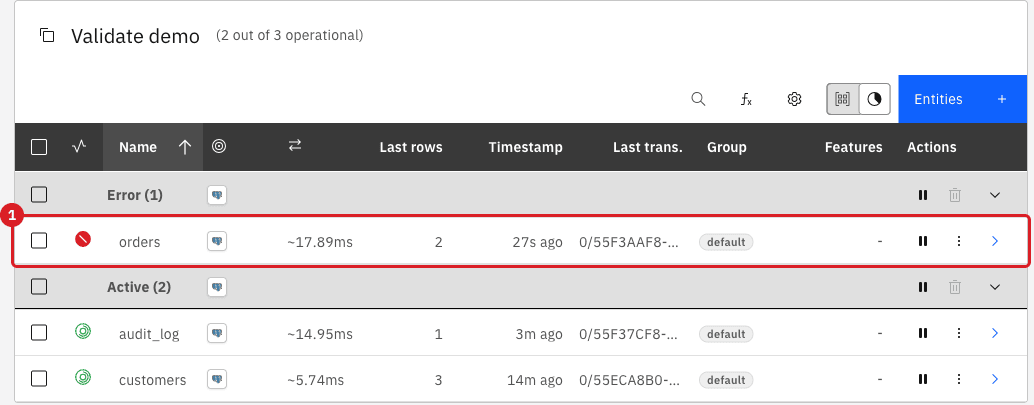
The Notifications list holds an ERROR notification titled Batch Update with the database message (violates check constraint "orders_amount_cap"). We then paused the entity and restarted it with Now to "get it running again". The entity ran, and the two orders that were stuck were gone for good: Validator reported Source only 2.
Reconcile cannot succeed while the target still refuses the row. With the rule in place it failed with the database error instead of a result. After we dropped the constraint, Reconcile answered Inserted: 2 and the next run was Completed.
|
Fix the cause first. When we removed the constraint while the entity was still in error, the entity recovered by itself within 20 seconds and wrote the waiting rows, with no restart. The rows were lost only because the entity was restarted with Now. |
6. Duplicate keys in a table without a primary key
audit_log has no primary key, so Gluesync identifies a row by the logical key event_id. We inserted two extra rows in the source that repeat the keys 7 and 8. The target table has no primary key either, so it accepted both copies.
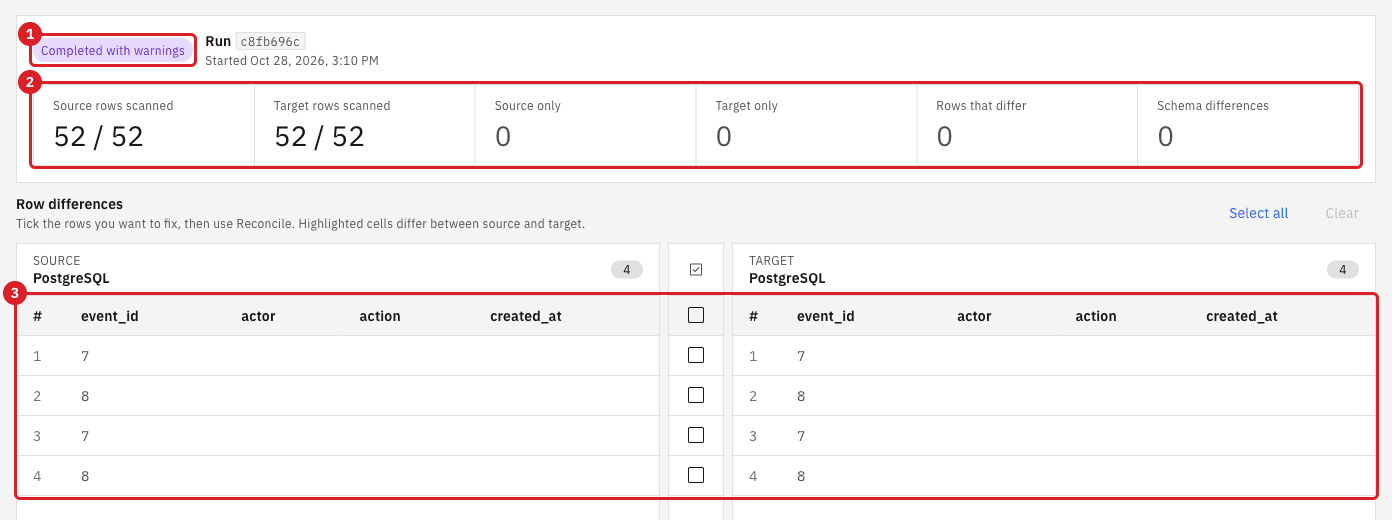
This is the easiest difference to miss: the counts are equal and no counter moves. The signs are the status Completed with warnings with every counter at 0, and the same key listed more than once. Check keys in the entity mapping confirms it:
-
In the pipeline page, select Options and then Edit mapping in the row of the entity;
-
In the Source panel of Field mapping, select Check keys;
-
Read the message, then close the dialog with OK and leave the mapping with Cancel.
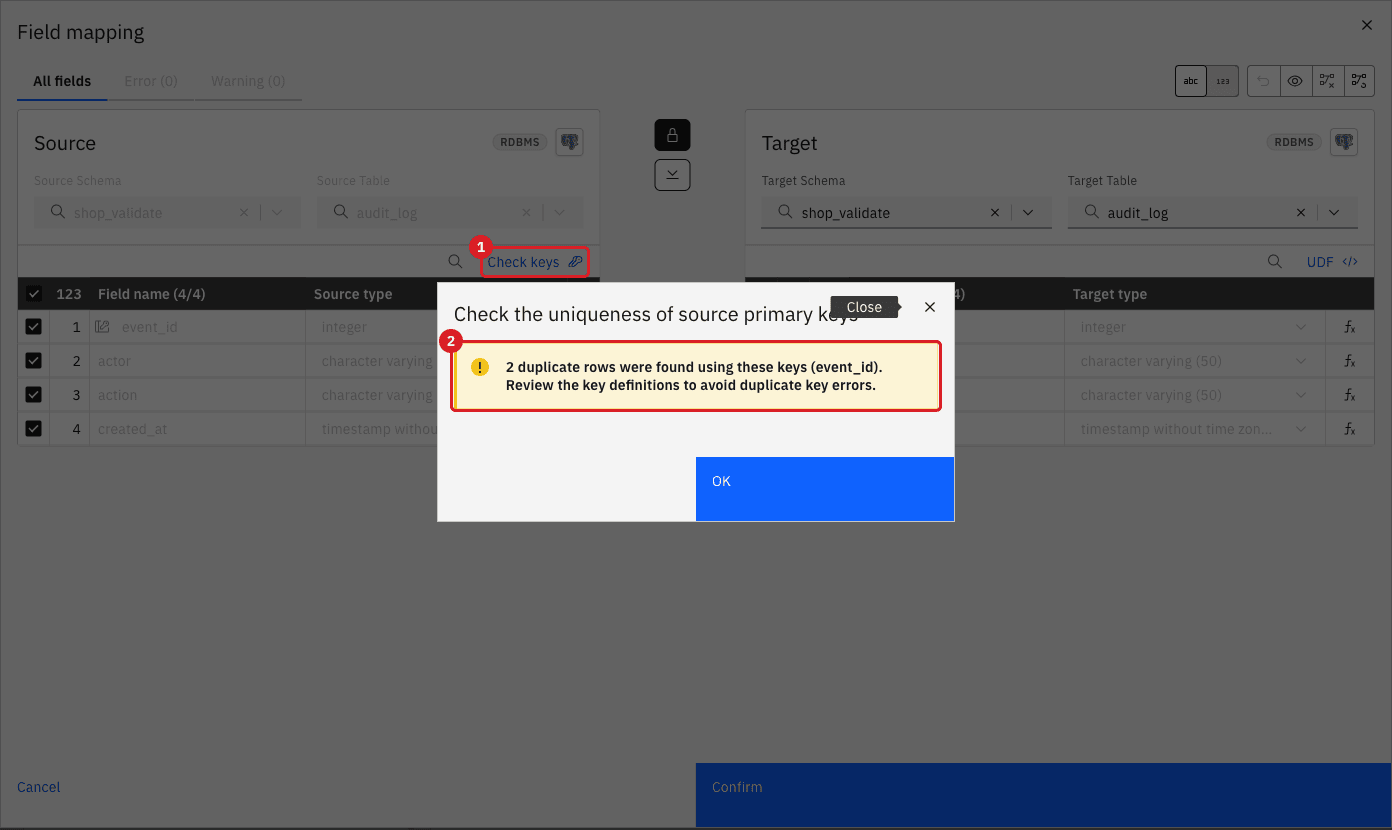
To make Validator stop instead of reporting them, tick Validate key uniqueness in Validator options → Columns & rules. The run then ends as Failed with the error Duplicate comparison key detected: 'shop_validate.audit_log', and nothing is compared.
To fix it, remove the extra rows in the source. In our test we deleted them with DELETE FROM shop_validate.audit_log a USING shop_validate.audit_log b WHERE a.event_id = b.event_id AND a.ctid > b.ctid, which keeps one row for each key. The entity forwarded the delete by logical key, so it removed both target rows of each key: the target went from 52 to 48 rows and Validator reported Source only 2. Reconcile inserted the two rows (Inserted: 2), and a run with Validate key uniqueness ticked ended Completed with 50 rows on both sides.
|
A logical key must be unique. Where it is not, choose a column or a combination of columns that is (see Setting logical keys for tables without primary keys), and run Check keys again before you start the entity. |
7. A row was edited directly on the target
We changed two target rows by hand (UPDATE shop_validate.customers SET credit_limit = 99999.00, status = 'suspended' WHERE id = 7 and a new email for id 12). The row counts stayed at 190 on both sides and the entity showed no error. Validator found it: Rows that differ 2, with status and credit_limit marked for id 7 and email for id 12 (see the screenshot in the Read the report step). Reconcile answered Updated: 2 and the target values returned to the source values.
Gluesync does not read the target, so only a comparison finds a hand edit. Decide who is allowed to write to the target tables, or keep the table out of reach of applications.
8. On duplicate key is set to Skip
On duplicate key decides what happens when the target already holds a row with the key that arrives. We set it to Skip on customers (Edit settings → Fine tuning).
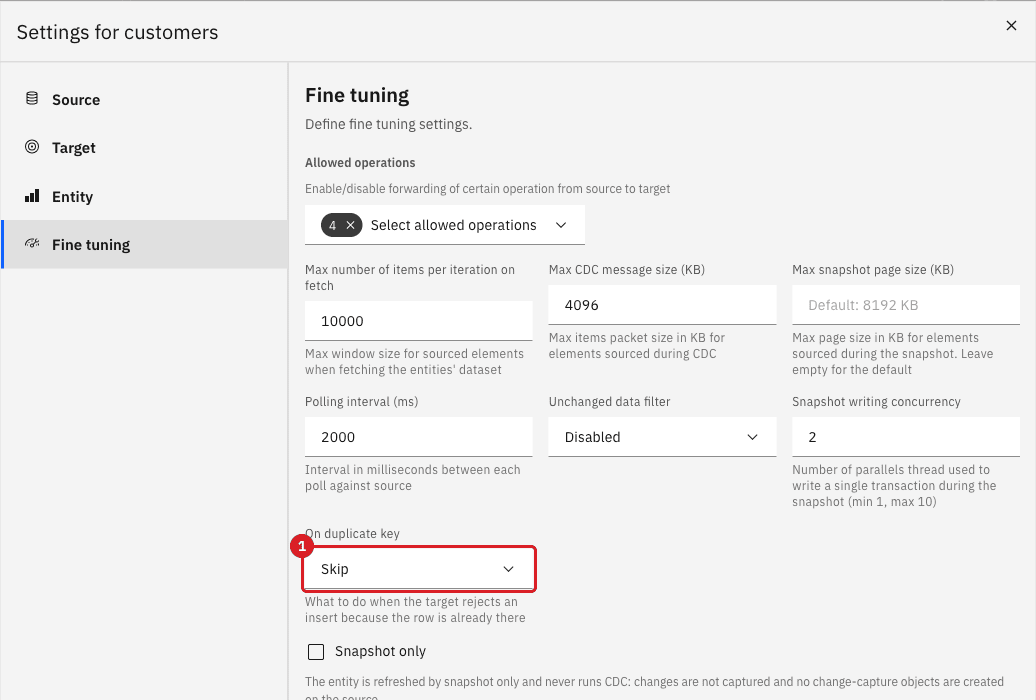
We then changed the credit_limit of one target row to 1.00 and ran a one-time snapshot with Keep and merge. The snapshot finished, and with Skip the target kept 1.00 while the source held 3740.00. Validator: Rows that differ 1, credit_limit source 3740, target 1. We set On duplicate key back to Upsert and used Reconcile (Updated: 1). For the three strategies and the warning notification that Skip raises, see On duplicate key. We did not see that notification after the snapshot in this test.
Check the whole pipeline on a schedule
Validator compares one entity at a time. To check every entity of a pipeline regularly, add a Validate action in the Scheduler and decide whether it only reports or also reconciles: see Schedule validation.
Troubleshooting
| Problem | Possible cause | What to do |
|---|---|---|
Count both shows a small difference that changes every time |
The entity is running and CDC is delivering changes while the two counts are taken |
Pause the entity and count again, or use Validator, which compares row by row |
The counts are equal but the data is not |
Rows were edited on the target, or keys repeat on both sides |
Run Validator. For repeated keys, run Check keys and the |
Completed with warnings with all counters at 0 |
The same key appears more than once on a side |
Read the keys listed in the grid, then see 6. Duplicate keys in a table without a primary key |
Validator ends as Failed with |
Validate key uniqueness is ticked and a key is not unique |
Remove the duplicates in the source, or choose a key that is unique |
Reconcile ends with a database error and writes nothing |
The target refuses the row (for example a check constraint or a missing column) |
Fix the rule on the target, run Validate again and Reconcile |
Reconcile is disabled |
No row is ticked, or your role cannot reconcile |
Select Select all or tick rows. Ask a Manager or Super Admin if the button stays disabled |
After Reconcile the grid still shows the old rows |
A run does not refresh after a repair |
Select Validate again and read the new run |
Start snapshot is disabled |
Empty the table first needs a confirmation |
Tick I understand that rows in the target will be deleted |
Rows are missing again after a repair |
The cause is still there (a filter, Allowed operations, a constraint, a restart with Now) |
Remove the cause, then Reconcile or resync |
Validator cannot compare a column |
A column is missing or has a type that cannot be aligned |
Check the Schema differences counter and Compare DDL on the entity detail page. Reconcile does not rewrite schema differences |
Related guides
Contact MOLO17 Support if you need assistance with comparing or repairing data.