Diagnose and recover a stalled pipeline or entity
When data stops arriving, the Control Plane does not always say so: a stopped database can leave every entity green, and an old error can stay on screen long after the problem is gone. This guide shows how to read the signals that Gluesync gives you, how to tell a real stall from a stale error, how to find the cause, and how to recover with the least risky action. Every recovery is proved with SQL counts.
In this guide
You will learn how to read the status groups, banners and notifications of a pipeline and of an entity; prove with SQL whether data is really flowing; check the connection of the source and of the target; recover from a database restart, an outage, a wrong password and a target that rejects writes; tell a slow snapshot from a stuck one; and choose between Where it stopped, Full copy, maintenance mode and a platform restart. A table at the end maps each symptom to its cause and to the action to take.
Quick information
Goal |
Find why replication stopped and restore it without losing or duplicating data |
Audience |
Gluesync administrators and the people on call for a pipeline |
Level |
Intermediate |
Time required |
About 45 minutes to try every case; a real incident usually needs 5 to 10 minutes with the decision table |
Area |
Control Plane → Data pipelines → pipeline and entity detail, Notifications hub, Settings |
Applies to |
Gluesync 2.3 |
Before you begin
Make sure that:
-
You can sign in to the Gluesync Control Plane with a role that can start and pause entities and edit connections;
-
You have a pipeline with a source agent and a target agent. The examples use a pipeline named Stall demo (PostgreSQL to PostgreSQL) with three entities in CDC:
customers(209 rows),orders(about 1,000 rows) andevents_big(about 2 million rows); -
You can run SQL on the source database and on the target database, for example with your own SQL client or with Query Studio;
-
You know who can restart or reconfigure the source and the target database.
|
The screens, the status icons and the recovery actions are the same for every connector. The error texts come from the database driver, so they differ between connectors, and the SQL statements in this guide are PostgreSQL. Use the equivalent statements for your database. |
|
Optional: try the failures in a test environment
Every step below shows what a failure looks like and how to recover, and ends with an optional box that explains how to cause the same failure in a test environment. Use a source and a target database you can break freely: never stop, lock or change a production database to follow this guide. Skip the optional boxes if you are diagnosing a real incident. |
Guide steps
UI
-
In the left menu, select Data pipelines and select your pipeline;
-
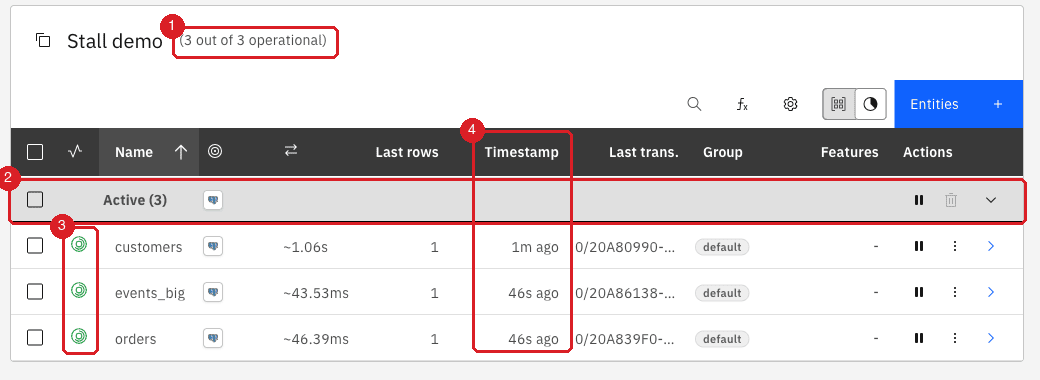
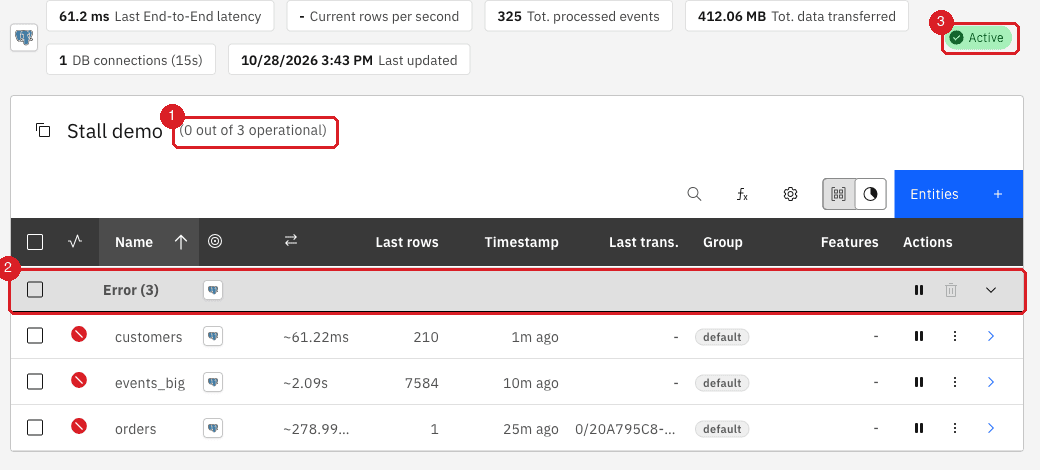
Read the header of the pipeline card: (3 out of 3 operational) counts the entities that are running without an error, and the status chip at the top right reads Active, On error or In maintenance;
-
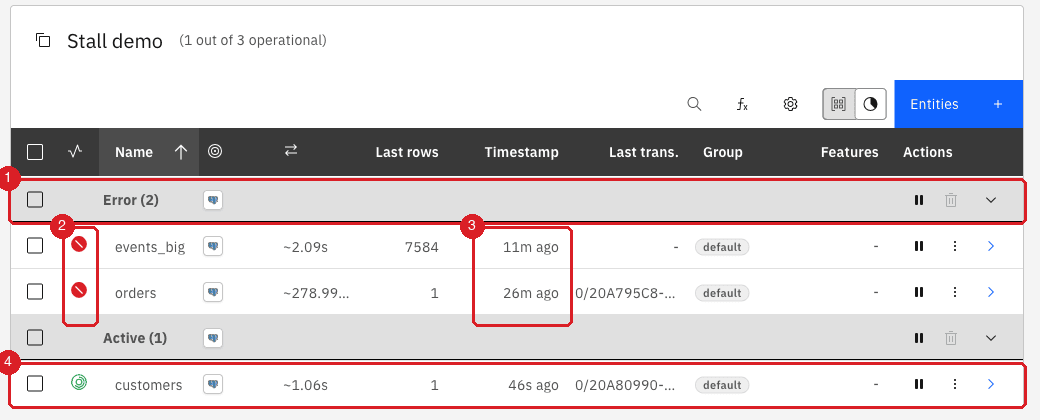
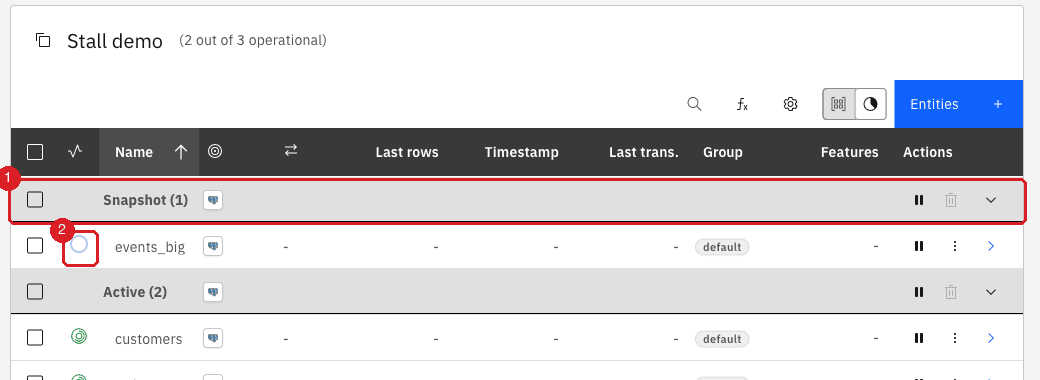
Read the groups of the entity table: Error, Active, Snapshot and Hold. Each entity also has a status icon: a green double ring for CDC, an empty ring for a snapshot, a yellow pause for an entity on hold and a red circle for an error;
-
Read the Timestamp column: it shows how long ago the entity last replicated a change (for example
46s ago). If the number keeps growing while changes are being made on the source, the entity is not replicating.
|
Green does not prove that data flows. Gluesync marks an entity Error only when it has tried to read or write and failed, so an entity whose database is stopped, or whose target is unreachable, can stay Active until the next change arrives (see the cases in the next steps). Always confirm with the Timestamp column and with the SQL check in Prove whether data is really flowing. |
UI
-
In the entity table, select the entity that is in error, or select the chevron at the end of its row (Open entity detail);
-
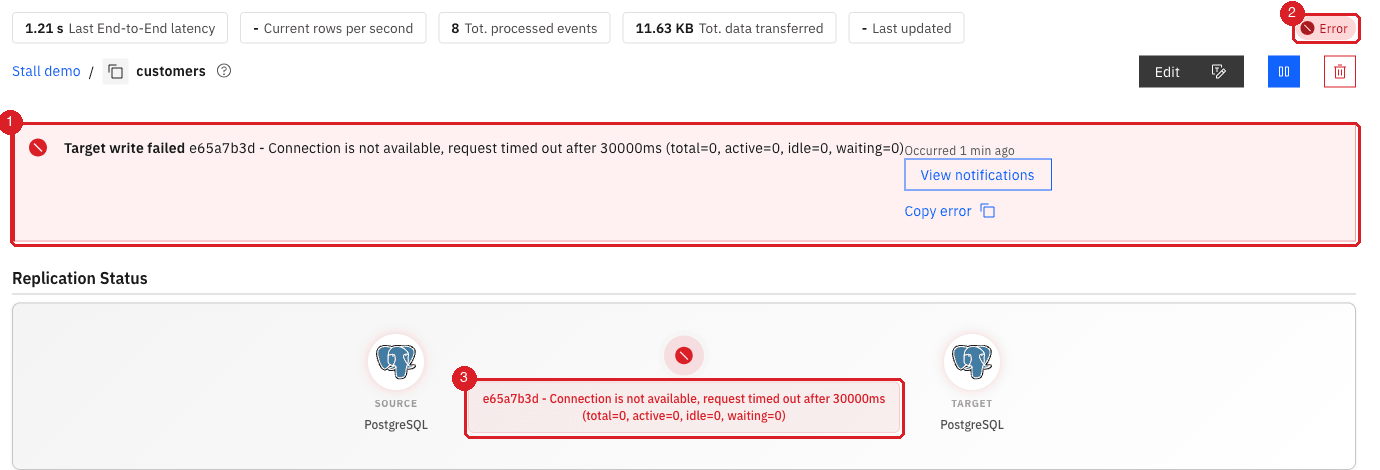
Read the red banner at the top of the page. Its title tells you which side failed: Source read failed, Target write failed or Pipeline error. Below the title you find the message of the database or of Gluesync and the time it occurred;
-
Select View notifications to open the notifications of the entity, or select Copy error to copy the error text for a support request;
-
In Replication Status, read the message between the source and the target: it repeats the error, or it reads Idle, no changes yet while the entity waits for a change.
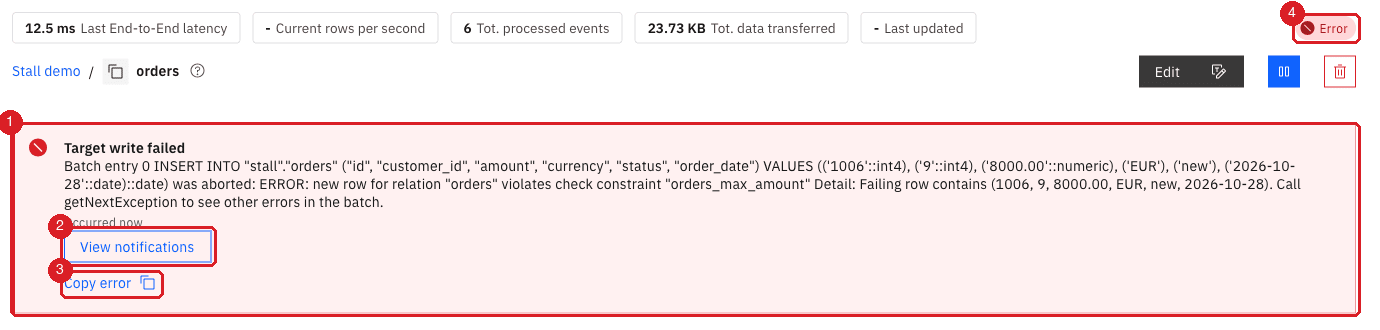
View notifications opens the Notifications hub filtered on the entity, so you see the history of the problem: when the first error appeared, how many times it repeated, and when the entity recovered. A notification keeps a counter in its title (Batch Update (3), Entity sync start error (242)) when the same error repeats, so one line can stand for many retries. Copy error puts the title, the message, the identifiers of the pipeline, the entity and the agent, and the time (in UTC) on the clipboard.
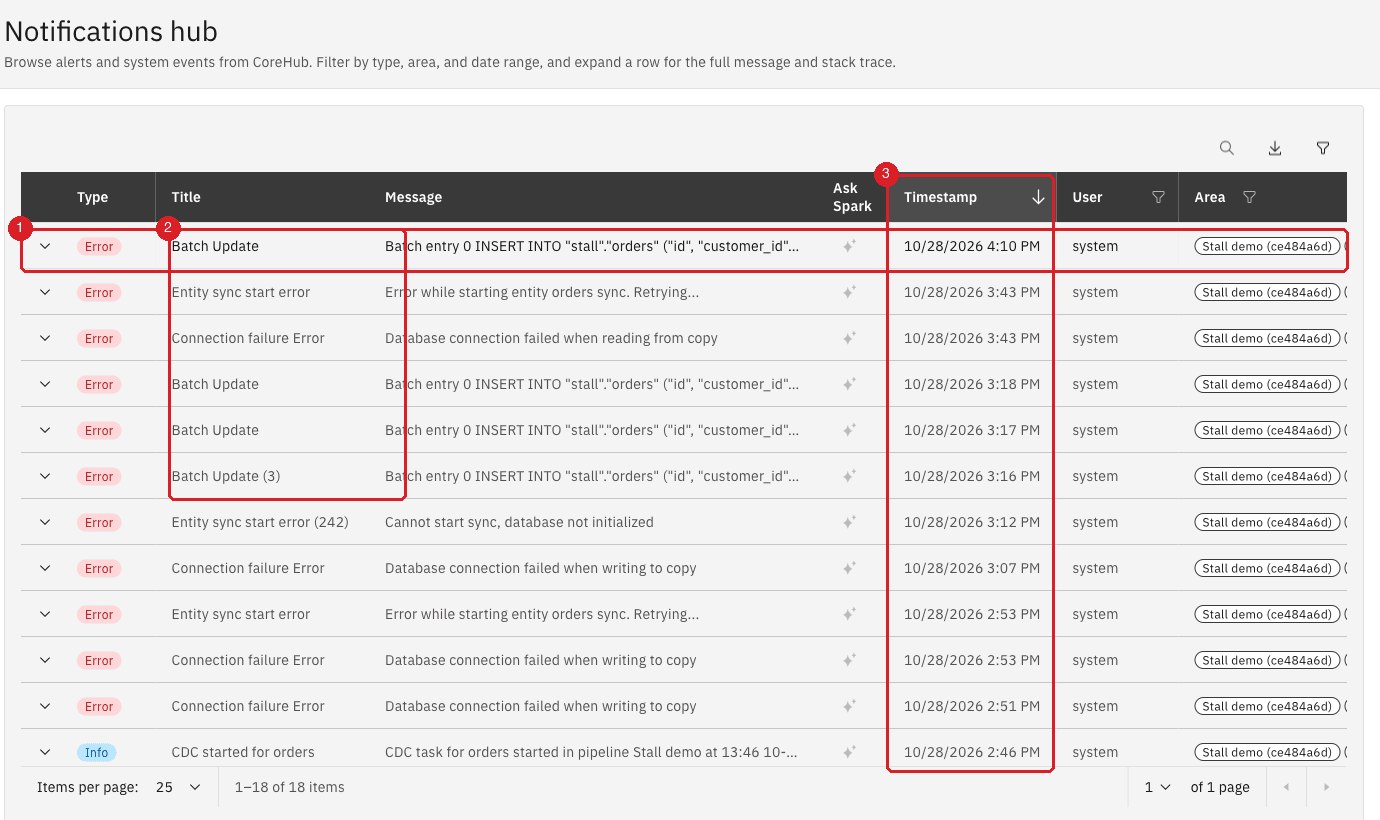
Read Notifications and alerts to search, filter and copy notifications.
|
An agent identifier in the message tells you where to look. In |
UI + SQL
An error flag does not clear when the problem goes away: it clears when the entity replicates its next change. An entity that has no traffic can therefore show Error long after it recovered, and an entity with a stopped database can show Active while it is stalled. Use a probe to find out.
-
Make one harmless change on the source, in a table that the entity replicates. In the example:
-- run on the source INSERT INTO stall.orders (id, customer_id, amount, currency, status, order_date) VALUES (1004, 8, 15.00, 'USD', 'new', current_date); -
Wait ten seconds and check the target:
-- run on the target SELECT id, amount FROM stall.orders WHERE id = 1004; -
Open the entity detail and select Count both. The page shows the count of the source, the count of the target and the difference (Target − source).
|
Equal counts do not prove that the tables are equal. In our test the source and the target both held 209 rows while the target lacked one row, held one row that does not exist on the source, and held a different value in a third row. If you suspect drift, compare the content of the rows, not only the count: see Find and fix row differences between source and target. |
|
Optional, for advanced users
The Core Hub container log contains the complete stack trace of every error and the retry attempts, for example the lines |
UI
Use this step when the pipeline banner says that an agent could not initialize, when a notification mentions an authentication failure, or when you changed a password, a host or a certificate.
-
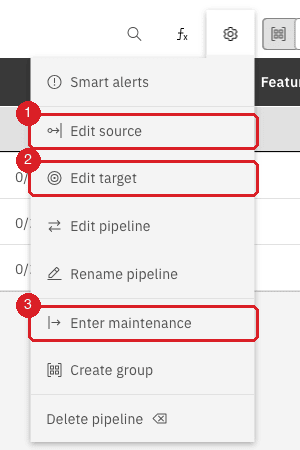
Open the pipeline and select the gear icon at the right of the entity toolbar;
-
Select Edit source to check the source connection, or Edit target to check the target connection;
-
Read Host name / Address, Port, Database name, Username and Password, correct them, and select Test and continue.
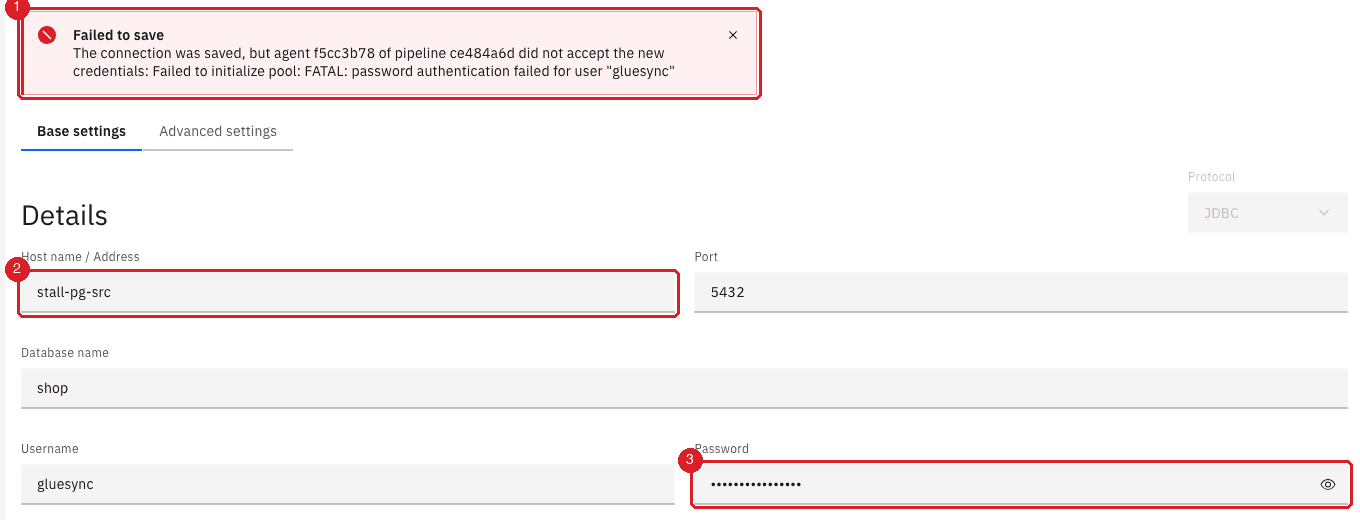
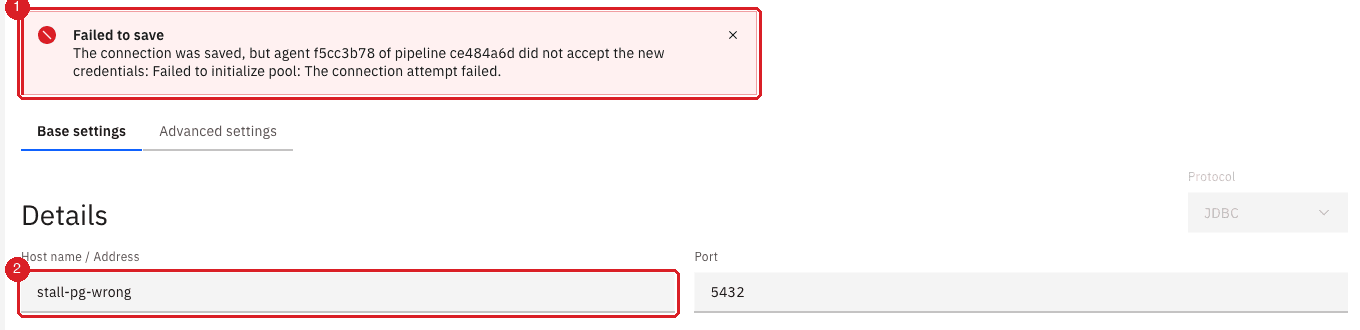
When the agent cannot connect, the page shows Failed to save and the reason. The two most common reasons look like this:
| Message | Meaning |
|---|---|
|
The user name or the password is wrong, or the password was changed in the database. |
|
The host name or the port is wrong, the database is stopped, or a firewall blocks the connection. |
|
Failed to save is misleading: the message reads The connection was saved, but agent … did not accept the new credentials. The wrong value is stored. While it is stored, the agent is not connected to its database: the pipeline banner reads Unknown error. Please check agent … logs in order to find more details, and in our test an entity that had no error flag stayed Active while a new source row did not arrive. Correct the value and select Test and continue again; do not leave the page after a failed test. |
When the database password was rotated while the pipeline was running, the entities do not wait for you to open this page. In our test, ending the existing sessions of the database user made all three entities fail within about 15 seconds, first with Database connection failed when reading from copy and then with FATAL: password authentication failed for user "gluesync". The pipeline stayed Active and HEALTHY in the list while every entity was in Error.
Enter the new password in Edit source (or Edit target) and select Test and continue. In our test the entities replicated again within 15 seconds, and the two rows inserted in the meantime reached the target.
|
Optional: reproduce a rotated password
In a test environment, run |
UI + SQL
What you see depends on how the database went away and on whether Gluesync was running or starting. Insert a row on the source after the database is back and check the target; each case below was recovered and proved this way.
| Case | What the Control Plane shows | Recovery |
|---|---|---|
The database restarts while CDC runs |
Within about 10 seconds the affected entities report |
None. About 14 seconds after the database accepted connections, the entities were replicating again and the new row was on the target. No row was lost. |
The database is stopped or unreachable while CDC runs |
Nothing. In our test the entities stayed Active with Idle, no changes yet for more than three minutes, and Last Update Timestamp did not move. No notification was created. With a frozen database process the silence lasted 18 minutes: the first sign was the notification Check connection failed: agent not connected to database … Timed out waiting for 30000 ms. |
None while it is down. When the database came back after the stop, an error notification appeared within 20 seconds, the entities restarted by themselves and the pending row reached the target; after the freeze, a row inserted as soon as the database answered again reached the target 5 seconds later. |
The database is unreachable when the pipeline starts or leaves maintenance mode |
The pipeline moves to the UNHEALTHY group and the chip reads On error. The banner says Something went wrong during agent … during initialization. Check if the database is reachable and Warm-up failed … A new attempt will be made in 20 seconds from now. The entities show Cannot start sync, database not initialized, and a notification reads Check connection failed. Cannot reach host … Please check that the database is running and reachable (network, firewall, TLS settings). |
Gluesync retries after 10, 20 and 30 seconds and then every 5 minutes. When the database is back, either wait for the next attempt (up to 5 minutes) or enter and exit maintenance mode to start a new attempt at once. |
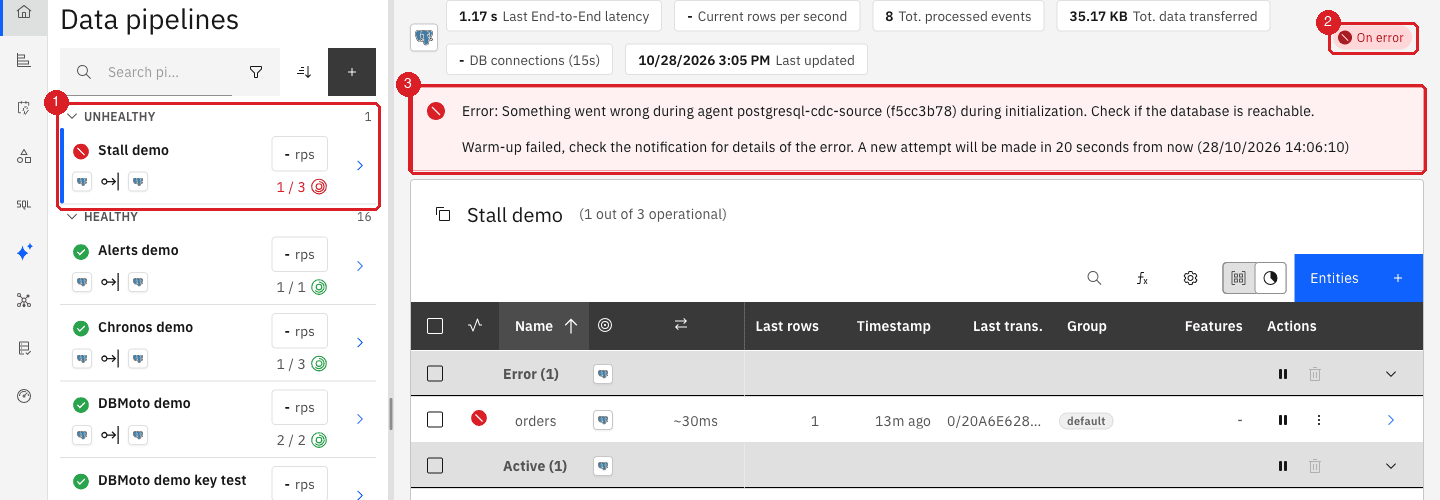
To start a new attempt immediately, enter maintenance mode and exit it:
-
In the pipeline, select the gear icon and select Enter maintenance, then select Confirm. The dialog says that all replications are paused and that all agents are disconnected from their databases;
-
Wait for the chip to read In maintenance;
-
Hover over the chip until it reads Exit maintenance, select it, and select Confirm.

|
Use maintenance mode on purpose, for planned work: while a pipeline is in maintenance mode its entities are read-only and connection errors are suppressed. Do not leave it on to "hide" an outage, because replication stays paused. Read Pipeline maintenance mode. |
|
Optional: reproduce an outage
In a test environment, restart the source container ( |
UI + SQL
A target can fail in two ways: it refuses a row, or it cannot be reached.
The target refuses a row. The entity shows the Target write failed banner of the second step, with the statement that failed and the reason from the target (here a check constraint). Gluesync stops the entity and starts it again about once a minute and replays the same change, so the failure repeats until the cause is fixed. Changes made after the failing row wait behind it: in our test the valid row 1003 did not reach the target until 1002 was accepted.
-
On the target, fix the cause. In the example the constraint is too strict, so remove it:
-- run on the target ALTER TABLE stall.orders DROP CONSTRAINT orders_max_amount; -
Wait about a minute. Do not pause or restart the entity;
-
Check the target and compare the counts:
-- run on the target
SELECT id, amount FROM stall.orders WHERE id IN (1002, 1003) ORDER BY id;
SELECT count(*) FROM stall.orders;
The target cannot be reached. The entities stay Active and nothing is reported at first. In our test, about two minutes after the target was stopped, the entities that had a change to write moved to Error with Connection is not available, request timed out after 30000ms (total=0, active=0, idle=0, waiting=0), while an entity with nothing to write stayed Active. The pipeline stayed Active. When the target was started again, the pending rows arrived 4 seconds later and the Error flag cleared.
|
Optional: reproduce a rejected write
In a test environment, add a check constraint on a target table ( |
UI + SQL
During a snapshot the entity sits in the Snapshot group with an empty ring as status icon, and the badge on its detail page reads Snapshot in progress. To decide whether it is slow or stuck, look at the data, not at the percentage.
-
In the pipeline, find the entity in the Snapshot group and select the chevron at the end of its row;
-
Select Count both twice, a few seconds apart, and compare the target count. A snapshot that is slow adds rows between the two counts. A snapshot that is stuck gives the same number;
-
Confirm on the target with SQL. A growing count means the snapshot is running:
-- run on the target, twice, ten seconds apart SELECT count(*) FROM stall.events_big; -
If the count does not grow, look for sessions that wait on the target:
-- run on the target
SELECT pid, state, wait_event_type, wait_event, left(query, 60) AS query
FROM pg_stat_activity
WHERE datname = current_database() AND pid <> pg_backend_pid();
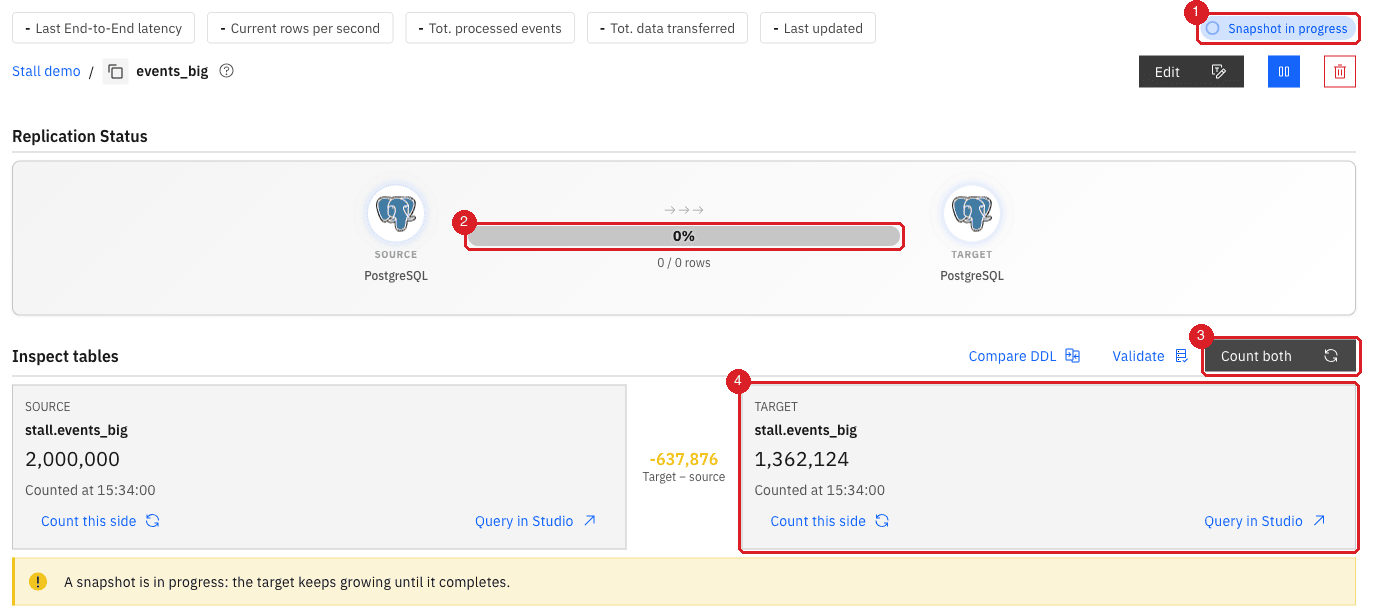
What happens at the end of a snapshot. The source reads the table in pages, the target writes the pages, and the percentage follows the pages that were read and handed over. The last page is written and confirmed after the percentage reaches 99%, and then the entity switches to CDC by itself: in our test of a 2-million-row table the target already held all 2,000,000 rows when the percentage read 98.97%, and 4 seconds later it read 100% and the entity entered CDC, with the notifications Snapshot finished for events_big and CDC started for events_big. A snapshot "at 99%" is therefore usually a few seconds from the end. If the entity stays in the Snapshot group for much longer than that, compare the counts: equal counts mean the last confirmation is missing and you should open the notifications of the entity; different counts mean the writes are blocked or slow.
|
In our tests the progress bar of the detail page sometimes stayed at |
When the target is blocked, remove the block (here a lock held by another session) and the snapshot continues on its own: in our test the lock was released after 3 minutes and the entity wrote the 2,000,000 rows without any action in the Control Plane. Do not restart a snapshot that is only slow: you would copy the table again.
|
Optional: reproduce a stuck snapshot
In a test environment, open a session on the target, run |
UI + SQL
When waiting is not enough, choose one action. Start with the first one that matches your case, because the later ones take more time and carry more risk.
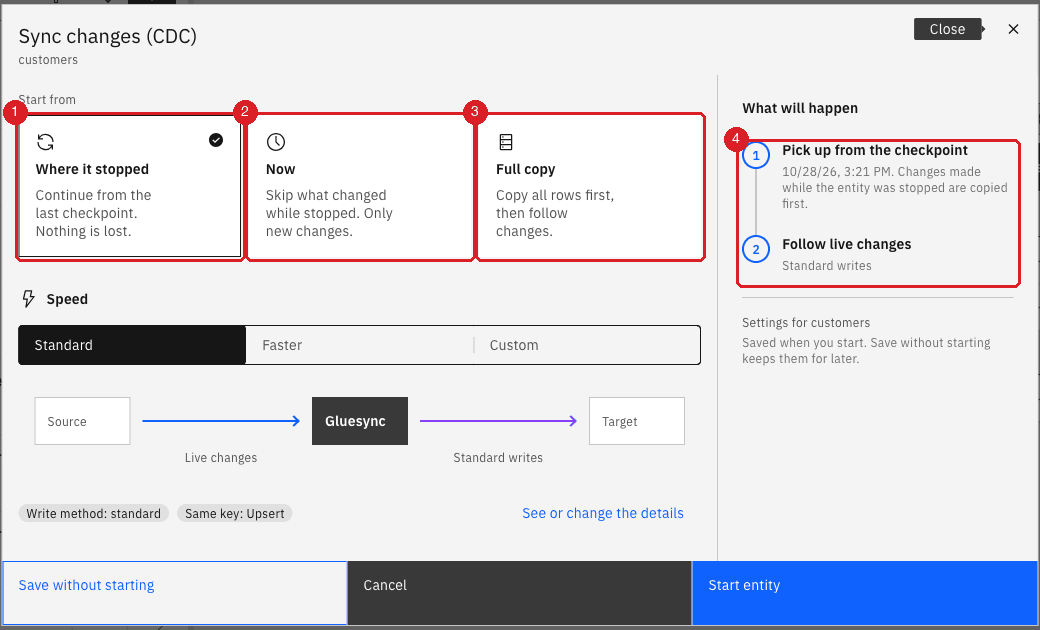
Pause and resume with Where it stopped. Use it when the entity is stuck but its position is intact. Pausing keeps the checkpoint and deletes nothing; Where it stopped continues from the last checkpoint and copies what changed in the meantime.
-
In the entity row, select Stop sync (the pause icon) and select Pause entity;
-
Make some changes on the source while the entity is paused: an insert, an update and a delete;
-
Select Start sync (the play icon). Start from is Where it stopped, and the panel What will happen reads Pick up from the checkpoint. Select Start entity.
Full copy. Use it when the target is wrong, not only late: rows missing, rows that should not exist, rows with different values, or a source position that is lost. Pause the entity first, then choose Start from → Full copy and one of the options of Data already in the target:
| Option | What it does | Risk |
|---|---|---|
Keep and merge |
Reads every row and overwrites the target rows that have the same key. Rows that exist only on the target stay. |
Safe, but it does not remove orphan rows. It reads the whole table again, which takes time and loads the source. |
Empty the table first |
Deletes every row of the target table, then copies. You must select I understand rows in the target will be deleted. |
The target table is empty or partial until the copy ends. The deletion cannot be undone. |
Delete only some rows first |
Deletes the rows that match a filter you choose, then copies. |
Deletes data. Read Selective deletion ahead of snapshot. |
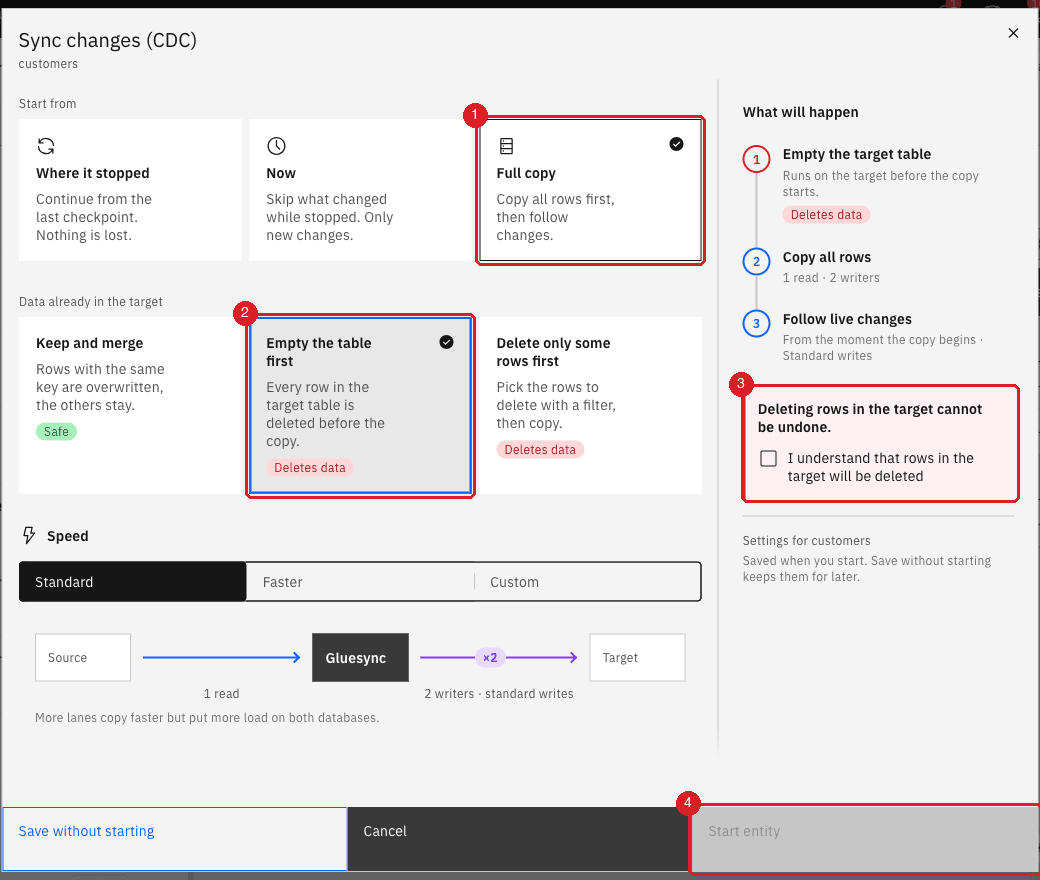
In our test the target of customers had a missing row (id 50), an orphan row (id 9999) and a modified row (id 60) while both tables counted 209 rows. Where it stopped repaired none of them. Full copy with Keep and merge restored rows 50 and 60 but left the orphan (the target counted 210 against 209 on the source). Full copy with Empty the table first gave 209 rows on both sides and no orphan.
Resume does not help when the source position is lost. If the banner says Source read failed with replication slot "gs_<entity id>_slot" does not exist, the source database lost the position that the entity needs, for example after the database was restored from a backup or replaced. The entity restarts and fails again and again, and Where it stopped cannot repair it.
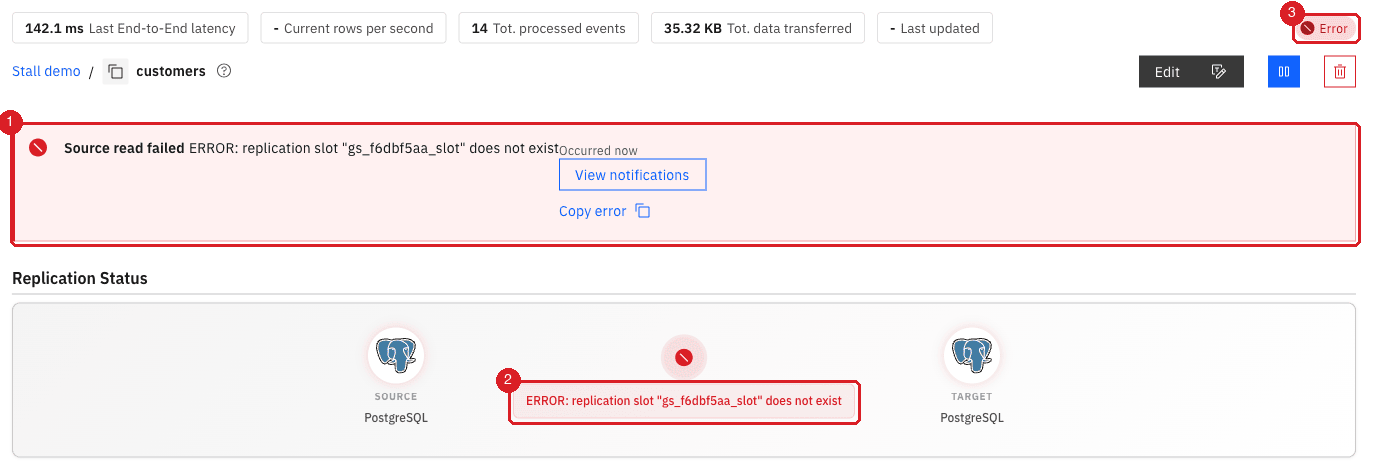
Pause the entity and start it with Full copy and Keep and merge. In our test this created the slot again (SELECT slot_name, active FROM pg_replication_slots; listed it) and copied the row that had been inserted while the slot was missing: both tables counted 210 rows.
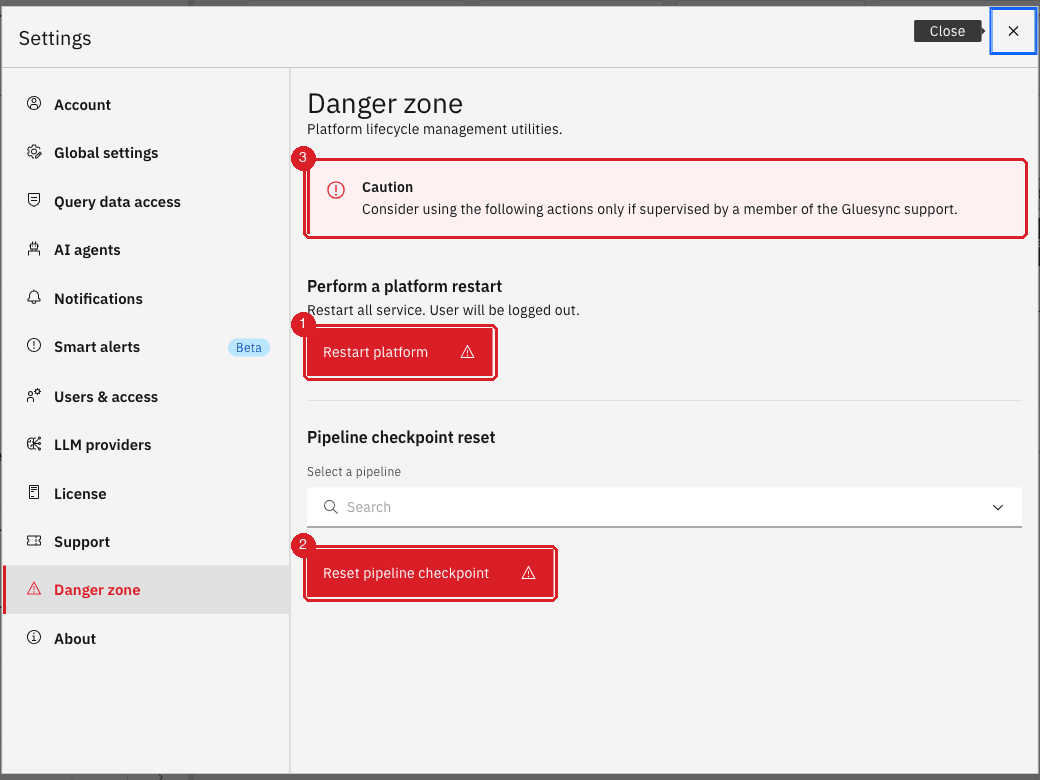
Restart the platform. Settings → Danger zone → Restart platform restarts all the services of Core Hub and logs every user out. It affects every pipeline, not only yours, and the same page warns you to use it only if supervised by Gluesync support. Use it last, after the actions above did not help and after support asked for it. The same page has Reset pipeline checkpoint; do not use it for the cases in this guide, because it is also supervised-only.
|
A paused entity keeps its position on the source. On PostgreSQL the replication slot stays on the source while the entity is paused and keeps the WAL files that the entity has not read yet. Do not leave an entity paused for days: check the disk of the source, as described in PostgreSQL troubleshooting. |
|
Optional: reproduce a lost replication slot
In a test environment only, pause the entity and run |
Symptom, cause and action
Find your symptom in the first column, check that the cause fits, and do the action in the last column. Start from the top: the actions are ordered from the least to the most risky.
| Symptom | Likely cause | Action | Risk |
|---|---|---|---|
All entities are Active and the Timestamp keeps growing; the source has new rows |
The source or the target database is stopped or unreachable, or the network drops packets. The connection is half open and Gluesync has no error to report yet. |
Check that both databases answer from the host of Core Hub. When they answer again, run the probe of step 3. Entities restart by themselves. |
None. Do not restart anything while the database is down. |
Error group with |
The database restarted or closed the connection. |
Wait. In our test replication resumed about 14 seconds after the database was back. Run the probe. |
None. |
Pipeline UNHEALTHY, chip On error, banner |
An agent could not connect to its database when the pipeline started or left maintenance mode. |
Fix the database, the host or the credentials in Edit source or Edit target. Then wait for the next attempt (up to 5 minutes), or enter and exit maintenance mode. |
Low. Maintenance mode pauses the whole pipeline for a few seconds. |
|
The password is wrong or was rotated. The wrong value is saved. |
Enter the right password in Edit source or Edit target and select Test and continue. |
None. |
|
Wrong host or port, database stopped, or firewall. |
Check the host and the port, start the database or open the port, then select Test and continue. |
None. |
Target write failed with a constraint or type error ( |
The target refuses the row. Gluesync retries about once a minute and the later changes wait behind it. |
Fix the cause on the target (constraint, column size, mapping). The next retry succeeds by itself. Do not pause or run Full copy first. |
Low. Changes keep waiting until the target accepts the row. |
Target write failed with |
The target is stopped, unreachable or out of connections. |
Start the target or fix the network. Pending rows arrive within seconds. |
None. |
Entity in Error, but the source and the target counts are equal and the probe row arrives |
Stale error flag: the entity recovered but has not replicated a change since. |
Nothing to do. Make a change on the source, or ignore it: the flag clears at the next change. |
None. |
Snapshot group and |
The percentage is not reliable on the detail page and not shown in the list. |
Use Count both and the SQL count on the target. If the count grows, wait. |
None. Do not restart a slow snapshot. |
Snapshot count does not grow and sessions on the target show |
Another session holds a lock on the target table (a long transaction, a maintenance job, a schema change). |
End the blocking session or wait for it to finish. The snapshot continues by itself. |
None. |
Entity is stuck but its position is intact |
A hung connection, or a change that did not restart the entity. |
Pause the entity, then Start sync with Where it stopped. Verify with SQL. |
Low. Changes made while the entity is paused are copied when it resumes. The source keeps the position (and, on PostgreSQL, its WAL) meanwhile. |
Source read failed with |
The source lost the position (restore, failover, replacement of the database). |
Pause the entity and run Full copy with Keep and merge, then compare the content of the tables. |
Medium. The whole table is read again; rows that exist only on the target stay. |
Counts equal but rows differ, or rows exist only on the target |
Drift: manual writes on the target, a lost change, or a skipped change (Now). |
Full copy with Keep and merge fixes missing and different rows. Empty the table first also removes orphans. |
High for Empty the table first: the target table is empty or partial until the copy ends and the deletion cannot be undone. |
Nothing above fits, or several pipelines are affected at once |
A problem in Core Hub or on its host (full disk, memory, a stuck service). |
Collect the logs with Settings → Support and open a ticket. Restart the platform only with Gluesync support. |
High. Restart platform logs every user out and stops all pipelines for the restart. |
Troubleshooting
| Problem | Possible cause | What to do |
|---|---|---|
Start sync and the other entity buttons are disabled |
The pipeline is in maintenance mode. |
Hover over the In maintenance chip and select Exit maintenance. |
The error banner disappeared before you could copy it |
The entity retried and the banner was replaced by the next message. |
Open Notifications hub, search for the entity name and select Copy on the notification. |
You do not see the gear menu items or the buttons to pause an entity |
Your role may not allow it. |
Ask an administrator to review your role. See Manage users, groups and roles. |
You want to be told about a stall instead of finding it |
The entity status does not change when a database is silent. |
Send platform events by email or to a webhook, and review Smart alerts (Beta) in Settings, which can watch the activity of each entity. See the related guides below. |
Related guides
Contact MOLO17 Support if you need assistance with a stalled pipeline or entity.