Migrating unlocked schemas
|
How-to guide
For a step-by-step walkthrough tested on a running Gluesync, see the how-to guide Handle schema changes on a live replication. |
Overview
Earlier releases let you unlock the target schema of an entity in the Fields Editor to change target data types, add or remove target columns, and add technical fields. Unlocked schemas are no longer supported: the Fields Editor now maps fields with arrows, which covers those cases without unlocking anything.
Entities saved with an unlocked schema or unlocked data types keep replicating exactly as before. They change only when you edit and save them.
What happens when you edit an unlocked entity
The first time you open an entity saved with an unlocked schema or unlocked data types, a dialog titled This entity uses an unlocked schema explains the change. It offers two choices:
-
Leave unchanged exits without saving. The saved entity and its replication stay as they are.
-
Open field editor starts the migration.
The migration automatically tries to give the entity the mapping and the UDFs it needs:
-
The field mapping is rebuilt from a fresh discovery with a locked schema, and arrows are proposed again.
-
The entity’s UDF, settings, custom properties, filters, and key mapping are kept.
-
On NoSQL, Event Streaming, and Object Store targets, fields you had added by hand are kept as unchecked fields without arrows. Check them and draw their arrows again.
Review the proposed arrows and the field functions in the Fields Editor, fix any error it reports, then confirm and save. Saving stores the entity with a locked schema.
|
The migration covers the common cases, not every one. Before you save, check that every target field is fed the way it was before. If the migrated entity needs anything else to keep its previous behavior, such as a custom field function, contact MOLO17 support and we will help you set it up. |
Former use cases with arrow mapping
| What you unlocked the schema for | How to do it now |
|---|---|
Change a target data type |
On a NoSQL, Event Streaming, or Object Store target, on a table Gluesync creates, or on a field you added, pick the type in the type menu of the field. On an existing RDBMS table, the type is the one defined in the database: change the table, or convert the value with a field function, a Custom Field Function, or a UDF. |
Merge several source columns into one target column |
Draw an arrow from each source column to the target column and bind a Custom Field Function that takes them as arguments. See Composing a column from several source columns. |
Remove a target column |
Uncheck the target field. A source field without an arrow is read but not written. |
Add a target column or a technical field |
Use Add field where the target lets you add fields, or add the column to the target table in the database. Fill it with a field function, a Custom Field Function, or the UDF. For built-in technical fields, see Technical fields. |
Write one source column to several target columns |
Draw an arrow from the source field to each target field (1:N). |
See Mapping fields with arrows for how to draw, remove, and undo arrows.
API and backups
Entity configurations and backups that carry the tablesWithUnlockedSchema or tablesWithUnlockedDataTypes fields are still accepted, so older backups restore and existing entities keep running. Saving an entity from the Control Plane clears both fields.
FAQ
Changes to the structure of a source table are common. This section describes what Gluesync 2.3 does when a column is added, dropped, renamed or widened on the source of a running entity, and what to do about it. The results were observed with a PostgreSQL source and an RDBMS target.
What happens when I add a column to a source table?
Nothing visible. The entity keeps replicating the columns it was saved with and ignores the new one. There is no error and no notification, and the target table is not altered. If you add a column with the same name to the target table yourself, it stays NULL: the entity does not write a column it has no arrow for.
How do I replicate the new column?
-
Add the column to the target table, unless your target creates its own structure (for example an object store).
-
Open the entity and select Edit mapping. The new column is listed at the end of the source fields, unchecked, so the counter of the fields reads, for example,
5/6. -
Check the field on the source side and on the target side, so that an arrow joins them. On NoSQL, event streaming and object store targets, select Add field on the target first, give it a name and a type, and draw the arrow.
-
A banner says This save adds columns: the entity will be stopped and a resync will be needed. Select Confirm, then Confirm and continue.
-
The entity stops and the notification Entity Configuration Changed asks for a resync. Start the entity again and choose Full copy, which copies all rows first and then follows the changes. The Where it stopped choice also works, but the rows that already exist in the target keep
NULLin the new column until a full copy runs.
What happens when I drop a column from a source table?
Replication goes on without an error. For every row that is inserted or updated after the drop, the entity writes NULL in the target column that was fed by the dropped one, so the values of the rows that change are lost in the target. Rows that do not change keep their old value. Before you drop a column, check that the matching target column accepts NULL.
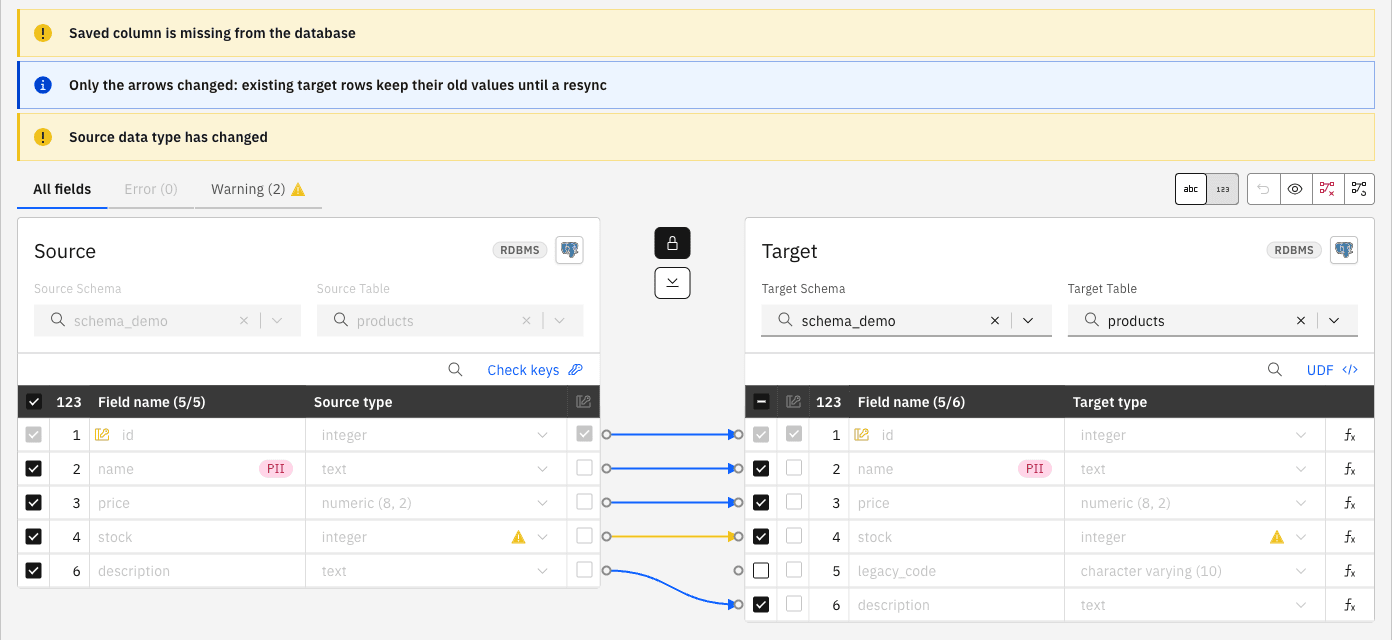
To tidy up, open Edit mapping. The dialog shows the warning Saved column is missing from the database and an error on the target field that has lost its source: Field function is required or define a UDF. Confirm stays disabled until you uncheck that target field, or bind a field function or a UDF to it. The unchecked column stays in the target table, untouched. Saving stops the entity: start it again with Where it stopped, because no full copy is needed.
What happens when I rename a source column?
Gluesync sees a dropped column and a new one. The target column fed by the old name receives NULL for each row that changes, and the new name is ignored until you map it, as for a new column.
The type of a source column was widened, for example from smallint to integer
The entity keeps the types it was saved with, and it does not reject a value that does not fit them: the value is written in the old range. In our test a smallint column widened to integer received 100000 and the target stored -31072, with no error. Widening the target column alone does not change this.
Do it in this order:
-
Widen the column in the target table, then in the source table.
-
Open the entity and select Edit mapping. The dialog shows the warning Source data type has changed. Select Confirm, then Confirm and continue. This refreshes the types the entity uses, and the entity stops.
-
Start the entity again. New changes are now written correctly.
-
If values outside the old range were already written, run a full copy to correct them.
Does Gluesync alter the target table when the source changes?
No. The target table of an existing RDBMS entity is changed only by you. The exception is the technical fields that Gluesync manages, see Technical fields.
How do I know that a source table has changed?
Gluesync does not raise a notification when a source column is added, dropped, renamed or widened. The entity stays healthy. Open Edit mapping to compare the entity with the source: new columns, missing columns and changed types appear as warnings and errors. Agree changes of structure with the owners of the source, and apply them in a planned window.
Does anything change for entities saved with an unlocked schema?
The behavior above applies to every entity you save in Gluesync 2.3. An entity saved with an unlocked schema in an earlier release keeps replicating as it did until you edit and save it, see What happens when you edit an unlocked entity. If you depend on an unlocked schema, contact MOLO17 support before the structure of its source table changes.
What about Parquet and other object store targets?
The same rules apply to the mapping. New files carry the new column, and files already written keep their old structure. See the Parquet FAQ.