Set up a Couchbase target and shape the documents
Couchbase stores JSON documents, not rows. Gluesync turns each source row into one document, writes it into a scope and a collection, and names it with a document key. This guide creates a bucket and a Couchbase user with only the roles Gluesync needs, copies a PostgreSQL table with a snapshot, follows inserts, updates and deletes with CDC, shows what the documents and their keys look like, changes the scope, collection and key, and lists the errors you are most likely to meet.
In this guide
You will create a bucket and a user with least roles, connect the Couchbase target, map a table to a collection, run a snapshot and follow changes with CDC, and read the documents with N1QL. You will then set a custom scope, collection and document key for a table with a composite primary key, switch off scopes and collections to see the type field, and read the speed settings of the start dialog. A table at the end lists the errors that were reproduced for this guide.
Quick information
Goal |
Replicate relational tables to Couchbase as JSON documents, with the scope, collection and document key you choose |
Audience |
Data engineers and Couchbase administrators |
Level |
Intermediate |
Time required |
About 40 minutes |
Area |
Couchbase → RBAC users; Control Plane → Pipelines → Couchbase target → Base settings and Advanced settings; entity → Edit settings → Target |
Applies to |
Gluesync 2.3 |
Before you begin
Make sure that:
-
You have a Couchbase Server 7.0 or later (Enterprise or Community) or a Capella cluster, with the Data and Query services, and you can run
couchbase-clior the Web Console as an administrator. This guide was tested with Couchbase Server Enterprise 7.6. Couchbase is a target in this guide: you need another database as the source; -
Core Hub can reach the cluster on port
8091(management) and11210(data), and on8093(query) if you turn off scopes and collections. Use18091,11207and18093with TLS; -
You have a source that Core Hub can read with CDC. This guide uses PostgreSQL 16, set up as in Set up a PostgreSQL WAL source;
-
You can sign in to the Control Plane with a role that can create pipelines;
-
You have two source tables with a primary key. This guide uses
public.orderswith 200,000 rows (id bigintprimary key,customer varchar(50),amount numeric(12,2),status varchar(20),created_at timestamptz,ship_date date,paid boolean,tags text[],note text) andpublic.order_lineswith 300 rows and the composite primary key(order_id, line_no).
|
The statements and the messages quoted in this guide were run and captured against Couchbase Server Enterprise 7.6 and the Control Plane that ships with Gluesync 2.3. The Couchbase target reference lists every option and the REST API setup. |
Guide steps
CLI
Gluesync does not need the admin role. It needs to read and write documents, and to create scopes and collections. Connect to a node as an administrator and run the commands below. Replace the passwords.
-
Create the bucket. A bucket is the namespace of every document of the pipeline:
couchbase-cli bucket-create -c localhost:8091 -u Administrator -p '<admin password>' \ --bucket sales --bucket-type couchbase --bucket-ramsize 512 --storage-backend couchstore -
Create the user with three roles on that bucket.
scope_adminlets Gluesync create scopes and collections,data_readeranddata_writerlet it read and write documents:couchbase-cli user-manage -c localhost:8091 -u Administrator -p '<admin password>' \ --set --rbac-username gsuser --rbac-password '<a strong password>' \ --roles 'scope_admin[sales],data_reader[sales],data_writer[sales]' --auth-domain local
|
|
UI
-
In the Control Plane, select Create your first pipeline, or the + button of the pipeline list if you already have pipelines. The Agents setup wizard opens;
-
In 1. Setup source, choose the PostgreSQL CDC agent tile and fill Base settings with the host, port, database and user of your source. Select Test and continue, then Next;
-
In 2. Setup target(s), choose the Couchbase tile and fill Base settings:
-
Host name / Address: a node of your cluster. Gluesync discovers the other nodes;
-
Port:
8091; -
Bucket name:
sales; -
Username and Password: the user of step 1;
-
-
Select Test and continue. The target appears with
gsuserand the address. Select Next, enter a Pipeline name and select Finish.
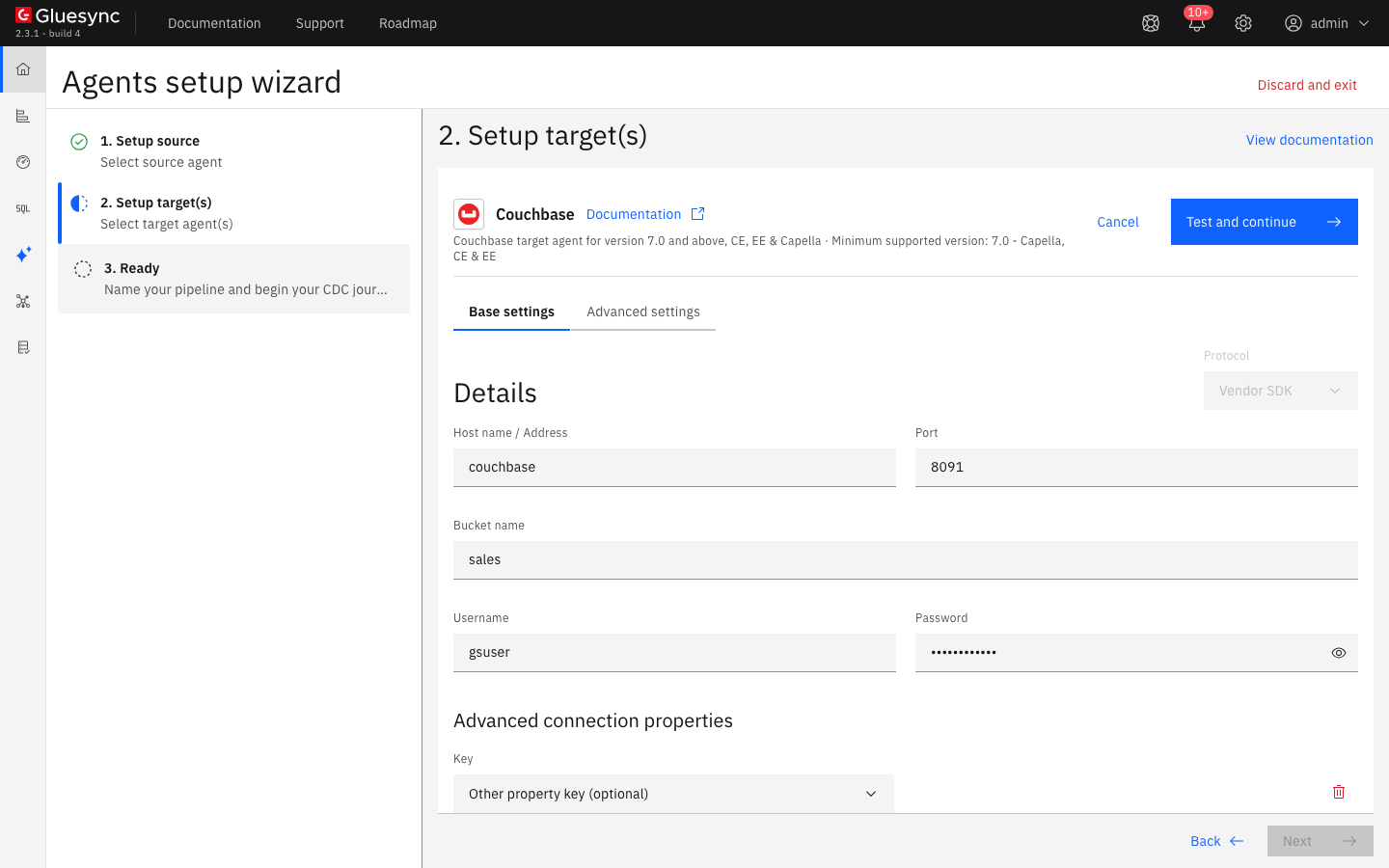
For TLS, upload your certificate under Security and use port 18091. For Capella, use the host name of the cluster and port 18091. The Couchbase target reference describes Capella.
If the test fails, the connection is saved anyway and the notification Failed to save shows the cause. Open the menu of the target card, select Edit, correct the values and test again. The troubleshooting table lists the messages.
UI
-
In the pipeline, select Entities. The Add entities page opens with the Object browser of the source. Expand the schema
publicand select the check box oforders; -
Gluesync maps all nine columns at once. Select the mapping icon of the entity in Selected entities to open Field mapping. The Target Scope is
public, the schema of the source table, and the Target Collection isorders, the name of the table; -
Read the Target type column. The key column
idis marked as a key and is not editable. Select Confirm, then Confirm and continue.
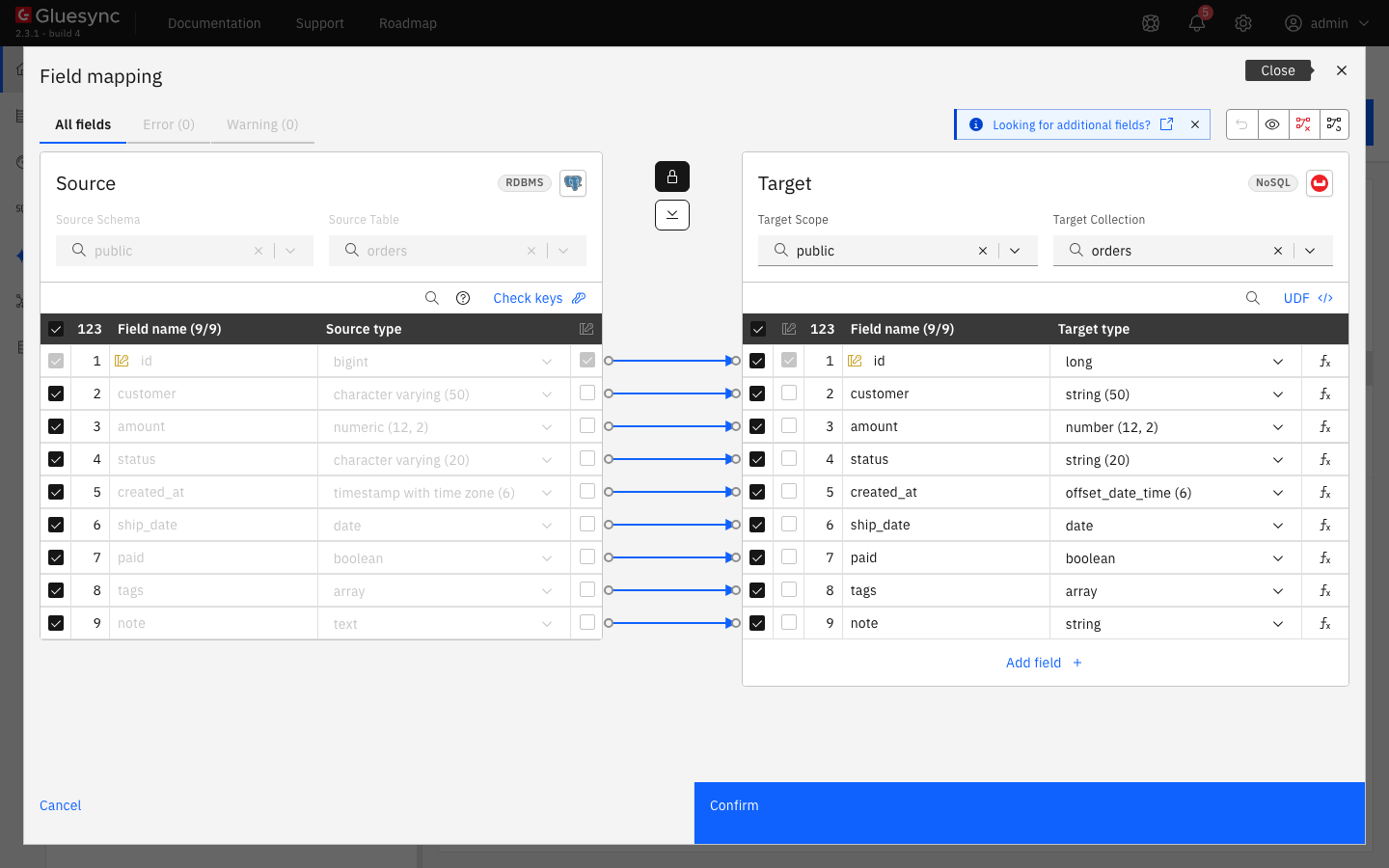
Every entity needs a key, because the key names the document. A table without a primary key is rejected, unless you choose the key columns with Check keys. Read Choose keys for tables without a primary key.
UI
-
In the Hold group, select the play icon of
public.orders. The dialog Sync changes (CDC) opens; -
Leave Start from on Full copy and Data already in the target on Keep and merge. The snapshot overwrites a document with the same key and leaves the others alone;
-
Select Start entity.
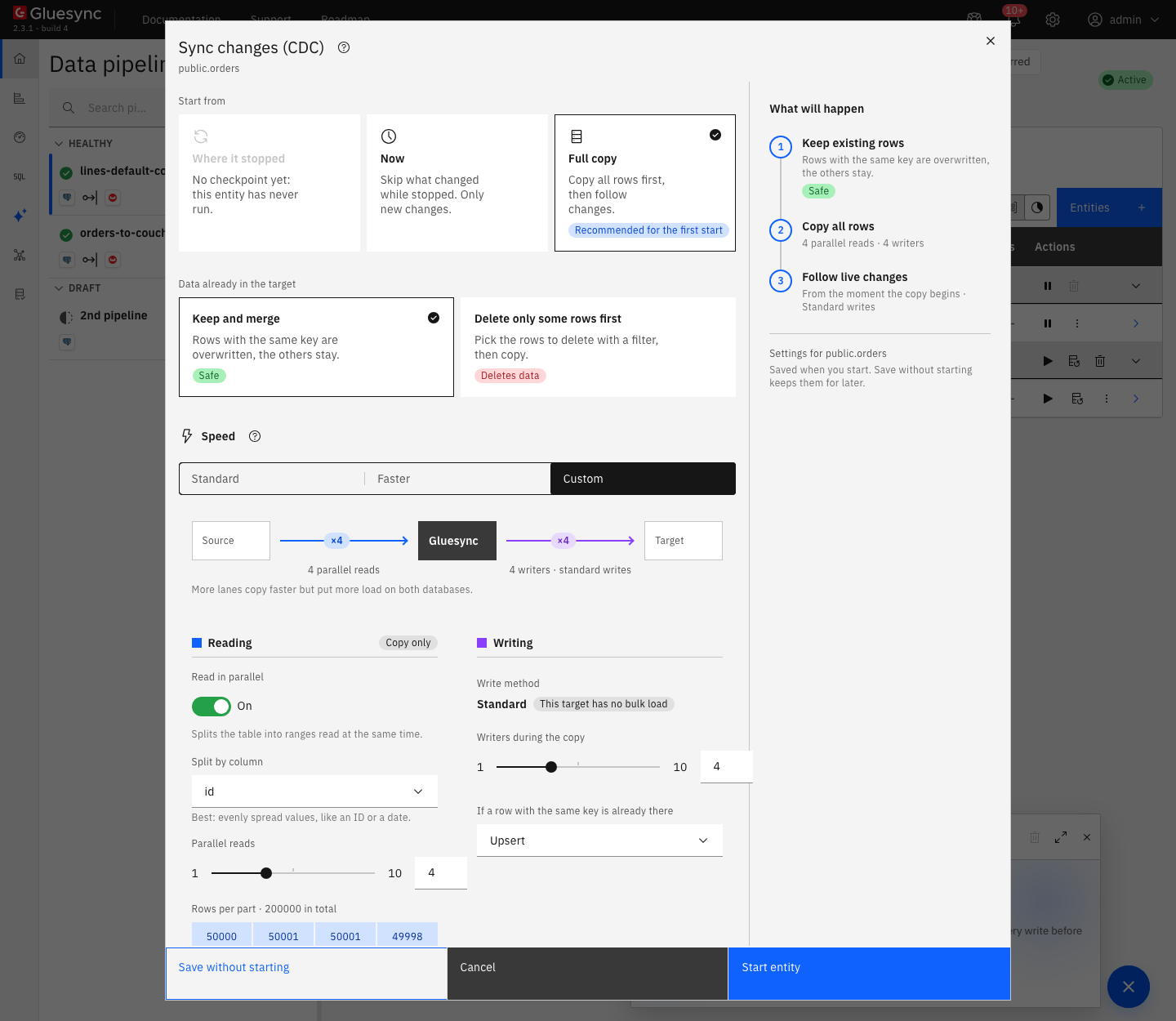
SQL
Gluesync created the scope public and the collection orders for you. Query them as an administrator. The scope name public is a reserved word in N1QL, so write every name between backticks. Create a primary index first, because COUNT needs an index:
CREATE PRIMARY INDEX IF NOT EXISTS ON `sales`.`public`.`orders`;
SELECT COUNT(*) AS c FROM `sales`.`public`.`orders`;
SELECT META(o).id AS doc_key, o.* FROM `sales`.`public`.`orders` o USE KEYS ["public::orders::1"];The mapping from relational to JSON is direct, one column for one field:
| Source column | JSON field |
|---|---|
|
A JSON number: |
|
An ISO 8601 string in UTC: |
|
A string: |
|
|
|
A JSON array: |
|
A field with the value |
The rows stay flat: Gluesync does not nest the rows of a child table in the document of its parent. To build nested documents, use a data modeling entity, described in the reference.
SQL
Change the source table:
INSERT INTO public.orders VALUES (200001, 'new customer', 99.90, 'new', now(), current_date, false, ARRAY['x'], 'inserted by cdc');
UPDATE public.orders SET status = 'shipped', amount = 123.45 WHERE id = 1;
DELETE FROM public.orders WHERE id = 2;
Wait a few seconds and read the three documents:
SELECT META(o).id, o.* FROM `sales`.`public`.`orders` o
USE KEYS ["public::orders::200001", "public::orders::1", "public::orders::2"];Every write is a key-value operation on one document: an insert, an upsert or a remove. Gluesync keeps the writes of one document in order, and runs the writes of different documents in parallel. A transient failure such as a timeout is retried on that write alone.
UI
The second table, order_lines, has a composite key. This step writes it into a scope called shop, and names its documents with a prefix.
-
In Add entities, check
order_lines, then select the Settings (gear) icon of the entity. Select Target and thencouchbase; -
Under Target Scope, clear the value, type
shopand select Add "shop". The value shows the badge NEW. Changing the scope clears the Target Collection, so enterorder_linesagain in the same way; -
Under Document key, the Preview shows the default key,
public :: order_lines :: order_id :: line_no. Turn on Customize document key, and set:-
Prefix:
line; -
Separator:
-. The list offers::,-,_,/and None; -
Fields: both key columns, in the order of Key order. Move a field with the arrows;
-
Suffix: empty;
-
-
Close the dialog, select Confirm and continue, and start the entity as in step 4.
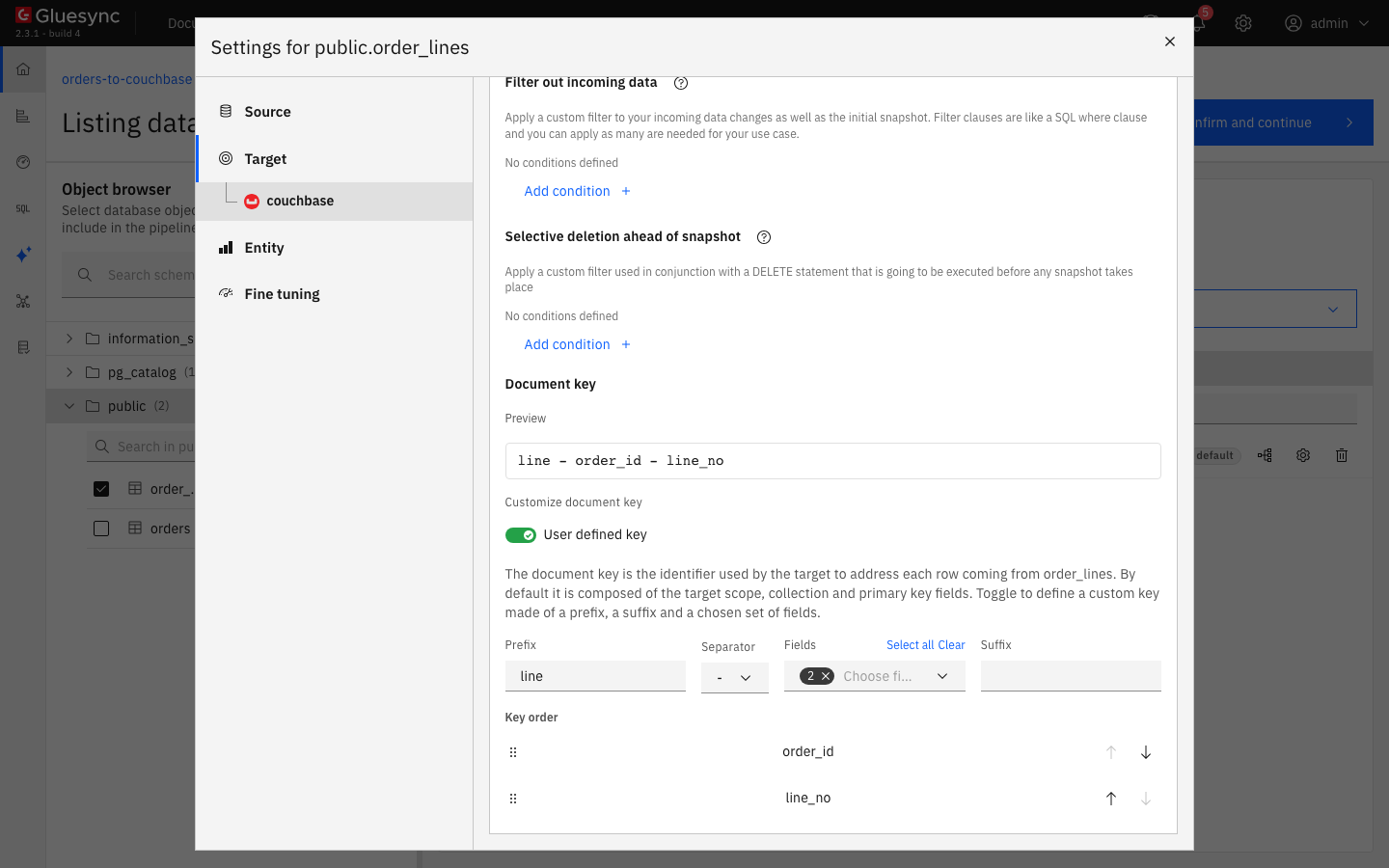
line, the separator - and both key fields. The Preview shows the result.Check the result in Couchbase:
CREATE PRIMARY INDEX IF NOT EXISTS ON `sales`.`shop`.`order_lines`;
SELECT META(o).id, o.* FROM `sales`.`shop`.`order_lines` o USE KEYS ["line-1-1", "line-100-3"];|
Choose the key before the first snapshot. A different key writes different documents, and the documents already written under the old key stay in the collection. The key must be unique for each row of the table: two rows with the same key overwrite each other. |
The Entity tab of the same dialog has TTL (In seconds. Defaults to 0s, meaning no TTL). A value above 0 gives every document of that entity an expiry.
UI
By default, Gluesync writes each table in its own collection. For a cluster that must keep every document in the default collection, turn this off in the target. In the connection form, open Advanced settings, select Add property, choose the key Use Scope and Collections and turn the value off. In a pipeline that already exists, open the Edit menu of the target.
With the option off, Gluesync needs more from the user, because it finds the tables by reading the type field of the documents in _default._default:
-
Add the role
query_selecton the default collection:couchbase-cli user-manage -c localhost:8091 -u Administrator -p '<admin password>' \ --set --rbac-username gsuser \ --roles 'scope_admin[sales],data_reader[sales],data_writer[sales],query_select[sales:_default:_default]' \ --auth-domain local -
Create a primary index on the default collection, or grant
query_use_sequential_scans. Without an index the object browser fails with the error of the troubleshooting table:CREATE PRIMARY INDEX ON `sales`.`_default`.`_default`;
UI
The Couchbase target writes one document at a time on parallel lanes. It has no bulk load: the start dialog says This target has no bulk load. The speed depends on the number of writers.
-
Open the start dialog of an entity and select Faster, or Custom and See or change the details;
-
Under Writing, set Writers during the copy from
1to10. The Standard speed uses two writers and the Faster speed uses four. Each writer drives 16 writes at the same time, so two writers keep 32 writes in flight; -
Under Reading, turn on Read in parallel and choose a column with evenly spread values, such as an ID, to read the table in ranges.
The connection settings under Advanced connection properties tune the client:
| Property | Default | When to change it |
|---|---|---|
Key-Value Timeout |
|
Raise it for a slow or remote cluster. A write that exceeds it is retried |
Key-Value Durable Timeout |
|
The timeout of durable writes |
Key-Value Connections Number |
|
More connections for a very high write rate |
Enable Client-Side Compression |
Off |
Turn it on to save network bandwidth on a slow link |
Connection Timeout, Management Timeout, Query Timeout |
|
Raise them for a cluster far from Core Hub |
Gluesync does not ask for a durability level on the key-value writes of a snapshot or of CDC. Only the transactions of data modeling entities use the durability level majority. The properties Write page size and Write page multiplier in the Entity tab are deprecated and ignored.
Read Tune replication throughput for the settings that apply to every target.
Troubleshooting
| Problem | Possible cause | What to do |
|---|---|---|
Failed to save with |
Wrong user or password. The values are saved anyway. The notification starts with |
Correct the values in the Edit menu of the target and test again |
Failed to save with |
Wrong Bucket name, or the user has no role on that bucket |
Create the bucket, or grant the roles of step 1 on it |
Failed to save with |
The user has no |
Grant |
The entity moves to the Error group with |
The user lost |
Grant |
Tables Fetch and Schemas Fetch fail with |
Use Scope and Collections is off and the user cannot query the default collection |
Grant |
Tables Fetch fails with |
Use Scope and Collections is off and the default collection has no index |
|
A N1QL query on |
|
Write the scope between backticks: |
The count is lower than the source |
Two rows have the same document key, and the second overwrote the first |
Include every key column in the Document key, or choose other fields |
Documents of an old key remain after you changed the key |
A key change writes new documents and does not remove the old ones |
Delete the old documents in Couchbase, or empty the collection and run a new snapshot |
Related guides
Contact MOLO17 Support if you need assistance with a Couchbase target.