Set up a SQL Server Change Tracking source
The SQL Server Change Tracking agent reads the changes that SQL Server itself records for each table. It needs no SQL Server Agent job and no transaction log reader, but it needs a primary key on every table and it keeps the history for a limited time only. This guide enables Change Tracking on the database and on the tables, sets the retention, creates a user with only the permissions the agent uses, runs a snapshot and live changes into a MySQL target, and shows what happens when a permission is missing, a table has no primary key, or an entity is stopped for longer than the retention.
In this guide
You will decide between Change Tracking and Change Data Capture (CDC). You will turn on Change Tracking on the database with a retention that fits your maintenance windows, and on each table. You will create a login that can read the tables and the changes, create the source connection in the Control Plane, add an entity, and start it with a full copy followed by live changes. You will see that Change Tracking delivers the net change of a row, pause an entity and resume it, cause an expired position on purpose and recover from it, and let Gluesync enable Change Tracking by itself.
Change Tracking or CDC
Gluesync has two agents for SQL Server sources. Pick one before you prepare the database.
| Change Tracking agent | CDC agent | |
|---|---|---|
Needs a primary key on the table |
Yes. SQL Server refuses to enable Change Tracking without one, and a logical key in Gluesync does not change that |
No. Tables without a primary key work, see MS SQL Server CDC reference |
What you get for a row |
The net change since the last read: one insert, update or delete per key, with the current values of the row. An insert followed by four updates arrives as one insert |
Every change that the capture job found in the transaction log, and the agent supports before and after images |
Extra services |
None. SQL Server records the changes inside the transaction |
SQL Server Agent must run its capture job |
Minimum version |
SQL Server 2016, all editions (the Control Plane tile says so) |
SQL Server 2008 Enterprise and above (the Control Plane tile says so) |
History kept |
For the retention you set (default 24 hours when Gluesync enables it). An entity that is stopped for longer needs a new snapshot |
Until the cleanup job of CDC removes it |
Permissions |
|
|
Choose Change Tracking when every table has a primary key, you want the lightest load on the source, and a net change per row is enough. Choose CDC when you have tables without a primary key, or when you need every intermediate change or the old values of a row.
Quick information
Goal |
Replicate a SQL Server table with a snapshot followed by change data capture (CDC) through Change Tracking, and keep the history long enough for your stops |
Audience |
Data engineers and database administrators who own a SQL Server database |
Level |
Intermediate |
Time required |
About 45 minutes |
Area |
SQL Server → Change Tracking; Control Plane → Pipelines → MS SQL Server Change tracking agent → Base settings and Advanced settings; entity → start dialog |
Applies to |
Gluesync 2.3 |
Before you begin
Make sure that:
-
You have a SQL Server 2016 or later database and you can run T-SQL on it as a sysadmin or as the database owner. This guide was tested with SQL Server 2022;
-
Core Hub can open a connection to the server, on the port you use or with the dynamic port discovery that the Port field offers when you enter
0; -
You have a target to write to. This guide uses a MySQL database and its connection details: any target works, and the steps for the source are the same;
-
You can sign in to the Control Plane with a role that can create pipelines;
-
You have a source table with a primary key. This guide uses
dbo.orderswith 20,000 rows (id intprimary key,customer varchar(50),status varchar(20),amount decimal(10,2),created_at datetime2(3)), a second tabledbo.customerswith a primary key, and a tabledbo.audit_logwithout one.
|
The messages quoted in this guide were captured in the Control Plane and in the Core Hub log with SQL Server 2022 (16.0.4305) as the source and MySQL 8.0 as the target. The options of the agent are listed in the MS SQL Server Change Tracking reference. |
Guide steps
SQL
Connect to the source database as a sysadmin and read the version. Then list the tables that have no primary key. Change Tracking cannot be enabled on them:
SELECT @@VERSION;

SELECT s.name AS schema_name, t.name AS table_name
FROM sys.tables t
JOIN sys.schemas s ON s.schema_id = t.schema_id
WHERE NOT EXISTS (
    SELECT 1 FROM sys.indexes i
    WHERE i.object_id = t.object_id AND i.is_primary_key = 1)
  AND t.name NOT LIKE 'MSchange_tracking%'
ORDER BY 1, 2;| A unique index is not enough: SQL Server asks for a primary key. See Choose keys for tables without a primary key for the keys of tables that the CDC agent reads. |
SQL
Enable Change Tracking on the database. CHANGE_RETENTION is how long SQL Server keeps the changes. Choose it from the longest time an entity can be stopped, with a margin, because an entity that restarts after the retention cannot continue, see step 10:
ALTER DATABASE [demo]
SET CHANGE_TRACKING = ON
(CHANGE_RETENTION = 7 DAYS, AUTO_CLEANUP = ON);
Read the setting back:
SELECT d.name, t.retention_period, t.retention_period_units_desc, t.is_auto_cleanup_on
FROM sys.change_tracking_databases t
JOIN sys.databases d ON d.database_id = t.database_id;|
Keep |
SQL
Enable it for each table that you replicate. This is the statement that Gluesync runs when it enables the table itself:
ALTER TABLE [dbo].[orders]
ENABLE CHANGE_TRACKING
WITH (TRACK_COLUMNS_UPDATED = ON);

ALTER TABLE [dbo].[customers]
ENABLE CHANGE_TRACKING
WITH (TRACK_COLUMNS_UPDATED = ON);
Read the state of the tables and the current version:
SELECT t.name, ct.begin_version, ct.min_valid_version, ct.is_track_columns_updated_on
FROM sys.change_tracking_tables ct
JOIN sys.tables t ON t.object_id = ct.object_id;

SELECT CHANGE_TRACKING_CURRENT_VERSION() AS current_version,
CHANGE_TRACKING_MIN_VALID_VERSION(OBJECT_ID(N'dbo.orders')) AS min_valid_version;On a table without a primary key, SQL Server stops the statement:
Msg 4997, Level 16, State 1
Cannot enable change tracking on table 'audit_log'. Change tracking requires a primary key on the table. Create a primary key on the table before enabling change tracking.SQL
Gluesync does not need db_owner. For a source with Change Tracking already enabled, it needs to sign in, to select from the tables and to read the changes through CHANGETABLE, which needs VIEW CHANGE TRACKING. Replace the password:
USE master;
CREATE LOGIN gluesync WITH PASSWORD = '<a strong password>', CHECK_POLICY = OFF;
GO
USE demo;
CREATE USER gluesync FOR LOGIN gluesync;
ALTER ROLE db_datareader ADD MEMBER gluesync;
GRANT VIEW CHANGE TRACKING ON SCHEMA::dbo TO gluesync;
GO
Granting it on the schema covers the tables you add later. Grant it on single tables with GRANT VIEW CHANGE TRACKING ON OBJECT::dbo.orders TO gluesync; if you prefer.
Check the login from the machine where Core Hub runs. The query reads the changes of a table, which is what the agent does:
sqlcmd -C -S <host>,1433 -U gluesync -d demo -Q "SELECT TOP 3 CT.id, CT.SYS_CHANGE_VERSION, CT.SYS_CHANGE_OPERATION FROM CHANGETABLE(CHANGES dbo.orders, 0) AS CT"|
|
UI
-
In the Control Plane, select Create your first pipeline, or the + button of the pipeline list if you already have pipelines. The Agents setup wizard opens;
-
In 1. Setup source, select the MS SQL Server tile. It shows 2 connectors available. Choose MS SQL Server Change tracking agent, described as Change tracking agent for MS SQL Server 2016 and above;
-
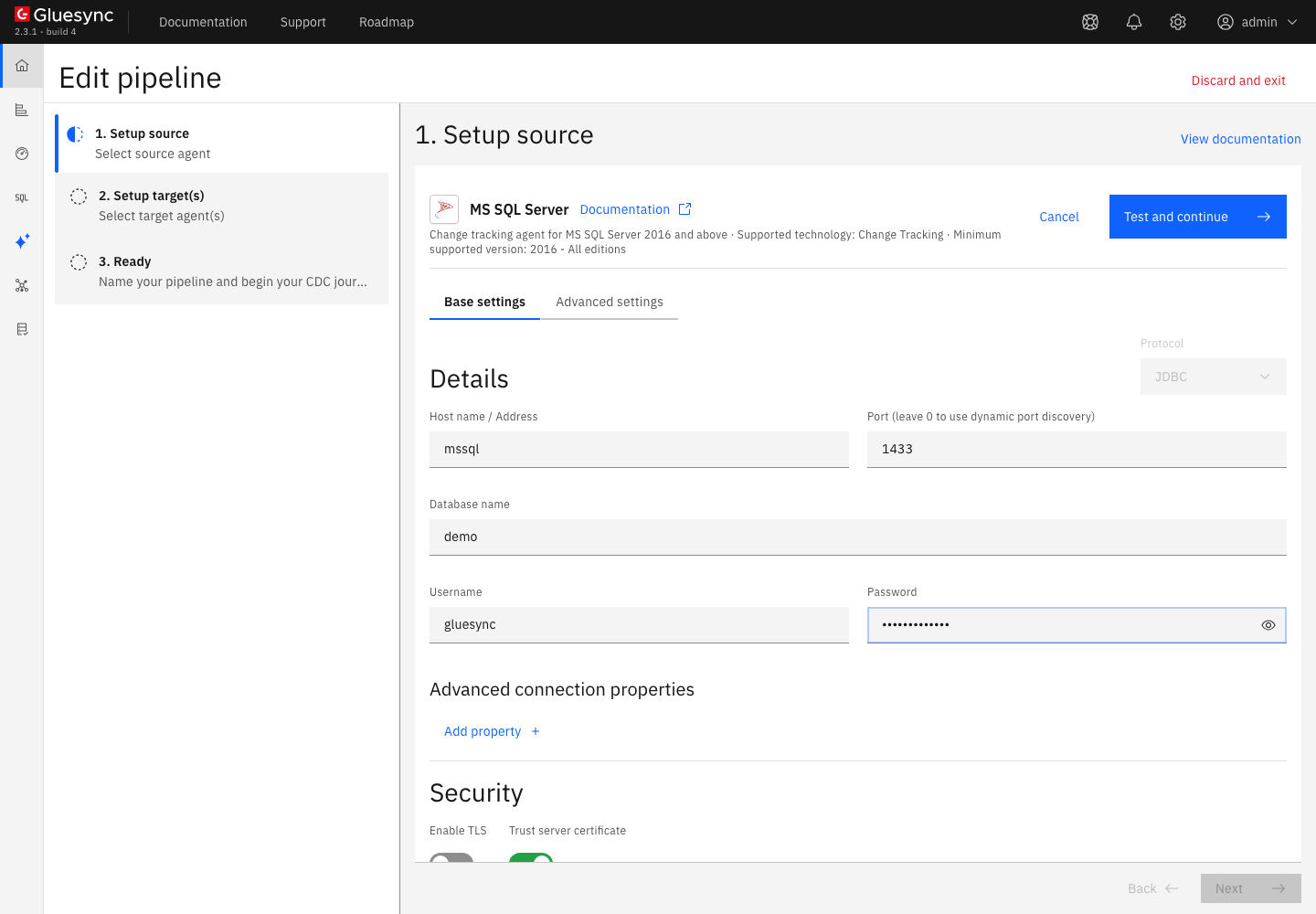
In Base settings, fill:
-
Host name / Address: the DNS name or address of the server, as Core Hub sees it;
-
Port (leave 0 to use dynamic port discovery):
1433, or the port of your instance; -
Database name: the database with the tracked tables;
-
Username and Password: the login of step 4;
-
-
Keep Enable TLS off and Trust server certificate on for a lab server. For a production server, turn on Enable TLS and use the certificate options of the reference;
-
Select Test and continue. The source appears with a green check mark and the line
<user>@<host>:<port>. Select Next.
-
In 2. Setup target(s), choose your target agent and fill its connection. For the MySQL target of this guide, enter the host,
3306, the database, the user and the password, then turn on Allow public key retrieval and keep Trust server certificate on if your lab server uses the default self-signed certificate. Select Test and continue, then Next; -
Enter a Pipeline name and select Finish.
UI
-
In the pipeline, select Entities. The Add entities page opens with the Object browser. Expand the schema
dboand tick the tableorders. The Field mapping dialog opens; -
Under Target, choose the Target Schema, then type
ordersin Target Table and choose Create table "orders". The dialog shows New table orders will be created on confirm. and the proposed target types. The primary key of the source is the key of the target; -
Select Confirm. The Create table orders dialog shows the read-only SQL statement. Read it, then select Create table orders to run it on the target;
-
Back on the Add entities page, select Confirm and continue.
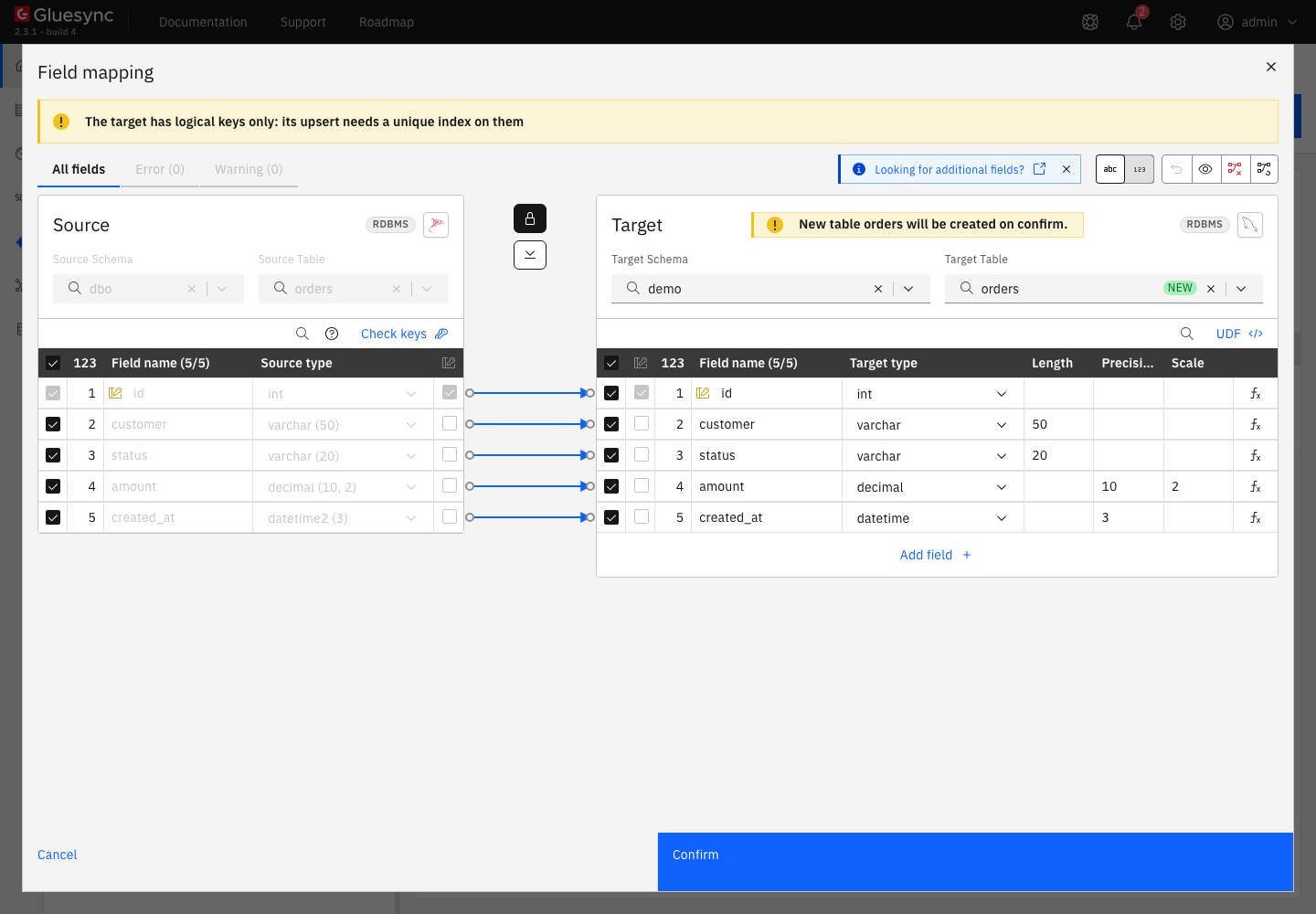
| A table without a primary key shows the errors No key on the source and No key on the target in the Field mapping dialog. Choosing a logical key clears them, but Change Tracking still cannot be enabled on that table, see the troubleshooting table. |
UI + SQL
-
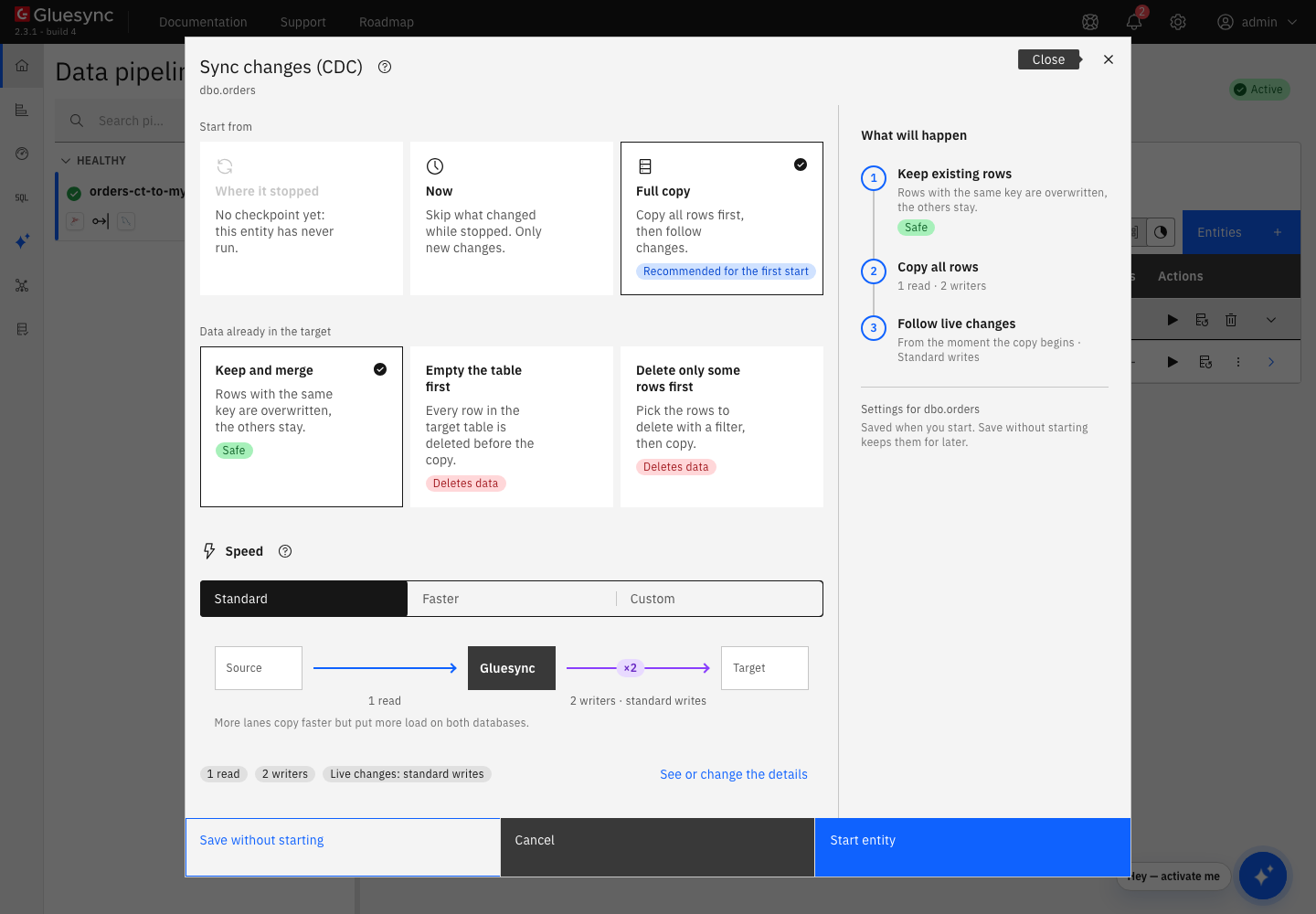
On the row of the entity, select the play button. The Sync changes (CDC) dialog opens;
-
Under Start from keep Full copy, Recommended for the first start. It copies all the rows, then follows the changes. The other choices are Where it stopped, which is not available before the first run, and Now, which skips what changed before the start;
-
Under Data already in the target keep Keep and merge, and under Speed keep Standard;
-
Select Start entity.
When the copy ends, count the rows on both sides:
-- on the source
SELECT COUNT(*) FROM dbo.orders;
-- on the target
SELECT COUNT(*) FROM demo.orders;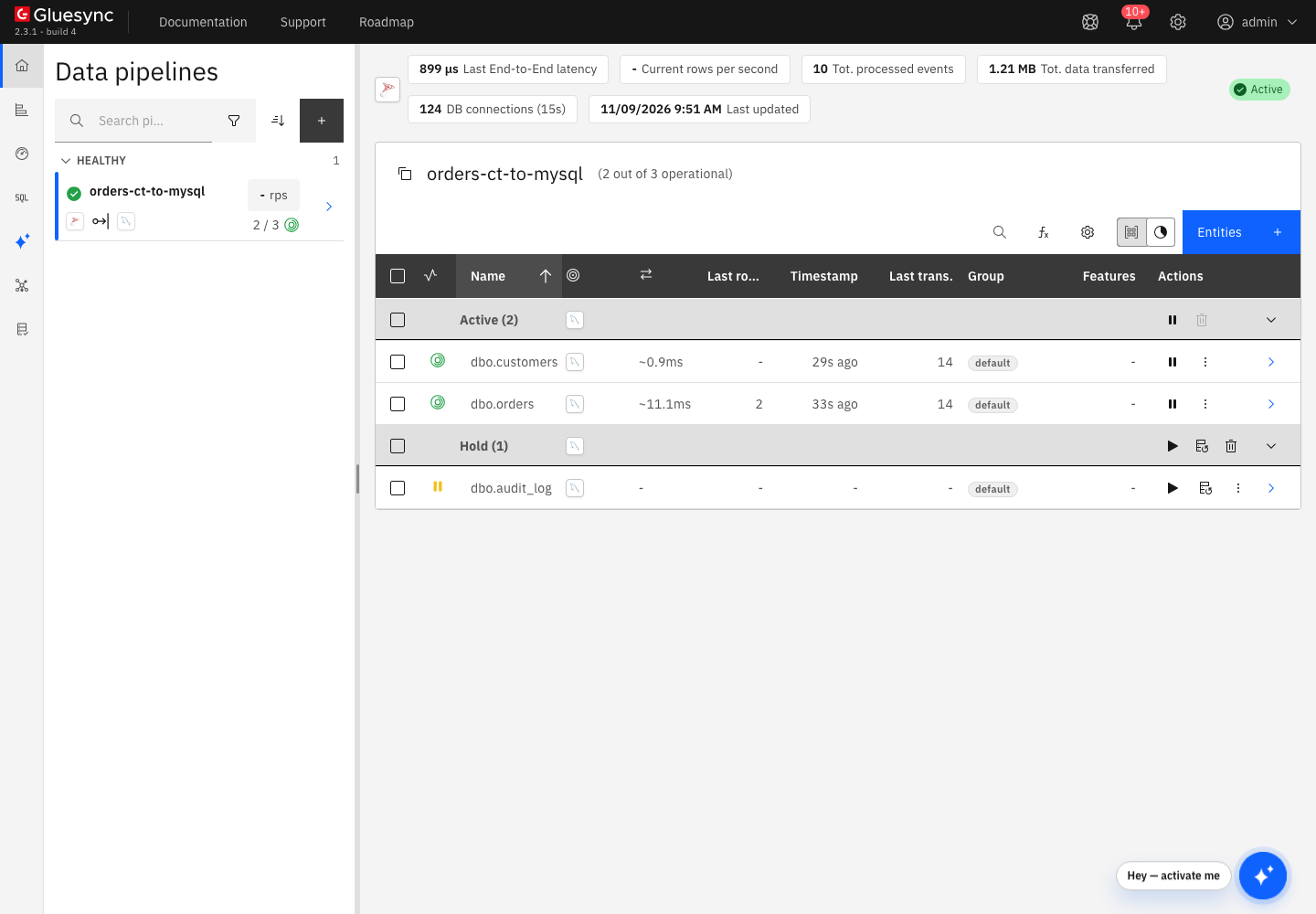
SQL
On the source, insert, update and delete one row each:
INSERT INTO dbo.orders VALUES (20001, 'customer-new', 'new', 19.90, SYSDATETIME());
UPDATE dbo.orders SET status = 'paid', amount = 25.00 WHERE id = 1;
DELETE FROM dbo.orders WHERE id = 2;
After a few seconds, read the three keys on the target:
SELECT id, customer, status, amount FROM demo.orders WHERE id IN (1, 2, 20001) ORDER BY id;
SELECT COUNT(*) FROM demo.orders;
You can also see what SQL Server recorded on the source:
SELECT CT.id, CT.SYS_CHANGE_VERSION, CT.SYS_CHANGE_OPERATION
FROM CHANGETABLE(CHANGES dbo.orders, 0) AS CT
ORDER BY CT.SYS_CHANGE_VERSION;UI + SQL
Change Tracking keeps one entry for each key, with the latest operation and the version of the latest change. Gluesync then reads the current row. To see it, pause the entity first:
-
Select the pause button of the entity, then Pause entity. The entity goes to Hold;
-
On the source, insert a row and update it four times, each statement in its own transaction:
INSERT INTO dbo.orders VALUES (30001, 'customer-net', 'new', 1.00, SYSDATETIME()); UPDATE dbo.orders SET status = 'picked' WHERE id = 30001; UPDATE dbo.orders SET status = 'packed' WHERE id = 30001; UPDATE dbo.orders SET status = 'shipped' WHERE id = 30001; UPDATE dbo.orders SET status = 'delivered' WHERE id = 30001; -
Read what Change Tracking holds. Use the version that the entity shows in Last trans. as the second argument:
SELECT CT.id, CT.SYS_CHANGE_VERSION, CT.SYS_CHANGE_OPERATION FROM CHANGETABLE(CHANGES dbo.orders, 3) AS CT; -
Select the play button, choose Where it stopped, which continues from the last checkpoint, and select Start entity.
| If your target must see every intermediate state of a row, Change Tracking cannot give it. Use the CDC agent. |
UI + SQL
An entity remembers the last Change Tracking version it read. When it starts with Where it stopped, SQL Server must still hold every change after that version. If it does not, Gluesync refuses to continue, because it would skip changes without telling you. The oldest version that SQL Server can still return is the minimum valid version of the table. It moves past the saved position in three cases:
-
the entity was not read for longer than the retention, and the cleanup of SQL Server removed the older changes;
-
somebody ran
TRUNCATE TABLE, which Change Tracking does not record row by row; -
Change Tracking was switched off and on again on the table.
To see the failure on a test system, pause the entity and switch Change Tracking off and on again on its table:
ALTER TABLE dbo.orders DISABLE CHANGE_TRACKING;
UPDATE dbo.orders SET status = 'gap' WHERE id = 6;
ALTER TABLE dbo.orders ENABLE CHANGE_TRACKING WITH (TRACK_COLUMNS_UPDATED = ON);
SELECT CHANGE_TRACKING_CURRENT_VERSION() AS current_version,
       CHANGE_TRACKING_MIN_VALID_VERSION(OBJECT_ID(N'dbo.orders')) AS min_valid_version;
Then start the entity with Where it stopped. The entity goes to Error, and the Control Plane shows the notification Change tracking position expired. The Core Hub log has the full text:
Change tracking no longer holds the changes of [dbo].[orders] after version 8, the position this entity resumes from: the oldest version it can still return is 12. The changes in between were removed by the change tracking retention cleanup (the entity was not read for longer than the retention), by a TRUNCATE TABLE or by change tracking being disabled and enabled again on the table. Run a new snapshot of the entity to resynchronize it. ...To recover:
-
Pause the entity if it is retrying;
-
If the cause was the retention, first raise it above the time the entity was stopped, or the next stop ends the same way:
ALTER DATABASE [demo] SET CHANGE_TRACKING (CHANGE_RETENTION = 14 DAYS); -
Select the play button, choose Full copy and Keep and merge, and select Start entity.
| A stop, a Core Hub outage or a snapshot that lasts longer than the retention all end this way. Size the retention for the longest of them. |
UI + SQL
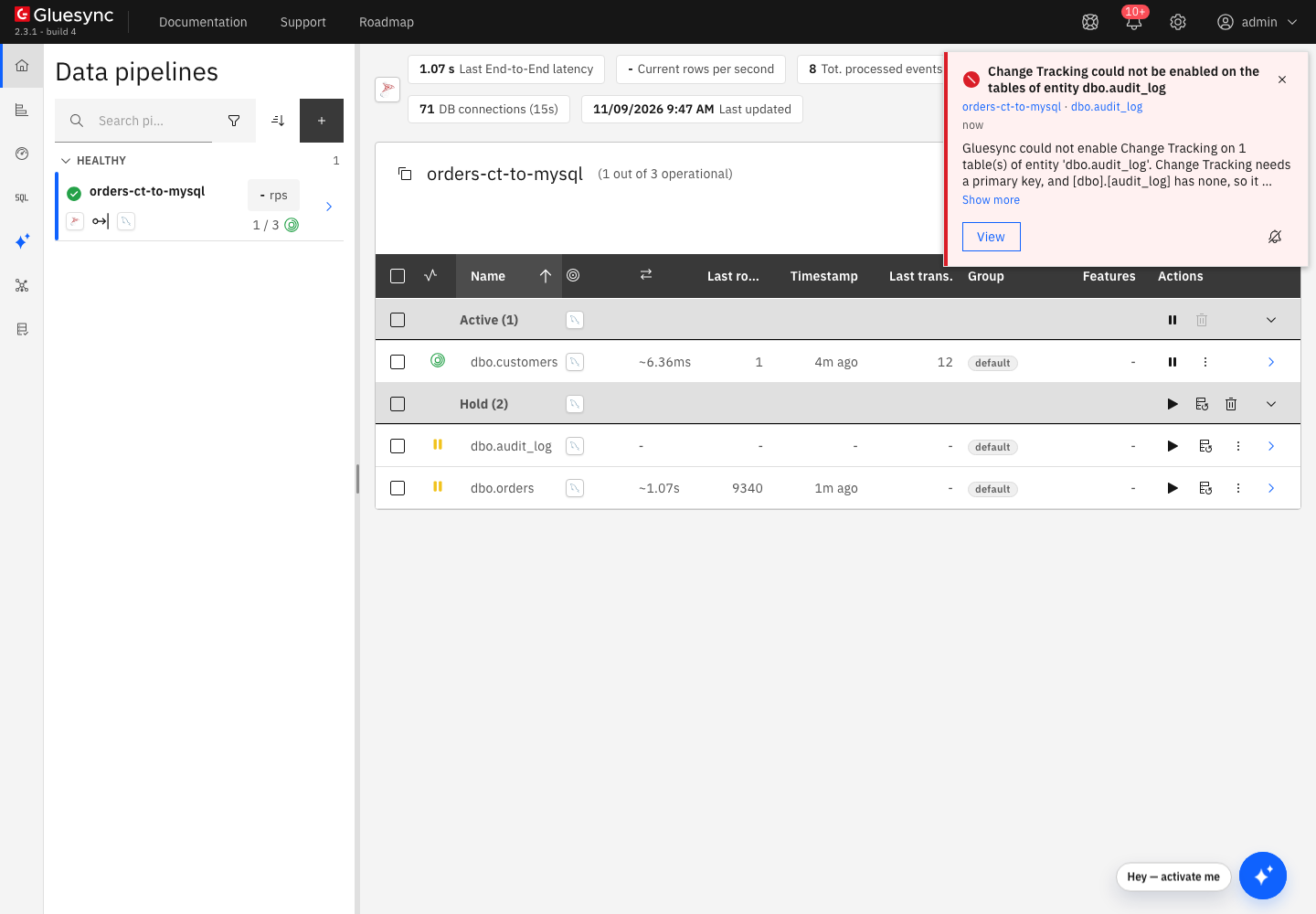
By default, Gluesync does not change your database. If Change Tracking is off on a table, the snapshot of that entity runs, and the notification Table Cdc Not Enabled says Change data capture not enabled for entity dbo.customers and tables [dbo.customers]. Sync cannot be started. Only snapshot can be executed. Switch the setting on if you want Gluesync to run the statements of steps 2 and 3:
-
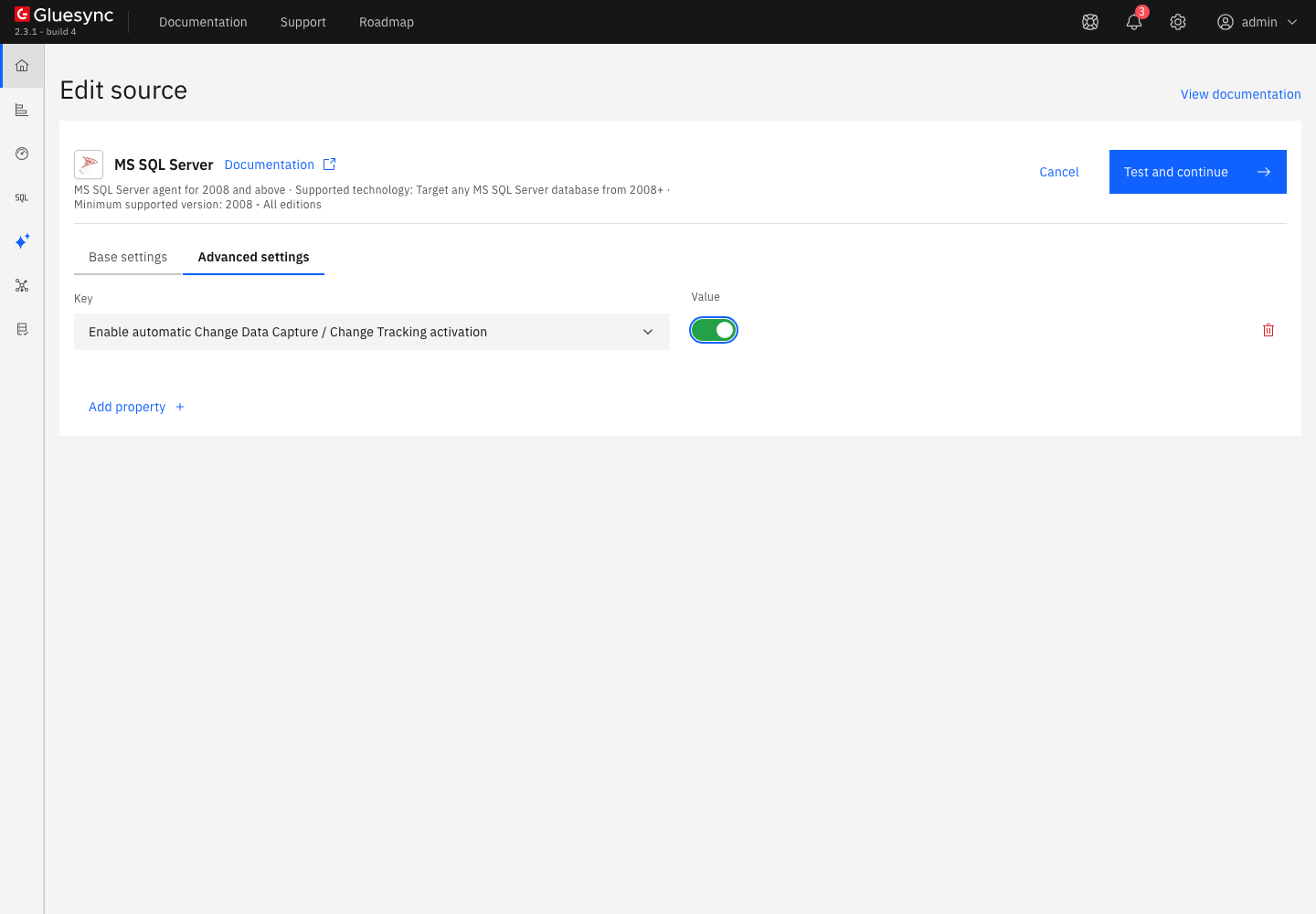
Open the source of the pipeline and go to Advanced settings;
-
Select Add property, choose Enable automatic Change Data Capture / Change Tracking activation as Key, and turn on the Value;
-
Select Test and continue.
The activation runs when the connection is saved, not when an entity starts. It needs these permissions for the login of step 4:
GRANT ALTER ON DATABASE::[demo] TO gluesync;           -- to enable it on the database
GRANT ALTER ON OBJECT::dbo.customers TO gluesync;      -- to enable it on a table
When the database is not enabled yet, Gluesync runs ALTER DATABASE … SET CHANGE_TRACKING = ON (CHANGE_RETENTION = 24 HOURS, AUTO_CLEANUP = ON). The Source change retention in hours property of Advanced settings sets that number, 24 by default. It applies when Gluesync enables Change Tracking on the database. To change a database that is already enabled, use ALTER DATABASE, see step 2.
UI
-
In the start dialog, under Speed select Faster or Custom. Custom adds Reading, with Read in parallel (off by default: it splits the table into ranges read at the same time), and Writing, with the Write method for During the copy and During live changes (Standard or Bulk load) and Writers during the copy (from
1to10); -
Open the source from the pipeline list and select Advanced settings to add Query parallelism (
4by default), Max Concurrency (0 means no limitation) or Max Snapshot Concurrency (0 means no limitation) if you need to hold the load on the source down, see SQL Server source advanced settings; -
If the target supports bulk operations, set the Write method to Bulk load for the copy and for live changes. See Tune replication throughput and Bulk load.
A snapshot that runs longer than the retention is a risk: size the retention for the snapshot too, see step 10.
Troubleshooting
| Symptom or message | Cause | Fix |
|---|---|---|
|
The table has no primary key. SQL Server error 4997 has no permission fix. |
Add a primary key and enable the table again, or read the table with the CDC agent. |
Field mapping shows No key on the source and No key on the target |
The table has no primary key and no logical key was chosen. |
Add a primary key at the source. A logical key clears the message, but SQL Server still refuses Change Tracking on the table. |
|
The automatic activation is on, Change Tracking is off on the database, and the login lacks |
Run the |
Table Cdc Not Enabled: |
Change Tracking is off on the table and the automatic activation is off. The snapshot works, the live changes cannot start. The notification says "Change data capture" for this agent too. |
Run |
Change Tracking could not be enabled on the tables of entity dbo.customers with the server error |
The automatic activation is on and the login lacks |
Run the statement that the notification shows as an administrator, or |
Permission denied and Entity sync start error: |
The login can read the table but not its changes. The connection test passed, because it does not read changes. |
Run |
Change tracking position expired: |
The entity was stopped for longer than |
Raise |
A row that changed many times arrives once, with the last values |
Change Tracking keeps the net change of each key. This is not an error. |
Use the CDC agent if the target needs every intermediate change or the old values. |
For a legacy server that does not speak TLS 1.2, see MS SQL Server Change Tracking Troubleshooting.
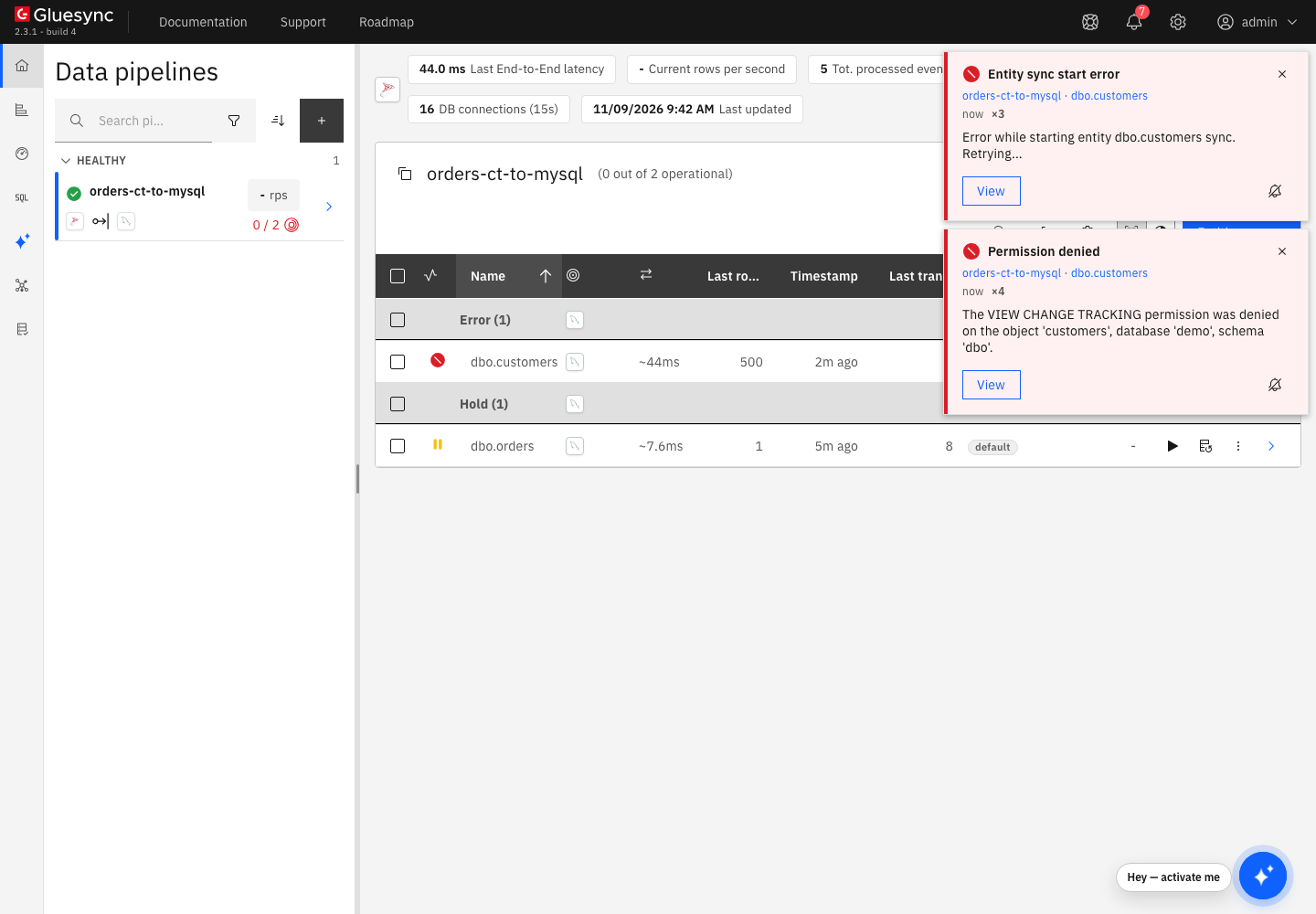
VIEW CHANGE TRACKING on the table: the notifications show the server message.