Configure single sign-on with OIDC and map identity provider groups to Gluesync roles
Let people sign in to the Gluesync Control Plane with your company identity provider and receive a Gluesync role from the groups they belong to in that provider. This guide walks through the whole path with Keycloak as the worked example: the client in the provider, the groups claim, the Gluesync OIDC settings, the role mapping, blocked groups, the first sign-in, logout, and a way back in if SSO breaks.
In this guide
You will learn how to register Gluesync as a client in the identity provider with the right redirect URIs, make the provider send a groups claim, enter the provider in Gluesync, map groups to roles, block groups, sign in for the first time, check what happened when a sign-in fails, log out so that the provider session ends too, and keep the local admin account as a fallback. A reference section explains why Admin is not in the role list and what is different on Microsoft Entra ID and Okta.
The examples use a Keycloak realm named gluesync, a client named gluesync, the groups gluesync-managers, gluesync-viewers, and contractors, and two test users named manny and vera. Gluesync is reached at https://localhost:19443: replace it with the address your users open in their browser.
Quick information
Goal |
Sign in to Gluesync through your identity provider and get the right role from the provider’s groups |
Audience |
Gluesync administrators and the people who run the identity provider |
Level |
Advanced |
Time required |
About 45 minutes |
Area |
Identity provider → Clients; Control Plane → Settings → Users & access → OIDC configuration |
Applies to |
Gluesync 2.3 |
Before you begin
Make sure that:
-
You can sign in to the Gluesync Control Plane as the local Super Admin (
admin) and you know its password: it is your way back in if SSO is misconfigured; -
You have administrator access to the identity provider (the examples use Keycloak);
-
The identity provider is reachable over HTTPS from the Core Hub container, not only from your browser, and its certificate is signed by a CA that Core Hub trusts (see Optional: trust a private CA otherwise);
-
You open the Control Plane through the address users will use, for example the address of the reverse proxy in the Gluesync kit: the redirect URI is built from that address;
-
The groups that should receive access already exist in the provider and contain the right users. In the examples,
mannyis ingluesync-managers,verais ingluesync-viewers, and a user nameddaveis ingluesync-viewersandcontractors.
|
Do not give an identity provider user the username |
|
Only a Super Admin can save the OIDC configuration. A Manager sees the Users & access section but cannot change the OIDC settings. |
Guide steps
IdP
In Keycloak:
-
Open the realm that holds your users, then open Clients and select Create client;
-
Set Client type to
OpenID Connect, enter the Client IDgluesync, and select Next; -
In Capability config, switch Client authentication on and keep Standard flow checked, then select Next;
-
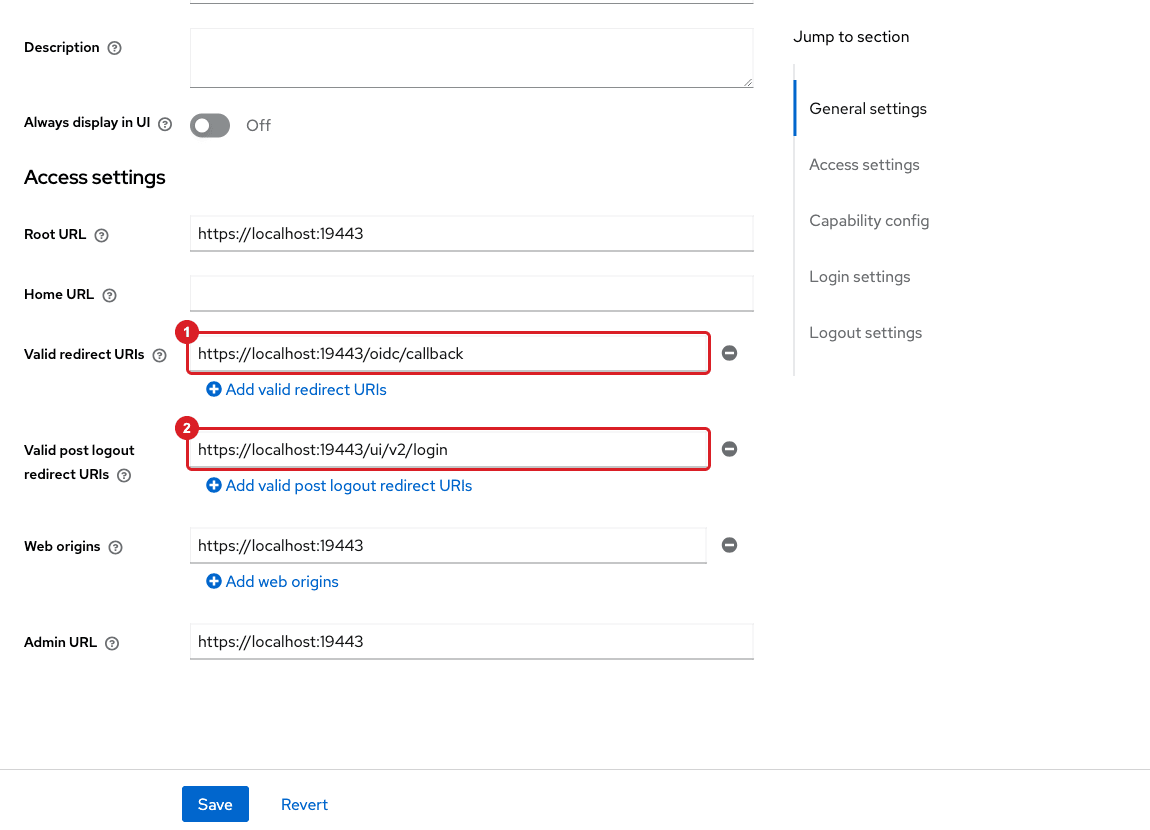
In Login settings, set Valid redirect URIs to
https://localhost:19443/oidc/callbackand Valid post logout redirect URIs tohttps://localhost:19443/ui/v2/login, then select Save; -
Optionally set Web origins to
https://localhost:19443; -
Open the Credentials tab of the client and copy the Client secret.
|
Both values must match what Gluesync sends, character for character: scheme, host, port, and path. Behind a reverse proxy, use the public address, including the port if it is not 443. The Gluesync kit publishes Core Hub through Traefik on port 443, so there the address has no port. Gluesync does not have a Signout URL field: after logout it always asks the provider to return the browser to |
IdP
Gluesync reads roles from one claim in the user’s tokens. Keycloak puts realm roles under realm_access.roles, but sends group names only if you add a mapper. Add it to the client:
-
Open the client, then the Client scopes tab, and select the gluesync-dedicated scope;
-
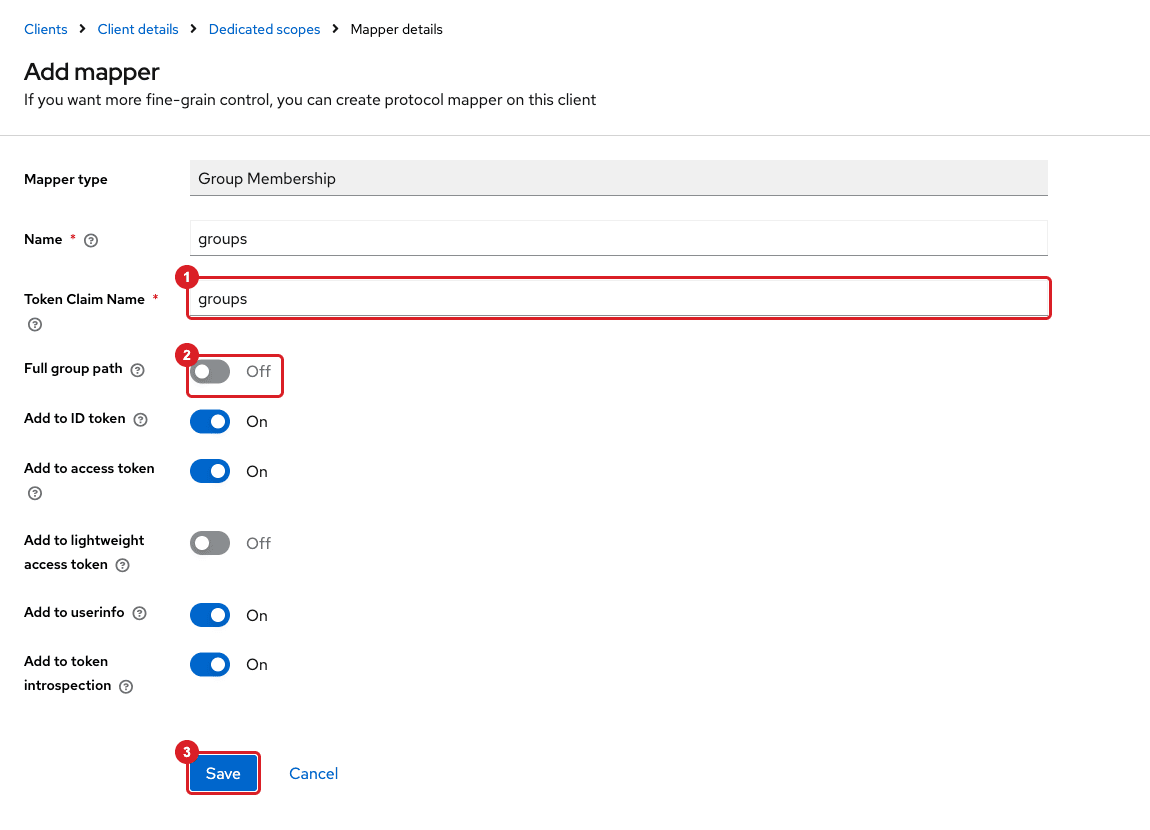
Select Add mapper, then By configuration, then Group Membership;
-
Enter the Name
groupsand the Token Claim Namegroups; -
Switch Full group path off;
-
Keep Add to ID token, Add to access token, and Add to userinfo on, and select Save.
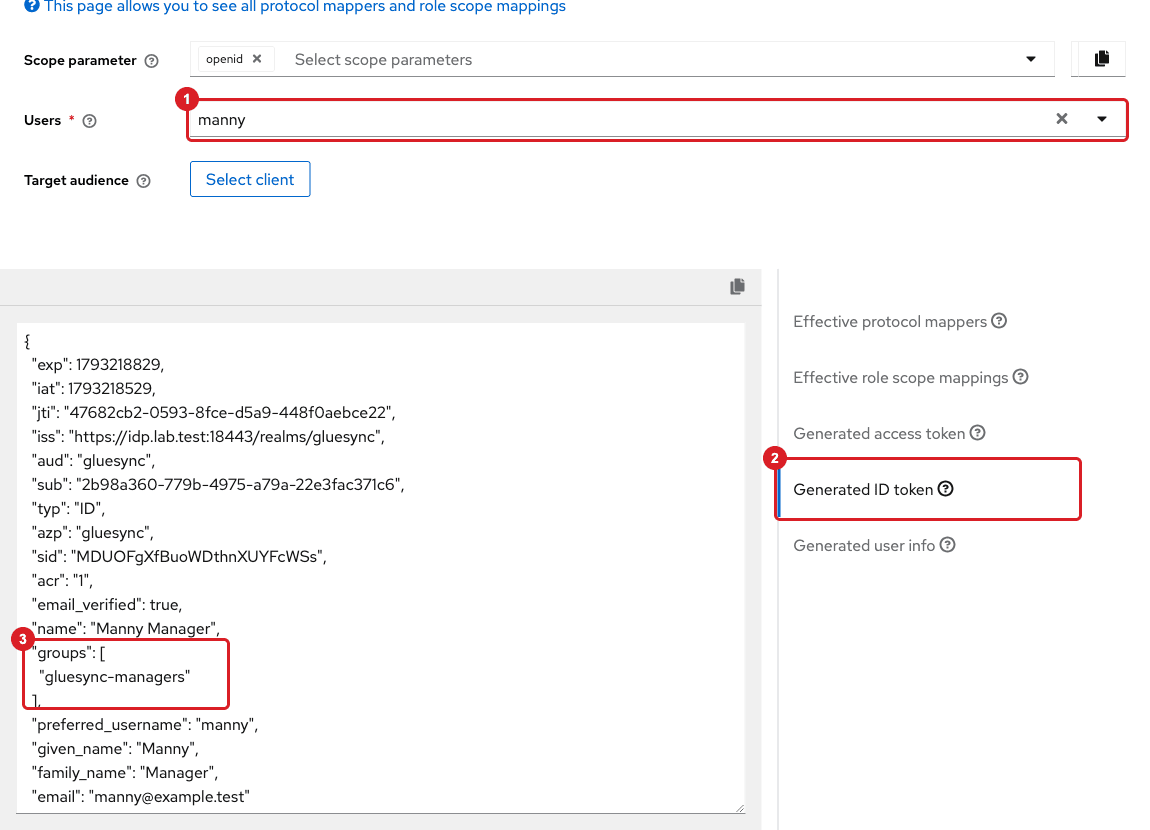
Now check what the provider really sends, before you touch Gluesync:
-
In the client, open Client scopes, then the Evaluate sub-tab;
-
Pick a test user in Users, then open Generated ID token.
|
Full group path is on by default in Keycloak. With it on, the token holds |
UI
-
In the Control Plane, select the Settings gear icon, then Users & access, then the OIDC configuration tab;
-
Switch Enable OIDC authentication (external identity provider) on;
-
Enter a Provider name, for example
Keycloak: it becomes the text of the sign-in button; -
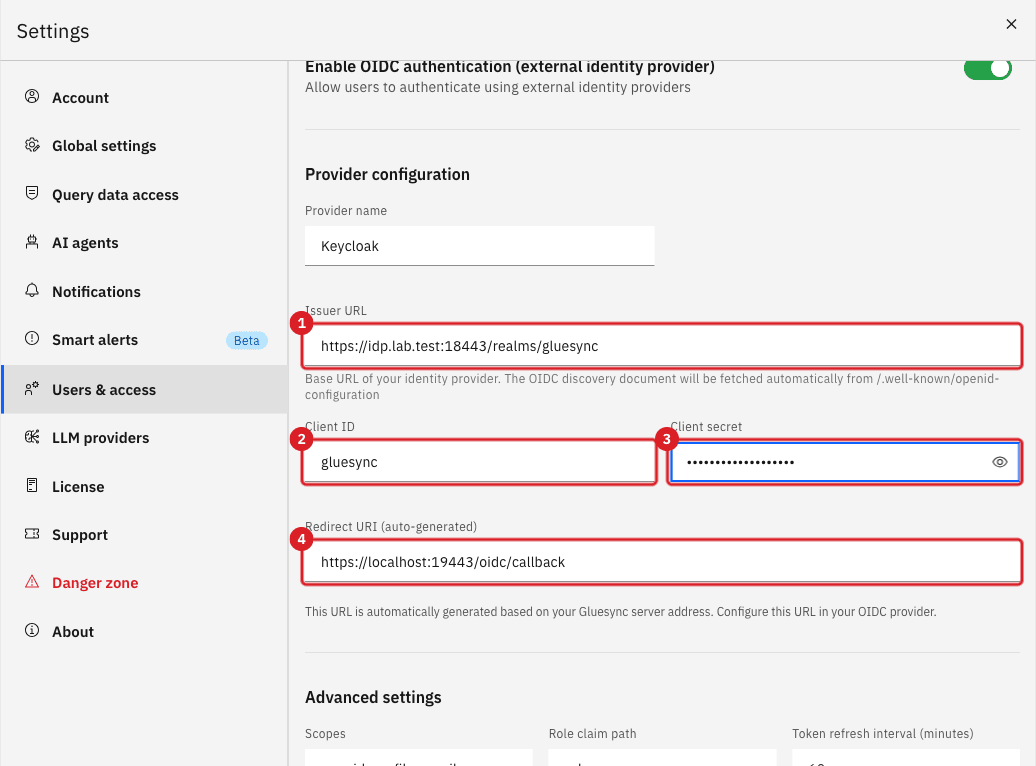
In Issuer URL, enter the base address of the realm, for example
https://idp.example.com/realms/gluesync; -
In Client ID, enter
gluesync, and in Client secret, the secret you copied; -
Check Redirect URI (auto-generated): it must equal the Valid redirect URI of step 1. Gluesync fills it from the address in your browser bar, so open the Control Plane through the public address before you save.
|
Gluesync reads the endpoints from the provider’s discovery document at |
UI
-
In Advanced settings, keep Scopes as
openid, profile, email; -
Set Role claim path to
groups, the claim you checked in step 2; -
Leave Default role for new users as
Viewer: users whose groups match no mapping receive this role; -
Under Role mappings, select Add mapping. In OIDC role/group, enter
gluesync-managersand set Gluesync role toManager; -
Select Add mapping again, enter
gluesync-viewers, and set Gluesync role toViewer.
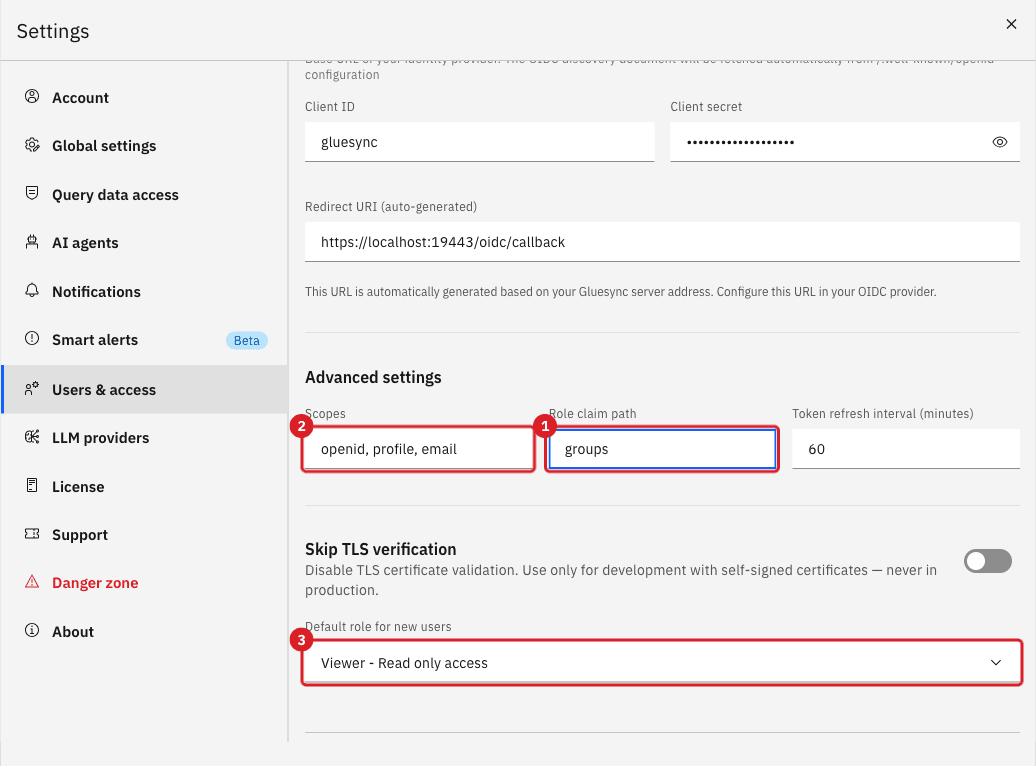
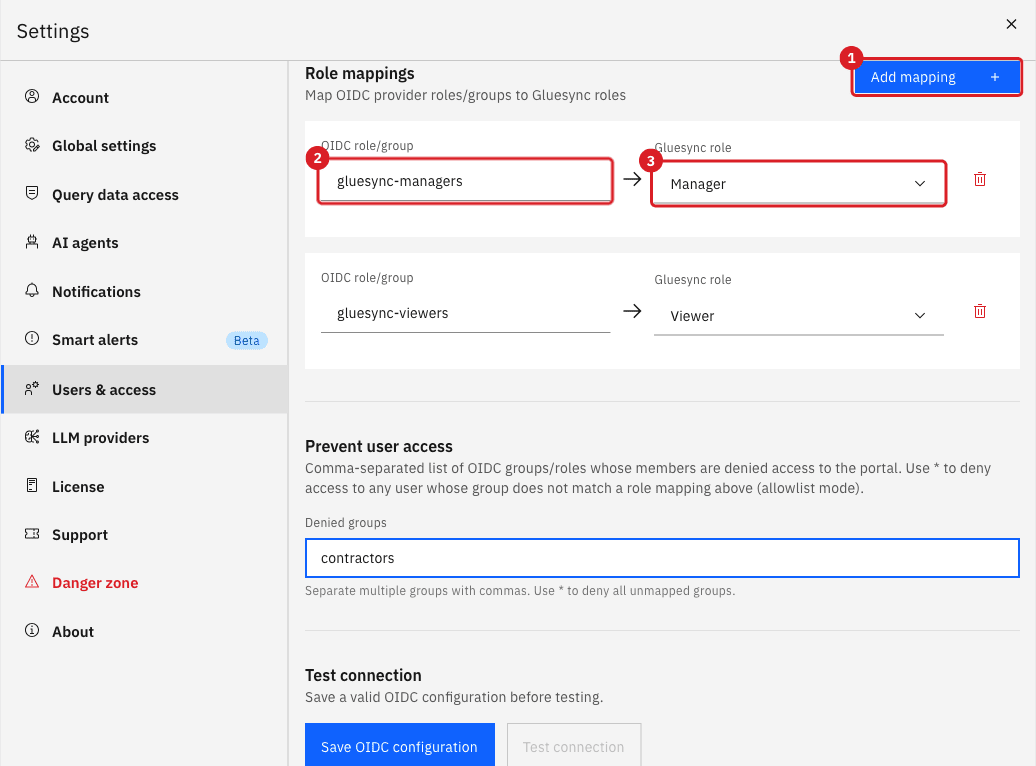
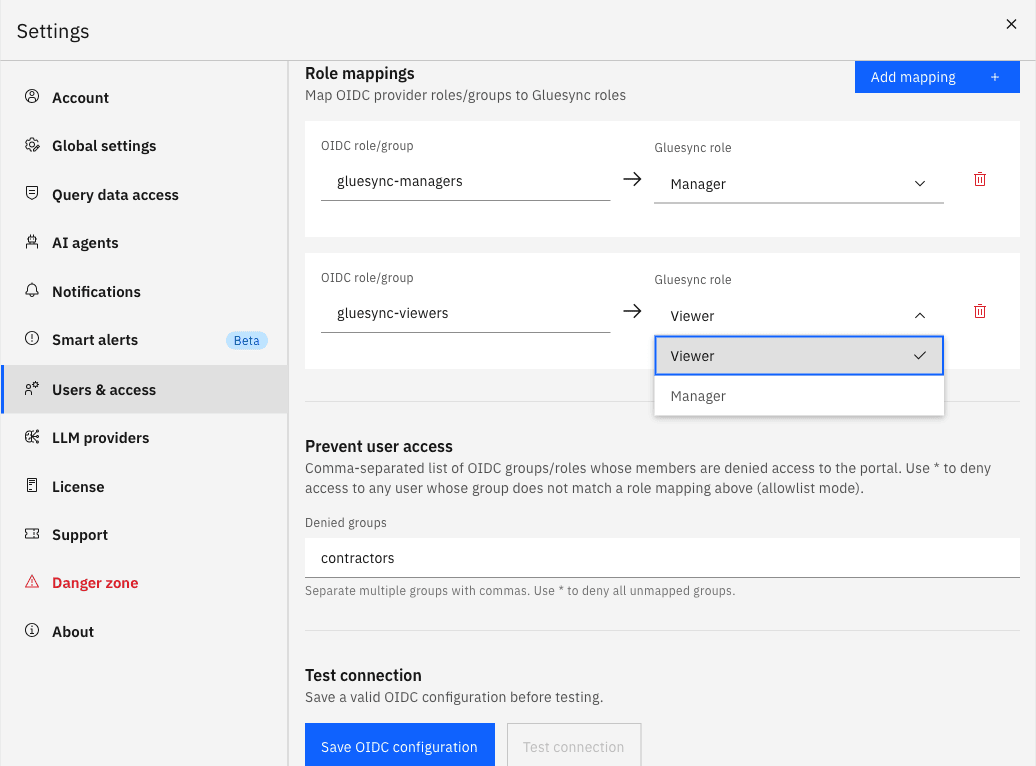
|
There is no Admin, Super Admin, or Monitor in this list. Why Admin does not show up explains what to do. The order of the rows matters: when a user belongs to several mapped groups, the first row in the list that matches wins, not the highest role. |
UI
-
In Prevent user access, enter the groups whose members must never get in, separated by commas, for example
contractors. Enter*to let in only the users who belong to a group of the role mappings and refuse everyone else; -
Select Save OIDC configuration;
-
Select Test connection.
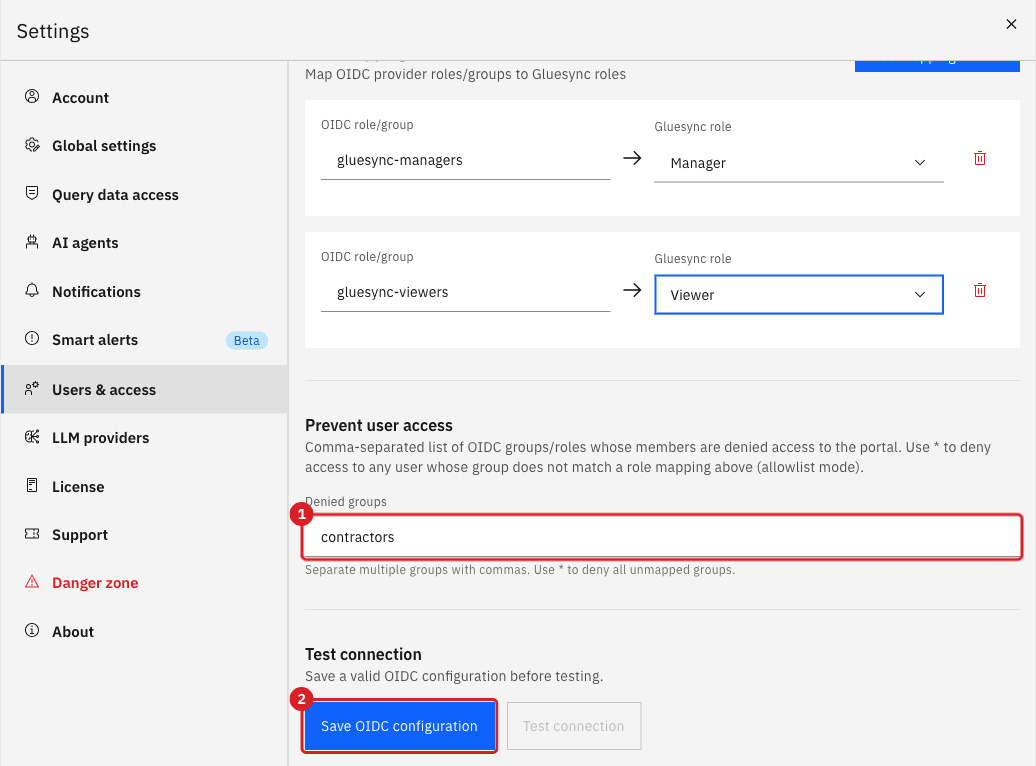

|
A blocked group is compared with the values Gluesync reads from the Role claim path, the same values the role mappings use. A group that is not in that claim can never block anyone. With the claim path |
UI
Do this in a private window so that you stay signed in as admin in the other one.
-
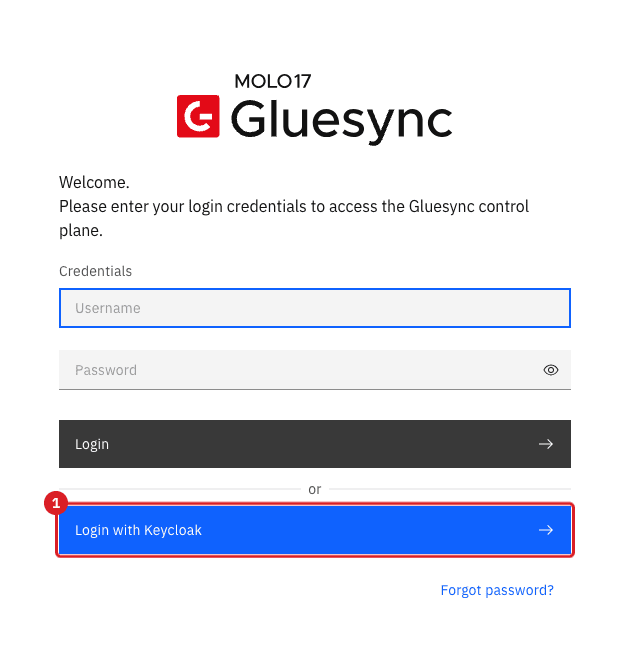
Open the Control Plane sign-in page and select Login with Keycloak (the button shows your Provider name);
-
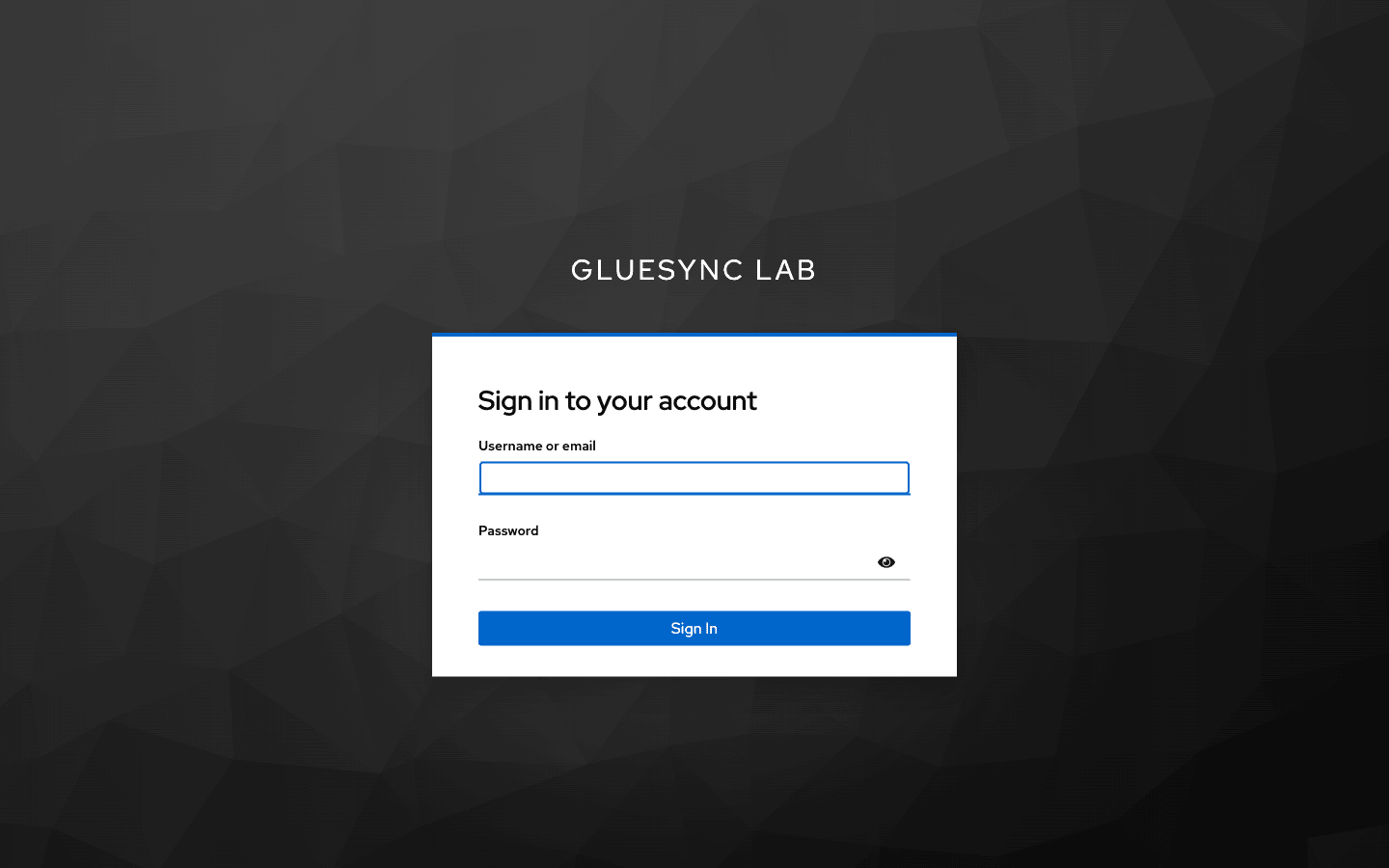
On the provider’s page, sign in as a test user, for example
manny.
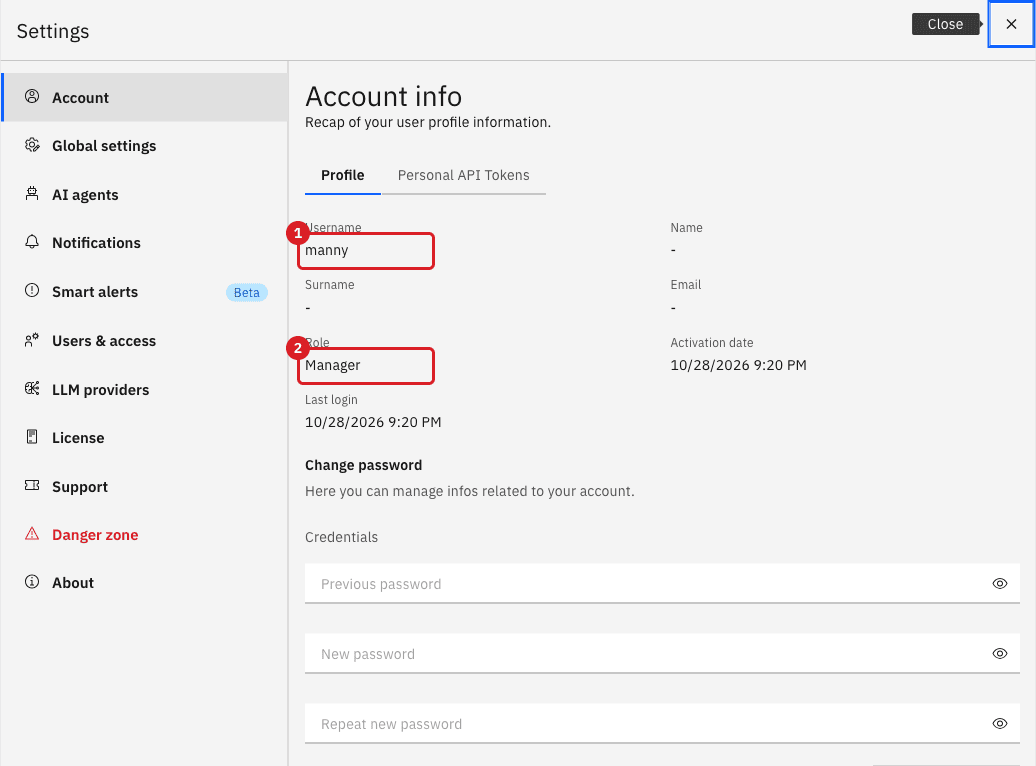
Back in the Control Plane, check the account:
-
Open Settings, then Account.
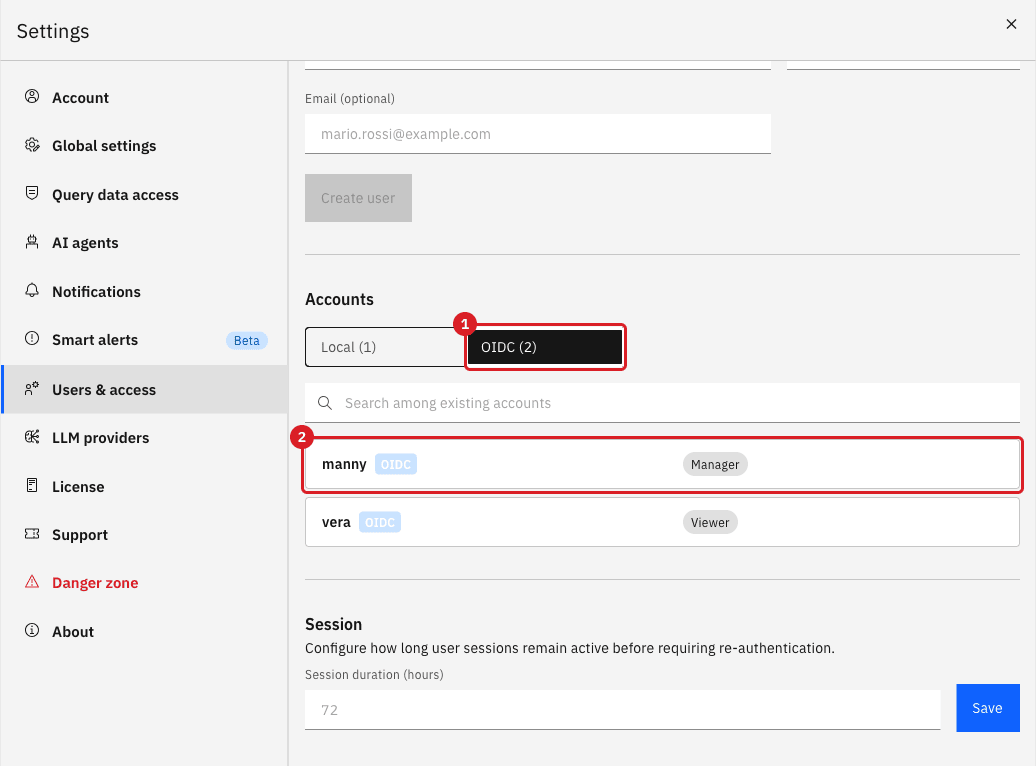
Then, as admin, check the account list:
-
Open Settings → Users & access → Users, and select the OIDC tab under Accounts.
|
The role of an SSO account is set again from the provider’s groups at every sign-in, and the role list of these accounts is read-only. Change the role by changing the group membership or the mapping, not in the account list. |
|
The username comes from the first claim that exists in this order: |
UI
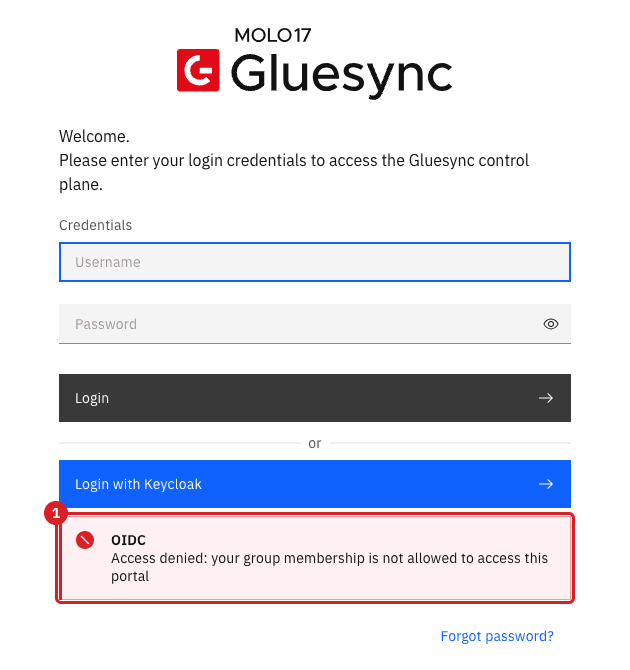
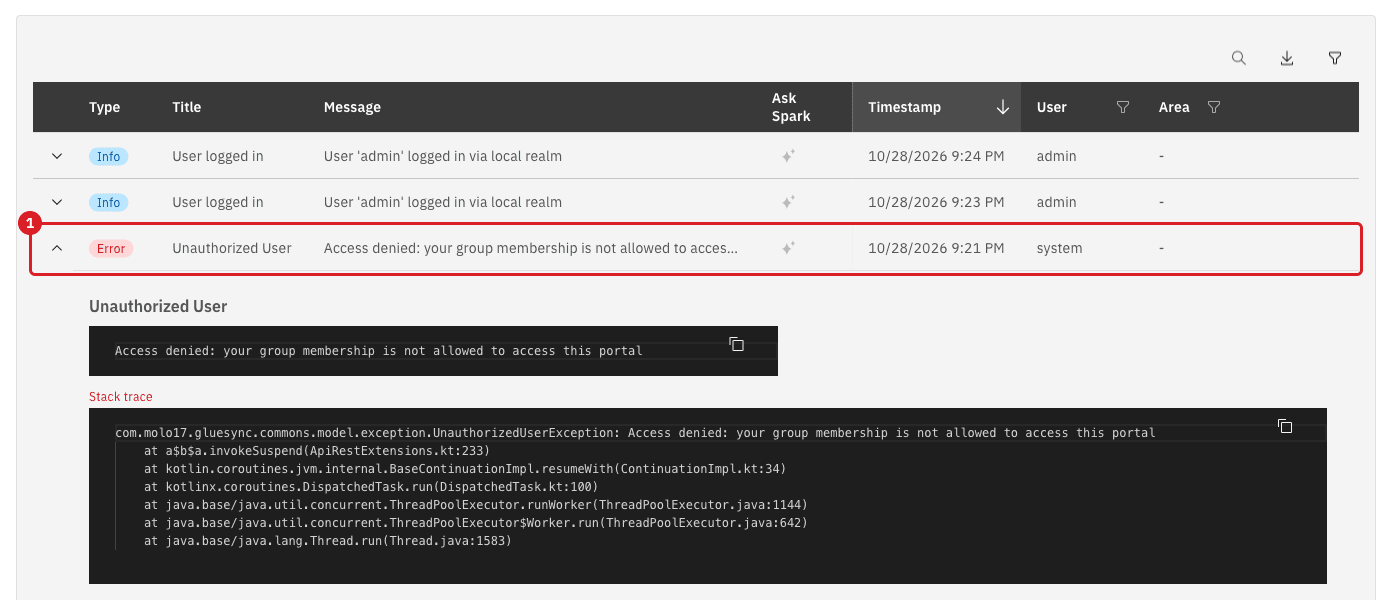
-
Sign out of the private window, select Login with Keycloak again, and sign in as
dave, who belongs togluesync-viewersandcontractors; -
As
admin, open the bell icon, then Open notifications hub, and look for the Unauthorized User entry.
|
Sessions that are already open are checked too. Gluesync asks the provider about every SSO session on the interval set in Token refresh interval (minutes) (60 by default). When a user was disabled in the provider, was added to a blocked group, or got another role, the session ends at that check and the user must sign in again, which gives the new role. |
API
Skip this step if Viewer and Manager are enough. The Control Plane role list does not offer Monitor, but Core Hub accepts MONITOR as the target of a mapping when you save the configuration with the REST API. Replace <core-hub-host> with your Core Hub address and <admin-password> with the password of admin. The commands use jq.
-
Sign in as
adminto get a token:TOKEN=$(curl -s -X POST https://<core-hub-host>/authentication/login \ -H 'Content-Type: application/json' \ -d '{"username":"admin","password":"<admin-password>"}' | jq -r .apiToken) -
Read the configuration, add the mapping, and save it:
curl -s "https://<core-hub-host>/oidc/configuration?include_secrets=true" \
  -H "Authorization: Bearer $TOKEN" \
  | jq '.roleMappings["gluesync-monitors"]="MONITOR"' \
  | curl -s -X PUT https://<core-hub-host>/oidc/configuration \
      -H "Authorization: Bearer $TOKEN" -H 'Content-Type: application/json' -d @-
|
The Control Plane cannot show these rows. A mapping to Role names in the API are case sensitive and use an underscore: |
UI
-
In the Control Plane, open the user menu in the top bar and select Logout, then confirm Logout in the dialog;
-
Watch the browser: it leaves for the provider and comes back to the Gluesync sign-in page;
-
Select Login with Keycloak again.
How it works, to settle questions about "sessions that stay open":
-
Logout always ends the Gluesync session first, whatever the provider does.
-
For an SSO session, Gluesync then takes
end_session_endpointfrom the provider’s discovery document and sends the browser there with three parameters:id_token_hint(the ID token issued at sign-in),client_id, andpost_logout_redirect_uri(<public address of Gluesync>/ui/v2/login). The address ofpost_logout_redirect_uricomes from theOriginheader of the browser request, or from theHostheader if there is none, so the reverse proxy must pass them on. -
If the provider’s discovery document has no
end_session_endpoint, only the Gluesync session ends and the provider session stays open. -
If the provider does not accept
post_logout_redirect_uri, the user stays on the provider’s error page, although Gluesync has already logged them out. Keycloak shows Invalid redirect uri. Register the address in the client, as in step 1.
You can check the provider’s logout address from a shell:
curl -s https://idp.example.com/realms/gluesync/.well-known/openid-configuration | jq -r .end_session_endpoint|
Closing the browser tab, or letting the Gluesync session expire, does not log the user out of the provider. Only the Logout button above does. |
UI + API
The local sign-in form stays next to the SSO button, and the local admin account keeps working when SSO is enabled, when the provider is down, and when the OIDC settings are wrong.
-
To sign in without SSO, enter
adminand its password in the form, not the SSO button; -
To switch SSO off and later back on without retyping the settings, keep a copy of the configuration with the API first, then save it with
enabledset tofalse:curl -s "https://<core-hub-host>/oidc/configuration?include_secrets=true" \ -H "Authorization: Bearer $TOKEN" > oidc-backup.json jq '.enabled=false' oidc-backup.json | curl -s -X PUT https://<core-hub-host>/oidc/configuration \ -H "Authorization: Bearer $TOKEN" -H 'Content-Type: application/json' -d @- -
To switch it on again, send the saved file back:
curl -s -X PUT https://<core-hub-host>/oidc/configuration \
  -H "Authorization: Bearer $TOKEN" -H 'Content-Type: application/json' -d @oidc-backup.json
|
Keep the client secret at hand. Core Hub fills in an empty |
Why Admin does not show up in the role list
The question comes up often: "there is no Admin in the role mapping, is that right?". Three different things are behind it.
| What you expect | What Gluesync has |
|---|---|
A role named Admin |
No such role. The roles are Viewer, Monitor, Manager, and Super Admin. Super Admin is the local |
Admin, Super Admin, or Monitor in the Gluesync role list |
The list offers Viewer and Manager only. A group that should have wide access maps to Manager: a Manager can do everything except manage Super Admin and Monitor accounts, and the user group and Query data access settings. |
A mapping that is not applied |
A group that matches no mapping gives the Default role, which is Viewer. This looks the same as "my Admin group is ignored": see the next table to find out why. |
|
Core Hub accepts |
The next table lists what to check, in order, when a user gets Viewer and should not.
| Check | Why it matters |
|---|---|
The claim exists in the provider |
Gluesync cannot map what the provider does not send. In Keycloak use Client scopes → Evaluate → Generated ID token (or Generated access token) and look for the group. If the client lost the |
Role claim path points at the claim |
|
The claim is in one of the three places Gluesync reads |
Gluesync reads the claim from the |
The group name matches the mapping key |
The comparison ignores uppercase and lowercase but the whole text must match: |
The order of the mapping rows |
The first matching row wins. A user in a viewer group and a manager group gets the role of whichever of the two rows is first. |
The role names in an API configuration |
|
Microsoft Entra ID and Okta
The steps above stay the same. What changes is the provider side and a few values. This table follows the Gluesync provider pages and the Core Hub code; check each item in your tenant.
| Microsoft Entra ID | Okta | |
|---|---|---|
Issuer URL |
|
|
Redirect URI |
Register the Gluesync callback address as a Web redirect URI |
Sign-in redirect URI: the Gluesync callback address |
Logout address to allow |
Add |
Sign-out redirect URI: |
Where the roles come from |
App roles, sent in the |
A |
Readable usernames |
Add the |
Keep |
Okta and the logout request: Gluesync sends id_token_hint, client_id, and post_logout_redirect_uri to the end_session_endpoint of the provider, and there is no Signout URL field to fill. If Okta sessions stay active after Logout, check that the discovery document of your issuer lists an end_session_endpoint, and that the sign-out address above is registered.
Optional: trust a private CA
Skip this section if the identity provider uses a certificate from a public CA. If the provider uses a self-signed or private CA certificate, Core Hub must trust it: without that, Test connection fails with a Validator error in the notifications (PKIX path building failed) and sign-in never starts.
|
Skip TLS verification in the OIDC settings does not make a self-signed provider work. It lets Core Hub read the discovery document and the user information, but the exchange of the authorization code still checks the certificate, so every sign-in ends with Failed to exchange authorization code. Trust the CA instead. |
To trust the CA, give Core Hub a Java trust store that contains the usual public CAs plus yours:
-
Copy the trust store out of the Core Hub image:
docker cp <core-hub-container>:/usr/lib/jvm/zulu21/lib/security/cacerts ./cacerts; -
Add the provider’s certificate:
keytool -importcert -alias idp -file idp-ca.crt -keystore ./cacerts -storepass changeit -noprompt. The Core Hub image containskeytoolif you have no Java on the host; -
Mount the file over the original in the Core Hub service of your
docker-compose.yml:volumes: - ./cacerts:/usr/lib/jvm/zulu21/lib/security/cacerts:ro -
Recreate the Core Hub container.
See Secure database service communication for the other places where Gluesync uses a trust store.
Troubleshooting
| Problem | Possible cause | What to do |
|---|---|---|
The sign-in page has no SSO button |
OIDC is off, or Issuer URL or Client ID is empty |
Open Settings → Users & access → OIDC configuration, switch it on, and save |
Test connection shows Failed to generate OIDC authorization URL |
Core Hub cannot read |
Open the notification (bell icon, then Open notifications hub): it names the cause, for example |
The provider shows Invalid parameter: redirect_uri (Keycloak) before any sign-in |
The Redirect URI in Gluesync is not in the client’s Valid redirect URIs: scheme, host, port, or path differ, for example |
Copy the address from Redirect URI (auto-generated) into the client, or open the Control Plane through the public address and save the settings again |
The sign-in page comes back with Failed to exchange authorization code |
Wrong Client secret, or the provider certificate is not trusted (Skip TLS verification does not cover this call) |
Paste the secret again from the Credentials tab of the client. For a private CA, trust it as in the section above. The notifications hub holds the same message |
A user gets Viewer although a group is mapped |
The claim is not in the token, the Role claim path is wrong, Full group path is on, the key has other text, or an earlier row matches |
Go through the check table in the section on why Admin does not show up |
Admin or Monitor is not in the Gluesync role list |
The list offers Viewer and Manager only |
Map the group to Manager. For Monitor, use the REST API as shown in the optional step |
A blocked group does not block anyone |
The group is not in the claim that the Role claim path reads, for example a Keycloak group with the path |
Use a claim that carries the group, such as |
A user in a blocked group is still in the account list |
Blocking refuses sign-ins. It does not delete accounts that exist |
Delete the SSO account in Settings → Users & access → Users if you want it gone |
A local user was converted to an SSO user and lost the role |
The identity provider has a user with the same username |
Rename the provider user, or delete the local account before the first SSO sign-in. Use a Super Admin to set the role back if the account was a local Manager |
The user still has the old role after a change in the provider |
The Gluesync session has not been checked yet |
Wait for the next check (Token refresh interval (minutes), 60 by default) or ask the user to log out and sign in again |
After Logout the user is still signed in at the provider, or an Okta session stays active |
The provider has no |
Check the discovery document as shown in the logout step. Use Logout from the Control Plane, not the browser’s close button |
After Logout the browser stays on a provider error page |
|
Add that exact address, with the path, to the client (Valid post logout redirect URIs in Keycloak, Sign-out redirect URI in Okta, Allowed Logout URLs in Auth0, a Web redirect URI in Entra ID) |
SSO signs in, but the Control Plane shows an error for a new user |
|
Switch it on again with the API, or create the account in Users first. The Control Plane does not show this setting |
Related guides
Contact MOLO17 Support if you need assistance with single sign-on.