Install and run Gluesync on Windows Server
This guide takes a clean Windows Server from "nothing installed" to a healthy Gluesync Control Plane. It shows which installer to use, which folders and processes your antivirus or EDR must leave alone, how to start and stop Gluesync with Gluesync Control, how to update a server that has no internet access, and how to collect a support bundle when you need help.
In this guide
You will learn how to check the server before you install, choose between the Windows setup wizard and the PowerShell installer, add antivirus and EDR exclusions, install Gluesync, sign in to the Control Plane, start, stop and check Gluesync with Gluesync Control, update it from an offline package, and collect a support bundle.
Quick information
Goal |
Install Gluesync on Windows Server, keep it running, and know how to update it and get support |
Audience |
Windows Server administrators and the people who install Gluesync |
Level |
Intermediate |
Time required |
About 45 minutes, plus a server restart (the install itself takes 10 to 20 minutes) |
Area |
Windows Server → installer → Gluesync Control Plane |
Applies to |
Gluesync 2.3 |
Before you begin
Make sure that:
-
You can sign in to the server with a local administrator account, and you can open PowerShell with Run as administrator;
-
The server is a Windows Server (Windows 10 and 11 and other client editions are refused) and meets the table below;
-
You have your kit ID, the 12 characters (
0-9anda-f) from the Gluesync download e-mail; -
The server can reach the internet for an online install, or you have the offline files described in Update Gluesync, also without internet access;
-
If the server runs antivirus or EDR software, you can ask the team that manages it for the exclusions in Add the antivirus and EDR exclusions.
| Requirement | What the installer checks |
|---|---|
Free disk space |
At least 100 GB free on the system drive, on the drive that holds Docker’s data folder and on the drive of the install folder. This is a hard block ( |
Memory |
8 GB is the documented minimum. Below it the checker warns ( |
Processor |
4 cores or more. The setup wizard shows fewer cores as a recommendation. The PowerShell installer refuses to start with fewer than 4 cores (see Or install with the PowerShell installer). |
Windows version |
Windows Server 2022 or 2025. Windows Server 2019 is deprecated and cannot use the offline packages. Windows Server 2016 and the Semi-Annual Channel releases are blocked ( |
Windows containers |
Gluesync runs in native Windows containers with process isolation, using the Docker Engine that the installer installs for you. Docker Desktop must not be installed ( |
Ports |
Ports 80 and 443 must be free ( |
|
The screenshots and outputs in this guide come from a clean Windows Server 2022 Datacenter with 8 GB of memory, installed from a Gluesync kit. |
Which installer do I use?
Start from the table. Use the Windows setup wizard unless one of the other rows describes your server.
| Question | Setup wizard (gluesync-windows-setup-wizard.msi) |
PowerShell installer (docker-installer-windows.ps1) |
Legacy MSI (gluesync-platform-installer.msi) |
|---|---|---|---|
Use it when |
New installations on a server with a desktop. This is the default. |
Windows Server Core, remote or scripted installs. |
Only to repeat an existing deployment. It is frozen and replaced by the setup wizard. |
Needs a desktop session |
Yes for the guided install. It also runs silently with |
No. It runs in a PowerShell console, on Server Core too. |
Not covered by this guide. |
Works when Group Policy blocks PowerShell scripts ( |
Yes. It runs no PowerShell or VBScript at install time. |
No. |
No: it stops with |
Installs Gluesync Control and the |
Yes. The |
No. In the lab the folder had the kit scripts |
Not covered by this guide. |
Offline install |
Yes: choose From files on this server. |
Use the separate offline script |
Not covered by this guide. |
Minimum processor |
Warns below 4 cores. |
Stops below 4 cores. |
Not covered by this guide. |
After the restart |
Resumes by itself as SYSTEM. Nobody needs to sign in. The launch window opens at the next sign-in. |
Resumes only when an administrator signs in, in a console that asks again for the kit ID. |
Not covered by this guide. |
In short:
-
Server with a desktop, default choice: setup wizard (Install with the Windows setup wizard).
-
Server Core, or an install driven by a script: PowerShell installer (Or install with the PowerShell installer).
-
Server with no internet access: setup wizard with From files on this server, see Install without internet access.
-
Group Policy blocks PowerShell scripts: setup wizard only.
|
An installer sends anonymous install data to MOLO17 unless you turn it off: set |
Guide steps
PowerShell
-
Open PowerShell with Run as administrator;
-
Download the signed pre-flight checker,
gluesync-preflight.ps1, from the latest release of the Gluesync pre-flight checker project. The direct link ishttps://gitlab.com/molo17-public/gluesync/gluesync-pre-flight-checker/-/releases/permalink/latest/downloads/gluesync-preflight.ps1; -
Run it with your kit ID. The script changes nothing on the server:
powershell.exe -NoProfile -ExecutionPolicy Bypass -File .\gluesync-preflight.ps1 -KitId <kit id> -
Read each finding. A line that starts with
[FAILED]blocks the installation and a line that starts with[WARNING]does not.
|
Run the checker before you install, not afterwards. The container images use about 12 GB, so on a server that had only just over 100 GB free, the same check can report |
PowerShell
Gluesync runs in Windows containers. In process isolation, every process in a container is also a process on the host, so security software can scan or end it. Docker also writes and renames thousands of files while it saves the images. Add these exclusions before you install, so the installation does not stop halfway and the containers do not restart in a loop.
-
Find out whether Microsoft Defender scans files, or runs in passive mode because another product does:
Get-MpComputerStatus | Select-Object AMRunningMode, RealTimeProtectionEnabled -
If
AMRunningModeisNormal, exclude Docker’s data folder, the Gluesync folder and the Docker Engine process:Add-MpPreference -ExclusionPath "C:\ProgramData\docker" Add-MpPreference -ExclusionPath "C:\Program Files\Gluesync" Add-MpPreference -ExclusionProcess "dockerd.exe" -
Confirm what Defender now excludes:
(Get-MpPreference).ExclusionPath (Get-MpPreference).ExclusionProcess -
For any other antivirus or EDR product, ask the team that manages it to add the same folders and processes from the table below. A Defender exclusion has no effect on a third-party product. To find which products are installed, run
fltmcand compare the filter names with Prepare antivirus and EDR software; -
Run the pre-flight checker again.
| Exclude | Kind | Why |
|---|---|---|
|
Folder |
Docker’s data folder. It holds the image layers (about 12 GB after the install) and the writable layer of every container. Scanning it makes Docker fail with |
|
Folder |
The install folder: the Compose file, the |
|
Process |
The Docker Engine. Exclude it, or trust it as an application in your EDR. For Defender Controlled folder access, allow |
|
Processes inside the containers |
These are the processes that the running Gluesync containers show on the host. An EDR that ends them makes the containers show |
|
Folders |
The installer state, installer logs, update backups and support bundles. With Defender Attack Surface Reduction rules in block mode, also exclude |
|
If Defender is managed centrally (Group Policy, Intune or Microsoft Defender for Endpoint), add the exclusions in that console. Central policy can ignore or replace the exclusions you add on the server. |
UI
Follow this step when you chose the setup wizard. For the PowerShell installer, go to Or install with the PowerShell installer.
-
Download
gluesync-windows-setup-wizard.msifrom molo17.com. The file is signed by MOLO17 SRL; -
Right-click the MSI and choose Run as administrator, or run
msiexec /i gluesync-windows-setup-wizard.msi GLUESYNCTELEMETRY=0from an elevated terminal to keep anonymous install data off; -
On Welcome to Gluesync platform setup, select Next;
-
On License agreement, read the license, tick I accept the license terms and select Next;
-
On Install folder, keep
C:\Program Files\Gluesync\and select Next; -
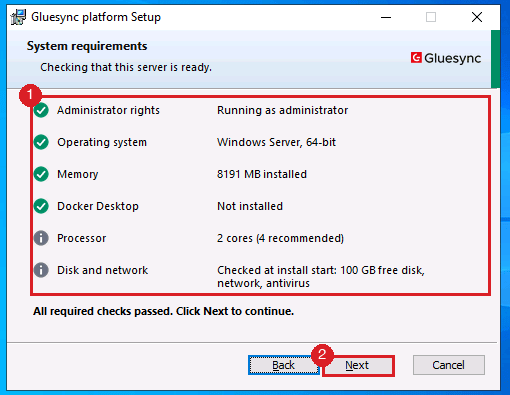
On System requirements, read every row, then select Next.
-
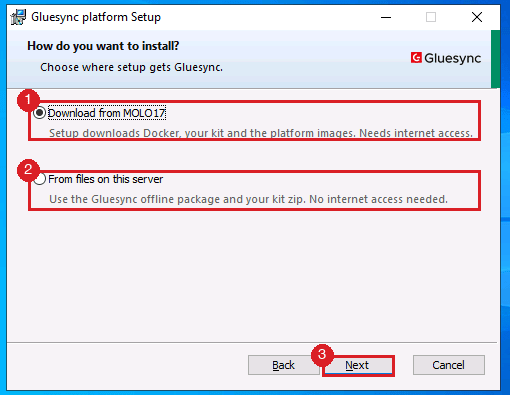
On How do you want to install?, keep Download from MOLO17 and select Next. Choose From files on this server only for an offline install;
-
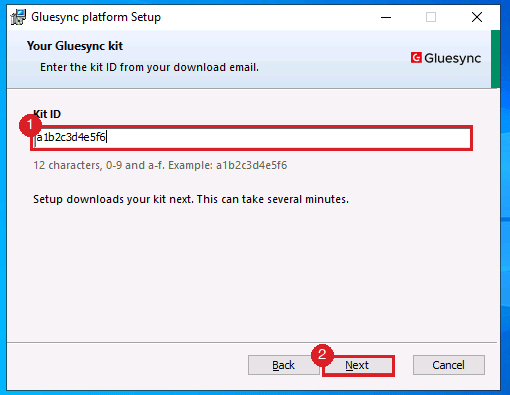
On Your Gluesync kit, type your kit ID and select Next;
-
On What happens next, select Next, then select Install on Ready to install;
-
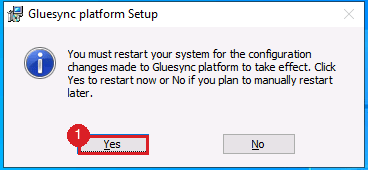
When Setup finished appears, select Finish. Windows asks you to restart the server. Select Yes.
-
After the restart, setup continues by itself as SYSTEM, usually within about a minute. Nobody needs to sign in for this part. It installs Docker and the platform images;
-
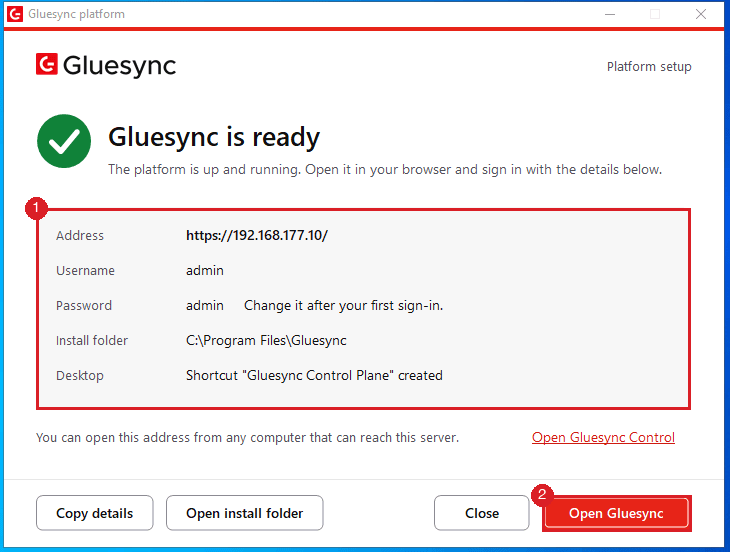
Sign in to the server. The Gluesync platform launch window opens and shows four stages: Checking Docker, Downloading platform images, Starting Gluesync services and Checking the services are running. Keep it open.
|
If you wait several minutes between Install and the restart, |
PowerShell
Follow this step on Windows Server Core or for a scripted install, instead of the setup wizard.
-
Open Installation kits & tools, validate your licence, select Windows Server and download
docker-installer-windows.ps1. The script is signed by MOLO17 SRL; -
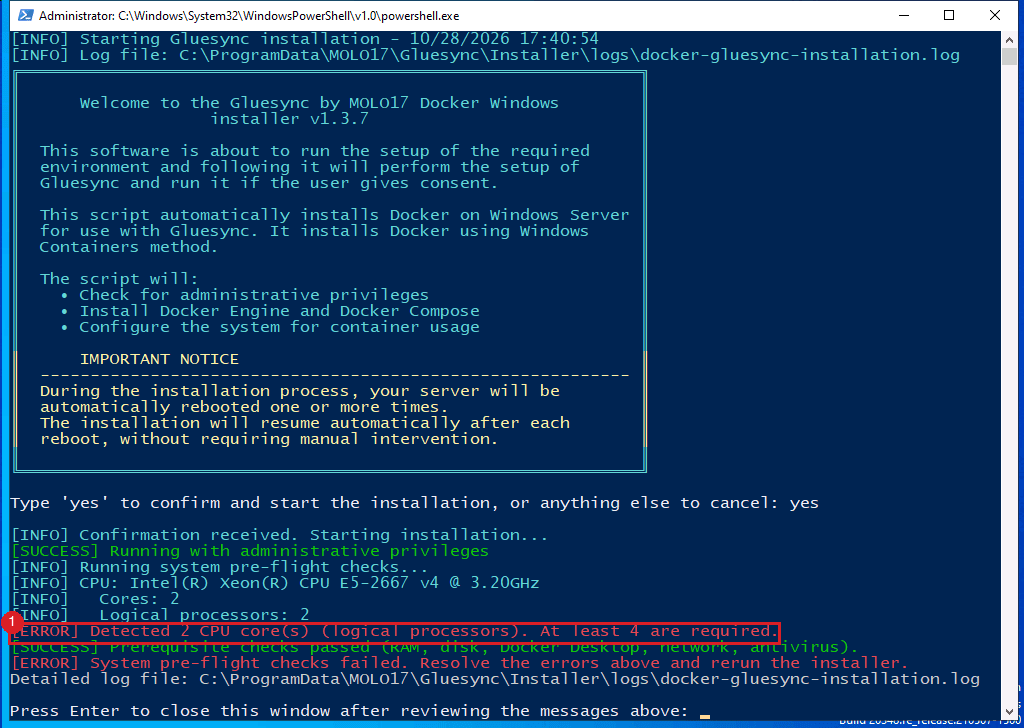
Make sure the server has 4 cores or more. With fewer, the script stops before it changes anything:
-
From an elevated PowerShell session, change to the download folder and run the script. Add
-KitIdto check your kit before anything is installed, and-NoTelemetryto turn off anonymous install data:powershell.exe -NoProfile -ExecutionPolicy Bypass -NoExit -File ".\docker-installer-windows.ps1" -KitId <kit id> -NoTelemetry -
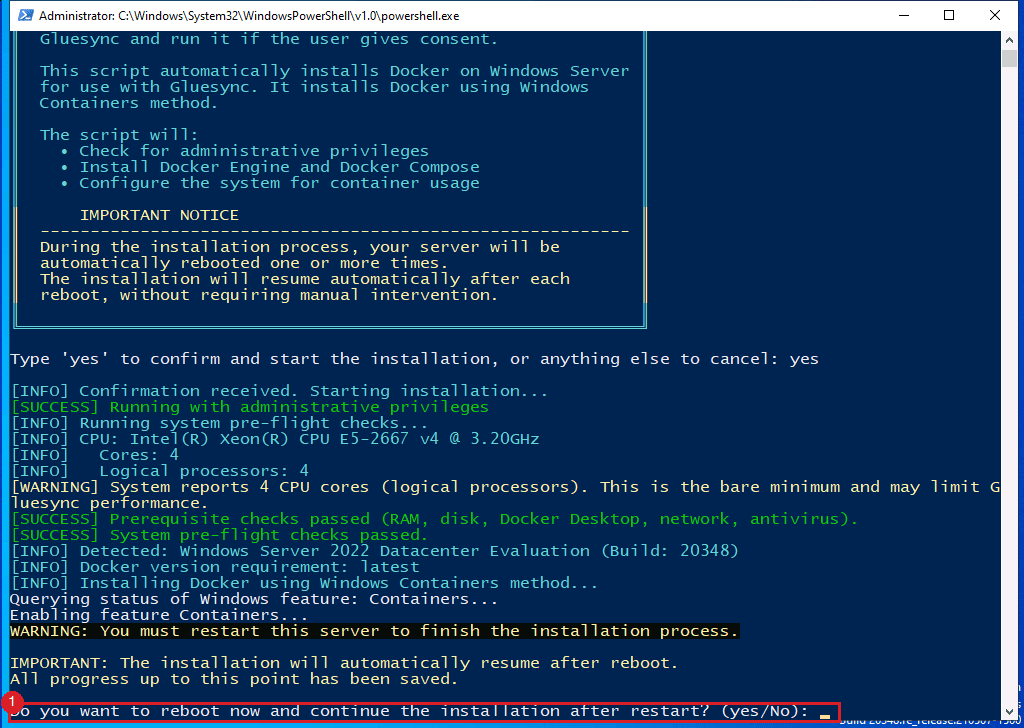
Type
yesto confirm. The script runs its checks, turns on the Containers feature and asks whether to restart;
-
Type
yes. After the restart, sign in as an administrator. The script opens a console again and continues; -
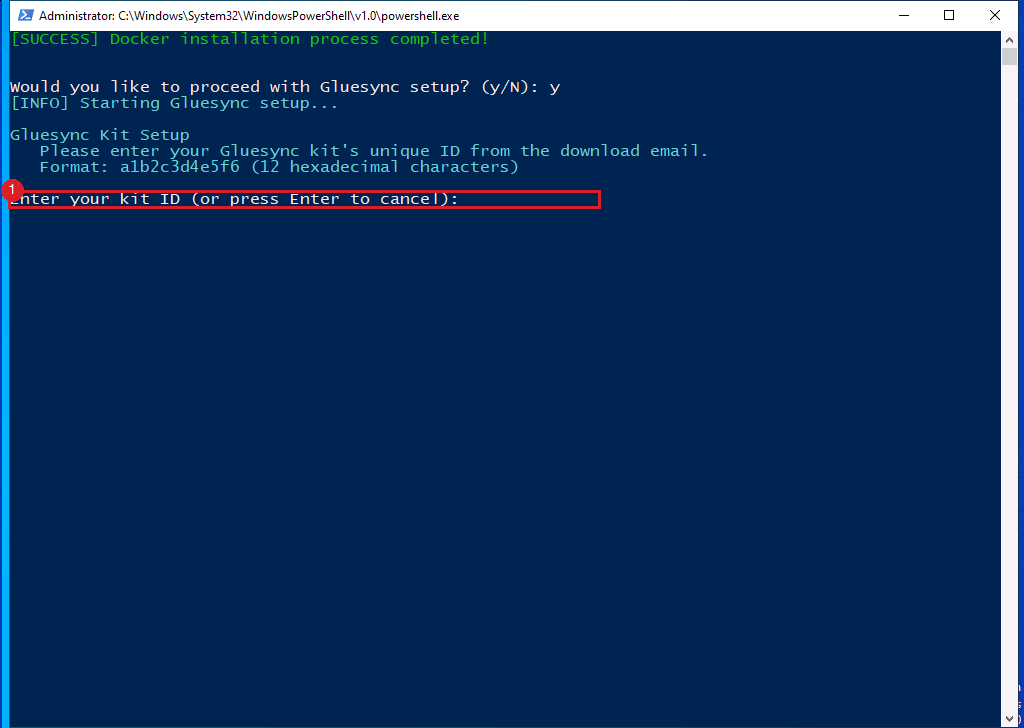
When asked Would you like to proceed with Gluesync setup? (y/N), type
y; -
When asked Enter your kit ID, type your kit ID again. The script asks again after the restart even when you passed
-KitIdthe first time;
-
When asked Would you like to start Gluesync now? (y/N), type
y. The script downloads the images and starts the containers.
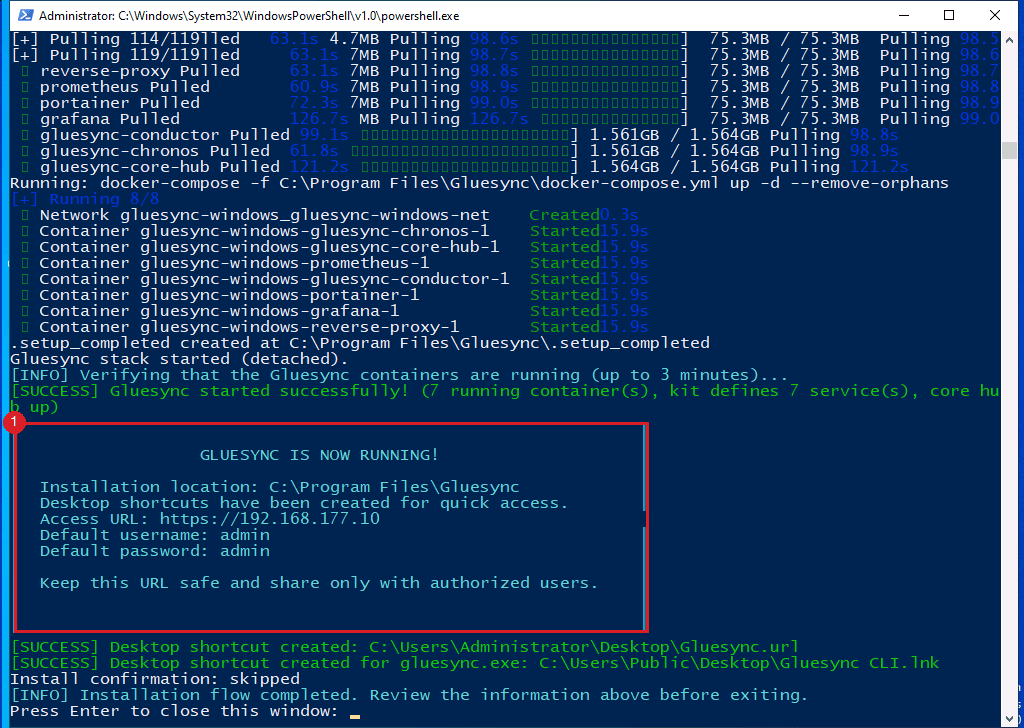
|
This install has no |
UI
-
Select Open Gluesync in the launch window, or the Gluesync Control Plane shortcut, or browse to
https://<server address>/; -
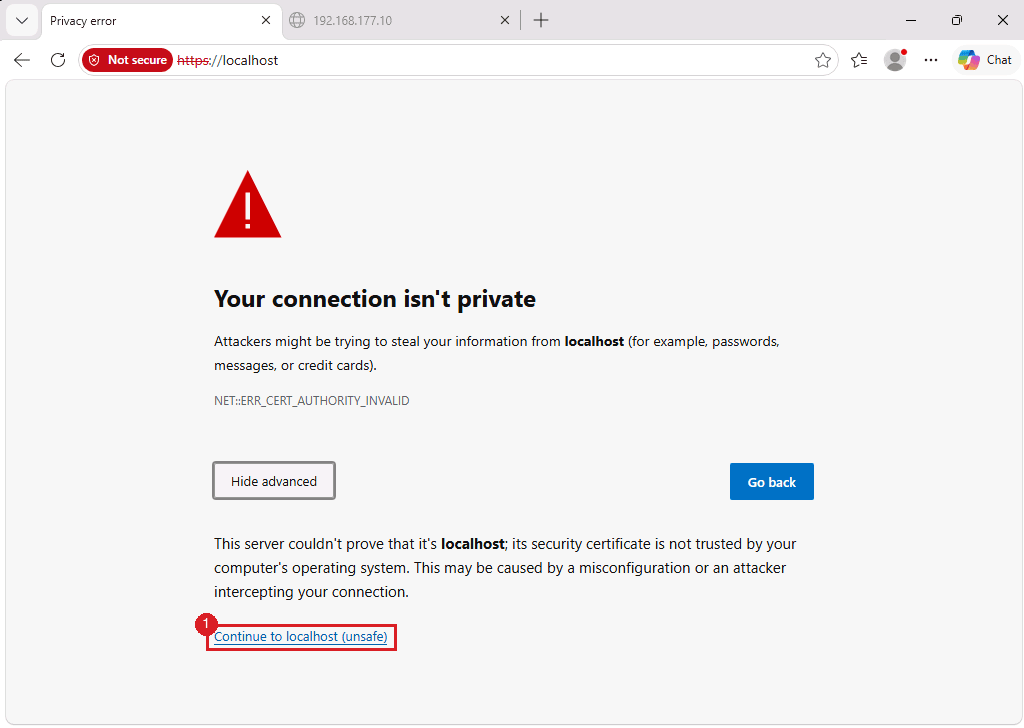
The browser warns that the connection is not private, because the installer creates a self-signed certificate. Select Advanced, then Continue to localhost (unsafe). To remove the warning, install your own certificate: see Setup secure HTTPS and WSS with TLS;
-
Sign in with the user
adminand the first password shown in the launch window; -
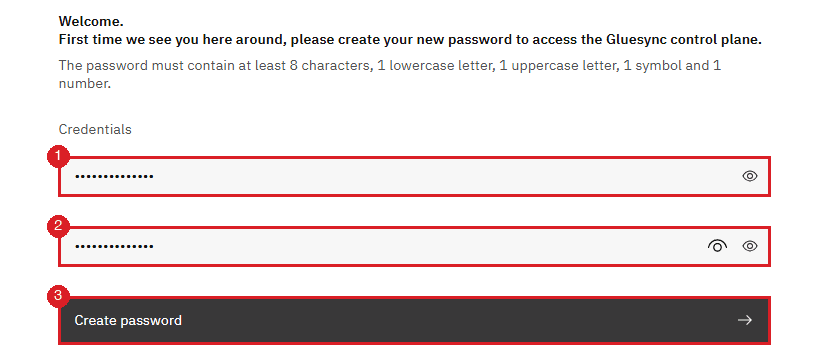
Create a new password when the page asks for one. It needs at least 8 characters, one lowercase letter, one uppercase letter, one symbol and one number;
-
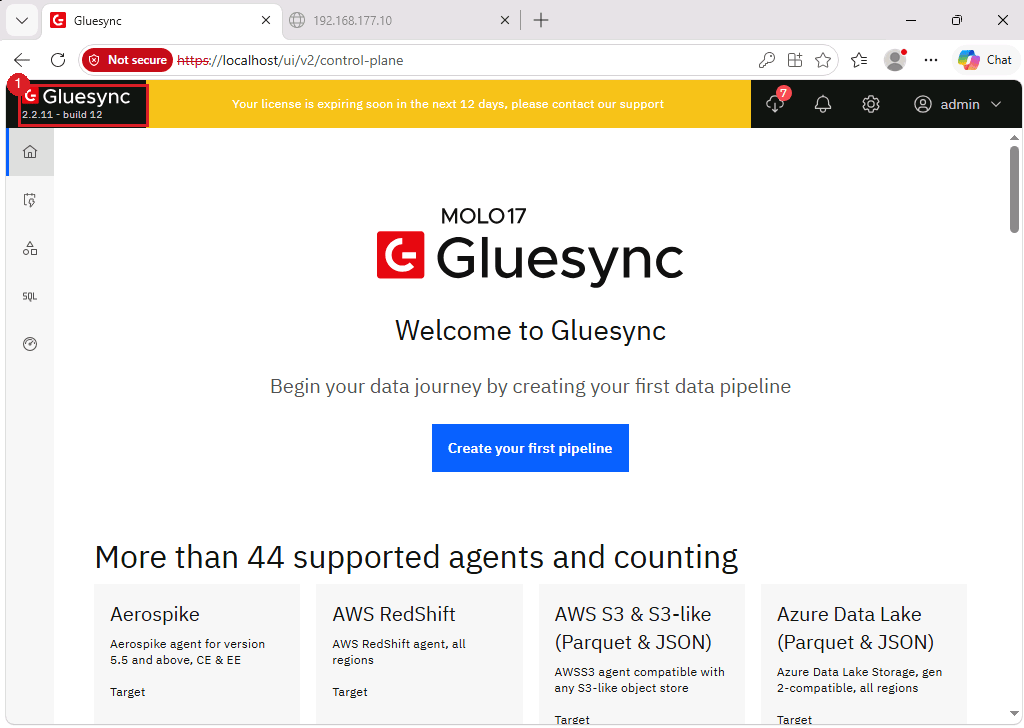
Sign in again with
adminand the new password.
UI and PowerShell
Open Gluesync Control from the desktop shortcut. It asks for administrator rights once.
-
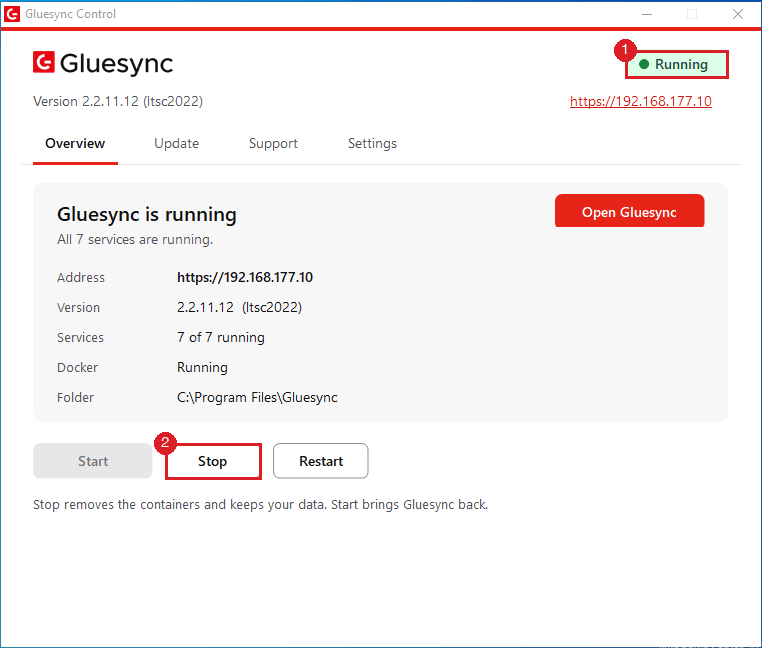
On the Overview tab, read the state at the top right (Running, Stopped, Starting or Docker not running), the version and the number of services;
-
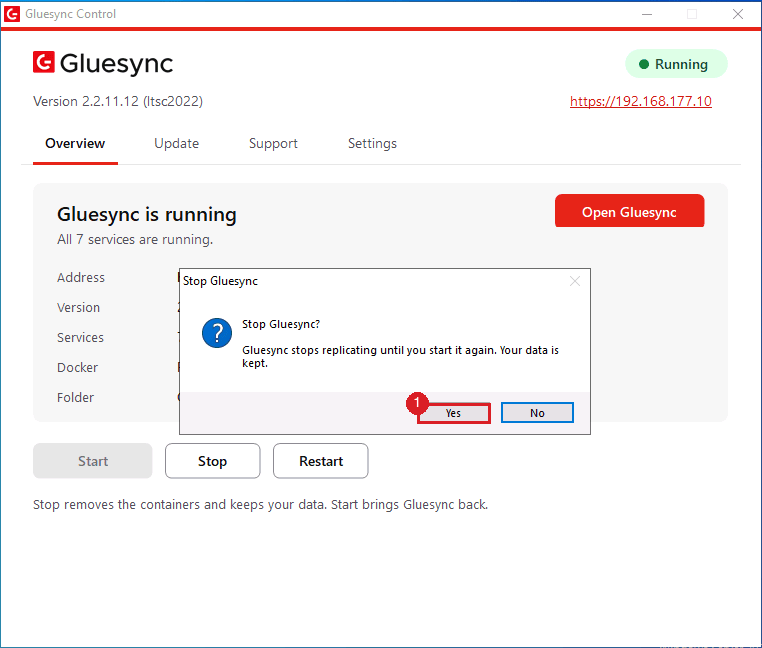
To stop Gluesync, select Stop, then Yes. Stop removes the containers and keeps your data;
-
To start it again, select Start. You can do the same from an elevated terminal. Open a new terminal after the install, so that it sees the new
PATH:gluesync status gluesync stop gluesync start gluesync status --json
| Command | What it does |
|---|---|
|
Opens the Gluesync Control window. |
|
Starts Gluesync, pulling images only on the first start. |
|
Removes the containers and keeps volumes, images and data. |
|
Stops, then starts. |
|
Prints the state, version and services. Exit code |
|
Updates Gluesync, see Update Gluesync, also without internet access. |
|
Collects a support bundle, see Collect a support bundle. |
|
Do not use |
|
Run the command line from an elevated terminal. In a terminal that is not elevated, a command stops with |
UI and PowerShell
-
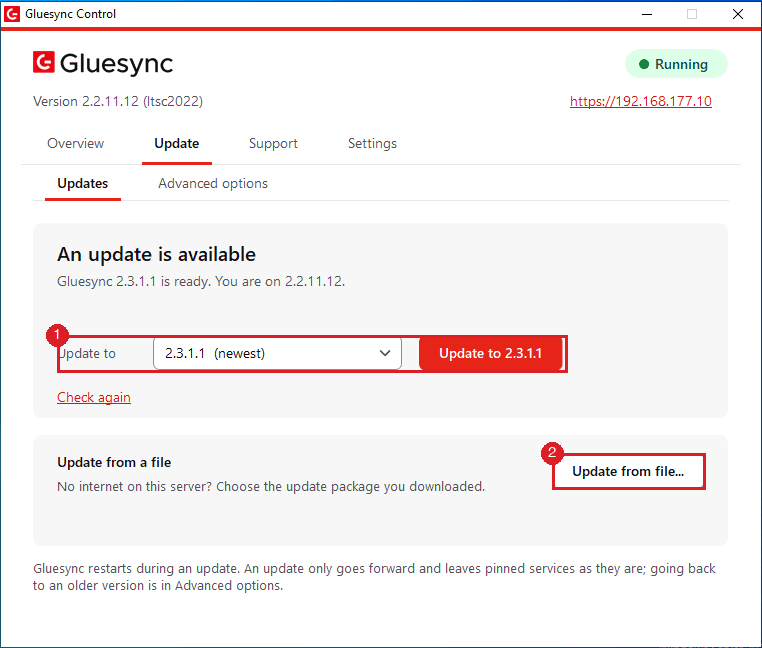
In the Gluesync Control window, open the Update tab. When the server can reach the internet, it offers the newest version in Update to. Select Update to <version> to update online;
-
For a server with no internet access, download
gluesync-update-windows-amd64-<version>.tar.gzon a computer that is connected, from Get Gluesync - offline downloads. The file is about 2.2 GB; -
Copy it to the server, for example to
C:\Temp; -
Take a backup first if this is a production server: see Backup and restore. The Core Hub database migration is one-way;
-
From an elevated terminal, check what the package would change. This changes nothing:
gluesync update --dry-run --package C:\Temp\gluesync-update-windows-amd64-<version>.tar.gz -
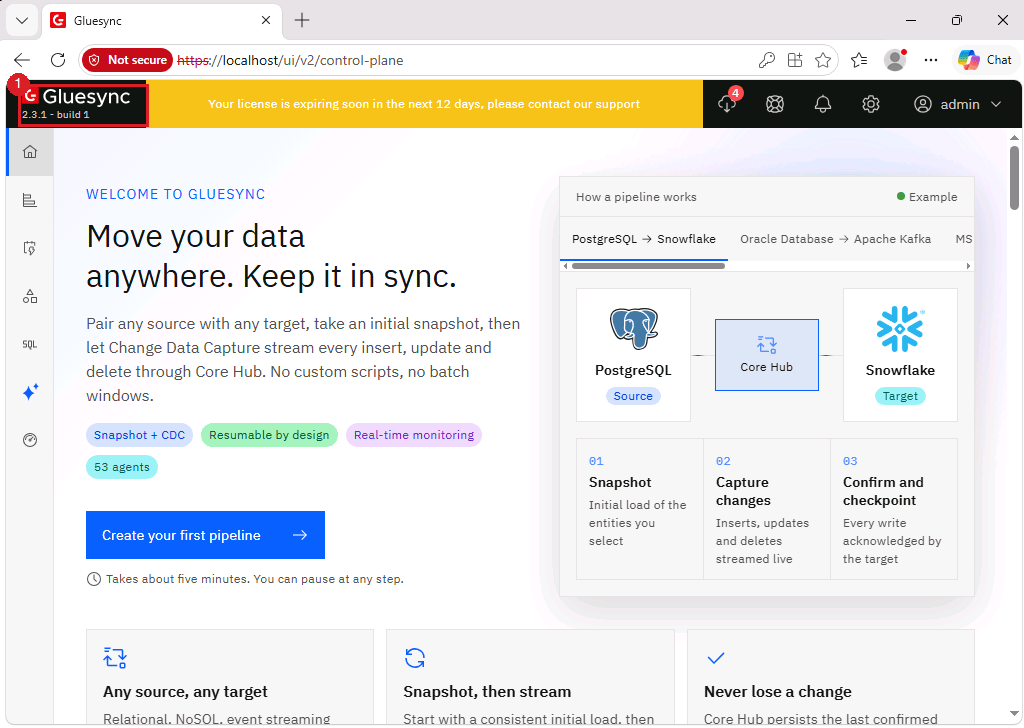
Run the update. In the window, select Update from file… instead:
gluesync update --package C:\Temp\gluesync-update-windows-amd64-<version>.tar.gz -y
|
An offline package must be newer than the installed version. A package for the same or an older version is refused. If an agent you have installed has no image in the package, the update is blocked. See Offline installation and updates (Windows) and the |
UI and PowerShell
-
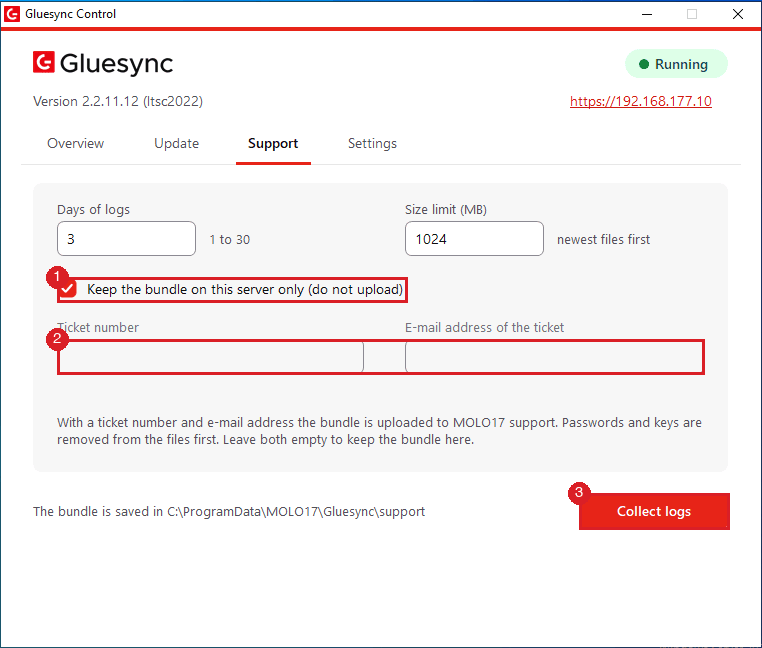
In Gluesync Control, open the Support tab;
-
Leave Days of logs at
3and Size limit (MB) at1024, or change them; -
To keep the bundle on the server, tick Keep the bundle on this server only (do not upload). To send it to MOLO17, leave it unticked and type your Ticket number and the E-mail address of the ticket;
-
Select Collect logs.
-
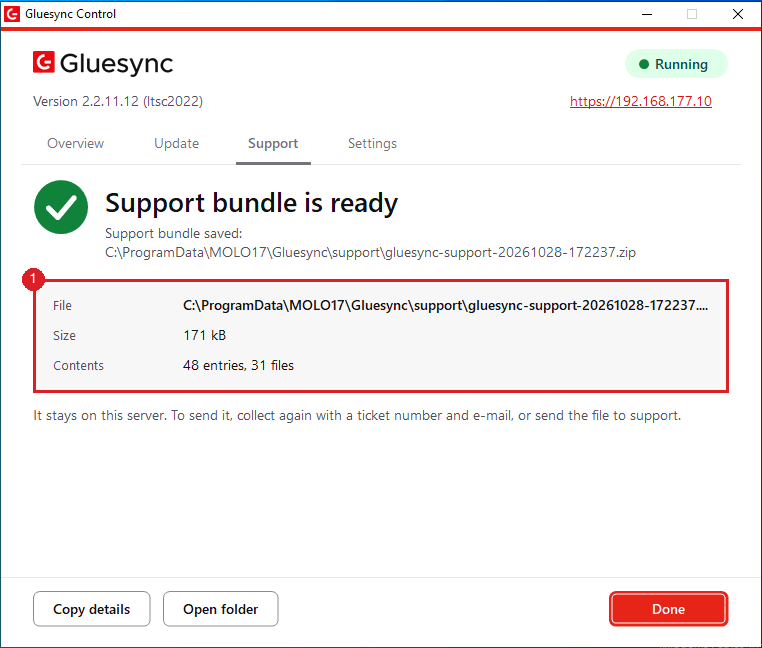
The same from an elevated terminal:
gluesync collect-logs --local-only
gluesync collect-logs --ticket <ID> --email <you>
|
Run |
Troubleshooting
| Problem | Possible cause | What to do |
|---|---|---|
|
The installer counts decimal gigabytes. 100 GB is about 93 GB in Explorer, and the check uses the lowest free space of the system drive, Docker’s data folder and the install folder |
Free space on that drive, or move Docker’s data root ( |
The PowerShell installer prints |
The script needs 4 cores. The setup wizard only warns |
Give the server 4 or more cores and run the script again. The pre-flight checker does not report this, so a |
Kit ID not valid in the wizard, or |
The ID does not have 12 characters from |
Copy the ID again from the download e-mail. Spaces and capital letters are accepted. |
|
The format is right, but the download server has no kit for that ID |
Check the ID against your download e-mail, or request the kit again at Get Gluesync. |
|
Defender scans Docker’s folders, or a third-party antivirus or EDR is installed |
Add the exclusions in Add the antivirus and EDR exclusions and run the checker again. |
|
Port 80 or 443 is used by another program, for example IIS |
Stop that program or move its bindings, then run the installer again. |
|
Docker Desktop is installed |
Uninstall Docker Desktop, restart, and run the installer again. |
|
The resume task ran before the server was restarted |
Restart the server. Setup continues by itself. Check |
The install stops after the restart with |
A scanner holds Docker’s files open |
Add the exclusions in Add the antivirus and EDR exclusions, then follow Fix "Access is denied" when Docker downloads images on Windows Server. |
|
Security software ends processes inside the containers |
Add the exceptions for the container processes in Add the antivirus and EDR exclusions. See Containers keep restarting. |
Enabling the Containers feature fails with |
The Windows component store is damaged, for example after a half-applied update |
Restart, install all pending Windows updates and restart again, then run |
|
The terminal was opened before the install, or Gluesync was installed with the PowerShell installer |
Open a new elevated terminal. After a PowerShell install, use |
|
The terminal is not elevated |
Open PowerShell or Command Prompt with Run as administrator. |
|
The package is damaged, is for the installed or an older version, or the server is Windows Server 2019 |
Copy the package again exactly as downloaded, check its size, and look up the code in Update codes (GS-UPD). |
The browser says the connection is not private |
The installer creates a self-signed certificate |
Continue to the site once, or install your own certificate: see Setup secure HTTPS and WSS with TLS. |
Related guides
Contact MOLO17 Support if you need assistance with installing or running Gluesync on Windows Server, and attach the support bundle from the last step.