Chronos Scheduler in Control Plane
The Chronos Scheduler allows you to automate routine tasks in Gluesync, such as starting/stopping entities and pipelines, or running snapshots on a schedule. This guide covers the Control Plane UI. For deployment, configuration, and API details, see the Chronos Scheduler module docs.
Creating a New Schedule
Navigate to the Scheduler section in the Gluesync Core Hub
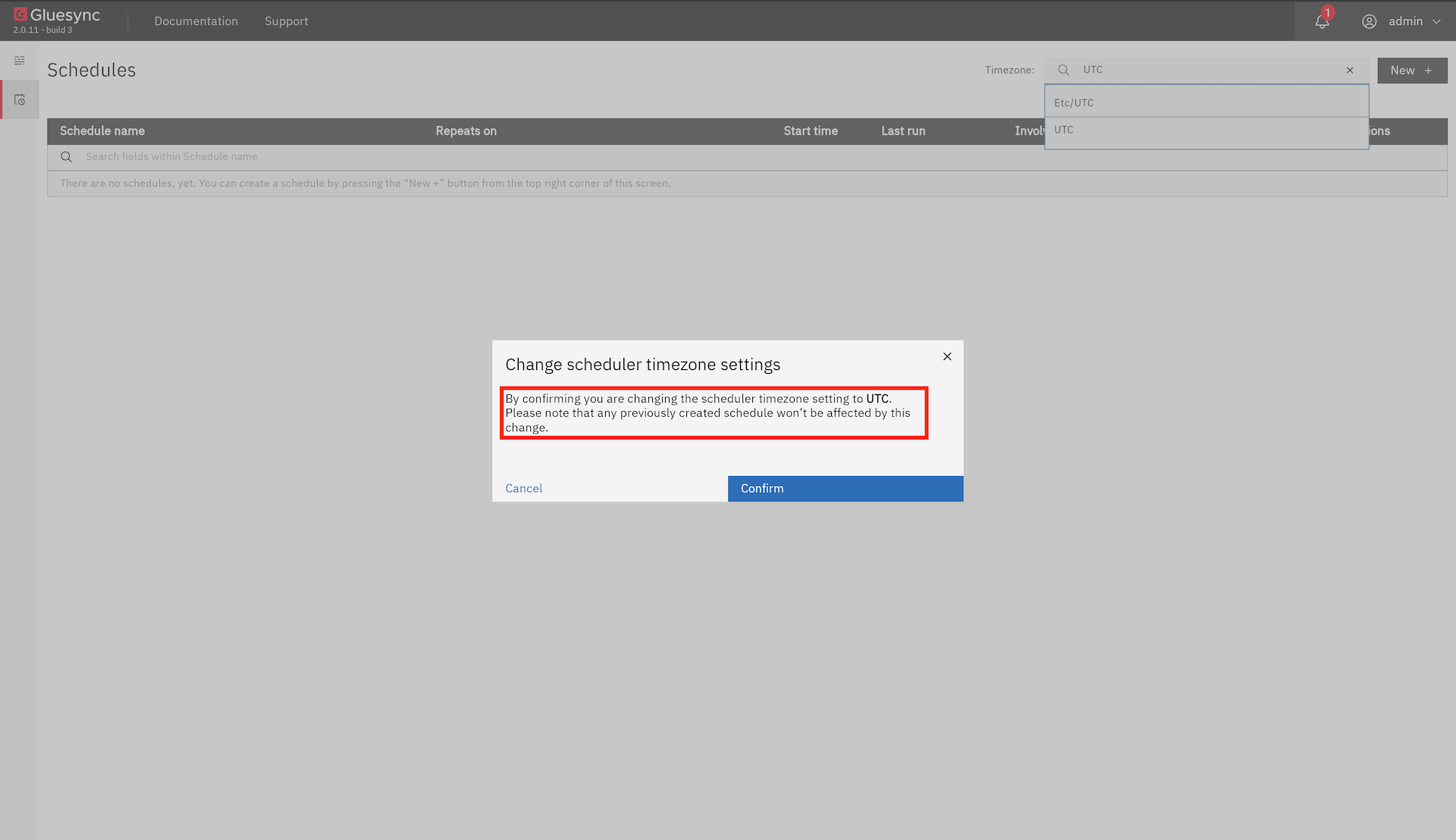
| Before creating a new schedule, ensure you have set your preferred timezone using the timezone selector in the top right corner of the screen. |

Any schedules you create will use the currently selected timezone, and changing the timezone later will not affect existing schedules.
Click the "New +" button in the top right corner

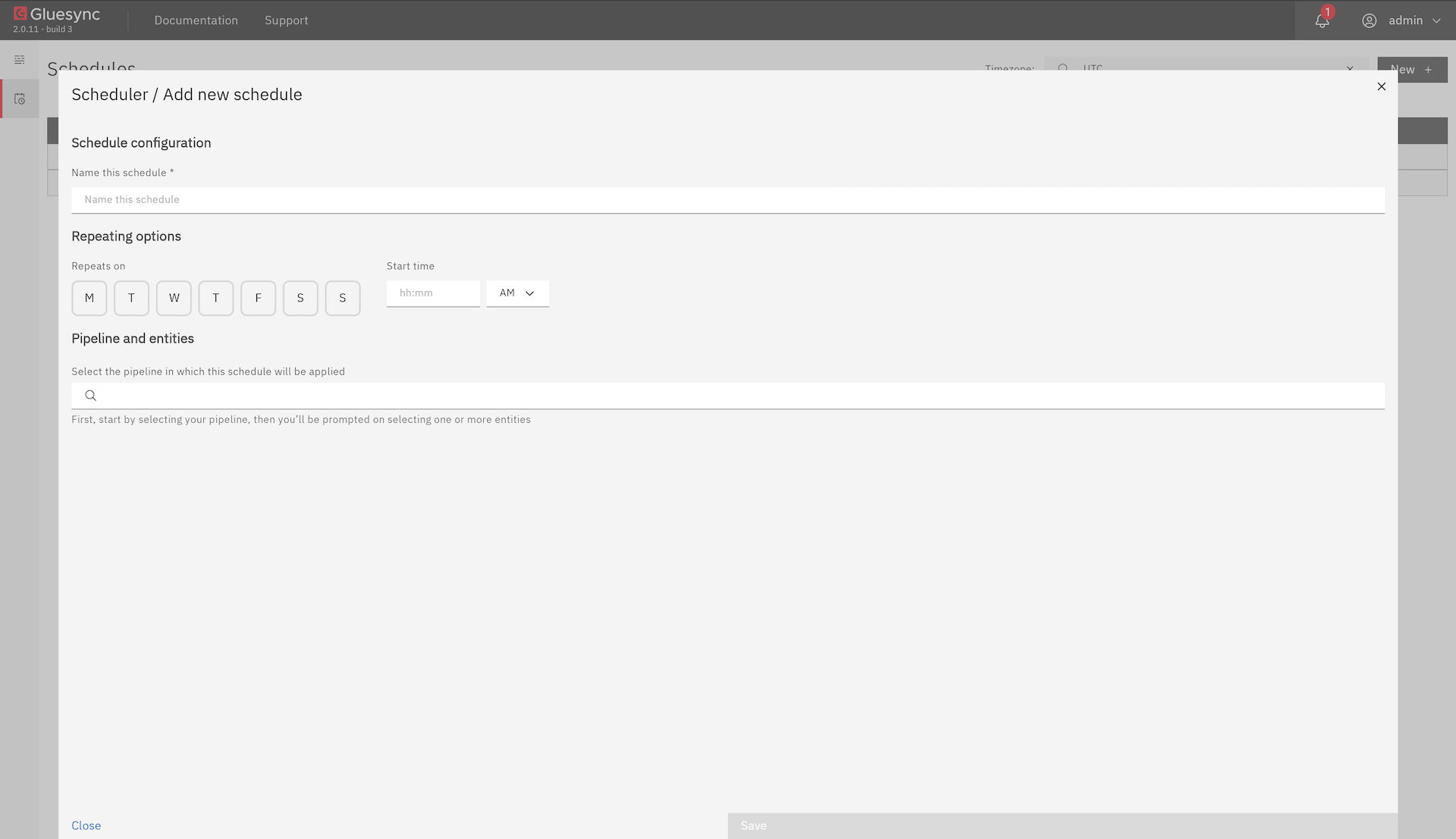
Fill in the schedule details
-
Name: A descriptive name for your schedule
-
Repeating Options: Choose between the daily picker or a cron expression
-
Target: Select the specific pipeline, group, or entity to run/pause
-
Action Type: Select the type of action to execute
-
Schedule: Configure the schedule using the visual picker and save the schedule
For details on daily schedules and cron expressions, see Schedules.
Repeating Options
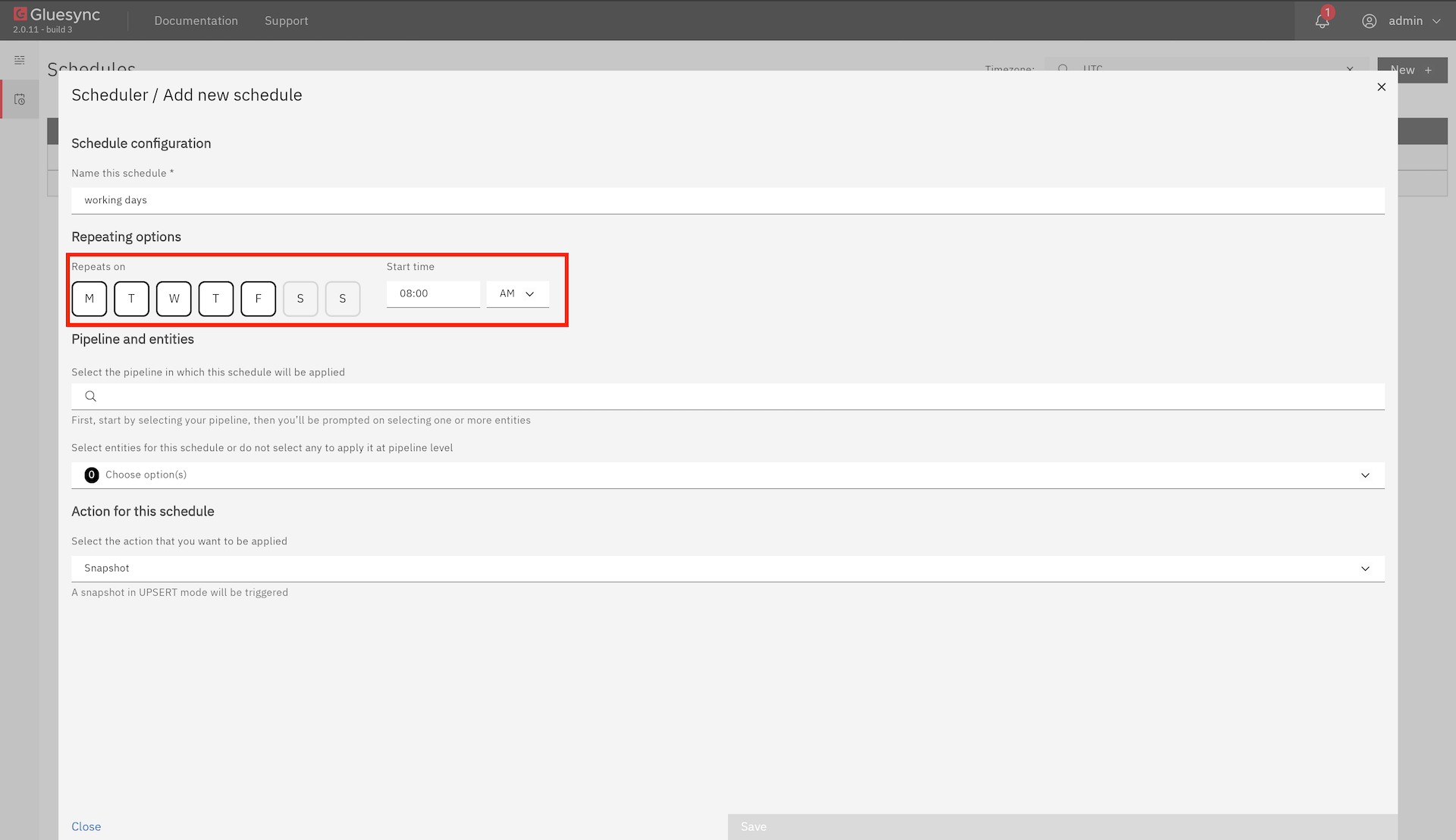
For common scheduling needs, use the simple schedule picker to select from the following options:
Day Selection:
-
A row of checkboxes labeled with day abbreviations (Mon, Tue, Wed, etc.) is displayed
-
Click on each day of the week when you want the task to run
-
Selected days will be highlighted in the interface
Time Configuration:
-
Time input field appears near the day selection
-
Enter the time in
hh:mm12-hour format (e.g.,2:30) -
Select either
AMorPMfrom the dropdown menu -
The time picker will validate your input to ensure it’s in the correct format
-
The scheduled time will be based on the timezone you’ve selected in the top right corner
Example Scenarios:
-
For a task that runs every weekday at 9:00 AM:
-
Check Mon, Tue, Wed, Thu, Fri
-
Enter
09:00in the time field -
For a task that runs on weekends at 11:30 PM:
-
Check Sat, Sun
-
Enter
11:30in the time field and selectPM
For advanced recurrence rules, switch to the cron expression editor. See Schedules for the cron format.
Target Selection
Select a Pipeline
-
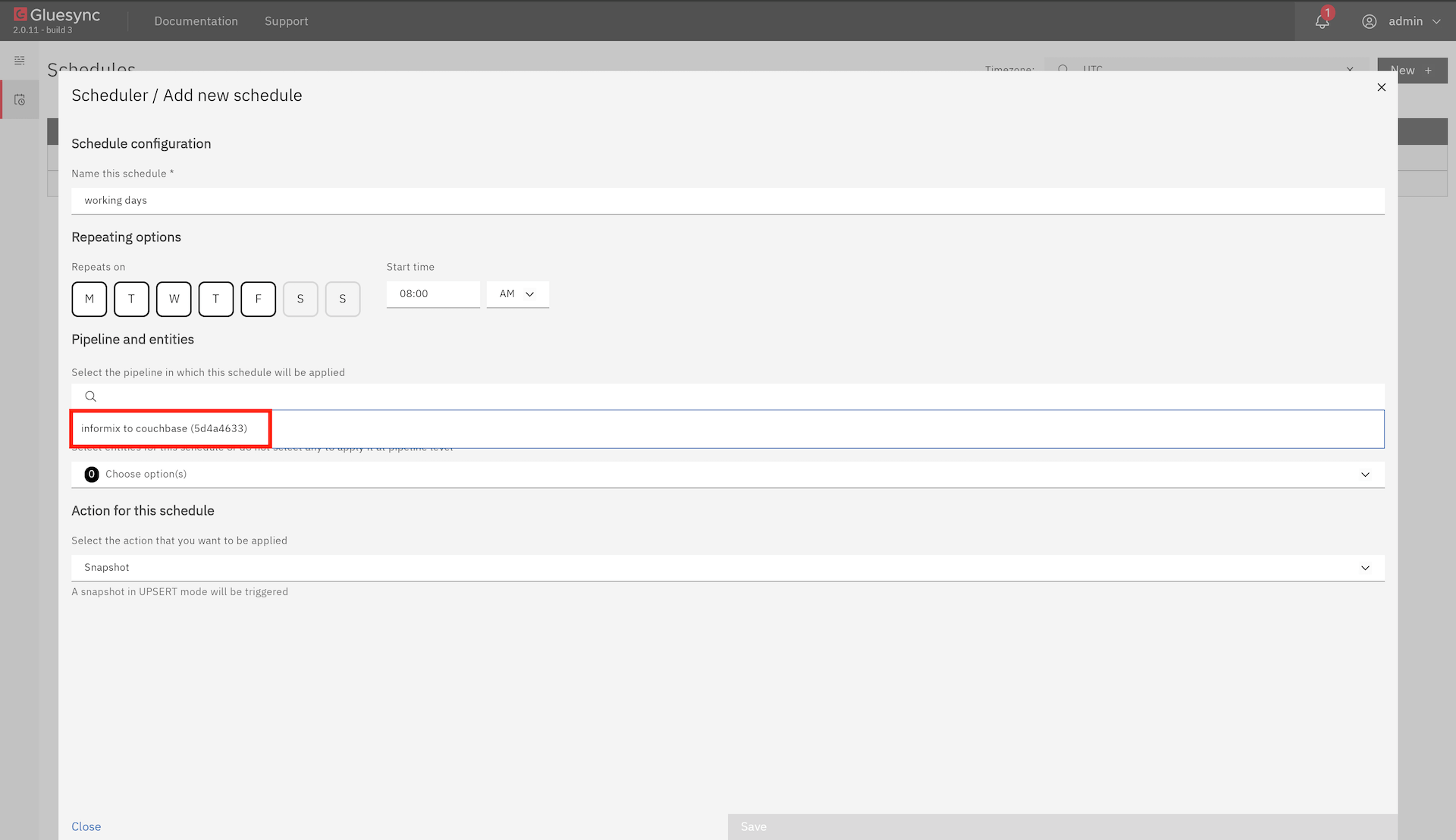
Choose the pipeline you want to schedule from the dropdown menu
-
The list shows all available pipelines in your environment
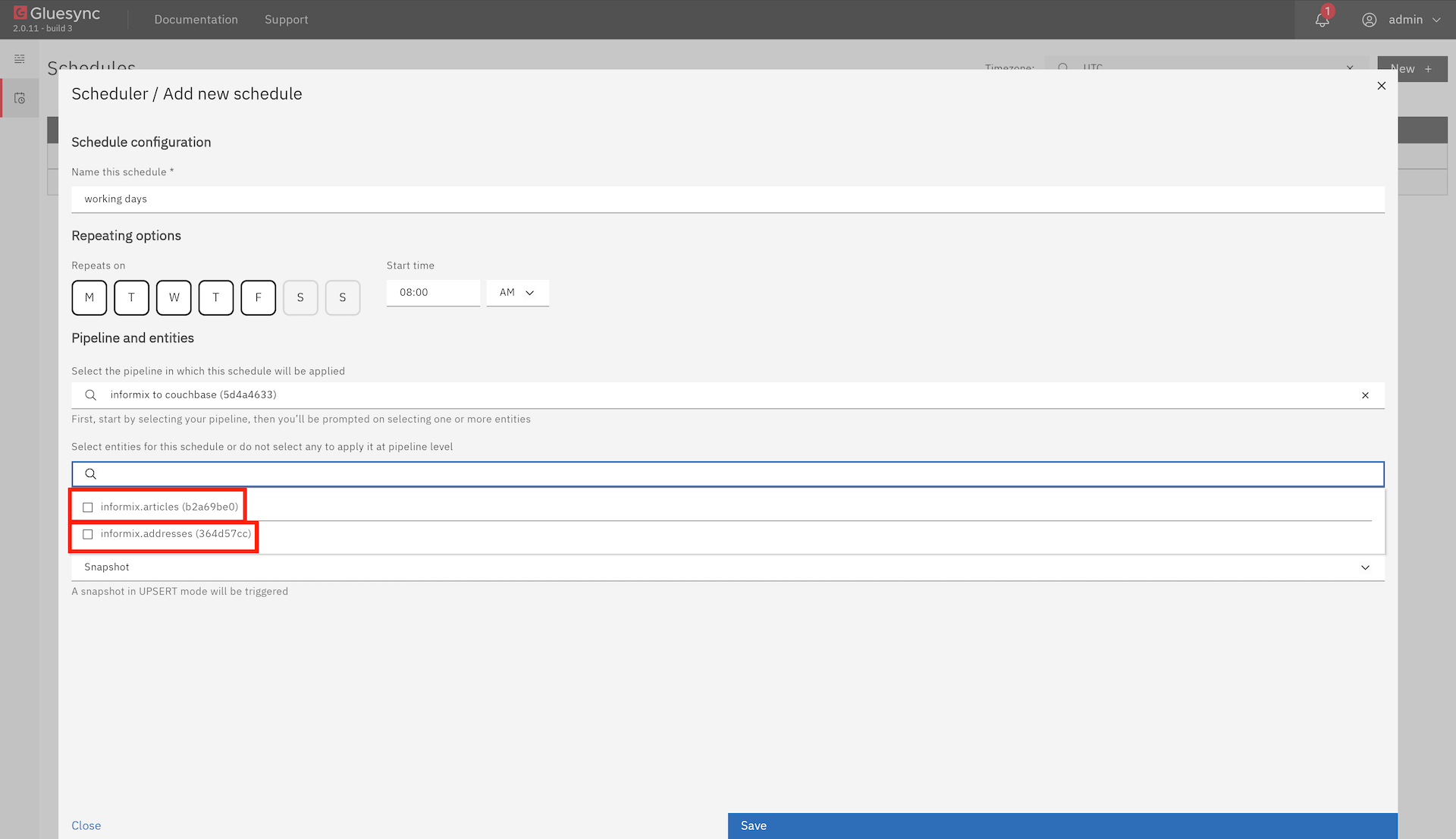
Select Groups and Entities (optional)
-
After selecting a pipeline, you can optionally choose specific groups or entities
-
To select groups or entities:
-
Click on the dropdown
-
Check the boxes next to the items you want to include
-
Selected items will be highlighted
| Leaving all groups and entities unselected will apply the schedule to the entire pipeline. |
Action Types
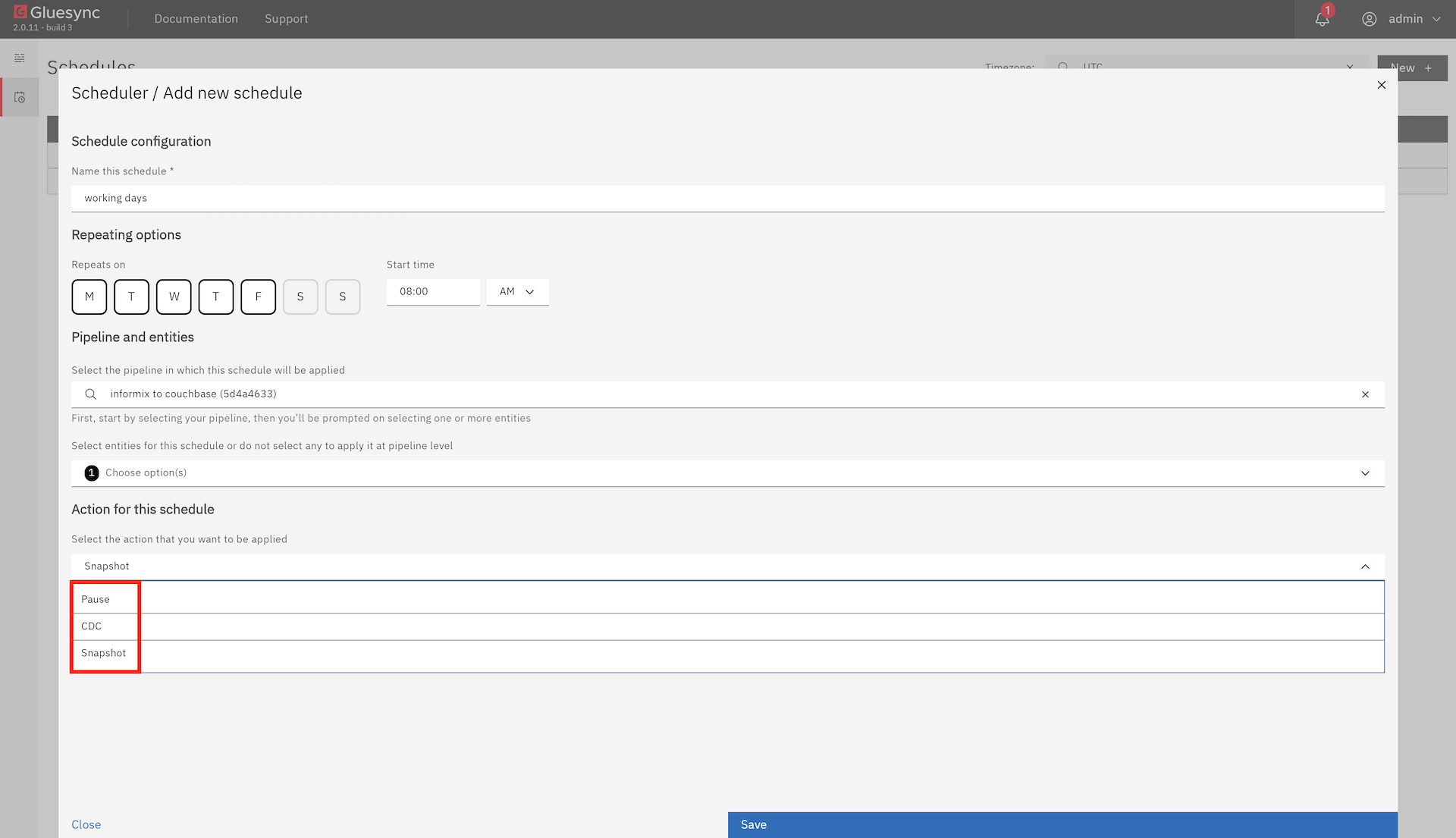
The scheduler action dropdown maps to the following operations:
Pause/Stop
-
Pauses or stops a running entity, group, or pipeline
-
Useful for maintenance windows or controlling resource usage
-
Can be scheduled to stop a target at a specific time
CDC
-
Starts the Change Data Capture process
-
Performs an initial data load and continues with real-time synchronization
-
Ideal for new entities or when you need to resync data
Snapshot with truncate
-
Executes a one-time snapshot with
INSERTsemantics -
Existing data is truncated before the snapshot is loaded
-
Useful when you want a fresh copy of the data
Snapshot without truncate
-
Executes a one-time snapshot with
UPSERTsemantics -
Existing data is preserved and updated or inserted
-
Useful for scheduled backups or incremental data updates
Snapshot with truncate + CDC
-
Executes a one-time snapshot with
INSERTand then starts CDC -
Equivalent to a redo operation
-
Useful for fully reloading a target and then continuing synchronization
Snapshot without truncate + CDC
-
Executes a one-time snapshot with
UPSERTand then starts CDC -
Equivalent to a redo operation
-
Useful for refreshing a target and then continuing synchronization
Put under maintenance
-
Puts the pipeline into maintenance mode
-
Useful for planned maintenance windows
Resume from maintenance
-
Removes the pipeline from maintenance mode
-
Useful after maintenance is complete
Query Studio
-
Uses the
query_studiotask type with an explicitly selected SQL-capable agent (agent_id) -
Pipeline only — groups and entities are not shown
-
Uses a saved Query Studio query by default, or custom SQL when Use a custom query is enabled
-
Fills the agent from a saved query when available; otherwise requires a selection from the agent picker (Chronos
GET /api/query-studio/agents) -
Stores a SQL snapshot; at fire time Chronos prefers the live saved query from Core Hub
-
Saving the schedule does not run the query
-
Keeps execution read-only by default; write execution requires I acknowledge this query can modify data
-
Useful for staging-table cleanup, count validation, reconciliation checks, and scheduled log purges
See Query Studio actions for schedule, platform-event, webhook-triggered, and chained-event steps.
For a mapping of these actions to the underlying API task types, see Schedules.
Chained Events
The Chained Events section lets you run a sequence of additional actions after the main scheduled job completes. Use it to build multi-step workflows, such as stopping a pipeline, running a snapshot, then restarting CDC.
For each chained event you can configure:
-
Action — the operation to perform (same set as the main action, including Query Studio)
-
Target — the pipeline, group, or entity to operate on
-
Execution mode —
asyncorsync-
Async fires the action and immediately continues to the next event
-
Sync waits for the action to complete before continuing to the next event
-
-
Webhook timeout — how long to wait for a sync event to finish
You can add, remove, reorder, and edit events directly in the form. The number of chained events is shown in the section header.
For the API fields and backend behavior, see Chained events.
Events
The Events tab in the Scheduler section lets you create and manage HTTP-triggered action chains (also called trigger flows). Unlike scheduled jobs, events are fired on demand by an external HTTP call to a secret-protected endpoint, making them ideal for CI/CD pipelines, external orchestrators, and manual operations.
For each trigger flow you can configure:
-
Name and description — identify the flow
-
Platform event — optionally auto-trigger the flow when a specific Core Hub event occurs
-
Enabled — toggle the flow on or off without deleting it
-
Events — actions that run from a platform event or webhook trigger; Query Studio (
query_studio) is available alongside the other action types
When you create a trigger flow, the UI displays a one-time modal with the secret token and trigger URL. Copy both values immediately — the token will not be shown again.
From the events table you can:
-
Fire now — trigger the flow immediately via the lightning bolt icon
-
Enable / Disable — toggle the flow status
-
Regenerate token — generate a new secret token (invalidates the old one)
-
Edit — update the flow’s details and event chain
-
Delete — remove the flow permanently
For the API fields, configuration, and backend behavior, see Events.
Managing Schedules



Best Practices
-
Use descriptive names and descriptions for your schedules
-
Test new schedules with a future date before setting them to run immediately
-
Use async chained events for independent steps and sync chained events when one step depends on the previous one
-
Set sync webhook timeouts long enough to cover the longest expected operation
-
Monitor scheduled tasks in the Activity Log
-
Consider timezone differences when scheduling tasks
-
Keep an eye on resource usage for frequently running tasks