Start a snapshot and CDC replication from the Control Plane
A new entity does nothing until you start it. This guide shows every way the Control Plane offers to start replication: a snapshot followed by CDC, CDC only, and a one-time snapshot without CDC. It also shows how to pause an entity, resume it, restart it from zero, and read the status of each entity. Every result is proved with SQL on the target.
In this guide
You will learn how to start one entity or several entities with an initial snapshot and then CDC, tell when the snapshot has finished and CDC has taken over, prove CDC with an insert, an update and a delete, pause and resume an entity, start CDC without a snapshot, run a one-time snapshot, and restart an entity from zero.
Quick information
Goal |
Start, pause, resume and restart replication for one or more entities and verify the data on the target |
Audience |
Gluesync users and administrators |
Level |
Intermediate |
Time required |
About 40 minutes |
Area |
Control Plane → Data pipelines → entity list |
Applies to |
Gluesync 2.3 |
Before you begin
Make sure that:
-
You can sign in to the Gluesync Control Plane with a role that can start and stop replication;
-
A pipeline with a source and a target connector and at least one entity exists. This guide uses a pipeline named Shop orders with two entities,
customersandorders, that have never been started; -
The source tables hold the data to replicate. In the example,
shop.customershas 200 rows andshop.ordershas 1000 rows, and the target tables are empty; -
You can run SQL on the source and on the target database, for example with your own SQL client.
|
The SQL in this guide uses the example tables. The statements run on the source (to change data) or on the target (to check data), as each step says. If your account cannot start entities, ask a Gluesync administrator to review your role. |
Guide steps
UI
-
In the left menu, select Data pipelines;
-
In the pipeline list, select Shop orders;
-
Read the entity table: an entity that has never run is shown in a Hold group with a yellow pause icon.
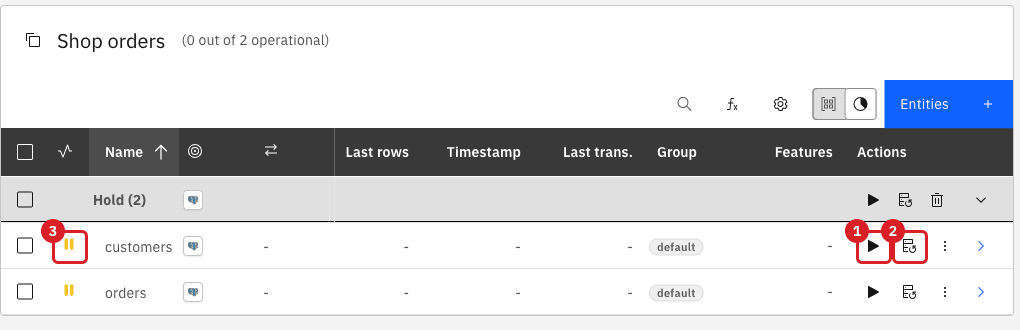
Before you start anything, check that the target is empty:
-- run on the target
SELECT (SELECT count(*) FROM shop.customers) AS customers,
(SELECT count(*) FROM shop.orders) AS orders;UI
-
In the
customersrow, select Start sync (the play icon); -
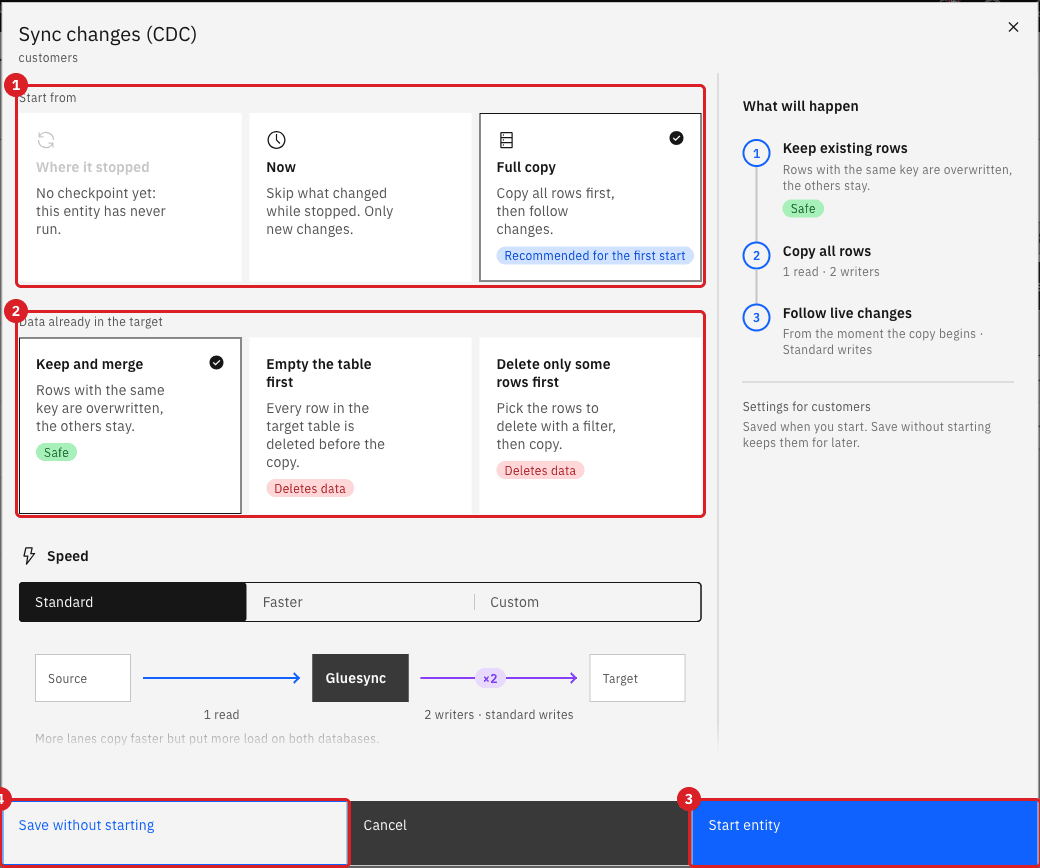
In Start from, keep Full copy. On an entity that has never run, Where it stopped is not available ("No checkpoint yet") and Full copy is preselected with the tag Recommended for the first start;
-
In Data already in the target, keep Keep and merge;
-
Leave Speed on Standard and read the What will happen panel on the right: it lists the steps in order (copy all rows, then follow live changes);
-
Select Start entity.
|
Save without starting stores the settings you chose in the dialog and leaves the entity on hold. Use it to prepare an entity and start it later. |
Check the target:
-- run on the target
SELECT count(*) FROM shop.customers;UI
-
Select the checkbox of every entity to start, here only
orders. The checkbox in the table header selects all entities; -
In the blue bar that appears (for example 1 item selected), select Start CDC;
-
In the dialog, keep Full copy and Keep and merge, then select Start entity.
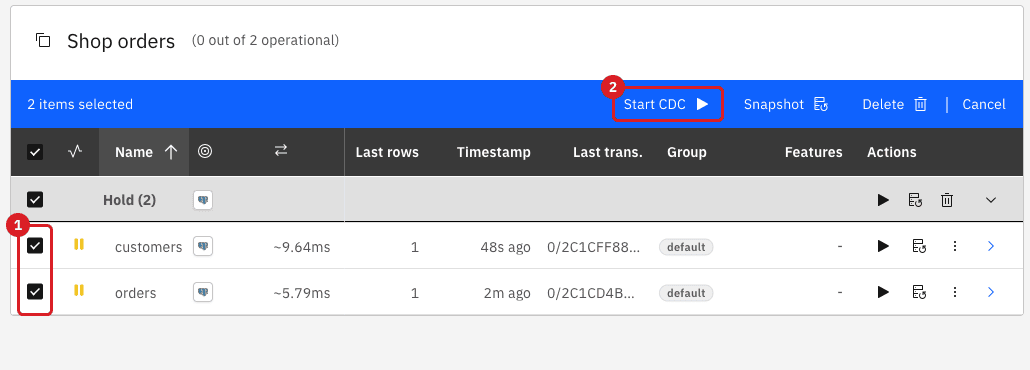
The dialog opens once for all the selected entities. When more than one entity is selected, the Settings for list at the bottom of the What will happen panel switches between them, because each entity keeps its own Speed settings.
|
Two more buttons start every entity of a section at once. In the Hold section header, Start Section CDC opens the same dialog for all the entities of the section and Section Snapshot opens the one-time snapshot dialog for all of them (see Run a one-time snapshot without CDC). Pause Section appears in the header of a section whose entities are running. |
Check the target:
-- run on the target
SELECT count(*) FROM shop.orders;UI
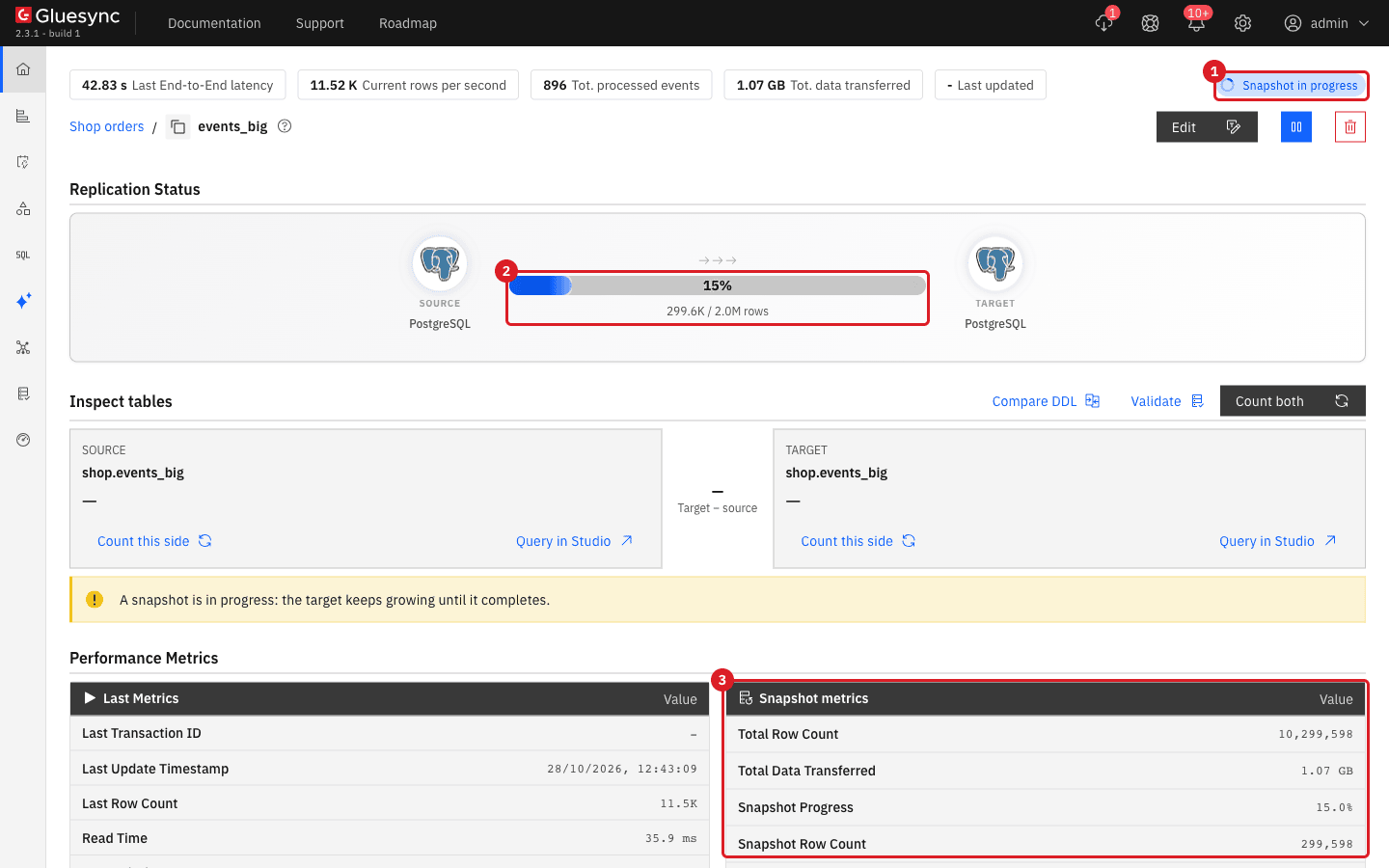
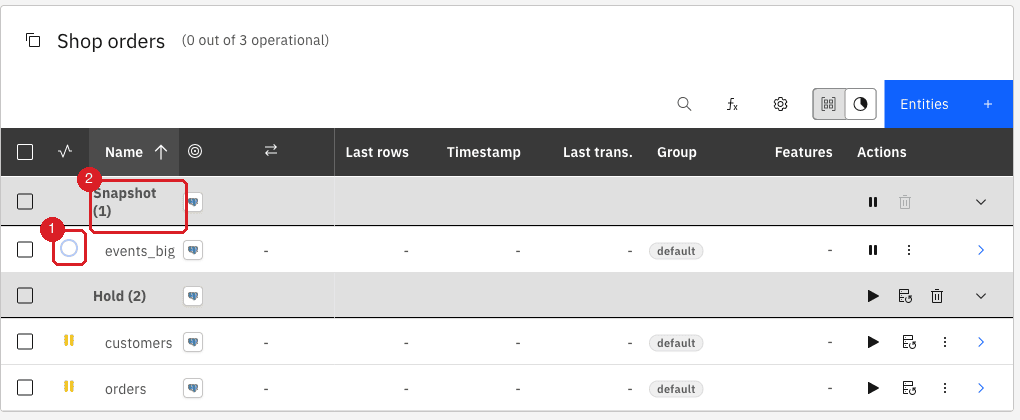
The snapshot of the example tables ends in seconds. On a larger table you can watch it. The screenshots in this step show a table of 2 million rows (events_big) so that the progress is visible.
-
In the entity table, find the entity. While it copies it sits in the Snapshot group and its status icon is an empty ring;
-
Select the chevron at the end of the row (Open entity detail);
-
Read Replication Status: the progress bar shows the percentage and the rows copied out of the total, for example 15% and 299.6K / 2.0M rows, and the badge at the top right reads Snapshot in progress;
-
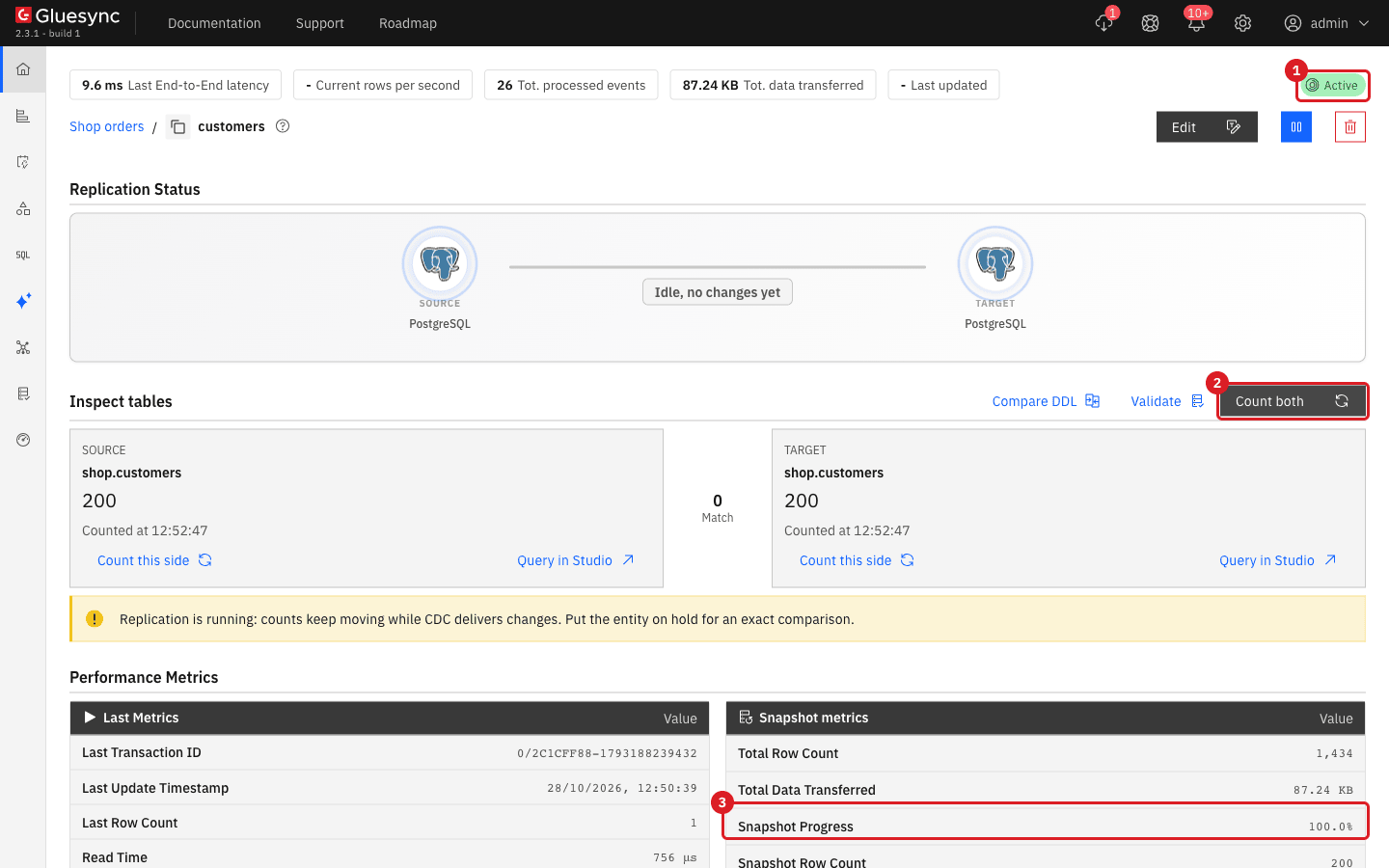
Read Snapshot metrics in Performance Metrics: Snapshot Progress and Snapshot Row Count grow until they reach 100%.
When the snapshot is complete, CDC takes over automatically. You do not start CDC a second time.
-
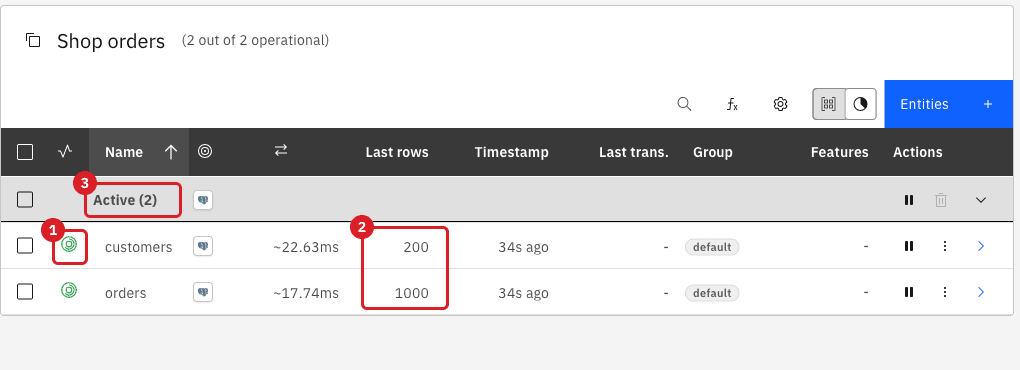
Go back to the pipeline and look at the entity table: the entity is now in the Active group and its status icon is the green CDC icon;
-
Read Last rows: it shows the size of the last batch, which is the snapshot batch (
200and1000in the example) until a change arrives; -
Open the entity detail page and select Count both: Source and Target show the same count and the difference reads
0, with Match under it. The yellow banner "Replication is running: counts keep moving while CDC delivers changes" is expected while CDC runs.
|
The status icon of an entity in the list stays an empty ring during a snapshot and its tooltip can read |
SQL
Run each statement on the source, wait a few seconds, then run the check on the target.
-
Insert a customer on the source:
INSERT INTO shop.customers (id, full_name, email, country, tier, status, credit_limit, created_at)
VALUES (201, 'Ada Lovelace', 'ada@example.com', 'GB', 'gold', 'active', 5000.00, now());
Check the target:
SELECT id, full_name, tier FROM shop.customers WHERE id = 201;
SELECT count(*) FROM shop.customers;
The row is there with
gold, and the count is201. -
Update the row on the source:
UPDATE shop.customers SET tier = 'platinum' WHERE id = 201;Check the target:
SELECT id, tier FROM shop.customers WHERE id = 201;returnsplatinum. -
Delete the row on the source:
DELETE FROM shop.customers WHERE id = 201;Check the target:
SELECT count(*) FROM shop.customers WHERE id = 201;returns0and the total is back to200. -
Repeat the three changes on
shop.orders, for exampleINSERT INTO shop.orders (id, customer_id, amount, currency, status, order_date) VALUES (1001, 1, 99.90, 'EUR', 'new', current_date);, thenUPDATE shop.orders SET status = 'paid', amount = 109.90 WHERE id = 1001;, thenDELETE FROM shop.orders WHERE id = 1001;. The target shows the row asnew, thenpaidwith109.90, then gone, and the total is1000again.
UI
-
In the
customersrow, select Stop sync (the pause icon); -
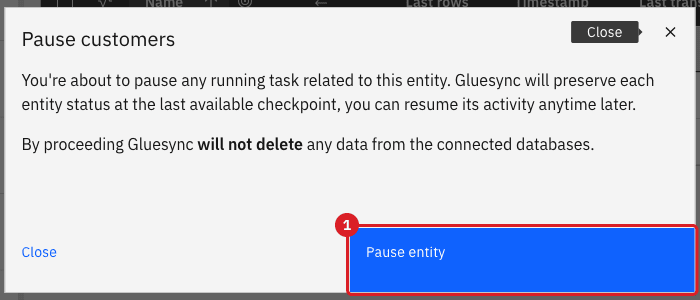
Read the dialog: pausing keeps the last checkpoint and does not delete any data from the connected databases;
-
Select Pause entity.
|
You can also pause from the blue pause button on the entity detail page, with Pause Section in the header of a running section, or by selecting several running entities and choosing Pause in the blue bar. A snapshot in progress is paused in the same way. |
UI + SQL
-
On the source, insert a customer while
customersis on hold:INSERT INTO shop.customers (id, full_name, email, country, tier, status, credit_limit, created_at) VALUES (202, 'Grace Hopper', 'grace@example.com', 'US', 'silver', 'active', 3000.00, now()); -
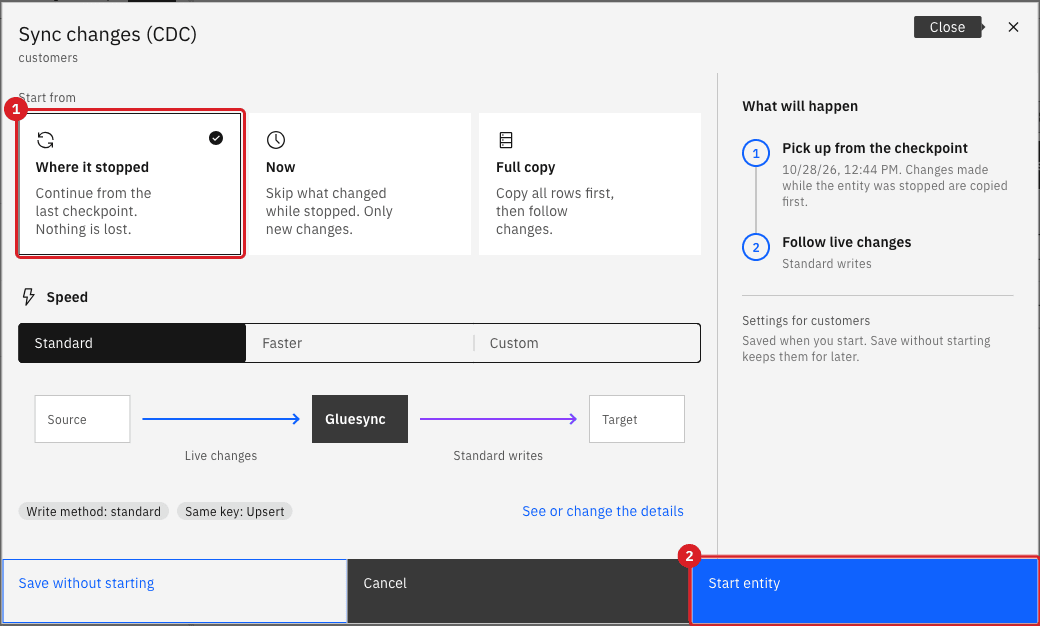
In the
customersrow, select Start sync; -
In Start from, check that Where it stopped is selected. It is the default once the entity has run;
-
Select Start entity.
UI + SQL
-
Pause
customersas before; -
On the source, insert customer
203(Alan Turing,GB,bronze) while it is on hold; -
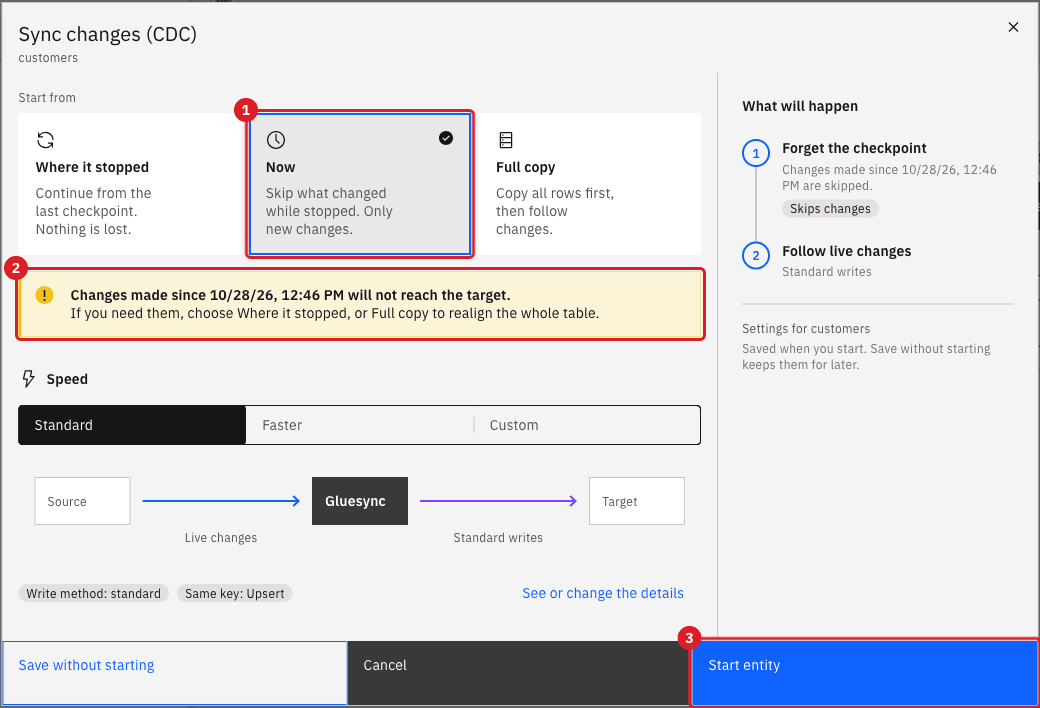
Select Start sync in the
customersrow; -
In Start from, select Now. The warning "Changes made since … will not reach the target" appears and the What will happen panel shows Forget the checkpoint with the tag Skips changes;
-
Select Start entity;
-
On the source, insert customer
204(Edsger Dijkstra,DE,bronze).
|
Now forgets the checkpoint. Use it only when you do not need the changes made while the entity was stopped, or when you realign the table afterwards with a snapshot. |
UI + SQL
A one-time snapshot copies the current rows and stops. It does not start CDC. The entity must be on hold.
-
Pause
customers; -
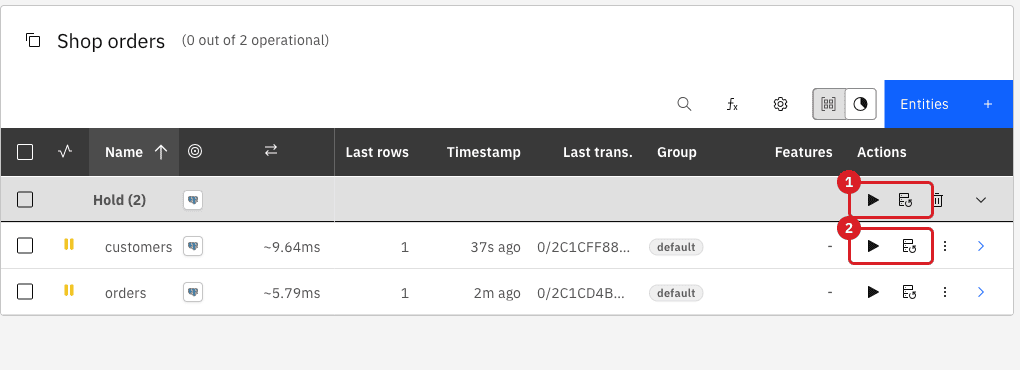
In the
customersrow, select Run one-time snapshot, or select the entity and choose Snapshot in the blue bar, or use Section Snapshot in the Hold section header; -
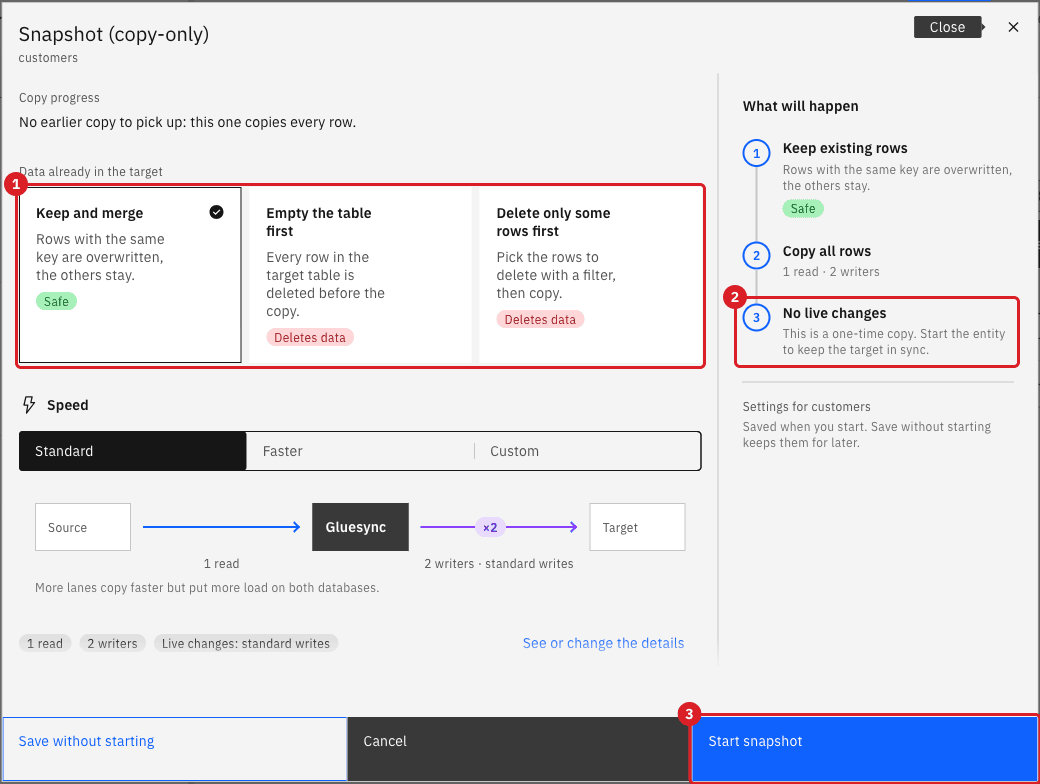
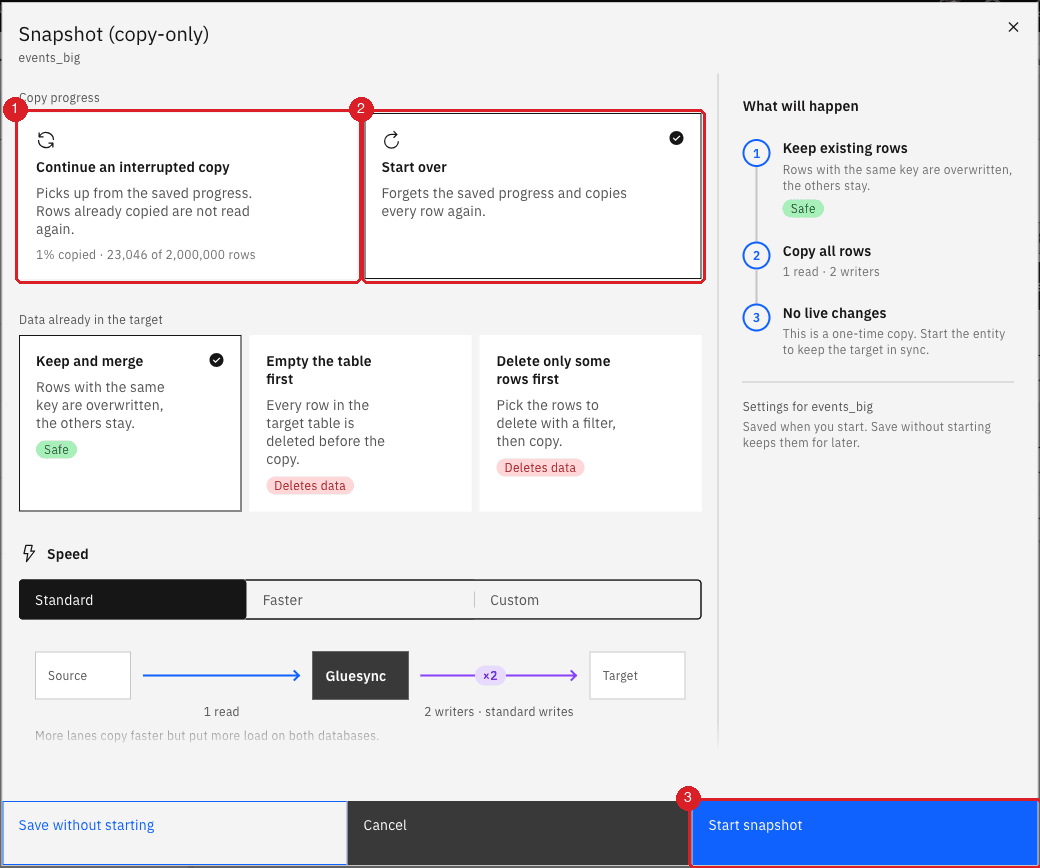
Read Copy progress. For an entity that never copied, or whose last copy finished, the dialog says that this copy reads every row;
-
In Data already in the target, keep Keep and merge;
-
Read the What will happen panel: the last step is No live changes;
-
Select Start snapshot.
Now insert one more customer on the source, for example 205 (Barbara Liskov, US, gold), and wait ten seconds.
If a one-time snapshot is paused or interrupted, the next Run one-time snapshot shows Copy progress with two choices. Continue an interrupted copy picks up from the saved progress and shows how much was copied, for example "1% copied · 23,046 of 2,000,000 rows". Start over forgets the saved progress and copies every row again, and it is the choice selected by default.
|
After you continue an interrupted copy, compare the counts with Count both or with SQL before you rely on the target. Start over is the safer choice when the data must be complete. |
UI + SQL
Restarting from zero drops the checkpoint, copies every row again and then follows live changes. Use it to realign the target with the source, for example after you used Now or after rows were deleted on the source while the entity was stopped.
-
Pause the entities to restart;
-
On the source, remove the extra test rows:
DELETE FROM shop.customers WHERE id > 200;; -
On the target, add a stale row that does not exist on the source, so you can see it disappear:
INSERT INTO shop.customers VALUES (999, 'Stale Row', 'stale@example.com', 'IT', 'bronze', 'active', 1, now());; -
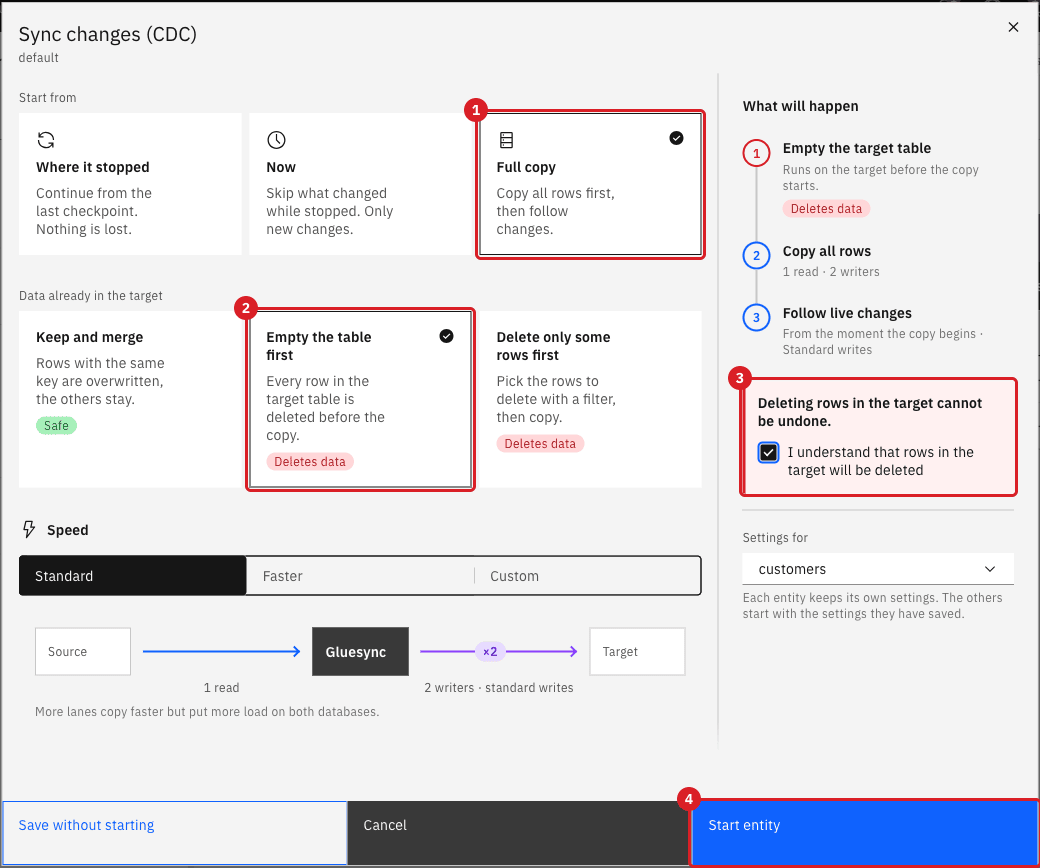
Select the checkboxes of
customersandorders, then select Start CDC in the blue bar; -
In Start from, select Full copy;
-
In Data already in the target, select Empty the table first;
-
Select the box I understand that rows in the target will be deleted. Start entity is disabled until you do;
-
Select Start entity.
|
With Keep and merge, rows that exist on the target but no longer on the source stay on the target, because the copy only inserts and overwrites rows with the same key. Delete only some rows first removes only the rows that match a filter you build (Delete the rows where a column, an operator and a value) before the copy. Use Empty the table first or the filter when the target must match the source exactly. |
Choose how to start an entity
The start dialog and the snapshot dialog combine a start point with a rule for the data already in the target.
| Action | What it does | When to use it |
|---|---|---|
Start sync with Full copy |
Copies all rows first, then follows live changes (snapshot, then CDC). The checkpoint is dropped. |
The first start of an entity, or a restart from zero. |
Start sync with Where it stopped |
Continues from the last checkpoint and copies the changes made while the entity was stopped. No snapshot runs. Not available before the first start. |
Resuming after a pause, a maintenance window or a restart. |
Start sync with Now |
Forgets the checkpoint and follows only new changes. No snapshot runs and the changes made while the entity was stopped are skipped. |
The history is not needed, or you realign the data with a snapshot. |
Run one-time snapshot |
Copies the current rows and stops. No CDC. |
One-off loads and refreshes, or catching up rows that Now skipped. |
Pause (Stop sync) |
Stops the entity and keeps its checkpoint. Nothing is deleted. |
Maintenance, or before you change how the entity starts. |
| Data already in the target | Effect on the copy |
|---|---|
Keep and merge |
Rows with the same key are overwritten and the other rows stay. Marked Safe. |
Empty the table first |
Every row in the target table is deleted before the copy. Marked Deletes data; you must confirm. |
Delete only some rows first |
The rows matching your filter are deleted before the copy. Marked Deletes data; you must confirm and add at least one condition. |
These options appear only when a copy runs: with Full copy and in the snapshot dialog. Speed (Standard, Faster or Custom) sets how many reads and writers the copy uses.
Read the status of an entity
The first column of the entity table shows the status of each entity, and the entities are grouped by status.
| Group and icon | Tooltip | Meaning |
|---|---|---|
Hold, yellow pause icon |
Entity is on hold |
The entity does not run. It never started, or it was paused, or a one-time snapshot finished. |
Snapshot, empty ring |
The progress, written as `percent |
rows moved / total items moved` |
The initial copy or a one-time snapshot is running. The percentage is on the entity detail page. |
Active, green CDC icon |
CDC active |
The entity runs and delivers changes. |
Error, red icon |
The error message |
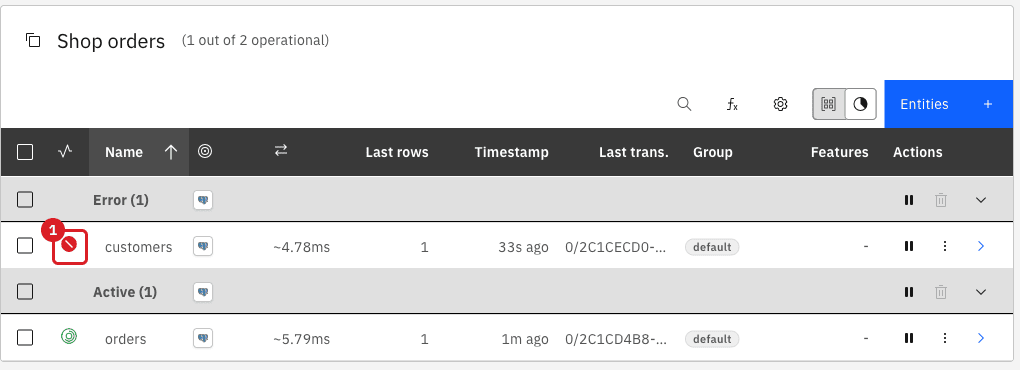
In the example, a trigger on the target table rejected an insert, and the entity went to Error. After the trigger was removed, the entity delivered the change and returned to Active by itself, without a restart.
Troubleshooting
| Problem | Possible cause | What to do |
|---|---|---|
Where it stopped is greyed out |
The entity has never run, so it has no checkpoint |
Start with Full copy, which is preselected on the first start |
Start entity or Start snapshot is disabled |
Empty the table first or Delete only some rows first is selected and the confirmation box is not selected, or the filter has no condition |
Select I understand that rows in the target will be deleted and complete the filter, or choose Keep and merge |
Run one-time snapshot and Start sync are missing from the row |
The entity is running or copying, so the row shows Stop sync instead |
Pause the entity first |
A row changed while the entity was stopped is missing on the target |
The entity was started with Now |
Run a one-time snapshot with Keep and merge, or restart with Full copy |
A row deleted on the source is still on the target after a snapshot |
Keep and merge does not delete rows |
Use Empty the table first or Delete only some rows first |
The entity is in the Error group |
The target or the source rejected a change; hover over the status icon to read the message |
Fix the cause on the database side. In the lab the entity returned to Active by itself once the cause was removed |
The snapshot ring in the list stays empty |
The list does not draw the percentage |
Open the entity detail page and read the progress bar |
The counts differ right after Count both |
CDC is delivering changes while you count |
Put the entity on hold for an exact comparison, or count again after a few seconds |
Related guides
Contact MOLO17 Support if you need assistance with starting or restarting replication.