Set up email alerts for platform events
Core Hub can email you when something needs attention: a pipeline error, an entity that stops, an unhealthy agent. This guide connects Core Hub to an SMTP server, chooses who receives the alerts and which events qualify, and then proves the setup twice: with a test email and with a real alert raised by a failing pipeline.
In this guide
You will learn how to open the email settings, enter the SMTP connection details, add alert recipients, filter events and severities, send and read a test email, save the configuration, and trigger a real alert to see it arrive.
Quick information
Goal |
Receive Gluesync platform alerts as email digests |
Audience |
Gluesync administrators |
Level |
Basic |
Time required |
About 25 minutes |
Area |
Control Plane → Settings → Notifications → Emails |
Applies to |
Gluesync 2.3 |
Before you begin
Make sure that:
-
You can sign in to the Gluesync Control Plane with a user that can change platform settings;
-
You have an SMTP server that Core Hub can reach from its own network, and its host name, port, security mode, and credentials;
-
You know where the mailbox of the alert recipient is, so that you can read the messages;
-
A pipeline with a running entity is available for the last steps, and you can change its target in a database tool. Use a test pipeline: the guide makes a target table reject writes on purpose.
|
This guide was tested with Mailpit, a local test mailbox: SMTP host |
|
The SMTP host is resolved by Core Hub, not by your browser. When Core Hub runs in a container, use the name or address that is valid inside the container network (here |
Guide steps
UI
-
Sign in to the Gluesync Control Plane;
-
Select the Settings gear icon in the header;
-
In the Settings window, select Notifications;
-
Select the Emails tab;
-
Select Enable email client.

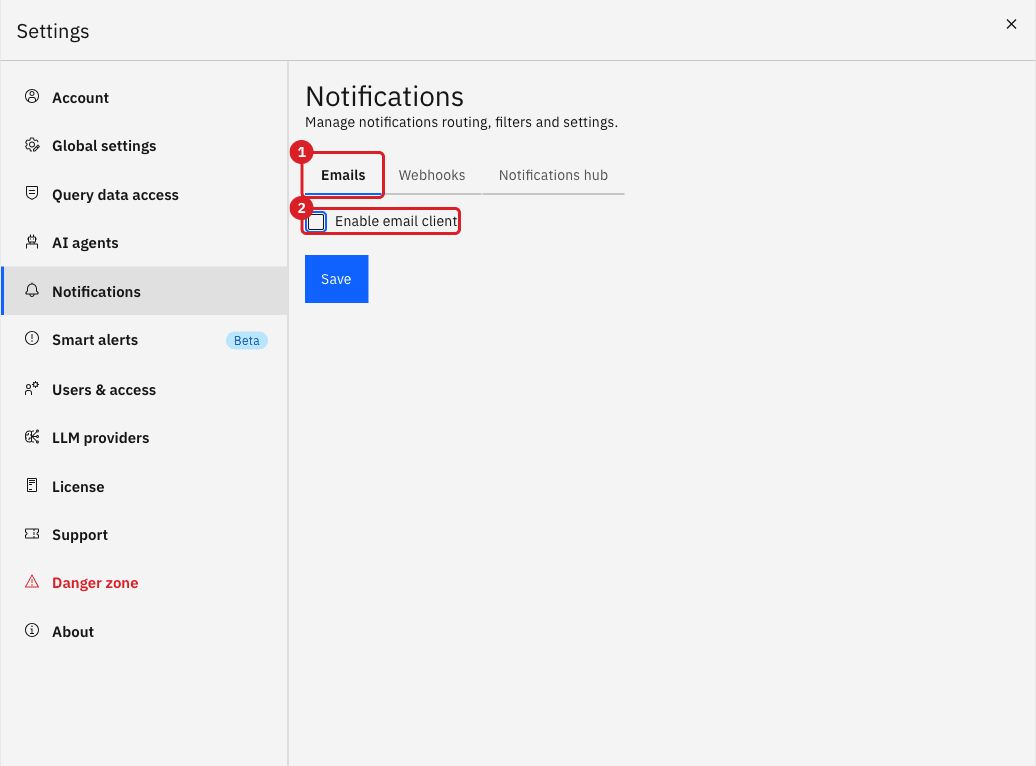
UI
Fill in the Configurations section. All fields except the security mode are required.
-
In SMTP Server, enter the host name or IP address of your mail server;
-
In Port Number, enter the port of the SMTP service;
-
In Source connection, choose the encryption that your server expects (see the table below);
-
In From email, enter the address that appears as the sender of the alert emails;
-
In Username, enter the SMTP account name;
-
In Password, enter the SMTP account password. Use the eye icon to show or hide what you type.
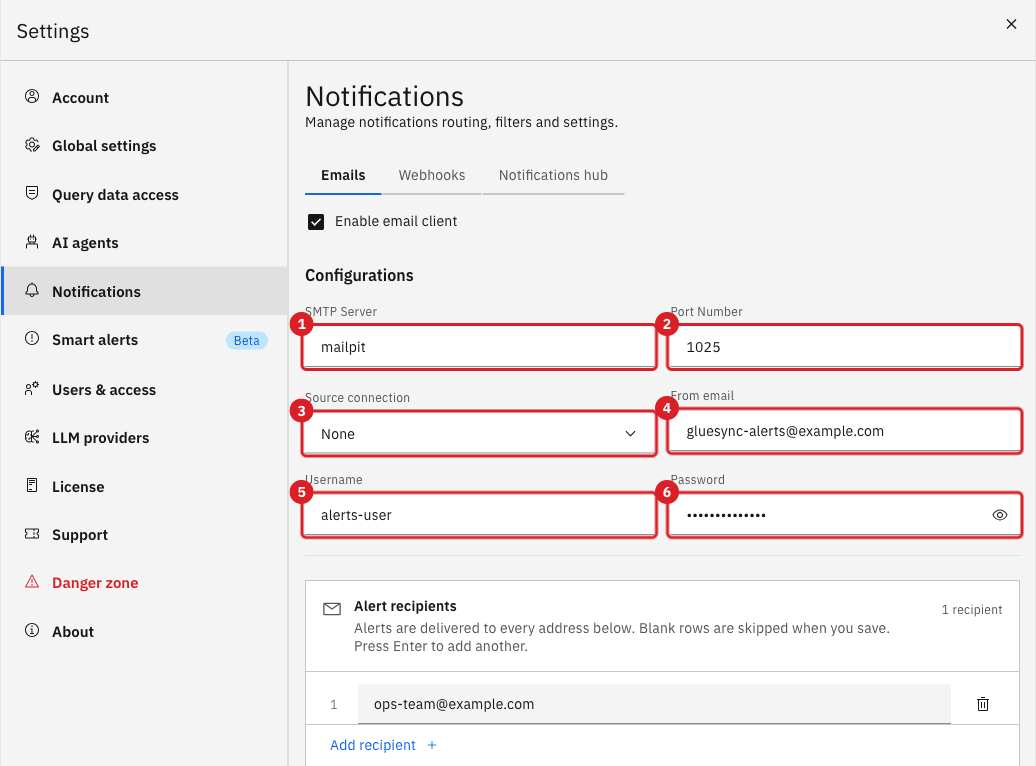
| Field | What to enter |
|---|---|
SMTP Server |
Host name or IP address of the outgoing mail server, as reachable from Core Hub. Example for this guide: |
Port Number |
The SMTP port. Common values are |
Source connection |
The encryption mode of the connection. TLS upgrades a plain connection with STARTTLS, typically on port 587. SSL opens an encrypted connection from the start, typically on port 465. None sends the mail without encryption. Example for this guide: None. |
From email |
Sender address of every alert and test email. Some providers reject senders that do not belong to the authenticated account. |
Username |
Account used to authenticate with the SMTP server. Gluesync always authenticates, so the field cannot stay empty. |
Password |
Password of that account. The field is masked. After you save, Core Hub keeps the stored password and does not display it again. |
|
The dropdown that chooses the encryption mode is labeled Source connection in the Control Plane of this release, although it controls the SMTP security mode. This guide uses the label as it appears on screen. |
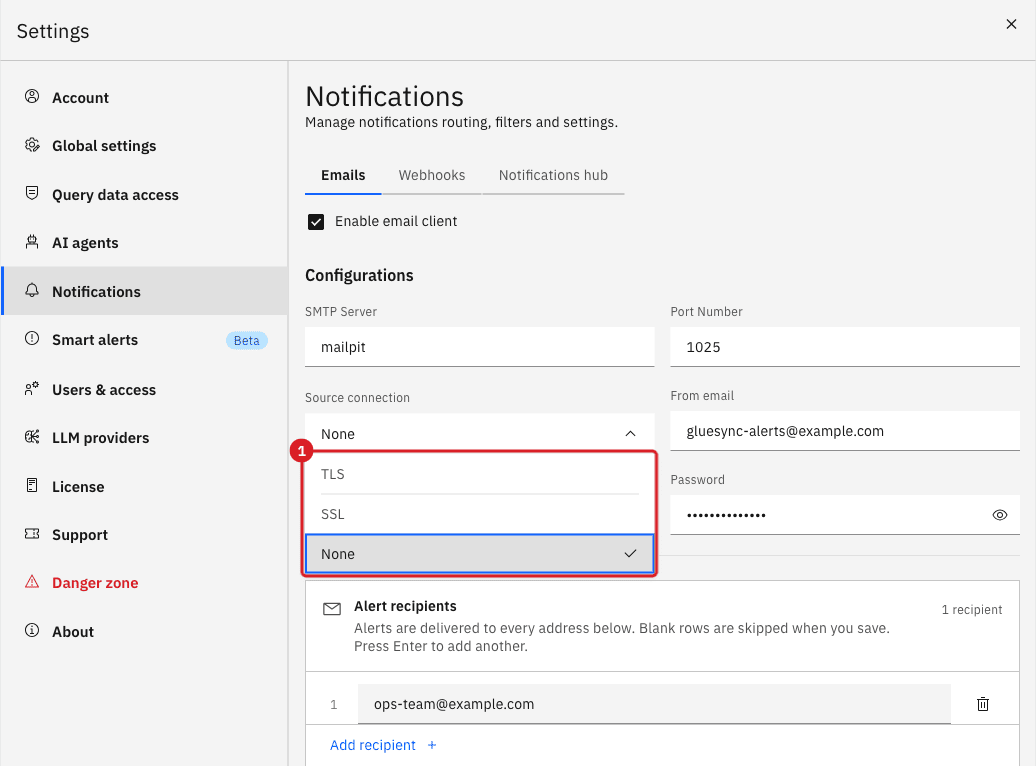
UI
-
In Alert recipients, enter the first address in Recipient 1. Core Hub sends the alerts to every address in the list;
-
To add another recipient, select Add recipient or press Enter. Select the bin icon on a row to remove it. You can add up to 20 addresses; blank rows are skipped when you save;
-
In Enabled events, open the list and tick the events that should send an email. Select Select all or Clear to change every entry at once;
-
In Severity filters, tick the severities to receive: Critical, Warning, or Info.
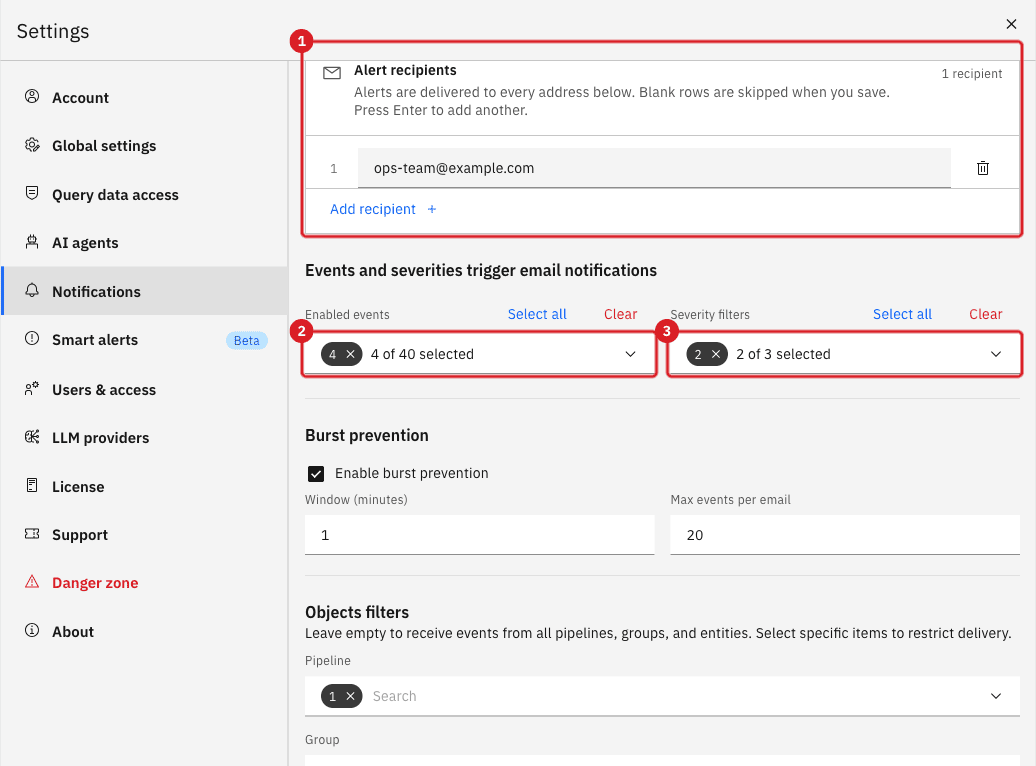
In this guide the filters are:
| Filter | Value |
|---|---|
Alert recipients |
|
Enabled events |
Agent Unhealthy, Entity CDC Stopped, Entity Snapshot Failed, Pipeline Error (4 of 40) |
Severity filters |
Critical, Warning (2 of 3) |
The Control Plane offers 40 event types, from Agent Recovered to Throughput Anomaly Detected. An email is sent only when the event type and the severity of an event are both selected.
UI
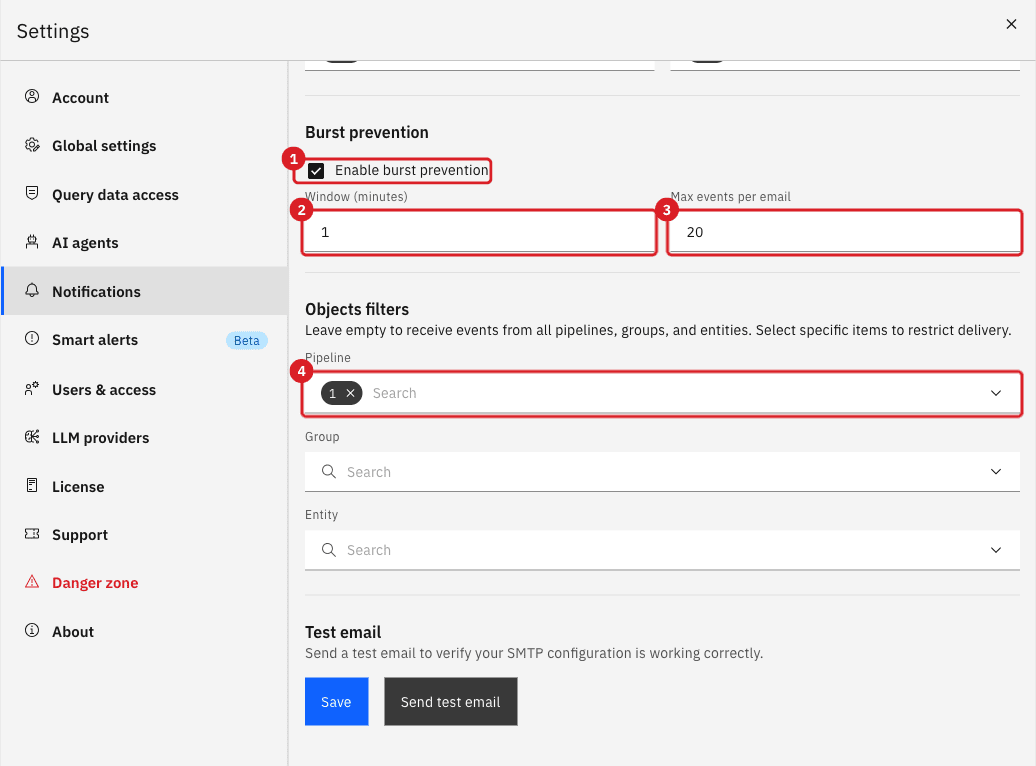
Scroll down to Burst prevention and Objects filters.
-
Keep Enable burst prevention selected to collect events into digest emails instead of one email per event;
-
In Window (minutes), enter how long Core Hub collects events before it sends a digest. This guide uses
1so that the alert arrives quickly; the default is5; -
In Max events per email, enter the largest digest. When the limit is reached, Core Hub sends the digest immediately. The default is
20; -
In Objects filters, select a Pipeline, Group, or Entity to restrict the alerts to those objects. This guide selects the Alerts demo pipeline. With the filters empty, alerts for every object qualify.
|
Alerts are never sent one by one: events wait for the burst window to end (at least one minute), or for Max events per email to be reached, and are then delivered as a single Gluesync alert digest email per recipient. Allow for this delay when you test. |
UI
-
Scroll to Test email;
-
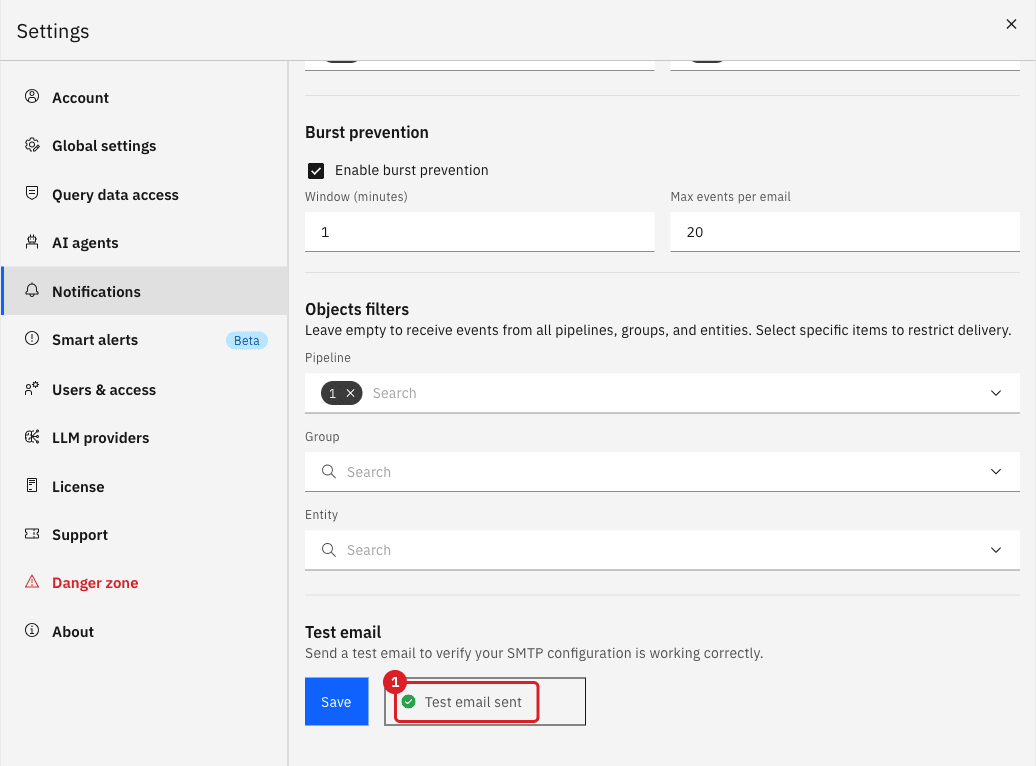
Select Send test email. The button is disabled until at least one recipient is entered.
The test uses the values currently in the form, so you can check them before you save.
UI
-
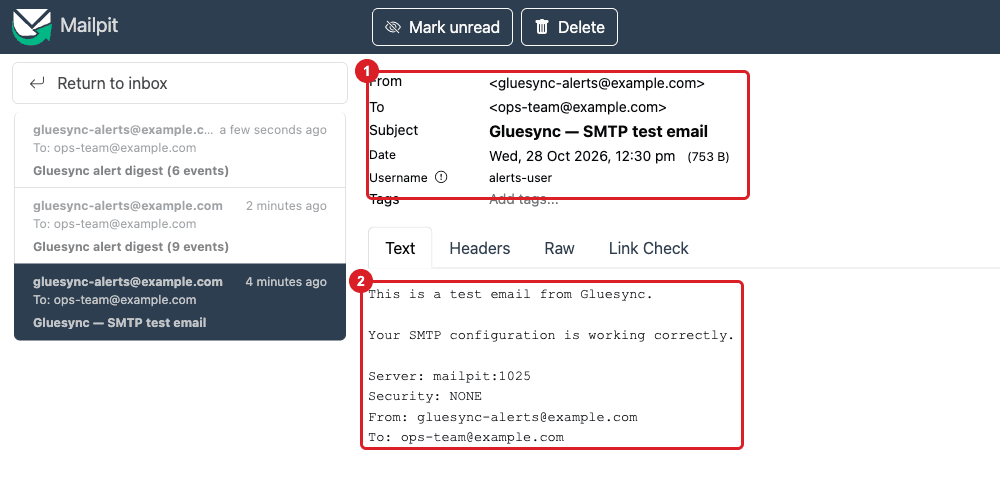
Open the inbox of the recipient (for Mailpit,
http://localhost:8025); -
Find the message Gluesync — SMTP test email and open it;
-
Check the sender, the recipient, and the body, which repeats the server, the security mode, the From address, and the To list.

UI
-
Scroll to the bottom of the form;
-
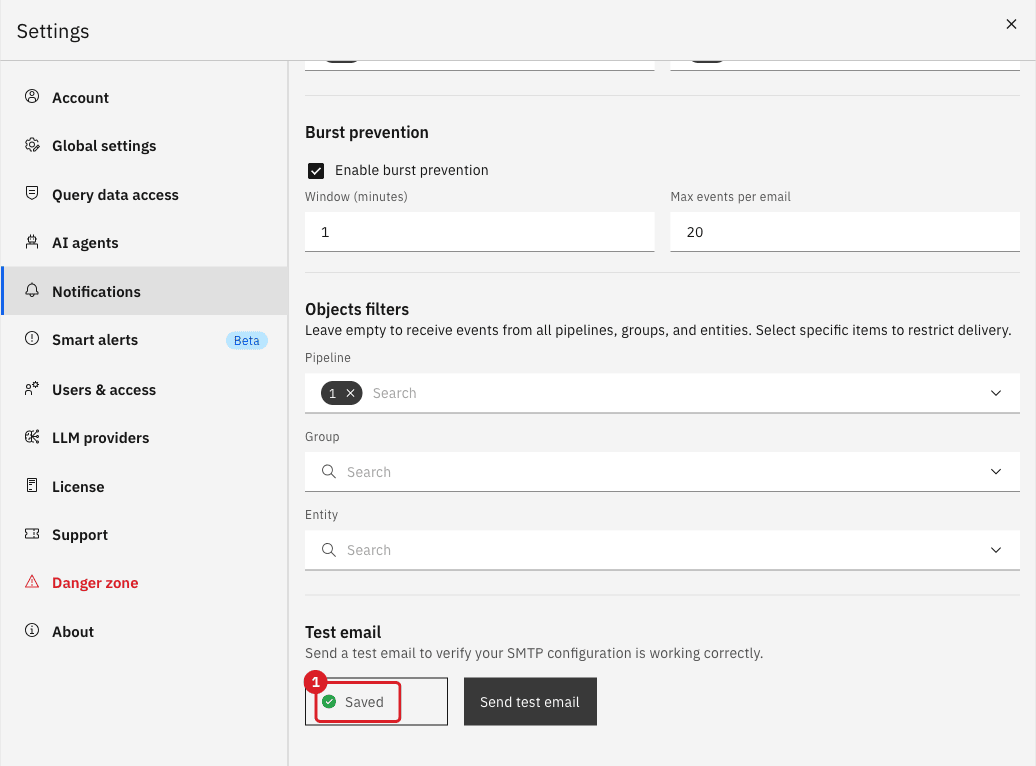
Select Save.
UI
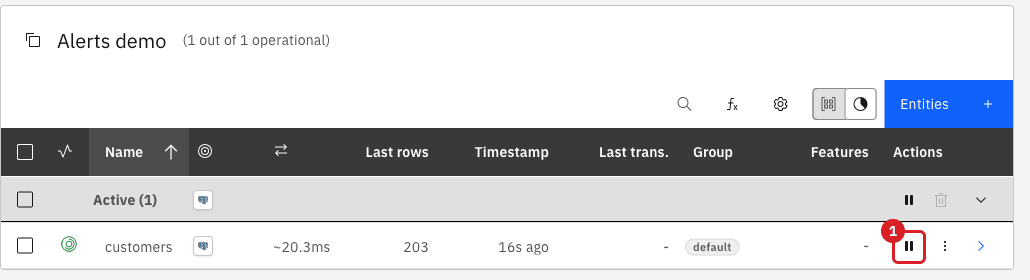
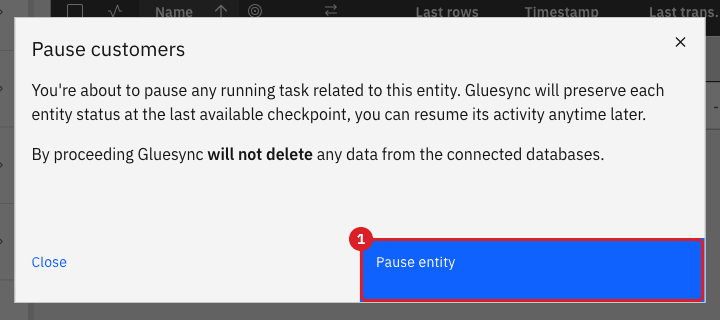
The filters in this guide accept Critical and Warning events. Pausing an entity raises Entity CDC Stopped with the severity Info, so it must not send an email.
-
Open the pipeline that has a running entity;
-
In the entity row, select the pause icon;
-
In the Pause customers dialog, select Pause entity;
-
Wait two minutes, longer than the burst window.
UI SQL
Make the target table of the test pipeline reject new rows, then start the entity so that it tries to write.
-
In your database tool, connect to the target database of the test pipeline and run:
ALTER TABLE shop_alerts.customers
  ADD CONSTRAINT alerts_demo_block CHECK (false) NOT VALID;
NOT VALIDleaves existing rows alone and rejects every new or updated row; -
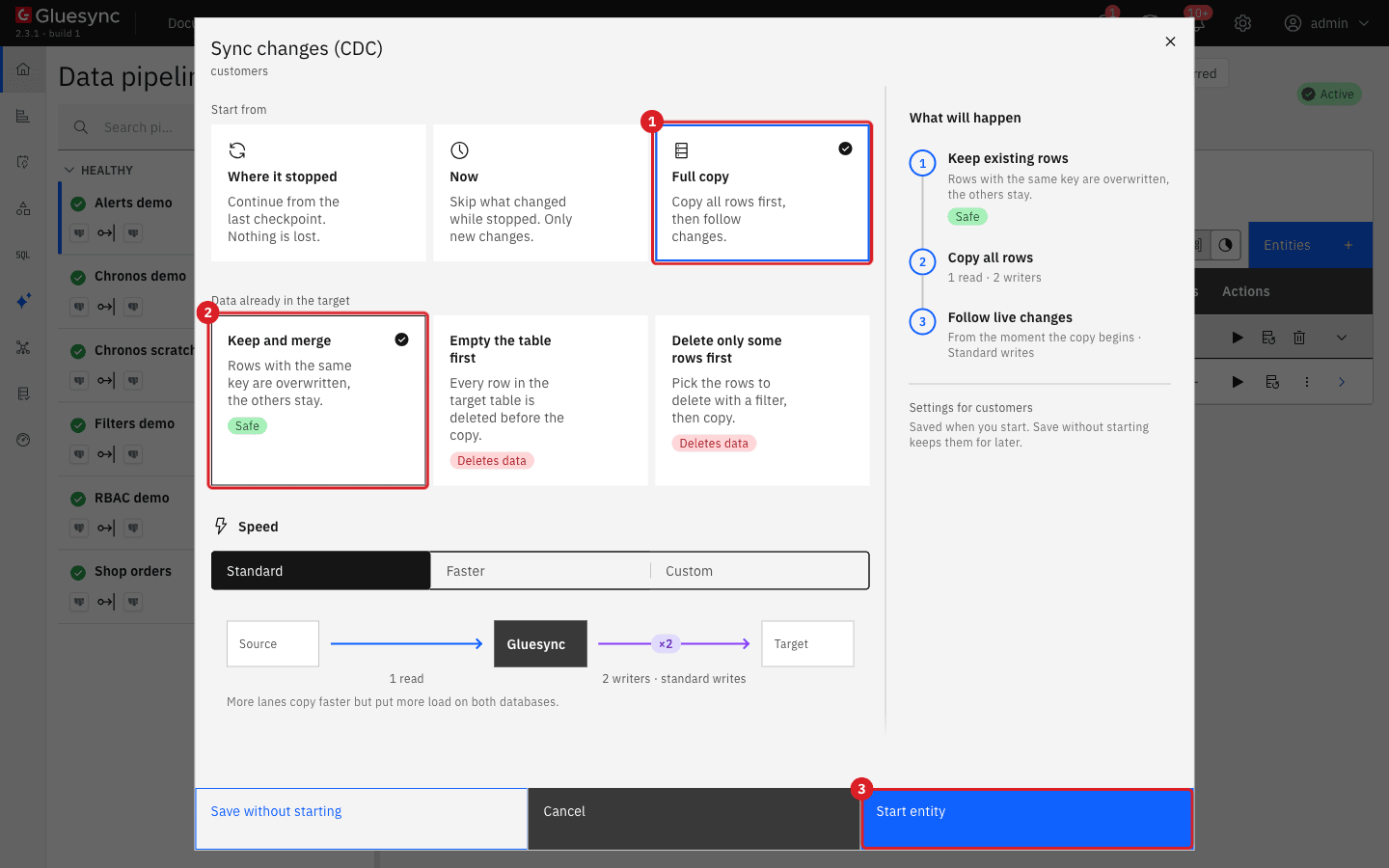
In the Control Plane, select the play icon of the paused entity;
-
In the start dialog, select Full copy, keep Keep and merge, and select Start entity;
-
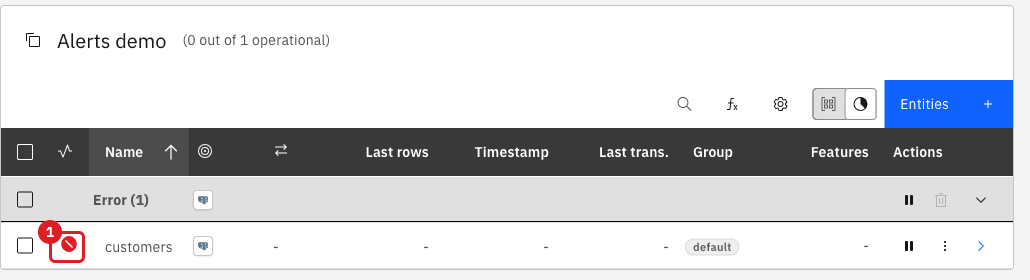
Wait until the entity shows the error status;
-
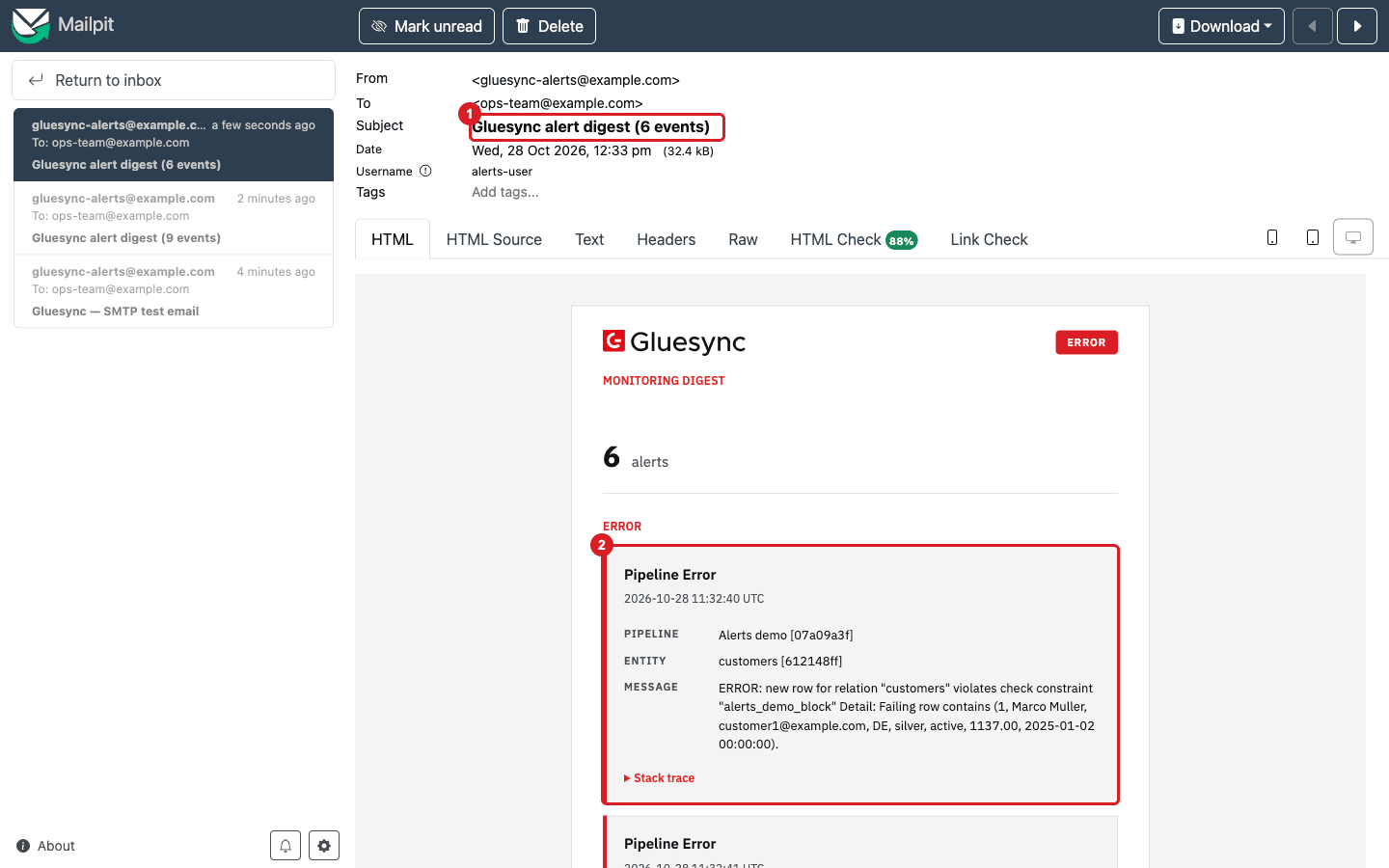
Open the inbox again and wait for the digest. It arrives about one burst window after the first error.
|
The message of a write failure can contain the values of the row that failed. Alert recipients can read that data, so consider who is on the list before you enable Pipeline Error for production pipelines. |
SQL
-
In your database tool, run:
ALTER TABLE shop_alerts.customers DROP CONSTRAINT alerts_demo_block; -
In the Control Plane, watch the entity row.
Understand how Core Hub applies the filters
| Setting | Effect |
|---|---|
Enabled events and Severity filters |
An event must match both lists. In this guide, Entity CDC Stopped is enabled but has the severity Info, so it never produces an email. |
Objects filters |
An event from another pipeline, group, or entity is ignored. Events that do not belong to any pipeline (for example a rejected API request reported as Pipeline Error) are not removed by the Pipeline filter, so such an event can appear in the digest. |
Burst prevention |
Events are collected for Window (minutes) or until Max events per email is reached, and are sent as one digest per recipient. The subject reads Gluesync alert digest (N events). |
Alert recipients |
Each recipient gets a separate message, so one rejected address does not block the others. |
Troubleshooting
| Problem | Possible cause | What to do |
|---|---|---|
Send test email is disabled |
The Alert recipients list has no address |
Enter at least one recipient in Recipient 1 |
The test email fails and an Unexpected error notification appears |
Core Hub cannot connect to the SMTP server. The Unexpected error notification names the host and port, for example "Couldn’t connect to host, port: mailpit, 2525" |
Check SMTP Server and Port Number from the point of view of Core Hub, then check Source connection against the port |
The test email arrives but no alert follows a real event |
The event type or its severity is not selected, or the object filters exclude the pipeline |
Compare the event and its severity with Enabled events, Severity filters, and Objects filters. Pausing an entity, for example, is an Info event |
The alert arrives a minute or more after the event |
The event waits for the burst window to end |
Lower Window (minutes) or Max events per email, or accept the digest delay |
The digest contains events from other pipelines |
The events do not belong to any pipeline, so the Pipeline filter cannot exclude them |
Narrow Enabled events, or leave the extra events in the digest |
Saved appears but nothing is sent |
Enable email client is cleared, or no recipient is saved |
Select Enable email client, confirm that Alert recipients is not empty, and save again |
Related guides
Contact MOLO17 Support if you need assistance with email alerts.