Tune snapshot and CDC throughput safely, one setting at a time
A slow snapshot, a CDC backlog that does not shrink, a target database at 100% CPU, or a Control Plane that stops answering are four different problems with four different settings. This guide gives you a safe way to tune: record a baseline, find which side limits the speed, change one setting, measure again, and keep or revert it. It also lists what each setting did in a measured test, so you know what to expect before you touch it.
In this guide
You will learn how to record a baseline from the Control Plane, decide whether the source, Core Hub or the target limits the speed, change the snapshot settings (writers, bulk load, parallel reads, INSERT or merge), the CDC settings (message size, bulk load for CDC, polling interval), the connection pool limits and the Core Hub memory, recognise memory pressure and out-of-memory before it stops the pipeline, and keep or revert each change.
Quick information
Goal |
Raise replication throughput, or lower the load on a database, with changes you can measure and undo |
Audience |
Gluesync administrators and database administrators |
Level |
Intermediate |
Time required |
About 2 to 3 hours for a tuning session (one snapshot of your table per measurement) |
Area |
Control Plane → pipeline → entity → Sync changes (CDC) and Fine tuning; pipeline Edit source and Edit target |
Applies to |
Gluesync 2.3 |
Before you begin
Make sure that:
-
A pipeline already exists, with an entity whose snapshot you can run again (a test copy of the table, or a window where an empty target table is acceptable);
-
You can sign in to the Control Plane as a user who can edit entities and connections;
-
You can see the CPU of the source database and of the target database, with the tools you already use (cloud console,
top, your monitoring). For a kit on Docker you can also usedocker stats; -
For CDC tests, you can change rows on the source on demand (a script or a batch job that updates a known number of rows).
|
Run the tests in a pre-production copy of your pipeline when you can. A snapshot with Empty the table first deletes the rows of the target table, and a snapshot loads the source: do not run the experiments on a production target during business hours. |
|
The numbers in this guide come from one test setup (PostgreSQL to PostgreSQL on a single machine, see How the numbers were measured). The percentages tell you the direction and the size of an effect. Your rows per second will be different, and the best value depends on your databases, your network and your row width. Always measure on your own pipeline. |
Guide steps
UI
-
Choose one table and one kind of run to tune, for example "full copy of
ordersinto an empty target table"; -
Write down the current values of the entity settings you may change: Snapshot writing concurrency, Max number of items per iteration on fetch, Max CDC message size (KB), Max snapshot page size (KB), Polling interval (ms), Bulk for Snapshot, Bulk for CDC, and the Min connections count and Max connections count of both connections;
-
Start the snapshot and note the start time;
-
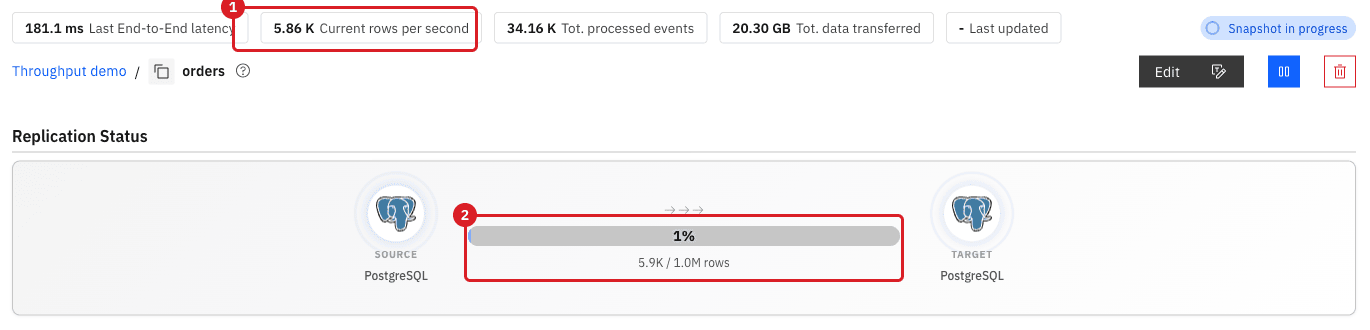
While it runs, open the entity page and read Current rows per second and the progress bar;
-
When the progress reaches 100%, note the end time, and divide the number of rows by the seconds. That is your baseline rows per second;
-
During the run, read the CPU of the source database, of the target database and of the Core Hub host (in Grafana, the Host CPU and Rows delivered /s panels of the Core Hub metrics dashboard);
-
Repeat the run at least three times at the same time of day and keep the lowest and the highest value.
|
Do not use Current rows per second as the result. It shows the rate of the last batch: in the test it read 52.6 K at the start of one snapshot, 5.9 K a few seconds later in another, and a dash in a third. Use the total rows divided by the total seconds. In the same way, the instantaneous CPU in a console moves a lot: use the average over the whole run. |
|
Optional, for advanced users
If your kit runs on Docker you can get the CPU seconds that a container used during a run, without reading any log: run |
UI
Use the CPU you wrote down in the baseline. A side that is working at its limit is the side to relieve; a side that is idle is not the problem.
| What you see during the run | Where the limit is | Go to |
|---|---|---|
Target CPU high (close to all its cores, or 100% on a managed service), Core Hub CPU moderate |
The target writes (row-by-row INSERT or UPSERT, indexes, constraints) |
Step 3 (Bulk load, INSERT instead of merge) and step 5 (indexes and connections) |
Target CPU low, Core Hub CPU low, source CPU low, but the run is slow |
Not enough parallel writes, or a page size that is too small |
Step 3 (Writers during the copy, Max snapshot page size (KB)) |
Source CPU or I/O high, the entity page shows a long Read time |
The source read |
Step 3 (Read in parallel), and the source advanced settings |
Core Hub CPU close to one full core per active entity, target moderate |
Core Hub itself (serialization, bulk staging) |
Give Core Hub more CPU; more writers will not help |
CDC backlog does not shrink, target CPU high |
The target applies one row at a time |
Step 4 (Bulk for CDC, key index on the target table) |
The Control Plane is slow or does not answer, a toast says Out Of Memory Error |
Core Hub memory |
Step 6 |
UI
-
In the Control Plane, open the pipeline and select the Start (play) icon of the entity. The Sync changes (CDC) dialog opens;
-
Under Start from, select Full copy;
-
Under Data already in the target, select Empty the table first for an empty-target load (rows are inserted), or Keep and merge when the target already has rows (rows with the same key are overwritten);
-
Under Speed, select Custom;
-
Change one of these, and only one:
-
Writers during the copy (the slider from 1 to 10, default 2): how many threads write to the target;
-
During the copy → Bulk load (default Standard): stage the rows and apply them in one step, when your target supports it;
-
Read in parallel → Parallel reads (1 to 10): read the table in ranges at the same time; Split by column chooses the column, Recalculate recomputes the ranges;
-
-
If you do not want to run now, select Save without starting and start later. Otherwise tick I understand that rows in the target will be deleted when it is shown, and select Start entity.
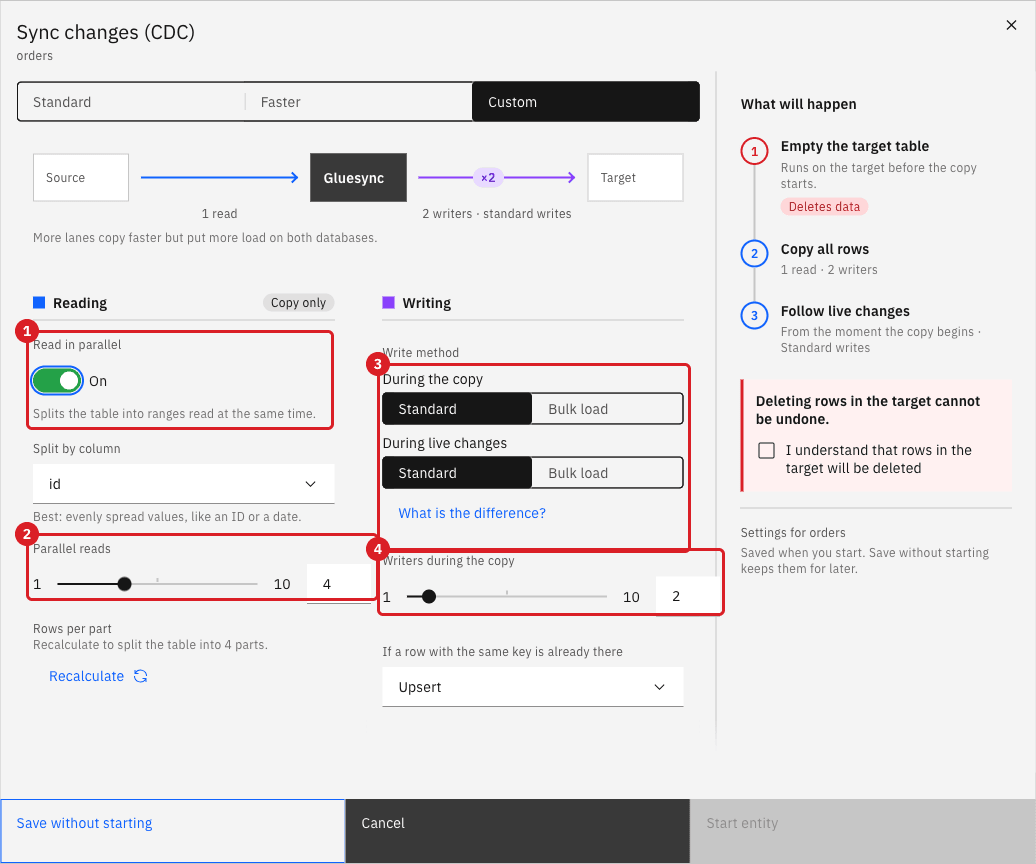
The preset Faster is a shortcut: it reads the table in four parallel ranges and, when the target supports it, copies through bulk load. When the target has no bulk load, it adds writers instead. When you choose Bulk load for the copy, the writers slider is not used, because bulk load writes in one stream.
What the settings did in the test (one million rows, PostgreSQL to PostgreSQL, medians of the repeated runs, baseline 32.2 K rows/s with 2 writers):
| Setting | Rows per second | Target CPU time for the run | Reading |
|---|---|---|---|
Writers during the copy 1 |
27.3 K (-15%) |
17.0 s |
Slower: one writer leaves the target idle |
Writers during the copy 2 (default) |
32.2 K |
18.5 s |
Baseline |
Writers during the copy 4 |
37.2 K (+16%) |
18.0 s |
Worth it |
Writers during the copy 8 and 10 |
36.7 K and 41.6 K |
19.6 s and 18.2 s |
No clear gain over 4 on this target; more connections to the target for the same CPU |
Bulk load for the copy |
48.2 K (+50%) |
10.0 s (-46%) |
The largest gain, and the target works half as hard. Core Hub works harder (about 80% of a core instead of 48%) |
Keep and merge on an empty table (UPSERT) |
23.2 K (-28%) |
35.8 s (+93%) |
Use only when the target already has rows |
Keep and merge on a full table |
27.7 K (-14%) |
30.1 s (+63%) |
Slower and heavier than an INSERT load |
Parallel reads 2, 4 (writers 2) |
30.8 K and 34.4 K |
19.7 s and 16.4 s |
No gain: the source was not the limit (it used 1.5 to 3 s of CPU in the whole run) |
Parallel reads 4 with Bulk load |
47.5 K |
11.5 s |
Same as bulk load alone |
|
Parallel reads helps only when reading the source is the slow part (a large table on a slow or remote source, or a long Read time on the entity page). On the fast local PostgreSQL source of the test it changed nothing (with 8 ranges and bulk load Core Hub even used more CPU, 21.6 s against 17.0 s). Start with Writers during the copy and Bulk load, and add Parallel reads when the source is the limit. |
|
The size of one snapshot page is a setting too: Max snapshot page size (KB) in Fine tuning (see the next step). A page of 1 MB made the snapshot 42% slower (18.7 K rows/s) than the default 8 MB; 32 MB gave 41.5 K rows/s, but each page then takes more Core Hub memory (see step 6). Keep the default unless you have measured a gain. |
UI
-
Open the entity page and select Edit. The object browser opens;
-
Next to the entity in Selected entities, select the gear icon. The dialog Settings for the entity opens;
-
Select Fine tuning;
-
Change one value, then close the dialog and select Confirm and continue to save the entity. The new value is used the next time the entity starts.
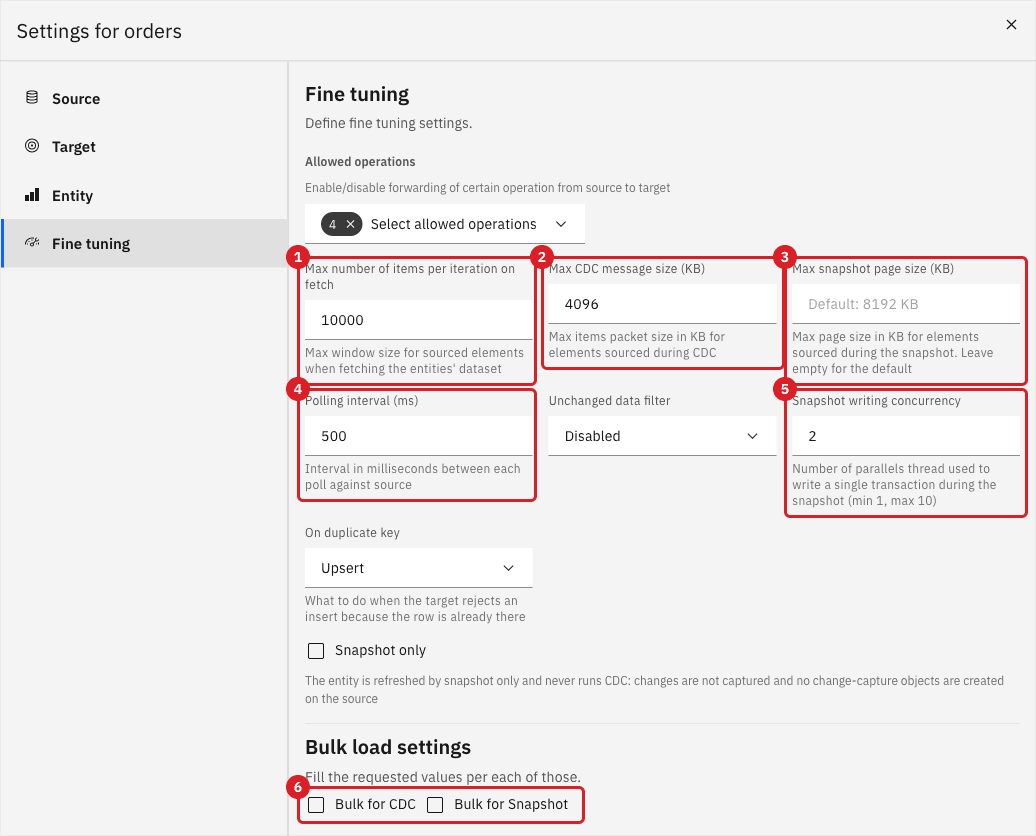
The defaults and the allowed values are in the table Defaults and allowed values. What the settings did in the CDC test (300,000 updated rows, applied as a backlog, in transactions of 1,000 rows unless noted; PostgreSQL to PostgreSQL):
| Setting | Rows per second | Target CPU time for the run | Reading |
|---|---|---|---|
Defaults |
10.1 K to 11.4 K |
about 10 s |
Baseline (five runs) |
Bulk for CDC |
18.6 K (+70%) |
4.4 s (-56%) |
Large gain, and the target works less than half. Also +33% for one single 300,000-row transaction (16.4 K against 12.3 K) |
Max CDC message size (KB) 512 |
6.1 K (-45%) |
19.0 s (+90%) |
Too small: many small messages. Also -44% for the one big transaction |
Max CDC message size (KB) 32768 |
9.6 K (-12%) |
11.6 s |
No gain over the default 4096 |
Max number of items per iteration on fetch 1000 and 50000 |
11.2 K and 10.6 K |
9.6 s and 9.7 s |
No effect on PostgreSQL CDC; keep 10000 |
Log level DEBUG against INFO |
10.6 K against 11.1 K (CDC); 41.9 K against 41.1 K (snapshot) |
11.6 s against 10.2 s |
No measurable effect on throughput |
Polling interval (ms) is different: it does not make a streaming source faster. It sets how long the entity waits after it found nothing to read. In the test, eight idle PostgreSQL entities cost Core Hub about 1% of one core at every value from 100 ms to 10,000 ms. The time from an INSERT on the source to the row on the target was between 0.1 s and 2 s at every value (average 0.6 s to 1.1 s, with no relation to the interval). Sources that Core Hub must query on a timer (for example the IBM i journal reader, Oracle with triggers, DynamoDB) ask the source once per interval per entity: 50 entities at 1,000 ms is 50 queries per second on the source, against 5 per second at 10,000 ms. Raise the interval when the load on the source, not the latency, is your symptom, and then measure the extra latency you accept.
|
CDC speed on the target depends on how the target finds the row to update. With a primary key on the target table, 100,000 updates took 2.8 s of target CPU. On the same table with no index on the key, the same updates took 9.8 s (3.5 times more CPU), and the gap grows with the size of the table, because each update scans it. Create the key index before you start CDC. See Choose keys for tables without a primary key. |
UI
Do this when the target is the limit or when the database administrator asks you to cap the connections.
-
Open the pipeline and select the gear icon, then Edit target;
-
Stay on Base settings and scroll to Settings;
-
Change Max connections count (default 25) or Min connections count (default 5, at least 3);
-
Select Test and continue and finish the steps that follow. Repeat with Edit source for the source connection.

Other levers on the target, from the same tests:
| Change on the target table | Rows per second | Target CPU time | Reading |
|---|---|---|---|
No secondary index during the snapshot |
43.5 K |
13.6 s |
Fastest |
Three secondary indexes kept during the snapshot |
33.0 K (-24%) |
25.4 s (+87%) |
Every secondary index is maintained for every inserted row |
Three indexes dropped before and recreated after (with the target settings SQL Pre-Snapshot start command and SQL Post-Snapshot stop command) |
40.9 K |
16.9 s |
The rebuild is not in these figures; rebuilding the three indexes of one million rows took 1.3 s to 2.2 s |
Dropping and recreating indexes around a snapshot pays on a large first load into a table that nobody queries meanwhile. Constraints that the target checks for each row (foreign keys, check constraints, triggers) cost in the same way: apply them after the load when the schema allows it.
|
Keep Max connections count higher than the number of writers plus a few connections for the entity’s other work. A very low maximum slows the pipeline down even when it does not fail. The lowest Min connections count is 3. |
UI
-
In Grafana, open the Core Hub metrics dashboard and look at the JVM heap panel and the GC pauses and live threads panel (see Monitor pipelines in Grafana);
-
During a snapshot, compare the top of the heap with its limit. A heap that rises and falls well below the limit is healthy. A heap that stays at the limit, with long GC pauses, is memory pressure;
-
Look in the Control Plane for the toast Out Of Memory Error with the text Java heap space, and for an entity in the Error group.
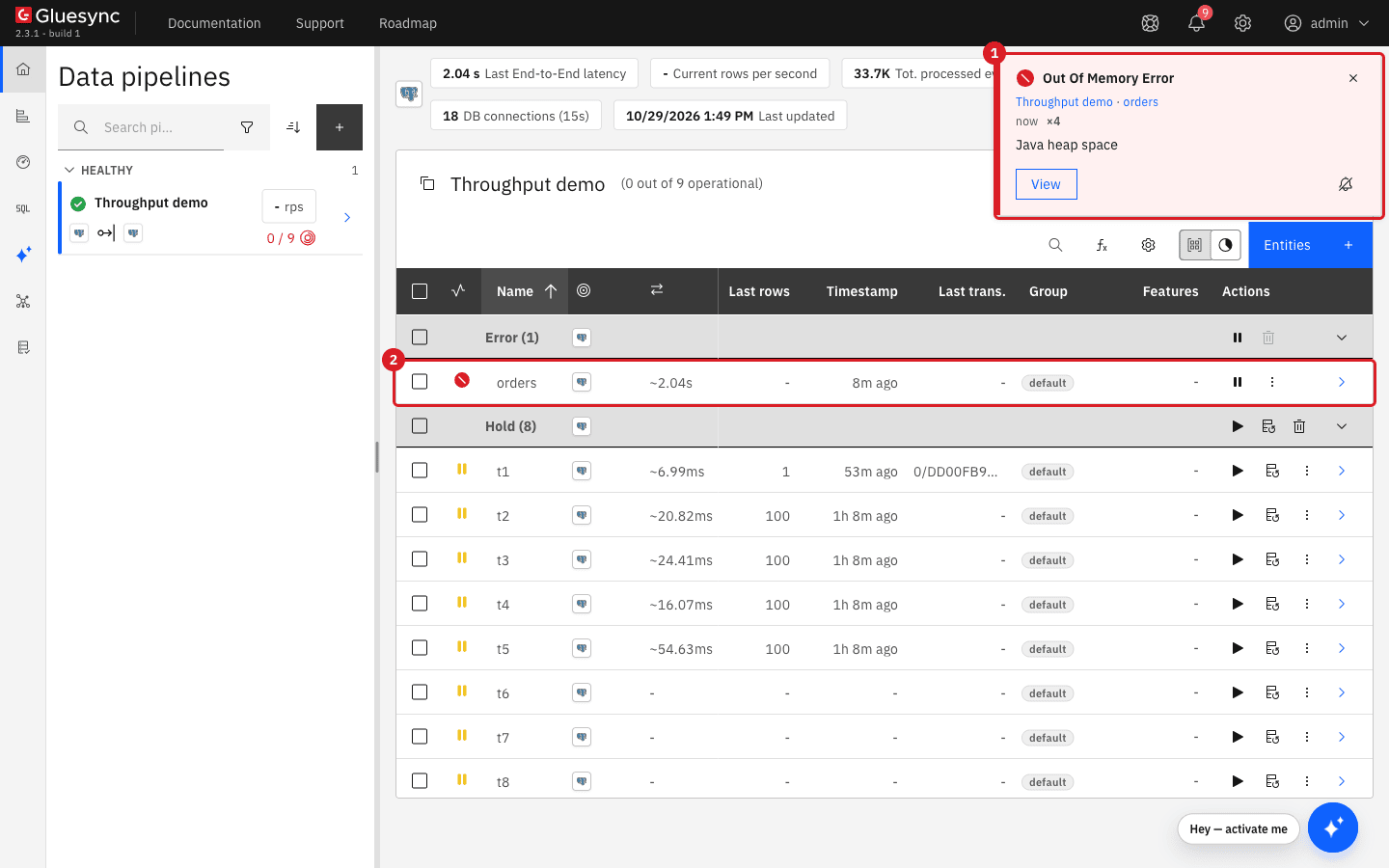
orders in the Error group (2).How Core Hub chooses its heap in the kit: Core Hub runs on the JVM option MaxRAMPercentage, set from the environment variable MAX_RAM_PERCENTAGE of the core-hub service, with a default of 75.0. The heap is that percentage of the memory the container may use. With no memory limit on the service (the kit has the deploy.resources.limits lines commented out, cpus: 3.0 and memory: 3.0G), the heap is 75% of the memory of the whole host or Docker virtual machine.
What was measured on one entity that copied one million rows:
| Container memory limit (heap at 75%) | Test | Result |
|---|---|---|
3 GB (2,304 MB heap) |
Default settings, 4 writers |
22.5 s. The heap peaked at 643 MB; the live data stayed near 100 MB |
3 GB |
8 writers, 256 MB snapshot pages |
16.8 s, but the heap peaked at 1,848 MB of 2,304 MB: close to the limit |
1 GB (742 MB heap) |
Default settings, 4 writers; or 10 writers, 8 parallel reads and bulk load |
Worked (20.7 s and 20.5 s) |
1 GB |
8 writers, 256 MB snapshot pages |
Finished, but in 118.8 s (7 times slower): the heap was pinned at its limit and Core Hub spent most of its time in garbage collection |
1 GB |
10 writers, 8 parallel reads, 1 GB snapshot pages |
No row was copied in 250 s. The Control Plane login stayed on Loading… for more than a minute, a call that saved the entity timed out, the toast Out Of Memory Error appeared and the entity went to Error. The container was not killed and was not restarted |
512 MB (371 MB heap) |
10 writers, 8 parallel reads and bulk load, default pages |
Worked (30.8 s), with little room: the heap peaked at 310 MB |
|
Two facts to remember. First, a snapshot page is held several times while it travels, so the heap you need grows with Max snapshot page size (KB) multiplied by the entities that run a snapshot at the same time: 256 MB pages reached 1.85 GB. The default 8 MB is small. Do not raise the page size "for speed" without measuring. Second, below about 1.8 GB of container memory the Java virtual machine switches to the serial garbage collector, which stops every thread while it works: that is why the Control Plane froze at 1 GB. Give Core Hub at least 2 GB per container in production, and follow Install Gluesync on Linux and size the host for the sizing of the whole host. |
To change the memory of a kit, edit the core-hub service in docker-compose.yml: remove the comment marks of the deploy.resources.limits lines and set the values you need (the lines above), or add MAX_RAM_PERCENTAGE under environment, then recreate the container with docker compose up -d. This restarts Core Hub: do it in a maintenance window. See Docker Compose.
|
Optional, for advanced users
In the Core Hub log, a heap exhaustion appears as |
After a snapshot that ended with an out-of-memory error, stop the entity before you start it again. In the test, starting it at once returned the warning "Entity … is already executing a snapshot. Please stop it first."
Source agents for some technologies (MySQL, MariaDB, Informix, Oracle, IBM i) also keep a local cache on disk. When the target is slower than the source, the cache grows instead of the memory. The PostgreSQL agent of the test has no such cache, so this was not measured: see Free disk space and manage cache and logs.
UI
-
Run the same test at least twice after the change, at the same time of day as the baseline;
-
Compare with the baseline range, not with one number. A change inside the range is noise;
-
Keep the change when throughput is better than the top of the baseline range by about 20% or more, and the target and source CPU are acceptable to their owners. Write the new value and the date down;
-
Revert it when the result is inside the range, when it is worse, or when it raises a database load you cannot accept. Write the old value down too;
-
Take the next setting only after you have decided on this one. The new result is the baseline of the next change.
How the numbers were measured
Machine |
Apple M5 Max laptop (18 cores), Docker Desktop virtual machine with 18 vCPUs and 23.4 GiB of memory. Everything ran on this one machine, so there is no network latency between the components |
Core Hub |
Gluesync 2.3 Core Hub container limited to 4 CPUs and 3 GB (heap 2,304 MB, |
Databases |
Two PostgreSQL 16.4 containers, each limited to 4 CPUs and 4 GB, |
Data |
One table of 9 columns (bigint key, integer, text, numeric, char(3), text, text and two timestamps), about 180 bytes per row, 1,000,000 rows for the snapshot tests and 300,000 or 100,000 updated rows for the CDC tests |
Method |
Each configuration was run 2 to 8 times in random order, always the same entity, |
Load on the host |
The host was shared with other test jobs (load average 25 to 55 on 18 cores). Before each run a reference query on the source database had to run within twice its best time (0.29 s); a run started only when the host was calm enough, and the reference time was recorded. Even so, the same configuration varied by about 20% from run to run (for example 8 writers: 16 K to 44 K rows/s across rounds). A difference smaller than that is not an effect |
Defaults and allowed values
| Setting (where) | Default | Allowed values and notes |
|---|---|---|
Snapshot writing concurrency (entity Fine tuning), Writers during the copy (start dialog) |
2 |
1 to 10; Core Hub keeps the value inside this range |
Parallel reads (start dialog) |
1 (off); the Faster preset uses 4 |
1 to 10 |
Max number of items per iteration on fetch |
10000 |
Rows per read iteration |
Max CDC message size (KB) |
4096 |
1 to 1,048,576 KB; values outside are refused |
Max snapshot page size (KB) |
8192 (field empty) |
1 to 1,048,576 KB; a page is held several times in memory |
Polling interval (ms) |
500 |
No upper limit is enforced in the Control Plane; the wait after an empty read grows up to this value on PostgreSQL |
Bulk for Snapshot, Bulk for CDC |
Off |
Only on targets that support bulk load; see Bulk load |
Min connections count, Max connections count (connection) |
5 and 25 |
Minimum at least 3 |
MAX_RAM_PERCENTAGE (kit |
75.0 |
Percentage of the container memory used as the maximum heap |
Symptom, setting and expected effect
Use this table as a starting point, then follow the steps above. The effects are the measured ones (see How the numbers were measured).
| Symptom | Setting to change | Expected effect (measured) |
|---|---|---|
Snapshot is slow, target CPU and Core Hub CPU are low |
Writers during the copy from 2 to 4 (Snapshot writing concurrency) |
+16% (32.2 K to 37.2 K rows/s). One writer: -15%. More than 4: no clear gain on this target |
Snapshot is slow and the target database is at its CPU limit |
During the copy → Bulk load (Bulk for Snapshot) |
+50% (48.2 K rows/s) and 46% less target CPU time. Core Hub CPU goes up |
Target CPU is higher than expected on an empty target |
Empty the table first (INSERT) instead of Keep and merge (UPSERT); no secondary indexes during the load |
UPSERT is 14% to 28% slower and uses 1.6 to 1.9 times the target CPU. Three secondary indexes: -24% and 87% more CPU |
Snapshot is slow, source is busy or Read time is long |
Read in parallel with 2 to 4 Parallel reads |
No gain on a fast source (30.8 K and 34.4 K rows/s); use it only when reading is the limit |
Snapshot slower than before after someone changed the page size |
Max snapshot page size (KB) back to the default (empty, 8192) |
1 MB pages: -42% (18.7 K rows/s) |
CDC backlog drains slowly, target CPU high |
Bulk for CDC; key index on the target table |
+70% (18.6 K against about 11 K rows/s) and 56% less target CPU. No key index: 3.5 times the target CPU |
CDC applies slowly with a very small message size |
Max CDC message size (KB) back to 4096 |
512 KB: -45%. 32768 KB: no gain |
Too many connections on the target database |
Max connections count of the target connection (and Snapshot writing concurrency) |
8 writers used 8 connections; with the maximum at 4, 4 connections and no throughput loss in the test |
Idle Core Hub CPU or source queries are high with many entities |
Polling interval (ms) up (for polling readers); fewer entities |
PostgreSQL streaming: no change (about 1% CPU, latency 0.6 s to 1.1 s at any value). Polling readers: queries per second = entities divided by the interval (not measured) |
Control Plane slow or not answering, toast Out Of Memory Error, entity in Error |
Memory of the Core Hub container (at least 2 GB), smaller Max snapshot page size (KB), fewer concurrent snapshots |
At 1 GB with 256 MB pages the snapshot was 7 times slower; with 1 GB pages it copied nothing. At 3 GB, 256 MB pages peaked at 1.85 GB of heap |
Throughput did not change after you edited Max number of items per iteration on fetch or the log level |
Leave them at their defaults |
No measurable effect on throughput (1000 and 50000 items; DEBUG against INFO) |
Troubleshooting
| Problem | Possible cause | What to do |
|---|---|---|
The same configuration gives very different rows per second from run to run |
Other jobs on the host or on the databases; caches |
Repeat each test at least three times at the same time of day and compare ranges. Do not trust a difference of less than about 20% |
More writers did not help |
The target is already at its CPU or I/O limit, or Core Hub is the limit |
Look at the CPU of the three components. Use Bulk load or remove indexes, or give the limiting side more CPU |
Parallel reads did not help, or Core Hub CPU went up |
The source was not the limit |
Set it back to off. Use it only when Read time dominates |
Bulk for Snapshot or Bulk load is not offered |
The target agent does not support bulk load |
Use Writers during the copy, INSERT instead of merge, and the target-side changes in step 5. See Bulk load for the supported targets |
After Parallel reads, a few rows are missing on the target |
Ranges that you typed by hand through the API were closed on both ends: in a range the end value is not read, the next range starts there |
Let the Control Plane compute the ranges with Recalculate. If you use the API, start each range at the end value of the previous one |
The Control Plane login stays on Loading… during a snapshot |
Core Hub heap exhausted (memory pressure) |
Wait for the snapshot to end, then follow step 6: more memory, smaller pages |
After an out-of-memory error, starting the snapshot answers "already executing a snapshot" |
The entity still holds the failed snapshot |
Stop the entity, then start it again |
The target database reaches its connection limit |
Writers, entities and pools add up |
Lower Max connections count of the connection and Writers during the copy, or raise the database limit |