Handle schema changes on a live replication
Sooner or later someone adds a column, widens a data type, changes a key or adds a table in a database that Gluesync is replicating. This guide is the procedure to hand to the team that owns the database: what to do on the source, on the target and in the Control Plane, in what order, and when the entity can simply carry on and when it needs a full copy. Every case was run on a live pipeline with changes flowing, and each result is proved with SQL on the target.
In this guide
You will learn how to prepare a schema change, apply the change to the target and the source, update the mapping, restart the entity with or without a full copy, and prove that the target matches the source. The cases covered are: a new column, a changed data type, a renamed or dropped column, a changed primary key or logical key, a new table, a dropped table, and an entity that was saved with an unlocked schema.
Quick information
Goal |
Apply a change of structure to a replicated table without losing or corrupting rows on the target |
Audience |
Gluesync administrators and the database administrators who own the source and the target |
Level |
Advanced |
Time required |
About 20 minutes for one change, once you have the plan |
Area |
Control Plane → Data pipelines → entity list → Edit mapping |
Applies to |
Gluesync 2.3 |
Before you begin
Make sure that:
-
A pipeline with a running entity (snapshot finished, CDC following changes) exists. This guide uses the pipeline Schema live demo, with PostgreSQL on both sides, and the tables
schema_live.accounts(keyid),schema_live.order_lines(keyn1,n2) andschema_live.contacts_l(no primary key, logical keycode,label); -
You can run SQL with DDL rights on the source and on the target;
-
You can sign in to the Control Plane with a role that can edit entities and start and stop replication;
-
You know which change is coming. Ask for the exact DDL before the change window.
|
The results were observed with a PostgreSQL source and a PostgreSQL target. The steps in the Control Plane are the same for other relational agents, but how a database reports a changed key or type is database-specific, and a NoSQL, event streaming or object store target stores no table at all, so its structure follows the mapping alone. See Targets that are not a relational table. |
Run the pre-change checklist
Do these before you touch anything. None of them needs a window of its own.
| Check | Why and how |
|---|---|
Agree the order |
The target is changed first and the source second. The Control Plane step follows both. Write the DDL of both databases down before the window. |
Pause the entity, not the pipeline |
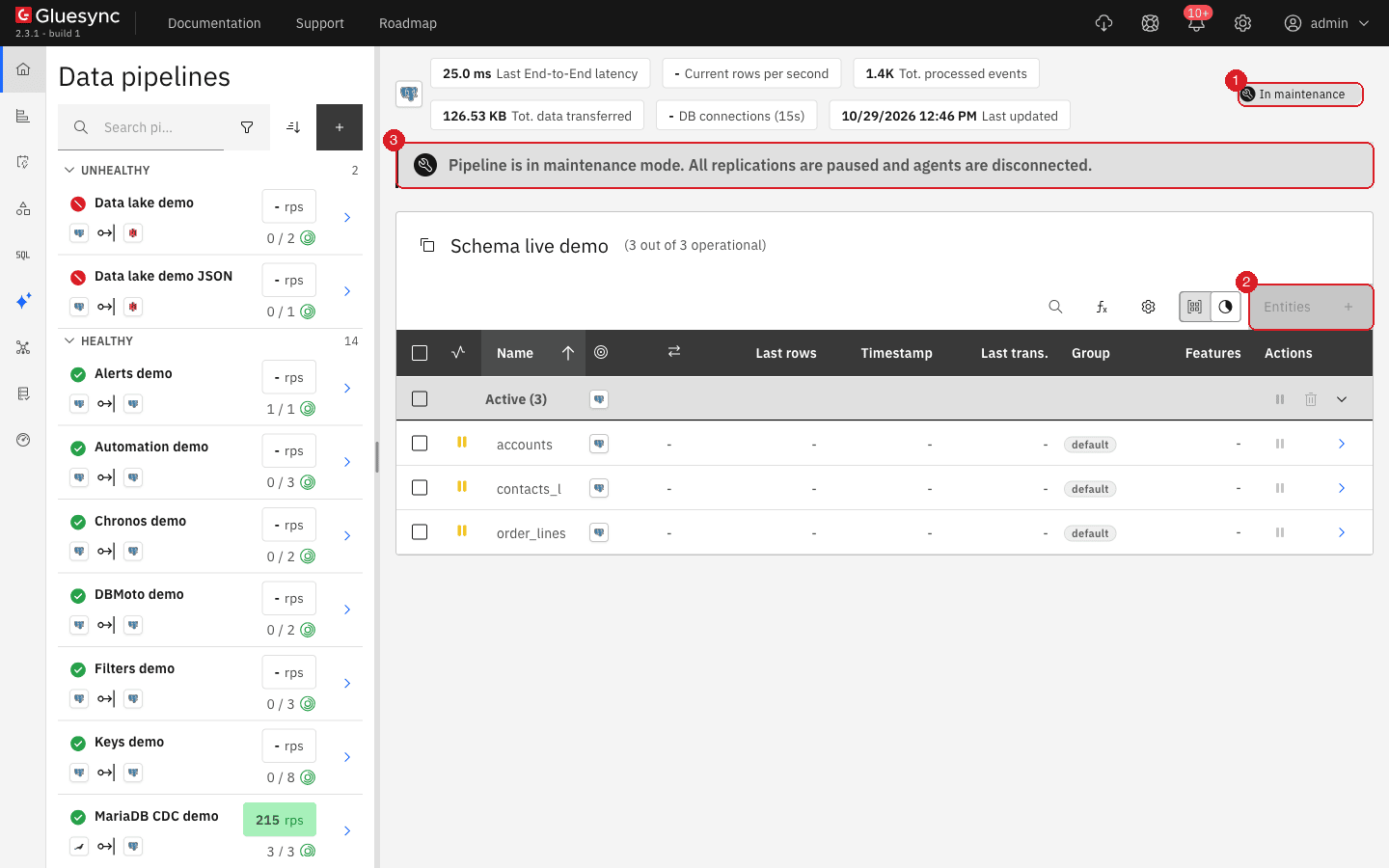
Pause only the entity that owns the table: the other entities keep replicating. Do not use Maintenance Mode for a schema change. In maintenance every entity is read-only: the Entities button is disabled and the entity rows have no Edit mapping, so you could not do the Control Plane step. Use maintenance for a database outage, not for this. |
You do not have to stop the application |
Changes written to the source while the entity is paused are kept and delivered when it starts again with Where it stopped. In the add-column and type-change runs below, rows were changed and inserted on the source during the pause, and all of them reached the target. |
Keep the pause short |
A paused entity keeps its PostgreSQL replication slot, and the slot keeps the WAL it has not consumed. Check it while you work: |
Take backups |
Back up the Core Hub configuration (see Back up, restore and move Core Hub) because Edit mapping rewrites the entity. Back up, or be ready to reload, the target tables where you will choose Empty the table first, because that choice deletes every row of the target table before the copy. |
Check the entity is healthy |
The entity must be in the Active group with no error. A stuck entity hides the effect of your change. See Diagnose and recover a stalled pipeline or entity. |
Record a reference |
Run a row count and a checksum on both sides before and after, as shown in the last step. |
Find out if the entity has an unlocked schema |
If Edit mapping opens a dialog titled This entity uses an unlocked schema, read Case: the entity has an unlocked schema first. |
Decide what the change needs
Use this table to plan. Mapping edit only means that you edit and save the mapping and restart the entity with Where it stopped. Snapshot means that you restart it with Full copy. The sections after the table give the SQL and the clicks for each row.
| Change | Control Plane | Restart with | Why |
|---|---|---|---|
Add a nullable column, or a column with a default, that you want replicated |
Pause, edit mapping, resume |
Full copy, Keep and merge |
The mapping must name the column. Rows already on the target keep |
Add a column that you do not want replicated |
Nothing |
Nothing |
The entity ignores a column it was not saved with. No error, no notification. |
Add a column to the target only |
Nothing |
Nothing |
Gluesync never writes it. A |
Widen an integer type ( |
Pause, edit mapping, resume |
Where it stopped |
The entity keeps the old type until the mapping is saved again, and until then it writes a wrapped value without an error. A full copy is needed only if values outside the old range were already written. |
Widen the precision of a |
Pause, edit mapping, resume |
Where it stopped |
In our run a value that needs the new precision was replicated correctly even before the mapping was saved. Save it anyway, so that the entity and the tables agree. |
Narrow a type ( |
Pause, edit mapping, resume |
Where it stopped |
Same rule. Every value must fit the new type, or the target rejects the row. |
Change a type to a different family ( |
Pause, edit mapping, resume |
Where it stopped |
Change the target first: Confirm is refused while the source is |
Rename a column |
Pause, edit mapping, resume |
Full copy, Keep and merge |
Gluesync sees a dropped column and a new one. Rows that changed in between lose the value, so copy again. |
Drop a column |
Edit mapping (no pause needed) |
Nothing |
Untick the target field that lost its source. The entity keeps running. No full copy: the rows already on the target keep the old values. |
Add, change or drop the primary key on the target only |
Nothing |
Nothing |
Gluesync uses the key saved in the mapping, not the constraint of the target table. |
Add a primary key on the source, with the same columns as the key of the entity |
Nothing |
Nothing |
The key of the entity does not change. |
Drop the primary key on the source |
Source change only |
Full copy, Empty the table first |
Without a key PostgreSQL stops writing the key into the log for updates and deletes, so they are not applied. Set |
Change the key columns (primary key or logical key) |
Pause, edit the key checkboxes, resume |
Full copy, Empty the table first |
The target matches rows by the key. Old rows keyed the old way would stay behind or be duplicated. |
Add a table |
Entities, add, start |
The new entity only |
The other entities keep running. |
Drop a table |
Pause the entity, Delete entity |
Not applicable |
Nothing signals the drop. The entity must be deleted by you, and so must its replication slot if it is left behind. |
Guide steps
The first five steps are the same for every change. The cases that follow only say what differs.
UI
-
In the left menu, select Data pipelines, and select the pipeline;
-
In the entity table, find the entity that owns the table;
-
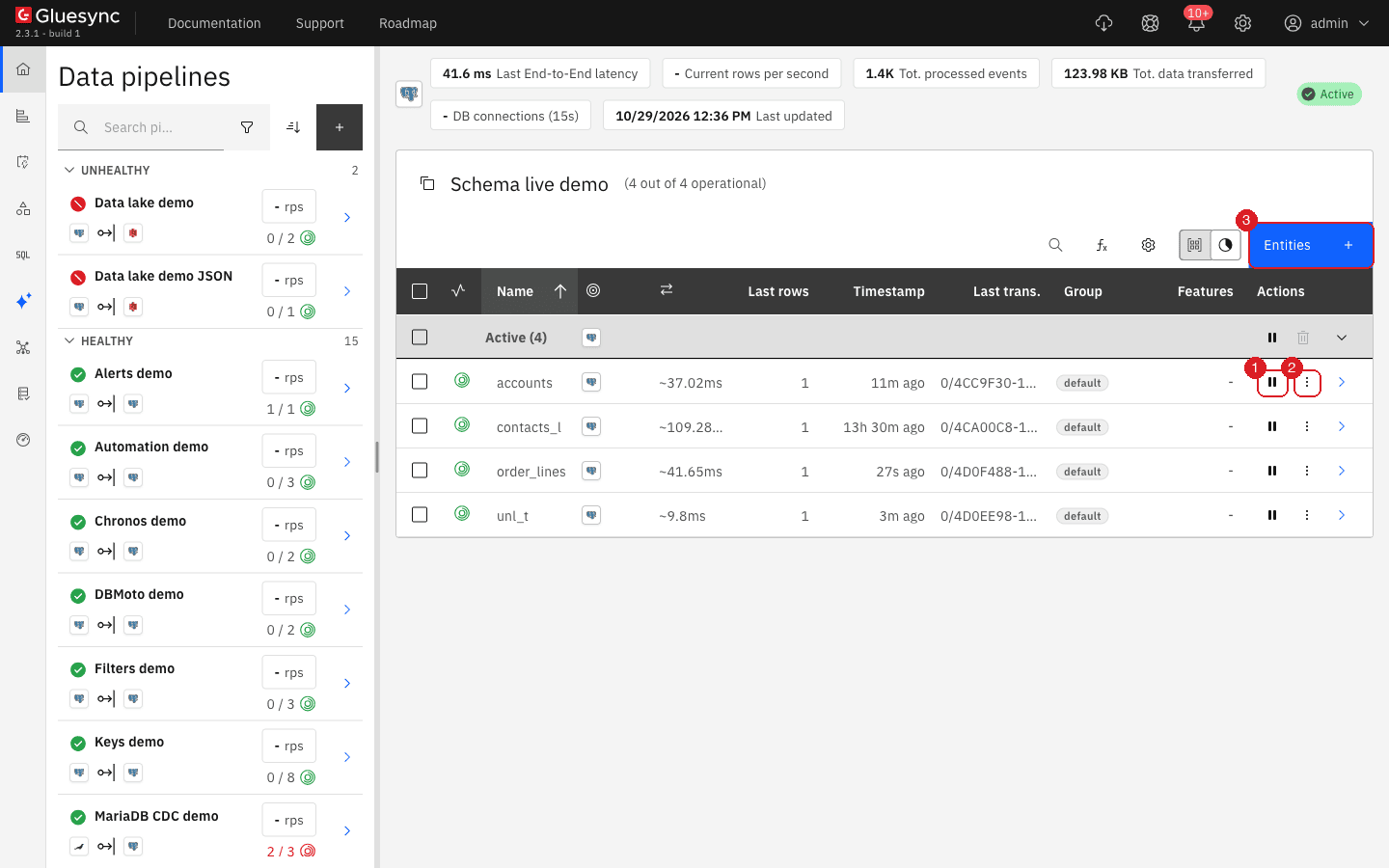
Select its pause button, in the Actions column;
-
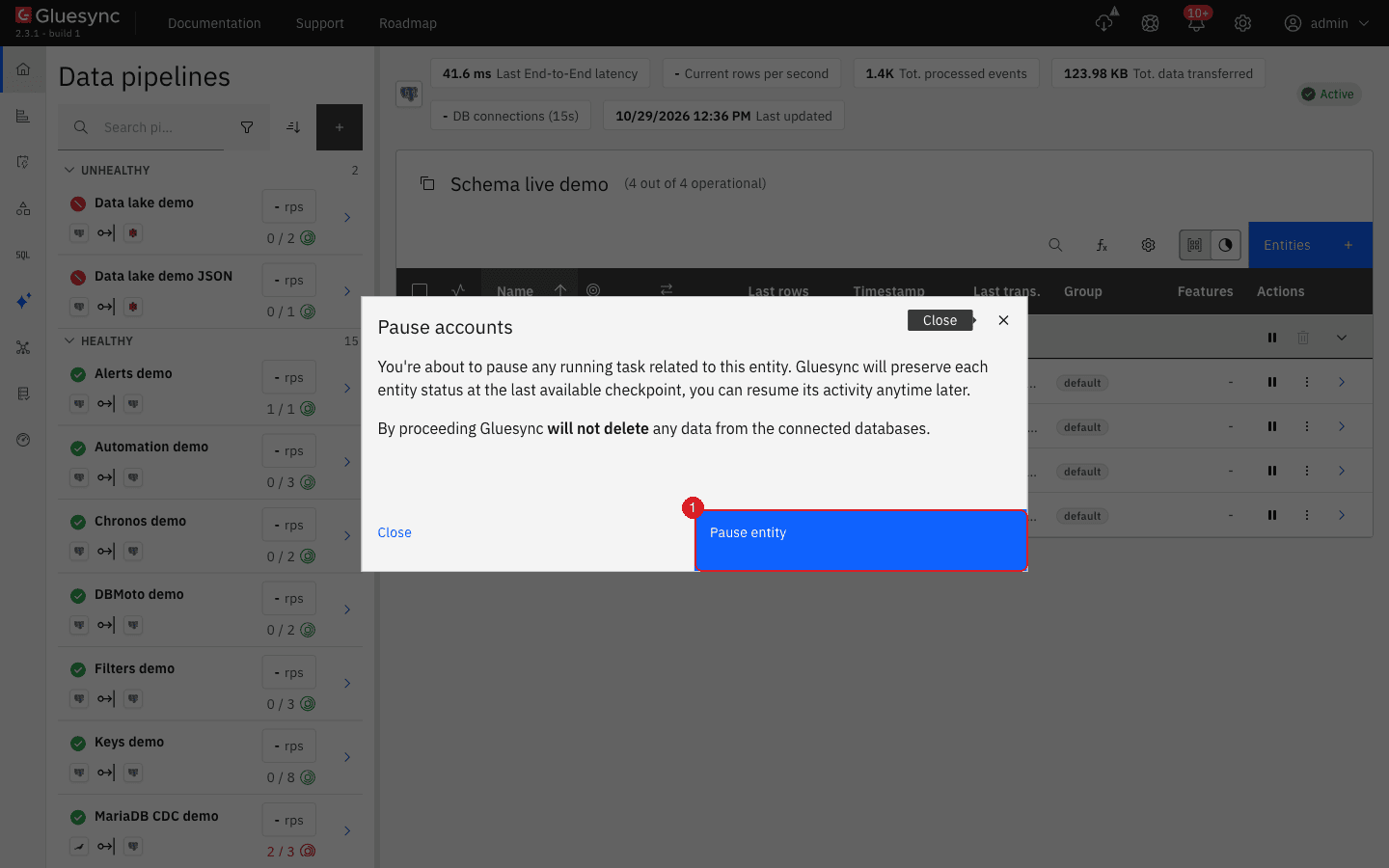
In the Pause accounts dialog, select Pause entity.
SQL
Run the DDL of the case on the target first, then on the source. The target must be ready before the source can send the new shape. The sections Case: add a column to Case: change a primary key or a logical key give the statements.
UI
-
In the entity table, select the options menu (the three dots) of the entity and select Edit mapping;
-
If the entity has an unlocked schema, see Case: the entity has an unlocked schema;
-
Read the dialog Field mapping. The tabs Error and Warning count what the dialog found: a new source column, a changed type, a missing column;
-
Make the change that the case asks for, and select Confirm;
-
On the next page, select Confirm and continue.
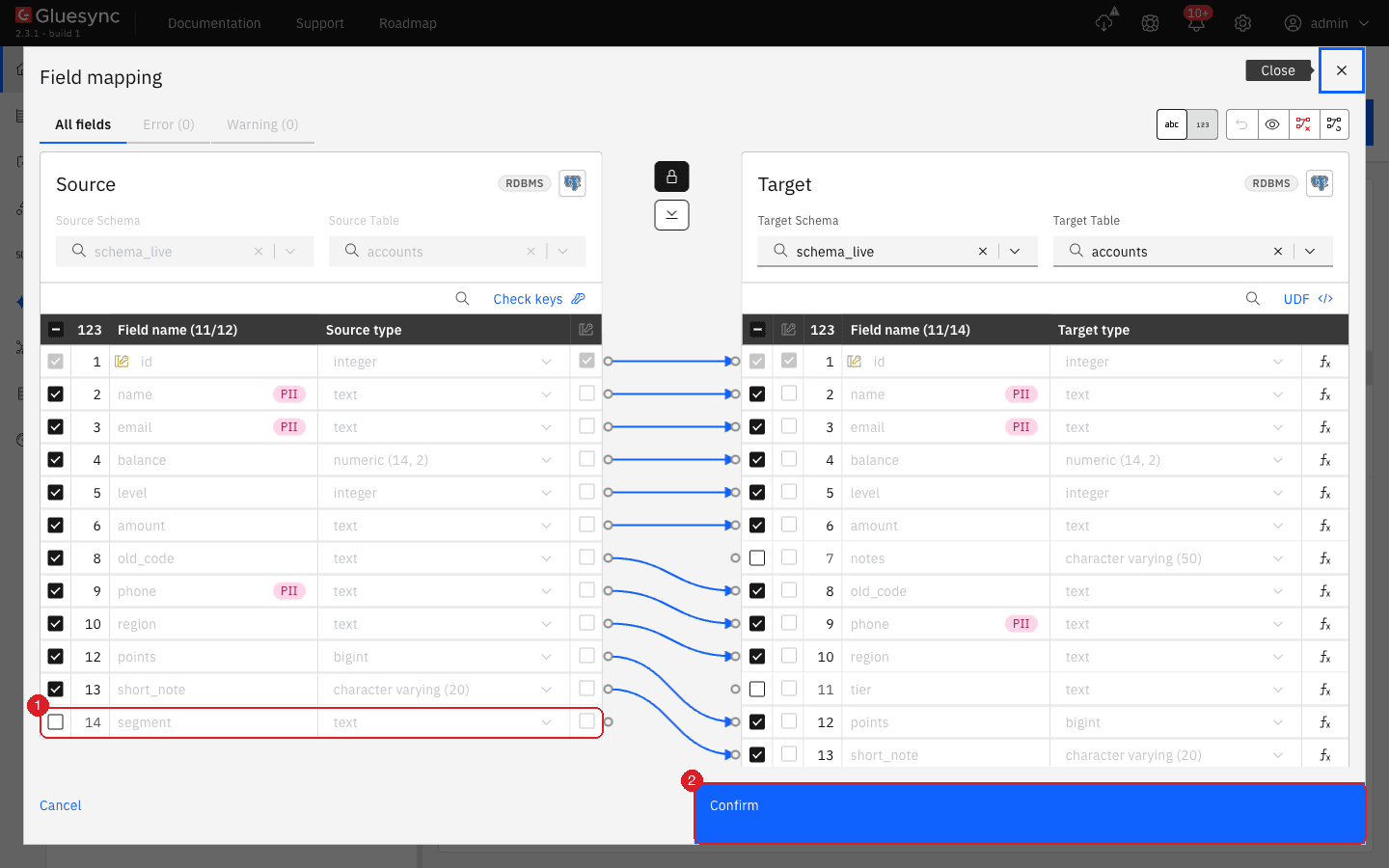
segment, is listed last and is not ticked (1). The counters read 11/12 and 11/14. Confirm (2) saves.|
Do not leave out the mapping step after a type change. Until you save the mapping the entity keeps writing the type it was saved with. |
UI
-
In the entity table, select Start sync on the row of the entity;
-
In Sync changes (CDC), choose the Start from card and the Data already in the target card that the decision table gives;
-
Select Start entity.
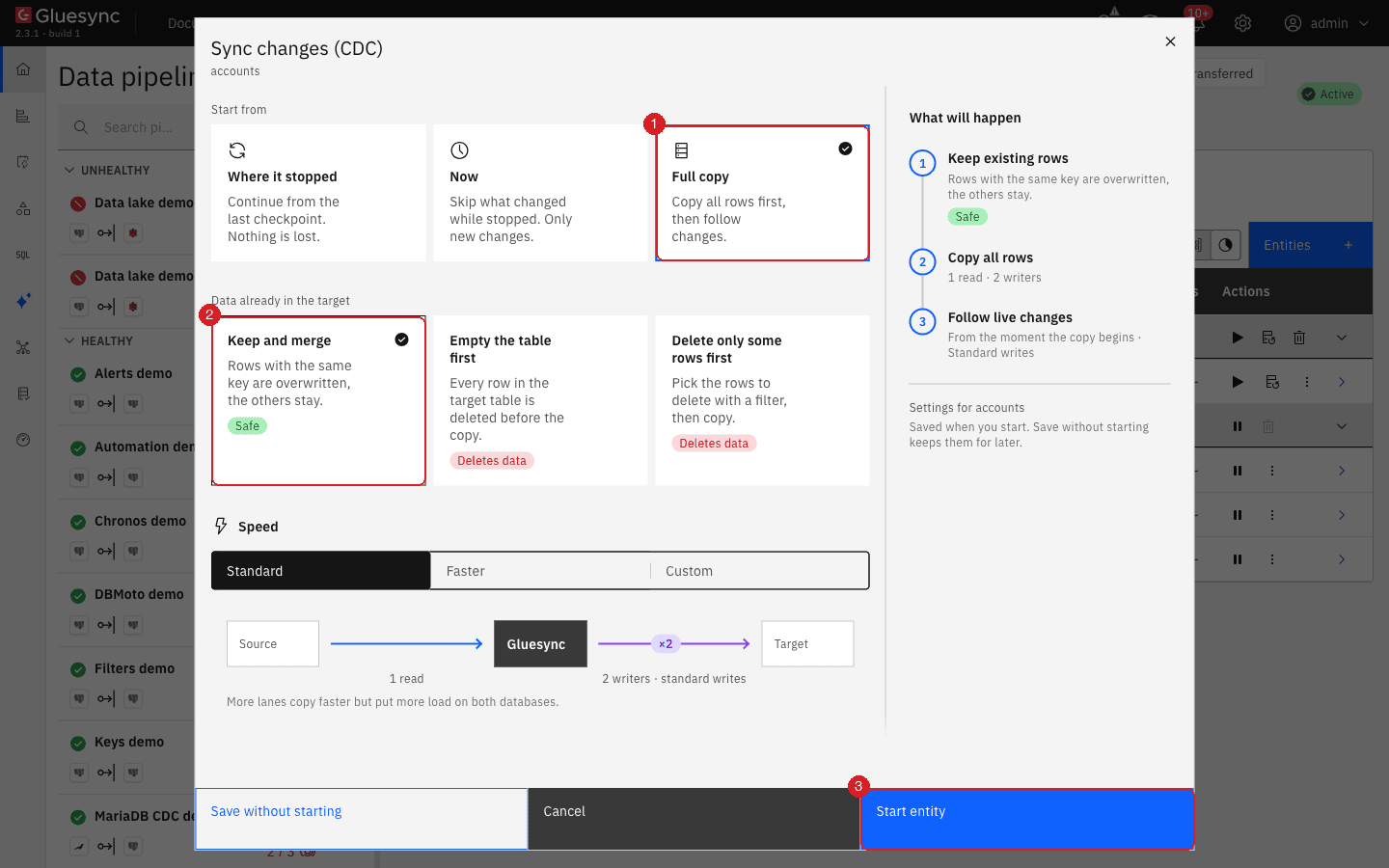
SQL
Run the same statement on the source and on the target, with the columns that the entity replicates.
SELECT count(*),
       md5(string_agg(concat_ws('|', id, name, balance, level, segment), ',' ORDER BY id))
FROM schema_live.accounts;
Then change one row on the source and read it on the target.
Case: add a column
Verified with a nullable column, a column with a default, and a NOT NULL column with a default.
-
Pause the entity.
-
Add the column on the target, then on the source:
ALTER TABLE schema_live.accounts ADD COLUMN segment text; -- target, then source ALTER TABLE schema_live.accounts ADD COLUMN region text DEFAULT 'EU'; -- with a default ALTER TABLE schema_live.accounts ADD COLUMN tier text NOT NULL DEFAULT 'std'; -- NOT NULL needs a default -
In Edit mapping, tick the new field on the source. The target field is ticked and the arrow is drawn for you. Select Confirm, then Confirm and continue.
-
Start the entity with Full copy and Keep and merge.
What you see, and what it means:
-
If you skip the mapping, the entity does not fail and does not warn you. On our run the rows that arrived had
NULLin the new column, and the column with a default heldEUfor every row, including rows whose source value wasDE. Nothing signalled the difference. -
After the mapping edit and the full copy the checksum matched, and rows changed during the pause carried their value:
-- source and target, after the full copy
SELECT id, segment FROM schema_live.accounts WHERE id IN (1, 2, 120) ORDER BY id;
id | segment -----+--------- 1 | vip 2 | vip 120 | smb
-
Where it stopped also works, but rows already on the target keep
NULLin the new column, so use it only when old rows do not need the value.
Add a column to the target only (for example an audit column): no step is needed. Give it a default, because Gluesync does not write it.
Case: change a data type
Widening, narrowing and numeric to text were all run. The safe order is the same for all three.
-
Pause the entity.
-
Change the column on the target, then on the source:
ALTER TABLE schema_live.accounts ALTER COLUMN level TYPE bigint; -- widen, target then source ALTER TABLE schema_live.accounts ALTER COLUMN level TYPE integer; -- narrow: every value must fit ALTER TABLE schema_live.accounts ALTER COLUMN balance TYPE text USING balance::text; -- numeric to text -
In Edit mapping, open the dialog and read the Warning tab: the changed field is marked with a yellow triangle and the arrow turns yellow. Select Confirm, then Confirm and continue.
-
Start the entity with Where it stopped.
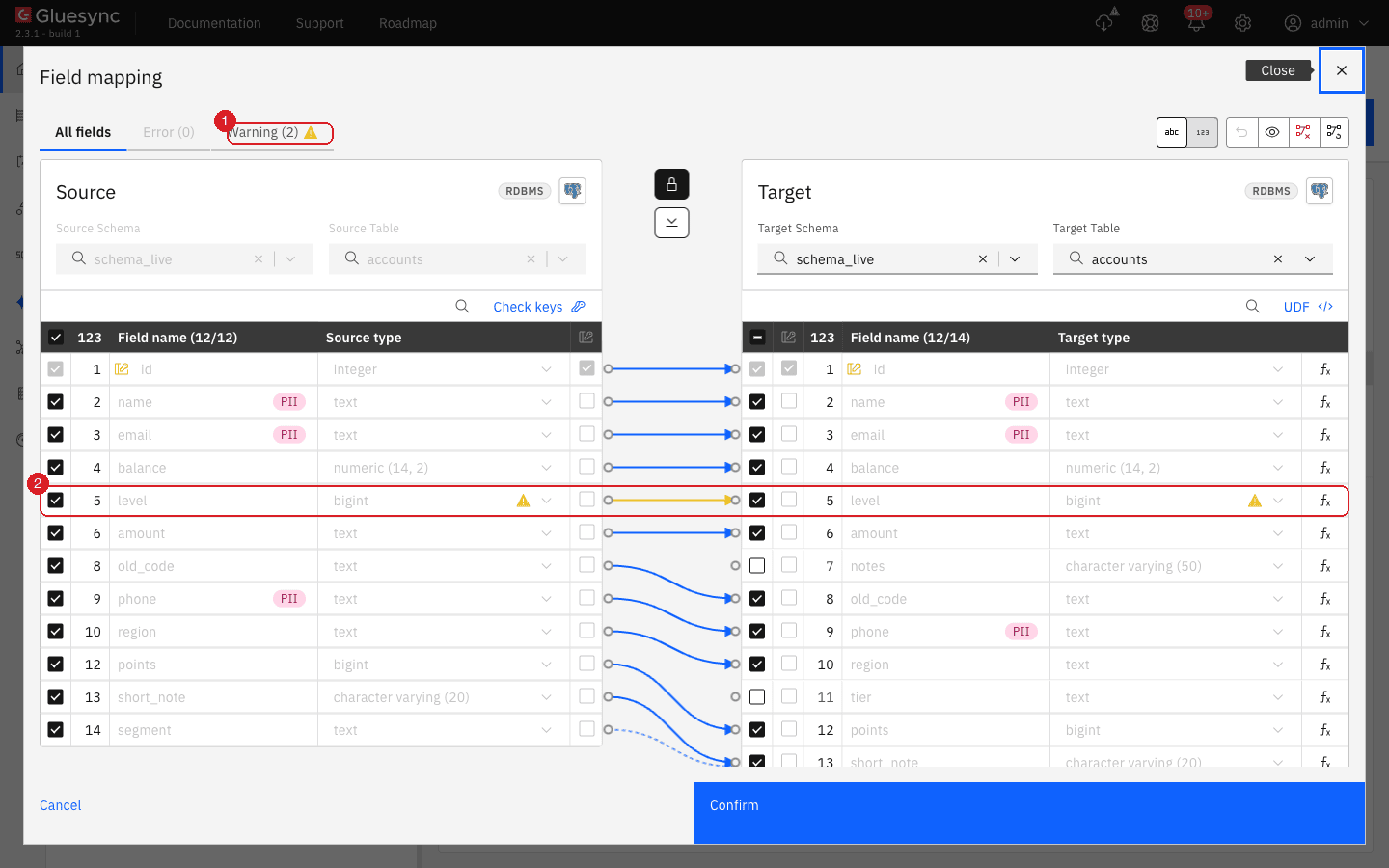
Proof, widening integer to bigint with the entity paused, a row changed and a row inserted during the pause, and a change after the start:
SELECT id, level, pg_typeof(level) FROM schema_live.accounts WHERE id IN (4, 5, 121) ORDER BY id; id | level | pg_typeof
------+------------+-----------
4 | 6000000000 | bigint
5 | 7000000000 | bigint
121 | 5000000000 | bigint
|
Do not change only the source. With the entity running and the mapping not saved, we widened |
|
Do not change only the source for a type of a different family. With |
Case: rename or drop a column
Drop a column. On the source the entity carries on without an error. For every row that changes after the drop it writes NULL into the target column that was fed by the dropped one, so values are lost silently:
ALTER TABLE schema_live.accounts DROP COLUMN segment;      -- source
UPDATE schema_live.accounts SET short_note = 'drop1' WHERE id = 1;
-- on the target: id 1 has segment NULL, id 2 (not updated) keeps 'vip'-
In Edit mapping, the dialog shows Error (1) and the target field has no source. Confirm is disabled.
-
Untick the target field. The target column stays in the table, untouched. Select Confirm, then Confirm and continue.
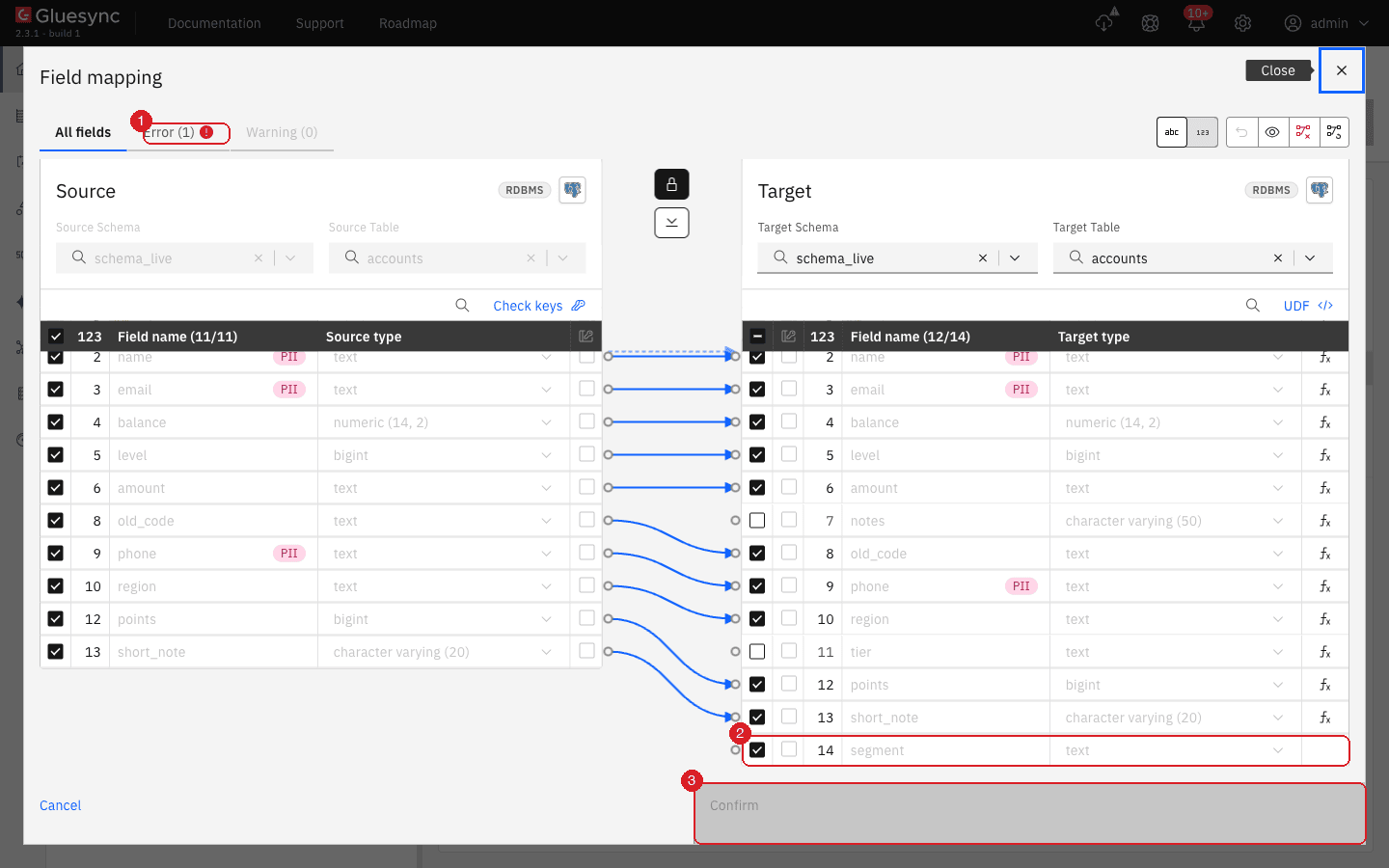
segment has lost its source (2) and the Error tab (1) counts it. Confirm (3) stays disabled until you untick the target field.The entity kept running after this save and no full copy was needed. Drop the target column yourself afterwards if you want it gone. Do not do the reverse, a drop on the target of a column that is still mapped: the next write fails.
If the dropped column is NOT NULL on the target, the writes fail at once (null value in column "tier" violates not-null constraint), the entity stays in the active group with an error, and nothing is lost: untick the target field in Edit mapping and start with Where it stopped. The rows that failed are delivered.
Rename a column. Treat it as a drop plus an add. Rename on the target, then on the source, pause first, and in Edit mapping tick the renamed column. Start with Full copy and Keep and merge. If you rename on the source only, the old target column receives NULL for each row that changes, and the new name is ignored. In our run the rows changed in that window (a NULL instead of L9) were repaired only by the full copy.
Case: change a primary key or a logical key
Gluesync matches rows on the target by the key saved in the mapping, not by the constraint of either table.
Primary key on the target only. Dropping and adding a primary key on the target needs nothing in Gluesync when the key of the entity does not change. We dropped the primary key (n1, n2, n3) of the target and an update, an insert and a delete on the source were all applied correctly, with no duplicate row.
Add a primary key on the source with the columns the entity already uses as its key: nothing to do. We added PRIMARY KEY (code, label) to the source and the target of a table that had a logical key code, label, and an update, an insert and a delete were applied.
Drop the primary key on the source. Without a key PostgreSQL does not write the old key into the log for updates and deletes. An update and a delete on the source were not applied to the target, with no error and no notification, while an insert was:
ALTER TABLE schema_live.order_lines DROP CONSTRAINT order_lines_pkey;     -- source
ALTER TABLE schema_live.order_lines REPLICA IDENTITY FULL;                -- the fix
After REPLICA IDENTITY FULL new updates and deletes were applied. The ones made before it were not, so stop the entity and start it with Full copy and Empty the table first to bring the target back in line (see PostgreSQL change data capture).
Change which columns make the key. This is the case that needs the most care. It applies when a source primary key changes shape, and for a table without a primary key whose logical key you change.
-
Pause the entity.
-
Change the key on the target, then on the source (
ALTER TABLE … DROP CONSTRAINT … , ADD PRIMARY KEY (…)). For a table without a primary key there is nothing to run. -
In Edit mapping, tick the Key checkbox of every column of the new key on the source. The target keys follow. Untick the columns that leave the key. Select Confirm, then Confirm and continue.
-
Start with Full copy and Empty the table first.
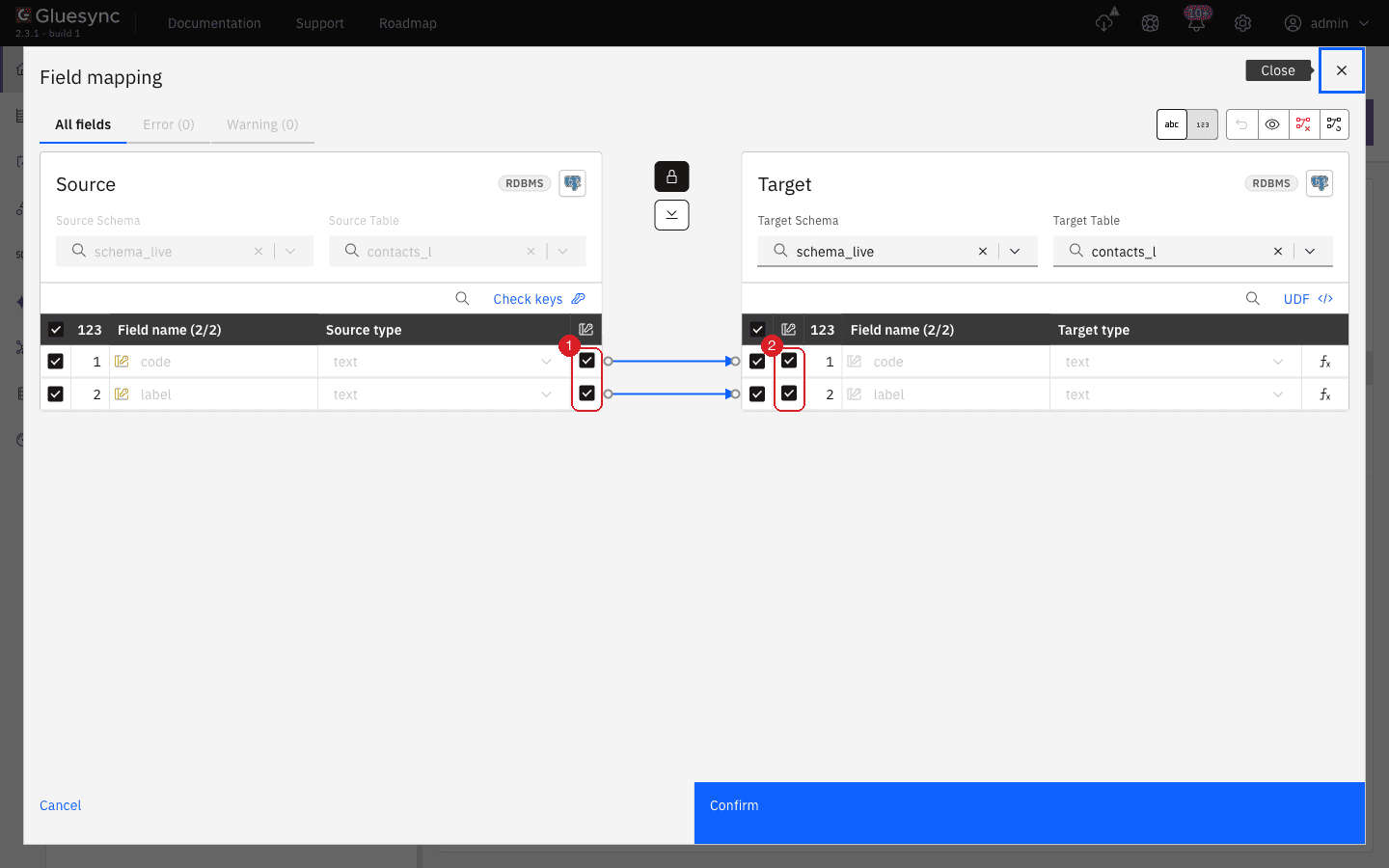
Two things went wrong in our runs when the key was not updated, and both were silent:
-
A table without a primary key was replicated with the logical key
code, and the source had two rows withcode = c1and differentlabel. An update of one row changed both rows on the target (bothONE), because the key matched both. After the key became(code, label)and the table was copied again with Empty the table first, source and target matched, and updates, inserts and deletes of rows that sharecodewere applied correctly. -
A source primary key
(n1, n2, n3)was narrowed to(n1, n2)while the entity still used three key columns. A delete on the source was lost: the target kept the row, no error was shown. After the key was changed to(n1, n2)in Edit mapping, new deletes worked, but the stale row stayed on the target after Keep and merge. Only Empty the table first removed it. For the logical key itself, see Choose keys for tables without a primary key.
Case: add a table or drop a table
Add a table. No other entity needs to stop.
-
Create the table on the target, with the same columns, in the schema the entity will use;
-
Open the pipeline and select Entities;
-
In the Object browser, open the schema and tick the table;
-
Select Confirm and continue;
-
The new entity appears in the Hold group. Select Start sync, choose Full copy and select Start entity.
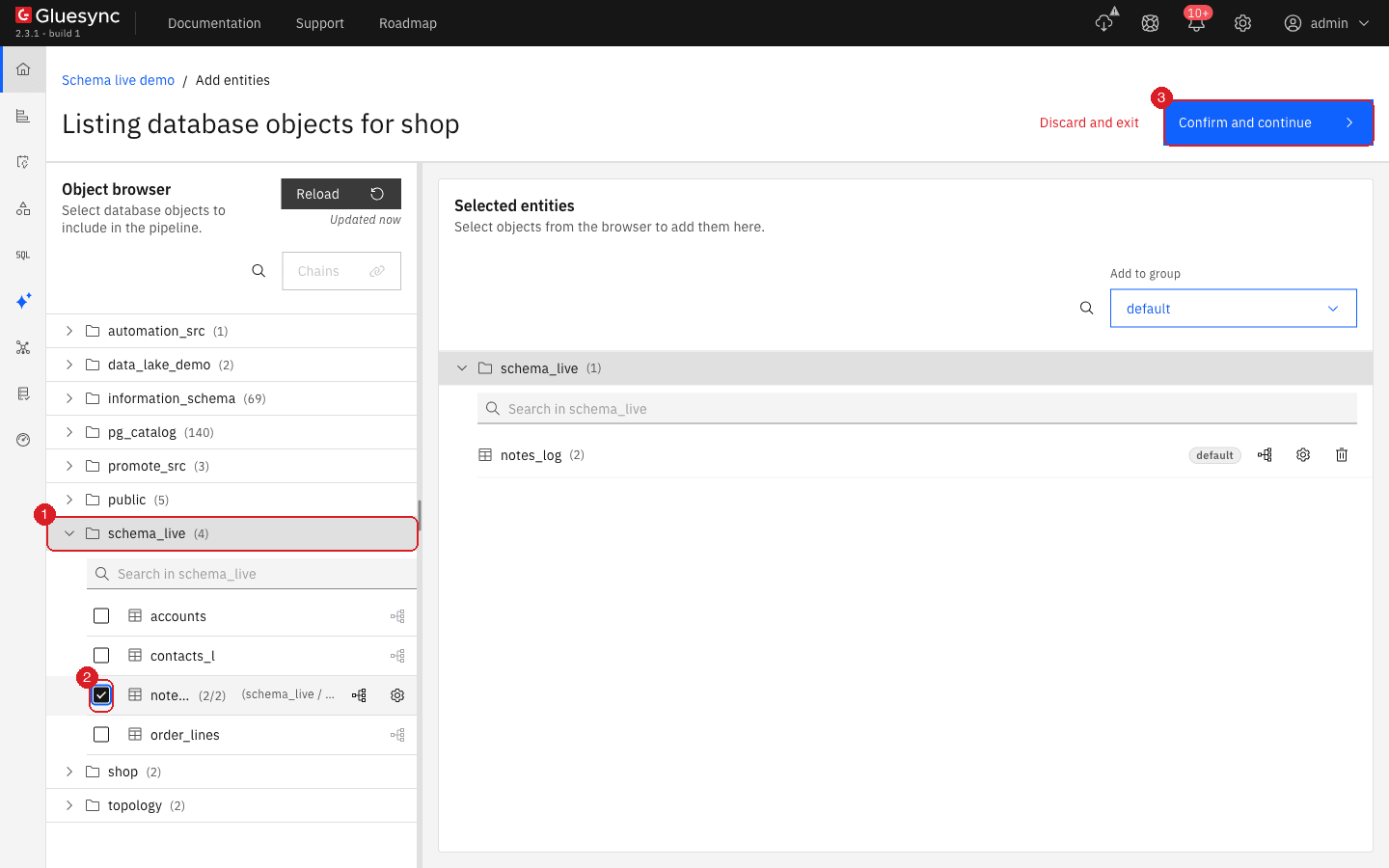
schema_live is open (1) and the table notes_log is ticked (2). Confirm and continue (3) adds it to the pipeline.The three entities already running stayed active and kept replicating throughout, and the new one copied its five rows and then followed an insert and an update. A table with no primary key needs a key first: see the guide linked above.
Drop a table. Dropping a table on the source gives no error and no notification. The entity stays in the Active group, the target table keeps its rows, and Edit mapping opens with No objects available and Error in field mapping. Please review, with Confirm disabled. Remove the entity:
-
Pause the entity. Delete entity is disabled while it runs;
-
Select the options menu of the entity, then Delete entity;
-
In Delete entity, select Delete;
-
On the source, check for a replication slot that the deleted entity left behind, and drop it:
SELECT slot_name, active FROM pg_replication_slots WHERE slot_name = 'gs_<entity id>_slot';
SELECT pg_drop_replication_slot('gs_<entity id>_slot');
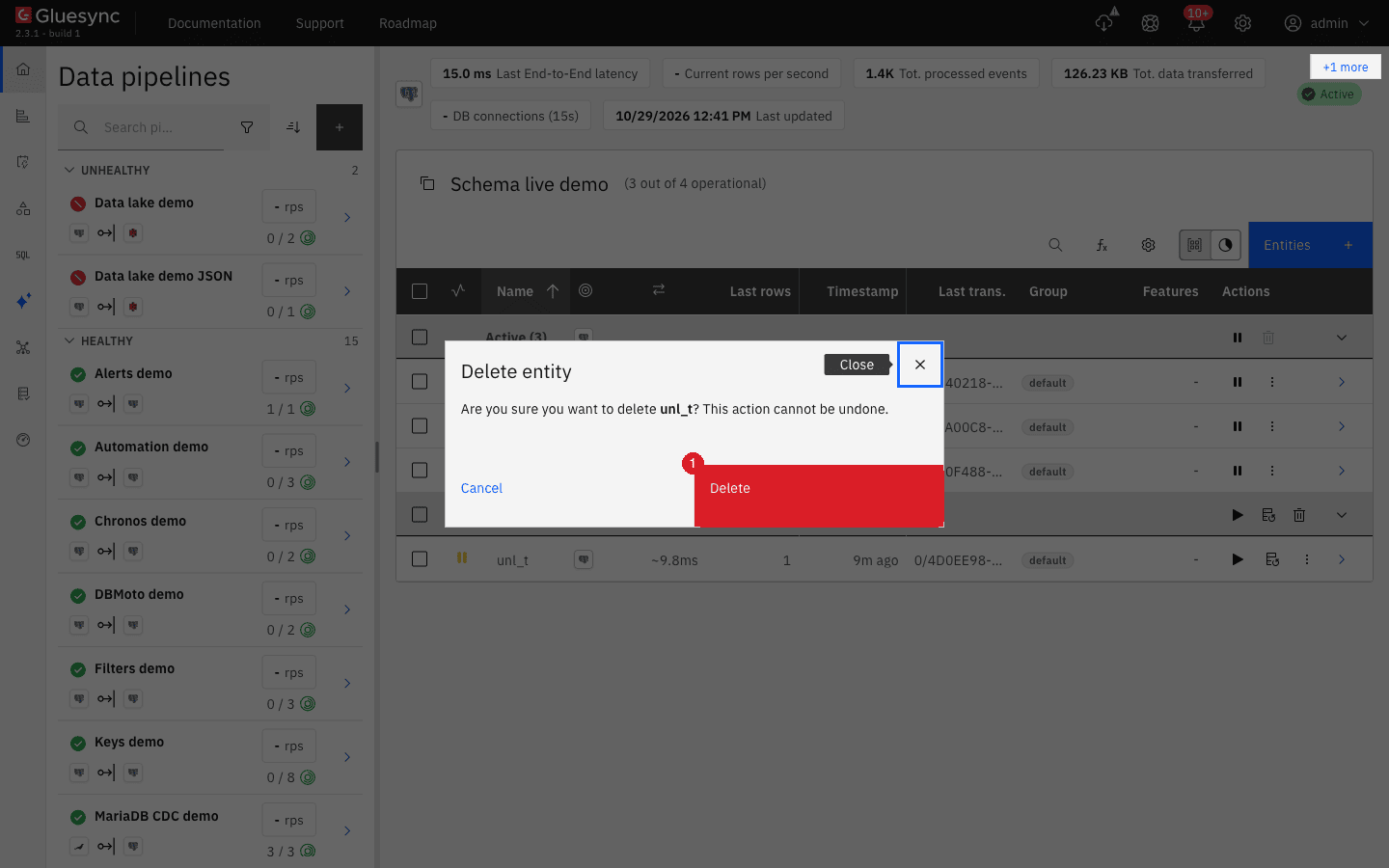
|
In our runs the slot of a deleted entity was still there, inactive, after the entity was removed. An unused slot keeps the WAL of the source for ever. Delete only the slot of the entity you removed. |
Case: the entity has an unlocked schema
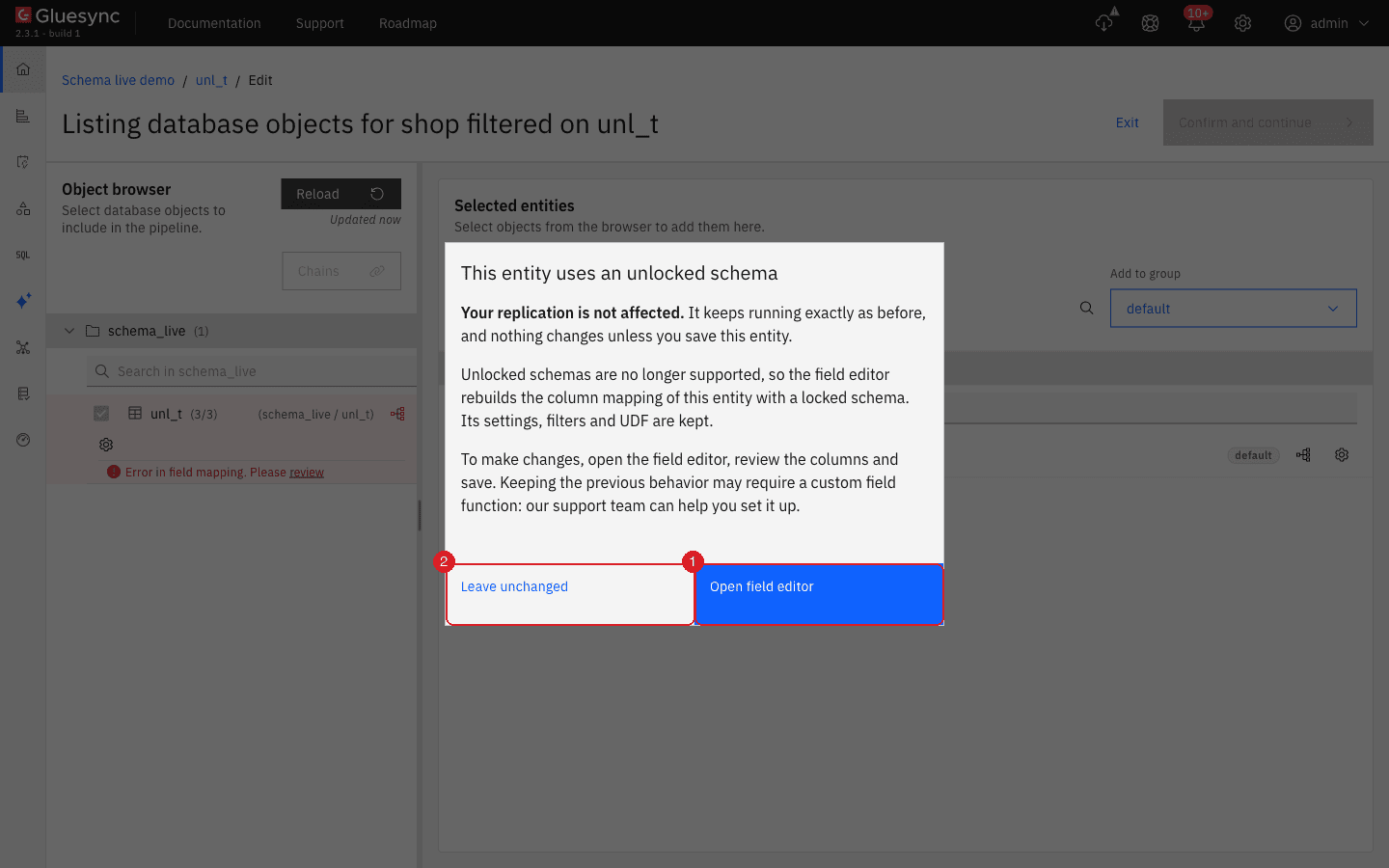
Earlier releases let you unlock the target schema of an entity, and the Fields Editor of 2.3 can no longer do it (see Migrating unlocked schemas). An entity that was saved that way keeps running as it was until you edit and save it. We tested one, created through the API because the Control Plane can no longer create it, and it behaved like any other entity until the edit: a new source column was ignored without an error, and a dropped source column wrote NULL for the changed rows.
-
Pause the entity and run the DDL of the case on the target and on the source, as for any other entity;
-
Select Edit mapping. The dialog This entity uses an unlocked schema opens. Select Open field editor;
-
The mapping is rebuilt from a fresh discovery of both tables, so new source columns are already listed and ticked, and target columns without a source are flagged. Fix every error, for example by unticking a target column that lost its source, then select Confirm and Confirm and continue;
-
Start the entity with Full copy and Keep and merge.
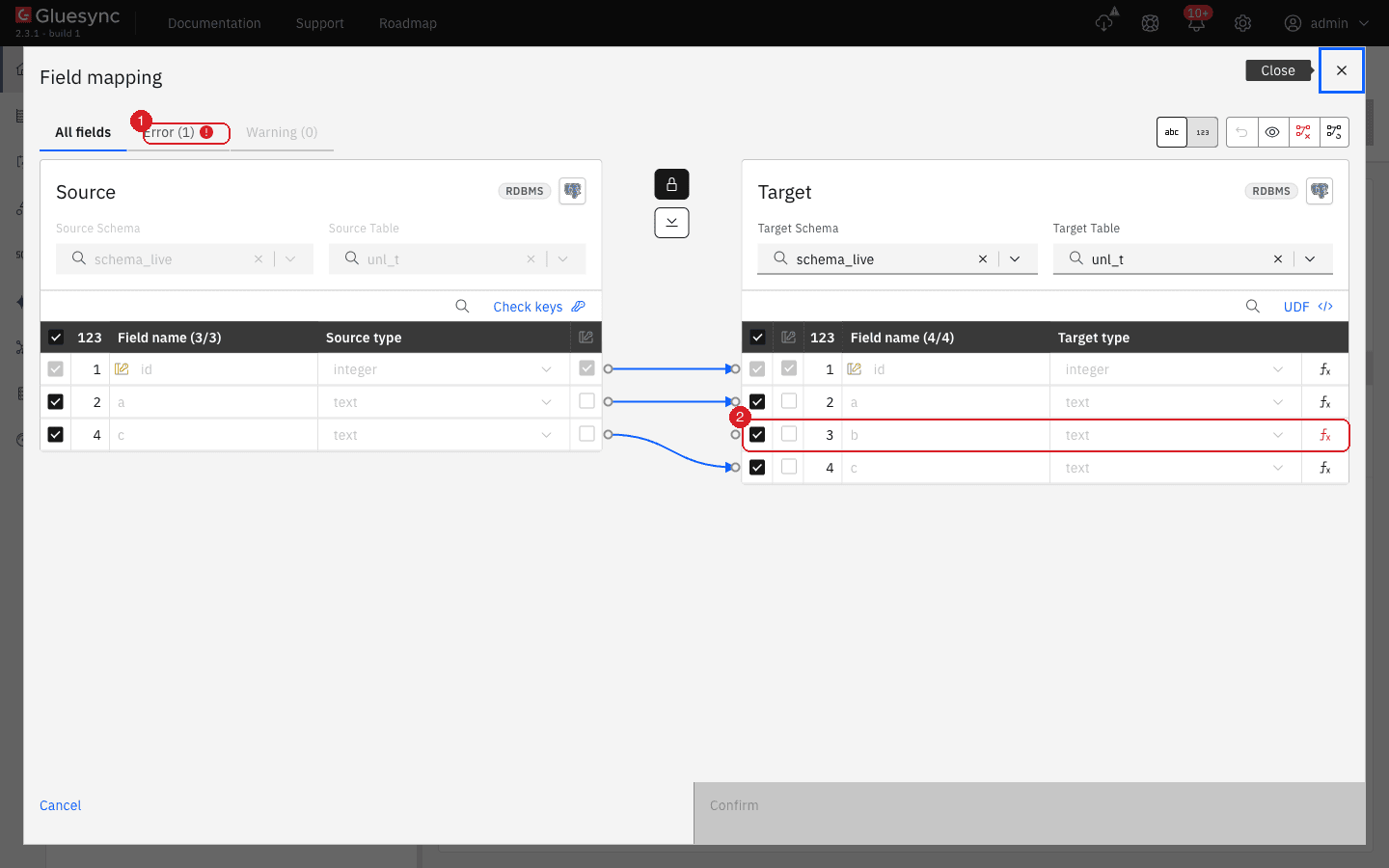
c is mapped, and the target column b has no source (2). The Error tab (1) must be empty before Confirm works.Do the migration deliberately, and not by accident as a side effect of a schema change. If the old behavior depends on custom handling, ask MOLO17 Support before you save.
Targets that are not a relational table
For a NoSQL, event streaming or object store target, no table exists to alter. Tick the new source field, use Add field on the target to name it and choose its type, and draw the arrow. If you change the key, the identifier of the document changes with it: new changes would create documents next to the old ones, so empty the target before the copy. See the FAQ of Migrating unlocked schemas and Parquet files support.
Troubleshooting
| Problem | Possible cause | What to do |
|---|---|---|
The new column is |
The mapping was not edited, or the rows existed before the change |
Edit the mapping, then start with Full copy and Keep and merge. |
A number on the target is wrapped or wrong after a type change |
The mapping still has the old type |
Save the mapping again, then run Full copy with Keep and merge. |
Confirm is disabled with Error (1) |
A target field has no source (dropped or renamed column) |
Untick the target field, or map it from the new source column. |
Confirm is refused with Incompatible data types |
The source and target types are in different families |
Change the target column first, then open Edit mapping again. |
The entity is Active but the target stops changing, and the notification says Not null violation |
A column was dropped or renamed on the source, and the target column is |
Untick the target field in Edit mapping, then start with Where it stopped. |
Updates and deletes do not reach the target after a primary key was dropped |
The source has no replica identity |
|
Old rows remain on the target after a key change |
Keep and merge only rewrites rows that match the new key |
Start with Full copy and Empty the table first. |
Edit mapping is missing, and Entities is disabled |
The pipeline is in maintenance mode |
Exit maintenance, then repeat the step. |
Delete entity is disabled |
The entity is running |
Pause the entity first. |
Related guides
Contact MOLO17 Support if you need assistance with a schema change on a production pipeline.