Back up, restore and move Core Hub
This guide shows how to protect a Gluesync installation on Linux and how to bring it back. You decide what to back up, make a cold backup of the installation folder and schedule it, restore it on the same server after a loss, restore it from a backup of the whole virtual machine (VM), and move it to a new server with a new name or address. You prove each restore with SQL: the pipelines resume and the target has no gaps.
In this guide
You will learn which files make up Gluesync and which you can skip, why the backup is taken with Gluesync stopped, how to back up and schedule the backup, how to restore on the same host and check that change data capture (CDC) continues without gaps, what to check after a VM-level restore, how to move to new hardware and update the database addresses, and whether the license moves with the data.
Quick information
Goal |
Be able to rebuild a Gluesync installation, on the same server or a new one, and prove that no change was lost |
Audience |
Gluesync administrators with |
Level |
Intermediate |
Time required |
About 1 hour for the first backup and restore. A move takes longer, because the new server has to download the images |
Area |
Linux server shell; Control Plane → pipeline → Edit target, Settings → License |
Applies to |
Gluesync 2.3 |
Before you begin
Make sure that:
-
Gluesync was installed with the Linux installer, so that the installation folder is
/opt/gluesyncandgluesyncis on thePATH. See Install Gluesync on Linux and size the host; -
You can use
sudoon the server and you have a second place to keep the backups, outside this server; -
You know who looks after the source and target databases. They are not part of the backup, and the source must still hold the changes made since the backup (see Check that the pipelines resumed and nothing is missing);
-
For a move, you have a second Linux server with the same installer and your kit ID, and the databases can be reached from it.
|
A backup of the installation folder holds the configuration and the position of Gluesync. It does not hold the data that Gluesync replicates, the databases, or the Docker images. It also holds secrets (the key that encrypts stored passwords, certificate passwords and the license), so keep it where only administrators can read it. |
|
This guide was tested on Ubuntu 24.04 and Rocky Linux 9.8 with Gluesync 2.3, on a pipeline from PostgreSQL to PostgreSQL that received inserts, updates and deletes every second while Gluesync was stopped and restored. Other sources, such as MySQL or IBM i, keep extra state in the agent folders (see Decide what to back up) and were not part of the test. Windows servers were not tested. |
Guide steps
CLI
Everything that Gluesync needs lives in one folder, /opt/gluesync. It is small: 12 MB in the lab, with one pipeline and an hour of metrics. The table says what is in it.
Path in /opt/gluesync |
What it holds | Back up? |
|---|---|---|
|
The databases of Core Hub, with their |
Yes |
|
The identity of each agent ( |
Yes, taken at the same moment as the databases |
|
Certificates that you uploaded for connections |
Yes |
|
The schedules of Chronos |
Yes |
|
The storage key that encrypts the stored credentials, and the secret that signs API tokens. It sits in the installation folder, not in |
Yes, never lose it |
|
|
Yes |
|
The image versions, your own changes to the services, and your environment variables |
Yes |
|
Logs of the services |
Skip. The restore does not need them, and Gluesync creates the folders again |
Prometheus and Grafana |
The kit keeps no data folder for them: the metrics history of Prometheus starts again after a restore |
Nothing to back up |
Docker images |
Downloaded again from Docker Hub when the services start. |
Skip |
|
Files of Gluesync Control (installation state, previous compose files kept by updates), created by the installer |
Skip |
Write down what you have now, so that you can compare after a restore:
sudo gluesync status
sudo du -sh /opt/gluesync /opt/gluesync/data/* /opt/gluesync/logs
sudo ls -l /opt/gluesync/sharedYou can also back up the configuration with Gluesync Automator (see Platform configuration backup and restore), or let Core Hub send encrypted backups to Gluesync Connect (see Backups with Gluesync Connect and Restore Core Hub from a backup). The next steps use a copy of the folder, which needs no other product and restores the exact state of the files.
CLI
Core Hub keeps its databases in SQLite files, and it writes to them all the time, even when no pipeline is busy. Recent changes sit in the -wal file next to each database and reach the main file later. In the lab, gluesync.db was 0.3 MB and its -wal file was 2.4 MB. Copying a running installation gives two kinds of result:
-
Copying only
gluesync.dbgives a file that passes the SQLite integrity check and holds nothing: the copy had 0 pipelines, 0 connections and 0 agents, while the live installation had 1, 2 and 2. A backup tool that skips files such as-walproduces this; -
Copying the whole
databasefolder withtarwhile Gluesync runs opened correctly in 10 of 10 attempts under a write load of one change per second. That does not make it safe: the five databases are copied one after another while Core Hub writes to all of them, so the copy can differ from any moment that existed. Support recommends the opposite: stop Gluesync, copy, start.
Maintenance mode does not help here. It stops the entities, but Core Hub keeps its databases open.
Two supported ways take a consistent copy of a running Core Hub: the Core Hub backup to Gluesync Connect, and a VM backup that quiesces the disk (see Restore from a VM-level backup).
CLI
-
Create a folder for the backups that only
rootcan read:sudo install -d -m 700 /var/backups/gluesync -
Stop Gluesync. Your data and images are kept:
sudo gluesync stop -
Copy the installation folder.
--numeric-ownerkeeps the numeric owners of the files, which Core Hub needs, and the logs are left out:sudo tar --numeric-owner --exclude='gluesync/logs' \ -czf /var/backups/gluesync/gluesync-$(date +%Y%m%d-%H%M%S).tar.gz -C /opt gluesync -
Start Gluesync:
sudo gluesync start -
Write a checksum next to the archive, and copy both to another place:
cd /var/backups/gluesync
sudo sh -c 'sha256sum gluesync-*.tar.gz > SHA256SUMS'
ls -lh
|
A backup that stays on the server it protects is lost with that server. Copy the archive and its checksum to another machine or to your backup system. Verify the copy with |
CLI
Skip this step if your backup tool or your change process already runs the commands of the previous step at a time of your choice. Otherwise, put them in a script and let systemd run it every night.
-
Save this script as
/usr/local/sbin/gluesync-backup.sh:#!/bin/bash # Cold backup of the Gluesync installation folder: stop, copy, start. set -euo pipefail SRC=/opt/gluesync DEST=${DEST:-/var/backups/gluesync} KEEP_DAYS=${KEEP_DAYS:-14} install -d -m 700 "$DEST" stamp=$(date +%Y%m%d-%H%M%S) archive="$DEST/gluesync-$stamp.tar.gz" # Start Gluesync again whatever happens below. trap 'gluesync start' EXIT gluesync stop tar --numeric-owner --exclude="gluesync/logs" -czf "$archive.part" -C "$(dirname "$SRC")" "$(basename "$SRC")" chmod 600 "$archive.part" mv "$archive.part" "$archive" ( cd "$DEST" && sha256sum "$(basename "$archive")" > "$(basename "$archive").sha256" ) find "$DEST" -name 'gluesync-*.tar.gz*' -mtime +"$KEEP_DAYS" -delete echo "backup written: $archive ($(du -h "$archive" | cut -f1))" -
Make it executable and run it once by hand:
sudo chmod 750 /usr/local/sbin/gluesync-backup.sh sudo /usr/local/sbin/gluesync-backup.sh -
Create
/etc/systemd/system/gluesync-backup.service:[Unit] Description=Cold backup of the Gluesync installation folder [Service] Type=oneshot ExecStart=/usr/local/sbin/gluesync-backup.sh -
Create
/etc/systemd/system/gluesync-backup.timer, with a time when nobody needs Gluesync:[Unit] Description=Nightly cold backup of Gluesync [Timer] OnCalendar=*-*-* 02:30:00 Persistent=true [Install] WantedBy=timers.target -
Enable the timer, and run the service once to prove that it works unattended:
sudo systemctl daemon-reload sudo systemctl enable --now gluesync-backup.timer sudo systemctl start gluesync-backup.service systemctl list-timers gluesync-backup.timer -
Add a step that copies the archives to your backup destination, for example with
rsyncat the end of the script, and check the destination from time to time.
The 17-second stop is a gap in the replication, not a loss. In the lab, one pipeline received an insert every second, an update every fifth second and a delete every eleventh second, during the failing run and during the systemd run. After both runs the source and the target held the same 718 rows with the same checksum.
|
Do not schedule the backup while an initial snapshot of a large table is running: stopping Gluesync interrupts it. This was not tested. |
CLI
Use this when the data folder of Core Hub was deleted or damaged, or when you want an earlier state. The lab loss was rm -rf /opt/gluesync/data/core-hub with traffic still arriving at the source.
If Gluesync was started on the empty folder, it looks like a new installation: no pipelines, and the sign-in admin with the default password asks for a new one. Do not configure anything there. Restore first.
-
Check the backup file:
cd /var/backups/gluesync sha256sum -c SHA256SUMS -
Stop Gluesync:
sudo gluesync stop -
Move the broken folder aside. Do not delete it yet:
sudo mv /opt/gluesync /opt/gluesync.broken-$(date +%Y%m%d) -
Extract the backup. It brings back the whole folder, including the
gluesynccommand:sudo tar --numeric-owner -xzf /var/backups/gluesync/gluesync-<date-time>.tar.gz -C /opt -
Start Gluesync:
sudo gluesync start
|
Everything you changed in Gluesync after the backup is gone: pipelines, users, passwords and settings. In the lab, a log retention of 14 days set after the backup was back at 3 days after the restore. The source and target databases are not touched. |
The logs are not in the backup. The folders in logs are created again when the services start, and Core Hub writes to them without any change of permissions.
If the whole server is lost, install Gluesync again as in Install Gluesync on Linux and size the host, then continue with Move Gluesync to a new server.
UI + SQL
Core Hub continues from the position stored in the restored database. The changes made in the source since then are read again from the log of the source, and the target is updated with the same key, so the same change is not applied twice.
-
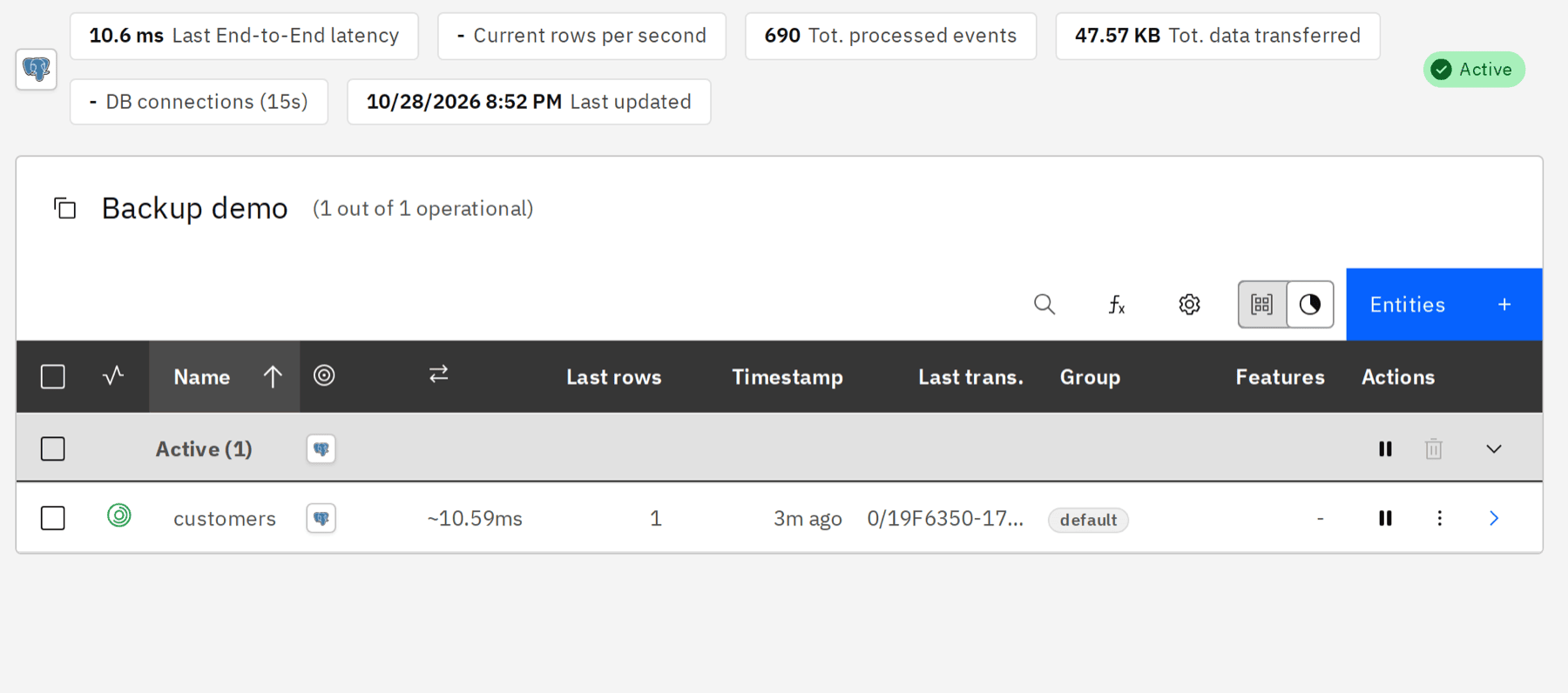
Open the Control Plane and sign in;
-
Open Data pipelines, open your pipeline and check that its status is Active and that the entities show CDC active;
-
Compare the source and the target with SQL. The query below was used with PostgreSQL. Run it on the source and on the target, with the key and a few columns of your own tables:
select count(*) as n, max(id) as max_id, md5(string_agg(id || '|' || status || '|' || credit_limit::text, ',' order by id)) as checksum from shop.customers; -- on the target: shop_copy.customers -
If the numbers differ, list the keys that are missing. Export the keys of both tables, and compare them:
psql -Atc "select id from shop.customers" | sort > source-ids.txt psql -Atc "select id from shop_copy.customers" | sort > target-ids.txt comm -23 source-ids.txt target-ids.txt # in the source, missing in the target comm -13 source-ids.txt target-ids.txt # in the target, deleted from the source -
On a PostgreSQL source, check that Gluesync is connected to its replication slot again:
select slot_name, active from pg_replication_slots;
The source has to keep the changes for as long as Gluesync is down and as old as your backup. With PostgreSQL, the replication slot keeps the WAL until Gluesync has read it, so look at the disk of the database server if Gluesync stays stopped for a long time. For other sources, keep the log (binary log, archive logs, journal receivers) longer than the age of your oldest backup. See Maintenance mode for the same rule.
VM + CLI
A VM backup or snapshot (Veeam, VMware, Hyper-V and others) restores the whole server at once: the installation folder, the databases that run on it, and the Docker state. The lab used a Hyper-V checkpoint of type Production as a stand-in, taken while Gluesync and both databases were running and one change per second arrived. The VM was turned off and restored 1 minute later, then started.
-
Restore the VM from your backup and start it;
-
Wait for the services to start by themselves. Containers have the restart policy
unless-stopped, so no command is needed; -
Check the clock, the services and the containers:
timedatectl | grep -E 'Local time|synchronized' sudo gluesync status docker ps --format '{{.Names}} {{.Status}}' -
Check the entities in the Control Plane, and run the comparison of Check that the pipelines resumed and nothing is missing.
Check these points after any VM restore:
-
Where do the databases run? If they run on the same VM, source, target and Gluesync go back to the same moment and stay consistent. If they run elsewhere, they are ahead of the restored Gluesync: treat it like Restore on the same server after a loss and check the source log retention;
-
The time. A wrong clock breaks the license check and the TLS validity. Check
timedatectl; -
The order of the start. If a database was not ready when Core Hub started, an entity can show Active while nothing replicates. Pause the entity and start it again (see What holds the old address);
-
The kind of backup. Prefer a backup that quiesces the file system. Only the Hyper-V Production checkpoint type was tested.
CLI
The lab moved a running installation from an Ubuntu 24.04 server to a Rocky Linux 9.8 server. The host name, the address, the operating system and the machine ID all changed. The databases moved too, and their data folders were copied the same way.
On the old server
-
Write down what changes: the host name, the address, the version (
sudo gluesync status), and every connection that points to a host name or an address of this server; -
Stop what writes to the sources if you can, and wait until the target has caught up;
-
Make a cold backup as in the step before, and leave Gluesync stopped:
sudo gluesync stop sudo tar --numeric-owner --exclude='gluesync/logs' -czf gluesync-move.tar.gz -C /opt gluesync sha256sum gluesync-move.tar.gz -
Copy the archive to the new server and check the checksum there. Keep the old server switched off or with Gluesync stopped from now on: only one Core Hub must read the sources and write the targets.
On the new server
-
Install Gluesync with the same installer and your kit ID, and let it start once. Then stop it:
sudo gluesync stop -
Move the new, empty installation aside and extract your backup in its place:
sudo mv /opt/gluesync /opt/gluesync.fresh sudo tar --numeric-owner -xzf gluesync-move.tar.gz -C /opt -
Start Gluesync:
sudo gluesync start -
Start your databases, if they moved too. Gluesync creates the Docker network
gluesync-netwhen it starts, so a database that joins that network is started afterwards.
Keep the installation folder at the same path, /opt/gluesync: Gluesync Control records it in /var/lib/gluesync/state.json. Another path was not tested.
| Item | What to do |
|---|---|
Connections of the sources and targets |
The connection stores the host name or address that you typed. In the lab the database file had the old address in the target connection. Change every connection that used the old server, as in the next step. A name that also resolves on the new server (a container name on |
Database firewalls and allow lists |
The databases see a new client address. Allow the new server in your firewall and in the database access rules (for PostgreSQL, |
Certificates |
The certificate of the kit has no host name in it ( |
Settings → Global settings → Grafana URL |
It is relative by default ( |
OpenID Connect sign-in |
If you use it, the redirect address registered at the identity provider must point to the new address ( |
Gluesync Connect |
If the installation is paired, read Restore Core Hub from a backup before you start the new server, especially when the old one still runs |
UI
After the first start on the new server, the pipeline can show an error for each connection that still uses the old address.
-
Open the Control Plane on the new server and open your pipeline in Data pipelines. If a connection points to an address that is gone, the pipeline shows On error;
-
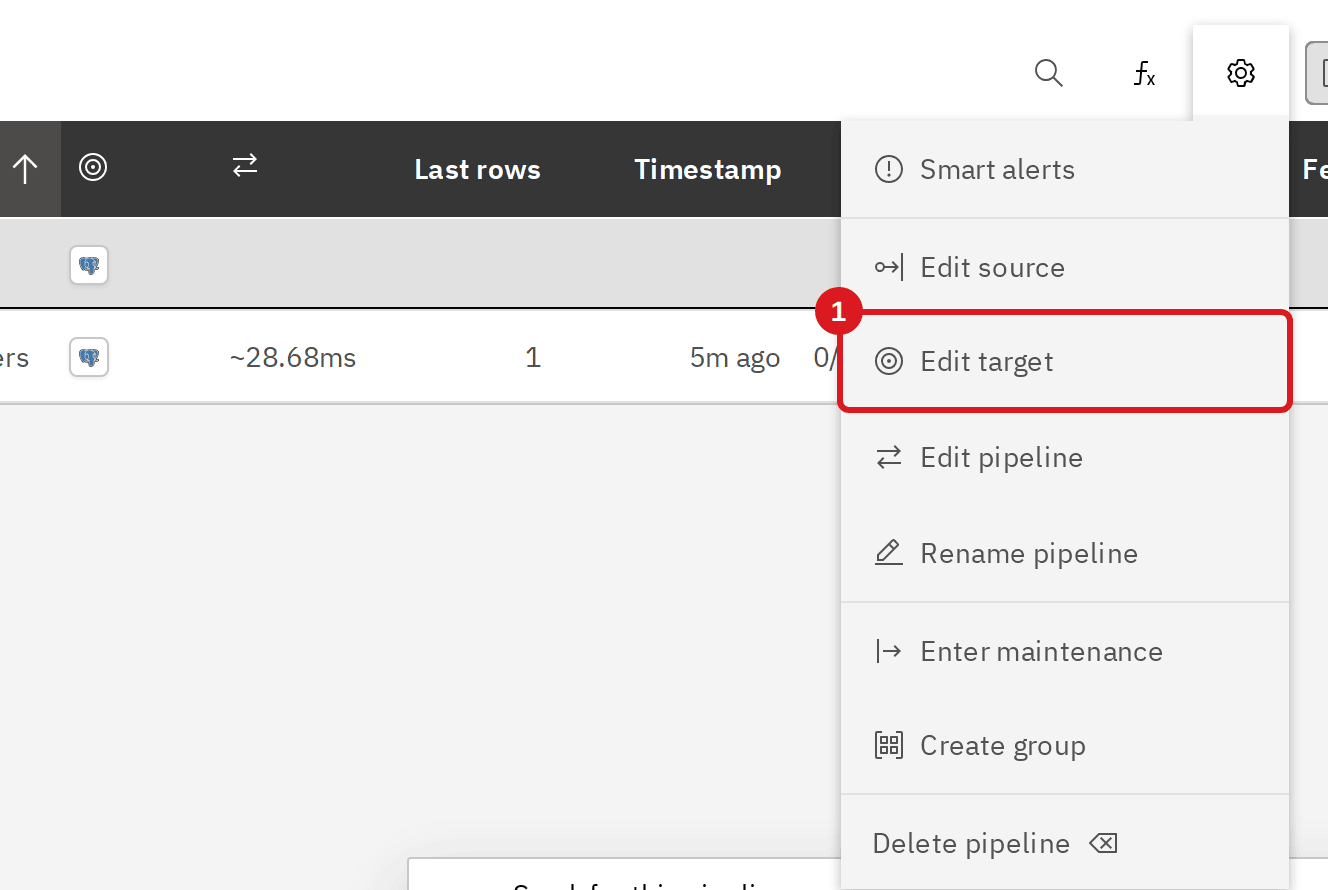
Select the gear icon of the pipeline to open Pipeline settings;
-
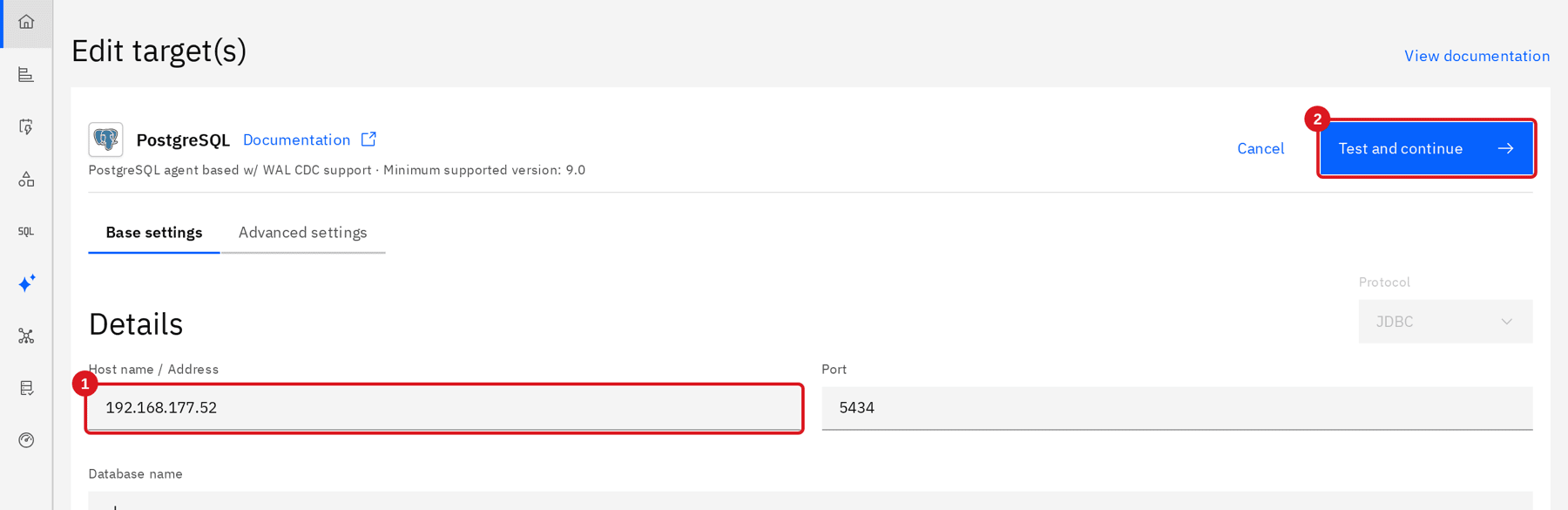
Select Edit target (or Edit source for a source connection);
-
In Base settings, replace the Host name / Address with the one that works from the new server, and change the Port too if it changed;
-
Select Test and continue;
-
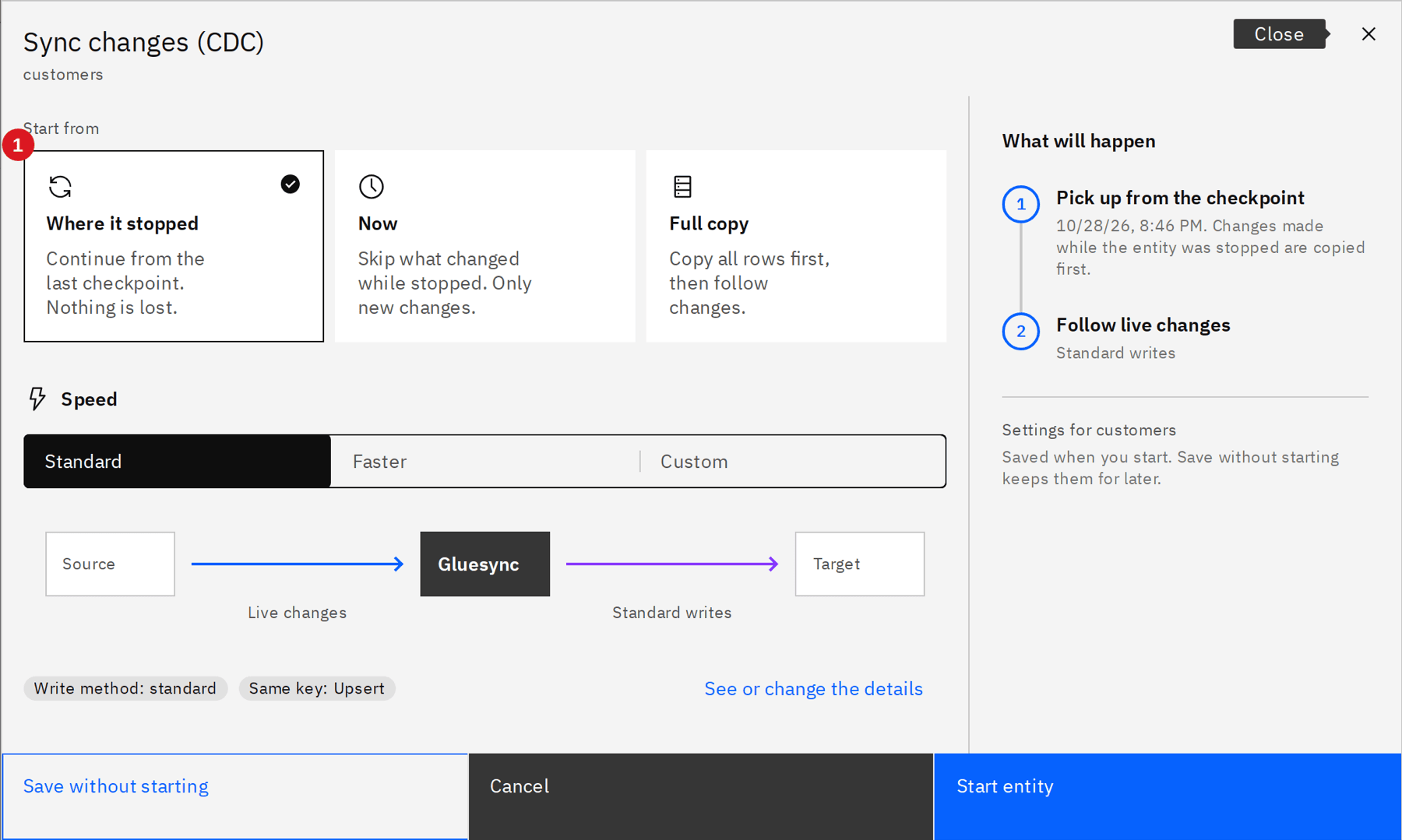
Pause the entity and start it again, so that it connects with the new settings. Select Stop sync, confirm with Pause entity, then select Start sync. Keep Where it stopped, and select Start entity. See Play and pause entities.

|
If you move to a server with the same name and address, nothing in this step applies: the restore alone is enough. |
UI + CLI
The license is the file shared/gs-license.dat, so it is part of the backup and moves with the folder. It is a signed token that Core Hub checks on the server, with a public key inside the product. It does not contain a host name, an address or a hardware identifier: the lab license carries only the issuer, the source, a license key, the plan and the expiration date. Nothing in the license check depends on the server, which is why a VM conversion from VMware to Hyper-V, a restore or a move to new hardware does not ask for a new activation.
-
Compare the file on the old and the new server:
sha256sum /opt/gluesync/shared/gs-license.dat -
In the Control Plane, select Settings (the gear icon) → License;
-
Compare Type and Expiration date with what you had before the move.
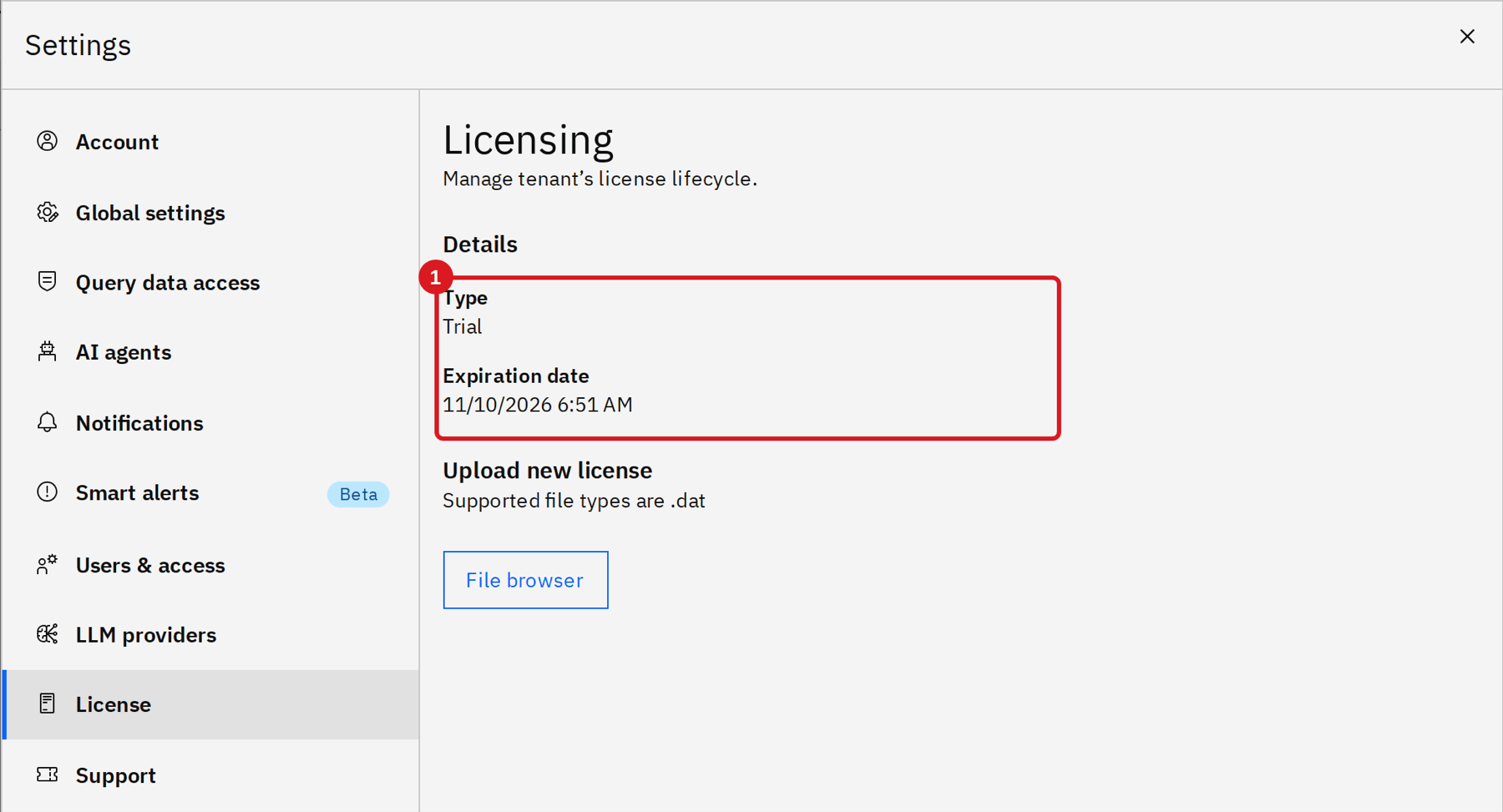
Keep a copy of gs-license.dat outside the server. If you lose it, ask MOLO17 for a new copy; see Licensing and license management and License management. A license that expired is not renewed by a restore: the file that you restore has the expiration date it had.
Troubleshooting
| Problem | Possible cause | What to do |
|---|---|---|
After the restore, |
|
Stop Gluesync, remove the empty folder ( |
Core Hub starts, but it logs |
|
Use the file from the same backup as the databases. Do not edit its keys |
The Control Plane asks for the default |
Core Hub started on an empty |
Stop Gluesync, restore as in Restore on the same server after a loss, and start again |
The Control Plane answers |
Core Hub is still starting |
Wait up to 75 seconds, as in the lab. If it lasts, check |
After a move, the pipeline shows On error with |
A connection still points to the old server, or the database does not accept the new server |
Change the connection (previous step), and check the firewall and the database access rules |
The pipeline is Active but the target does not change, and the replication slot is not active |
The entity started before the database was ready, or the connection was changed without a restart |
Pause the entity and start it again with Where it stopped |
The backup script ends with an error (exit code 2 in the lab) |
The disk of the backup folder is full |
Free space and run it again. Gluesync was started again by the script, check with |
|
The server is downloading the images of the backup’s version (about 2 GB) |
Wait, or use the offline package of Offline installation |
Related guides
Contact MOLO17 Support if you need assistance with backing up, restoring or moving Gluesync.