Manage users, groups, and roles in Gluesync
Give each person the access they need and no more. In this guide you create Gluesync accounts, pick the right role for each person, group users so that they share Query Studio data access rules, and confirm in practice what a Viewer, a Monitor, a Manager, and a Super Admin can do.
In this guide
You will learn how to create a user and share the temporary password, complete the first sign-in, change a role or reset a password, create a Monitor or a second Super Admin with the REST API, create a user group, restrict what a group can query, and compare what each role sees in the Control Plane. The guide ends with a role comparison table you can use as a quick reference.
The examples use a pipeline named RBAC demo that replicates a customers table, and four test accounts named rbac-viewer, rbac-monitor, rbac-manager, and rbac-superadmin.
Quick information
Goal |
Create accounts with the right role, group users, limit the data a group can query, and verify the result |
Audience |
Gluesync administrators and security owners |
Level |
Intermediate |
Time required |
About 30 minutes |
Area |
Control Plane → Settings → Users & access |
Applies to |
Gluesync 2.3 |
Before you begin
Make sure that:
-
You can sign in to the Gluesync Control Plane as a Super Admin, for example with the default
adminaccount; -
At least one pipeline exists, so that you can see what each role can and cannot do with it;
-
You have a second browser, or a private window, to sign in as the test users without signing out of your administrator session;
-
For the REST steps, you can reach the Core Hub address with
curl.
|
Users and roles apply to the whole Gluesync instance. There is no per-pipeline role: a user who can see the Control Plane sees every pipeline, and the role decides what that user can do with them. To limit what a person can read through Query Studio, use user groups and Query data access, as described later in this guide. |
Guide steps
UI
-
Select the Settings gear icon in the upper-right corner of the Control Plane;
-
Select Users & access, then keep the Users tab open;
-
In Add account, enter a Username, for example
rbac-viewer; -
Open User role and select Viewer or Manager;
-
Optionally enter Name (optional), Surname (optional), and Email (optional);
-
Select Create user.
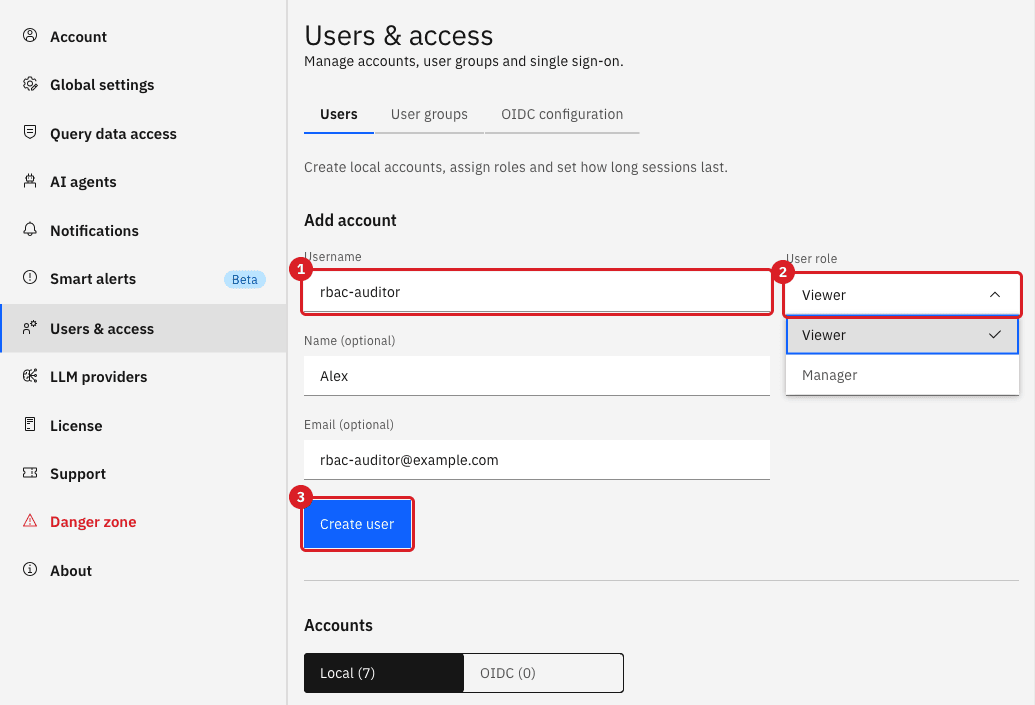
|
The User role list offers Viewer and Manager. Gluesync generates the password for you: there is no password field in the form. To create a Monitor or another Super Admin, use the REST API as shown in Create a Monitor or a Super Admin with the REST API. |
UI
The temporary password is shown only once, directly below the form.
-
Select the copy icon to copy the password to the clipboard, or the download icon to save it as a file;
-
If an email address was entered and email is configured for Gluesync, you can also select Send via email to send the credentials to the user;
-
Pass the password to the user through a secure channel, then close the message.
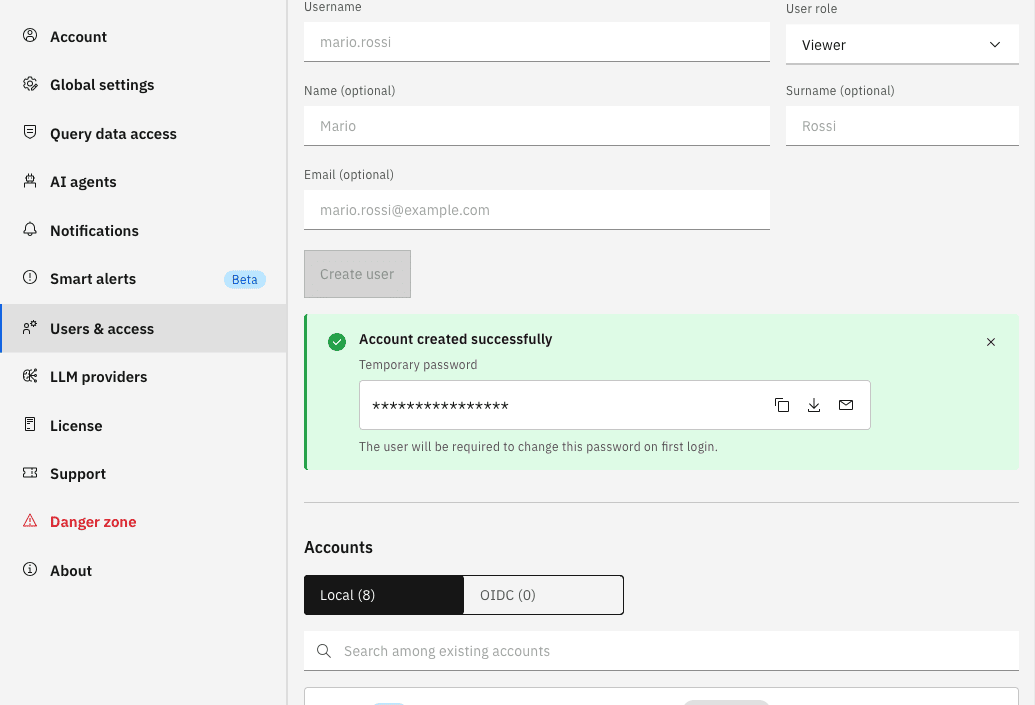
|
If you close the message without saving the password, reset it from the Accounts list (see Change a role, reset a password, or delete a user) to get a new one. |
UI
Do this as the new user, in a second browser or a private window.
-
Open the Control Plane sign-in page and sign in with the username and the temporary password;
-
When Gluesync asks you to create a new password, enter it in New password and again in Repeat new password. The password must contain at least 8 characters, 1 lowercase letter, 1 uppercase letter, 1 symbol, and 1 number;
-
Select Create password;
-
Sign in again with the new password.
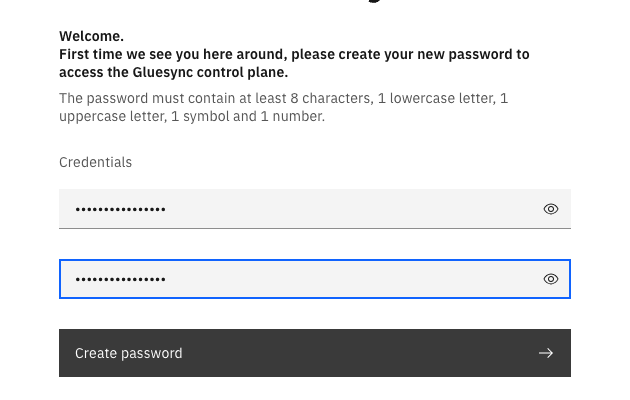
UI
-
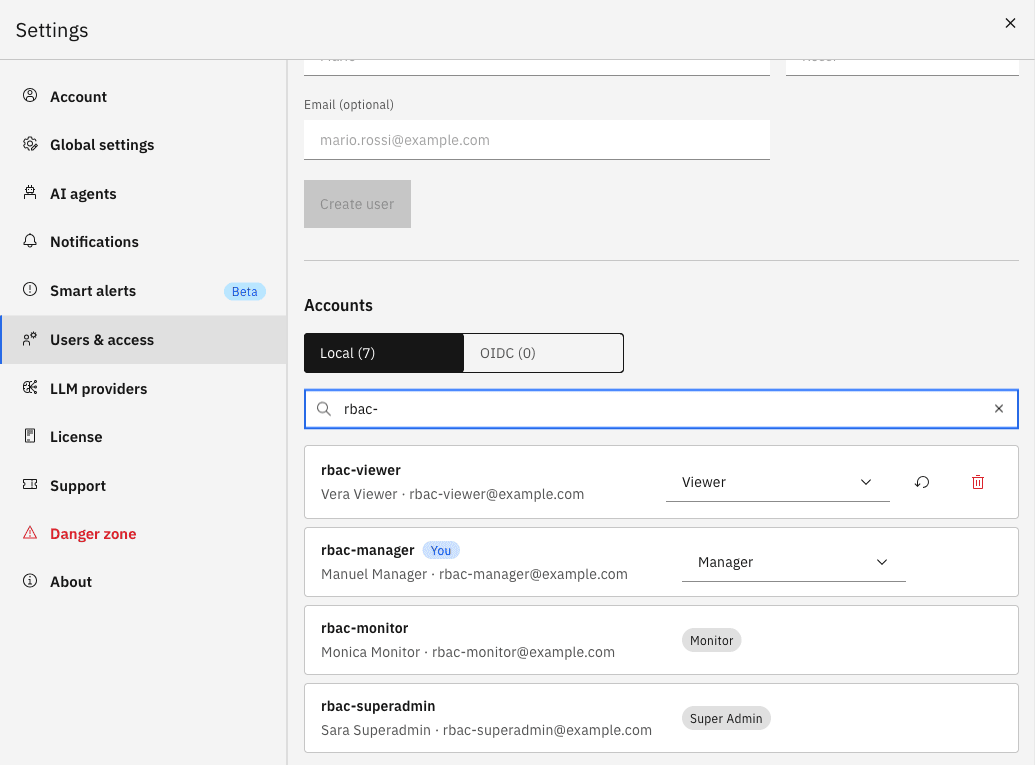
In Settings → Users & access → Users, find the account in Accounts. Use the search box to filter by username, for example
rbac-; -
To change the role, open the role list on the user’s row (1) and select the new role. The change takes effect immediately;
-
To issue a new temporary password, select the reset icon (2) and confirm Reset. The user must change the password at the next sign-in;
-
To remove the account, select the delete icon (3) and confirm.
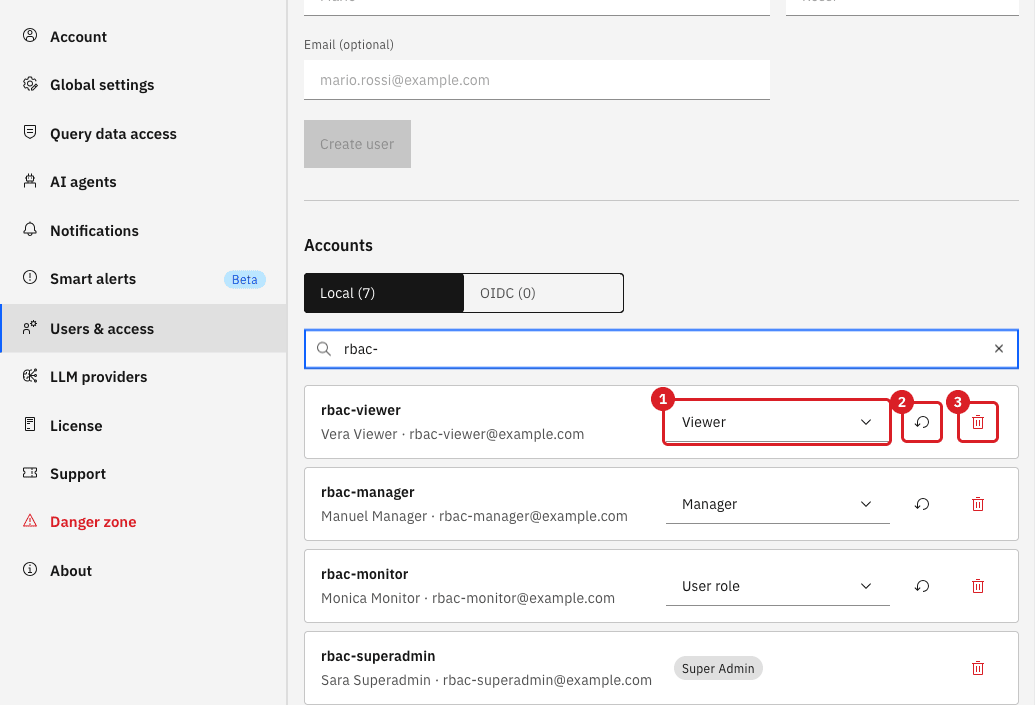
|
The |
API
The Monitor role and the Super Admin role are not offered in the User role list. Create them with the Core Hub REST API instead. Replace <core-hub-host> with your Core Hub address.
-
Sign in as a Super Admin to get a token:
curl -s -X POST https://<core-hub-host>/authentication/login \
  -H 'Content-Type: application/json' \
  -d '{"username":"admin","password":"<admin-password>"}'
The response contains
apiToken. -
Create the user, setting
roletoMONITORorSUPER_ADMIN:curl -s -X POST https://<core-hub-host>/users \ -H "Authorization: Bearer <apiToken>" \ -H 'Content-Type: application/json' \ -d '{"username":"rbac-monitor","password":"<temporary-password>","role":"MONITOR","name":"Monica","surname":"Monitor","email":"rbac-monitor@example.com"}' -
Give the temporary password to the user. As with accounts created in the UI, the user must set a new password at the first sign-in.
|
To change or delete a user with the REST API, call |
UI
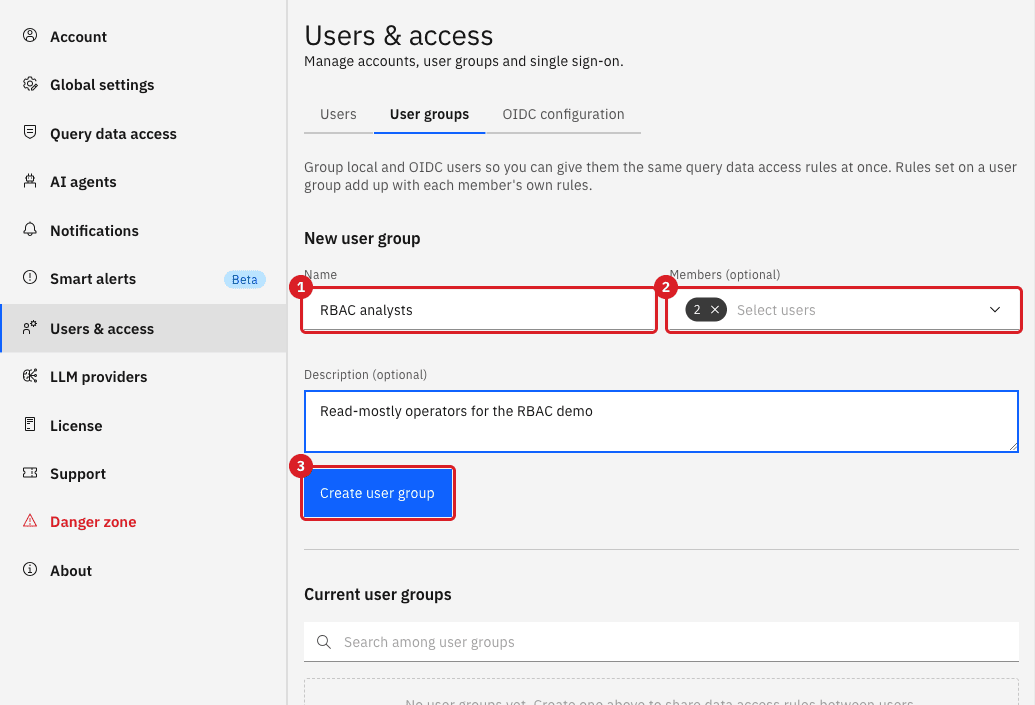
A user group collects users so that you can give them the same Query Studio data access rules at once. Groups do not change what a role can do in the rest of the Control Plane. Only a Super Admin can create and edit groups.
-
In Settings → Users & access, select the User groups tab;
-
In New user group, enter a Name, for example
RBAC analysts; -
Open Members (optional) and select the users to include, for example
rbac-viewerandrbac-monitor; -
Optionally enter a Description (optional);
-
Select Create user group.
UI
-
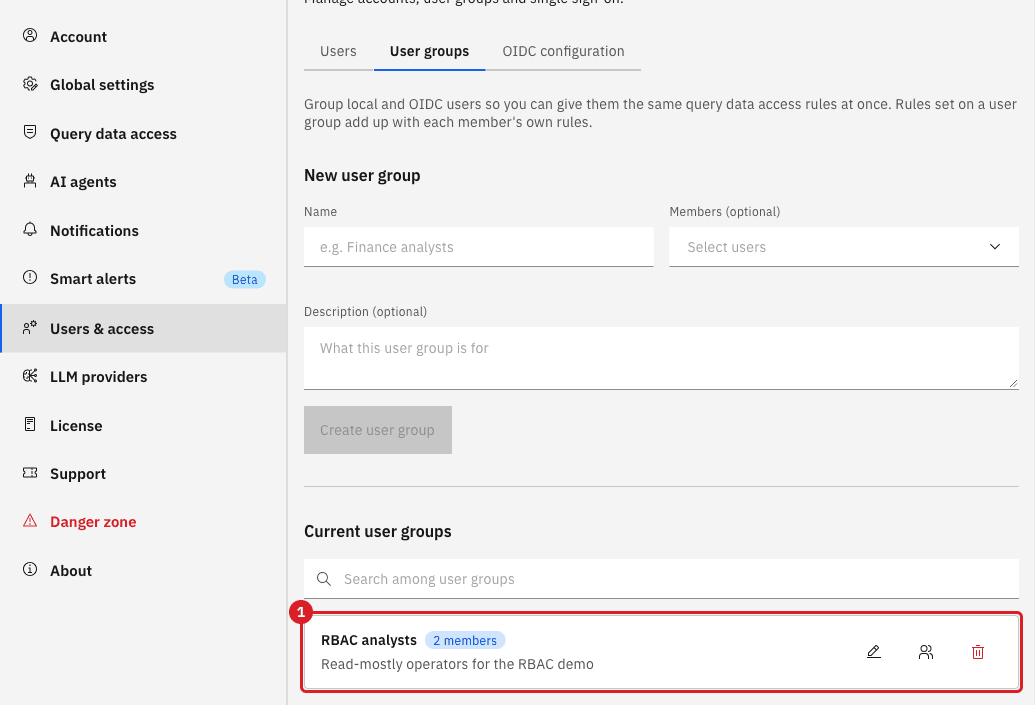
In Current user groups, find the group;
-
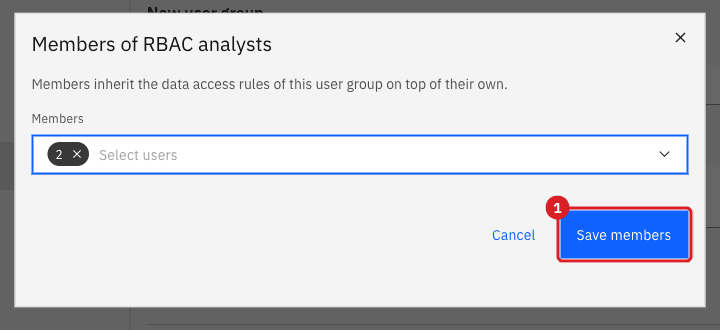
Select Manage members, the middle icon on the group’s row;
-
In Members of RBAC analysts, add or remove users;
-
Select Save members.
|
Deleting a group also deletes the data access rules that belong to it. Deleting a user removes the user from every group. |
UI
Query data access controls which schemas and tables a user or a group can read in Query Studio, Query Studio AI, and the AI query tools. A user’s access combines their own rules with the rules of every group they belong to. A Super Admin always has full access.
-
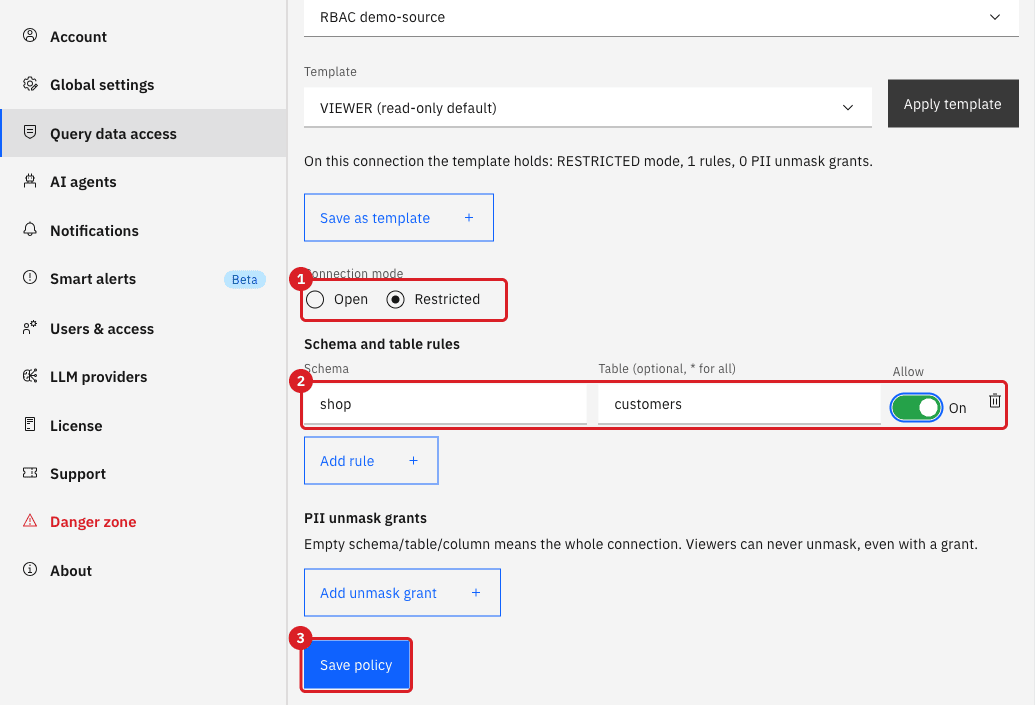
Open Settings → Query data access;
-
Under Applies to, select User group;
-
In User group, select the group, for example
RBAC analysts; -
In Connection, select the connection to restrict, for example
RBAC demo-source; -
Under Connection mode, select Restricted (1);
-
Select Add rule, enter the Schema
shopand the Table (optional, * for all)customers, and switch Allow on (2); -
Select Save policy (3).
|
Query data access is available to Super Admins only, and it limits queries. It does not hide pipelines or entities. A Viewer or a Monitor still sees every pipeline in the Control Plane. |
UI
-
In the second browser, sign in as a member of the group, for example
rbac-viewer; -
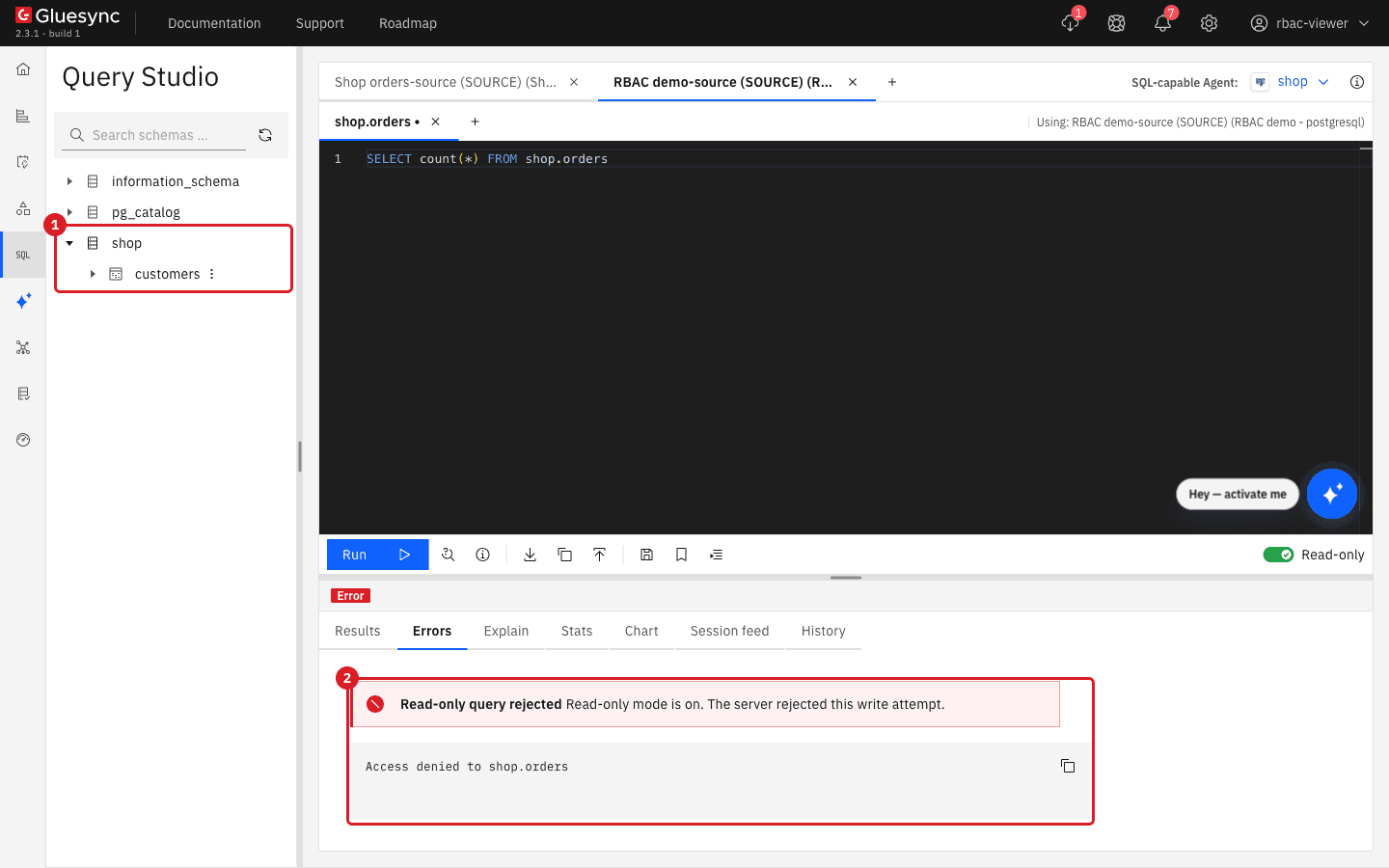
Open Query Studio, select + to open a new session, and then open the SQL-capable Agent list and choose the source agent of RBAC demo;
-
Expand the
shopschema in the schema tree; -
Run
SELECT count(*) FROM shop.orders.
|
Query Studio shows this refusal under the heading Read-only query rejected. The text that matters is the line Access denied to shop.orders. |
UI
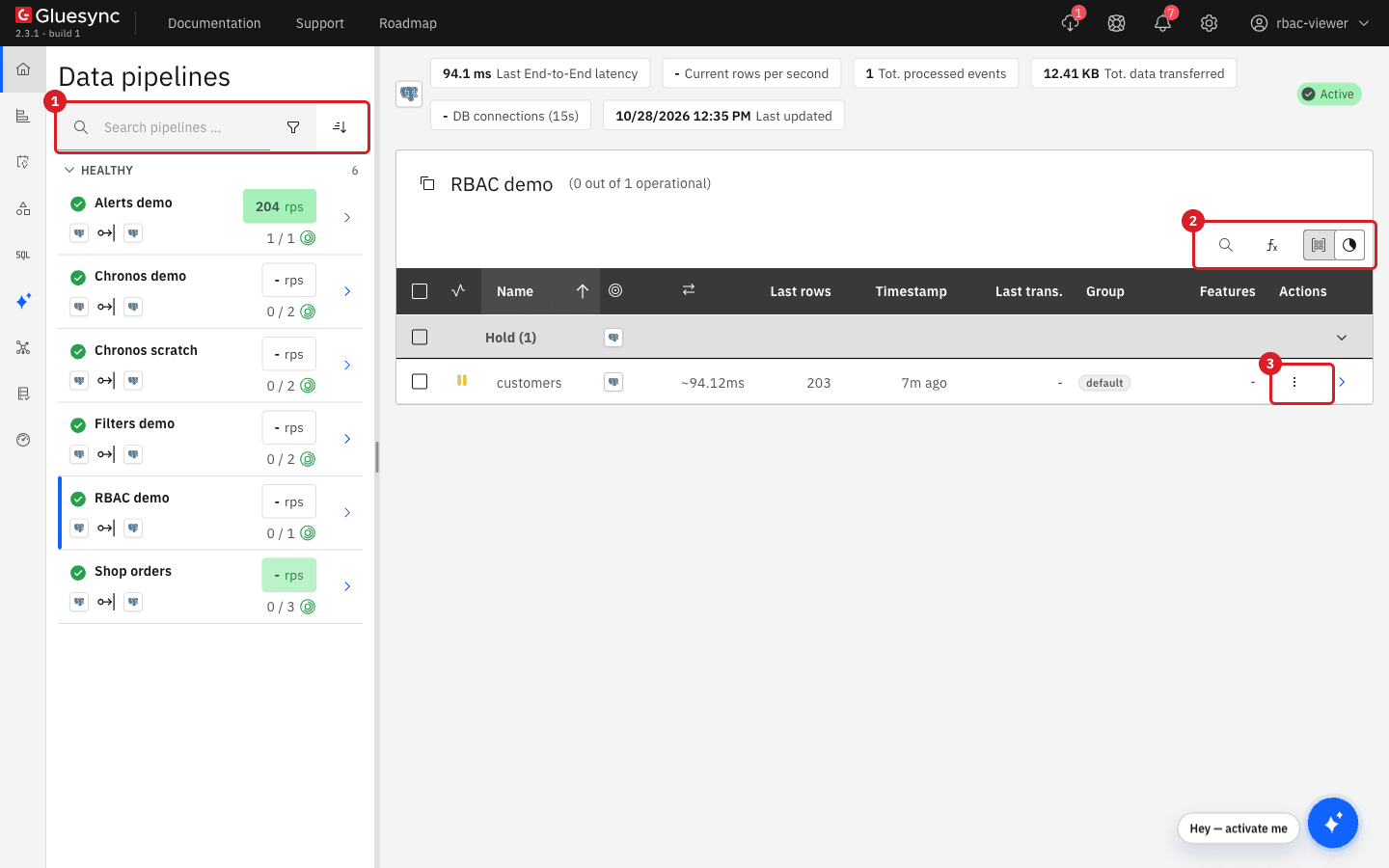
Sign in to the second browser as each user in turn and open the same pipeline.
-
Sign in as
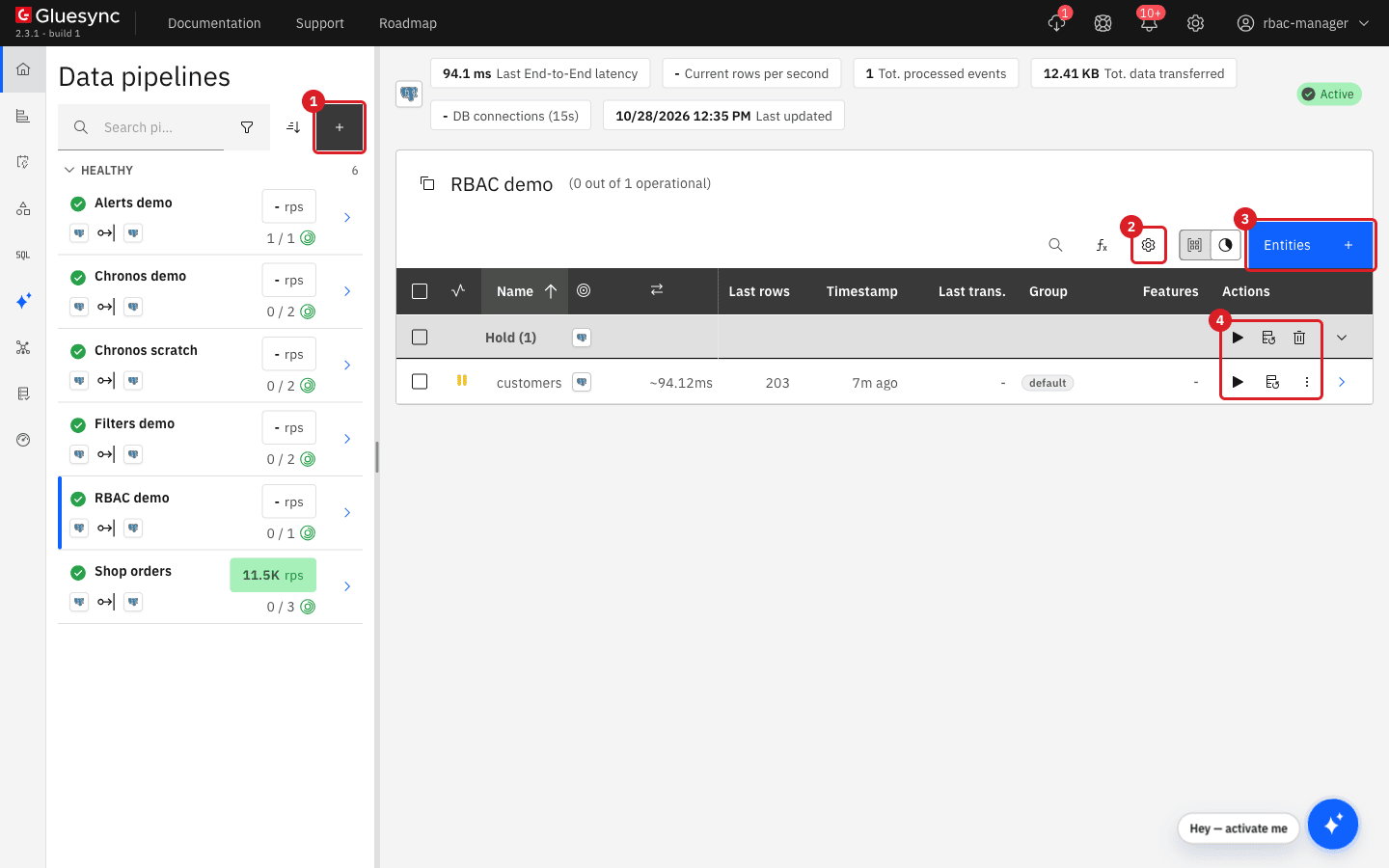
rbac-viewerand open RBAC demo. Compare it with the Manager screenshot that follows; -
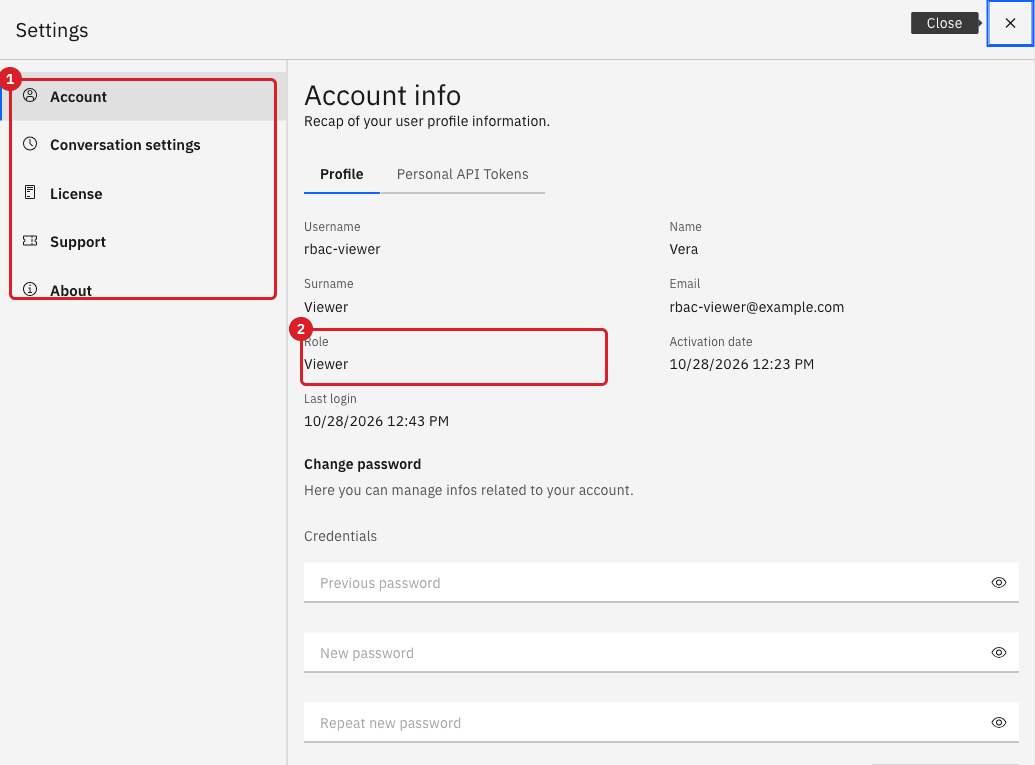
Open Settings and note which sections are listed;
-
Sign in as
rbac-managerand open the same pipeline and the same Settings dialog.
API
Controls that a role cannot use are hidden or disabled in the Control Plane, and Core Hub also refuses the request itself. Test it with the Viewer’s token.
-
Sign in as the Viewer with
POST /authentication/loginto get anapiToken; -
Try to start an entity:
curl -s -X POST "https://<core-hub-host>/pipelines/<pipeline-id>/commands/sync/start?entity=<entity-id>" \ -H "Authorization: Bearer <viewer-apiToken>" -
Try to list users:
curl -s https://<core-hub-host>/users -H "Authorization: Bearer <viewer-apiToken>"
Compare the roles
Gluesync has four roles that you can assign to people. A fifth role, External Module, is used internally by Gluesync modules such as Chronos and cannot be assigned in the Accounts list.
| Capability | Viewer | Monitor | Manager | Super Admin |
|---|---|---|---|---|
See pipelines, entities, status, metrics, and notifications |
Yes |
Yes |
Yes |
Yes |
Run read-only SQL in Query Studio (subject to Query data access rules) |
Yes |
Yes |
Yes |
Yes |
Save queries in Query Studio |
No |
Yes |
Yes |
Yes |
Share saved queries and reveal masked PII values in Query Studio |
No |
No |
Yes |
Yes |
Run SQL that changes data in Query Studio |
No |
No |
Yes |
Yes |
Start, pause, and stop entities, and run snapshots |
No |
Yes |
Yes |
Yes |
Edit the settings of an existing entity |
No |
Yes |
Yes |
Yes |
Run now, enable, and disable existing schedules in Schedules & events |
No |
Yes |
Yes |
Yes |
Create, edit, and delete schedules and events |
No |
No |
Yes |
Yes |
Create or delete pipelines and entities, manage connections and agents |
No |
No |
Yes |
Yes |
Change global settings: email, webhooks, alert thresholds, logging, license, session length, support bundle, restart |
No |
No |
Yes |
Yes |
Create, change, and delete user accounts |
No |
No |
Viewer and Manager accounts only |
Any role |
Create user groups and set Query data access rules |
No |
No |
No |
Yes |
Turn PII masking on or off for the whole platform, see the Query Studio audit log, manage LLM providers |
No |
No |
No |
Yes |
The Settings dialog also changes with the role:
| Role | Sections listed in Settings |
|---|---|
Viewer |
Account, Conversation settings, License, Support, About |
Monitor |
Account, Conversation settings, Support, About |
Manager |
Account, Global settings, AI agents, Notifications, Smart alerts, Users & access, LLM providers, License, Support, Danger zone, About |
Super Admin |
All of the Manager sections plus Query data access |
|
Choose the lowest role that does the job. Use Viewer for people who only need to look and run read-only queries, Monitor for operators who start, pause, and tune entities but must not create or delete anything, Manager for people who build and run pipelines, and Super Admin for the few people who manage users, data access, and platform-wide security settings. |
Single sign-on
If your organization uses an identity provider, the OIDC configuration tab next to Users and User groups in Settings → Users & access is where a Super Admin maps identity provider groups to Gluesync roles. Users provisioned that way appear in the OIDC list of Accounts, and their role comes from the mapping rather than from the role list. This guide does not configure single sign-on: see Configure OIDC authentication.
Troubleshooting
| Problem | Possible cause | What to do |
|---|---|---|
The user does not see Settings → Users & access or Query data access |
The role does not include it: Users & access needs Manager or Super Admin, and Query data access and User groups need Super Admin |
Check the role in Settings → Account and ask a Super Admin to change it if needed |
The temporary password was not saved |
The password is shown only once |
In Accounts, select the reset icon on the user’s row and confirm Reset to get a new temporary password |
Create user is disabled |
Username is empty |
Enter a username |
The user cannot create a new password at the first sign-in |
The password does not follow the rules |
Use at least 8 characters with a lowercase letter, an uppercase letter, a symbol, and a number |
The role list does not offer Monitor or Super Admin |
The User role list only offers Viewer and Manager |
Create the account with the REST API, as shown in Create a Monitor or a Super Admin with the REST API |
A user group with this name already exists |
Group names are unique, ignoring uppercase and lowercase |
Choose a different name |
A group member can still query a table that the rule should block |
The member has a personal data access rule on the connection, which replaces the rules of their groups, or another group that allows the table |
Open Query data access, select User, and review the member’s own policy. A Deny rule always wins over an Allow rule |
A request returns |
The role does not include the action |
Use an account with a higher role, or ask a Super Admin to change the role |
Related guides
Contact MOLO17 Support if you need assistance with users, roles, or access control.