Automate pipeline actions with schedules, chained events, and webhooks
Stop starting snapshots by hand. In this guide you use Schedules & events (Chronos) to run a snapshot on a clock, chain a second snapshot after the first, receive a Gluesync notification on a webhook endpoint when each snapshot ends, and start a job from outside the Control Plane with a single curl call.
In this guide
You will learn how to create a schedule that fires every minute and prove from the target database that it ran, change it to a nightly cron expression, chain a snapshot of orders after a snapshot of customers, empty and reload a table on a schedule and return to CDC, send the snapshot events to an HTTP endpoint with an outbound webhook, and create an event whose trigger URL starts a snapshot when an external system calls it.
The examples use a pipeline named Chronos demo with two entities, customers and orders, that replicate the PostgreSQL tables shop.customers and shop.orders into the target schema shop_chronos.
Quick information
Goal |
Run pipeline actions on a schedule, in a chain, and on a webhook call, and receive Gluesync events on a webhook endpoint |
Audience |
Gluesync administrators and data engineers |
Level |
Intermediate |
Time required |
About 55 minutes |
Area |
Control Plane → Schedules & events, and Settings → Notifications → Webhooks |
Applies to |
Gluesync 2.3 |
Before you begin
Make sure that:
-
You can sign in to the Gluesync Control Plane as a Super Admin or a Manager, the roles that can create and edit schedules and events;
-
A pipeline named Chronos demo exists with two entities,
customersandorders, whose target tables are in the schemashop_chronos. If your target does not have these tables yet, the optional first step creates them; to create the pipeline, see Pipelines; -
You can run SQL against the source and the target database, for example with
psql; -
You have an HTTP endpoint that you control and that Core Hub can reach, to receive webhook calls. The examples use the WebHook Tester container, which shows every request it receives;
-
For the command-line steps, you can run
curlfrom a shell that reaches the Control Plane address.
|
Every action in this guide runs against the Chronos demo pipeline only. Chronos stops an entity before it takes a snapshot, and with the snapshot actions an entity that was stopped stays stopped afterwards, so most steps here do not start continuous replication. To empty a table, reload it and return to CDC, see the step Schedule a snapshot with truncate, then return to CDC. If you schedule a snapshot on a pipeline in production, read Snapshot tasks first. |
Guide steps
SQL
Skip this step if your target database already has the tables, for example in an environment you have already prepared. Otherwise, create the schema and the two tables with the same columns as the source, because Gluesync loads data into target tables that already exist.
-
Connect to the target database;
-
Run the following statements:
CREATE SCHEMA IF NOT EXISTS shop_chronos; CREATE TABLE shop_chronos.customers ( id integer PRIMARY KEY, full_name varchar(100) NOT NULL, email varchar(150), country varchar(2) NOT NULL, tier varchar(10) NOT NULL, status varchar(10) NOT NULL, credit_limit numeric(10,2), created_at timestamp NOT NULL ); CREATE TABLE shop_chronos.orders ( id integer PRIMARY KEY, customer_id integer NOT NULL, amount numeric(10,2) NOT NULL, currency varchar(3) NOT NULL, status varchar(12) NOT NULL, order_date date NOT NULL ); -
Check that both tables are empty:
SELECT (SELECT count(*) FROM shop_chronos.customers) AS customers,
       (SELECT count(*) FROM shop_chronos.orders)    AS orders;
UI
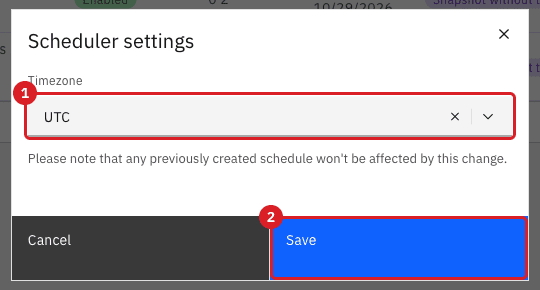
Chronos evaluates every schedule in one time zone. Check it before you create the first schedule.
-
In the left rail, select Schedules & events;
-
Select Schedules;
-
Select the gear icon (Scheduler settings) above the table;
-
Read the value of Timezone;
-
Select Cancel to leave the setting unchanged, or select another time zone and then Save.
|
The time zone is a setting of the whole Core Hub, and a schedule keeps the time zone it was created with: the dialog states that changing the setting does not affect schedules that already exist. The Start time and Last run columns of the table show times in your browser’s time zone, which can differ from the scheduler time zone. |
UI
A short interval proves that the schedule fires without waiting for the night. You change it to a realistic expression in step 5.
-
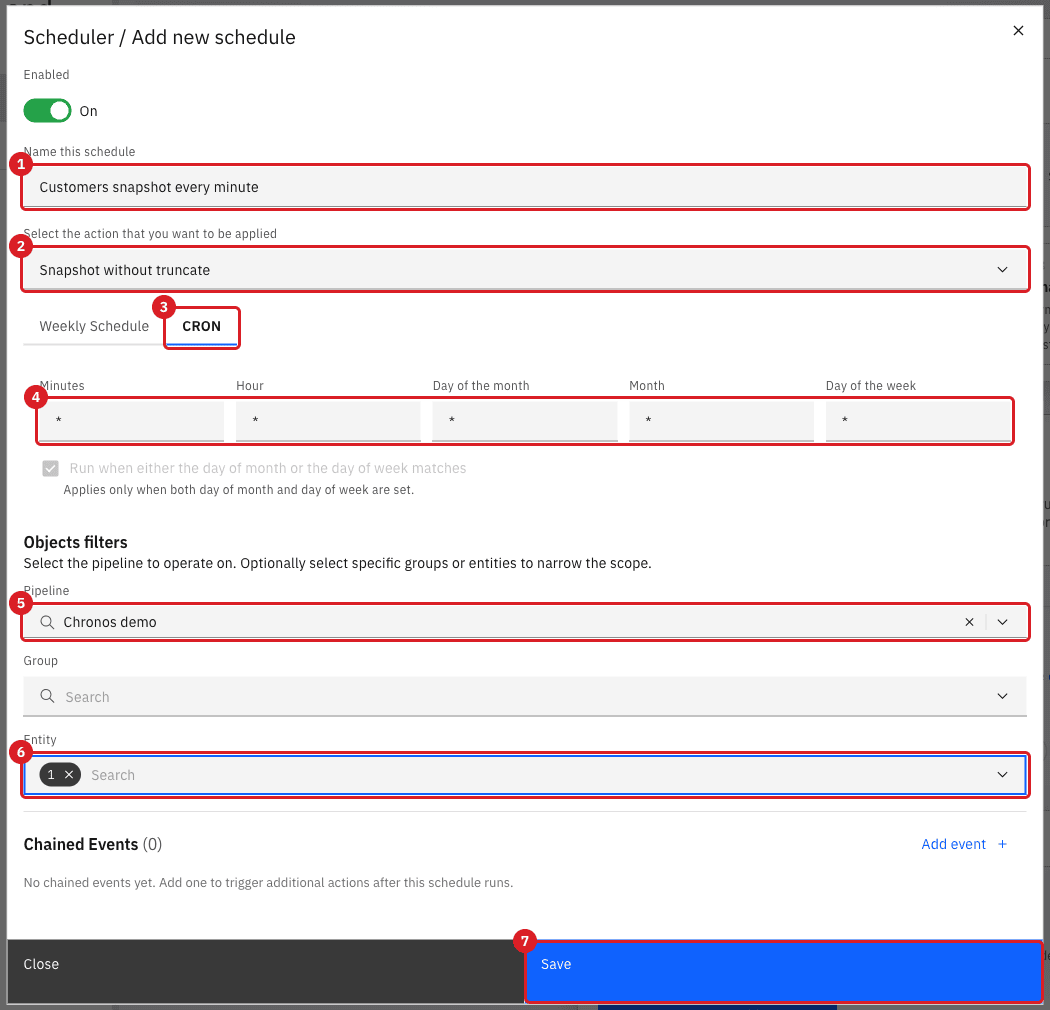
On the Schedules page, select New;
-
In Name this schedule, enter
Customers snapshot every minute; -
In Select the action that you want to be applied, select Snapshot without truncate;
-
Select the CRON tab;
-
Leave all five fields (Minutes, Hour, Day of the month, Month, Day of the week) set to
*; -
In Pipeline, select Chronos demo;
-
In Entity, select
customers; -
Select Save.
|
Snapshot without truncate loads the current source rows into the target with upsert semantics and keeps the rows that the snapshot does not replace. Snapshot with truncate clears the selected target data first. See Choose an action for the full list of actions. |
UI SQL
Check the result in two places: the schedule row and the target table.
-
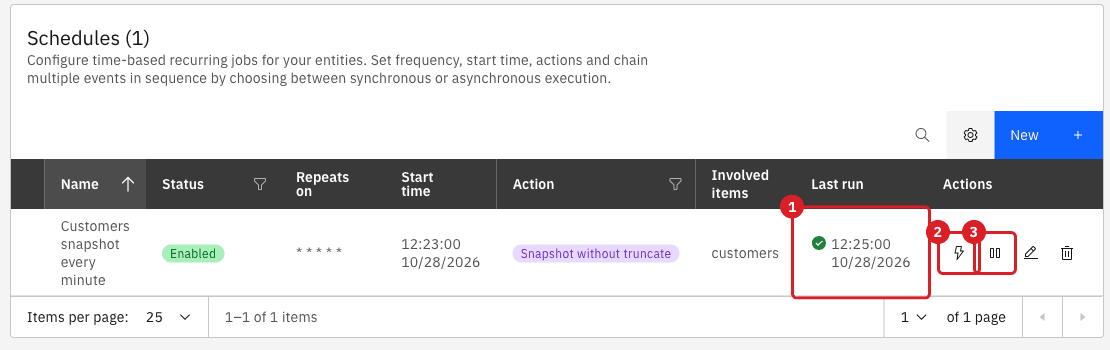
Wait until the next minute starts, then reload the page;
-
Read the Last run column of the schedule;
-
In the target database, count the loaded rows and compare them with the source:
SELECT count(*) AS target_customers FROM shop_chronos.customers; -- run on the target SELECT count(*) AS source_customers FROM shop.customers; -- run on the source -
To prove that each run reloads the data, delete a few target rows and count again after the next minute starts:
DELETE FROM shop_chronos.customers WHERE id <= 5; SELECT count(*) FROM shop_chronos.customers; -- 5 fewer than the source, for now -
After the next minute starts, run the count again.
|
Optional, for advanced users
If you have shell access to the Docker host, the Chronos container log also records each run. You do not need it to follow this guide: Each run writes one |
|
Chronos stops the entity, waits about five seconds, and then starts a one-time snapshot, so the rows arrive about five seconds after the minute starts. The Control Plane does not list the past runs of a schedule: use Last run and the target data. A failed run shows a red mark in Last run, and the error message appears as a tooltip on it. |
UI
After the test, turn the schedule into the one you would keep in production: a snapshot every night at 02:00.
-
In the schedule row, select Edit schedule;
-
In Name this schedule, enter
Customers nightly snapshot; -
In Minutes, enter
0; -
In Hour, enter
2; -
Leave Day of the month, Month, and Day of the week set to
*; -
Select Save.
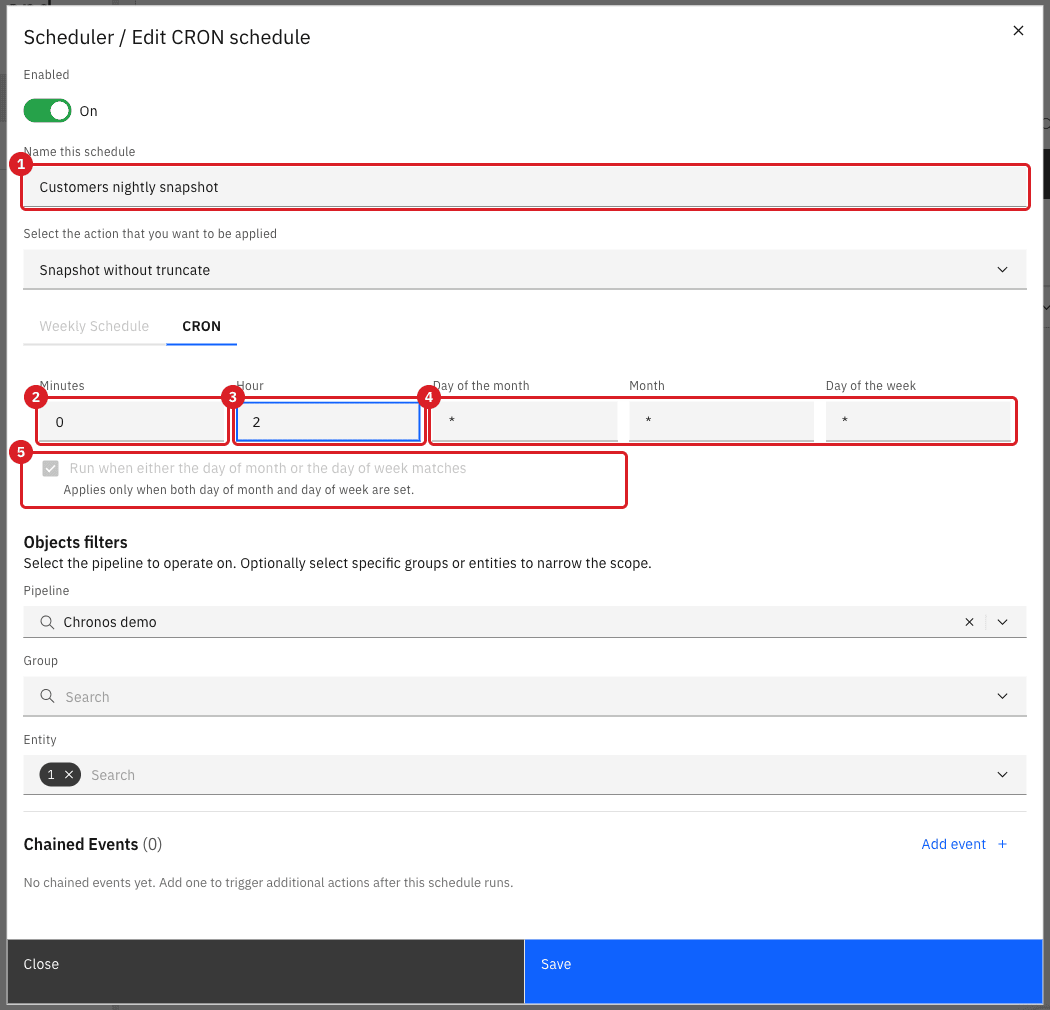
0 and hour 2 run the snapshot at 02:00 every day.The five cron fields are read left to right:
| Field | Example | Meaning |
|---|---|---|
Minutes |
|
At minute 0 of the hour. |
Hour |
|
At 02 o’clock, in the scheduler time zone (24-hour clock). |
Day of the month |
|
Every day of the month. |
Month |
|
Every month. |
Day of the week |
|
Every day of the week. |
The checkbox Run when either the day of month or the day of week matches is unavailable while at least one of the two day fields is *. It applies only when you set both. See Day of the month and day of the week for how the two fields combine.
|
The Weekly Schedule tab offers the same result without cron syntax: select the days, enter a start time in |
UI
A chained event is an extra action that Chronos runs after the schedule’s own action. Use one to load orders right after customers.
-
On the Schedules page, select New;
-
In Name this schedule, enter
Customers then orders; -
In Select the action that you want to be applied, select Snapshot without truncate;
-
Select the CRON tab and leave the five fields set to
*; -
In Pipeline, select Chronos demo, and in Entity select
customers; -
Under Chained Events, select Add event;
-
In Execution mode, keep Async (fire & forget);
-
In Action, select Snapshot without truncate;
-
In the Pipeline list of the chained event, select Chronos demo, and in its Entity list select
orders; -
Select Save.
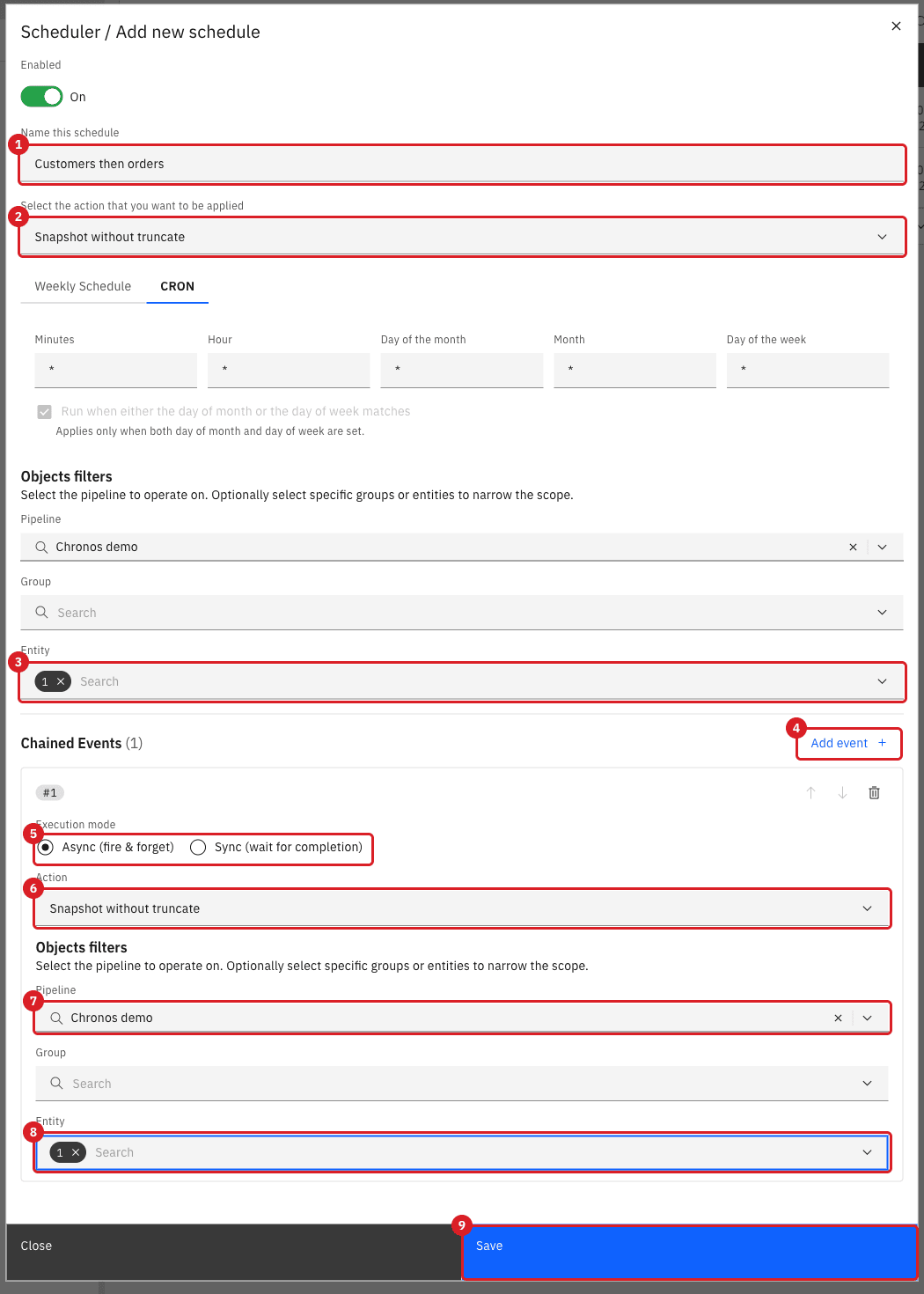
customers; the chained event loads orders after it.-
Before the next minute starts, delete rows from both target tables:
DELETE FROM shop_chronos.customers WHERE id <= 20; DELETE FROM shop_chronos.orders WHERE id <= 100; -
After the next run, count the rows again;
-
In the schedule row, select Disable schedule so that the chain stops firing every minute.
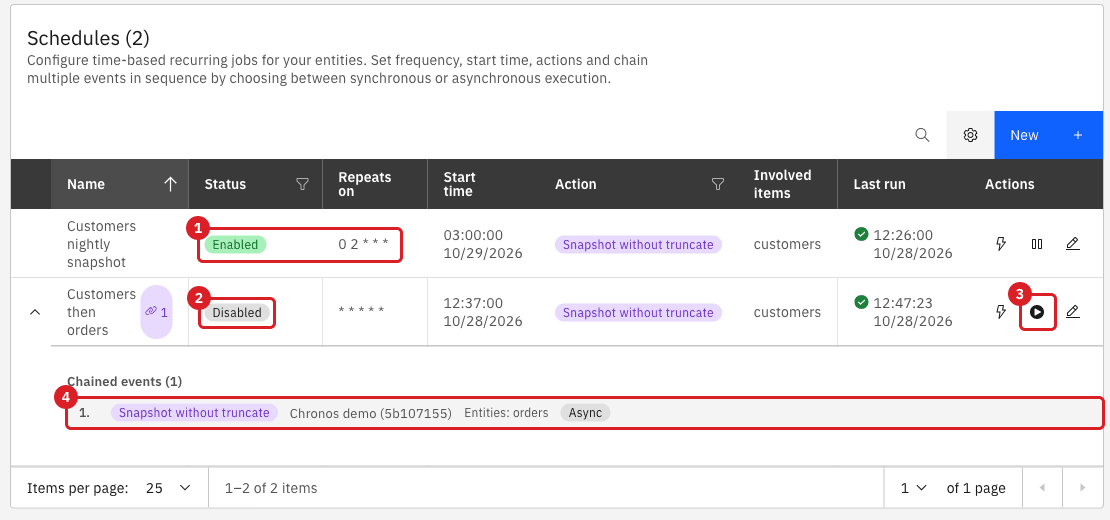
|
Optional, for advanced users
With shell access to the Docker host, the Chronos container log shows the order of the chain: |
| Execution mode | What Chronos does |
|---|---|
Async (fire & forget) |
Starts the chained action right after Chronos has started the previous action, and does not wait for the previous action to finish. |
Sync (wait for completion) |
Waits for the Core Hub completion event of the previous step, up to Webhook timeout (seconds) (default 3600), and then starts the chained action. If the event does not arrive in time, Chronos stops the chain and records the error on the schedule. |
|
Prefer Async for short snapshots. Chronos starts listening for the completion event only after the previous action has returned, about two seconds after the snapshot was started, so a sync step that follows a snapshot that finishes sooner than that waits until the timeout. A sync step also listens for events of its own pipeline, group, and entity: it is released only by an event of the entity that the chained action targets, so a chain from a |
UI SQL
Use this when a table must be emptied and reloaded on a schedule, for example every night, and live replication must keep running afterwards. One action does both: Snapshot with truncate + CDC. Do not build it from Snapshot with truncate and a chained CDC event: the table below shows why it fails.
The entity customers can be stopped or running in CDC when the schedule fires. In this guide it is stopped, as the previous steps left it.
-
Optional, to see the truncate at work: add a row to the target that does not exist in the source:
INSERT INTO shop_chronos.customers (id, full_name, country, tier, status, created_at) VALUES (99999, 'Stale row, not in the source', 'IT', 'gold', 'active', now()); -- run on the target -
On the Schedules page, select New;
-
In Name this schedule, enter
Customers truncate and CDC every minute; -
In Select the action that you want to be applied, select Snapshot with truncate + CDC;
-
Select the CRON tab and leave all five fields set to
*; -
In Pipeline, select Chronos demo, and in Entity select
customers; -
Leave Chained Events empty and select Save.
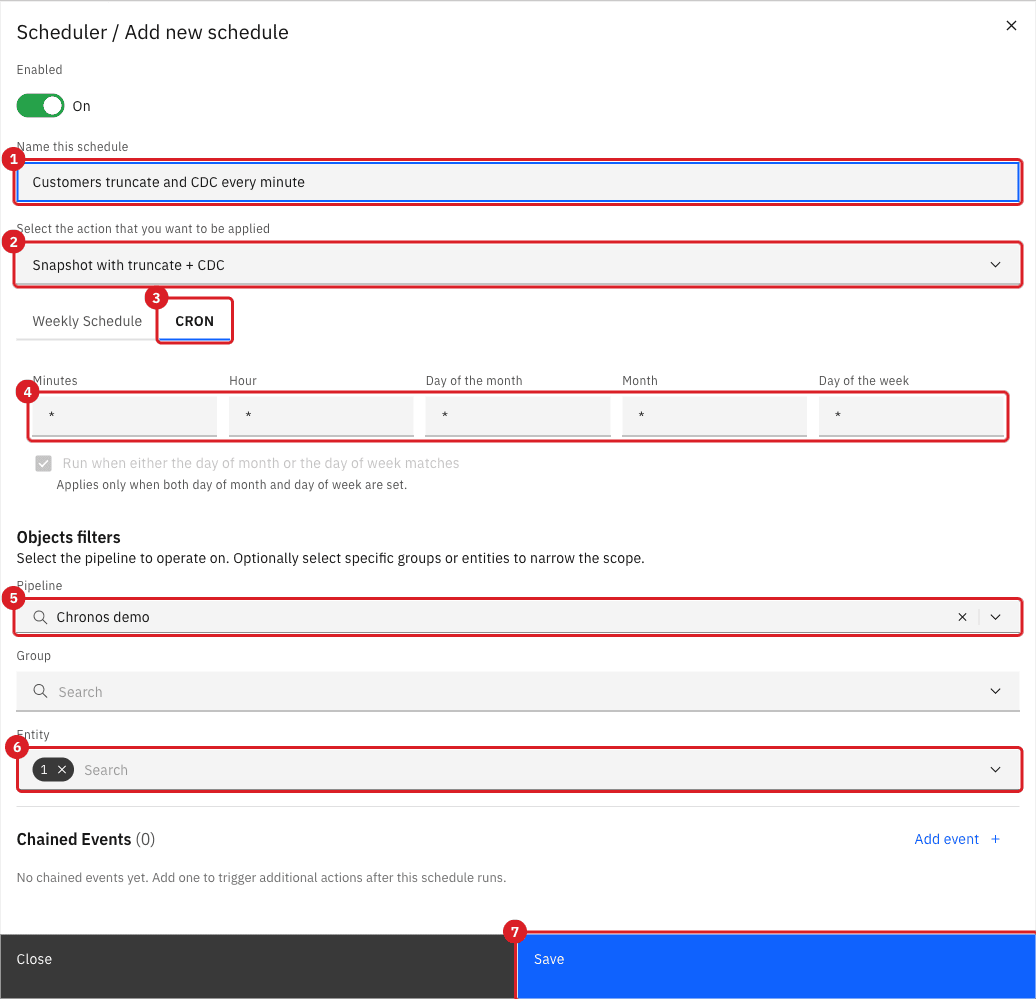
-
Wait until the next minute starts, reload the page, and read the Action and Last run columns of the schedule:
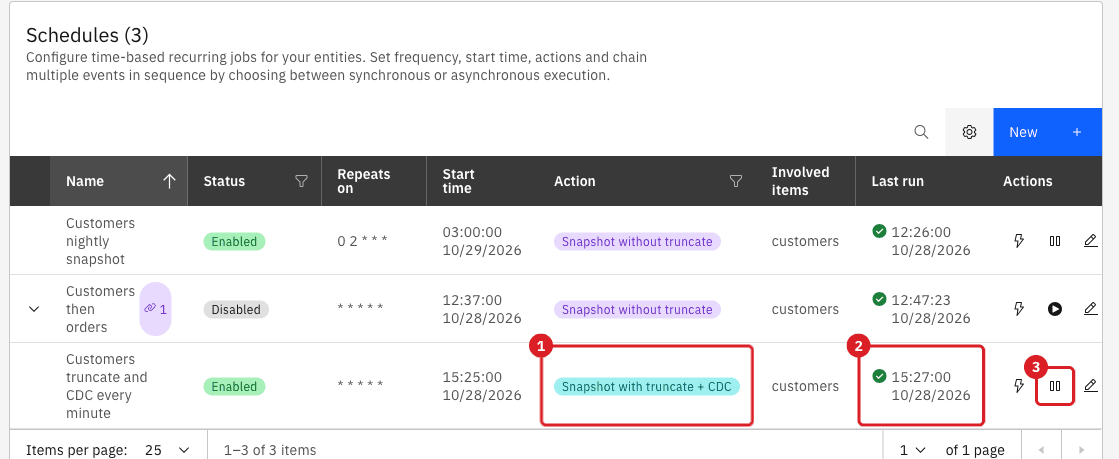
-
In the target database, check that the extra row is gone and that the counts match:
SELECT count(*) AS target_customers, count(*) FILTER (WHERE id = 99999) AS stale_rows FROM shop_chronos.customers; -- run on the target SELECT count(*) AS source_customers FROM shop.customers; -- run on the source -
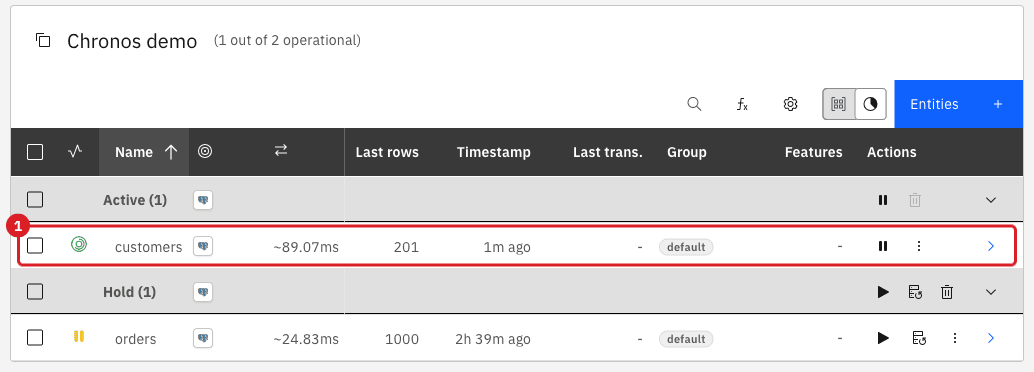
Open the pipeline Chronos demo and look at the
customersentity:
-
Prove that live changes flow: insert a row in the source, wait a few seconds, and look for it in the target:
INSERT INTO shop.customers (id, full_name, email, country, tier, status, credit_limit, created_at) VALUES (9601, 'Added after the schedule', 'after@example.com', 'DE', 'silver', 'active', 500, now()); -- run on the source SELECT id, full_name FROM shop_chronos.customers WHERE id = 9601; -- run on the target -
In the schedule row, select Disable schedule so that the table is not emptied and reloaded every minute.
The rest of this step explains the result. Snapshot with truncate stops the entity, waits about five seconds, and starts a one-time snapshot with the write method INSERT, which empties the target table before the first row is written. When the snapshot ends, Core Hub starts CDC again only for an entity that was in CDC when the snapshot started, and Chronos has just stopped it, so the entity stays stopped. The action Snapshot with truncate + CDC asks Core Hub for a re-sync instead: Chronos pauses the entity and waits until it has left the active state, then Core Hub empties the table, copies the rows, and starts CDC by itself. We ran each setup on customers (200 rows) and on a table of 1.5 million rows, whose snapshot takes between 25 and 60 seconds:
| Schedule | Table of 200 rows | Table of 1.5 million rows |
|---|---|---|
Snapshot with truncate |
Target reloaded. The entity stays stopped: a source |
Same. |
Snapshot with truncate, chained event CDC in Async (fire & forget) mode |
Works, but only because the snapshot ended before Chronos sent the start command. |
The start command reaches Core Hub while the snapshot is still running and is refused. The entity ends stopped and nothing in the Control Plane says so. |
Snapshot with truncate, chained event CDC in Sync (wait for completion) mode |
The chain waits for a completion event that was sent before Chronos started listening, and times out after Webhook timeout (seconds) (30 seconds in our test). Last run shows |
Works: the snapshot lasts longer than the two seconds Chronos needs to start listening. |
Snapshot with truncate + CDC |
Works. |
Works. |
|
A green mark in Last run only means that Core Hub accepted the command. A schedule whose chained CDC start was refused still shows a green mark. Always check that the entity is in the Active section and that a new source row reaches the target. |
|
Changes made on the source while the snapshot runs are not lost: an |
UI
Chronos has no action that calls an HTTP endpoint. To be notified when a scheduled snapshot ends, use a Core Hub webhook: Gluesync posts a CloudEvents JSON document to your endpoint for every matching event. This also shows the order of the chain from the receiver’s side.
-
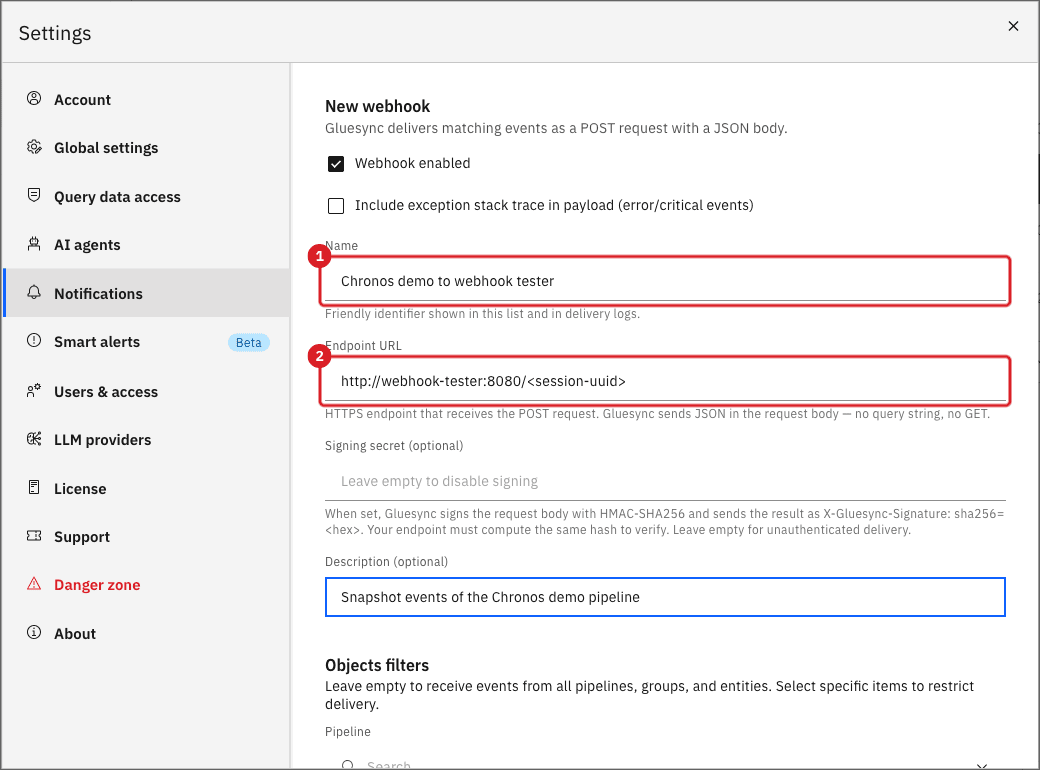
Open the receiver and copy its endpoint URL. In WebHook Tester, create a session and copy the address that Core Hub must call, for example
http://webhook-tester:8080/<session-uuid>;; -
In the Control Plane, select the gear icon (Settings) in the top bar;
-
Select Notifications, then the Webhooks tab;
-
Select Add webhook;
-
In Name, enter
Chronos demo to webhook tester; -
In Endpoint URL, enter the receiver address;
-
In Description (optional), enter a short note.
-
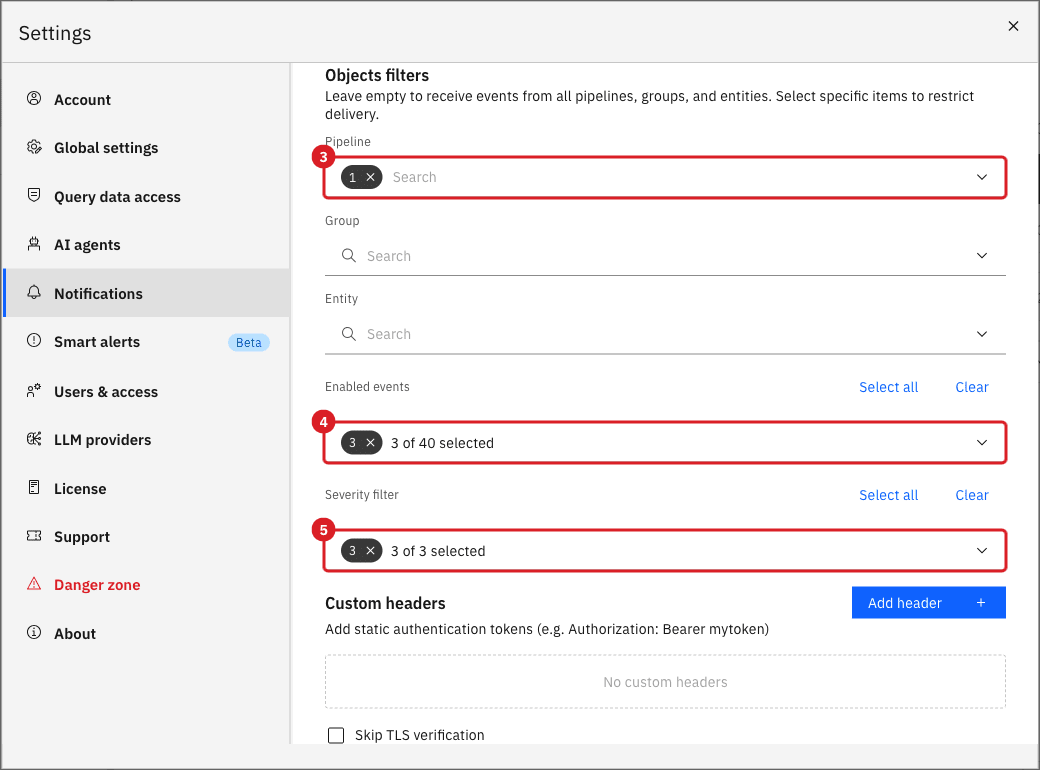
Scroll down to Objects filters, and in Pipeline select Chronos demo;
-
In Enabled events, select Entity Snapshot Started, Entity Snapshot Completed, and Entity Snapshot Failed;
-
Next to Severity filter, select Select all;
-
Select Send test;
-
Select Create webhook.
-
Open Schedules & events > Schedules and, in the Customers then orders row, select Run now;
-
Open the receiver and select the newest request.
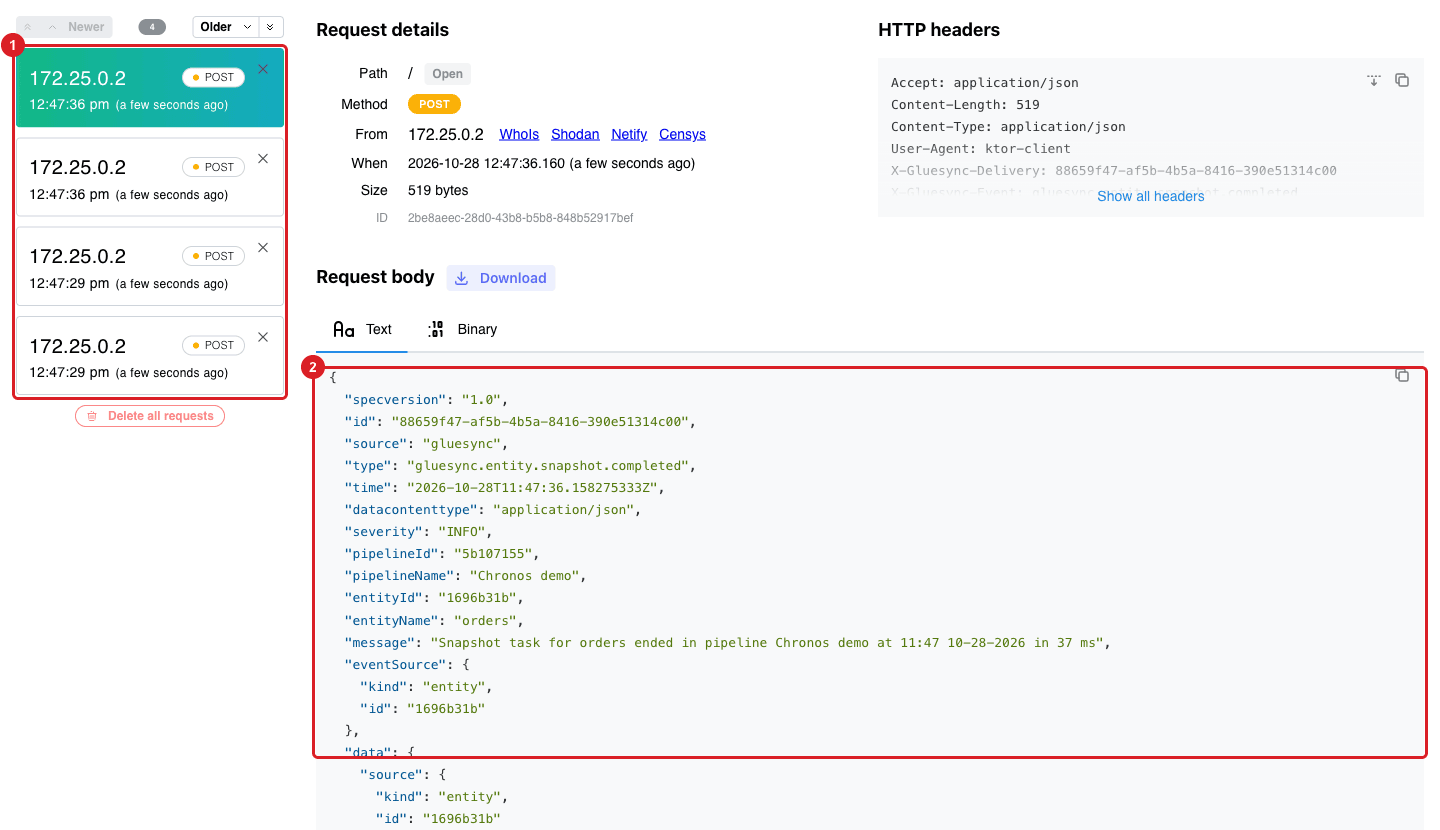
orders snapshot.The body of the last request looks like this:
{
  "specversion": "1.0",
  "id": "88659f47-af5b-4b5a-8416-390e51314c00",
  "source": "gluesync",
  "type": "gluesync.entity.snapshot.completed",
  "time": "2026-10-28T11:47:36.158275333Z",
  "datacontenttype": "application/json",
  "severity": "INFO",
  "pipelineId": "5b107155",
  "pipelineName": "Chronos demo",
  "entityId": "1696b31b",
  "entityName": "orders",
  "message": "Snapshot task for orders ended in pipeline Chronos demo at 11:47 10-28-2026 in 37 ms",
  "eventSource": { "kind": "entity", "id": "1696b31b" },
  "data": { "source": { "kind": "entity", "id": "1696b31b" } }
}|
The Severity filter decides which events are delivered, and a webhook with an empty Severity filter delivers none of the events that you selected, although Send test still succeeds. Select all three severities, or only the ones you want. |
|
The Webhooks tab also lists rows named |
UI CLI
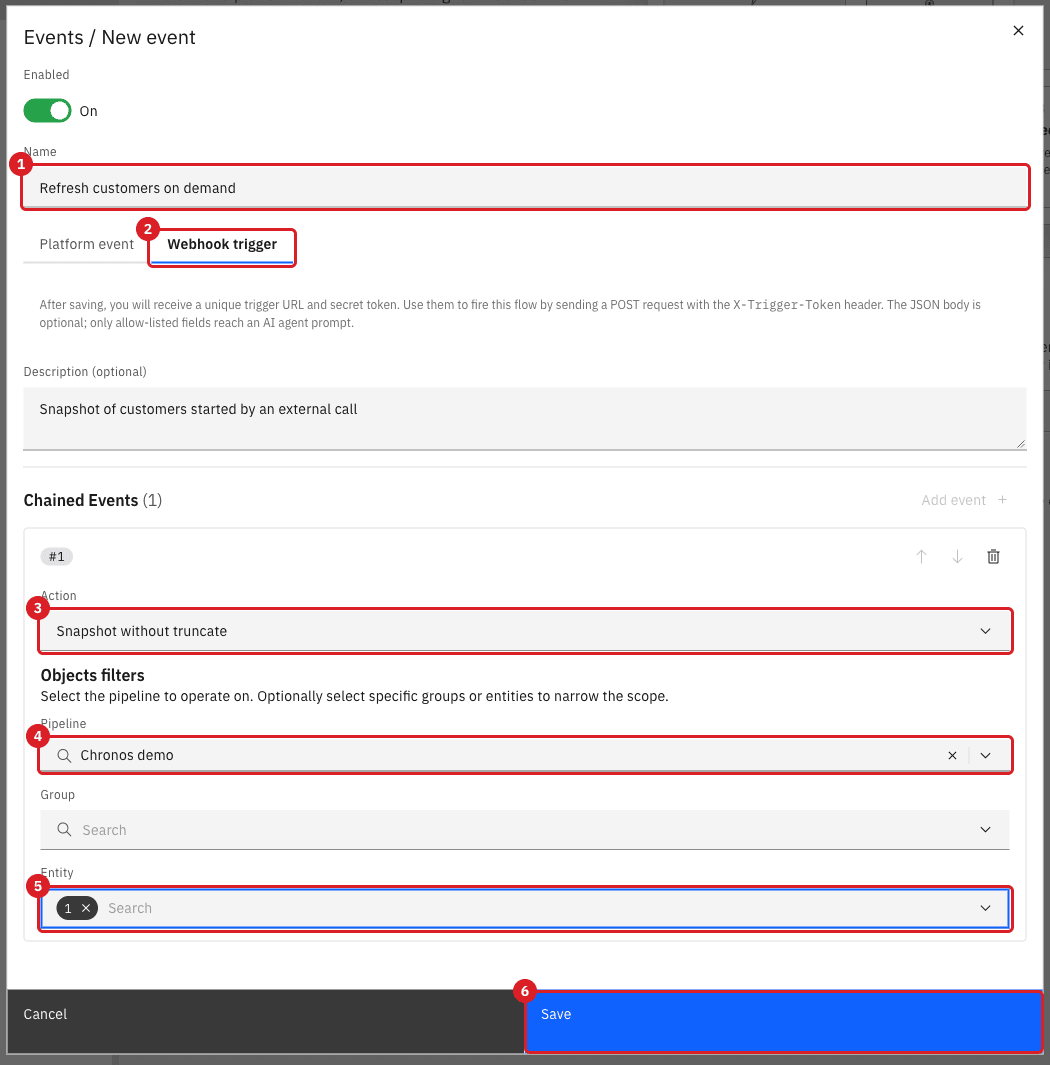
An event with a Webhook trigger gets its own URL and secret token. Any system that can send an HTTP POST request, such as a CI job or an orchestrator, can then start the event’s action.
-
Select Schedules & events, then Events;
-
Select New;
-
In Name, enter
Refresh customers on demand; -
Select the Webhook trigger tab;
-
In Description (optional), enter a short note;
-
Under Chained Events, select Add event;
-
In Action, select Snapshot without truncate;
-
In Pipeline, select Chronos demo, and in Entity select
customers; -
Select Save.
-
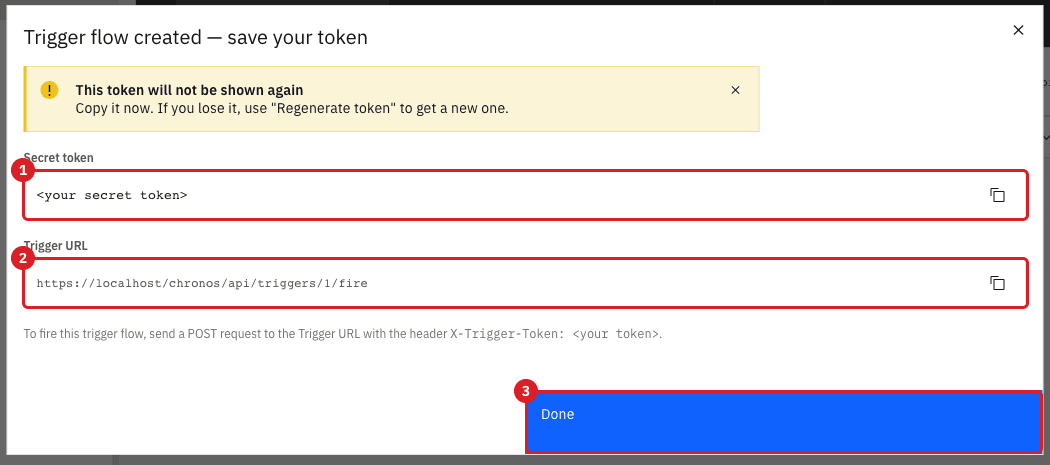
In the Trigger flow created — save your token dialog, select the copy icon next to Secret token and store the token in a password manager or secret store;
-
Copy the Trigger URL;
-
Select Done.
-
Delete some rows from the target table, so that the effect is visible:
DELETE FROM shop_chronos.customers WHERE id <= 20; -
From a shell, call the trigger URL with the token in the
X-Trigger-Tokenheader. Use-konly if the Control Plane has a self-signed certificate:curl -k -i -X POST "https://<control-plane-address>/chronos/api/triggers/1/fire" \ -H "X-Trigger-Token: <secret-token>" -
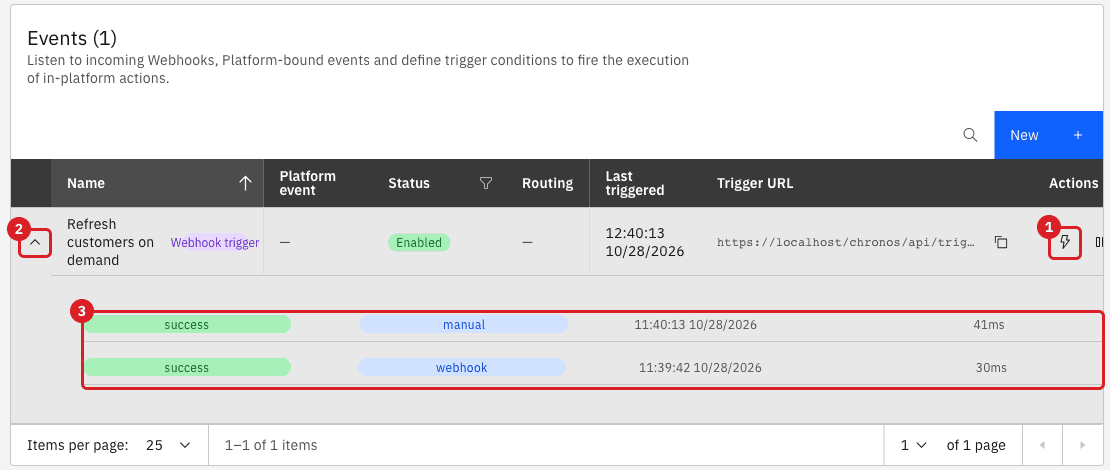
Count the target rows again after a few seconds, and select the expand arrow of the event in the Events table.
|
Add |
Understand where each result is visible
| What you want to know | Where to look | What you see |
|---|---|---|
Did the schedule fire? |
Last run column on the Schedules page |
Time of the latest run, a green or red mark, and the error text for a failed run. |
Did the data arrive? |
SQL on the target tables |
Row counts equal to the source. |
In which order did the chain run? |
Requests received by an outbound webhook |
The |
Did an external call start the event? |
Event log in Schedules & events > Events |
One row per run with the source webhook or manual. |
Did Gluesync deliver the webhook? |
Settings > Notifications > Webhooks, Delivery logs |
One row per delivery with its HTTP status. |
Troubleshooting
| Problem | Possible cause | What to do |
|---|---|---|
The schedule never shows a Last run |
The schedule is Disabled, or the next run has not been reached |
Select Enable schedule, check Start time for the next run in your browser’s time zone, or select Run now to test the action. |
The schedule runs at the wrong hour |
The cron expression is read in the scheduler time zone, not in your browser’s |
Check Timezone in Scheduler settings. A schedule keeps the time zone it was created with, so create it again after changing the setting. |
The snapshot ran but the target is empty |
The target table does not exist or has different columns |
Create the tables as in step 1, and read the notifications in the Control Plane for the error. |
A sync chained event never starts and the schedule records |
The previous step finished before Chronos started listening, or it ran on a different entity than the chained step |
Use Async (fire & forget), or use sync mode only after a long-running action on the same entity. Hover over the red mark in Last run to read the error, for example |
The webhook receives nothing after Run now |
Severity filter is empty, the event types do not match, or the Objects filters exclude the pipeline |
Select all severities, check Enabled events, and check that Pipeline is Chronos demo. Look at Delivery logs under Settings > Notifications > Webhooks. |
Send test does not reach the receiver |
The endpoint is not reachable from Core Hub |
Use the address that Core Hub can resolve. From a container, use the receiver’s container name and its internal port, not |
After a Snapshot with truncate run the target is reloaded, but the entity is stopped and new source rows never arrive, although Last run is green |
Snapshot with truncate does not return the entity to CDC, and a chained CDC event is either refused while the snapshot is still running (Async) or times out for a short snapshot (Sync) |
Edit the schedule: choose the action Snapshot with truncate + CDC, with no chained event. To recover now, select Start sync on the entity. Check the Active section of the pipeline after every run. |
Snapshot with truncate + CDC leaves rows in the target that are not in the source |
The setting Disable truncate on target table before snapshot inserts of the target agent is on, so the table is not emptied |
Turn the setting off in the advanced settings of the target agent and run the schedule again. We checked it with a stale row: with the setting on, the row stayed in the target after the run. |
|
The token is wrong, missing, or was regenerated |
Copy the token again. If you lost it, regenerate it from the event in the Events table. |
|
The event is disabled |
Enable the event in the Events table. |
Related guides
Contact MOLO17 Support if you need assistance with schedules, events, or webhooks.