Free disk space and manage cache and logs
A Gluesync host that runs out of disk space stops replicating, and the Control Plane does not warn you before it happens. This guide shows what grows on the disk, how to see it, which folders are safe to clean and which are never safe, how to cap logs and the source cache, what to do when the disk is already full, and how to avoid a failed update.
In this guide
You will learn how to see what uses the disk, free space safely from the Control Plane and from the host, cap the Core Hub log, the source agent cache, notifications and webhook logs, check the Prometheus and Docker limits, recover from a full disk in the right order, understand the free-space check that runs before an update, and watch free space so that you are warned early.
Quick information
Goal |
Keep the Gluesync disk from filling up, and recover without losing changes when it has |
Audience |
Administrators who run Gluesync with Docker Compose on Linux or Windows Server |
Level |
Intermediate |
Time required |
About 30 minutes |
Area |
Control Plane → Settings → Support, Settings → Notifications, pipeline → Edit source; host shell |
Applies to |
Gluesync 2.3 |
Before you begin
Make sure that:
-
You can sign in to the Gluesync Control Plane with a role that can change settings;
-
You have shell access with administrator rights to the host that runs Gluesync (
rootorsudoon Linux, an elevated PowerShell on Windows Server); -
You know the Gluesync folder, the folder that contains
docker-compose.yml(for example/opt/gluesyncon Linux orC:\Program Files\Gluesyncon Windows Server). The paths below are relative to it; -
You have at least one pipeline with a source agent that keeps a local cache (this guide uses a MySQL source agent).
|
The Control Plane does not show how much disk space is free. In the tests behind this guide, a disk with less than 1 MB free raised no notification and no system condition, and the Core Hub metrics, the Core Hub Grafana dashboard and the Control Plane have no disk gauge. Use the host commands in this guide, and set up monitoring in Watch free space so that you are warned early. |
What grows on the disk
The table lists every place where a Gluesync installation writes, with what is safe to do. Paths are relative to the Gluesync folder.
| Place | What it holds and when it grows | Limit you can set | Clean by hand? |
|---|---|---|---|
|
The source agent cache: changes read from the source and not yet delivered to the target. Created by the agents that cache locally (in the tests: MySQL). The files grow in steps of 64 MiB when the target, Core Hub or the network cannot keep up with the source. |
Source change retention in hours on the source agent (Cap the source cache and keep it draining) |
No. Deleting it loses the undelivered changes without any error (see Cap the source cache and keep it draining). |
|
Reader checkpoint and agent bootstrap file. Tiny. |
None needed |
No. The checkpoint tells the agent where to continue. |
|
Core Hub’s own databases: pipelines and settings, notifications, metrics, AI and data comparison. About 5 MB after an hour with one busy pipeline. |
Notification and webhook retention (Trim notifications and webhook logs) |
No. It holds your configuration. Use a backup if you need a copy. |
|
Connection assets such as uploaded certificates. |
None needed |
No. |
|
The Core Hub log. It rolls over at 100 MB per file, the rolled files are compressed (in the lab, a 105 MB log became |
Log level, Max history (Days) and Total size cap (GB) (Cap the Core Hub log and the Docker logs) |
Yes, with Clear Logs. Do not delete the active log with |
|
Logs of the Conductor and Chronos modules. The Conductor log grew by about 3 MB per hour in the lab. |
Check the size with |
Yes, after you stop the module. |
Docker images |
About 8 GB for the default kit (Core Hub 3.3 GB, Chronos 2.4 GB, Grafana 1.4 GB, Conductor 0.4 GB, Prometheus 0.4 GB, Traefik 0.2 GB). Each update adds the new images next to the old ones. |
Remove images that no container uses (Free space safely right now) |
Yes, unused images only. |
Docker container logs |
Without a limit, Docker keeps every line the containers print. In a test, a container that printed 40 MB left a single 40 MB file. |
Docker log rotation (Cap the Core Hub log and the Docker logs) |
Cap them. Do not delete files inside Docker’s own folder by hand. |
Prometheus data |
The metrics database. It lives inside the Prometheus container, not in a folder of the kit. About 19 MB per hour with 6,000 series and a 5-second scrape in the lab. |
|
Cap it. Do not delete it while Prometheus runs. |
Grafana |
About 86 MB inside the Grafana container, almost all of it static. |
None needed |
Leave it. |
Guide steps
CLI
-
On the host, go to the Gluesync folder;
-
Check the free space of the disk that holds it;
-
Show the size of each Gluesync folder;
-
Find the biggest files in the agent folders;
-
Show what Docker uses.
On Linux:
cd /opt/gluesync
df -h .
du -sh data/core-hub/* logs
du -ah data/core-hub/agents | sort -h | tail -n 10
docker system df
On Windows Server, use an elevated PowerShell. Get-PSDrive C shows the free space of the disk, and docker system df shows what Docker uses:
cd "C:\Program Files\Gluesync"
Get-PSDrive C
docker system df
Example output of the du commands in the lab:
33M     data/core-hub/agents
6.0K    data/core-hub/connections
5.5M    data/core-hub/database
49K logs|
Optional, for advanced users
Core Hub writes a hardware summary to its log once a minute, with a line such as |
UI CLI
Start with the actions that cannot lose data, and stop as soon as you have enough space.
-
In the Control Plane, select the gear icon in the top bar and open Support;
-
Scroll to Clear Logs and select it;
-
In the Confirm Clear Logs dialog, tick Also remove previously generated support archives only if you have already uploaded or saved them;
-
Select Confirm.
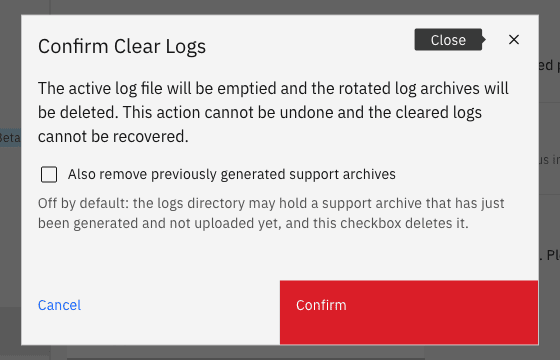
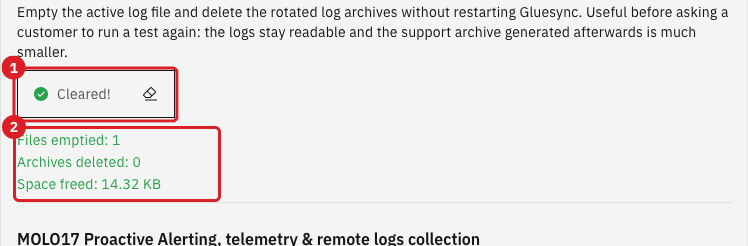
Then, on the host, remove the Docker images that no container uses:
docker image prune -a|
|
|
Clear Logs works even when the disk is at 100 percent, because it truncates the active file in place. In a test with 0 bytes free, it still ran and gave the space back. Changing a setting at that point fails with |
UI Config
-
Open Settings → Support and scroll to Log level settings;
-
Select INFO in Log level. The change applies at once, without a Save;
-
Scroll to Log retention settings;
-
Enter Max history (Days), for example
3; -
Enter Total size cap (GB), for example
5; -
Select Save.
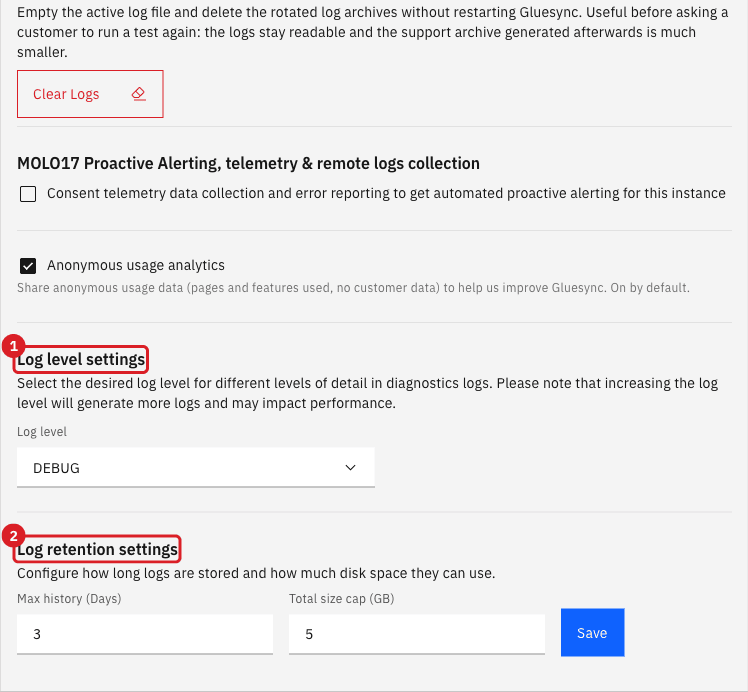
Then cap the container logs of Docker itself. Follow Log rotation in the Docker installation guide, which merges max-size and max-file into the Docker daemon configuration. Docker applies the new limits only to containers that are created afterwards, so recreate the Gluesync containers (an update does it) for the change to take effect.
|
The values in Log retention settings are the ones Core Hub applies, also at every start. They win over the |
|
Do not delete the active log file with |
|
DEBUG is the default level in the kit. At idle, a Core Hub at DEBUG wrote about 14 KB of log per minute, and at INFO about 6.6 KB per minute. A busy pipeline writes much more. Keep DEBUG for the time you need it, and read Logging for the other options. |
UI
The source agent writes every change to its local cache before it sends the change to Core Hub and the target. The cache grows when the target, Core Hub or the network cannot keep up, and it shrinks again when the target catches up.
-
Open the pipeline and select the gear icon above the entity table;
-
Select Edit source;
-
Open the Advanced settings tab;
-
Set the key Source change retention in hours. If the key is not in the list, select Add property and choose it. The default is
24. Enter a lower value, for example8; -
Select Test and continue.
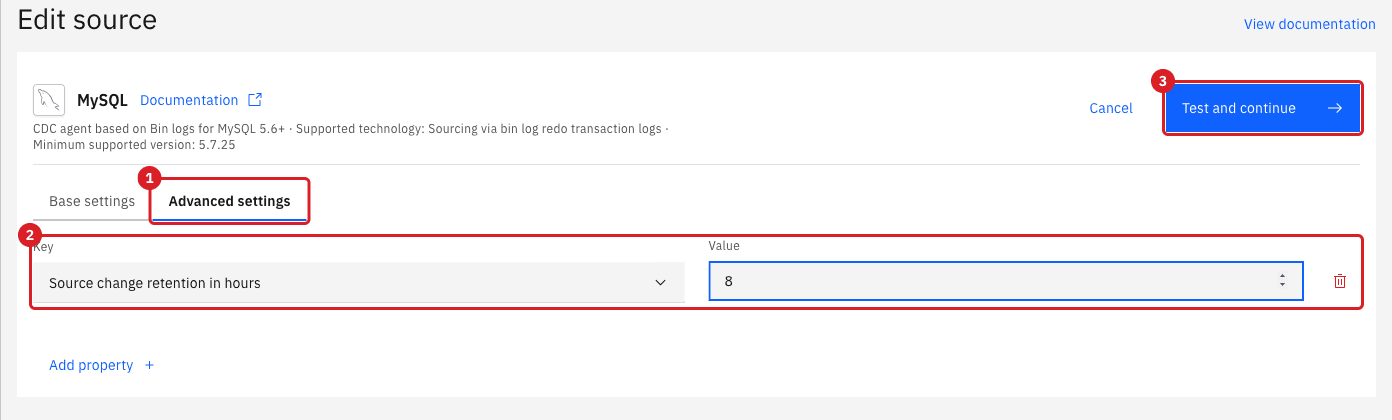
Lowering the value limits how much disk the cache can use, and it limits how long Core Hub or the target can be down before the agent drops changes. Choose a value longer than your longest expected outage, then plan a snapshot for anything older.
What fills the cache, and how it drains. In the tests, with the target database stopped and a MySQL source that kept receiving rows (about 2.9 KB each):
-
The cache file of the entity grew from 16 MiB in steps of 64 MiB, to 400 MiB after 100,000 rows;
-
The Control Plane showed no warning while it grew;
-
After the target started again, the backlog drained on its own, the file went back to 16 MiB and about 340 MB of disk space was released, without any manual cleaning;
-
An entity that was stopped did not add to the cache of the MySQL agent. The changes stayed in the source database log until the entity was started again, and then reached the target.
|
Never delete the |
UI
These are small, but they have no other limit, so set them to what you need.
-
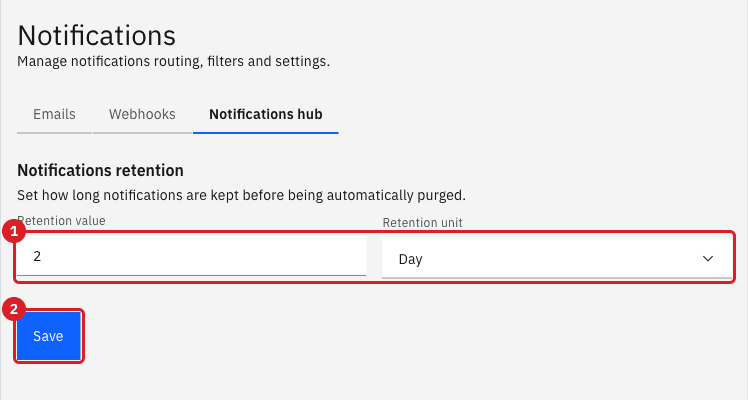
Open Settings → Notifications;
-
Open the Notifications hub tab;
-
Set Retention value and Retention unit. The default is
2Day; -
Select Save.
-
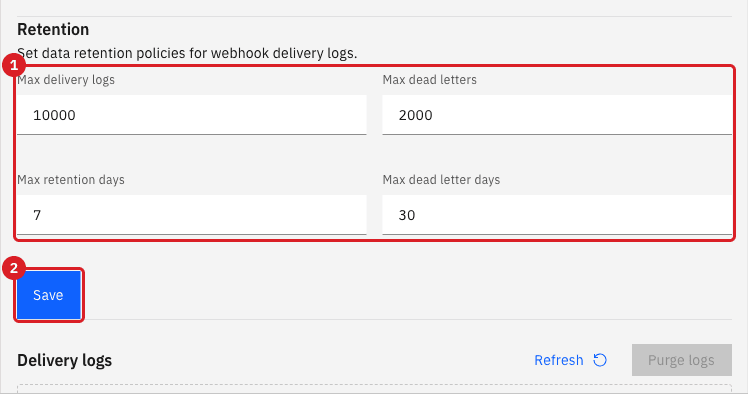
Open the Webhooks tab and scroll to Retention;
-
Set Max delivery logs, Max dead letters, Max retention days and Max dead letter days. The defaults are
10000,2000,7and30; -
Select Save.
CLI Config
The default kit starts Prometheus with a size cap and a time cap. Prometheus deletes the oldest data when either one is reached.
-
Open
docker-compose.ymland find theprometheusservice. The default kit sets:command: - --storage.tsdb.retention.size=5GB - --storage.tsdb.retention.time=5d -
Confirm what Prometheus runs with:
curl -sk https://<host>/prometheus/api/v1/status/flags | tr ',' '\n' | grep retention -
To change the limits, edit the two values and recreate the container with
docker compose up -d prometheus.
|
In the default kit the Prometheus data folder is inside the container: the line |
CLI
What you see depends on what filled the disk.
The source cache filled it. In the tests, Core Hub crashed: the Java process ended with a SIGBUS error (exit code 134) when the cache needed more space, Docker restarted the container again and again, and the Control Plane did not answer. No change was lost. Freeing 15 MB was not enough: Core Hub used it in seconds and crashed again. Freeing or adding a few hundred MB, with the target running, let it start and drain the cache.
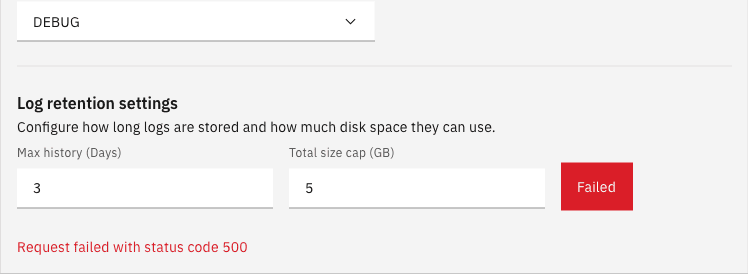
Something else filled it, and the cache did not need to grow. Core Hub kept running and you could sign in. Saving a setting failed with an error, as in the screenshot, and Clear Logs still worked.
Recover in this order:
-
Do not delete anything inside
data/core-hubyet; -
If Core Hub restarts again and again, stop it so that it does not fail repeatedly:
docker compose stop gluesync-core-hub -
Make room without touching Gluesync state: delete the rolled logs in
logs/core-hub/archived/(Core Hub is stopped), remove unused images (Free space safely right now), delete files that are not Gluesync’s, or add disk space. Adding space was the cleanest recovery in the tests; -
Make sure the target database is running and reachable;
-
Start Core Hub again:
docker compose start gluesync-core-hub -
Sign in, open the pipeline and wait while the entities catch up. The cache drains and its files shrink by themselves;
-
Only when there is no other way to get space, and you accept a new snapshot, stop Core Hub and remove the cache files of the entity (Cap the source cache and keep it draining).
|
A crash can cut a batch in half. In a test, after the crash an entity showed On error and paused, and the target reported |
API Config
An update downloads several GB of images and rewrites docker-compose.yml. A disk that fills up halfway can leave that file empty (0 bytes), and then neither the update nor a restart can read it. Recent Conductor versions therefore check the free space first, before they download or change anything.
In a test, with the Gluesync folder on a 64 MB disk, an update request was refused at once with HTTP 507 and the error DISK_FULL, and docker-compose.yml was byte-for-byte unchanged:
{
  "success": false,
  "error": "Failed to do containers action",
  "details": "not enough free disk space to write /mnt/kit/docker-compose.yml: need 536870912 bytes, 55992320 available",
  "diagnosis": {
    "code": "DISK_FULL",
    "params": { "path": "/mnt/kit/docker-compose.yml", "neededBytes": 536870912, "availableBytes": 55992320 },
    "resolutionCodes": ["FREE_DISK_SPACE", "CONTACT_SUPPORT_WITH_DETAILS"]
  }
}
The check works like this:
-
It measures the volume that holds
docker-compose.yml. The path in the error names it; -
The default is 512 MiB (
536870912bytes); -
It does not measure Docker’s data folder, where the images are downloaded. Check that folder yourself with
docker system dfanddf -hbefore you update.
To change the threshold, set CONDUCTOR_UPDATE_MIN_FREE_BYTES (a number of bytes) in the Conductor service and recreate it:
  gluesync-conductor:
    environment:
      - CONDUCTOR_UPDATE_MIN_FREE_BYTES=2147483648
docker compose up -d gluesync-conductor|
Free space before you update, and keep a copy of |
Config
Gluesync does not raise an alert for a full disk. Add one on the host.
-
Use your server monitoring (for Windows Server, the monitoring you already use for the system disk), and alert at 20 percent free and again at 10 percent free, on the disk that holds the Gluesync folder and on the disk that holds Docker’s data;
-
If you use Prometheus, add
node_exporterto the scrape configuration and a rule such as the one below. In the lab, a rule of this form was reported asfiringby Prometheus.groups: - name: gluesync-disk rules: - alert: GluesyncDiskLow expr: | node_filesystem_avail_bytes{mountpoint="/", fstype!~"tmpfs|overlay"} / node_filesystem_size_bytes{mountpoint="/", fstype!~"tmpfs|overlay"} < 0.20 for: 5m labels: severity: warning annotations: summary: "Less than 20% free on the Gluesync disk" -
Set the
mountpointto the mount point of the disk that holds the Gluesync folder, and send the alert with the Alertmanager or Grafana alerting that you already use.
|
The Core Hub Grafana dashboard has panels for CPU, JVM heap and system memory, but none for disk. Read Monitor pipelines in Grafana for the panels that exist. |
Troubleshooting
| Problem | Possible cause | What to do |
|---|---|---|
The Control Plane does not open and the Core Hub container keeps restarting |
The disk is full and the cache needed more space, so the Java process crashed (exit code 134) |
Stop Core Hub, add or free several hundred MB, make sure the target is running, and start Core Hub (Recover when the disk is already full) |
A setting fails with |
The disk is full, so Core Hub cannot write its database |
Use Clear Logs, free more space, and save the setting again |
|
The active log was deleted while Core Hub kept it open |
Restart Core Hub, and use Clear Logs next time |
The |
The target is slower than the source, or it was down |
Check the target and the entity status. The cache drains when the target catches up. Lower Source change retention in hours only if you accept dropping older changes |
The target is missing rows after you cleaned |
The cache held changes that were not delivered, and they were deleted |
Start the entity with a snapshot to copy the rows again, as in Start a snapshot and CDC replication |
|
Container logs without a limit, or old images |
Check |
An update fails with |
The volume that holds |
Free space on that volume and try again. Nothing was changed (Understand the free-space check before an update) |
The update reports no error but the images do not download |
Docker’s data folder is full, which the check does not measure |
Check |
|
An older Conductor was writing the file when the disk filled up |
Do not restart the stack. Look for |
Related guides
Contact MOLO17 Support if you need assistance with disk space, caches or logs.