Write and test a UDF to convert dates, times, and names
When a source column cannot be copied to the target as it is, a built-in field function covers the simple cases and a User Defined Function (UDF) covers the rest. This guide shows how to choose between them, how to write a UDF in the Control Plane that parses text into dates in several formats, writes a TIME as text with a pattern, feeds one source field into two target columns, and handles nulls and bad values, and how to test it before it touches real data.
In this guide
You will learn how to decide between a built-in field function, a Custom Field Function, and a UDF; map source fields to target columns with arrows; apply the built-in functions that fit; write, compile, and test a UDF in the editor, including how to read and fix a compile error and a wrong-type error; attach it to an entity; run a snapshot and a change data capture (CDC) change; and verify the target values with SQL.
Quick information
Goal |
Convert text to dates, a TIME to text, and one field into two columns with a tested UDF, and keep nulls and bad values under control |
Audience |
Data engineers and integration developers who can read basic Java |
Level |
Intermediate |
Time required |
About 45 minutes |
Area |
Control Plane → Pipelines → entity Options → Edit mapping → UDF |
Applies to |
Gluesync 2.3 |
Before you begin
Make sure that:
-
A pipeline already has a source and a target that Core Hub can read, for example PostgreSQL to PostgreSQL, and you can edit its entities;
-
The source table holds the values to convert and the target table already has columns of the types you need. In this guide the source is
shop_udf.events, with a date stored as text in several formats, aTIMEcolumn, a full name, and a code with stray spaces, and the target isshop_udf.eventswithDATEandvarcharcolumns (the tables are in the optional first step); -
The entity is not started, or you accept that saving its mapping stops it;
-
You can open Query Studio, or any SQL client, on the target database.
|
The UDF editor in the Control Plane writes Java: the language label under the editor reads Java. The code in this guide uses only the standard Java library and the classes that the generated code already imports. |
Choose a field function, a Custom Field Function, or a UDF
Gluesync offers three ways to change a value on its way to the target. Pick the lightest one that does the job.
| Use | When | What you saw in this guide |
|---|---|---|
One source column feeds one target column (1:1) and the transformation is in the catalog: trim a string, format a |
Convert Time to String with the pattern |
|
Your own logic for one target column, reused by several entities, or one target built from several source columns (N:1). |
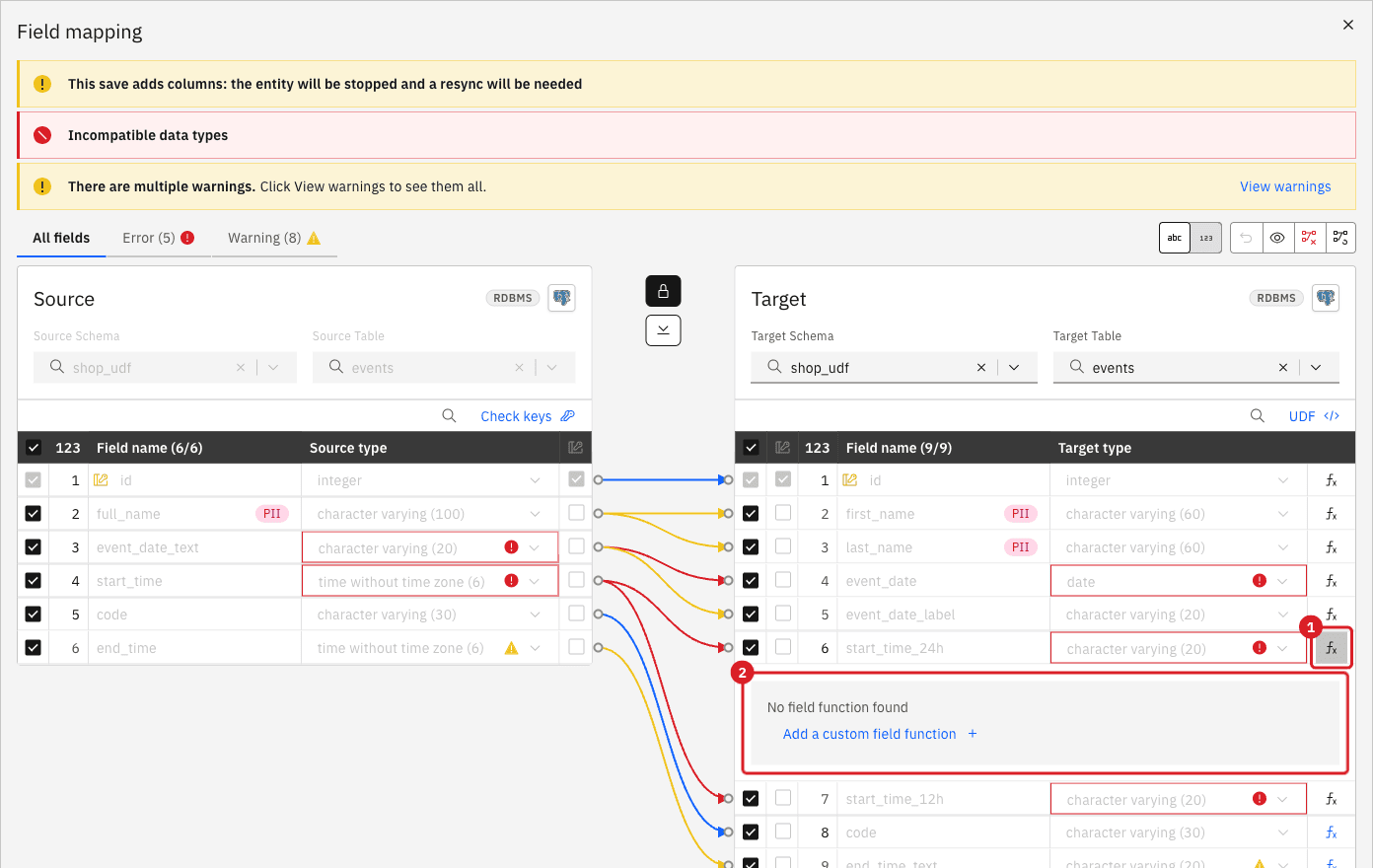
For a target that is fed by a source field that also feeds another column (1:N), the fx panel lists no built-in function and offers Add a custom field function only. |
|
You need logic that a catalog function cannot express: try several input formats, split one value into two columns, choose a default for a null or a bad value, or decide row by row. |
Parse four date spellings, split a full name, write the same |
A built-in field function is always the first choice. In this guide a UDF is needed because the date arrives in four spellings and because one source field feeds two target columns.
|
The three can be combined on one entity. The UDF runs first, then the field functions run on what the UDF returned. The next steps show what that means for the columns that have a field function. |
Guide steps
SQL
Skip this step if you use your own tables. Otherwise create the source table and the target table, and add the pipeline UDF demo with an entity that maps shop_udf.events to shop_udf.events.
-
In the source database, run:
CREATE SCHEMA IF NOT EXISTS shop_udf; CREATE TABLE shop_udf.events ( id integer PRIMARY KEY, full_name varchar(100), event_date_text varchar(20), start_time time, code varchar(30), end_time time ); INSERT INTO shop_udf.events (id, full_name, event_date_text, start_time, code, end_time) VALUES (1, 'Maria Rossi', '20260131', '09:30:00', ' ab-001 ', '11:00:00'), (2, 'Luca de Angelis', '31/01/2026', '14:05:30', 'cd-002', '15:35:30'), (3, 'Cher', '2026-02-15', '23:59:59', ' ef-003', '01:29:59'), (4, 'Anna Maria Verdi', '15.02.2026', NULL, 'gh-004 ', NULL), (5, 'Paul Smith', 'not a date', '08:00:00', 'ij-005', '09:30:00'), (6, NULL, NULL, '00:00:00', NULL, '01:30:00'); -
In the target database, run:
CREATE SCHEMA IF NOT EXISTS shop_udf;
CREATE TABLE shop_udf.events (
  id               integer PRIMARY KEY,
  first_name       varchar(60),
  last_name        varchar(60),
  event_date       date,
  event_date_label varchar(20),
  start_time_24h   varchar(20),
  start_time_12h   varchar(20),
  code             varchar(30),
  end_time_text    varchar(20)
);
The source columns and what each target column receives:
| Source column | Target column | Conversion |
|---|---|---|
|
|
Copied |
|
|
UDF: one field into two columns |
|
|
UDF: text in four formats into a |
|
|
UDF: a |
|
|
Built-in field function Convert Time to String, pattern |
|
|
Built-in field function Trim String |
UI
-
Open the pipeline UDF demo;
-
On the row of the entity
events, select the three-dot Options menu, and then select Edit mapping. The Field mapping dialog (the Fields Editor) opens; -
Check the source field
end_timeif it is not checked; -
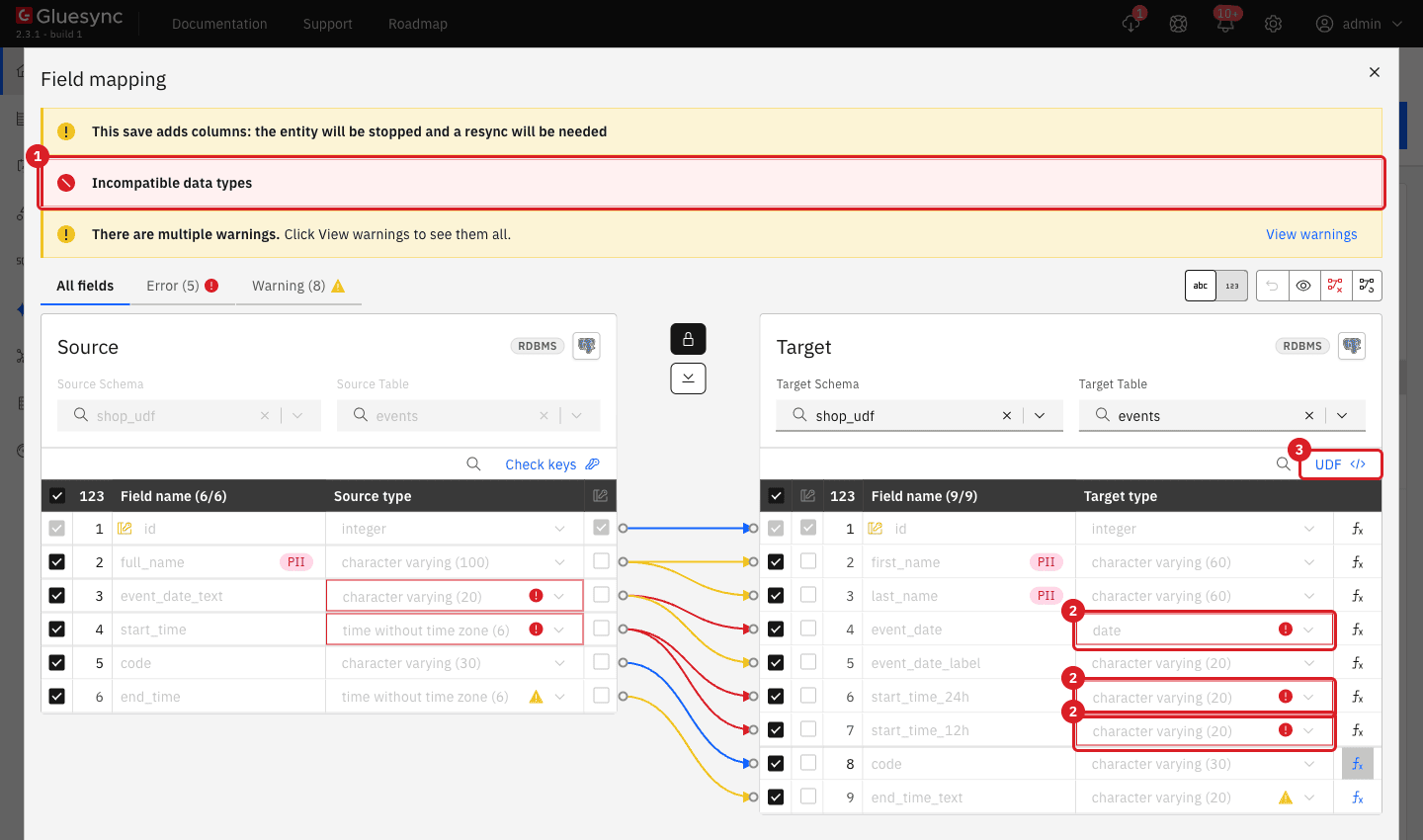
Drag from the dot at the right of each source field to the dot at the left of its target field:
full_nametofirst_nameand tolast_name,event_date_texttoevent_dateand toevent_date_label,start_timetostart_time_24hand tostart_time_12h, andend_timetoend_time_text. The arrowsidtoidandcodetocodeare already drawn.
|
A second banner appears as soon as one source field feeds two target fields: without a custom field function or the UDF, the value of the source column is copied to each of its target columns. |
UI
-
In the target table, select the fx button at the end of the row
end_time_text. The Apply a field function panel opens, with the chips Built-in (1) and My functions (0); -
Open the Functions collection list and select Convert Time to String;
-
Open Select map to expression and select the pattern
HH:mm; -
Select the fx button of the row
code, open Functions collection, and select Trim String.
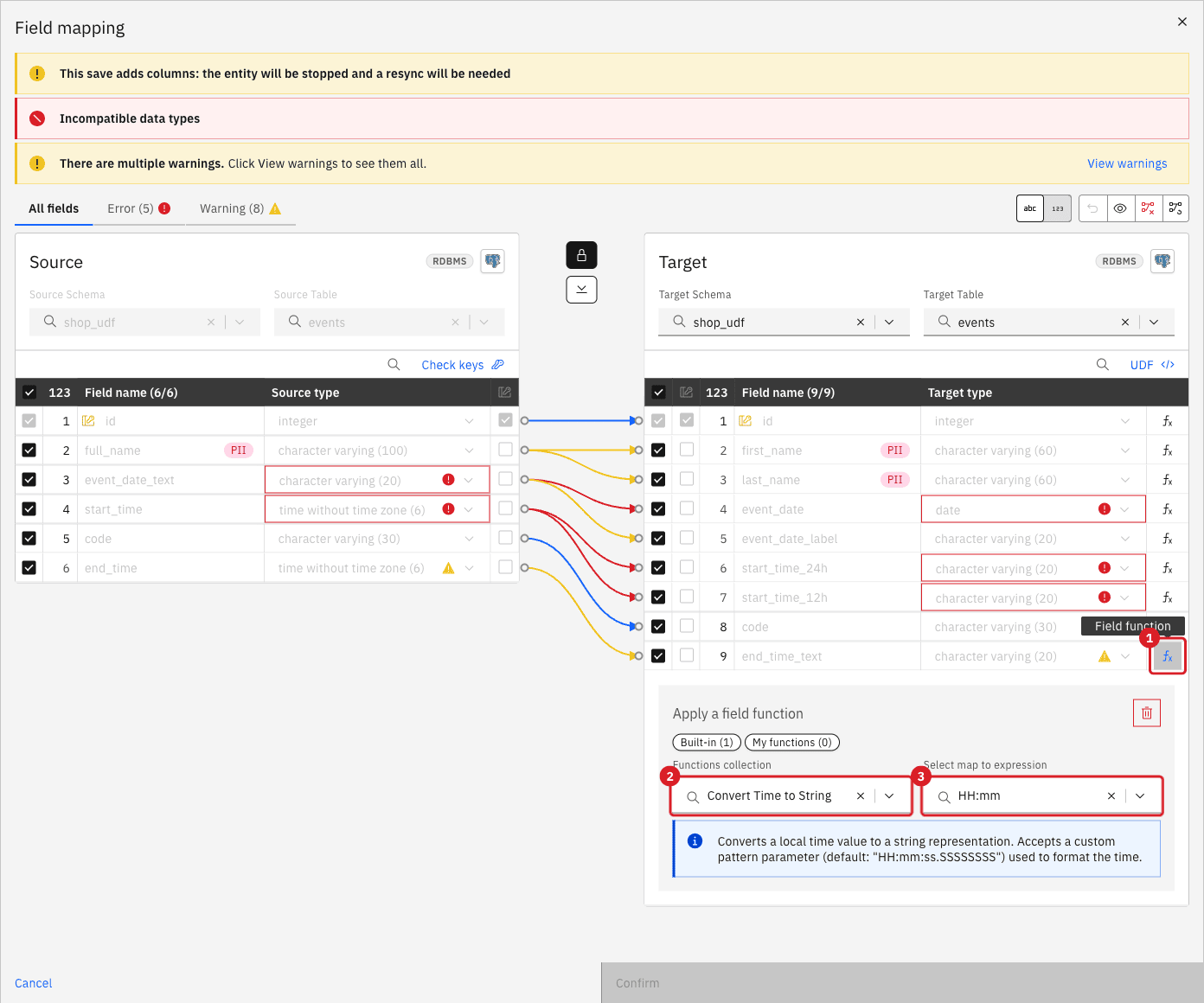
end_time_text.Now select the fx button of the row start_time_24h.
UI
-
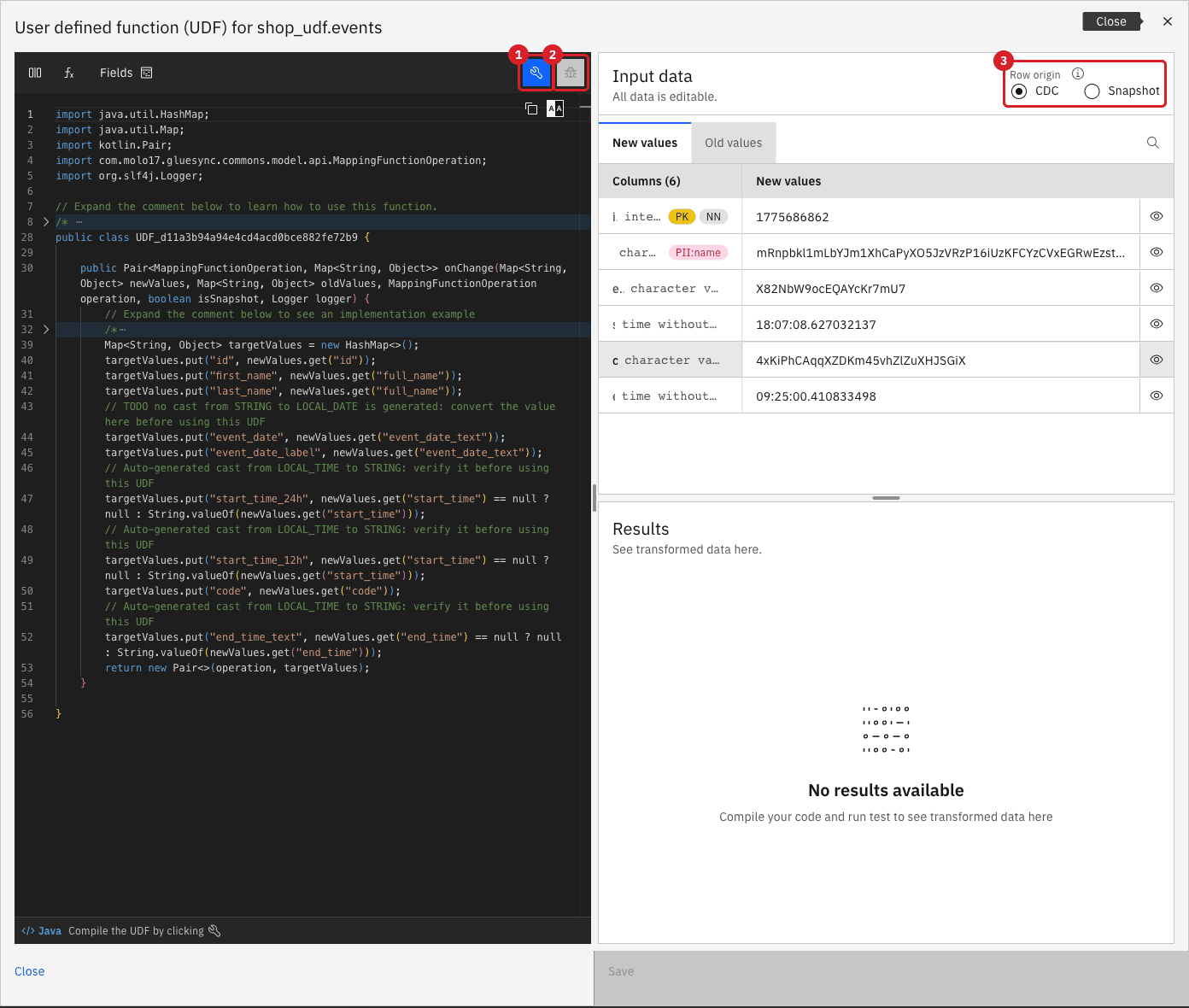
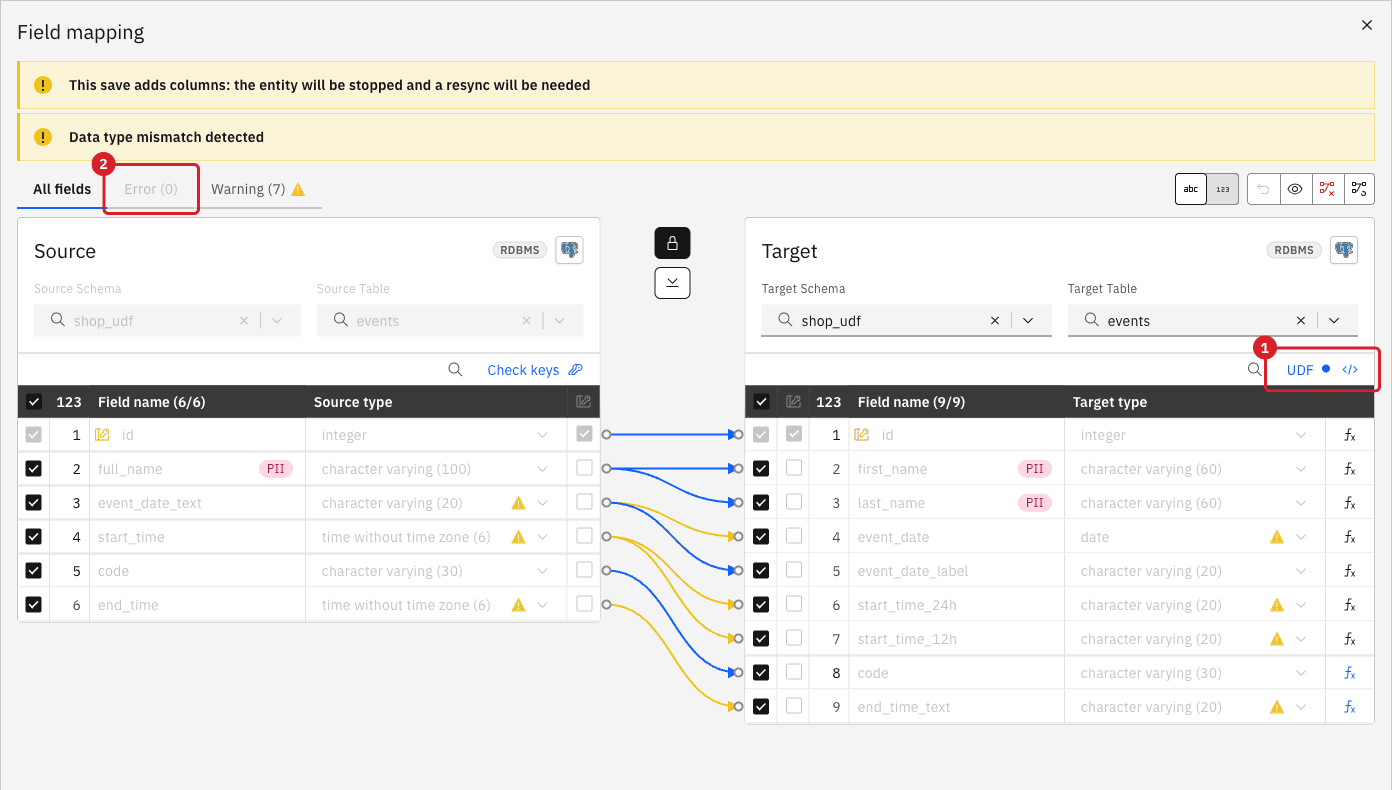
In the target table toolbar, select UDF. The dialog User defined function (UDF) for shop_udf.events opens;
-
Read the generated code. It is Java, and it has one method with this signature:
public Pair<MappingFunctionOperation, Map<String, Object>> onChange(Map<String, Object> newValues, Map<String, Object> oldValues, MappingFunctionOperation operation, boolean isSnapshot, Logger logger)
|
Do not keep the generated line for a column that has a field function. For |
UI
-
Select all the text in the editor and replace it with the code below. The class name does not matter: Core Hub renames the class to the generated name when you compile;
-
Select Compile.
import java.time.LocalDate;
import java.time.LocalTime;
import java.time.format.DateTimeFormatter;
import java.time.format.DateTimeParseException;
import java.time.format.ResolverStyle;
import java.util.HashMap;
import java.util.List;
import java.util.Locale;
import java.util.Map;
import kotlin.Pair;
import com.molo17.gluesync.commons.model.api.MappingFunctionOperation;
import org.slf4j.Logger;

public class UDF_events {

    // Accepted spellings of the date, tried in order. STRICT rejects impossible dates such as 31/02/2026.
    private static final List<DateTimeFormatter> DATE_INPUTS = List.of(
            strict("uuuuMMdd"),      // 20260131
            strict("dd/MM/uuuu"),    // 31/01/2026
            strict("uuuu-MM-dd"),    // 2026-01-31
            strict("dd.MM.uuuu"));   // 31.01.2026

    private static final DateTimeFormatter DATE_LABEL = DateTimeFormatter.ofPattern("dd MMM uuuu", Locale.ENGLISH);
    private static final DateTimeFormatter TIME_24H = DateTimeFormatter.ofPattern("HH:mm");
    private static final DateTimeFormatter TIME_12H = DateTimeFormatter.ofPattern("hh:mm a", Locale.ENGLISH);

    private static DateTimeFormatter strict(String pattern) {
        return DateTimeFormatter.ofPattern(pattern).withResolverStyle(ResolverStyle.STRICT);
    }

    public Pair<MappingFunctionOperation, Map<String, Object>> onChange(Map<String, Object> newValues, Map<String, Object> oldValues, MappingFunctionOperation operation, boolean isSnapshot, Logger logger) {
        Map<String, Object> targetValues = new HashMap<>();
        targetValues.put("id", newValues.get("id"));

        // Columns that also have a field function (Trim String on code, Convert Time to String on
        // end_time_text) receive the untouched source value: the field function runs after the UDF
        // and expects the original type, a LocalTime for end_time_text, not a String.
        targetValues.put("code", newValues.get("code"));
        targetValues.put("end_time_text", newValues.get("end_time"));

        // One source column, two target columns: split the full name.
        String[] name = splitName(newValues.get("full_name"));
        targetValues.put("first_name", name[0]);
        targetValues.put("last_name", name[1]);

        // One source column, two target columns: the same date as a DATE and as a label.
        LocalDate eventDate = parseDate(newValues.get("event_date_text"), logger);
        targetValues.put("event_date", eventDate);
        targetValues.put("event_date_label", eventDate == null ? null : eventDate.format(DATE_LABEL));

        // One source column, two target columns: the same TIME in two text patterns.
        targetValues.put("start_time_24h", formatTime(newValues.get("start_time"), TIME_24H, logger));
        targetValues.put("start_time_12h", formatTime(newValues.get("start_time"), TIME_12H, logger));

        return new Pair<>(operation, targetValues);
    }

    private static LocalDate parseDate(Object value, Logger logger) {
        if (value == null) {
            return null;
        }
        if (value instanceof LocalDate) {
            return (LocalDate) value;
        }
        String text = value.toString().trim();
        if (text.isEmpty()) {
            return null;
        }
        for (DateTimeFormatter format : DATE_INPUTS) {
            try {
                return LocalDate.parse(text, format);
            } catch (DateTimeParseException ignored) {
                // try the next format
            }
        }
        logger.warn("event_date_text '{}' matches no accepted date format: event_date left null", text);
        return null;
    }

    private static String formatTime(Object value, DateTimeFormatter format, Logger logger) {
        if (value == null) {
            return null;
        }
        if (value instanceof LocalTime) {
            return ((LocalTime) value).format(format);
        }
        try {
            return LocalTime.parse(value.toString().trim()).format(format);
        } catch (DateTimeParseException e) {
            logger.warn("start_time '{}' is not a time: left null", value);
            return null;
        }
    }

    // First word = first name, the rest = last name. A single word is a first name only.
    private static String[] splitName(Object value) {
        if (value == null) {
            return new String[] {null, null};
        }
        String text = value.toString().trim().replaceAll("\\s+", " ");
        if (text.isEmpty()) {
            return new String[] {null, null};
        }
        int cut = text.indexOf(' ');
        if (cut < 0) {
            return new String[] {text, null};
        }
        return new String[] {text.substring(0, cut), text.substring(cut + 1)};
    }
}
To see how a compile error looks, change the line targetValues.put("code", newValues.get("code")); into the two lines below, and select Compile:
String code = newValues.get("code");
targetValues.put("code", code);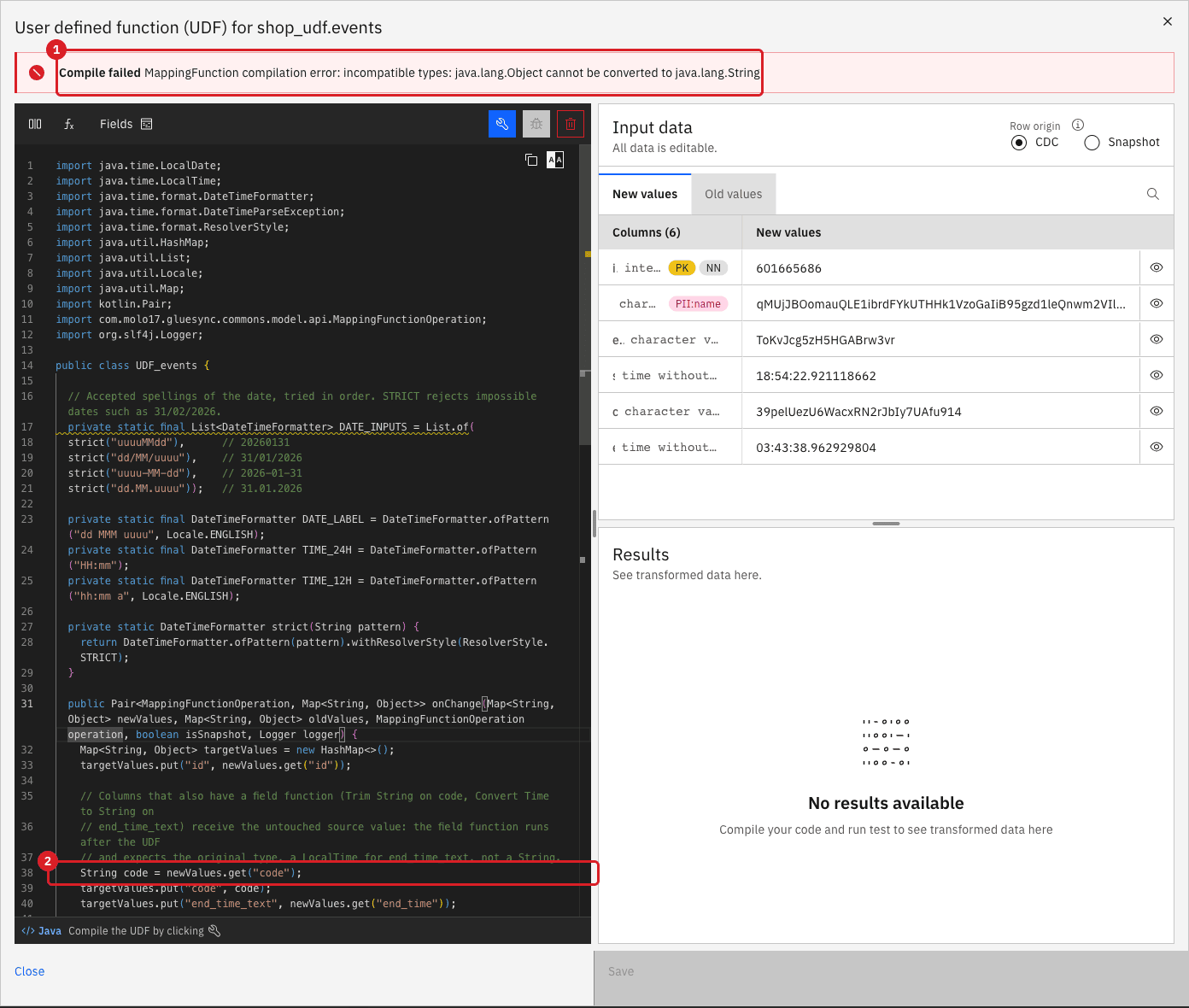
The values of the maps are Object, so Java refuses to assign one to a String. Restore the line targetValues.put("code", newValues.get("code")); and select Compile again.
UI
-
In Input data, under New values, replace the random values with a row of your own. The first test uses
id2,full_nameLuca de Angelis,event_date_text31/01/2026,start_time14:05:30,code` cd-002, and `end_time15:35:30; -
Leave Row origin on CDC, and select Test;
-
Repeat with the other spellings and the bad value:
20260131,2026-02-15,15.02.2026,31/02/2026, andnot a date.
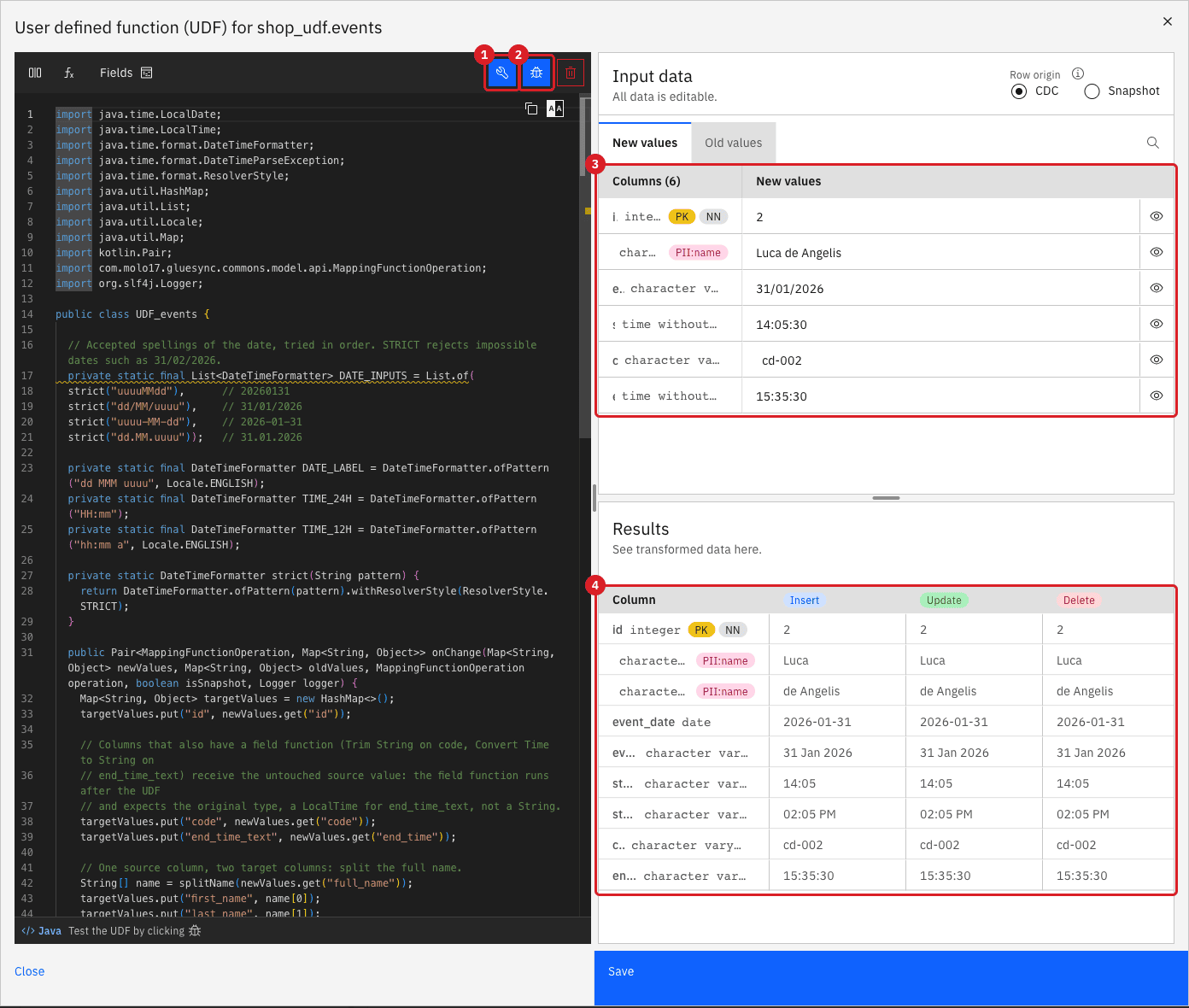
Now try a wrong type on purpose. Replace the line targetValues.put("event_date", eventDate); with targetValues.put("event_date", newValues.get("event_date_text"));, compile, and select Test.

DATE column is refused by the test (1), before anything is written.Restore the original line, compile, and test again.
|
The test panel shows what the UDF returns, before the field functions. In the result, |
UI
-
Select Save in the UDF dialog. Save is enabled after a successful test;
-
In Field mapping, check that Error shows (0), and select Confirm;
-
On the entity page, select Confirm and continue.
UI
-
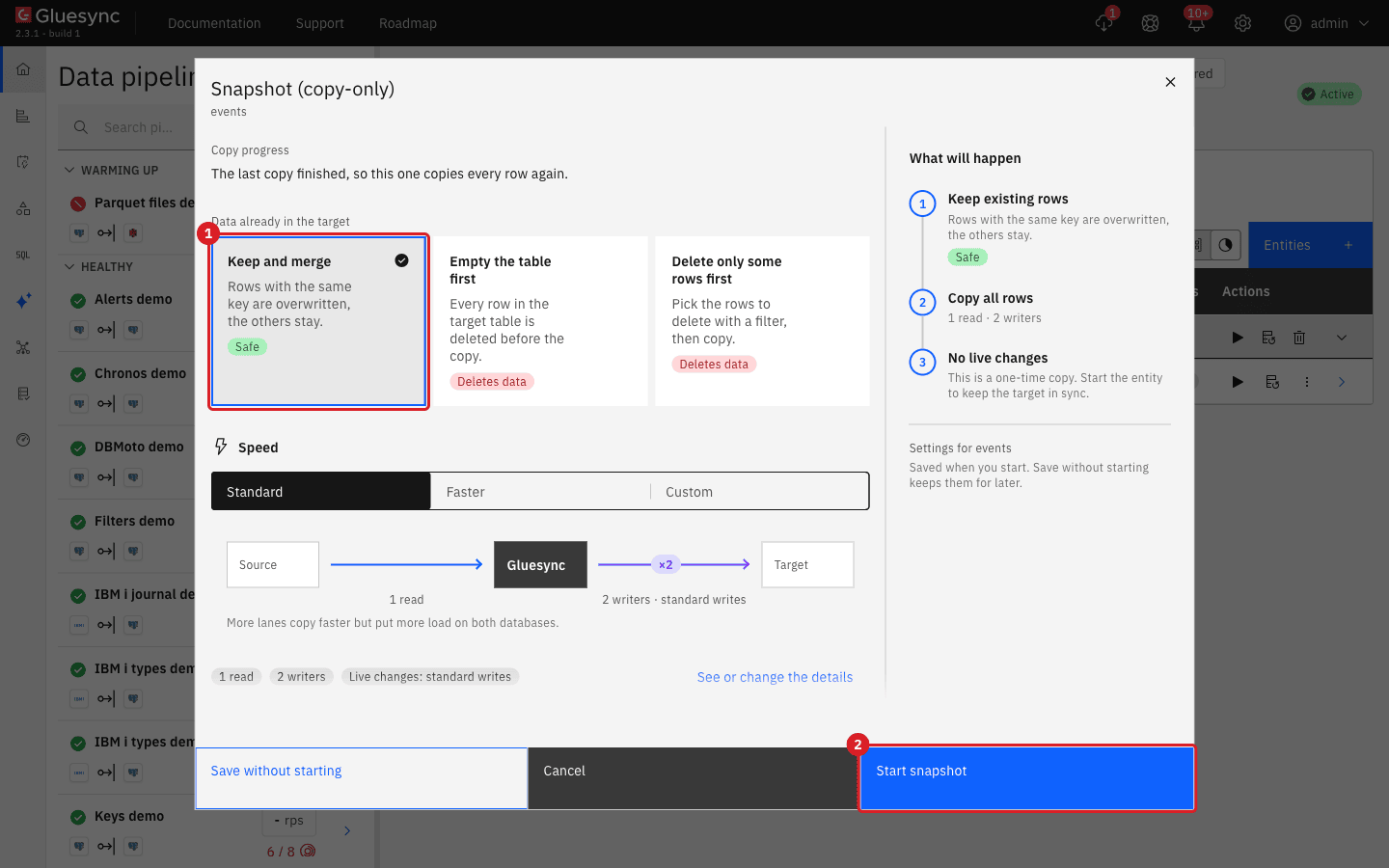
On the pipeline page, select Run one-time snapshot in the actions of the entity
events. The dialog Snapshot (copy-only) opens; -
Under Data already in the target, keep Keep and merge, the default;
-
Select Start snapshot.
Check the target with this SQL in a SQL client. Query Studio masks the two name columns, as the last step explains:
SELECT id, first_name, last_name, event_date, event_date_label,
       start_time_24h, start_time_12h, code, end_time_text
FROM shop_udf.events
ORDER BY id;UI
-
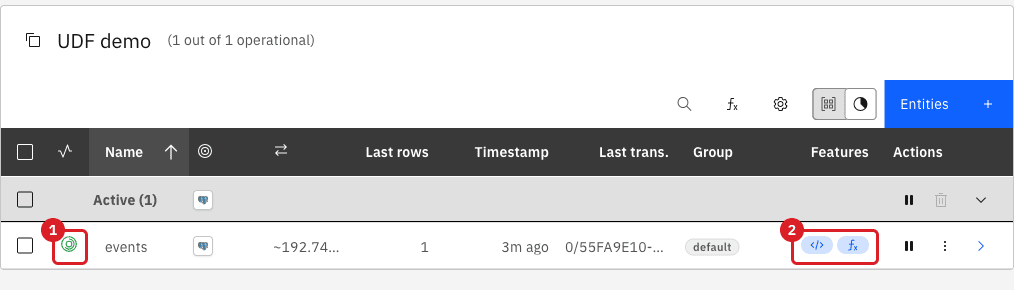
On the pipeline page, select the Start sync button of the entity
events. The dialog Sync changes (CDC) opens; -
Keep Where it stopped and select Start entity;
-
In the source database, run an insert, an update, and a delete:
INSERT INTO shop_udf.events (id, full_name, event_date_text, start_time, code, end_time)
VALUES (7, 'Grace  Murray Hopper', '20261224', '07:15:00', '  gm-007 ', '08:45:00');
UPDATE shop_udf.events SET event_date_text = '31/12/2026', start_time = NULL WHERE id = 2;
DELETE FROM shop_udf.events WHERE id = 6;
SQL
-
In the source database, insert a row with a bad date and a row of nulls:
INSERT INTO shop_udf.events (id, full_name, event_date_text, start_time, code, end_time) VALUES (8, 'Bad Date', 'tomorrow', '10:00:00', 'bd-008', '11:00:00'), (9, NULL, NULL, NULL, NULL, NULL); -
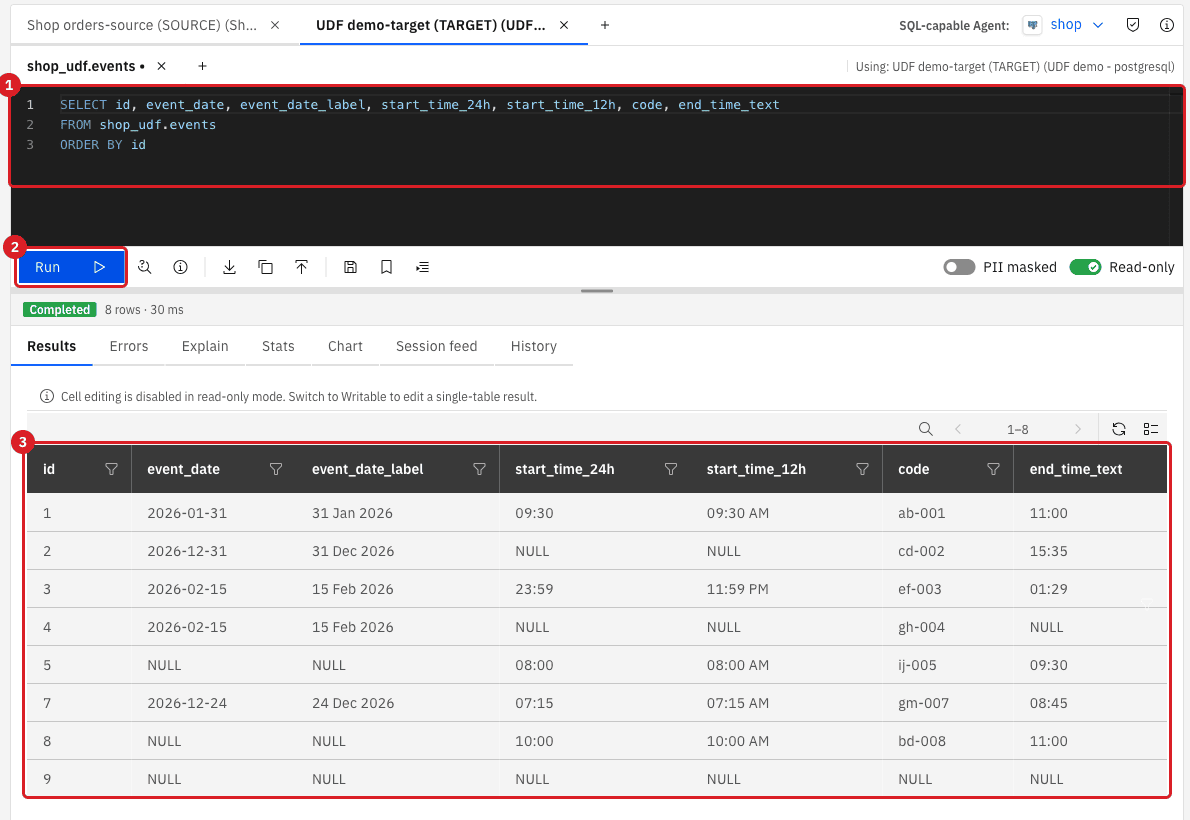
In Query Studio, open a session on UDF demo-target (TARGET) (select Query Studio in the left sidebar, then the + next to the session tabs, and choose the pipeline UDF demo and its target), paste the query below, and select Run:
SELECT id, event_date, event_date_label, start_time_24h, start_time_12h, code, end_time_text
FROM shop_udf.events
ORDER BY id;
|
Query Studio masks the columns |
|
Optional, for advanced users
You do not need the log to follow this guide. The UDF writes a warning for every date it cannot read, and the Core Hub log keeps it, for example |
How the conversions work
Every snippet below is part of the UDF you compiled, tested, and ran.
Text to a date in several formats
The date arrives as String. List the accepted spellings once, and try them in order. The STRICT resolver rejects impossible dates such as 31/02/2026 instead of moving them to March.
    // Accepted spellings of the date, tried in order. STRICT rejects impossible dates such as 31/02/2026.
    private static final List<DateTimeFormatter> DATE_INPUTS = List.of(
            strict("uuuuMMdd"),      // 20260131
            strict("dd/MM/uuuu"),    // 31/01/2026
            strict("uuuu-MM-dd"),    // 2026-01-31
            strict("dd.MM.uuuu"));   // 31.01.2026

    private static DateTimeFormatter strict(String pattern) {
        return DateTimeFormatter.ofPattern(pattern).withResolverStyle(ResolverStyle.STRICT);
    }

    private static LocalDate parseDate(Object value, Logger logger) {
        if (value == null) {
            return null;
        }
        if (value instanceof LocalDate) {
            return (LocalDate) value;
        }
        String text = value.toString().trim();
        if (text.isEmpty()) {
            return null;
        }
        for (DateTimeFormatter format : DATE_INPUTS) {
            try {
                return LocalDate.parse(text, format);
            } catch (DateTimeParseException ignored) {
                // try the next format
            }
        }
        logger.warn("event_date_text '{}' matches no accepted date format: event_date left null", text);
        return null;
    }
The pattern letters are uuuu for the year, MM for the month, and dd for the day. Put the most likely format first: the first format that parses wins, so a text such as 01/02/2026 is read with the first matching pattern. The method also returns a value that is already a java.time.LocalDate as it is.
A TIME to text with a pattern
A TIME column arrives as java.time.LocalTime. Format it with a DateTimeFormatter; do not cast it to String.
    private static final DateTimeFormatter DATE_LABEL = DateTimeFormatter.ofPattern("dd MMM uuuu", Locale.ENGLISH);
    private static final DateTimeFormatter TIME_24H = DateTimeFormatter.ofPattern("HH:mm");
    private static final DateTimeFormatter TIME_12H = DateTimeFormatter.ofPattern("hh:mm a", Locale.ENGLISH);

    private static String formatTime(Object value, DateTimeFormatter format, Logger logger) {
        if (value == null) {
            return null;
        }
        if (value instanceof LocalTime) {
            return ((LocalTime) value).format(format);
        }
        try {
            return LocalTime.parse(value.toString().trim()).format(format);
        } catch (DateTimeParseException e) {
            logger.warn("start_time '{}' is not a time: left null", value);
            return null;
        }
    }
Use HH:mm for 24 hours and hh:mm a for 12 hours with AM and PM. Pass Locale.ENGLISH to get AM and PM whatever the language of the machine. If the column needs only one pattern and nothing else, use the built-in Convert Time to String instead, as the guide does for end_time_text.
One source field, two target columns
Draw two arrows from the same source field, then put a value for each target column. The same date becomes a DATE and a label; the same TIME becomes two texts; one full name becomes two names.
        // One source column, two target columns: split the full name.
        String[] name = splitName(newValues.get("full_name"));
        targetValues.put("first_name", name[0]);
        targetValues.put("last_name", name[1]);
        // One source column, two target columns: the same date as a DATE and as a label.
        LocalDate eventDate = parseDate(newValues.get("event_date_text"), logger);
        targetValues.put("event_date", eventDate);
        targetValues.put("event_date_label", eventDate == null ? null : eventDate.format(DATE_LABEL));
        // One source column, two target columns: the same TIME in two text patterns.
        targetValues.put("start_time_24h", formatTime(newValues.get("start_time"), TIME_24H, logger));
        targetValues.put("start_time_12h", formatTime(newValues.get("start_time"), TIME_12H, logger));

    // First word = first name, the rest = last name. A single word is a first name only.
    private static String[] splitName(Object value) {
        if (value == null) {
            return new String[] {null, null};
        }
        String text = value.toString().trim().replaceAll("\\s+", " ");
        if (text.isEmpty()) {
            return new String[] {null, null};
        }
        int cut = text.indexOf(' ');
        if (cut < 0) {
            return new String[] {text, null};
        }
        return new String[] {text.substring(0, cut), text.substring(cut + 1)};
    }
The first word is the first name and the rest is the last name, so Luca de Angelis gives Luca and de Angelis, and Cher gives a first name only. Change the rule to match your data.
Nulls and bad values
Decide for every column what a null and a bad value should become, then write it down in the code. The UDF in this guide returns null for a null, and null plus a warning for a value it cannot read.
| Policy | Code | What happens |
|---|---|---|
Write |
|
The row is written with a |
Stop on a bad value |
Replace those two lines of |
The test fails with that message. At run time the entity goes to Error with Target write failed and |
Time zones
A TIME has no time zone, and a timestamp without time zone arrives as java.time.LocalDateTime, also with no zone: the UDF formats them as they are. A timestamp with time zone arrives as java.time.OffsetDateTime. To write it in a zone of your choice, convert it first. This expression was tested in the editor on a timestamptz source column:
String rome = ((OffsetDateTime) newValues.get("logged_at"))
        .atZoneSameInstant(ZoneId.of("Europe/Rome")).toLocalDateTime().toString();
With the sample value 2013-09-03T05:10:38.747+02:45, it returns 2013-09-03T04:25:38.747. Import java.time.OffsetDateTime and java.time.ZoneId.
Rules the UDF follows
| Rule | Why |
|---|---|
Keep the signature |
Core Hub calls this exact method. Code written for the earlier signature, without |
Read from |
The generated code does this. The test ignores a name that matches no target column, and at run time a column that the UDF does not put is written as |
Return a value for every target column |
A column that the UDF does not put is written as |
Return a value of the type of the target column |
|
For a column that has a field function, return the original source value |
The field function runs after the UDF and expects the source type. A |
Handle nulls yourself |
A null source value arrives as |
The types seen in this guide are java.lang.Integer for integer, java.lang.String for varchar, java.time.LocalTime for time, java.time.LocalDateTime for timestamp, and java.time.OffsetDateTime for timestamptz. To check any other column, return its class name in a text column and select Test. This probe was compiled and run in the editor; it shows java.time.LocalTime for start_time:
targetValues.put("last_name", typeOf(newValues.get("start_time")));

private static String typeOf(Object value) {
    return value == null ? "null" : value.getClass().getName();
}Troubleshooting
| Problem | Possible cause | What to do |
|---|---|---|
Compile failed: |
The maps hold |
Use |
Compile failed: |
The method uses the older signature without |
Copy the signature from the generated code, with |
Test failed: |
The UDF returns text for a |
Parse the text to a |
Test failed: |
The UDF returns a number or a time for a |
Convert it with |
Test failed: |
The code casts a |
Format it with a |
Test failed: |
A |
Type a time in the sample, and test nulls with real rows |
The test passes, but a target column is |
The UDF did not put that column, or the key does not match a target column name. The test ignores unknown keys |
Compare the keys of |
The entity shows Target write failed: |
The UDF returned a |
Put |
The entity shows Target write failed: |
The UDF throws on a bad value |
Fix the source value, or return |
UDF is no longer valid — re-define the UDF, or UDF is invalid: |
You checked or unchecked source fields, or changed target fields, after saving the UDF |
Open the UDF, adjust the code, compile, test, and save it again |
A timestamp comes out hours away from what you expect |
A |
Convert it with |
A date such as |
Two formats in |
Put the format you expect first in |
|
The test shows what the UDF returns; field functions apply when the entity runs |
Check the result in the target, as in the snapshot step |
Related guides
Contact MOLO17 Support if you need assistance with UDFs.