Get Gluesync
Request an installation kit / trial kit
Gluesync evaluation comes with a easy to use kit, a kit is an evaluation package containing everything needed to start your product evaluation; an evaluation kit is composed of:
-
Valid 30-days trial license;
-
License agreement;
-
Readme file;
-
Installer for Docker compose, available for Linux and Windows Server, containing the evrrything needed to start your evaluation;
-
Kubernetes Helm chart containing everything listed here.
An how-to guide to start using the evaluation kit can be found here at this link.
Get your trial kit
To immediately get access to your evaluation copy of Gluesync we invite you to visit our dedicated web page available: Get Gluesync.
There inside you will find a web form where you can specify which source and target connector you would like to evaluate, like it is shown in the screenshot below:
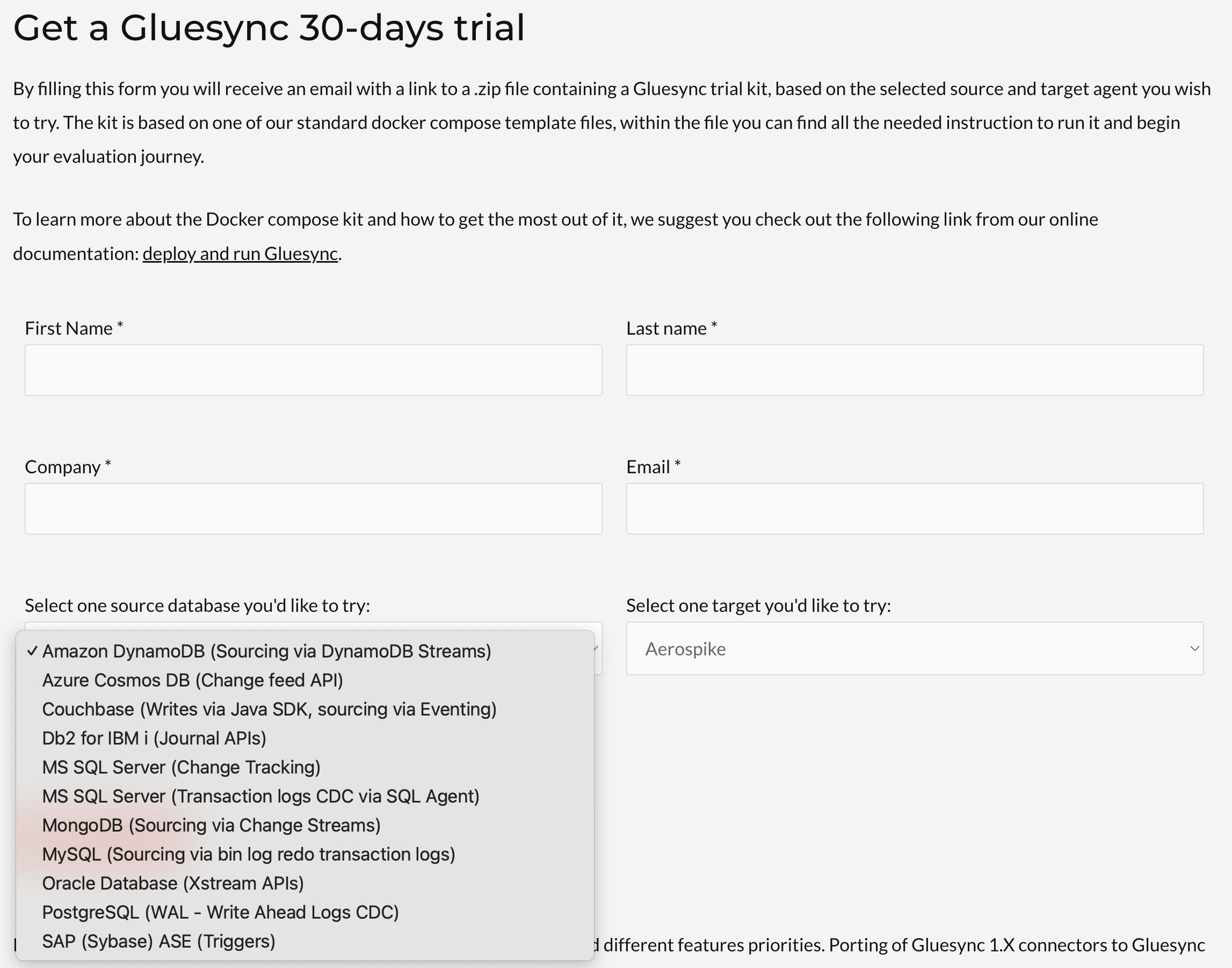
After your trial request has been reviewed our system will elaborate your trial kit and notify you with an email containing the requested package.
Update Gluesync
If you already have Gluesync installed, you can update to the latest available images for your configured release channel either from the Control Plane UI or by using your preferred deployment method.
From the Control Plane UI (Platform updates)
When Gluesync Conductor is connected to the Control Plane, the preferred in-app path is Platform updates in the Control Plane header (top right, next to notifications).
The Platform updates control is shown only when Conductor is connected. Users who can view updates see it; applying updates requires permission to modify configuration. Without that permission the modal primary action reads Please ask your admin to perform this action.
In-app updates apply the latest available images for the release channel currently configured under Settings > Global settings (Release channel). Channel options in that form are Official release (GA), Beta, and Alpha.
A typical update flow is:
-
In the Control Plane header, click Platform updates.
-
If nothing is pending, the popover title is Platform updates. Click Check for updates to refresh the list.
-
If updates are pending, the popover title is Platform updates available. Click View details.
-
Review the list in the Platform updates available modal, then click Update all to apply every listed update, or Cancel to close without applying.
-
Wait for the process to finish. While it runs the modal shows Updating… and cannot be dismissed. The UI notes that the software may become temporarily unavailable, and that the system will automatically restart. After Core Hub is updated you are logged out and redirected to the login screen.
-
When the modal title is Update complete, click Done.
If an update fails, the modal shows Update failed. Use Retry to resume, or Close update to dismiss. If the update service is unavailable, the UI can show OTA updates are currently undergoing maintenance.
The in-app list covers Conductor-managed CoreHub, module, and third-party services. When Conductor itself is in that list, it is updated first. Agent containers are not included in this list.
Modules manager no longer checks for updates or applies them. Use it only for component lifecycle. See Modules manager.
For a fuller walkthrough of the same header flow, see OTA updates.
Docker Compose deployments
To update/run Gluesync using Docker Compose, you can use the run.sh or run.ps1 script provided with the Gluesync package.
Linux
# Launch Gluesync
./run.sh
Windows
# Launch Gluesync
./run.ps1
Kubernetes
# Ensure your repo is up-to-date
helm repo update

# This will trigger Kubernetes to pull the latest version of images that use the :latest tag or when imagePullPolicy: Always is set.
helm rollout restart molo17/gluesync
Release channels
Gluesync offers three release channels:
-
GA, our stable release channel (by using the
latesttag): Production-ready releases, thoroughly tested and recommended for production environments -
Beta, our preview release channel (by using the
betatag): Preview releases with new features and bug fixes, not suitable for production environments -
Alpha, our unstable release channel (by using the
alphatag): Preliminary releases with new features, not suitable for production environments.