Set up a Greenplum target with gpfdist bulk loads
Greenplum is a massively parallel database: a coordinator takes your connection, and the segments hold the data. The Greenplum target uses that design. Its bulk path writes the rows to a file in Core Hub and lets every segment pull its share through an embedded gpfdist server, so the load grows with the number of segments. This guide prepares the database user, opens the network path that gpfdist needs, creates the target, runs a bulk snapshot and live changes, and shows how to check which load method was used and what to do when a permission, a name or a table type gets in the way.
In this guide
You will learn how to create a Greenplum user with only the grants Gluesync needs, including the one that Greenplum 7 needs for schema discovery and the one that gpfdist needs for external tables. You will set the gpfdist host and port so that every segment can reach Core Hub, create the Greenplum target connection, add entities, switch bulk operations on for the snapshot and for live changes, and read the Core Hub log to see the load method of each flush. You will also choose heap or append-optimized storage for the tables Gluesync creates, check the distribution of the rows over the segments, and recover from the failures that are most likely on a new setup.
Quick information
Goal |
Replicate a PostgreSQL table to Greenplum with a bulk snapshot through |
Audience |
Data engineers and database administrators who own a Greenplum cluster |
Level |
Intermediate |
Time required |
About 45 minutes |
Area |
Greenplum → SQL; Control Plane → Pipelines → Greenplum target → Base settings and Advanced settings; entity → start options |
Applies to |
Gluesync 2.3 |
Before you begin
Make sure that:
-
You have a Greenplum Database 6 or 7 cluster and you can run SQL on its coordinator as an administrator such as
gpadmin. Greenplum is a target only: you need another database as the source. This guide was tested with a PostgreSQL 16 source and with Greenplum 7.1 and 6.27, each with two primary segments; -
Core Hub can open a connection to the coordinator, and the
pg_hba.confof the coordinator allows the Core Hub host; -
Every segment host can open a connection to Core Hub on the
gpfdistport. This is the opposite direction of the database connection, and it is the usual reason for a failedgpfdistload, so step 2 shows how to check it; -
You can sign in to the Control Plane with a role that can create pipelines;
-
You have a source table with a primary key. This guide uses a PostgreSQL table
public.eventswith 300,000 rows (id bigintprimary key,kind varchar(20),val integer).
|
The statements in this guide are plain Greenplum SQL. The messages quoted here were captured in the Control Plane and in the Core Hub log against Greenplum 7.1 and 6.27. Everything that differs between the two versions is marked. |
Guide steps
SQL
Gluesync does not need a superuser. Connect to the target database as an administrator and run the statements below. Replace <database>, <schema> and the password.
-
Create the user and let it connect and create objects:
CREATE ROLE gluesync LOGIN PASSWORD '<a strong password>'; GRANT CONNECT, CREATE ON DATABASE <database> TO gluesync; CREATE SCHEMA <schema>; GRANT USAGE, CREATE ON SCHEMA <schema> TO gluesync;CREATEon the database lets the agent create its helper schemaGLUESYNC, where the bulk path keeps its staging tables.CREATEon the schema lets it create the target tables. For tables that already exist, grantSELECT,INSERT,UPDATE,DELETEandTRUNCATEon them instead. -
Let the user create the external tables that
gpfdistreads. The statement is the same on Greenplum 6 and 7:ALTER ROLE gluesync CREATEEXTTABLE (type='readable', protocol='gpfdist'); -
On Greenplum 7 only, let the user read the catalog view that lists external tables. Schema discovery uses it to hide external tables from the object browser:
GRANT SELECT ON pg_catalog.pg_exttable TO gluesync;On Greenplum 6 this is not needed, because the catalog table is readable by every user (
relaclis{=r/gpadmin}). -
Check the segments that will pull the rows:
SELECT content, role, port FROM gp_segment_configuration ORDER BY content, role;
If a grant is missing, the setup fails with a specific message. Step 8 lists them.
CLI
With the gpfdist load, the segments are the clients. Every primary segment host opens a connection to Core Hub, to the advertised host and the gpfdist port. Core Hub never connects to the segments, so a coordinator that can reach Core Hub is not enough.
-
Choose the
gpfdistport. The default is8580. Open it between every segment host and Core Hub, in the host firewall and in the network firewall. The port that the segments use must be the port Core Hub listens on, so do not translate it; -
Choose the name that the segments use to reach Core Hub. It must resolve to the Core Hub machine from every segment host. A container’s own host name often does not resolve from another host, so set a name or an address that does;
-
If Core Hub runs in Docker, publish the port and use the address of the Docker host:
services: core-hub: ports: - "8580:8580" -
From a segment host, check that the name resolves and the port answers. Replace
<core hub host>:getent hosts <core hub host> nc -zv <core hub host> 8580
|
In a lab where Core Hub and Greenplum share a Docker network, the name of the Core Hub service is enough, and nothing needs publishing: the segments reach it over the network. This is the layout of the demo kits. |
UI
-
In the Control Plane, select Create your first pipeline, or the + button of the pipeline list if you already have pipelines. The Agents setup wizard opens;
-
In 1. Setup source, choose the PostgreSQL CDC agent tile and fill Base settings: Host name / Address, Port, Database name, Username and Password of your source database. Select Test and continue. The source appears with a green check mark. Select Next;
-
In 2. Setup target(s), choose the Greenplum agent tile and fill Base settings:
-
Host name / Address: the coordinator;
-
Port:
5432, or the port of the coordinator; -
Database name: your database;
-
Username and Password: the user of step 1;
-
-
In the same tab, set the three fields that matter for
gpfdist:-
Bulk load method (AUTO: gpfdist when the segments reach Core Hub and the load is large, COPY otherwise):
AUTOloads throughgpfdistwhen every segment can reach Core Hub and the load is large, and throughCOPYotherwise.GPFDISTalways usesgpfdistand refuses a setup that cannot.COPYalways streams the rows through the coordinator. This guide usesGPFDIST, so that every bulk flush proves the network path; -
gpfdist port:
8580, or the port you opened in step 2; -
gpfdist advertised host: under Advanced connection properties select Add property, choose the key gpfdist advertised host (reachable from every segment host; empty: the Core Hub host name) and enter the name from step 2 as the value;
-
-
Select Test and continue. The target appears with a green check mark. Select Next, enter a Pipeline name and select Finish.
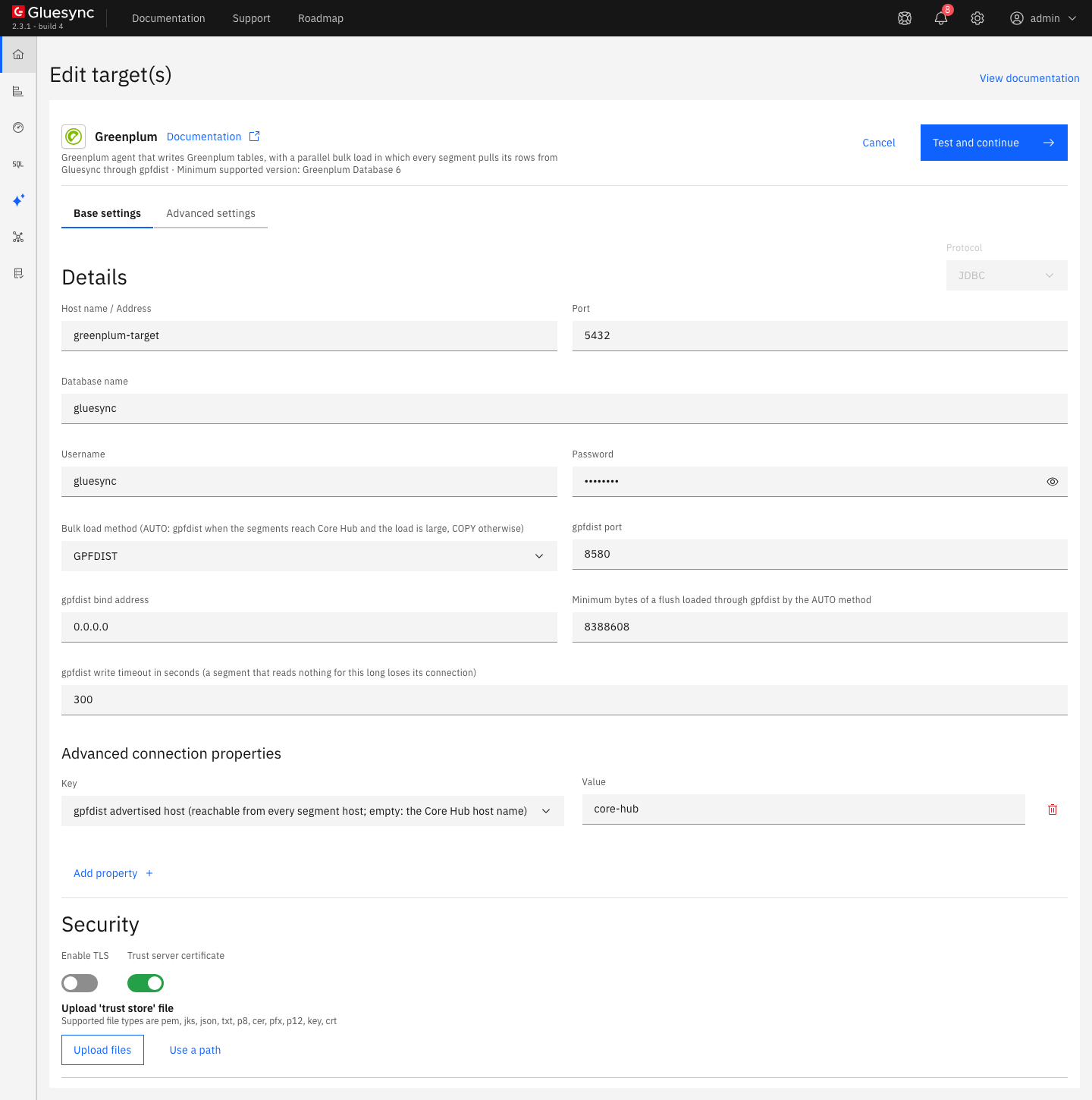
gpfdist port, bind address, minimum flush size, write timeout, and the advertised host as an advanced connection property.If you prefer the REST API, the same settings go in customHostCredentials. The key names are in the Greenplum target reference.
UI
The agent creates the target tables with a distribution policy and a storage type. The defaults are HEAP storage and a distribution by the primary key. For large fact tables, an append-optimized column table with compression usually reads faster and uses less disk.
-
In the pipeline list, select the Greenplum icon of the pipeline. The Edit target(s) page opens. Select Advanced settings;
-
Select Add property three times and add the keys Storage type of the tables the agent creates, Compression of the append-optimized tables the agent creates and Compression level (1 to 19 for ZSTD, 1 to 9 for ZLIB);
-
Set the values to
AO_COLUMN,ZSTDand3. The properties start asHEAP,ZSTDand1; -
Select Test and continue.
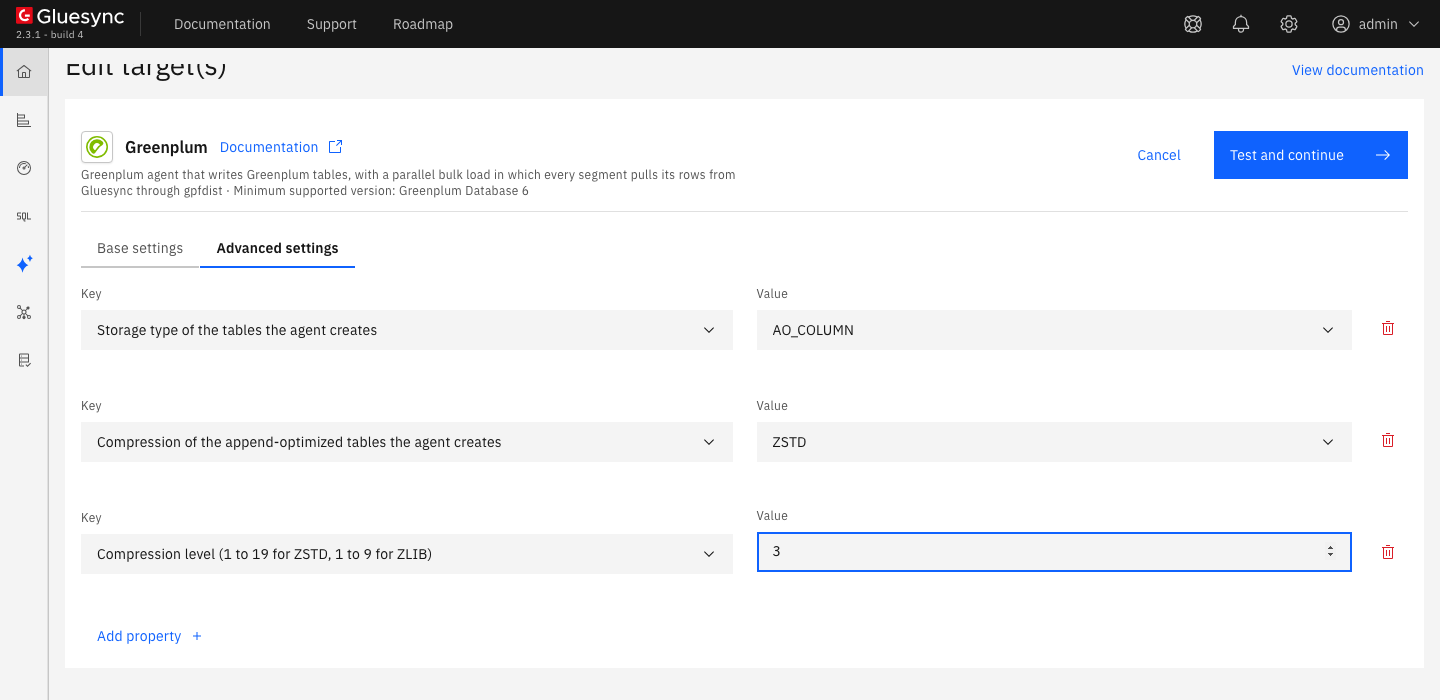
The setting applies to the tables the agent creates from now on. It does not change a table that exists. To check what was created, run in Greenplum:
SELECT c.relname, c.reloptions, am.amname
FROM pg_class c JOIN pg_am am ON am.oid = c.relam
WHERE c.relname = '<table>';
SELECT pg_get_table_distributedby('<schema>.<table>'::regclass);|
On Greenplum 6, an append-optimized table cannot have a primary key or a unique index. The agent creates it without the key and logs a warning, and keeps the keys unique by itself. Greenplum 7 keeps the primary key. If you replace the cluster with one of another major version, select Test and continue on the target again, so that the agent reads the version of the new server. The Core Hub log then shows |
UI
-
In the pipeline, select Entities. The Add entities page opens with the Object browser. Expand the source schema
publicand select the tableevents. The Field mapping dialog opens; -
Under Target, choose the Target Schema: clear the current value with the x first, because the list only offers names that match what is in the field, then select your Greenplum schema. In Target Table type
eventsand choose Create table "events". The dialog shows New table events will be created on confirm. and the proposed target types; -
Select Confirm. The Create table events dialog shows the Read-only SQL statement. Read it, then select Create table events to run it on Greenplum;
-
Back on the Add entities page, select Confirm and continue.
The statement has this form. It is read-only: to use another distribution key or other storage, create the table in Greenplum yourself first and then choose it in Target Table.
CREATE TABLE "<schema>"."events" (
    "id" bigint,
    "kind" character varying(20),
    "val" integer,
    PRIMARY KEY ("id")
)
WITH (appendoptimized=true, orientation=column, compresstype=zstd, compresslevel=3)
DISTRIBUTED BY ("id")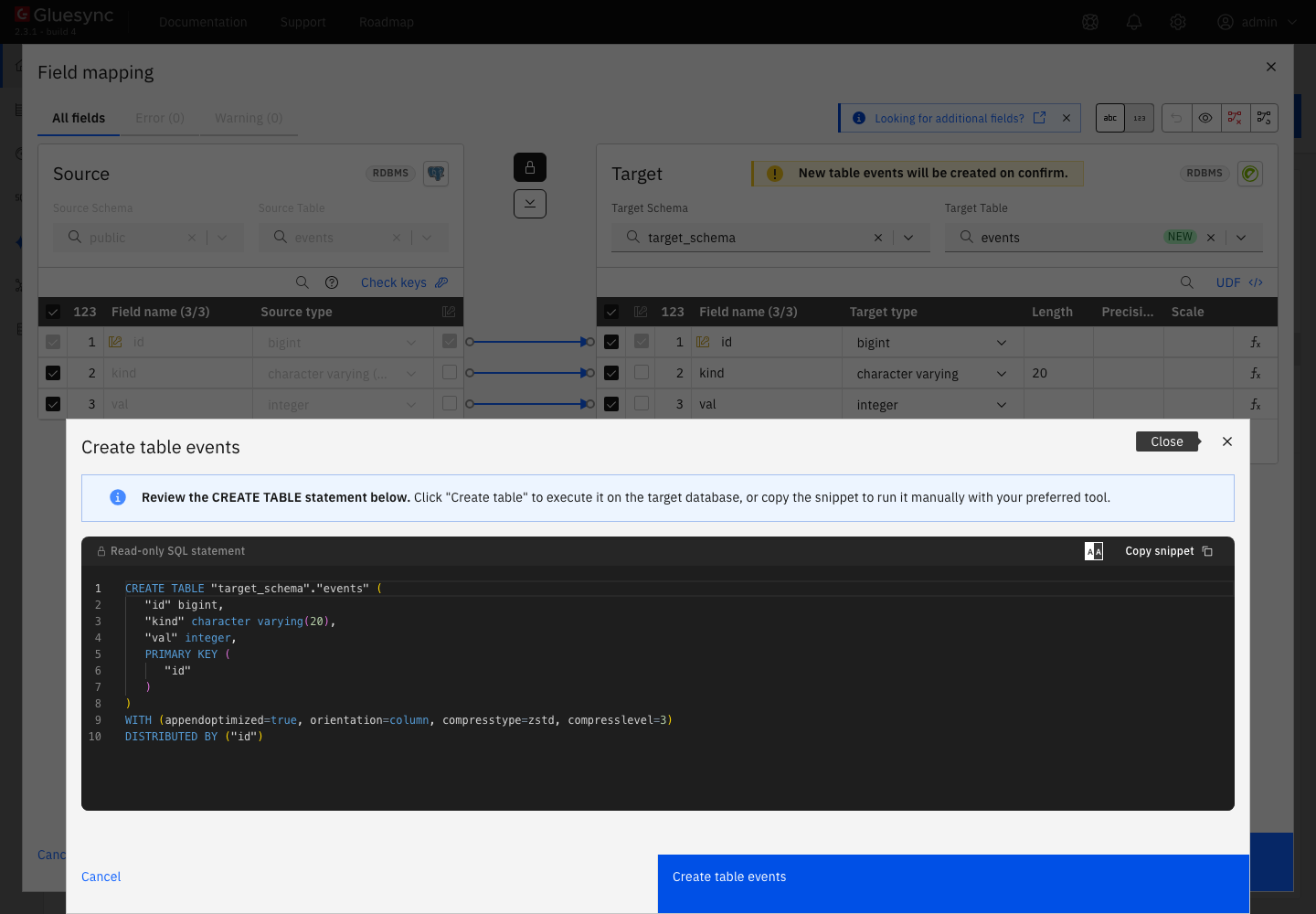
See Target table creation for the dialog.
UI + SQL
Bulk operations are a setting of each entity, and they are separate for the snapshot and for live changes. With them off, the agent writes JDBC batches. With them on, it writes a spool file in Core Hub, loads it into a staging table or straight into the target table, and merges it.
-
In the pipeline, find the entity. On Hold, select the start options button, the one next to the play button. The Snapshot (copy-only) dialog opens;
-
Keep Keep and merge under Data already in the target. It overwrites rows with the same key and keeps the others;
-
Under Speed select Custom. In the Writing column, under During the copy select Bulk load, and under During live changes select Bulk load;
-
Select Start snapshot, or Save without starting and start the entity later. The settings are kept for the next start.
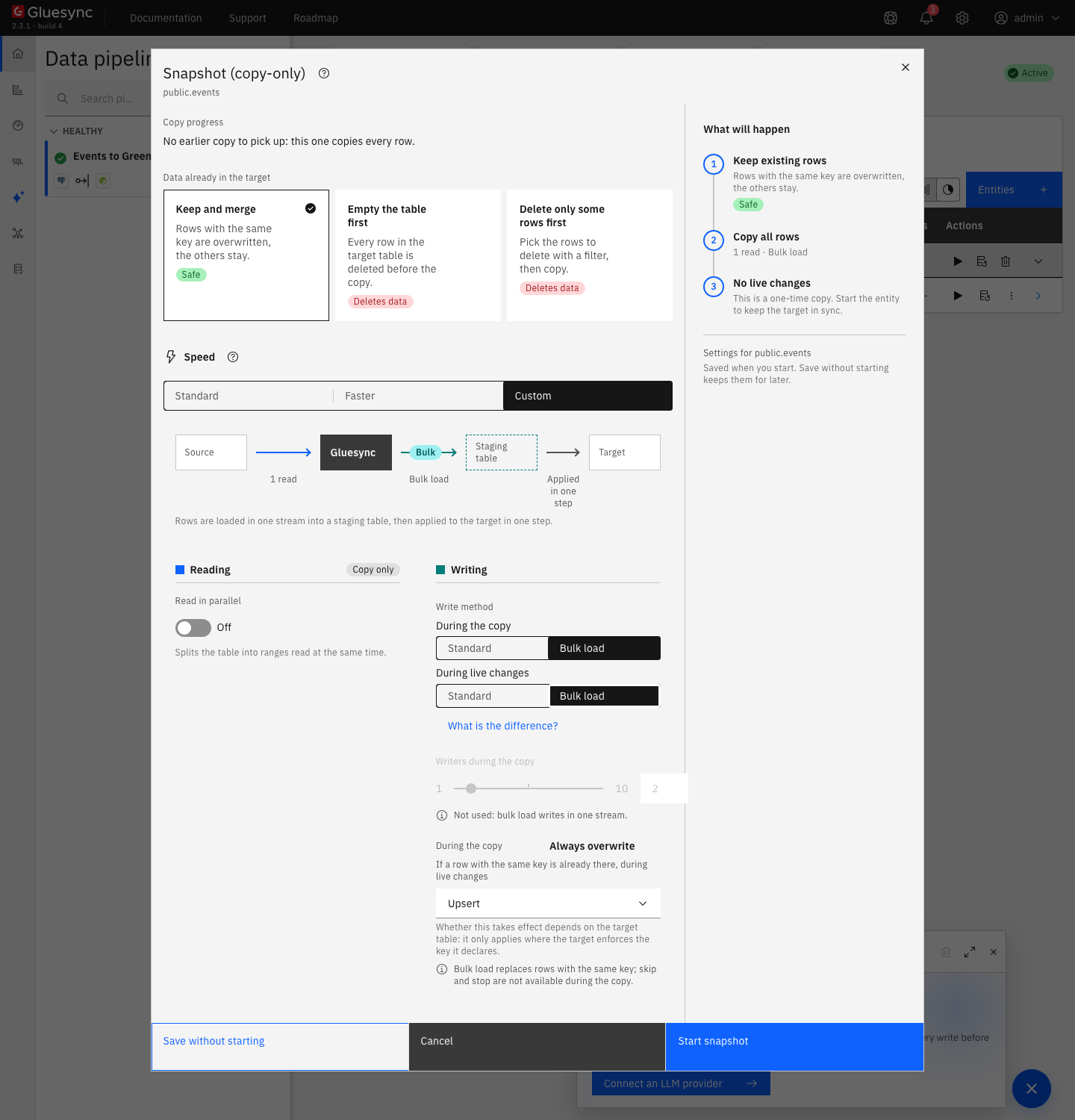
Check the rows in Greenplum, and how they spread over the segments:
SELECT count(*) FROM <schema>.events;
SELECT gp_segment_id, count(*) FROM <schema>.events GROUP BY 1 ORDER BY 1;
Then read the Core Hub log for the flush. Every flush is logged at INFO level, with the rows, the bytes, the load method and the time:
docker logs <core hub container> 2>&1 | grep "bulk flush"Two things decide whether a flush goes through gpfdist with the AUTO method:
-
The flush must be at least Minimum bytes of a flush loaded through gpfdist by the AUTO method. The default is 8,388,608 bytes (8 MiB). With the method set to
AUTO, the 300,000-row snapshot of this guide is a flush of 4.1 MB and was loaded withCOPY, the same flush withGPFDISTwas loaded throughgpfdist. A flush of one row is loaded withCOPYunderAUTO, which is the right choice, as the round trip of the segments costs more than the row. Lower the setting, or chooseGPFDIST, if you wantgpfdistfor small flushes too; -
The setup check must have passed. If it did not,
AUTOfalls back toCOPYand shows a warning, see the troubleshooting table.
SQL
The copy-only snapshot leaves the entity on Hold. Start it to follow the changes, then change the source and read the target.
-
Select the play button of the entity. The Sync changes (CDC) dialog opens. Under Start from choose Now, because the rows are already in the target, and select Start entity. The entity becomes Active;
-
On the source, insert, update and delete one row each:
INSERT INTO events VALUES (400001, 'new', 1); UPDATE events SET val = -1 WHERE id = 5; DELETE FROM events WHERE id = 6; -
After a few seconds, read the three keys on Greenplum:
SELECT id, kind, val FROM <schema>.events WHERE id IN (5, 6, 400001) ORDER BY id;
SELECT count(*) FROM (SELECT id FROM <schema>.events GROUP BY id HAVING count(*) > 1) d;
|
In Greenplum, every update and every delete leaves the old version of the row in the table until |
SQL + UI
Each error below was reproduced by removing one grant or changing one setting. The message of the permission error for gpfdist talks about the segments reaching the server, but the cause is the missing role attribute.
-
Remove the Greenplum 7 catalog grant and add entities. The schema list fails and the notification Schemas Fetch shows
ERROR: permission denied for view pg_exttable [SQLState=42501]. Fix: runGRANT SELECT ON pg_catalog.pg_exttable TO gluesync;; -
Remove
CREATEEXTTABLEfrom the role (ALTER ROLE gluesync NOCREATEEXTTABLE (type='readable', protocol='gpfdist');), set Bulk load method toGPFDISTand select Test and continue on the target while an entity with bulk operations exists. The page shows Failed to save:The connection was saved, but agent <id> of pipeline <id> did not accept the new credentials: The Greenplum segments cannot all reach the gpfdist server of the agent at <host>:8580: The probe query failed: ERROR: permission denied: no privilege to create a readable gpfdist(s) external table.Fix: run theALTER ROLEof step 1; -
Set gpfdist advertised host to a name that does not resolve and select Test and continue with
GPFDIST. The connection is saved, and the page shows Failed to save with the same text andERROR: hostname cannot be resolved 'gpfdist://<name>:8580/…'. Fix: set a name that every segment host resolves; -
Do the same with
AUTO. The agent accepts the connection and raises the warning notification gpfdist is not reachable, with the same text. Bulk flushes then load withCOPY: the log showsCOPYin the flush line. Fix the name, and select Test and continue again to run the check again.
Data types
The mapping is the one of the PostgreSQL target, narrowed to the types Greenplum has. The agent reference lists the alternatives for each Gluesync type in Data types. The rules that matter most in practice:
| Source type | Greenplum type | Note |
|---|---|---|
|
The same type |
Values written unchanged |
|
|
Keep the precision and the scale of the source |
|
|
|
|
|
|
|
|
Microseconds kept. The time zone of the session of the target applies when you read the value |
|
|
The proposal of the Field mapping dialog. Another source type can be mapped to |
|
|
The bytes are kept |
Arrays such as |
The same array type |
Arrays of the supported types |
|
|
Greenplum 6 does not have it: map the column to |
Greenplum has no multirange types, pg_snapshot, geometry, geography, raster, vector or tinyint.
Bulk and throughput settings
| Setting | Default | When to change it |
|---|---|---|
Bulk load method |
|
Use |
Minimum bytes of a flush loaded through gpfdist by the AUTO method |
8388608 |
Lower it to use |
Spool directory of the bulk path |
The temporary directory of Core Hub |
An advanced connection property. Point it to a volume with room for a flush if the disk of Core Hub is small |
gpfdist write timeout in seconds |
300 |
Raise it if a very slow segment loses its connection during a load |
Read Tune replication throughput for the settings that apply to every target. TLS for gpfdist (gpfdists) and for the database connection is in the agent reference.
Troubleshooting
| Problem | Possible cause | What to do |
|---|---|---|
Discovery fails with |
The user cannot read the catalog view of external tables |
|
Failed to save with |
The user lacks the role attribute for readable |
|
Failed to save with |
gpfdist advertised host does not resolve from a segment host. When it is empty, Core Hub advertises its own host name, which segment hosts often cannot resolve |
Set gpfdist advertised host to a name or an address of the Core Hub machine that every segment host resolves |
Warning gpfdist is not reachable, and the log shows |
The method is |
Fix the network and the advertised host, then select Test and continue on the target again |
The log shows |
The flush is below Minimum bytes of a flush loaded through gpfdist by the AUTO method (8 MiB by default) |
Lower the setting, or set the method to |
|
On Greenplum 6, a primary key on an append-optimized table that you create yourself |
Leave out the primary key. For the tables the agent creates, it does this for you. After you replace the cluster with one of another major version, select Test and continue on the target again |
The table is large after many updates or deletes |
Greenplum keeps old row versions until |
Run |
|
The extension is not installed in the target database |
|
Related guides
Contact MOLO17 Support if you need assistance with a Greenplum target.