Answer a security review of your Gluesync deployment
Your security team has scanned the Gluesync images, or a penetration test has found something on the server. This guide shows what to do next: scan the images yourself and read the result, find out whether a finding is already fixed, send MOLO17 what it needs to assess a CVE, answer the findings that pen tests report on a Gluesync kit, and close the gaps that the kit leaves open on purpose.
In this guide
You will learn how to scan the images of the kit with Trivy or Grype, tell operating system findings from Java and Go library findings, compare your image with a newer one, collect what MOLO17 needs to assess a CVE, map typical pen-test findings to a fix, apply a hardening checklist (passwords, secrets, ports, certificate, security headers, unused modules, least privilege) and prepare antivirus and EDR exclusions.
This guide builds on Security statement and vulnerability handling, which says how MOLO17 scans and fixes the images and lists the TLS versions and ciphers. It does not repeat that page: read it first for what MOLO17 does, and use this guide for what you do.
Quick information
Goal |
Answer a vulnerability scan or a pen test of a Gluesync kit with evidence, and reduce what the kit exposes |
Audience |
System administrators and security engineers of the team that runs Gluesync |
Level |
Intermediate |
Time required |
About 90 minutes, plus the time your security team needs to review the result |
Area |
Security → images, ports, credentials, certificates |
Applies to |
Gluesync 2.3 |
Before you begin
Make sure that:
-
A Gluesync 2.3 kit is installed on a Linux server (the default kit folder is
/opt/gluesync), and you can rundockeranddocker composewithsudo; -
The machine that runs the scanner can reach the internet to download the scanner image and its vulnerability database, or you have a copy of both (see Scan without internet access);
-
You have the support-portal account that you use to open tickets, see Create a support ticket;
-
You can change the
docker-compose.ymlof the kit and restart the containers, and you have a maintenance window for the restarts in the hardening steps.
|
The commands were run on the Linux images of the kit, on Linux and on macOS with Docker. The Windows container images, which only run on Windows hosts, were not scanned. For antivirus and EDR on Windows Server, see Antivirus and EDR software. |
Guide steps
CLI
A scanner reports what is in an image, so scan the images that you run, with the tags that you run.
-
List the images that your kit starts:
cd /opt/gluesync sudo docker compose config --images -
Scan one image with Trivy, which runs from its own image and needs no installation. The
--ignore-unfixedoption hides findings that have no fixed version yet, and--quietremoves the progress output:sudo docker run --rm \ -v /var/run/docker.sock:/var/run/docker.sock \ -v trivy-cache:/root/.cache/ \ aquasec/trivy:latest image --quiet --scanners vuln \ --severity HIGH,CRITICAL --ignore-unfixed \ molo17/traefik:3.7.16 -
Scan the same image with Grype if that is the scanner your security team uses:
sudo docker run --rm \ -v /var/run/docker.sock:/var/run/docker.sock \ -v grype-cache:/root/.cache/grype \ anchore/grype:latest docker:molo17/traefik:3.7.16 --only-fixed -
Repeat for every image of step 1. The Core Hub image is the biggest and takes several minutes to scan.
Scan without internet access. Save the image to a file with docker save <image> -o image.tar and scan the file, for example trivy image --input image.tar. The scanner still needs its vulnerability database: download it on a machine with internet access and copy it, following the documentation of Trivy or Grype. An offline Gluesync package loaded with docker load -i gives you the same images to scan.
CLI
A long list is easier to judge when you split it. Ask Trivy for JSON and group the findings.
-
Save the result of the Core Hub image as JSON:
sudo docker run --rm \ -v /var/run/docker.sock:/var/run/docker.sock \ -v trivy-cache:/root/.cache/ -v "$PWD":/out \ aquasec/trivy:latest image --quiet --scanners vuln \ --severity HIGH,CRITICAL --format json -o /out/core-hub.json \ molo17/gluesync-core-hub:<tag> -
List one line per finding, with its class, severity, identifier, package, installed and fixed version, and the file that holds the package:
jq -r '.Results[] | .Class as $c | (.Vulnerabilities // [])[]
  | [$c, .Severity, .VulnerabilityID, .PkgName, .InstalledVersion,
     (.FixedVersion // "-"), (.PkgPath // "-")] | @tsv' core-hub.json | sort
Use the columns like this:
| What you see | What it tells you |
|---|---|
|
A package of the Linux base image (the Core Hub image uses AlmaLinux, the proxy, Conductor and Grafana images use Alpine). It is fixed by a newer image that rebuilds the base layer, not by a change of Gluesync. A finding without a fixed version has no fix upstream yet. |
|
A Java library inside the Core Hub image. The path names the folder |
|
A Go program such as the proxy, Grafana, Prometheus or Portainer. |
|
A Node.js package, for example inside the Grafana image. |
Status |
A fix exists upstream. Whether the image has it depends on the image tag: compare with a newer tag in the next step. |
Status |
There is no fix to install. Report it as such to your security team. |
|
Scanners disagree, and that is normal. On the same Core Hub image, Trivy listed 24 High or Critical rows and Grype listed 80, because Grype also lists 55 operating system findings that have no fixed version and names Java findings with GitHub advisory identifiers ( |
CLI
A fix reaches you as a new image tag. Scan the tag that you plan to update to, with the same scanner and the same filter, and compare.
-
Pull the newer tag and scan it as in the first step. Replace
<newer tag>with a tag from the release notes of the release that you plan to install:sudo docker pull molo17/gluesync-core-hub:<newer tag> sudo docker run --rm \ -v /var/run/docker.sock:/var/run/docker.sock \ -v trivy-cache:/root/.cache/ -v "$PWD":/out \ aquasec/trivy:latest image --quiet --scanners vuln \ --severity HIGH,CRITICAL --format json -o /out/core-hub-new.json \ molo17/gluesync-core-hub:<newer tag> -
List the identifiers that are in both results, and the ones that only the older image has:
ids() { jq -r '[.Results[].Vulnerabilities // [] | .[].VulnerabilityID] | unique[]' "$1"; } comm -12 <(ids core-hub.json) <(ids core-hub-new.json) # still there comm -23 <(ids core-hub.json) <(ids core-hub-new.json) # fixed by the newer image -
Read the Security lines of the release notes of the releases between the two tags, see Release notes. They name the libraries that were raised.
To update, follow Upgrade Gluesync safely. A running container is never patched in place.
| Scan the official image with the official tag. MOLO17 assesses only its own images: a rebuilt image, or one with extra drivers copied into it, contains libraries that are not Gluesync’s, and a finding in them has to be assessed by whoever added them. |
Support
When a finding is still in the newest image and your security team needs an answer, open a ticket in the support portal (see Create a support ticket). The answer is about one finding of one image, so the ticket needs to identify both. Collect these on the Gluesync server:
| Send | How to get it |
|---|---|
The image tags and digests that you scanned |
|
The scanner, its version and the date of its database |
|
The finding itself |
The CVE (or GHSA) identifier, the package, the installed and fixed version, the severity and, for a library, the path of the file. Attach the JSON file of the scan ( |
The full list, when the question is about a whole report |
The JSON or CSV of every scanned image, and the list of tags. A summary of counts alone cannot be mapped to the images |
Whether the image is yours or the official one |
Say if you rebuilt it or added files, and what you changed |
How the system is deployed |
Who can reach it (air-gapped network, internal only, internet), which ports are open and who has access to the host: an assessment can use these facts |
What you need back |
For example a statement for a named CVE, the release that fixes it, or the answer to a questionnaire, and the date your review needs it |
If you found a vulnerability in Gluesync itself, and not in a scan of an image, write to security@molo17.com instead, see Report a security issue.
Reference
Pen tests and port scanners of a Gluesync kit report the same handful of findings. The table gives what each one is on a kit and where this guide fixes it. Every row was reproduced on a Gluesync 2.3 kit.
| Finding | What it is on a kit | Fix |
|---|---|---|
Default credentials on the Control Plane |
A new kit accepts |
|
Default credentials on Grafana and Portainer |
Grafana accepts |
|
Self-signed certificate, name mismatch, no Subject Alternative Name, expiring certificate |
The proxy and Core Hub use the certificate that ships with the kit: self-signed, issued to |
|
Weak or old TLS versions and ciphers |
TLS 1.0 and 1.1 are refused everywhere. The proxy accepts TLS 1.2 and 1.3, Core Hub on its internal port accepts TLS 1.2 only, and agents negotiate with the Java defaults |
See TLS versions, ciphers and certificates to restrict them on the proxy |
Missing HTTP security headers |
The Control Plane answers without |
|
Open ports 8765 and 9443 |
The kit publishes |
|
Java stack trace in an error answer on port 8765 |
A malformed request to Query Forge is answered with an error that contains a Java stack trace |
Restrict the published ports: Query Forge is for BI tools, not for the internet |
Metrics readable without a login |
|
|
Default storage key and API token secret |
|
|
Docker socket mounted into containers |
The kit mounts |
Remove the modules you do not use, and limit who can reach these containers |
A read-only user can change something |
The role |
UI + CLI
-
Sign in to the Control Plane with the default
adminuser, and create the new password when the page asks for it; -
Use at least 8 characters, with a lowercase letter, an uppercase letter, a symbol and a number.
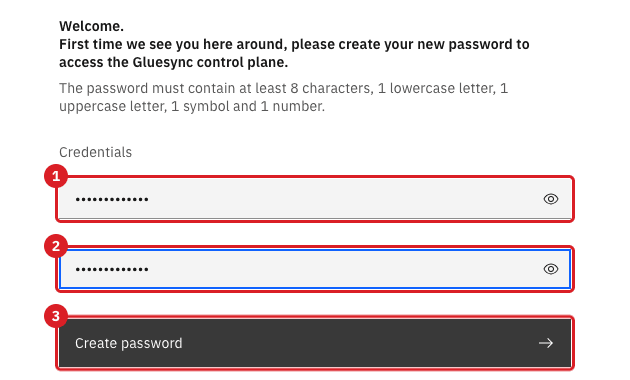
admin user: enter it twice (1 and 2), then select Create password (3).Do this before the server is reachable by anyone else, and do not rely on the prompt: on a new kit the login with the default password already gives a session that the API accepts.
Change the Grafana password next. The kit sets it with an environment variable of the grafana service in docker-compose.yml. Replace the value, then recreate the service:
  grafana:
    environment:
      - GF_SECURITY_ADMIN_USER=admin
      - GF_SECURITY_ADMIN_PASSWORD=<your Grafana password>
cd /opt/gluesync
sudo docker compose up -d grafanaIf you keep the Grafana data in a volume, Grafana ignores the variable after the first start. Change the password of the running Grafana instead, with its API:
curl -k -u admin:<old password> -X PUT https://<server>/grafana/api/user/password \
  -H 'Content-Type: application/json' \
  -d '{"oldPassword":"<old password>","newPassword":"<new password>","confirmNew":"<new password>"}'
If your kit includes Portainer, change its password with the Portainer API, because the --admin-password option of the compose file is read only when Portainer creates its data for the first time, and a recreated container keeps that data. Sign in, then change the password of user 1:
TOKEN=$(curl -sk -X POST https://<server>:9443/api/auth -H 'Content-Type: application/json' \
  -d '{"username":"admin","password":"passwordpassword"}' | jq -r .jwt)
curl -sk -X PUT https://<server>:9443/api/users/1/passwd -H "Authorization: Bearer $TOKEN" \
  -H 'Content-Type: application/json' \
-d '{"password":"passwordpassword","newPassword":"<new password>"}'Config
The kit ships the same two secrets everywhere, in bootstrap-core-hub.json. storageKey encrypts the credentials that Core Hub stores, and apiTokenSecret signs the session and API tokens.
-
Before you start Core Hub for the first time, replace both values with random ones:
cd /opt/gluesync printf '{\n "apiTokenSecret": "%s",\n "storageKey": "%s"\n}\n' "$(openssl rand -hex 32)" "$(openssl rand -hex 16)" > bootstrap-core-hub.json -
Start the kit, and keep a copy of
bootstrap-core-hub.jsonwith your backups: without the storage key, the stored credentials cannot be read.
Do not change storageKey on an installation that already has pipelines. Core Hub encrypts what it stores with it: after the change, Core Hub started but did not serve requests (the proxy answered 502) and logged a decryption error, and it recovered only when the old key was put back. An installation that already runs keeps its key. Keep the file out of reach and out of shared folders, and see Move to production.
|
CLI
The kit publishes 80 and 443 (the proxy), 8765 (Query Forge) and, when it includes Portainer, 9443. Only 443 is needed by the people who use the Control Plane. Open the others only for the hosts that need them.
A host firewall does not protect these ports. Docker publishes them with its own rules, ahead of ufw and firewalld: on Ubuntu with ufw set to deny incoming traffic, and on Rocky Linux with firewalld active, ports 80, 443, 8765 and 9443 stayed reachable from another host. Use one of the two options below.
|
Option 1: publish on the server only, or remove the port. In docker-compose.yml, bind the port to the loopback address, or delete the ports entry if nobody needs it:
  gluesync-core-hub:
    ports:
      - 127.0.0.1:8765:8765
  portainer:
    ports:
      - 127.0.0.1:9443:9443
cd /opt/gluesync
sudo docker compose up -d gluesync-core-hub portainerAdministrators then reach the port through an SSH tunnel, for example ssh -L 9443:127.0.0.1:9443 <user>@<server> and https://localhost:9443.
Option 2: let only some hosts in, with the DOCKER-USER chain. Docker evaluates the DOCKER-USER chain of the firewall before its own rules, and keeps it when it restarts. Allow your administration host and drop everyone else on these ports:
ADMIN=<address of your administration host>
for port in 8765 9443; do
  sudo iptables -A DOCKER-USER -p tcp -s "$ADMIN" -m conntrack --ctorigdstport "$port" --ctdir ORIGINAL -j ACCEPT
  sudo iptables -A DOCKER-USER -p tcp -m conntrack --ctorigdstport "$port" --ctdir ORIGINAL -j DROP
done
Rules added this way are lost when the server restarts. Put the same commands in a script and run it from a systemd unit that starts after Docker, so the rules come back at boot:
# /etc/systemd/system/gluesync-published-ports.service
[Unit]
Description=Filter the Gluesync administration ports published by Docker
After=docker.service
Requires=docker.service

[Service]
Type=oneshot
RemainAfterExit=yes
ExecStart=/usr/local/sbin/gluesync-published-ports.sh

[Install]
WantedBy=multi-user.target
Start with iptables -F DOCKER-USER in the script, so that running it again does not add the rules twice, and enable the unit with sudo systemctl enable --now gluesync-published-ports.service. This chain is yours: do not run it on a host where another tool manages DOCKER-USER.
Config
The certificate that ships with the kit is self-signed and is the same in every kit, so it proves nothing about your server. Replace it in the two places that use it. The procedure, the file names and the Subject Alternative Names are in Setting up HTTPS for Core Hub Web UI and secure WebSocket connections and are not repeated here.
-
Replace
gluesync-cert.pemandgluesync-key.pemin thesharedfolder, keeping the names, for the reverse proxy that browsers reach; -
Put your
.p12keystore in thesharedfolder and setsslCertificatePath,certificateAlias,certificatePasswordandcertificateKeyPasswordinsecurity-config.jsonfor Core Hub, keeping thedhsection as it is; -
List every host name and IP address that clients use in the Subject Alternative Names;
-
Restart the proxy and Core Hub.
A keystore made with the keytool of Java 8 keeps a separate password on the private key. Use the .p12 file directly, or the same password for both, as the page above explains.
|
Config
Core Hub does not add browser security headers, so a pen test reports them as missing. Add them at the reverse proxy, in the certs.yml file of the proxy folder, which the proxy reloads when it changes:
http:
  middlewares:
    security-headers:
      headers:
        stsSeconds: 31536000
        contentTypeNosniff: true
        customFrameOptionsValue: SAMEORIGIN
        referrerPolicy: same-origin
        customResponseHeaders:
          Permissions-Policy: "geolocation=(), microphone=(), camera=()"
Then apply the middleware to every route of the secure entry point, in traefik.yml of the same folder, and restart the proxy:
entryPoints:
  websecure:
    address: ":443"
    http:
      middlewares:
        - security-headers@file
cd /opt/gluesync
sudo docker compose restart reverse-proxy
curl -skI https://<server>/grafana/login
Use SAMEORIGIN, not DENY. Metrics & Insights shows Grafana inside a frame of the Control Plane. With X-Frame-Options: DENY the browser refuses the frame (the console says Refused to display … in a frame because it set 'X-Frame-Options' to 'deny') and the page stays empty.
|
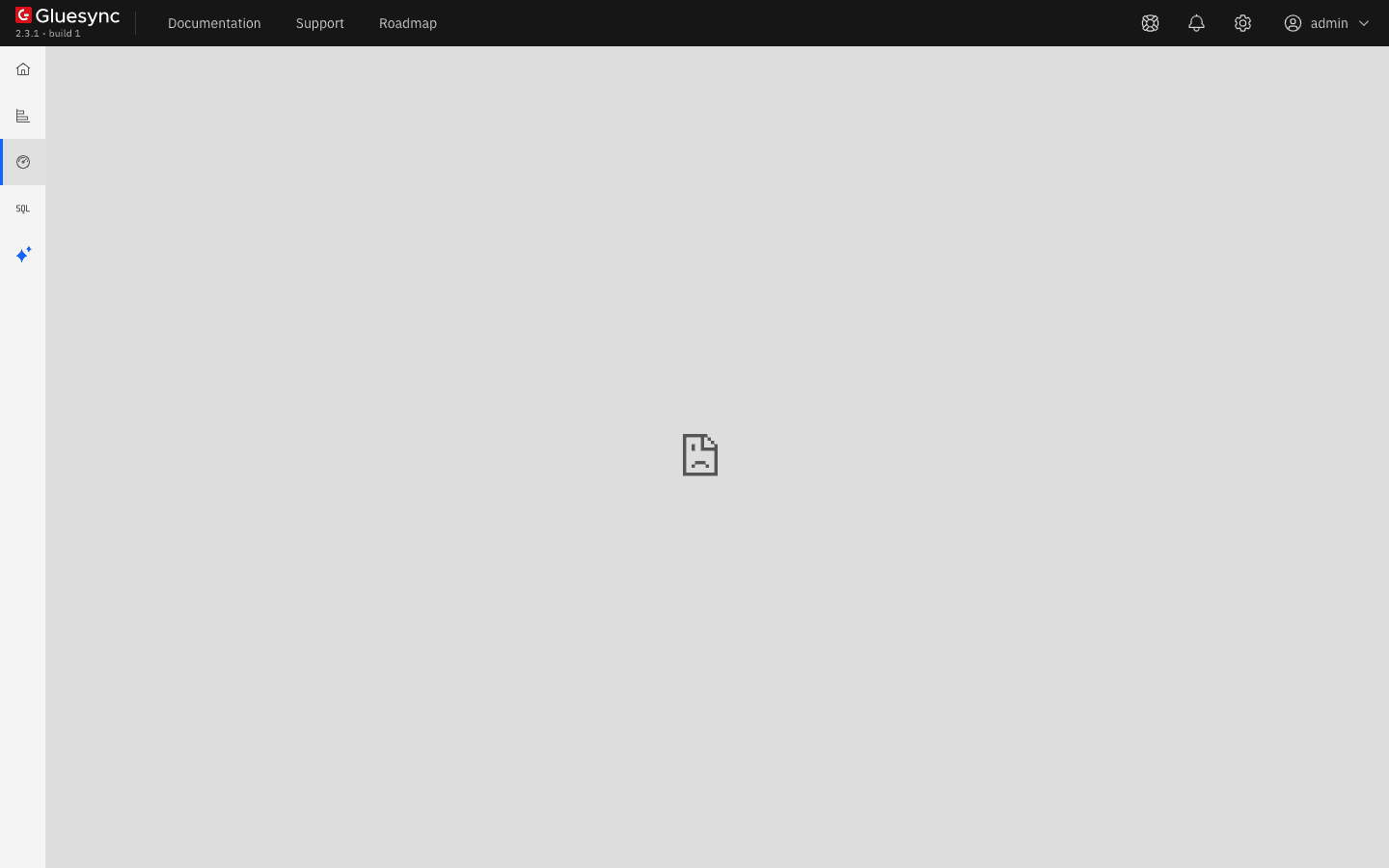
DENY, Metrics & Insights stays empty because the browser refuses to show Grafana in a frame.
Set stsSeconds only when the proxy serves a certificate that your users' browsers trust: a browser that has seen the header refuses to continue past a certificate warning for that host.
|
Config
GET /metrics of Core Hub is public by design: Prometheus reads it without credentials. The kit’s own Prometheus reads it on the internal network, so the public route through the proxy is not needed for it. If your review wants it closed, add a route in certs.yml that lets only your monitoring hosts reach it through the proxy:
http:
  routers:
    metrics-restricted:
      rule: "Path(`/metrics`)"
      entryPoints:
        - websecure
      priority: 10000
      middlewares:
        - metrics-allowlist
      service: corehub-https
      tls: {}
  services:
    corehub-https:
      loadBalancer:
        servers:
          - url: "https://gluesync-core-hub:1717"
  middlewares:
    metrics-allowlist:
      ipAllowList:
        sourceRange:
          - "<address of your monitoring host>/32"
Merge these three blocks with the http: section that you already have: a file can have only one.
This changes the route /metrics only. The per-pipeline route /pipelines/{id}/metrics is a different route and is not covered by it.
|
Config
Every service of the kit is something to patch and to defend. Remove the ones you do not need from docker-compose.yml:
| Service | What you lose when you remove it |
|---|---|
Portainer |
The container console on port |
Grafana |
The dashboards. Metrics & Insights in the Control Plane stays in the menu and shows an empty page. Prometheus keeps collecting |
Prometheus and Grafana |
The monitoring of the kit. Keep them if you use the dashboards |
cd /opt/gluesync
sudo docker compose up -d --remove-orphans| Do not remove Core Hub, the reverse proxy or Conductor to save a port. Conductor performs the updates from the Control Plane and mounts the Docker socket: instead of removing it, keep it current and limit who can reach the server. |
Config
-
Give people the lowest role that does their job. A
VIEWERreads everything and changes nothing: on a kit, itsGET /pipelineswas answered200, andPOST /pipelines,GET /usersandPOST /userswere answered403. See Manage users, groups and roles; -
Give scripts and tools a Personal API Token with only the scopes they need. A token with
gluesync.api_readcould read (GET /pipelinesanswered200) and could not change anything (POST /pipelinesandPOST /usersanswered403). See Personal API Tokens and scopes; -
Give each connection a database user with the privileges of that agent only, never a superuser. For a PostgreSQL source, the user needs
LOGIN,REPLICATION,SELECTon the replicated tables andUSAGEon their schema. For the target,INSERT,UPDATE,DELETEandSELECTon the target tables. The agent pages list the exact grants, for example PostgreSQL change data capture.
CREATE ROLE gs_src WITH LOGIN REPLICATION PASSWORD '<password>';
GRANT CONNECT ON DATABASE shop TO gs_src;
GRANT USAGE ON SCHEMA shop TO gs_src;
GRANT SELECT ON shop.customers TO gs_src;

CREATE ROLE gs_tgt WITH LOGIN PASSWORD '<password>';
GRANT CONNECT ON DATABASE tgt TO gs_tgt;
GRANT USAGE ON SCHEMA shop TO gs_tgt;
GRANT SELECT, INSERT, UPDATE, DELETE ON shop.customers TO gs_tgt;Policy
Antivirus and EDR products scan the Gluesync folders and the Docker storage, which costs CPU, and on Windows Server they can stop containers.
-
Windows Server: agree the exclusions with your security team before you install, following Prepare antivirus and EDR software before you install Gluesync on Windows Server. The walkthrough is in Install and run Gluesync on Windows Server;
-
Linux: exclude the installation directory (
/opt/gluesyncby default) and, if your policy allows it, the Docker storage root. See Antivirus software.
Troubleshooting
| Problem | Possible cause | What to do |
|---|---|---|
The Trivy scan cannot download its database |
The machine has no access to the registries that hold it |
Download the database on another machine and copy it, or scan on a machine with internet access with |
Two scanners give different numbers for the same image |
Different databases, identifier families, and unfixed findings listed by one scanner only |
Use the same filter on both (fixed findings only) and compare package and version, not the identifier |
A library is reported, but it is in the folder of an agent you do not use |
All agents ship in the Core Hub image |
Report the path to MOLO17 with the finding, it helps the assessment |
After a change of |
Core Hub cannot decrypt what it stored with the old key |
Put the previous |
The Grafana password in the compose file does not take effect |
The Grafana data is kept in a volume, so the variable is read only at the first start |
Change the password through the Grafana API, as in the password step |
The Portainer password in the compose file does not take effect |
Portainer keeps its data in a volume that survives a recreated container |
Change it through the Portainer API, or delete the container with its volume ( |
|
Docker publishes ports with its own rules ahead of the host firewall |
Bind the port to |
Metrics & Insights is empty after you added headers |
|
Set |
Browsers refuse the site after you set |
The certificate is not trusted, and the browser remembers the header |
Install a trusted certificate first, then set the header |
Related guides
Contact MOLO17 Support if you need assistance with a security review.