Filter rows with a snapshot WHERE clause and target filters
Gluesync gives you two ways to replicate only some rows of a table: a snapshot WHERE clause, which limits what is read from the source during a snapshot, and target filters, which decide which rows reach the target during the snapshot and during live changes. This guide shows how to set both, how to combine them, and how each one treats inserts, updates and deletes.
In this guide
You will learn how to open the entity settings, limit a snapshot with a SQL WHERE clause, add target filters with each operator (including in), combine several conditions, run a snapshot and compare the target with the source using SQL counts, and check what a filter does when a row is inserted, updated or deleted after the snapshot. The Frequently asked questions answers the questions that come up most: how to write the in list, what to do when values are stored with blanks, and how decimals, dates and the IBM i relative record number behave.
Quick information
Goal |
Copy only a subset of the rows of a table, for the initial snapshot and for live changes |
Audience |
Gluesync users who build and maintain pipelines |
Level |
Intermediate |
Time required |
About 30 minutes |
Area |
Control Plane → Pipelines → entity Options → Edit settings |
Applies to |
Gluesync 2.3 |
Before you begin
Make sure that:
-
You can sign in to the Gluesync Control Plane with a role that can edit pipelines;
-
You have a pipeline with a source and a target agent and an entity for each table (this guide uses a pipeline named Filters demo with the entities
customersandorders); -
The target tables already exist, with the same columns as the source tables;
-
You can run SQL against the source and the target database, for example with Query Studio.
The examples use the Gluesync sample shop data, copied into a schema that is used only for this exercise (shop_filters on the source, shop_filtered on the target), so that you can change rows freely:
| Table | Content |
|---|---|
|
200 rows. Columns |
|
1,000 rows. Columns |
|
Optional: add empty values to your test data
If your test data has no empty values and you want to see how filters treat |
|
Do not try filters for the first time on production tables. Use a copy, or a target schema you can empty, because some of the steps below delete rows from the target. |
Guide steps
UI
-
Open Data pipelines and select your pipeline;
-
In the row of the
customersentity, select Options (the three-dot icon); -
Select Edit settings.
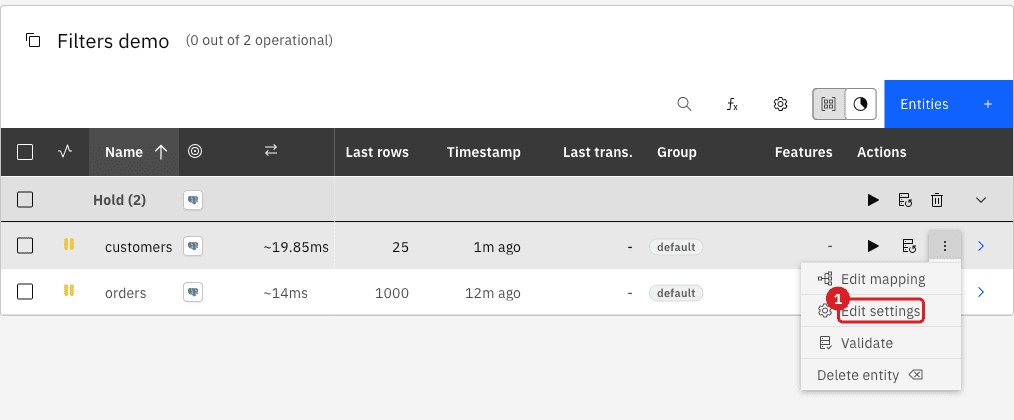
UI
-
In the dialog, select the Source tab;
-
In the SQL Snapshot where clause filter (without initial WHERE) editor, enter the condition, for example
country = 'IT'; -
Keep the dialog open to add the target filters in the next steps.
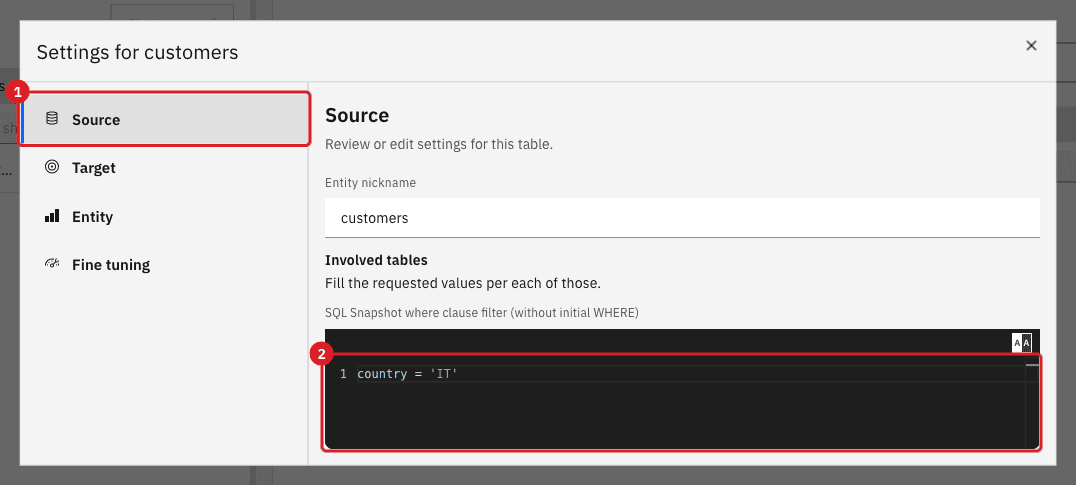
|
The text is added to the snapshot |
|
The WHERE clause is used only when a snapshot reads the table. It does not filter live changes: see What happens to live changes. |
UI
-
In the dialog, select the Target tab;
-
In the Filter out incoming data section, open the Fields list;
-
Select the target fields that you want to filter on, for example
statusandcredit_limit.
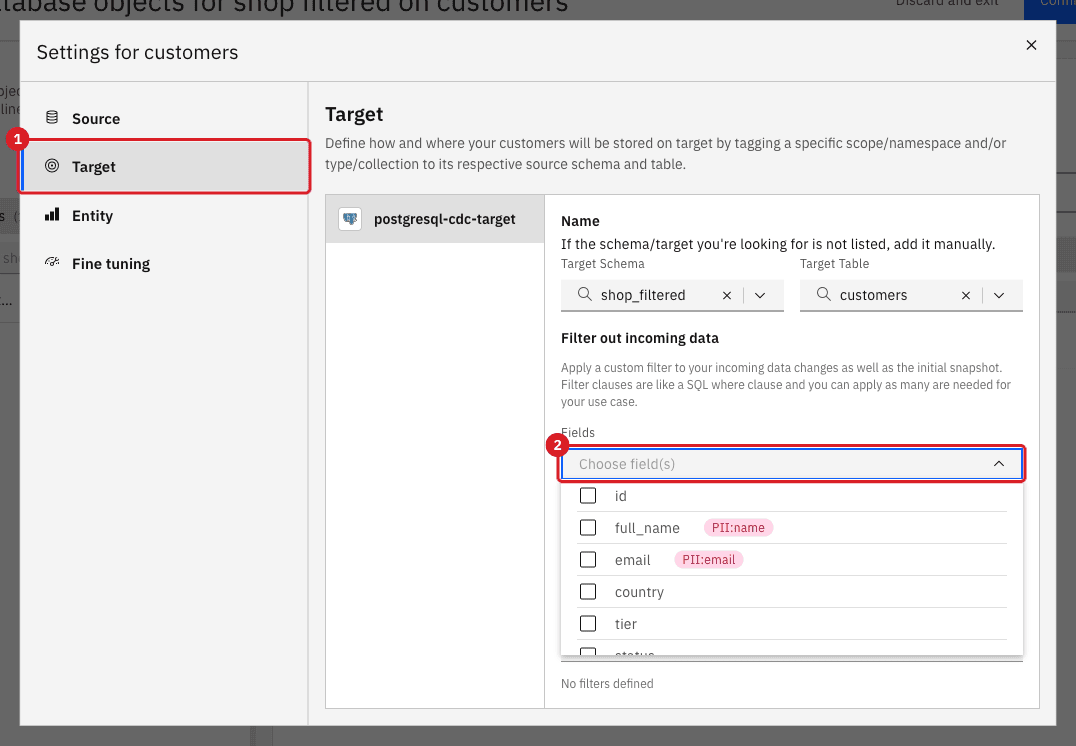
|
Each field can be selected once, so a field carries one condition. The list shows the fields of the target table. A trash icon (Remove filter) at the end of a row removes that condition. |
UI
-
In the row of
status, open the Operator list; -
Scroll the list and select in;
-
In Value, enter
active, suspended.
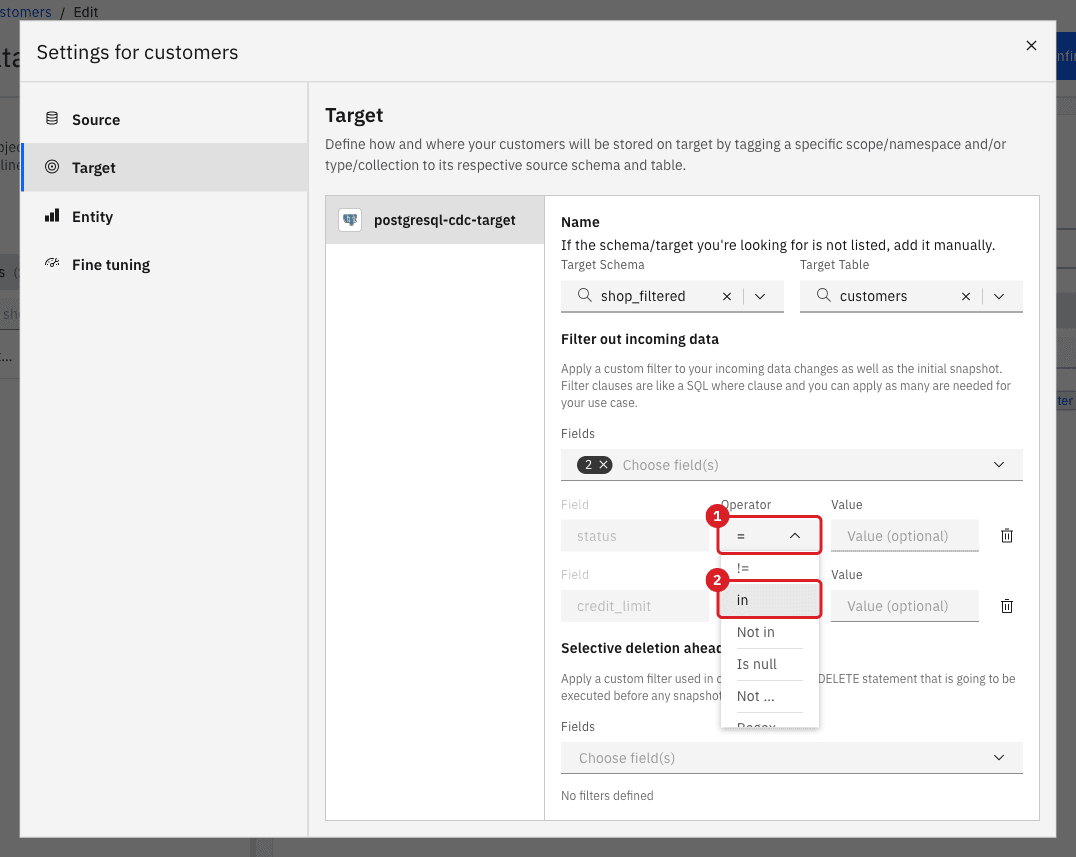
|
The Operator list holds 11 entries and shows five at a time, so scroll it to reach in, Not in, Is null, Not null and Regex. For Is null and Not null the Value box is hidden because those operators need no value. The full list with examples is in Operators reference. |
UI
-
In the row of
credit_limit, select the operator>; -
In Value, enter
5000; -
Close the dialog with Close, then select Confirm and continue to save the entity.
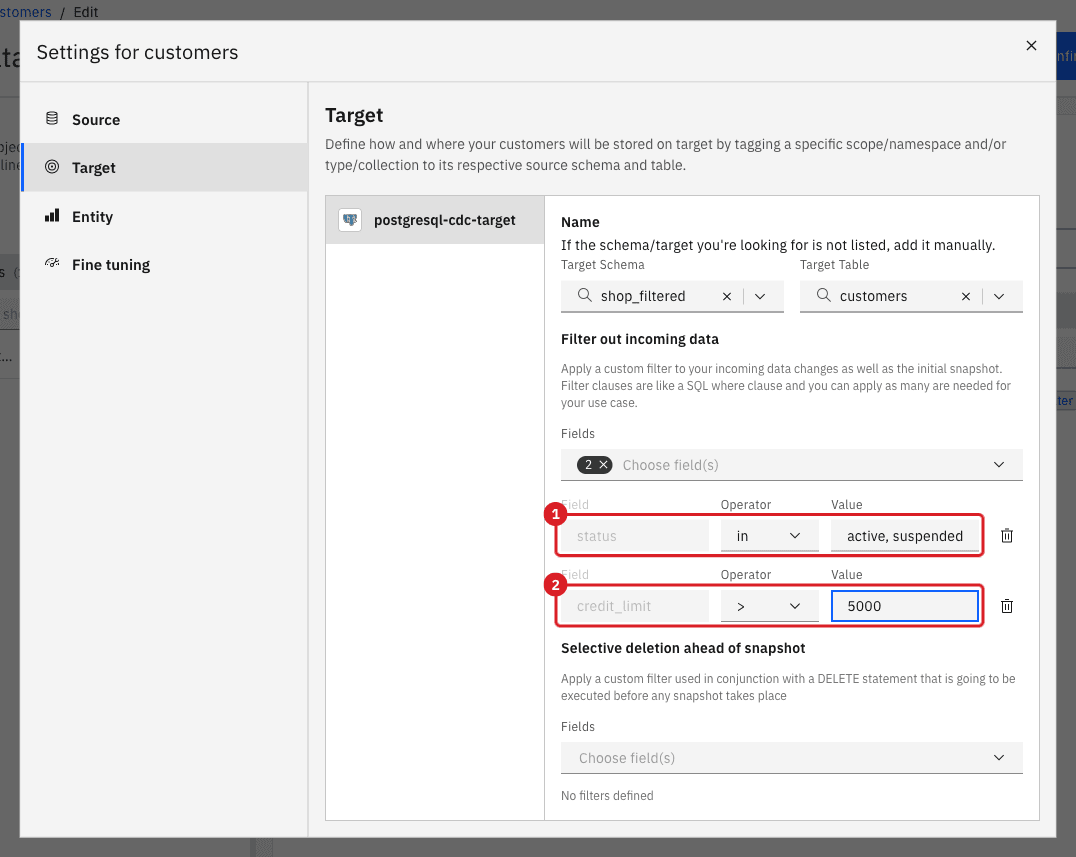
|
Conditions on different fields are always combined with AND. The Control Plane has no OR between conditions and no group of conditions. To keep rows that match one value or another on the same field, use |
UI
-
In the row of
customers, select Run one-time snapshot; -
In Data already in the target, select Empty the table first;
-
Select the checkbox I understand that rows in the target will be deleted;
-
Select Start snapshot.
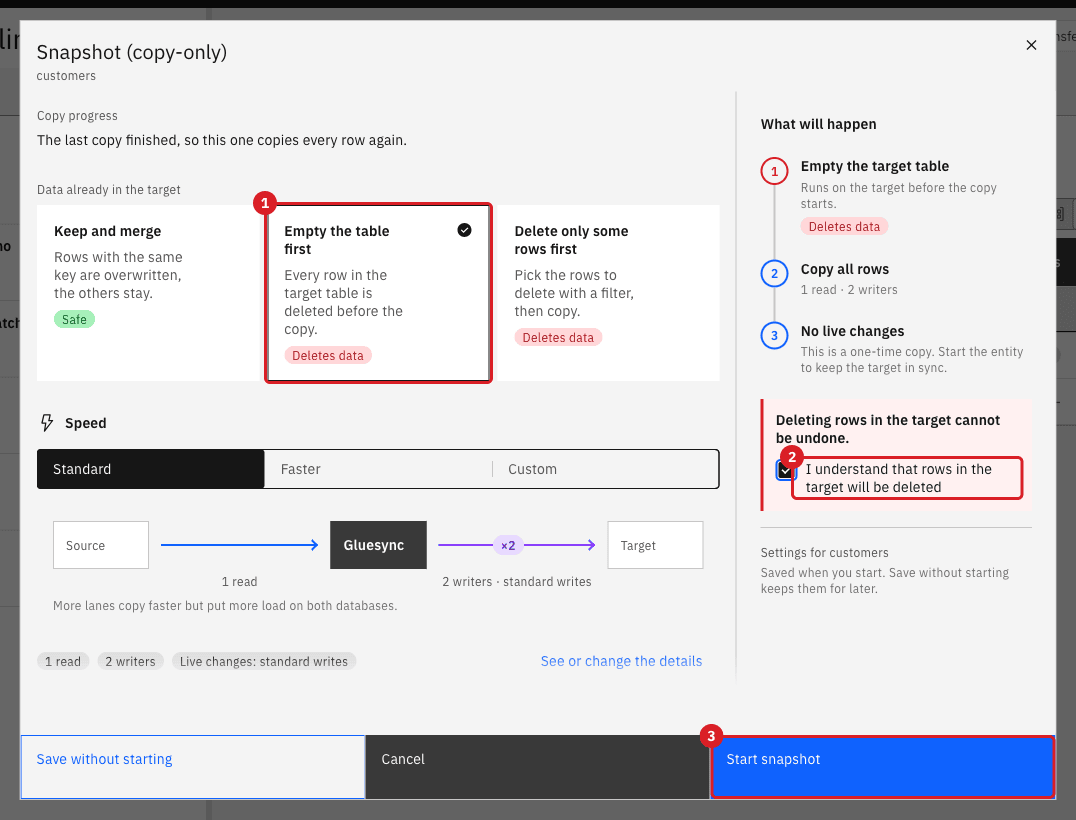
|
Keep and merge, the default, overwrites rows with the same key and leaves every other row where it is. After you tighten a filter or a WHERE clause, rows copied by an earlier run stay in the target. We ran the snapshot with only |
|
After this run the Last rows column of the entity shows 25, the rows read from the source after the WHERE clause, while the target holds 11. The WHERE clause reduces what Gluesync reads. A target filter does not: it discards rows after they are read. |
UI
-
In the row of the
ordersentity, select Options, then Edit settings; -
On the Target tab, select the fields
currencyandamount; -
For
currency, select the operatorinand enterEUR, GBP; -
For
amount, select the operator>=and enter500; -
Close the dialog and select Confirm and continue;
-
Run a one-time snapshot with Empty the table first, as in the previous step.
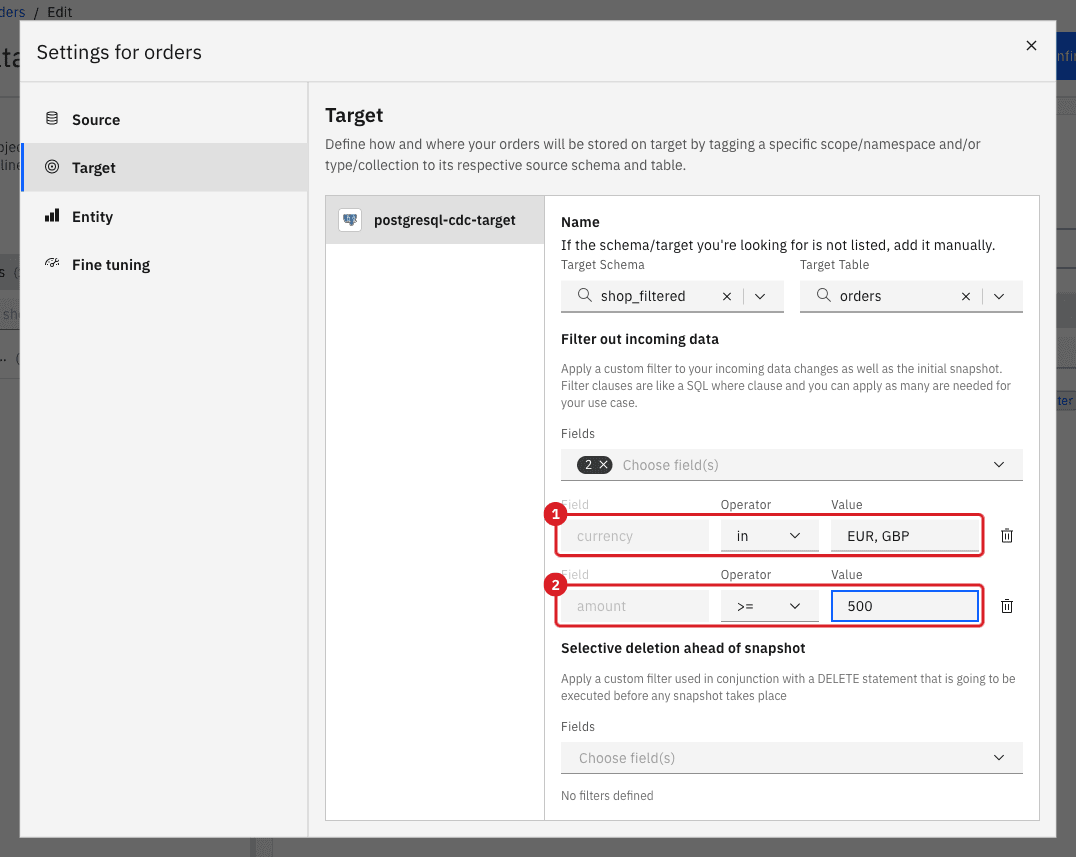
SQL
-
Open Query Studio, select your pipeline’s source agent and run the expected counts;
-
Select the target agent and run the actual counts;
-
Compare the two.
Expected rows, computed on the source with the same conditions written as SQL:
SELECT count(*), md5(string_agg(id::text, ',' ORDER BY id))
FROM shop_filters.customers
WHERE country = 'IT' AND status IN ('active', 'suspended') AND credit_limit > 5000;

SELECT count(*), md5(string_agg(id::text, ',' ORDER BY id))
FROM shop_filters.orders
WHERE currency IN ('EUR', 'GBP') AND amount >= 500;
Actual rows, read on the target:
SELECT 'customers' AS target_table, count(*) AS rows FROM shop_filtered.customers
UNION ALL
SELECT 'orders', count(*) FROM shop_filtered.orders;

SELECT md5(string_agg(id::text, ',' ORDER BY id)) FROM shop_filtered.customers;
SELECT md5(string_agg(id::text, ',' ORDER BY id)) FROM shop_filtered.orders;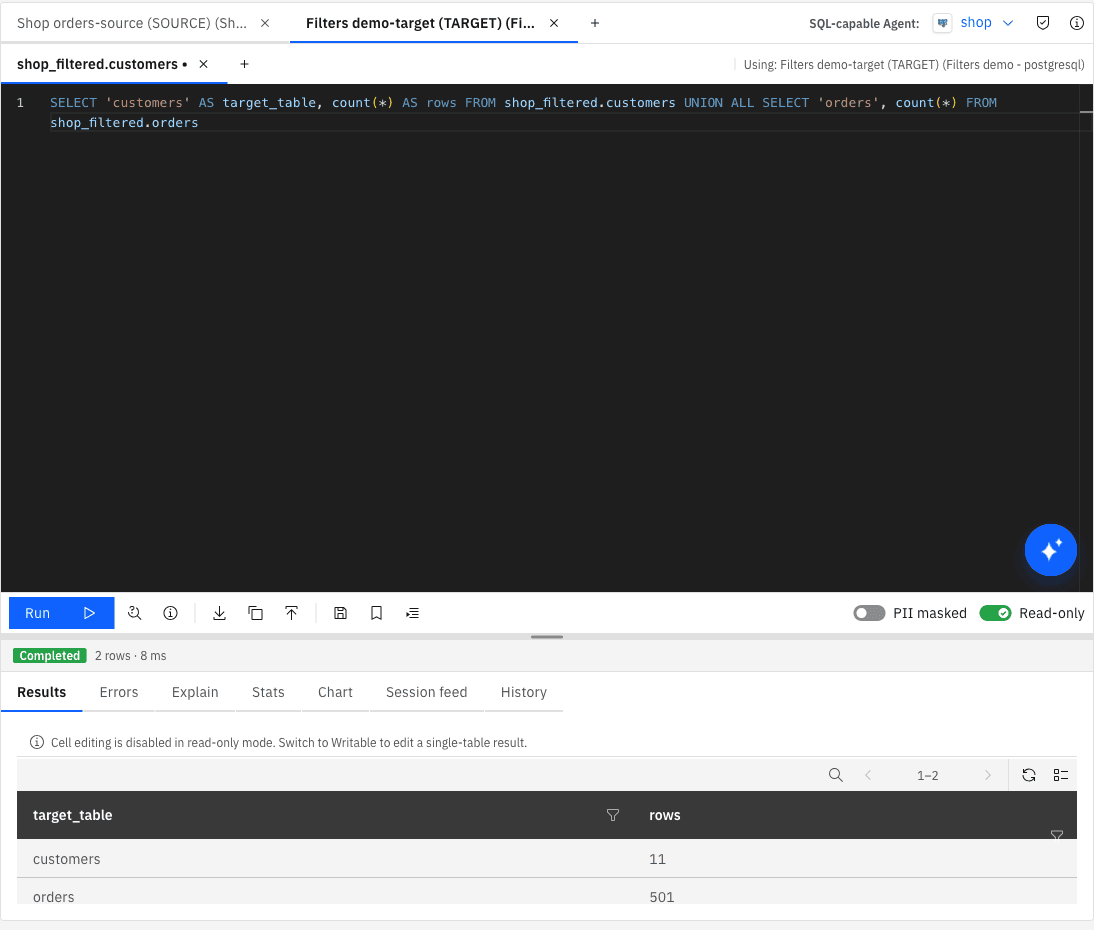
UI + SQL
-
In the row of
customers, select Start sync; -
In Start from, select Full copy, and keep Keep and merge under Data already in the target;
-
Select Start entity;
-
Run the statements of the table below on the source with your SQL client (Query Studio opens in read-only mode), one at a time, and read the target after each one.
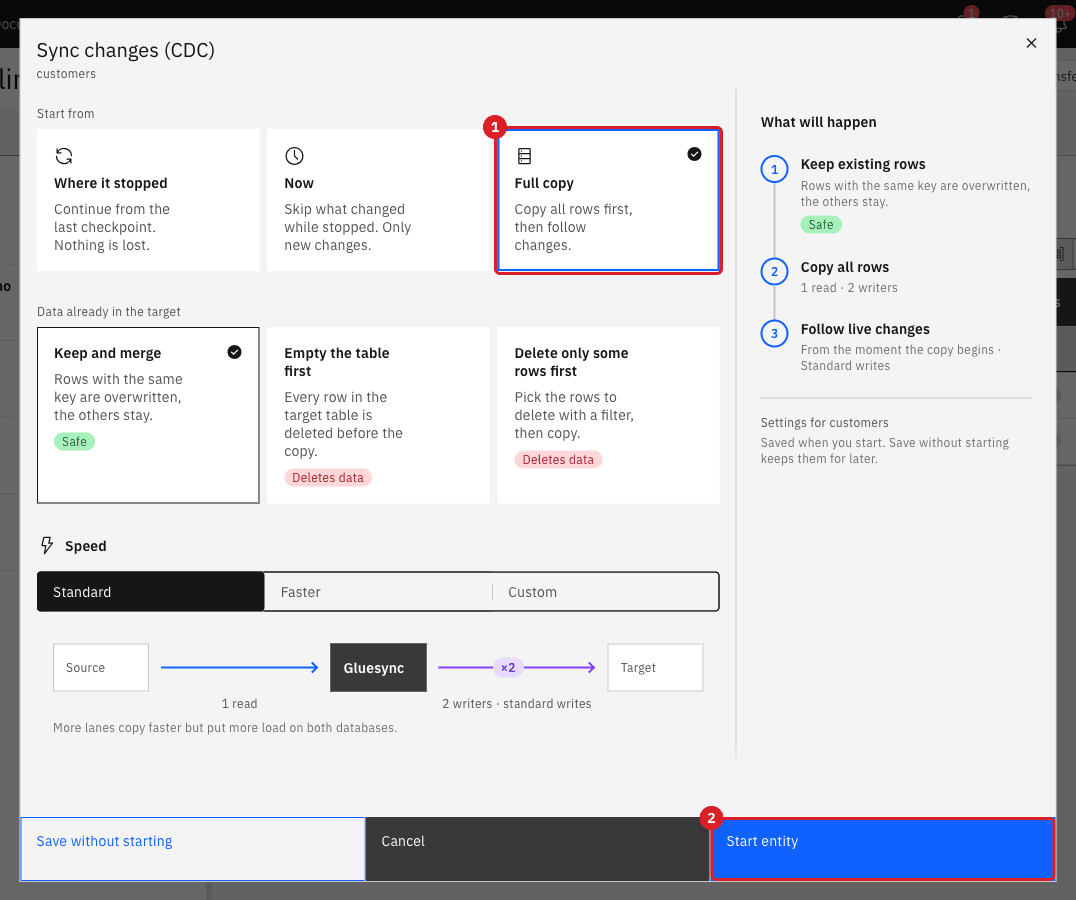
The entity here still has the snapshot WHERE clause country = 'IT' and the filters status in (active, suspended) and credit_limit > 5000. The target started with 11 rows. We observed:
| # | Statement on the source | Result on the target | Rows |
|---|---|---|---|
1 |
|
The row is written (it passes every filter). |
12 |
2 |
|
Nothing is written ( |
12 |
3 |
|
The row is written. The WHERE clause |
13 |
4 |
|
The row is deleted from the target: it no longer passes the filter. |
12 |
5 |
|
The row appears in the target: it now passes the filter. |
13 |
6 |
|
The row is deleted: |
12 |
7 |
|
The row is updated and stays. |
12 |
8 |
|
The row is deleted from the target. |
11 |
9 |
|
Nothing to remove, no error. |
11 |
|
When you finish, stop the entity, or select Run one-time snapshot instead of Start sync when you only need a copy. |
Operators reference
The operators of Filter out incoming data are the ones in the Operator list. The examples were run on the shop data; the last column is the number of rows that reached the target.
| Operator | Keeps the row when | Value to enter | Example | Rows kept |
|---|---|---|---|---|
|
The field equals the value. |
One value. |
|
25 of 200 |
|
The field has a value that is different from the given one. |
One value. |
|
44 of 200 |
|
The field is greater than the value. |
A number, date or text. |
|
188 of 200 |
|
The field is greater than or equal to the value. |
A number, date or text. |
|
189 of 200 |
|
The field is less than the value. |
A number, date or text. |
|
3 of 200 |
|
The field is less than or equal to the value. |
A number, date or text. |
|
4 of 200 |
|
The field equals one of the listed values. |
Values separated by commas. Spaces around a comma are ignored. |
|
172 of 200 |
|
The field has a value that is not in the list. |
Values separated by commas. |
|
150 of 200 |
|
The field is empty. |
None (no Value box). |
|
20 of 200 |
|
The field is not empty. |
None (no Value box). |
|
180 of 200 |
|
The whole value matches the regular expression. |
A regular expression. It must match the entire value, not a part. |
|
100 of 200 |
More examples on orders: currency in EUR, GBP keeps 666 of 1,000; amount >= 500 keeps 751; status Not in cancelled, new keeps 600; order_date > 2026-06-30 keeps 357; customer_id in 1, 2, 3, 8, 15 keeps 25; status Regex (paid|shipped) keeps 400.
How values are read
The value is typed as plain text, without quotes, and Gluesync converts it to the type of the target field before it compares.
| Field type | What to type | Observed |
|---|---|---|
Text |
The text, with no quotes. The comparison is case-sensitive. |
|
Integer and decimal |
A plain number, with a dot for decimals. |
|
Date |
|
|
Timestamp (no time zone) |
|
|
Empty values ( |
Use |
No other operator keeps a row whose field is empty: |
The Control Plane does not check the value when you save. A value that cannot be read, such as abc on a number field, stops the entity at the first row with Character a is neither a decimal digit number, decimal point, nor "e" notation exponential mark.
Combinations and their effect
Each line was run as a snapshot into an empty target and the target was compared with the SQL result on the source (same rows, not only the same count).
| Setting | What you enter | Effect | Rows in target |
|---|---|---|---|
Snapshot WHERE only |
WHERE: |
The source returns only Italian customers. |
25 |
Snapshot WHERE with |
WHERE: |
Any SQL the source accepts. OR is possible here and not in target filters. |
75 |
Snapshot WHERE with |
WHERE: |
Each of the three on its own. |
20 / 100 / 53 |
Snapshot WHERE on dates |
WHERE: |
The value follows the SQL rules of the source database. |
50 |
One target filter |
|
Same rows as the WHERE in a snapshot. The difference is on live changes. |
25 |
Two target filters (AND) |
|
The row must pass both. |
20 |
Three target filters (AND) |
|
The row must pass all three. |
50 |
Two filters, |
|
AND of the two. |
91 |
WHERE and a target filter |
WHERE: |
The snapshot reads the WHERE rows and the filter keeps part of them: the intersection. |
22 |
WHERE and two target filters |
WHERE: |
Intersection of all three conditions. |
11 |
WHERE with |
WHERE: |
OR inside the WHERE, then AND with the filter. |
41 |
A range on one column |
WHERE: |
One field has one filter condition, so put the second bound in the WHERE clause. |
63 |
Orders: |
|
The example of this guide. |
501 |
Orders: WHERE and two filters |
WHERE: |
WHERE reduces the read, the filters decide what is written. |
224 |
What happens to live changes
| Change on the source | With a target filter | With only a snapshot WHERE clause |
|---|---|---|
|
Written if the new row passes every condition, ignored otherwise. |
Always written: the WHERE clause is not applied. Inserting a |
|
The target row is updated. |
The target row is updated. |
|
The row is deleted from the target. |
The row is updated and stays. We changed the country of an Italian customer to |
|
The row is added to the target, even if it was never copied by the snapshot. |
The row is written: every update is applied. |
|
If it passes the filter the row is written, otherwise ignored. |
The row is written. We updated a |
|
The row is deleted. Deleting a row that is not in the target does nothing and raises no error. |
The row is deleted. |
|
A snapshot WHERE clause never removes anything and never blocks anything after the snapshot. If a rule must hold for live changes too, express it as a target filter. |
Snapshot WHERE or target filter: which to use
| You want to | Snapshot WHERE clause | Target filter |
|---|---|---|
Read fewer rows from the source and put less load on it |
Yes. The condition runs in the source database. |
No. The rows are read and then discarded. |
Apply the rule to live changes as well as to the snapshot |
No. |
Yes. |
Keep the target consistent when a row stops matching |
No. |
Yes: the row is deleted. |
Write a condition with |
Yes, any SQL of the source database. |
No. Only the 11 operators, joined with AND, one per field. |
Filter on a field with a list of values |
Yes: |
Yes: |
Select rows with an empty value |
Yes: |
Yes: |
Load a one-off subset, for example the last year, once |
Yes. |
Works, but the rule stays active for live changes. |
Both: read little and keep the rule forever |
Combine them. The WHERE clause limits the read, the filter is the rule that always holds. |
Frequently asked questions
The answers below were run on an extra table, codes, with a CHAR(12) column that holds codes with blanks, as fixed-length columns do on IBM i. Each answer gives the number of rows that reached the target, compared with the same condition written as SQL on the source.
|
Optional: create the
codes tableSkip this if you have your own data with the same traits. Create the table on the source ( |
How do I write the list of the in operator?
Type the values separated by commas, without quotes, for example LI0, LI1, LTG.
-
Quotes are not syntax. They become part of the value, so
'LI0'is looked for with its quotes and never found; -
Gluesync removes the spaces around each item, so
LI0, LI1,LI0,LI1and ` LI0 , LI1 ` are the same list; -
The comparison is exact and case-sensitive;
-
The items are converted to the type of the field before they are compared, so the same rule holds for numbers and dates.
On the code_text column (VARCHAR), whose rows 6, 7 and 8 hold LI0, LI1 and LTG with no blanks:
Value of in |
Result | Rows |
|---|---|---|
|
Matches rows 6, 7 and 8. |
3 |
|
Same as above: spaces around the items are ignored. |
3 |
|
The quotes are part of the values. |
0 |
|
Case-sensitive. |
0 |
My values have blanks before or after them. Why does in match nothing?
A fixed-length column, such as an IBM i CHAR(12), stores the value padded with blanks, and Gluesync reads those blanks as part of the value: a code of LI0 in a CHAR(12) column is + LI0+ (nine blanks first) or +LI0 +. Because Gluesync trims every item of the in list, the list can never contain a value that begins or ends with a blank, so in finds nothing, and no error is shown. The quotes do not help, and neither does typing the blanks into the list.
Use Regex, which sees the whole value, and let the expression accept the blanks:
^\s*(LI0|LI1|LTG|LFM)\s*$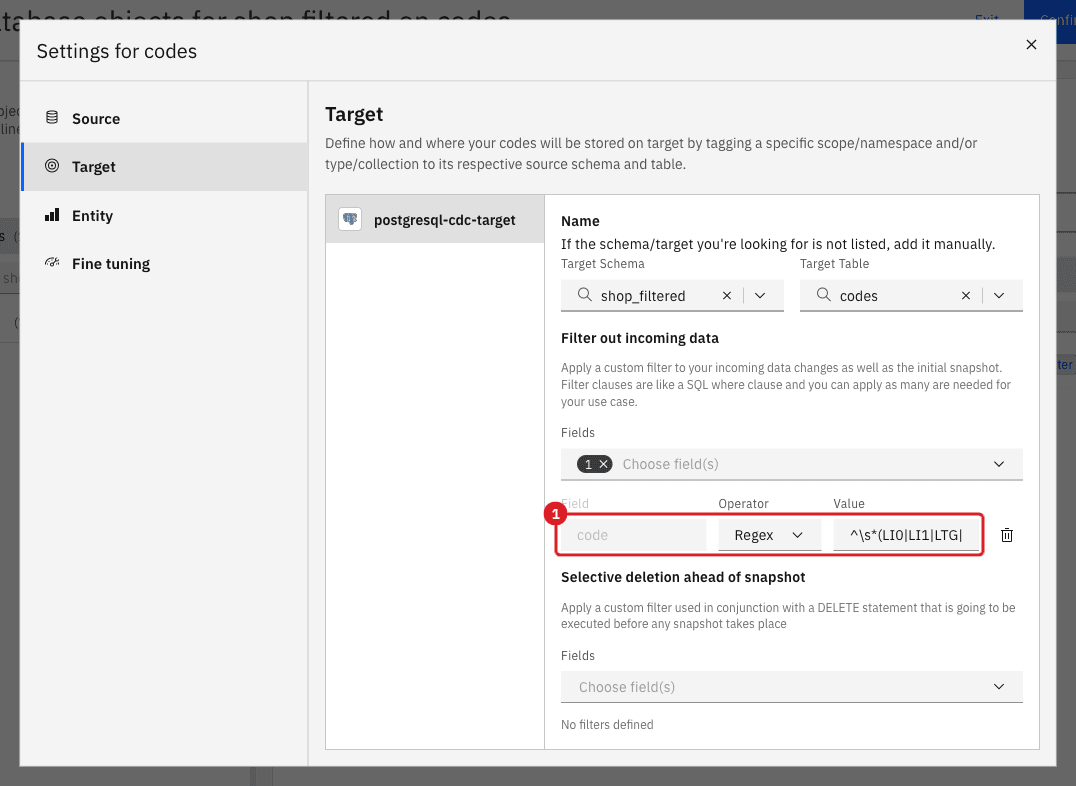
On the code column (CHAR(12), rows 1 to 5 padded on the left, rows 6 to 8 padded on the right):
| Condition | Result | Rows |
|---|---|---|
|
Nothing matches. |
0 |
|
Nothing matches. |
0 |
|
Rows 1, 2, 3, 4, 6, 7 and 8, the same rows as |
7 |
|
|
2 |
The expression must match the entire value, so ^ and $ are optional, and \s* stands for the blanks. To list many codes, put them all in one group separated by |.
The filter also works on live changes. With the Regex above, an INSERT of a padded LI1 and of LFM was written to the target, an INSERT of a padded LK9 was not, and an UPDATE that changed a written row to LK9 deleted it from the target.
| Rows that are already in the target stay there when you change a filter. Run a snapshot with Empty the table first to align the target. |
How do decimal values compare?
Type the number in plain form, with a dot as the decimal separator and without a thousands separator. Gluesync compares it as a number, so trailing zeros do not matter, on the field and in the value. On price (NUMERIC(10,3)):
| Condition | Result | Rows |
|---|---|---|
|
Matches the row that holds |
1 |
|
Matches the row that holds |
1 |
|
Matches |
2 |
|
Compared as numbers. |
3, and 4 |
|
Rows with an empty |
6 of 8 |
|
The entity stops with |
error |
Regex is the exception: it sees the number as text, with the number of decimals of the column. 10.000 is not matched by 10; use 10(\.0+)?. For numbers, prefer =, in and the comparison operators.
How do I filter dates and timestamps?
Use the ISO format: yyyy-MM-dd for a date, yyyy-MM-ddTHH:mm:ss for a timestamp, with the letter T between date and time and optional decimals of a second. Every operator but Regex compares dates and timestamps as points in time, so the comparison operators and in work as they do for numbers. On ship_date (DATE) and updated_at (TIMESTAMP):
| Condition | Result | Rows |
|---|---|---|
|
From the 15th of June onwards. |
5 |
|
Two dates. |
2 |
|
The timestamp of row 2 is exactly this value, so it is included. |
6 |
|
A fraction of a second is accepted. |
1 |
|
The row at |
5 |
|
Rows with an empty date. No other operator keeps them. |
1 |
A value in another format stops the entity at the first row, with a message that quotes the value:
| Value | Message |
|---|---|
|
|
|
|
|
|
|
|
Fix the value in Edit settings and start the entity again.
Can I filter on the relative record number (RRN) of IBM i?
The relative record number is the position of a row in the physical file. It is not a column, so it is not in the Fields list of Filter out incoming data until you expose it:
-
In the settings of the IBM i source agent, select
_RRNin Technical fields (see Source Agent Advanced Settings); -
Map
_RRNto aBIGINTcolumn of the target table; -
In Edit settings, on the Target tab, select that column in Fields and filter it like any integer.
An integer column accepts =, !=, >, >=, <, <= and in. On the rrn column (BIGINT) of the example table: >= 1500 kept 5 rows, in 1, 2, 3 kept 3 rows, and a snapshot WHERE clause rrn < 2000 with the filter > 1000 kept 3 rows (1500, 1501 and 1502), because one field carries one condition and the second bound goes in the WHERE clause.
For a snapshot you can also limit the read in the Source tab with the WHERE clause of the IBM i agent, where the table is named T, for example RRN(T) >= 1000000.
A relative record number changes when the file is reorganized (RGZPFM), so a filter on an RRN range selects other rows afterwards. Use an RRN filter for a one-off subset of a snapshot, not as a rule that must hold for live changes.
|
Troubleshooting
| Problem | Possible cause | What to do |
|---|---|---|
The target has more rows than the filter should allow after you changed it |
The snapshot was run with Keep and merge, which leaves rows from earlier runs |
Run the snapshot again with Empty the table first, or with Delete only some rows first and a Selective deletion ahead of snapshot rule |
Rows outside the WHERE clause appear in the target later |
The WHERE clause is not applied to live changes |
Add a target filter with the same rule |
Nothing is written to the target |
The value does not match: wrong case, quotes around the value, or a regular expression that matches only part of the text |
Type the value without quotes and in the same case as the data. For |
Rows with an empty value disappear when you use |
Rows with |
Use |
The entity shows an error such as |
A timestamp value without the |
Open Edit settings, use |
The snapshot fails with |
The WHERE clause is run by the source database and uses source column names and syntax |
Test the condition with |
You need two conditions on the same field |
The Fields list offers each field once |
Use |
Related guides
Contact MOLO17 Support if you need assistance with filters or snapshots.