Enable HTTPS with your own certificate and TLS to your databases
Gluesync always serves the Control Plane over HTTPS, with a self-signed certificate that your browser does not trust. This guide shows how to replace it with a certificate issued by your own certification authority (CA), how to check which certificate browsers and API clients really receive, and how to make Gluesync verify the certificate of the databases it connects to. It also covers what to do when a database only speaks TLS 1.0 or 1.1.
In this guide
You will learn how to build a keystore for Core Hub, configure security-config.json, install the PEM files on the reverse proxy of the kit, check both endpoints with openssl, trust the CA in a browser, and find out why the browser still shows the old certificate. Then you will create a trust store, enable TLS in a connection form and upload it, check that a database that requires TLS refuses a connection without it, read an IBM i system over TLS, and decide whether a legacy database justifies lowering the TLS floor of Core Hub. The Oracle wallet is covered by its own guide.
Quick information
Goal |
Serve the Control Plane with a certificate from your own CA, and connect Gluesync to databases over verified TLS |
Audience |
System administrators and security teams who install and operate Gluesync |
Level |
Advanced |
Time required |
About 60 minutes |
Area |
Docker Compose kit folders |
Applies to |
Gluesync 2.3 |
Before you begin
Make sure that:
-
You run Gluesync from the Docker Compose kit, where the folder
sharedof the installation is mounted in Core Hub as/opt/gluesync/sharedand the reverse proxy (Traefik) reads the folderproxyand the PEM files ofshared; -
You can edit the files of the kit, restart its containers, and run
opensslandkeytool(it comes with a JDK) on your workstation; -
You have, from your PKI, a server certificate with its private key and the certificate of the CA that issued it. The certificate lists in its Subject Alternative Names (SAN) every host name and IP address that people and tools use to reach Gluesync. If you do not have them yet, the first step creates a test CA and a test certificate;
-
For the database part, you can sign in to the Control Plane with a role that can edit pipelines and you know the CA certificate of each database.
The examples use the host name gluesync.lab.test, the Core Hub keystore gluesync.p12, the certificate files gluesync.crt and gluesync.key, and the CA file ca.crt. Replace them with yours.
|
Do not experiment on a production installation. Replacing a certificate restarts the web server of Core Hub and the reverse proxy, and a mistake in |
Know which certificate does what
A kit has two TLS endpoints, and each one has its own certificate. This is the most common source of confusion: browsers never see the certificate of Core Hub.
| Who connects | What they reach | Certificate and where it is configured |
|---|---|---|
Browsers, API clients, AI clients |
The reverse proxy, port |
The PEM files |
The reverse proxy, and the Gluesync modules |
Core Hub, port |
The keystore named in |
The agents of Core Hub |
Your databases |
A trust store that you upload in the connection form, one per connection. |
security-config.json is the file that Core Hub reads. ssl-config.json is its older name: Core Hub reads it only when security-config.json does not exist.
Guide steps
CLI
Skip this step if your PKI gives you the certificate, its key and the CA certificate.
-
Create the CA key and certificate;
-
Create the key and the request of the server;
-
Sign the request with the CA, listing every name and address in the SAN.
openssl genrsa -out ca.key 4096
openssl req -x509 -new -nodes -key ca.key -sha256 -days 1825 -out ca.crt \
  -subj "/C=IT/O=Lab Example Org/CN=Lab Example Internal CA" \
  -addext "basicConstraints=critical,CA:TRUE" \
  -addext "keyUsage=critical,keyCertSign,cRLSign"

openssl genrsa -out gluesync.key 2048
openssl req -new -key gluesync.key -out gluesync.csr \
  -subj "/C=IT/O=Lab Example Org/CN=gluesync.lab.test"

printf 'basicConstraints=CA:FALSE\nkeyUsage=critical,digitalSignature,keyEncipherment\nextendedKeyUsage=serverAuth\nsubjectAltName=DNS:gluesync.lab.test,DNS:gluesync,DNS:localhost,IP:127.0.0.1\n' > gluesync.ext
openssl x509 -req -in gluesync.csr -CA ca.crt -CAkey ca.key -CAcreateserial \
-out gluesync.crt -days 825 -sha256 -extfile gluesync.ext|
Browsers and API clients compare the address they typed with the SAN, not with the common name ( |
CLI
-
Export the certificate, the key and the CA certificate into one PKCS12 file.
-namesets the alias that you will enter insecurity-config.json; -
Enter an export password when
opensslasks for it, and note it down: it is the keystore password; -
List the keystore and check that it holds one
PrivateKeyEntry.
openssl pkcs12 -export -name gluesync \
  -in gluesync.crt -certfile ca.crt -inkey gluesync.key \
  -out gluesync.p12

keytool -list -keystore gluesync.p12 -storetype PKCS12
If your private key is protected by a passphrase, openssl asks for it first. If your certificate came from a Windows PKI as a .cer file in DER format, convert it first with openssl x509 -inform der -in server.cer -out gluesync.crt.
|
Core Hub reads a PKCS12 file such as |
Config
-
Copy
gluesync.p12into the foldersharedof the kit; -
Open
shared/security-config.jsonand set thesslsection to the keystore, its alias and its passwords. Keep thedhsection as it is; -
Restart Core Hub:
docker compose restart gluesync-core-hub.
{
  "ssl": {
    "sslCertificatePath": "/opt/gluesync/shared/gluesync.p12",
    "certificateAlias": "gluesync",
    "certificatePassword": "<keystore password>",
    "certificateKeyPassword": "<keystore password>"
  },
  "dh": {
    "diffieHellmanPassword": "gluesync-password",
    "salt": "gluesync-salt"
  }
}
The path is the one that Core Hub sees inside the container, with forward slashes. In a PKCS12 keystore the two passwords are the same. SSL_ENABLED=true must be set on Core Hub in docker-compose.yml: the kit already does it.
-
Show the certificate that Core Hub serves on port
1717. The kit does not publish that port, so run the check inside the Core Hub container:
docker compose exec gluesync-core-hub keytool -printcert -sslserver localhost:1717|
Optional, for advanced users
You do not need the log to follow this guide. Core Hub also writes the certificate it loaded: |
CLI
Browsers reach the reverse proxy, so this is the step that changes what they see.
-
Extract the certificate from the keystore;
-
Extract the private key without encryption (
-nodes); -
Check that the key is not encrypted;
-
Copy the two files into the folder
sharedof the kit, keeping the namesgluesync-cert.pemandgluesync-key.pem; -
Restart the reverse proxy:
docker compose restart reverse-proxy.
openssl pkcs12 -in gluesync.p12 -clcerts -nokeys -out gluesync-cert.pem
openssl pkcs12 -in gluesync.p12 -nocerts -nodes -out gluesync-key.pem

grep -c "BEGIN PRIVATE KEY" gluesync-key.pem     # 1
grep -c "ENCRYPTED" gluesync-key.pem             # 0

cp gluesync-cert.pem gluesync-key.pem /path/to/kit/shared/
docker compose restart reverse-proxy|
Without |
If your certificate was issued by an intermediate CA, append the certificate of the intermediate CA to gluesync-cert.pem, after the server certificate, so that browsers can build the chain.
CLI
-
Show what a browser receives from the reverse proxy and check it against your CA and your host name;
-
Show what Core Hub serves on port
1717(previous step) and compare the two subjects; -
Install
ca.crtas a trusted root CA on the workstations that open the Control Plane, with the usual method of your organization (Windows certificate store, macOS Keychain, Linux system store, Firefox store);
openssl s_client -connect gluesync.lab.test:443 -servername gluesync.lab.test \
  -CAfile ca.crt -verify_hostname gluesync.lab.test < /dev/null 2>&1 \
  | grep -E "Verification|Protocol|Verify return"
|
If you open the Control Plane by an address that is not in the SAN, for example by IP address when the certificate lists only host names, the browser warns even though the CA is trusted. See the page Install and run Gluesync on Windows Server for what that warning looks like. |
Find out why the browser still shows the old certificate
A customer who followed the reference page and still saw the certificate that comes with the kit had run into a combination of the causes below. Compare what Core Hub serves with what the proxy serves: if the two subjects differ, the browser is looking at the proxy.
| What you see | Cause | What to do |
|---|---|---|
The Control Plane does not open at all after the restart, and nothing answers on port |
Gluesync before 2.2.11.9 opened the keystore with |
Update Gluesync, or use the |
|
You changed Core Hub only. Browsers reach the reverse proxy, which has its own PEM files |
Replace |
You replaced the PEM files, restarted Core Hub, and the old certificate is still there |
The reverse proxy reads the PEM files only when it starts |
|
The browser reports a connection error, with no certificate to inspect, and the proxy log shows |
The key was extracted without |
Extract it again with |
The old certificate stays although the files and the restart are right, on a Windows installation |
The proxy may read the PEM files from another folder than the one you changed. The Windows kits keep them in the |
Replace the files in every location named in |
After setting |
The proxy now verifies the certificate of Core Hub, and it connects by the IP address of the container: |
Set it back to |
Config
By default the proxy does not check the certificate of Core Hub. If your security policy requires it, give the proxy the CA certificate and the name to verify. This changes only the connection between the proxy and Core Hub.
-
Copy
ca.crtinto the foldershared, and mount it in thereverse-proxyservice ofdocker-compose.yml:./shared/ca.crt:/etc/traefik/ca.crt:ro; -
Add a transport to
proxy/certs.yml, next to thetlssection; -
In
docker-compose.yml, add the labeltraefik.http.services.corehub.loadbalancer.serversTransport=corehub@fileto thegluesync-core-hubservice; -
In
proxy/traefik.ymlsetinsecureSkipVerify: false; -
Run
docker compose up -d.
http:
  serversTransports:
    corehub:
      serverName: gluesync.lab.test
      rootCAs:
- /etc/traefik/ca.crt|
The other modules of the kit (Chronos, Conductor) connect to Core Hub with |
CLI
An agent trusts a database certificate only if the CA that signed it is in a trust store that you upload. A trust store holds CA certificates, not keys.
-
Get the CA certificate that signed the database certificate, in PEM format;
-
Create a JKS trust store with it and choose a password;
-
List it and check the entry type.
keytool -importcert -alias lab-ca -file ca.crt \
  -keystore truststore.jks -storepass <trust store password> -noprompt

keytool -list -keystore truststore.jks -storepass <trust store password>The form accepts pem, jks, json, txt, p8, cer, pfx, p12, key and crt files. Which of them a connector can really use depends on its driver: the MySQL agent accepted a .jks and a .p12 trust store and refused a .pem with Invalid keystore format. Use a .jks or .p12 file when you are not sure.
CLI
Skip this step if you already have a database that requires TLS. It creates a MySQL 8.0 with a certificate from the CA of this guide, and a user that can only connect over TLS.
-
Create the certificate of the database, with its host name in the SAN;
-
Create the SQL file that creates a user with
REQUIRE SSL; -
Start MySQL on the network of the kit, with
--require_secure_transport=ON.
mkdir mysql-certs
openssl genrsa -out mysql-certs/mysql.key 2048
openssl req -new -key mysql-certs/mysql.key -out mysql-certs/mysql.csr -subj "/C=IT/O=Lab Example Org/CN=mysql-tls"
printf 'basicConstraints=CA:FALSE\nkeyUsage=critical,digitalSignature,keyEncipherment\nextendedKeyUsage=serverAuth\nsubjectAltName=DNS:mysql-tls\n' > mysql-certs/mysql.ext
openssl x509 -req -in mysql-certs/mysql.csr -CA ca.crt -CAkey ca.key -CAcreateserial -out mysql-certs/mysql.crt -days 825 -sha256 -extfile mysql-certs/mysql.ext
cp ca.crt mysql-certs/ca.crt && chmod 644 mysql-certs/*

cat > mysql-init.sql <<'SQL'
CREATE DATABASE IF NOT EXISTS shop;
CREATE USER 'gluesync'@'%' IDENTIFIED BY 'password' REQUIRE SSL;
GRANT ALL ON *.* TO 'gluesync'@'%';
CREATE TABLE shop.customers (id INT PRIMARY KEY, full_name VARCHAR(100), country CHAR(2));
INSERT INTO shop.customers VALUES (1,'Anna Rossi','IT'),(2,'Hans Meier','DE'),(3,'John Smith','US');
SQL

docker run -d --name mysql-tls --network gluesync-net --network-alias mysql-tls \
  -e MYSQL_ROOT_PASSWORD=<root password> \
  -v "$PWD/mysql-certs:/certs:ro" -v "$PWD/mysql-init.sql:/docker-entrypoint-initdb.d/init.sql:ro" \
  mysql:8.0.37 --ssl-ca=/certs/ca.crt --ssl-cert=/certs/mysql.crt --ssl-key=/certs/mysql.key \
--require_secure_transport=ON --server-id=1 --log-bin=mysql-bin --binlog-format=ROWUI
-
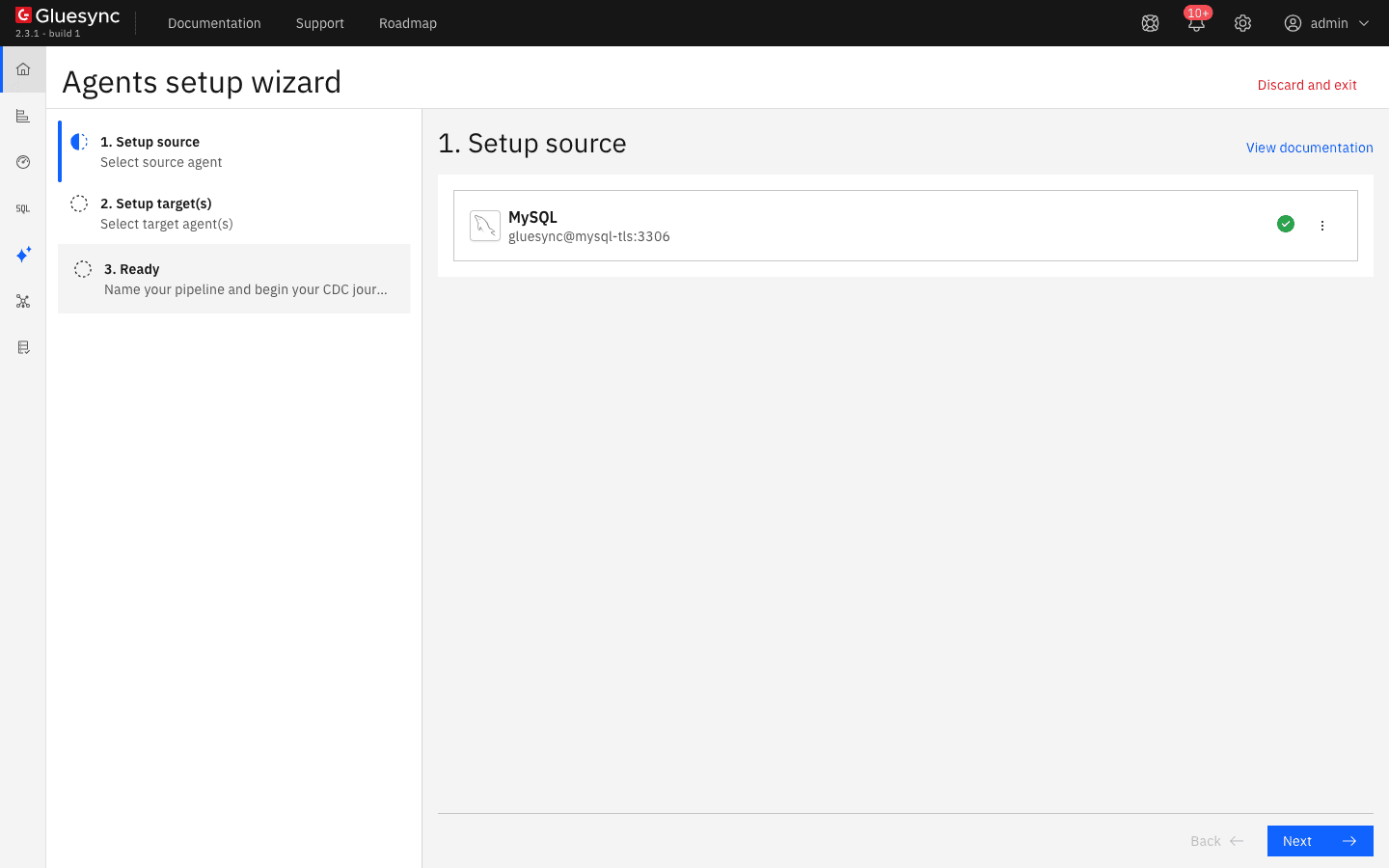
Open the pipeline that uses the database and, on the card of the agent, select the three-dot menu and Edit. For a new pipeline, you reach the same form in the setup wizard after you choose the agent;
-
Fill Host name / Address, Port, Database name, Username and Password of the database;
-
In the Security section, switch Enable TLS on, then switch Trust server certificate off if it is still on;
-
Under Upload 'trust store' file select Upload files and choose
truststore.jks. Enter the Trust store password; -
For the MySQL agent only, also upload the same file under Upload 'key store' file and enter its password in Key store password. The agent reads that slot, see the table below;
-
Select Test and continue.
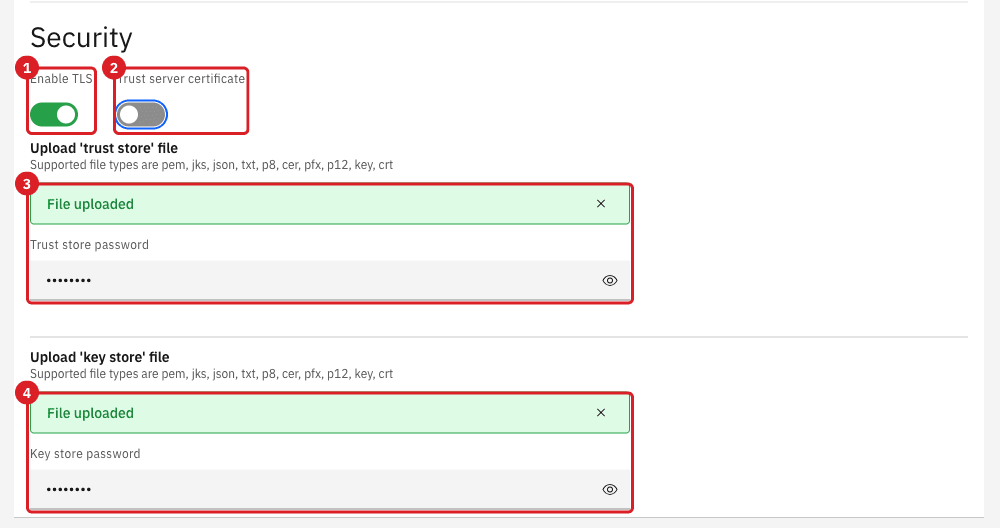
The two switches decide what the agent checks:
| Enable TLS | Trust server certificate | What happens |
|---|---|---|
Off |
n/a |
No encryption. A database that requires TLS refuses the connection. The Control Plane shows |
On |
On |
The connection is encrypted, but the certificate of the database is not checked: any certificate is accepted, so this protects against eavesdropping and not against an impersonated server. No file is needed. |
On |
Off |
The agent checks that the certificate of the database was issued by a CA in the uploaded trust store. A wrong CA, a wrong password or an unsupported file make the connection fail. |
|
PostgreSQL does not use the uploaded trust store
With Enable TLS on and Trust server certificate off, the PostgreSQL agent uses |
|
For the MySQL agent in this mode the Control Plane answers |
CLI
-
Run a snapshot, or start the entity, so that the agent opens its connections;
-
Ask the database which protocol its sessions use.
docker exec mysql-tls mysql -uroot -p<root password> --ssl-mode=REQUIRED \
-e "select t.processlist_user, s.variable_value as ssl_version from performance_schema.status_by_thread s join performance_schema.threads t using(thread_id) where s.variable_name='Ssl_version' and t.processlist_user='gluesync'"Read an IBM i system over TLS
The IBM i agent connects with the JTOpen driver. The TLS ports of the host servers are 9471 (database) and 9476 (sign-on); the port list and the firewall rules are on the IBM i agent page.
CLI
An IBM i usually signs its server certificate with its own local CA, and sends the CA certificate in the chain. Take the CA from the handshake, with a read-only connection that sends no data:
-
Open a TLS connection to the database port and save the chain;
-
Check which certificate is the CA;
-
Put the CA certificate in a trust store, as in the previous step.
openssl s_client -connect <ibm i host>:9471 -showcerts < /dev/null 2>/dev/null \
  | awk '/BEGIN CERT/{n++} n==2{print} /END CERT/{if(n==2) exit}' > ibmi-ca.pem
openssl x509 -in ibmi-ca.pem -noout -subject -ext basicConstraints

keytool -importcert -alias ibmi-ca -file ibmi-ca.pem \
-keystore ibmi-truststore.jks -storepass <trust store password> -nopromptIn the connection form of the IBM i agent switch Enable TLS on and upload ibmi-truststore.jks under Upload 'trust store' file, as in the previous step. The IBM i form has no Trust server certificate switch: the trust store is needed. We tested the same driver that Core Hub bundles: with the IBM i CA in the trust store it connected over TLS and ran select 1, and with a trust store that held another CA it failed with PKIX path building failed: unable to find valid certification path to requested target. A connection that fails with that message needs the CA of the IBM i in the trust store.
|
Ask the IBM i administrator to confirm that the secure host servers are active and when the server certificate expires: a trust store holds the CA, so a renewed server certificate from the same CA needs no change in Gluesync. |
Connect to a database that only speaks TLS 1.0 or 1.1
Core Hub runs on a modern Java runtime. Agents that use the TLS of that runtime negotiate TLS 1.3 or 1.2 and refuse TLS 1.0 and 1.1, which is what an unpatched SQL Server 2008 or 2012, an old MySQL or an old PostgreSQL offers. The failure looks like this in the Core Hub log, while the Control Plane shows only that the pool could not be initialized:
javax.net.ssl.SSLHandshakeException: (protocol_version) The server selected protocol version TLS10 is not accepted by client preferences [TLS13, TLS12]Config
-
Prefer to fix the database: enable TLS 1.2 on it, or put a TLS-terminating proxy in front of it;
-
If that is not possible, set
GS_LEGACY_TLS=1on the Core Hub service indocker-compose.yml: -
Recreate Core Hub:
docker compose up -d gluesync-core-hub; -
Test the connection again.
services:
  gluesync-core-hub:
    environment:
      - SSL_ENABLED=true
- GS_LEGACY_TLS=1|
The listener of Core Hub is not widened: with the variable set, Core Hub still refused TLS 1.0 and 1.1 on port |
|
This works only for agents that use the TLS of the Java runtime, such as PostgreSQL and SQL Server. The MySQL agent does not: its driver refuses TLS 1.0 and 1.1 on its own, even with |
In a kit that includes Conductor, the same setting is the switch Force-load deprecated Java ciphers under Deprecated Java Ciphers in Settings → Global settings. The SQL Server agent has its own TLS troubleshooting.
Oracle with a wallet
Oracle connects through a wallet and a TNS alias, not through the trust store of the form. This is covered, with the wallet path that Core Hub must see and the errors you can meet, in Set up Oracle LogMiner CDC end to end.
Troubleshooting
| Problem | Possible cause | What to do |
|---|---|---|
The browser says |
The CA is not trusted on that workstation |
Import |
The browser says |
The host name or IP address you typed is not a SAN of the certificate |
Issue the certificate again with every name as |
Core Hub does not start after you edit |
Wrong path, alias or password; before 2.2.11.9 also a key password different from the keystore password |
Check the path inside the container, |
|
The proxy verifies Core Hub and connects by IP address |
Set it back to |
The test connection of a database says |
MySQL agent, Trust server certificate off, key store slot empty |
Upload the trust store in the key store slot too |
The test connection fails with |
The log has the reason: |
Upload the right CA, enter the trust store password, or convert the file to |
A PostgreSQL connection with Trust server certificate off fails with |
The PostgreSQL agent does not read the uploaded trust store |
Mount the CA certificate in PEM format at that path in the Core Hub container |
The MySQL snapshot works but live changes do not arrive, and the pipeline is healthy |
CDC reader needs the trust store slot and only the key store slot is filled |
Fill both slots with the same trust store |
Related guides
Contact MOLO17 Support if you need assistance with certificates and TLS in Gluesync.