Deploy and update Gluesync on Docker Swarm
This guide takes two Linux servers from "Docker installed" to a Gluesync stack running on Docker Swarm. You create the swarm, prepare the node that keeps the data, deploy the Swarm kit from the manager and sign in. Then you update a service from the Control Plane, with Swarm rolling it back if it fails, and take a backup you can restore.
In this guide
You will learn which node runs which service, how to create the swarm and label the data node, how to deploy the gluesync stack with the kit’s prepare-host.sh and deploy.sh, how to check the services from the command line and from the Control Plane, how Gluesync Conductor updates a Swarm service and writes the new version back to docker-stack.yml, how to change the stack safely, and how to back up the data node.
Quick information
Goal |
Run Gluesync as a Docker Swarm stack, and keep it up to date from the Control Plane |
Audience |
System administrators who already run Docker Swarm, or who must deploy Gluesync on it |
Level |
Intermediate |
Time required |
About 30 minutes, plus the download time of the images on the nodes |
Area |
Deploy and run → Docker Swarm ( |
Applies to |
Gluesync 2.3 |
Before you begin
Make sure that:
-
You have one or more Linux servers with Docker Engine 23 or later, and an account that can use
sudoand thedockercommand on each of them; -
You have your Gluesync kit,
<kit ID>-trial-kit.zip, from the link in your Gluesync download email or from Get Gluesync, and it contains agluesync-docker-swarmdirectory; -
The servers reach each other on the Swarm ports: 2377/tcp to the managers, 7946/tcp and 7946/udp, and 4789/udp. See Docker’s Swarm ports;
-
Ports 80 and 443 are free on the manager, or you have chosen other ports (see Change the stack and deploy again);
-
The nodes can pull images from Docker Hub.
|
The commands in this guide were run on a two-node swarm with Docker Engine 29.9 and Linux containers: one manager ( |
Plan the nodes
The Linux Swarm kit uses two node roles. One machine can have both, so a single-node swarm works too:
| Role | How the kit finds it | What runs there |
|---|---|---|
Manager |
A Swarm manager. |
Traefik ( |
Data node |
The node labelled |
Core Hub, Chronos, Prometheus and Grafana. All persistent data is in host folders under |
The stateful services are pinned to the data node because a Swarm named volume is local to one node: a task moved to another node would start with an empty volume. Core Hub runs as one replica. It has no clustering, so adding replicas does not make it highly available.
Conductor must run on a manager, because only managers answer the Swarm API for services, tasks and service logs.
Guide steps
CLI
-
On the server that will be the manager, create the swarm:
docker swarm initOn a server with more than one network address, add
--advertise-addr <address>with the address the other nodes reach it on. -
Print the command that joins a worker:
docker swarm join-token worker -
Run the printed
docker swarm join --token <token> <manager address>:2377command on the data node; -
On the manager, list the nodes:
docker node ls
To use one server for everything, run only docker swarm init on it and skip the join.
CLI
prepare-host.sh creates the data folders and copies into them the licence, the certificates and the configuration of your kit. Run it on the data node.
-
Unzip the kit, and copy its
gluesync-docker-swarmdirectory to the data node; -
In that directory, run the script as root:
sudo ./prepare-host.sh -
If the data node is a worker, the script cannot label it. Run the label command it prints on the manager, with the hostname or the ID of the data node:
docker node update --label-add gluesync.data=true gs-data
To keep the data somewhere else than /var/lib/gluesync-swarm, set GLUESYNC_DATA_ROOT in .env before you run the script on the data node, and use the same value in the .env of the manager.
|
The script copies the kit files over the files already in |
CLI
-
Copy the same
gluesync-docker-swarmdirectory to the manager, to the folder where it will stay. Conductor mounts this folder and redeploys the stack from it, so do not move it afterwards; -
In that directory, deploy the stack:
./deploy.shThe script creates
.envfrom.env.example, writes the absolute path of the directory into it, labels the managergluesync.kit=trueand runsdocker stack deployfor a stack namedgluesync. -
Watch the services start while the nodes pull the images:
docker stack services gluesync -
Check where each task runs:
docker stack ps gluesync --filter desired-state=running --format "{{.Name}}\t{{.Node}}\t{{.CurrentState}}"
|
If |
UI
-
Open
https://<manager address>/. Port 80 redirects to 443. The kit certificate is self-signed, so the browser shows a warning the first time; -
Sign in with
admin/admin, then create your own password when Gluesync asks for it; -
In the left menu, select Modules Manager.
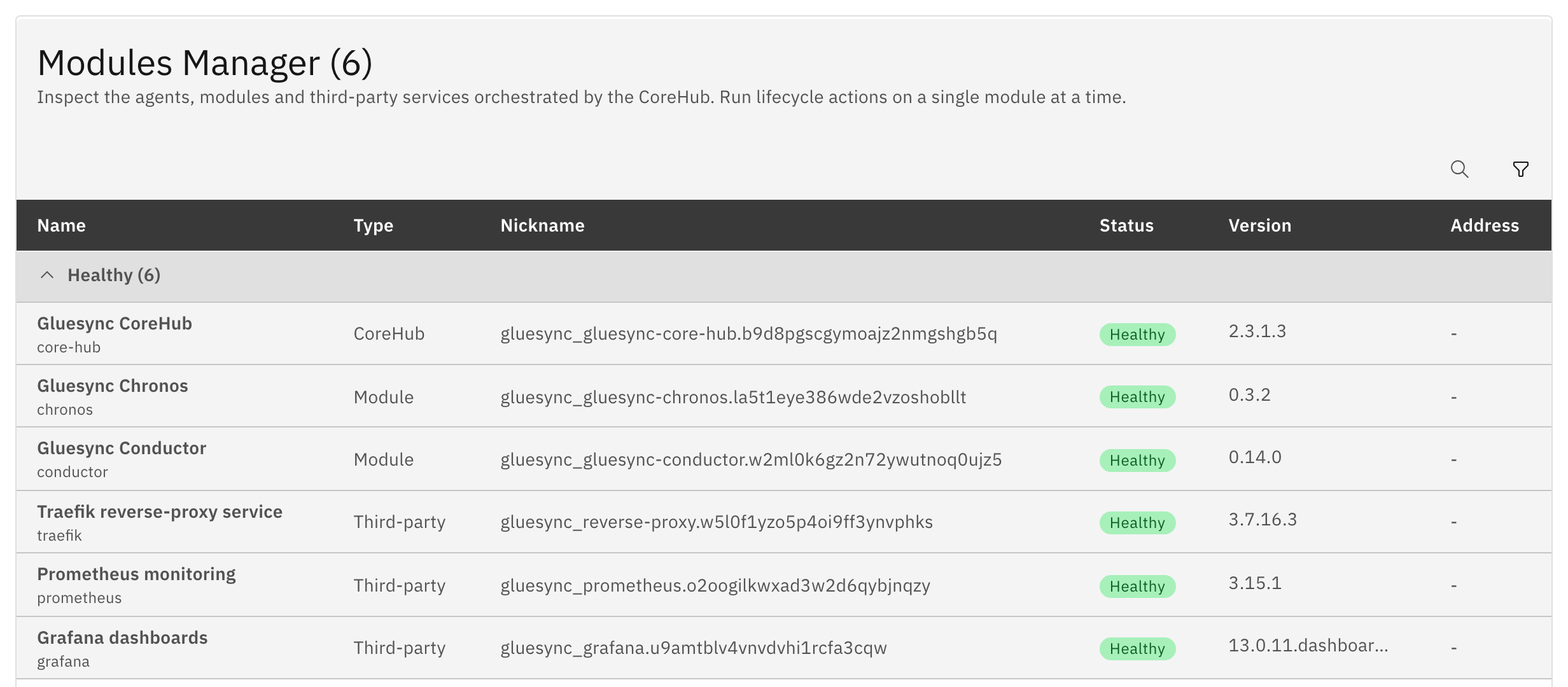
The kit does not deploy agents. Add them from Core Hub when the platform is running: Conductor adds each agent to docker-stack.yml and deploys it. Then continue with Build your first pipeline.
UI
When a newer version of a service is published, the Platform updates icon (a cloud with a down arrow) in the top bar shows a badge.
-
Select Platform updates, then View details;
-
Expand a service to read what changed, then select Update all.
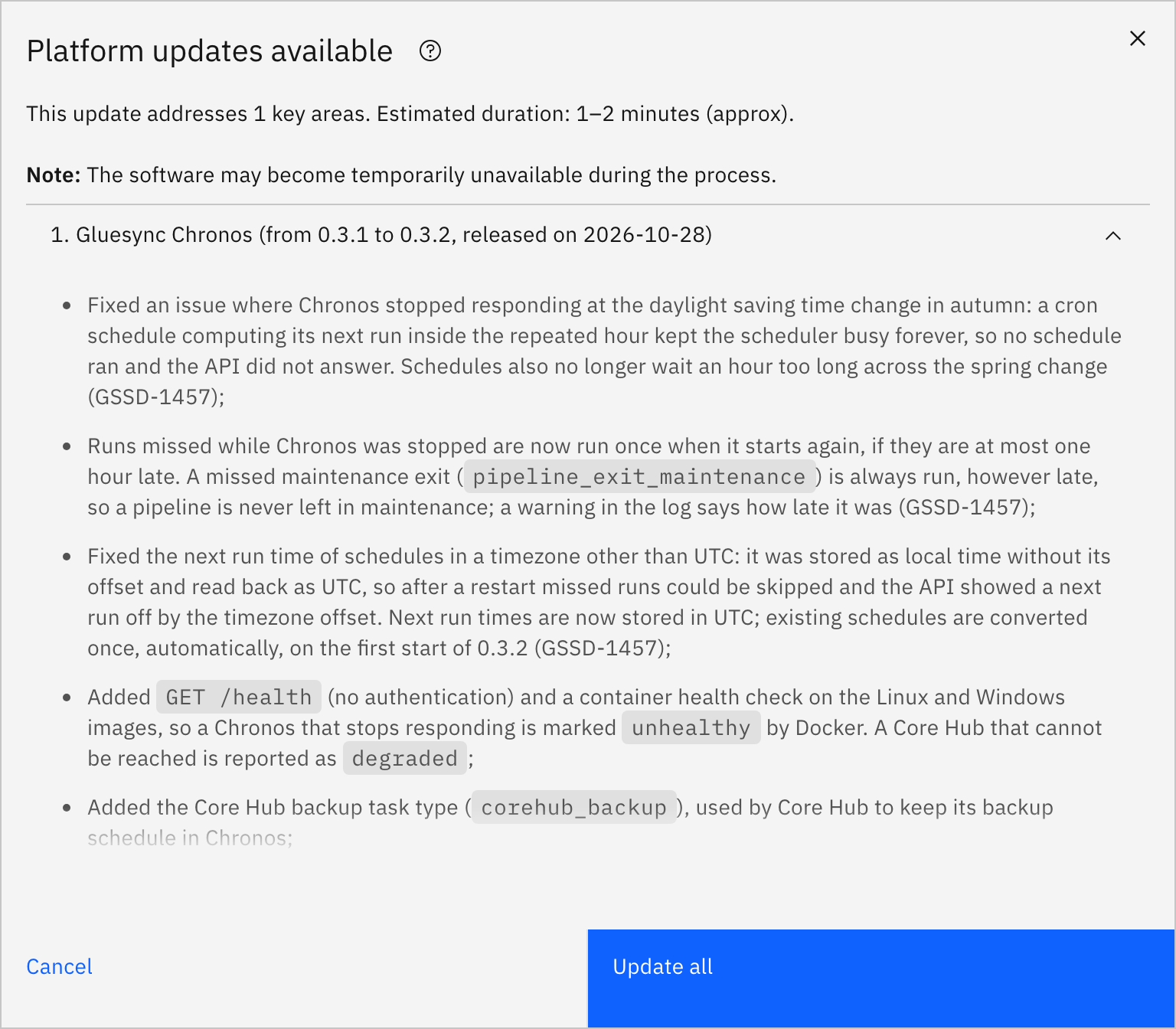
For each service, Conductor sets the new image with automatic rollback as the failure action, waits until all replicas have kept running for 20 seconds (UPDATE_VERIFY_SECONDS), and then writes the new tag to docker-stack.yml in the kit directory. Swarm pulls the image while it starts the new task, and the download time does not count against the update timeout.
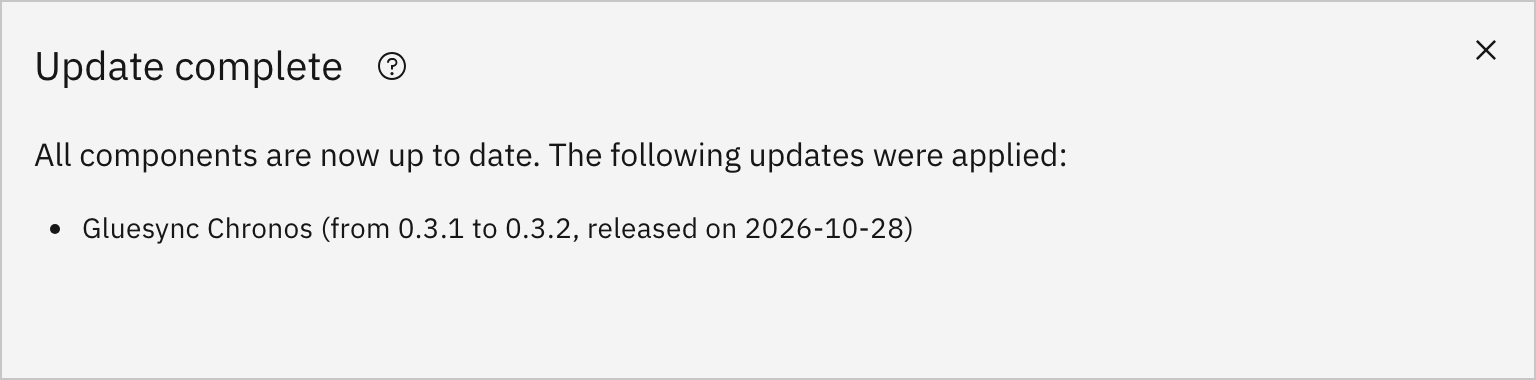
If a new version does not stay up, Swarm rolls the service back to its previous image, or Conductor does it when Swarm has not. The update is reported as failed, and docker-stack.yml keeps the previous tag. When an update of Conductor itself is offered, Conductor answers first and then updates its own service. In Swarm mode it never updates itself to an older version, so a release without Swarm support is not installed.
For the full list of what Conductor does in Swarm mode, and the settings that tune it, see Conductor in Swarm mode.
Config
docker-stack.yml and .env in the kit directory on the manager are the source of truth of the stack. To change it, edit them there and deploy again:
-
Edit the file:
-
To publish other ports, set
TRAEFIK_HTTP_PORTandTRAEFIK_HTTPS_PORTin.env; -
To give services CPU or memory limits, add
deploy.resourcesto them indocker-stack.yml. The kit sets none, because Swarm rejects a limit above the number of CPUs of a node; -
To change a version by hand, edit the
image:line of the service. Keep it a literalrepo:tagvalue: Conductor rewrites that line when it updates the service, and leaves alone an image written with a variable such as${VAR};
-
-
Deploy again from the kit directory:
./deploy.sh
|
|
CLI
A backup of a Swarm stack has two parts: the data folders on the data node, and the kit directory on the manager.
-
On the manager, stop the services that write data:
docker service scale --detach=false gluesync_gluesync-core-hub=0 gluesync_gluesync-chronos=0 gluesync_prometheus=0 -
On the data node, archive the data root:
sudo tar -czf /root/gluesync-data-$(date +%Y%m%d-%H%M).tar.gz -C /var/lib gluesync-swarm -
On the manager, start the services again:
docker service scale --detach=false gluesync_gluesync-core-hub=1 gluesync_gluesync-chronos=1 gluesync_prometheus=1 -
Also copy the kit directory of the manager, with its
.env,docker-stack.ymlandsharedfolder, whenever you change it or after an update.
To restore, deploy the kit on the new nodes as in this guide, scale the same three services to 0, replace GLUESYNC_DATA_ROOT on the data node with the content of the archive (sudo tar -xzf <archive> -C /var/lib), and scale them back to 1. In the lab, a data root that was deleted and restored this way came back with its users and settings. For what Core Hub keeps in its data folder, and for backups without downtime, see Back up, restore and move Core Hub and Backup and restore.
On Windows Server 2022
The kit also has a gluesync-docker-swarm-windows directory, for a single-node swarm on Windows Server 2022 with the latest cumulative update and Windows containers. Every service runs on that one node, and the data stays in the data and shared folders of the kit directory. In PowerShell as Administrator, run .\prepare-host.ps1, which also creates the swarm and opens the firewall, then .\deploy.ps1. The requirements, such as MAC address spoofing on a Hyper-V virtual machine, are in Install on Windows Server 2022.
Troubleshooting
| Problem | Possible cause | What to do |
|---|---|---|
|
The script runs on a worker, or on a server outside the swarm |
Run it on a manager, in the kit directory that will stay there, or run |
|
The data node was prepared on a worker and the label command was not run |
On a manager, run |
Core Hub, Chronos, Prometheus and Grafana stay |
No node has the |
Check the labels with |
Core Hub starts, but Conductor restarts again and again, its log shows |
The licence in the data folder, or in the kit |
Copy the new |
Conductor answers every request with |
The Conductor task runs on a worker |
Keep the placement of the kit ( |
|
The kit was packaged before Conductor supported Swarm |
Download a new kit, or update the services by editing |
A service is rejected after you add resource limits |
A CPU limit or reservation above the CPUs of the node |
Lower the value in |
The Control Plane page does not open |
Port 80 or 443 is already in use on the manager, or blocked by a firewall |
Set other ports in |
An update in Platform updates is reported as failed |
The new version did not stay up for the verification time, so it was rolled back |
Read the reason with |
For the diagnosis codes Conductor returns, see Conductor error codes. For problems inside Gluesync, follow Read Gluesync logs and diagnose errors: on Swarm, read the logs with docker service logs gluesync_<service>, which includes the tasks on every node.
Related guides
Contact MOLO17 Support if you need assistance with running Gluesync on Docker Swarm.