Set up an Informix CDC source
The Informix agent reads changes through the Informix change data capture (CDC) API. The API lives in a helper database called syscdcv1, and it only works on a logged database. This guide prepares the server, the user and the tables, creates the source connection, runs a snapshot and live changes into a MySQL target, and shows the failures you are most likely to meet: a user without the rights to open a CDC session, a user that cannot connect, and a wrong CDC database name.
In this guide
You will check that your database is logged, create the syscdcv1 database, turn on full row logging for your tables, and create a user with the privileges Gluesync needs. You will create the Informix source connection in the Control Plane, add an entity, and start it with a full copy followed by live changes. You will check the three operations on the target, and you will recover from the errors that stop CDC.
Quick information
Goal |
Replicate an Informix table with a snapshot followed by change data capture (CDC), with a user that has only the privileges it needs |
Audience |
Data engineers and database administrators who own an Informix server |
Level |
Intermediate |
Time required |
About 40 minutes |
Area |
Informix → |
Applies to |
Gluesync 2.3 |
Before you begin
Make sure that:
-
You have an Informix server, version 12.10 or later, and you can run SQL on it as the
informixuser. This guide was tested with Informix 14.10; -
You can open a shell on the server host, because you run a script from
$INFORMIXDIR/etcand you create an operating system account; -
Your database is logged. Step 1 shows how to check it;
-
Core Hub can open a connection to the Informix port,
9088by default; -
You have a target to write to. This guide uses a MySQL database: any target works, and the steps for the source are the same;
-
You can sign in to the Control Plane with a role that can create pipelines;
-
You have a source table with a primary key. This guide uses
customers(id intprimary key,name varchar(100),email varchar(100),balance decimal(10,2),created_at datetime year to second).
|
The messages quoted in this guide were captured in the Control Plane and in the Core Hub log with Informix 14.10 as the source and MySQL 8.0 as the target. The connection fields and the CDC background are described in the Informix CDC reference. |
Guide steps
SQL
The CDC API reads the logical log, so Informix can only capture a database that was created with logging. Check it from any database as the informix user:
SELECT name, is_logging FROM sysmaster:sysdatabases WHERE name = 'demo';If you still have to create the database, add WITH LOG:
CREATE DATABASE demo WITH LOG;CLI
Gluesync connects to a second database, syscdcv1, and calls the CDC functions that Informix stores in it. Run the Informix script once, as the informix user, from the $INFORMIXDIR/etc directory. Set DB_LOCALE to the locale of the database you capture, as the reference page asks:
export DB_LOCALE=en_us.utf8
cd $INFORMIXDIR/etc
dbaccess demo syscdcv1.sql
Check that the database exists:
SELECT name, is_logging FROM sysmaster:sysdatabases WHERE name = 'syscdcv1';| If your server is a managed Informix service, ask the provider to enable the CDC API. You cannot run the script yourself there. |
SQL
The Informix documentation, and the reference page, ask you to turn on full row logging for each table you capture. Connect to the syscdcv1 database as informix and run the function once for each table. The first argument is <database>:<owner>.<table>, the second is 1 to turn the logging on:
EXECUTE FUNCTION cdc_set_fullrowlogging('demo:informix.customers', 1);|
In the test, a table with a primary key was captured correctly before the function was called: the insert, the update and the delete all reached the target. Do not rely on this. Turn full row logging on for every table you replicate, and always for tables without a primary key. |
CLI + SQL
Informix signs in with an operating system account. Create the account on the server host as root, then give it the privileges. Replace the password:
useradd -m gluesync
echo 'gluesync:<a strong password>' | chpasswd
In the database you capture, the user needs CONNECT and SELECT on the tables. The snapshot reads them with normal queries:
-- database demo
GRANT CONNECT TO gluesync;
GRANT SELECT ON customers TO gluesync;
In syscdcv1, the user needs the DBA privilege, because the CDC functions run in DBA mode:
-- database syscdcv1
GRANT DBA TO gluesync;
Repeat the SELECT grant for every table you add to the pipeline.
CONNECT alone is not enough in syscdcv1. A user with only CONNECT there can copy the snapshot, then the CDC part fails with Routine (cdc_opensess) can not be resolved. See the troubleshooting table.
|
UI
-
In the Control Plane, select Create your first pipeline, or the + button of the pipeline list if you already have pipelines. The Agents setup wizard opens;
-
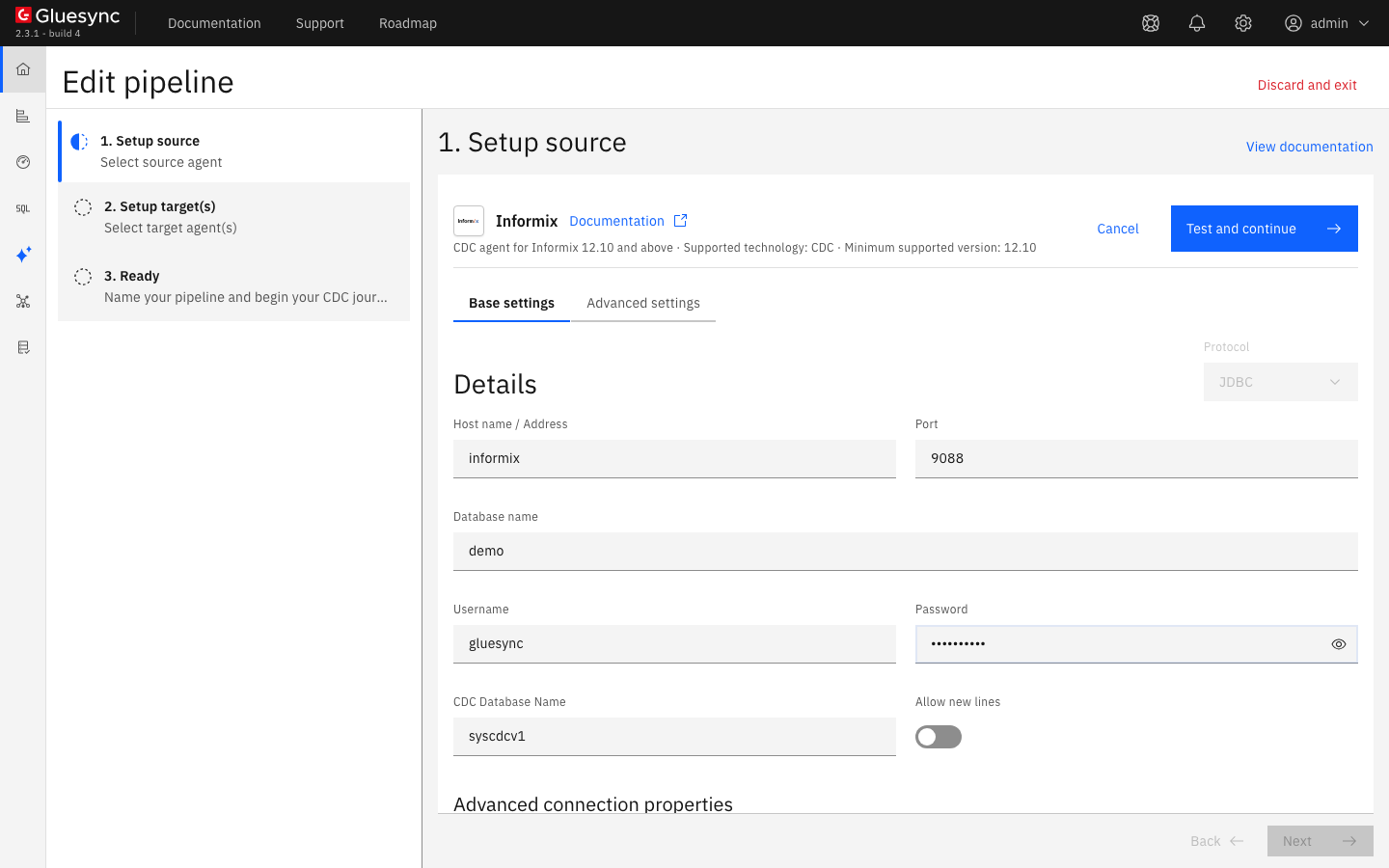
In 1. Setup source, choose the Informix CDC agent tile and fill Base settings:
-
Host name / Address: the DNS name or address of the server, as Core Hub sees it;
-
Port:
9088, or the port of your Informix instance; -
Database name: the database that holds the tables,
demohere; -
Username and Password: the user of step 4;
-
CDC Database Name:
syscdcv1, the default. Change it only if you created the CDC database under another name;
-
-
Keep Allow new lines off, unless your data holds new lines that you want to read as they are. Leave Enable TLS off unless your server uses TLS, see Enable HTTPS and TLS to databases;
-
Select Test and continue. The source appears with a green check mark. Select Next.
-
In 2. Setup target(s), choose your target agent and fill its connection. For the MySQL target of this guide, enter the host,
3306, the database, the user and the password. Turn on Allow public key retrieval and Trust server certificate if your lab server uses the default self-signed certificate. Without a trust setting, the test fails withTrust store not found, please upload a trust store when using verify server certificate. Select Test and continue, then Next; -
Enter a Pipeline name and select Finish.
UI
-
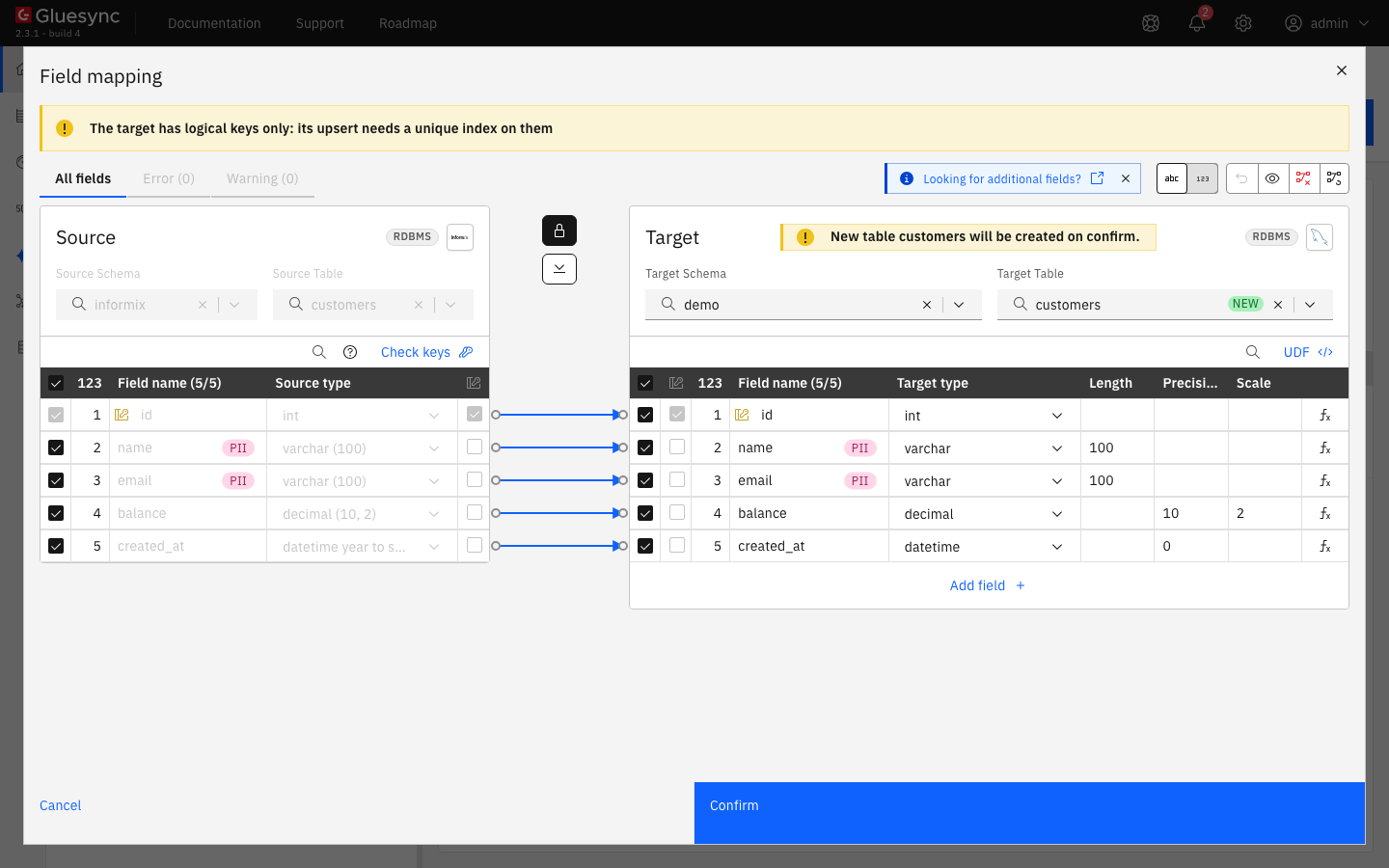
In the pipeline, select Entities. The Add entities page opens with the Object browser. The schema is the owner of the tables: expand
informixand tickcustomers. The Field mapping dialog opens; -
Under Target, choose the Target Schema, then type
customersin Target Table and choose Create table "customers". The dialog shows New table customers will be created on confirm. and the proposed target types; -
Select Confirm. The Create table customers dialog shows the read-only SQL statement. Read it, then select Create table customers to run it on the target;
-
Back on the Add entities page, select Confirm and continue.
|
Data types follow the target. |
UI + SQL
-
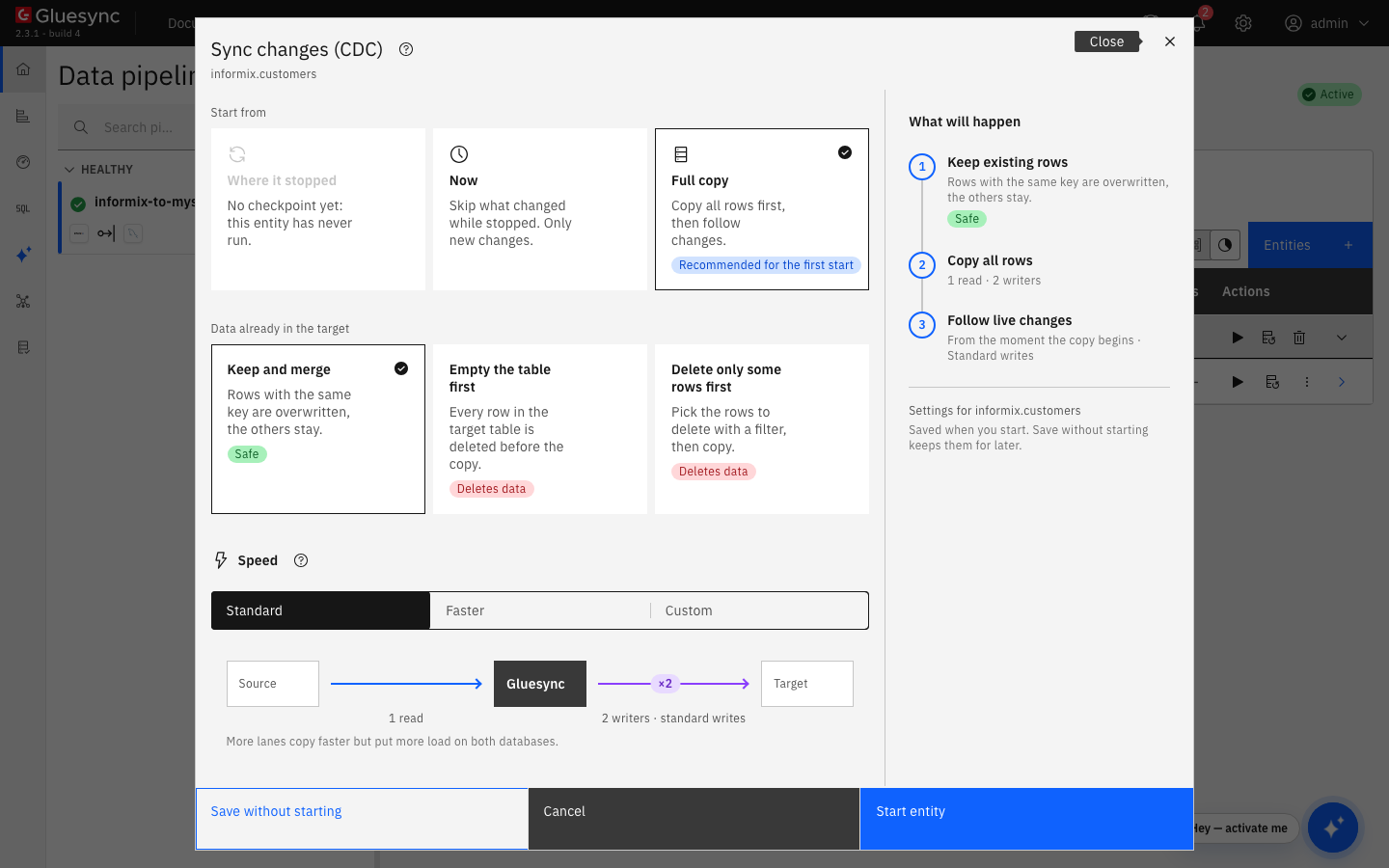
On the row of the entity, select the play button. The Sync changes (CDC) dialog opens;
-
Under Start from keep Full copy, Recommended for the first start. It copies all the rows, then follows the changes. The other choices are Where it stopped, which is not available before the first run, and Now, which skips what changed before the start;
-
Under Data already in the target keep Keep and merge, and under Speed keep Standard;
-
Select Start entity.
Check the rows on the target:
SELECT count(*) FROM demo.customers;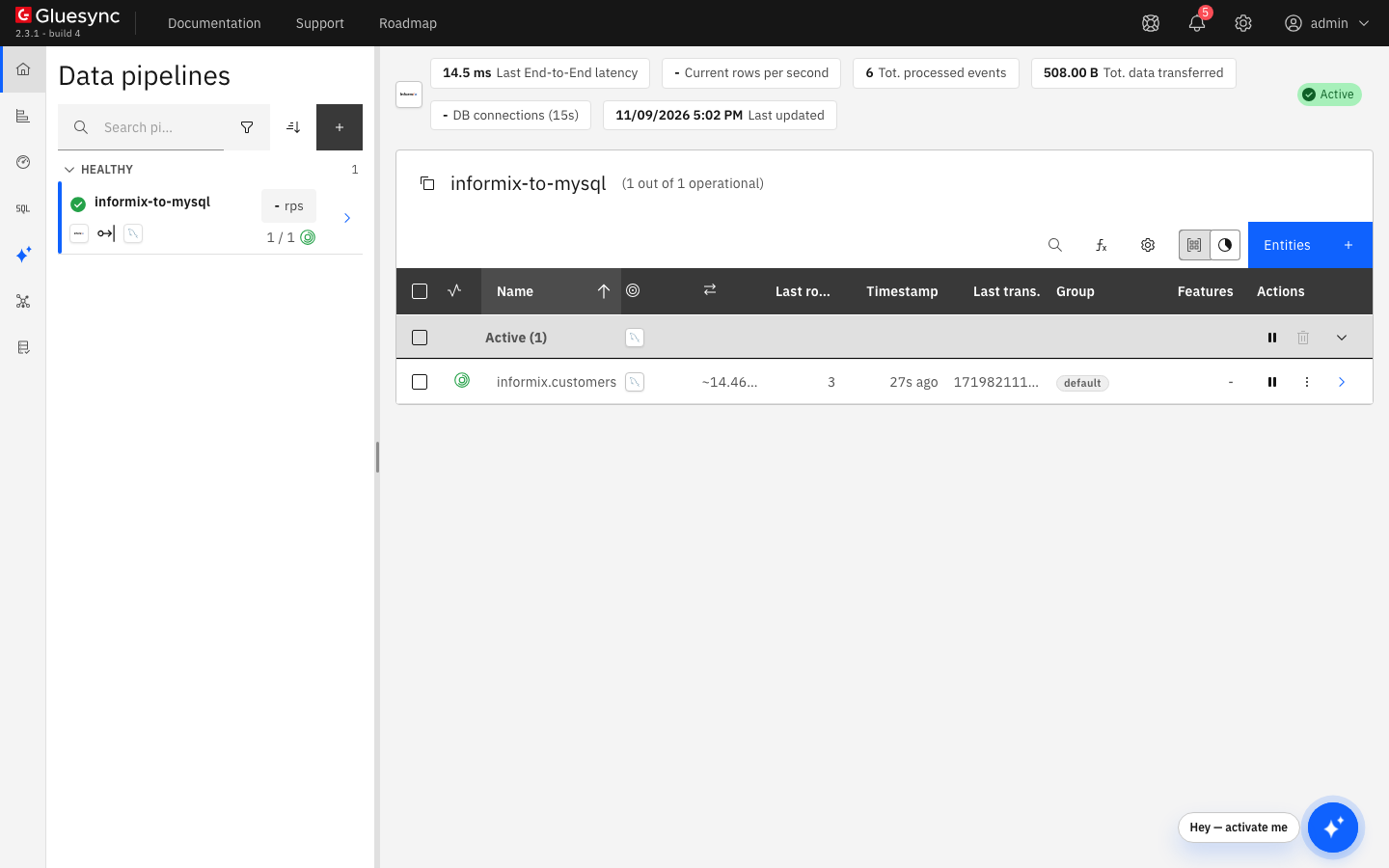
SQL
On the source, insert, update and delete one row each:
INSERT INTO customers VALUES (5, 'Margaret', 'margaret@example.com', 55.50, '2026-01-05 08:30:00');
UPDATE customers SET balance = 77.70, name = 'Grace Hopper' WHERE id = 3;
DELETE FROM customers WHERE id = 4;
After a few seconds, read the target:
SELECT id, name, balance FROM demo.customers ORDER BY id;| After a restart of Core Hub, or of the container that runs it, the entity resumes from its saved position and reads on from the log. In the test, the Informix log showed the CDC reader starting at the requested position, and the changes made during the stop reached the target. |
UI
-
Open the source from the pipeline list, select Advanced settings and use Add property. The list for this agent contains Source change retention in hours, Max Concurrency (0 means no limitation), Max Snapshot Concurrency (0 means no limitation), CDC client timeout, CDC idle pause in milliseconds, Query parallelism and Trim text values;
-
Query parallelism sets the number of parallel queries of the snapshot. CDC idle pause in milliseconds sets the pause between two reads of the CDC stream when the last read returned nothing;
-
For a faster copy, select Faster or Custom under Speed in the start dialog to raise the readers and the writers. More lanes put more load on both databases, see Tune replication throughput;
-
If your target supports bulk operations, select Custom and switch the Writing method to Bulk load, see Bulk load.
Saving a change to the source connection applies it at once: the CDC reader stops and starts again with the new values. All options are listed in the Informix CDC reference.
Troubleshooting
| Symptom or message | Cause | Fix |
|---|---|---|
Notification Error reading Ifmx CDC Engine with |
The user has no |
In |
Notification Error reading Ifmx CDC Engine with |
The CDC database does not exist under that name, or the user cannot see it. |
Check the name with |
Core Hub log: |
The user has no |
In |
|
The database of the table is not logged. |
Create the database |
|
The name of the table is wrong. The first argument is |
Check the owner of the table with the Object browser: for tables created by |
The snapshot fails with a permission error on a table |
The user has no |
Run |
The target test fails with |
The MySQL target uses a self-signed certificate and the connection does not trust it. |
Turn on Trust server certificate, or upload the trust store, see Enable HTTPS and TLS to databases. |
Updates and deletes of a table without a primary key do not match rows on the target |
The entity has no keys, so Gluesync cannot find the row to change. |
Turn on full row logging for the table (step 3) and choose the keys, see Choose keys for tables without a primary key. |
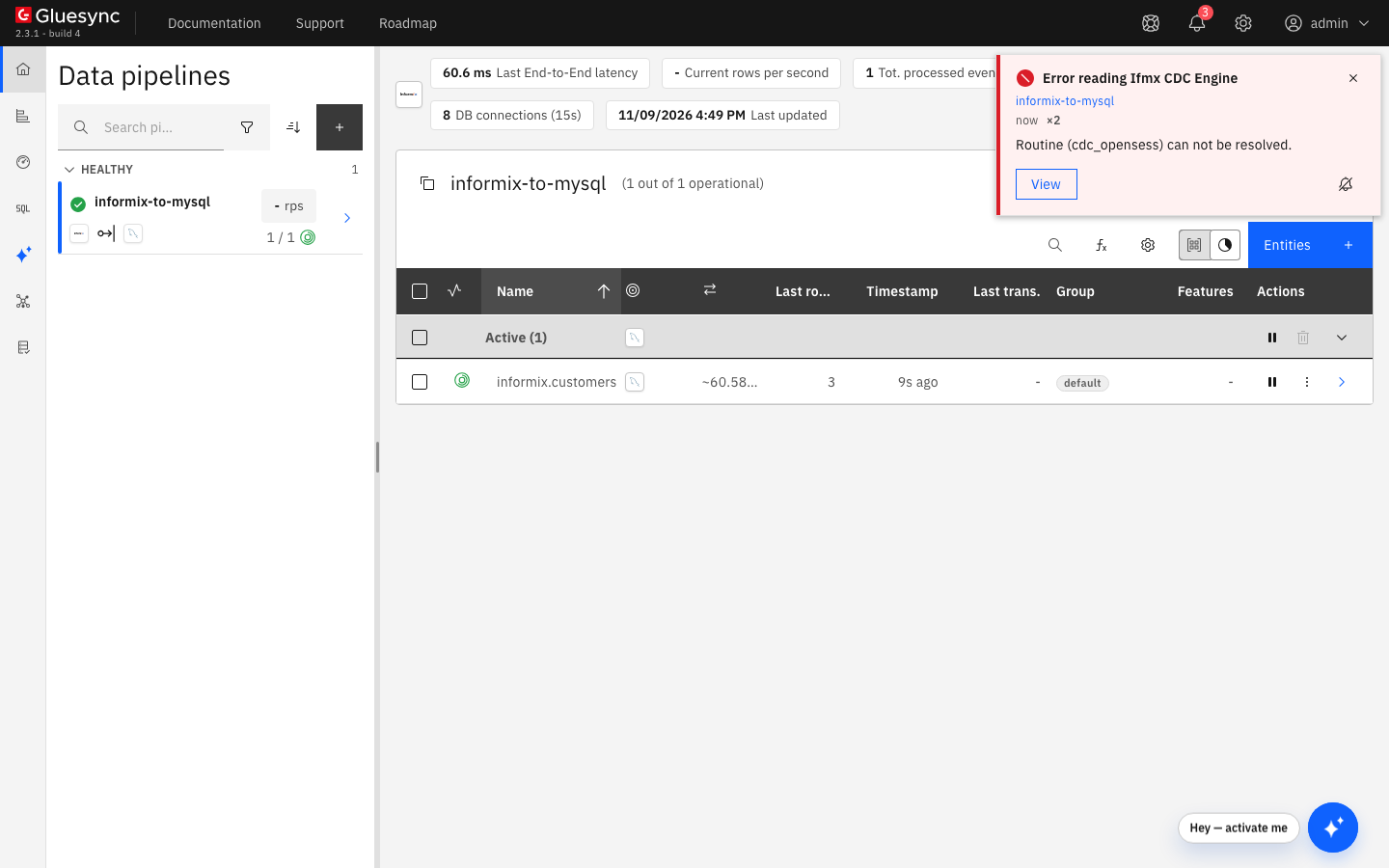
DBA privilege in syscdcv1: the snapshot rows arrive and the notification shows the server message.