Set up a CockroachDB target with TLS and upserts
CockroachDB speaks the PostgreSQL wire protocol, and the Gluesync CockroachDB agent writes to it through a JDBC driver. CockroachDB is a target only: the agent has no change data capture from it. This guide creates a database user with only the grants Gluesync needs, shows which TLS settings work against a secure cluster and against an insecure one, creates the target, loads a snapshot and live changes from PostgreSQL, explains how the agent writes the rows, and shows how to handle the permission, TLS and transaction retry errors that a new setup is most likely to meet.
In this guide
You will create a CockroachDB user and grant it the database and table privileges that the agent needs, including the one that "Empty the table first" needs on tables you created yourself. You will choose the Enable TLS and Trust server certificate settings that match your cluster, and place the CA certificate where the driver looks for it when you want the server certificate verified. You will create the target connection, add an entity so that Gluesync creates the CockroachDB table, run a snapshot, and follow inserts, updates and deletes. You will read how the agent writes rows, set the batch size and the number of writers, and recover from a transaction retry error.
Quick information
Goal |
Replicate a PostgreSQL table to CockroachDB with a snapshot and CDC, over a secure or an insecure connection |
Audience |
Data engineers and database administrators who own a CockroachDB cluster |
Level |
Intermediate |
Time required |
About 40 minutes |
Area |
CockroachDB → SQL; Control Plane → Pipelines → CockroachDB target → Base settings, Security and Advanced settings; entity → Fine tuning and start options |
Applies to |
Gluesync 2.3 |
Before you begin
Make sure that:
-
You have a CockroachDB cluster and you can run SQL on it as an administrator such as
root. The agent supports CockroachDB 20.0 and later. This guide was tested with CockroachDB 24.3, one secure single-node cluster and one insecure single-node cluster; -
Core Hub can open a connection to the SQL port of the cluster,
26257by default; -
For a secure cluster, you have the CA certificate of the cluster (
ca.crt) if you want Gluesync to verify the server; -
You can sign in to the Control Plane with a role that can create pipelines;
-
You have a PostgreSQL source with a table that has a primary key. This guide uses
public.orders, with 200,000 rows and these columns:id bigint(primary key),kind varchar(20),val integer,amount numeric(12,2),created_at timestamptz,note text,flag boolean,payload jsonbanduid uuid.
|
The statements in this guide are plain CockroachDB SQL. The messages quoted here were captured in the Control Plane and in the Core Hub log of a running Gluesync 2.3 against CockroachDB 24.3. |
Guide steps
SQL
Gluesync does not need the admin role. Connect to the cluster as root and run the statements below. Replace the database name and the password.
-
Create the database, the user, and let the user connect and create tables:
CREATE DATABASE demo; CREATE USER gluesync WITH PASSWORD '<a strong password>'; GRANT CONNECT, CREATE ON DATABASE demo TO gluesync;CREATEon the database lets the user create the tables that Gluesync proposes in the Field mapping dialog. The user becomes the owner of the tables it creates, so it needs nothing else for them. On an insecure cluster, CockroachDB refuses a password (ERROR: setting or updating a password is not supported in insecure mode), so useCREATE USER gluesync;. The agent still asks for a password in the form: enter any value; -
For tables that already exist and that you created as another user, grant the table privileges instead:
GRANT SELECT, INSERT, UPDATE, DELETE ON TABLE demo.public.orders TO gluesync; -
Add
DROPif you will use Empty the table first before a snapshot. The agent empties the table withTRUNCATE, and CockroachDB requiresDROPfor it:GRANT DROP ON TABLE demo.public.orders TO gluesync; -
Check what the user holds:
SHOW GRANTS ON DATABASE demo;
SHOW GRANTS ON TABLE demo.public.orders;
If a grant is missing, the error says which privilege and which table. Step 8 lists the messages.
CLI
The target form has two switches in the Security section: Enable TLS and Trust server certificate. They behave differently from what their names suggest, so check them against your cluster before you create the target. In the tests, Trust server certificate decides whether the driver requires SSL and verifies the certificate (the SSL mode of the driver is prefer when the switch is on and verify-ca when it is off).
| Cluster | Settings | Result |
|---|---|---|
Secure |
Enable TLS off, Trust server certificate on (the defaults) |
Connects. The certificate of the server is not verified |
Secure |
Enable TLS on, Trust server certificate on |
Connects. The certificate of the server is not verified |
Secure |
Enable TLS on, Trust server certificate off, no CA certificate in place |
Fails with |
Secure |
Enable TLS on, Trust server certificate off, CA certificate in place |
Connects. The certificate of the server is verified against your CA |
Insecure |
Enable TLS on, Trust server certificate on |
Connects, without TLS |
Insecure |
Enable TLS off, Trust server certificate off |
Fails with |
To have the server certificate verified, give the driver the CA certificate of your cluster. The driver reads it from /home/gluesync/.postgresql/root.crt inside the Core Hub container. With Docker Compose, mount your ca.crt there:
services:
  core-hub:
    volumes:
      - ./certs/ca.crt:/home/gluesync/.postgresql/root.crt:ro
Restart Core Hub after you add the mount. The driver mode is verify-ca: it checks that the CA signed the certificate of the server, and it does not check the host name.
The two Upload files blocks of the Security section (trust store and key store) are not needed for the password sign-in of this guide. They were not used in the tests.
UI
-
In the Control Plane, select Create your first pipeline, or the + button of the pipeline list if you already have pipelines. The Agents setup wizard opens;
-
In 1. Setup source, choose the PostgreSQL CDC agent tile and fill Base settings: Host name / Address, Port, Database name, Username and Password of your source database. Select Test and continue. The source appears with a green check mark. Select Next;
-
In 2. Setup target(s), choose the CockroachDB tile and fill Base settings:
-
Host name / Address: the host of your cluster;
-
Port:
26257, or the SQL port of your cluster; -
Database name:
demo; -
Username and Password: the user of step 1;
-
-
In Security, set Enable TLS and Trust server certificate as step 2 describes. Leave the Connection string, Min connections count and Max connections count as they are unless you must change them;
-
Select Test and continue. The target appears with a green check mark. Select Next, enter a pipeline name and select Finish.
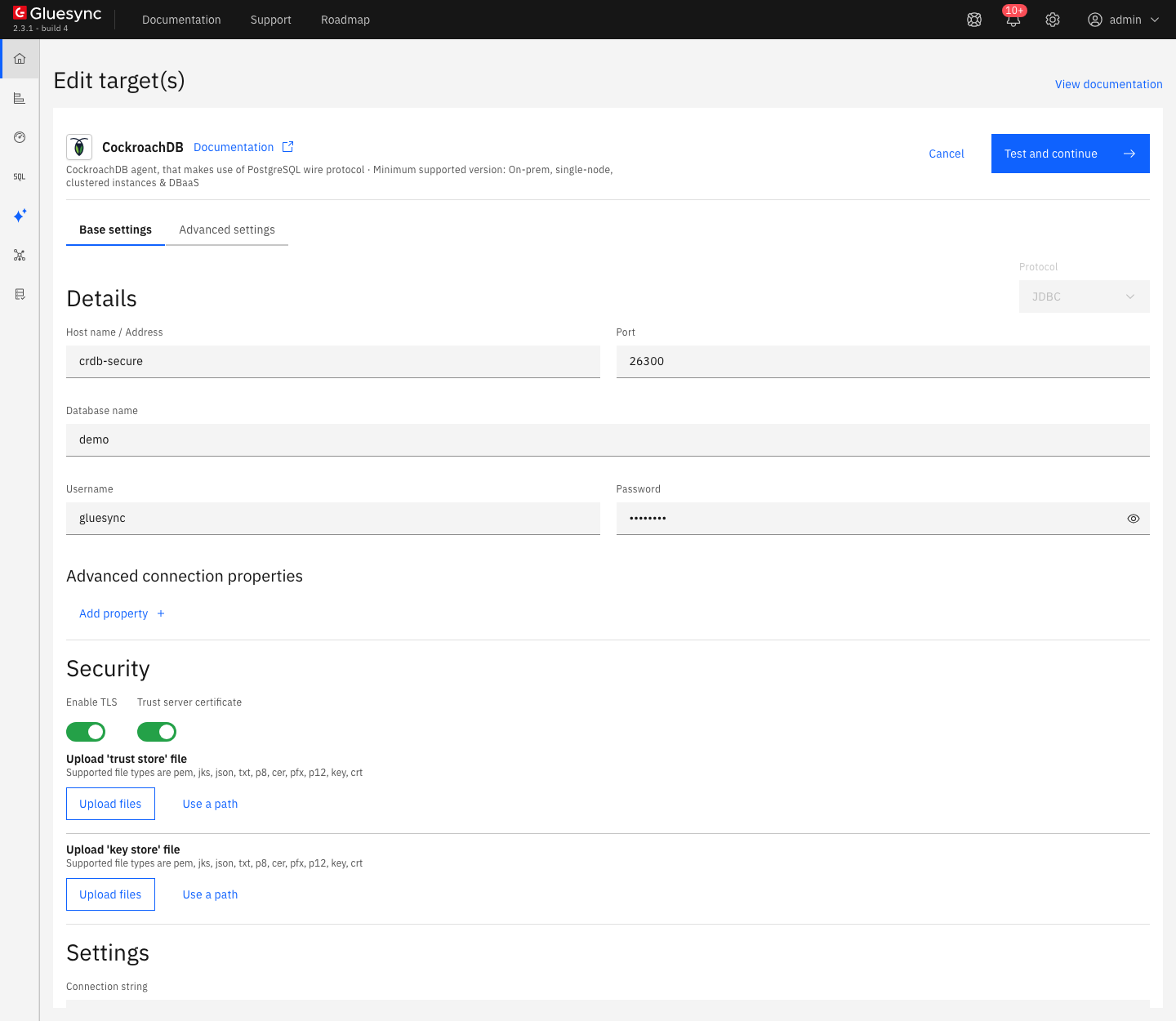
If you prefer the REST API, the same settings go in hostCredentials. The key names are in the CockroachDB target reference.
UI
-
In the pipeline, select Entities. The Add entities page opens with the Object browser. Expand the source schema
publicand select the tableorders. The Field mapping dialog opens; -
Under Target, the Target Schema is
public. In Target Table typeordersand choose Create table "orders". The dialog shows New table orders will be created on confirm. and the proposed target types; -
Look at the Length column. For the
text,jsonbanduuidcolumns it shows0in red, with the tooltip Required, and the banner Missing required field disables Confirm. Enter1in each of the three cells. The number is not used: the statement in the next step has no length for these types; -
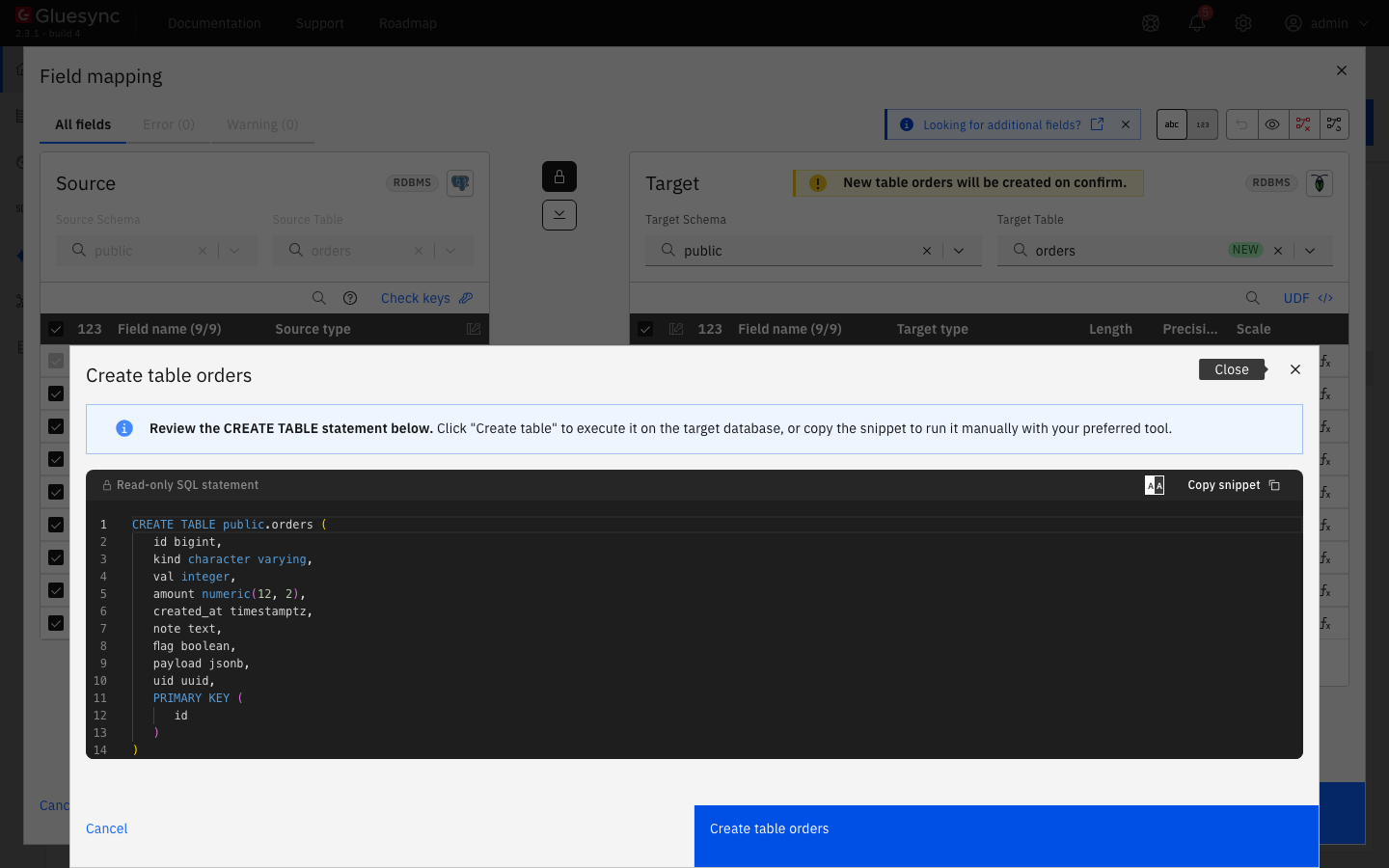
Select Confirm. The Create table orders dialog shows the Read-only SQL statement. Read it, then select Create table orders to run it on CockroachDB;
-
Back on the Add entities page, select Confirm and continue.
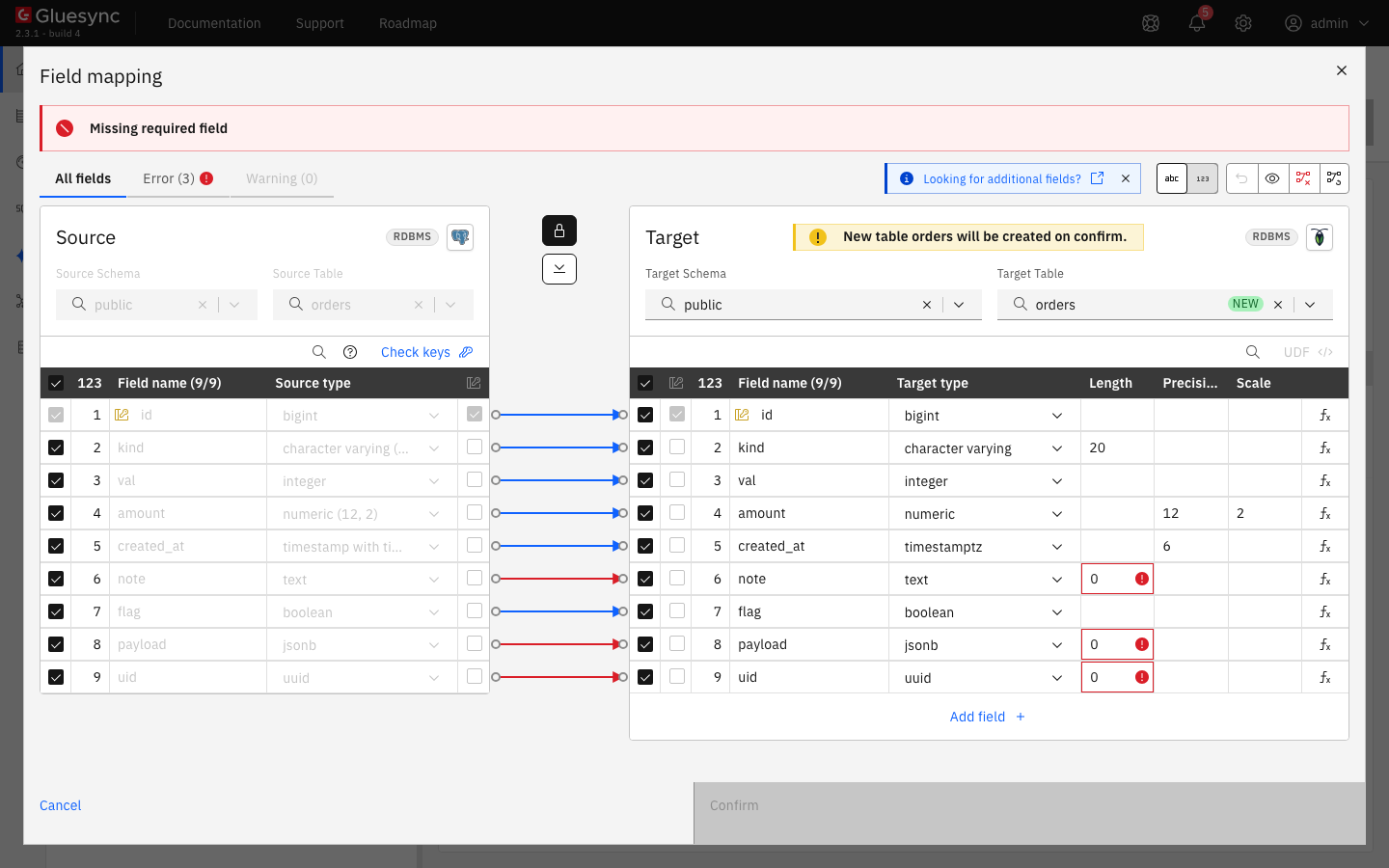
text, jsonb and uuid start at 0, flagged as Required.The statement has this form. It is read-only: to use another key or other types, create the table in CockroachDB yourself first and choose it in Target Table.
CREATE TABLE public.orders (
   id bigint,
   kind character varying,
   val integer,
   amount numeric(12, 2),
   created_at timestamptz,
   note text,
   flag boolean,
   payload jsonb,
   uid uuid,
   PRIMARY KEY (id)
)
Check what CockroachDB created:
SHOW CREATE TABLE public.orders;See Target table creation for the dialog.
UI + SQL
The CockroachDB agent has no bulk load: the Writing column of the start dialog says This target has no bulk load. It writes batches over the JDBC connection.
-
In the pipeline, find the entity. On Hold, select the start options button, the one next to the play button. The Snapshot (copy-only) dialog opens;
-
Keep Keep and merge under Data already in the target. It overwrites the rows that have the same key and keeps the others;
-
Under Speed select Custom. In the Writing column, set Writers during the copy to
1and keep If a row with the same key is already there on Upsert. Step 7 explains why one writer is the safe choice for a first load; -
Select Start snapshot.
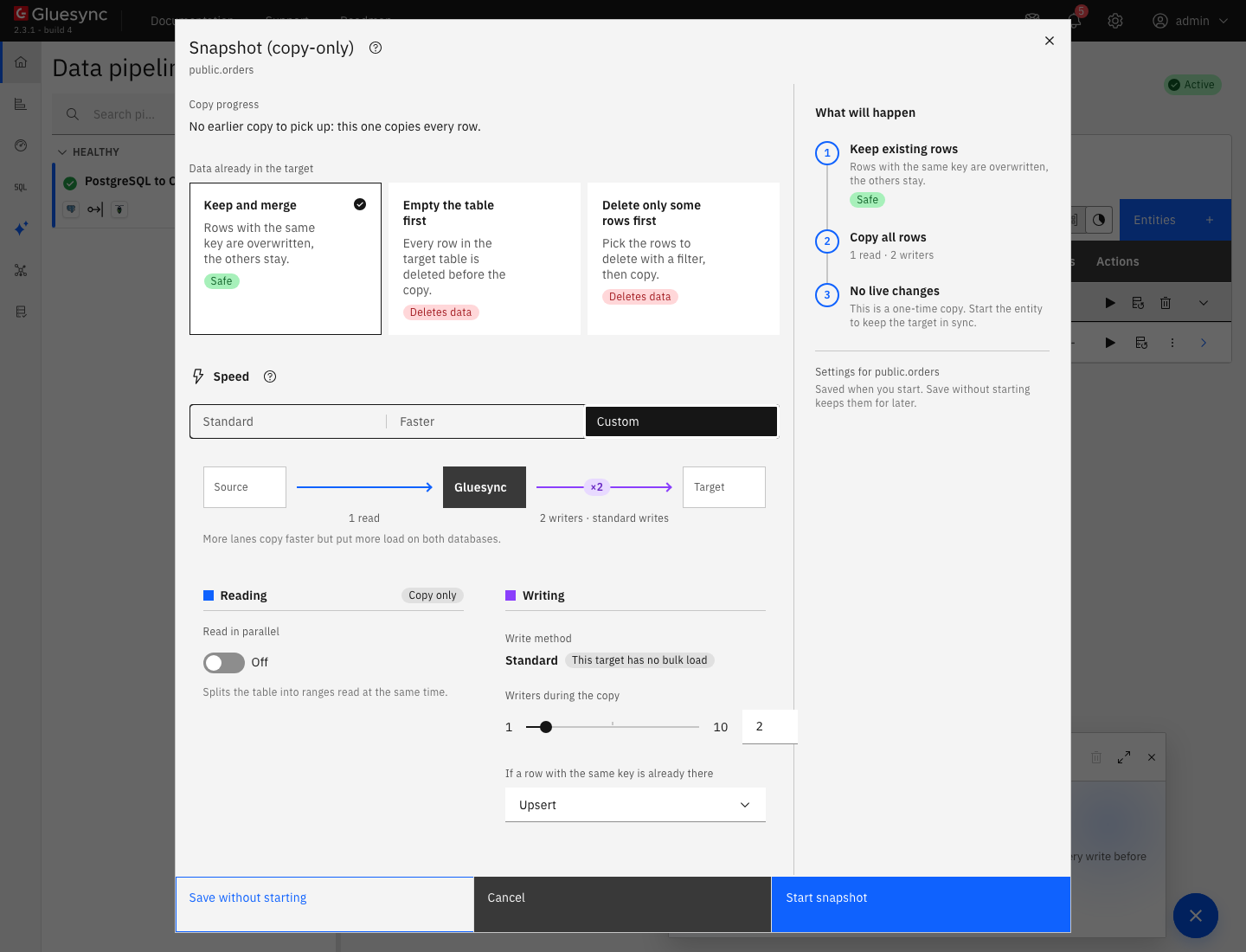
Check the rows in CockroachDB and compare them with the source:
SELECT count(*) FROM public.orders;
SELECT count(*), sum(val), sum(amount) FROM public.orders;In the tests the agent did not send INSERT … ON CONFLICT. With Keep and merge, it writes each batch as two statements, which you can read in the statement statistics of CockroachDB:
SELECT key, count FROM crdb_internal.node_statement_statistics
WHERE application_name = 'Gluesync' ORDER BY count DESC LIMIT 5;
The statements have this form: an UPDATE … FROM over the batch for the keys that exist, then an INSERT … SELECT … WHERE NOT EXISTS for the keys that do not.
WITH src (id, kind, ...) AS (SELECT id, kind, ... FROM (VALUES (...), (...)) AS t (id, kind, ...))
UPDATE public.orders AS dest SET kind = src.kind, ... FROM src WHERE src.id = dest.id

WITH src (id, kind, ...) AS (...)
INSERT INTO public.orders(id, kind, ...) SELECT src.id, src.kind, ... FROM src
WHERE NOT EXISTS (SELECT _ FROM public.orders AS dest WHERE src.id = dest.id)
To prove that Keep and merge overwrites, change three rows in CockroachDB, run the snapshot again, and read them: they return to the values of the source. On duplicate key decides what happens when an insert meets a row that is already there, see On duplicate key.
UI + SQL
The copy-only snapshot leaves the entity on Hold. Start it to follow the changes, then change the source and read the target.
-
Select the play button of the entity. The Sync changes (CDC) dialog opens. Under Start from choose Now, because the rows are already in the target. Keep If a row with the same key is already there on Upsert and select Start entity. The entity becomes Active;
-
On the source, insert, update and delete one row each:
INSERT INTO orders VALUES (300001, 'new', 7, 12.50, now(), 'cdc row', true, '{"k":1}', gen_random_uuid()); UPDATE orders SET val = -1, kind = 'cdc-upd' WHERE id = 5; DELETE FROM orders WHERE id = 6; -
After a few seconds, read the three keys on CockroachDB:
SELECT id, kind, val FROM public.orders WHERE id IN (5, 6, 300001) ORDER BY id;
SELECT count(*) FROM public.orders;
CockroachDB is a target only. You cannot start a pipeline that reads changes from it.
UI
Three settings control how fast the agent writes. They apply to each entity.
-
Max Write Batch Size and Max Delete Batch Size: both default to
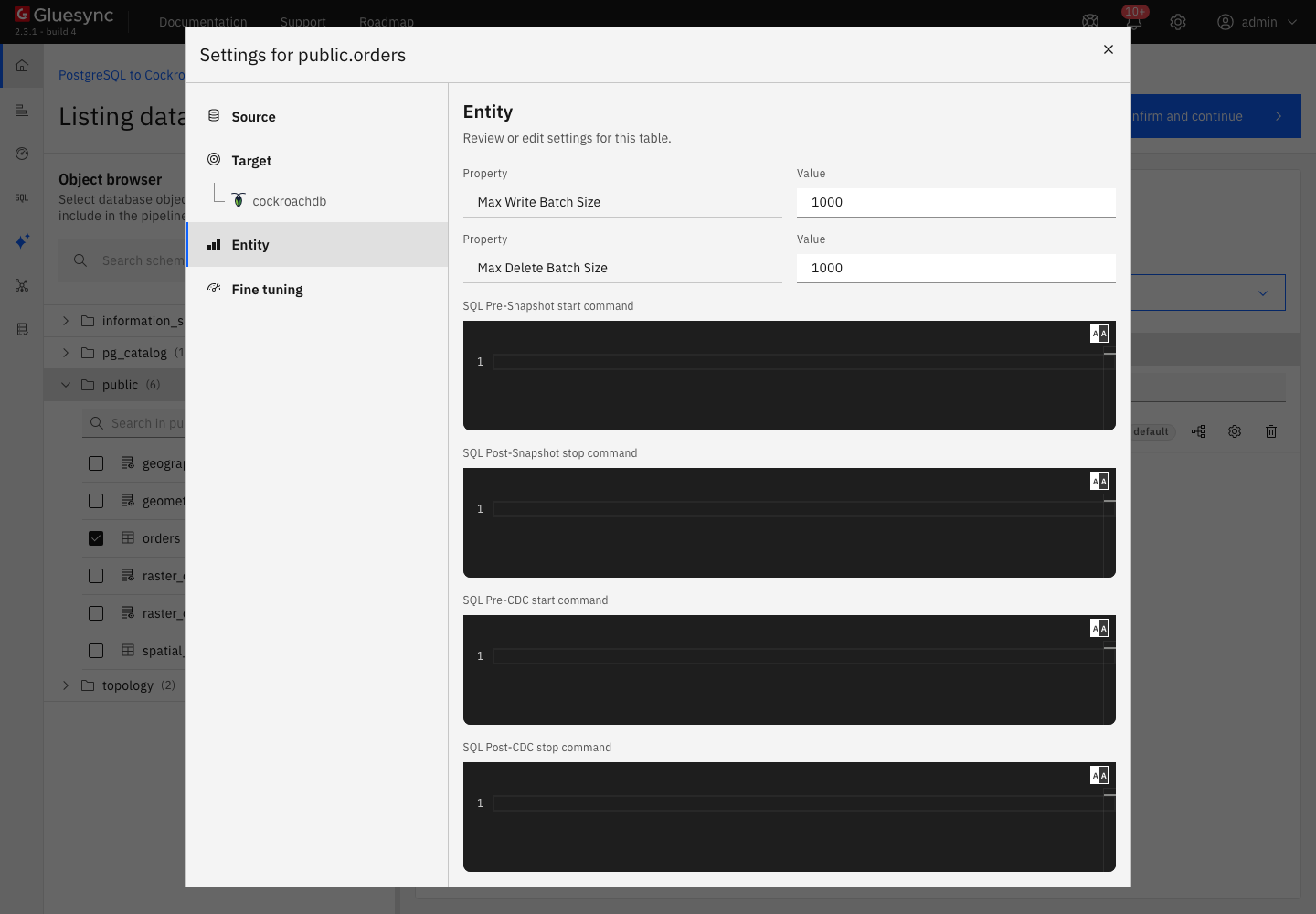
1000rows. In the Add entities page, select the gear of the entity, then Entity. The two properties are at the top of the tab. -
Snapshot writing concurrency in Fine tuning: the number of writers during the snapshot, from
1to10. The start dialog shows the same setting as Writers during the copy; -
Use connection pool, Min connections count and Max connections count of the target. The pool is on by default. The agent logs a warning when you turn it off, because the performance is lower.
In the Advanced settings tab of the target, Add property offers three more keys: Enable Recursion Protection, State Preservation Table Name Prefix and Disable truncate on target table before snapshot inserts. The third one stops the agent from emptying the table at the start of a snapshot.
|
More writers are not always faster. With Keep and merge into a table that does not hold the rows yet, two writers made CockroachDB abort transactions with a retry error, and the snapshot stopped and started again. One writer copied the same 200,000 rows in about 15 seconds without an error. Start with one writer, and raise it only after a test on your cluster. Step 8 shows the error. |
See Tune replication throughput for the settings that apply to every target.
SQL + UI
Each error below was reproduced against a running cluster.
-
The user cannot empty a table that it did not create. The user holds
SELECT,INSERT,UPDATEandDELETEon a table that another user owns, and you start a snapshot with Empty the table first. The entity goes to Error and the Core Hub log showsERROR: user gluesync does not have DROP privilege on relation orders. Core Hub keeps retrying the write. Fix: runGRANT DROP ON TABLE demo.public.orders TO gluesync;, or choose Keep and merge. After the grant, the snapshot with Empty the table first ran without an error; -
A transaction retry error. With two writers and Keep and merge into a table without rows, the notification Serialization failure Error shows a message that starts with
ERROR: restart transaction: TransactionRetryWithProtoRefreshError: TransactionRetryError: retry txn (RETRY_SERIALIZABLE - failed preemptive refresh due to conflicting locks. CockroachDB cancelled one of two transactions that wrote overlapping keys. The entity shows Error, and Core Hub starts the snapshot again by itself with a growing delay. In the test, the copy finished about two minutes after the first error, with all 200,000 rows. Fix: set Writers during the copy to1, which copied the 200,000 rows in about 15 seconds without an error, or start the snapshot with Empty the table first, which ran with eight writers without an error; -
A TLS or password error. Step 2 lists the TLS messages, and step 3 shows the message for a wrong password.
Data types
The agent maps each Gluesync type to a CockroachDB type. The types that came out of the test table:
| Source type (PostgreSQL) | CockroachDB type | Note |
|---|---|---|
|
|
The same width |
|
|
|
|
|
Precision and scale kept |
|
|
The length is not kept in the proposed statement |
|
|
The Length cell shows a required |
|
|
|
|
|
Precision |
|
|
The Length cell shows a required |
|
|
The Length cell shows a required |
The CockroachDB agent overview lists the supported versions and features.
Troubleshooting
| Problem | Possible cause | What to do |
|---|---|---|
Failed to save with |
The password or the user name is wrong, or the user does not exist on this cluster |
Check the user with |
|
Trust server certificate is off and the Core Hub container has no CA certificate at that path |
Mount your |
|
Trust server certificate is off, and the cluster is insecure |
Switch Trust server certificate on |
Missing required field in the Field mapping dialog, and Confirm is disabled |
The Length cell of a |
Enter |
|
Empty the table first runs |
|
Serialization failure Error with |
Two or more writers upserted into a table that did not hold the rows yet, and CockroachDB cancelled one transaction |
Set Writers during the copy to |
The entity is in Error and the log repeats |
The target rejects every write, for example because of a missing privilege |
Read the first |
Related guides
Contact MOLO17 Support if you need assistance with a CockroachDB target.