Set up a Couchbase DCP source with CDC
The Couchbase DCP agent reads the changes of a bucket from the Database Change Protocol (DCP) stream of the data service. It does not need the Eventing service and it does not deploy any function. This guide creates a Couchbase user with the roles the agent needs, copies a collection of JSON documents into a PostgreSQL table with a snapshot, follows inserts, updates and deletes with CDC, and shows what a document becomes as a row. It then stops and resumes the entity and lists the errors that you are most likely to meet: a missing role, a missing index, a stream that cannot open and a field that does not fit a column.
In this guide
You will create a Couchbase user with four roles on one bucket, and an index for the snapshot. You will create the Couchbase DCP source and a PostgreSQL target in the Control Plane, add the collection as an entity, and map the fields of its documents to columns. You will start the entity with a full copy, change documents in Couchbase, check the three operations on the target, stop the entity, change more documents, and resume it from where it stopped. A table at the end lists the errors that were reproduced for this guide.
Quick information
Goal |
Replicate a Couchbase collection to a relational table with a snapshot followed by change data capture (CDC), with the least roles |
Audience |
Data engineers and Couchbase administrators |
Level |
Intermediate |
Time required |
About 45 minutes |
Area |
Couchbase → RBAC users and indexes; Control Plane → Pipelines → Couchbase DCP agent → Base settings and Advanced settings; entity → Field mapping and start dialog |
Applies to |
Gluesync 2.3 |
Before you begin
Make sure that:
-
You have a Couchbase Server 7.0 or later (Enterprise or Community) or a Capella cluster, with the Data, Index and Query services. This guide was tested with Couchbase Server Enterprise 7.6. You can run
couchbase-cliand N1QL statements as an administrator; -
Core Hub can reach the cluster on port
8091(management),11210(data) and8093(query). Use18091,11207and18093with TLS. The Eventing ports8096and18096are not needed; -
You have a target to write to. This guide uses PostgreSQL 16 and a user that can create tables in the schema
public. Any relational target works, and the steps for the source are the same; -
You can sign in to the Control Plane with a role that can create pipelines;
-
You have a collection of documents. This guide uses the bucket
sales, the scopeshopand the collectionorders, with 1,000 documents. The key of each document isorder::<number>, and the fields areorderId(number),customer,statusandcreatedAt(text),amount(number with decimals),paid(boolean),tags(array) andshipping(object withcityandcountry).
|
The statements and the messages quoted in this guide were run and captured against Couchbase Server Enterprise 7.6 as the source and PostgreSQL 16 as the target, with the Control Plane that ships with Gluesync 2.3. The Couchbase DCP reference lists every option and the REST API setup. |
How a document becomes a row
The agent maps one collection to one entity, and one document to one row. Gluesync discovers the fields by sampling the documents of the collection with the N1QL INFER statement, so the field list reflects the documents that exist when you add the entity.
| In Couchbase | In the target row |
|---|---|
The document key, for example |
The column |
A field with a text, number or boolean value |
A column. You choose the column type, and the length, precision and scale where the type needs them |
A nested object or an array, such as |
No column in the PostgreSQL target of this guide. The Control Plane marks the field as an error, so you leave it out of the entity |
A field that a document does not have |
|
A field that appears in new documents after you added the entity, such as a coupon code |
Nothing. The value is not replicated until you add the field to the mapping |
|
When you turn off Use Scope and Collections, the agent reads the whole bucket and matches documents to entities through the |
Guide steps
CLI
The agent opens the DCP stream, creates a scope and an index in the bucket, and reads documents with N1QL. It does not need the admin role. Connect to a node as an administrator and create the user with four roles on the source bucket. Replace the passwords:
couchbase-cli user-manage -c localhost:8091 -u Administrator -p '<admin password>' \
  --set --rbac-username gsuser --rbac-password '<a strong password>' \
  --roles 'data_dcp_reader[sales],scope_admin[sales],query_select[sales],query_manage_index[sales]' \
--auth-domain local| Role | Why Gluesync needs it |
|---|---|
|
Opens the DCP stream and reads the changes. It cannot write |
|
Creates the scope |
|
Discovers the fields of a collection with |
|
Creates the index that the agent builds on each collection when the entity starts |
|
The reference page says that the DCP agent writes nothing to the source bucket. The documents of the bucket stay untouched, but the agent does create the scope |
On Community Edition, the granular roles are not available. The reference page tells you to give the user bucket_full_access on the source bucket instead, see Couchbase DCP reference. This guide did not test Community Edition.
SQL
The snapshot reads the collection with a N1QL SELECT and needs an index it can use. Create a primary index on each collection you replicate. Run it as an administrator, for example in the Query workbench:
CREATE PRIMARY INDEX ON `sales`.`shop`.`orders`;
If you do not want a primary index, you can instead grant the role query_use_sequential_scans on the collection to gsuser. Without one of the two, the snapshot fails, see the troubleshooting table.
|
UI
-
In the Control Plane, select Create your first pipeline, or the + button of the pipeline list if you already have pipelines. The Agents setup wizard opens;
-
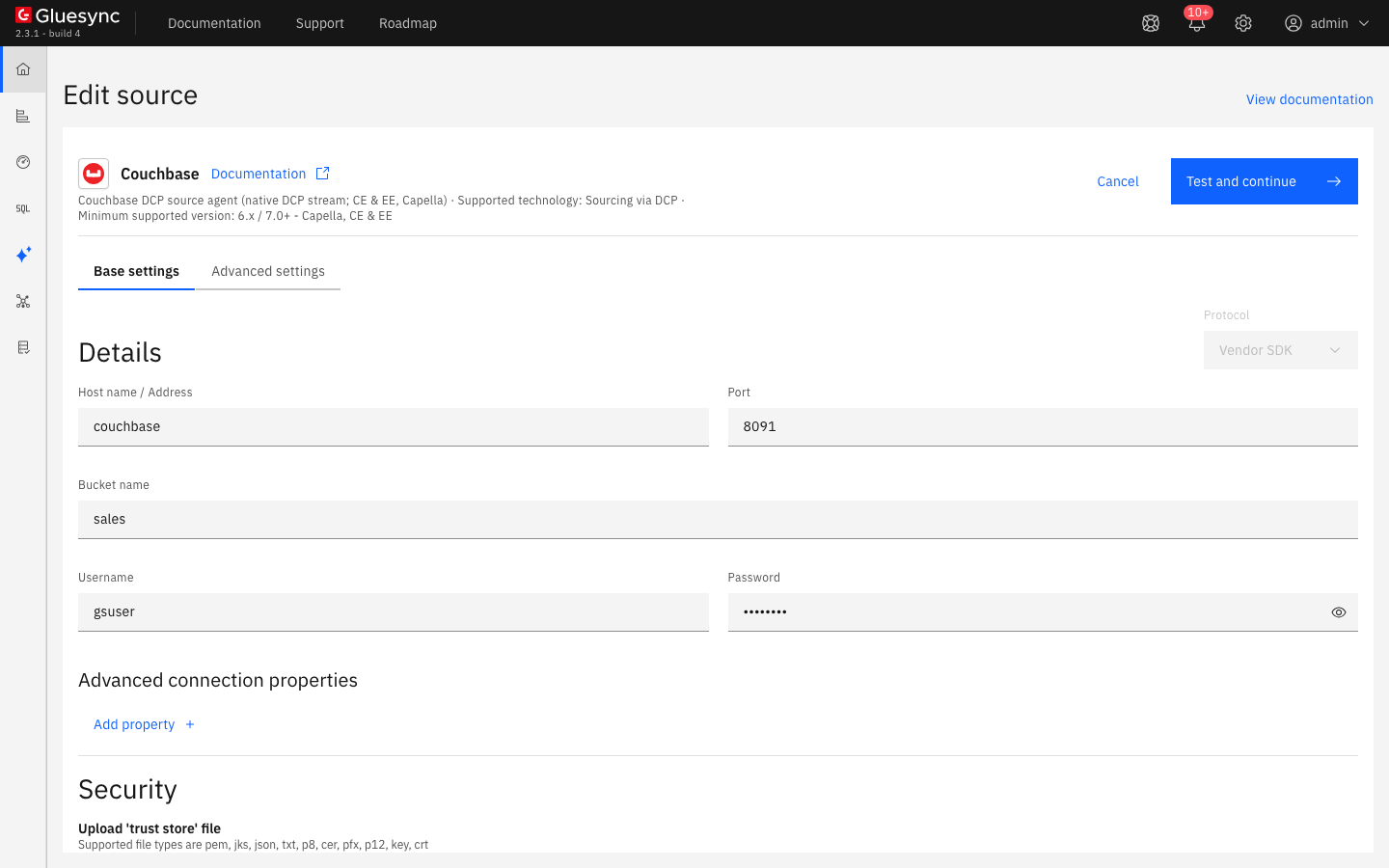
In 1. Setup source, open the Couchbase tile, which offers two connectors, and choose Couchbase DCP agent. Fill Base settings:
-
Host name / Address: a node of your cluster. Gluesync discovers the other nodes;
-
Port:
8091. Use18091for TLS and for Capella; -
Bucket name:
sales; -
Username and Password: the user of step 1;
-
-
Select Test and continue. The source appears with
gsuserand the address. For TLS, upload your certificates under Security before you test, see Enable HTTPS and TLS to databases;
-
Select Next. In 2. Setup target(s), search for PostgreSQL, choose the PostgreSQL CDC agent tile and fill the host, the port
5432, the database and the user of your PostgreSQL server. Select Test and continue, then Next; -
Enter a Pipeline name and select Finish.
The Advanced settings tab of the source offers more properties, for example Use Scope and Collections (on by default), Index Replica Count and Custom 'type' field name. The Eventing properties in the same list do not apply to the DCP agent. See Couchbase source advanced settings.
If the test fails, the connection is saved anyway and the notification Failed to save shows the cause. The troubleshooting table lists the messages.
UI
-
In the pipeline, select Entities. The Add entities page opens with the Object browser. It lists the scopes of the bucket, including
_defaultand_system. Expandshopand tick the collectionorders; -
In the Field mapping dialog, choose the Target Schema
public, typeordersin Target Table and choose Create table "orders". The dialog fills the nine fields of the sample documents: the eight fields andmetaId, the document key. Scroll the lists if they are longer than the dialog; -
Fix what the dialog marks as an error, as listed here:
-
Untick the fields
shippingandtags. The dialog marks the source typeobjectas an error and offers no PostgreSQL type for it, andarraybecomes the invalid typearrayin the statement. See the troubleshooting table; -
Give each
varcharcolumn a Length, for example40forcreatedAt,50forcustomer,20forstatusand100formetaId; -
Give
amountthe Precision12and the Scale2; -
Change the Source type of
orderIdfromnumbertolong, and its target type tobigint, so the column holds an integer; -
Tick the key box of
metaId, on the source side;
-
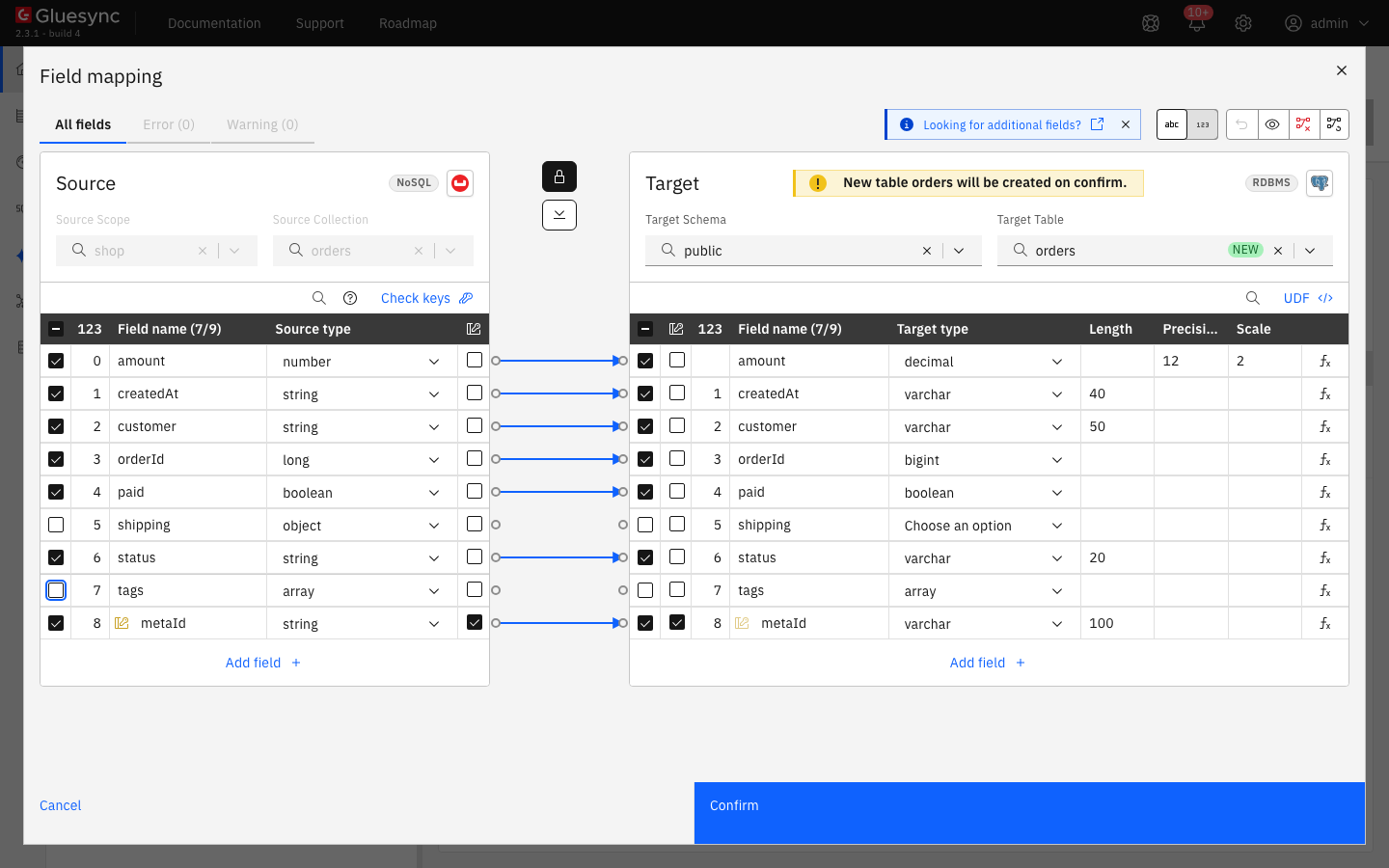
metaId is the key, shipping and tags are left out, and no error remains.-
Select Confirm. The Create table orders dialog shows the read-only
CREATE TABLEstatement. It has no primary key yet: tick Force conversion of logical keys into physicals, and the statement ends withPRIMARY KEY ("metaId"). Select Create table orders; -
Back on the Add entities page, select Confirm and continue.
|
The key of the document is the only key Gluesync can use for a DELETE, so keep |
UI + SQL
-
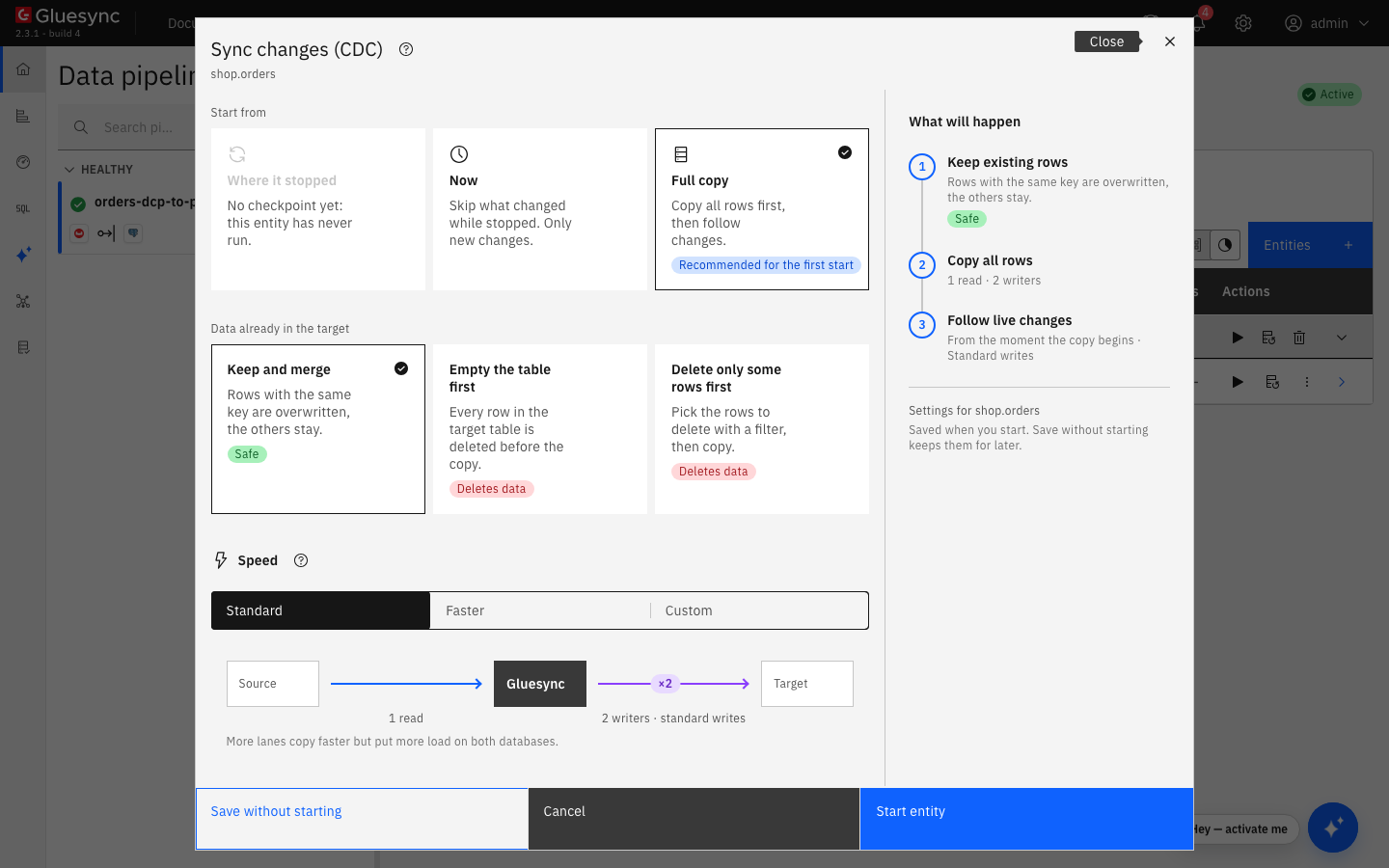
On the row of the entity, select the play button. The Sync changes (CDC) dialog opens;
-
Under Start from keep Full copy, Recommended for the first start. It copies all the documents, then follows the changes. Under Data already in the target keep Keep and merge, and under Speed keep Standard;
-
Select Start entity.
Check the rows on the target, and the index that the agent created on the source:
-- on the target
SELECT count(*) FROM public.orders;
SELECT * FROM public.orders ORDER BY "orderId" LIMIT 3;
-- on the source, in the Query workbench
SELECT name, keyspace_id, index_key FROM system:indexes WHERE bucket_id = "sales";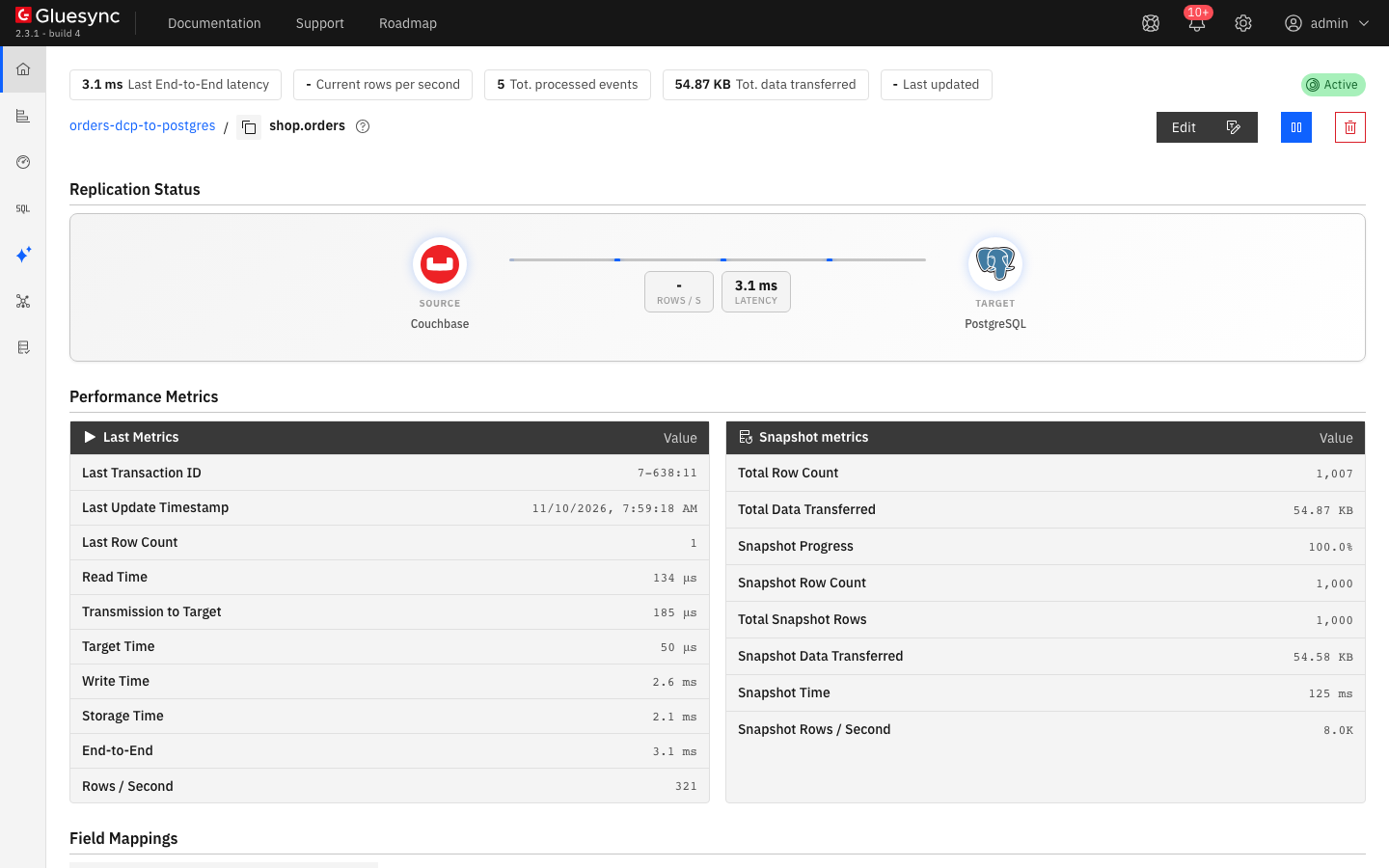
SQL
Change the documents in Couchbase. Insert one document, update one and delete one:
INSERT INTO `sales`.`shop`.`orders` (KEY, VALUE)
VALUES ("order::1001", {"orderId": 1001, "customer": "customer-new", "status": "new",
  "amount": 19.9, "paid": false, "createdAt": "2026-11-10T08:00:00Z"});
UPDATE `sales`.`shop`.`orders` SET status = "paid", paid = true, amount = 25.00
WHERE META().id = "order::1";
DELETE FROM `sales`.`shop`.`orders` WHERE META().id = "order::2";
After a few seconds, read the three keys on the target:
SELECT "metaId", status, paid, amount FROM public.orders
WHERE "metaId" IN ('order::1', 'order::2', 'order::1001') ORDER BY 1;
SELECT count(*) FROM public.orders;A document that lacks a field gives NULL in its column, and a field that is not in the mapping is not replicated. In the test, a document without status and createdAt landed with both columns empty, and a document with an extra coupon field landed without it and without an error.
UI + SQL
The agent keeps the DCP position of the entity in Core Hub, not in Couchbase. Stopping the entity or Core Hub does not lose changes: when it starts again from the checkpoint, it reads the changes made in the meantime.
-
Select the pause button of the entity, then Pause entity;
-
In Couchbase, change documents while the entity is stopped: insert one, update one and delete one;
INSERT INTO `sales`.`shop`.`orders` (KEY, VALUE) VALUES ("order::1002", {"orderId": 1002, "customer": "customer-paused", "status": "new", "amount": 5.5, "paid": false, "createdAt": "2026-11-10T09:00:00Z"}); UPDATE `sales`.`shop`.`orders` SET status = "paid" WHERE META().id = "order::4"; DELETE FROM `sales`.`shop`.`orders` WHERE META().id = "order::5"; -
Read the target. Nothing has changed yet. Then select the play button, choose Where it stopped and select Start entity.
| Now skips the changes made while the entity was stopped. Full copy with Keep and merge copies every document again and overwrites the rows with the same key. The rows of documents that were deleted in the meantime stay in the target. |
UI
-
In the start dialog, under Speed, select Faster or Custom. The diagram shows 1 read for the source: the agent opens one DCP stream for the whole source;
-
Under Custom, Reading offers Read in parallel, off by default, which splits the table into ranges read at the same time during the copy. Writing offers Standard or Bulk load during the copy and during live changes, and Writers during the copy from
1to10. More lanes copy faster and put more load on both databases; -
Bulk load depends on the target. For PostgreSQL, see Tune replication throughput and Bulk load;
If the rows per second stay low, check the target first.
Troubleshooting
| Symptom or message | Cause | Fix |
|---|---|---|
Failed to save with |
The user has no |
Grant |
Failed to save with |
Wrong user or password. The notification appears after about a minute, and the values are saved anyway |
Correct the values in the Edit source page and test again |
Tables Columns Fetch fails with |
The user has no |
Grant |
Authentication Failed when you start the entity, with |
The user has no |
Grant |
Authentication Failed when you start the entity, with |
The collection has no primary index, so the snapshot query has no index to use |
Create it with |
The entity moves to the Error group with |
The message reports plaintext mode, not a refused TLS connection. In the test, the user had no |
Check the roles first, then the data port from the host of Core Hub, then the certificates. Grant |
In Field mapping, a |
The source type |
Untick the field, or use a target that stores JSON. Do not leave the field in the entity |
The entity fails with Source read failed and |
A nested object was forced to the source type |
Open Edit mapping and untick the field, then start the entity again |
Missing required field on a column |
A |
Fill the values, see step 4 |
A field that you added to the documents later is not in the target |
The mapping lists the fields that existed when you added the entity. A new field is ignored without an error |
Open Edit mapping from the menu of the entity and add the field and a column for it |
The count of the target is lower than the source after a stop |
The entity was started with Now, which skips what changed while it was stopped |
Start it with Full copy and Keep and merge |
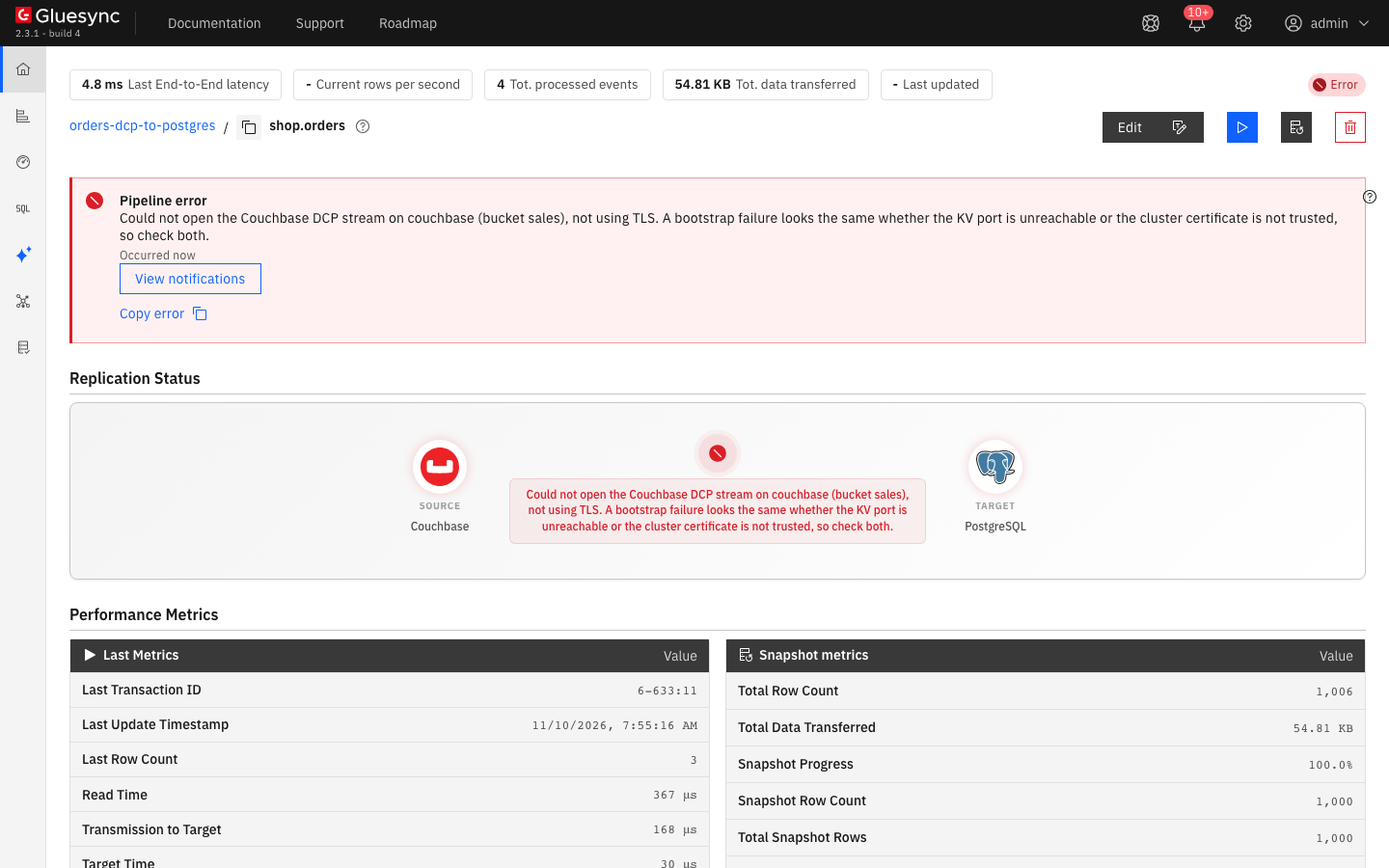
data_dcp_reader role: the entity page shows the pipeline error with the message of the DCP stream.Related guides
Contact MOLO17 Support if you need assistance with a Couchbase DCP source.