Modules manager
Modules manager provides an intuitive UI, powered by Gluesync Conductor, to manage the lifecycle and versions of the platform components that are part of your deployment.
Prerequisites
To use the Modules manager from the Control Plane you need:
-
Gluesync Conductor installed, configured and connected to your Control Plane
-
A Docker Compose-based Gluesync deployment managed by Conductor
-
Internet connectivity from the environment where Conductor runs, if you want to check for and download updates
Overview
Modules manager is tightly integrated with Gluesync Conductor.
Conductor exposes the container management and update APIs, while the Modules manager offers a user-friendly Control Plane interface on top of those APIs. From this UI you can:
-
See which components are currently part of your deployment
-
Inspect their status and version
-
Start, stop, reboot and remove components
-
Detect when new versions of modules are available
-
Trigger updates to keep the platform aligned with the latest releases
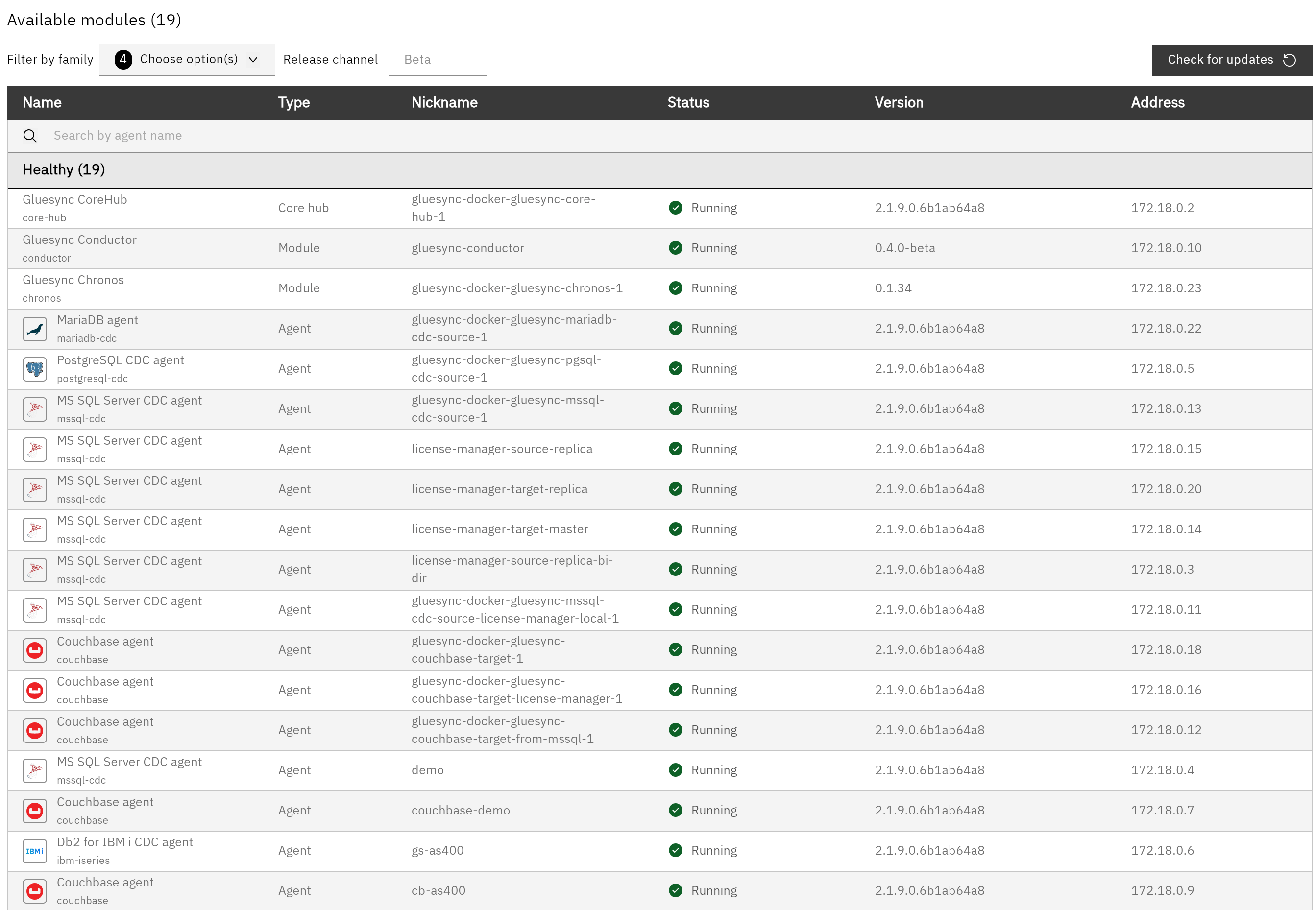
Managing platform components
The Modules manager lists all supported Gluesync components that are handled through Conductor (for example Core Hub, modules, and agents). For each component you can typically:
-
Start / stop a component
-
Reboot a component to quickly restart it
-
Add new components that Conductor will manage
-
Delete components you no longer need
Actions are executed through Conductor, which updates the underlying containers and keeps their configuration in sync with your deployment.
Prometheus and Grafana ship inside the default installation kit. For that kit, you do not install or configure a second Prometheus or Grafana. They may still be absent from this list, together with the reverse proxy. In the Control Plane, Metrics and insights (gauge icon, left menu) is the included Grafana. The default Grafana login is admin / password. On Windows, Gluesync itself is under C:\Program Files\Gluesync. A path such as C:\Program Files\GrafanaLabs is a separate Grafana Labs installation, not the Gluesync kit.
|
Keeping modules up to date
One of the most important responsibilities of the Modules manager is to help you keep the platform updated to the latest available versions.
Update notifications
When Modules manager detects that a newer version of one or more components is available (via Conductor calling MOLO17 update services over the internet), it surfaces a notification in the Control Plane.
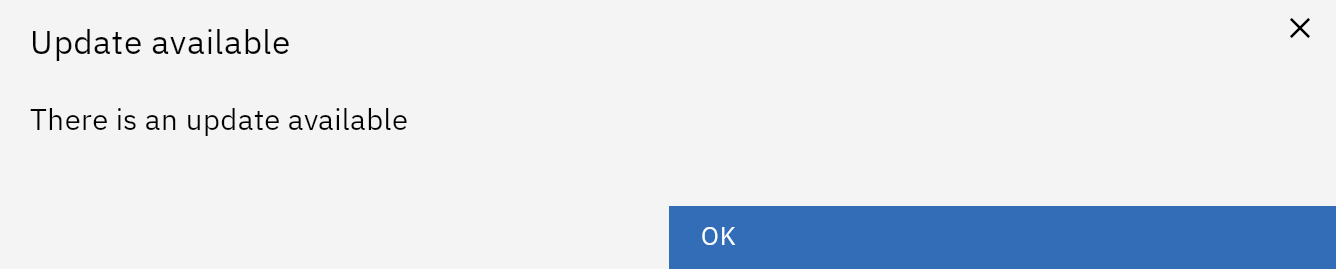
A popup or banner informs you that updates are available and invites you to review them in the Modules manager.
|
Checking for and downloading new versions requires internet connectivity from the environment where Conductor is running so it can reach MOLO17 update services. |
Checking for updates and applying them
You can also manually ask the Modules manager to check for new versions at any time.

A typical update flow is:
-
Open the Modules manager page from the Control Plane.
-
Click Check for updates to have Conductor query for newer versions.
-
Review which components report an update.
-
Click Update on a single component or, depending on your configuration, trigger bulk updates.
Conductor then pulls the new container images and restarts the affected services. Once the process is complete, the Modules manager shows the updated versions in the list.
Best practices
-
Plan maintenance windows when updating critical components in production environments.
-
Rely on Conductor automatic updates: Conductor keeps itself up to date and notifies you with a mandatory update banner when its own update is required.
-
Monitor the environment (CPU, memory, networking) during large updates.
-
Review release notes for each new version so you are aware of behavioural changes before applying updates.