 Sybase ASE CDC: Triggers Setup with Gluesync
Source data from SAP (Sybase) ASE
Prerequisites
To have Gluesync working on your SAP (Sybase) ASE instance you will need to have:
-
Valid user credentials with permission to read, and write to the target tables.
Setup via Web UI
-
Hostname / IP Address: DNS record or IP Address of your server;
-
Port: Optional, defaults to
5000; -
Database name: Name of your target database;
-
Username: Username with read & write access to database and its tables;
-
Password: Password belonging to the given username.
Setup via Rest APIs
Here following an example of calling the Core Hub’s Rest API via curl to setup the connection for this Agent.
Connect the agent
curl --location --request PUT 'http://core-hub-ip-address/pipelines/{pipelineId}/agents/{agentId}/config/credentials' \
--header 'Content-Type: application/json' \
--header 'Authorization: ••••••' \
--data '{
        "hostCredentials": {
        "connectionName": "myAgentNickName",
        "host": "host-address",
        "port": 5000,
        "databaseName": "db_name",
        "username": "",
        "password": "",
        "maxConnectionsCount": 100,
        "enableTls": true,
        "certificatePath": "/myPath/cert.pem"
      }
}'
Triggers auditing structure
Triggers are automatically created by the Agent only in the desired tables. These are recognizable by the following trigger_schemaname_tablename_operation naming/format convention adopted.
Three are the triggers created:
-
Insert: identified by the
_insertsuffix, it records INSERT operation made in the table where it is installed; -
Update: identified by the
_updatesuffix, it records UPDATE operation made in the table where it is installed; -
Delete: identified by the
_deletesuffix, it records DELETE operation made in the table where it is installed;
Manually create triggers
Sybase (SAP) ASE has a limitation where only one trigger per operation can be setup on a table. If your table has already triggers installed (for any of the three operation) then the automated setup must be disabled by setting the following flag to false while setting up your entity during the entity setup wizard. See screenshot below for reference.
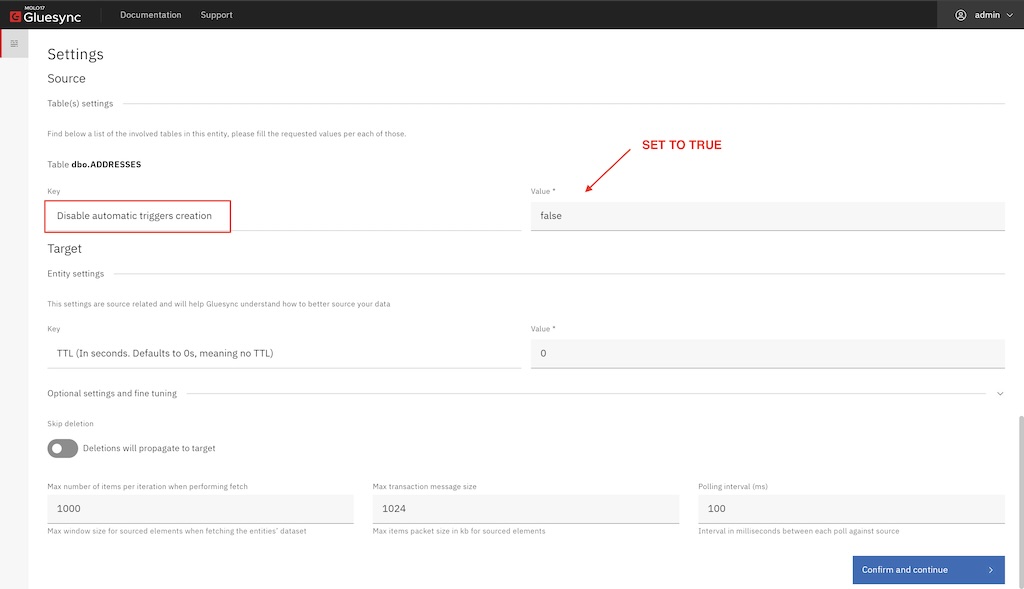
Once done triggers for Gluesync must manually created in the table in subject by merging its existing code with Gluesync’s one.
Here following you can find the respective triggers source code that can be merged with yours:
Insert
CREATE TRIGGER YOUR_TRIGGER_NAME_INSERT
ON schemaname.TABLENAME
FOR INSERT
AS
BEGIN
   INSERT INTO schemaname.TABLENAME_CDC (TIMESTAMP, OPERATION, FIELD1, FIELD2, FIELD3, FIELD4, FIELD5)
   SELECT GETDATE(), 'I', FIELD1, FIELD2, FIELD3, FIELD4, FIELD5
   FROM inserted
END
go
Update
CREATE TRIGGER YOUR_TRIGGER_NAME_UPDATE
ON schemaname.TABLENAME
FOR UPDATE
AS
BEGIN
   INSERT INTO schemaname.TABLENAME_CDC (TIMESTAMP, OPERATION, FIELD1, FIELD2, FIELD3, FIELD4, FIELD5)
   SELECT GETDATE(), 'U', FIELD1, FIELD2, FIELD3, FIELD4, FIELD5
   FROM inserted
END
go
Delete
CREATE TRIGGER YOUR_TRIGGER_NAME_DELETE
ON schemaname.TABLENAME
FOR DELETE
AS
BEGIN
   INSERT INTO schemaname.TABLENAME_CDC (TIMESTAMP, OPERATION, FIELD1, FIELD2, FIELD3, FIELD4, FIELD5)
   SELECT GETDATE(), 'D', FIELD1, FIELD2, FIELD3, FIELD4, FIELD5
   FROM deleted
END
go
CDC table
Trigger’s captured events are stored in a Gluesync-managed table name CDC table. These tables are created by Gluesync during the entity setup wizard and are meant to act as a ledger, recording all the events that are happening at the audited table level.
Gluesync automatically creates a CDC table per each of the audited tables, this allow for performances, granular auditing of changes and easy of manageability.
When a change is made on the audited table, the operation-specific trigger is fired and it stores data into the respective CDC table.
Enabling automatic trimming for Char data types
Char values are known to allocate a fixed number of characters like, for example, a Char(10) allocates 10 fixed characters, this fixed allocation adds trailing whitespaces to the actual value in order to fill the space left until reaching the desired fixed value.
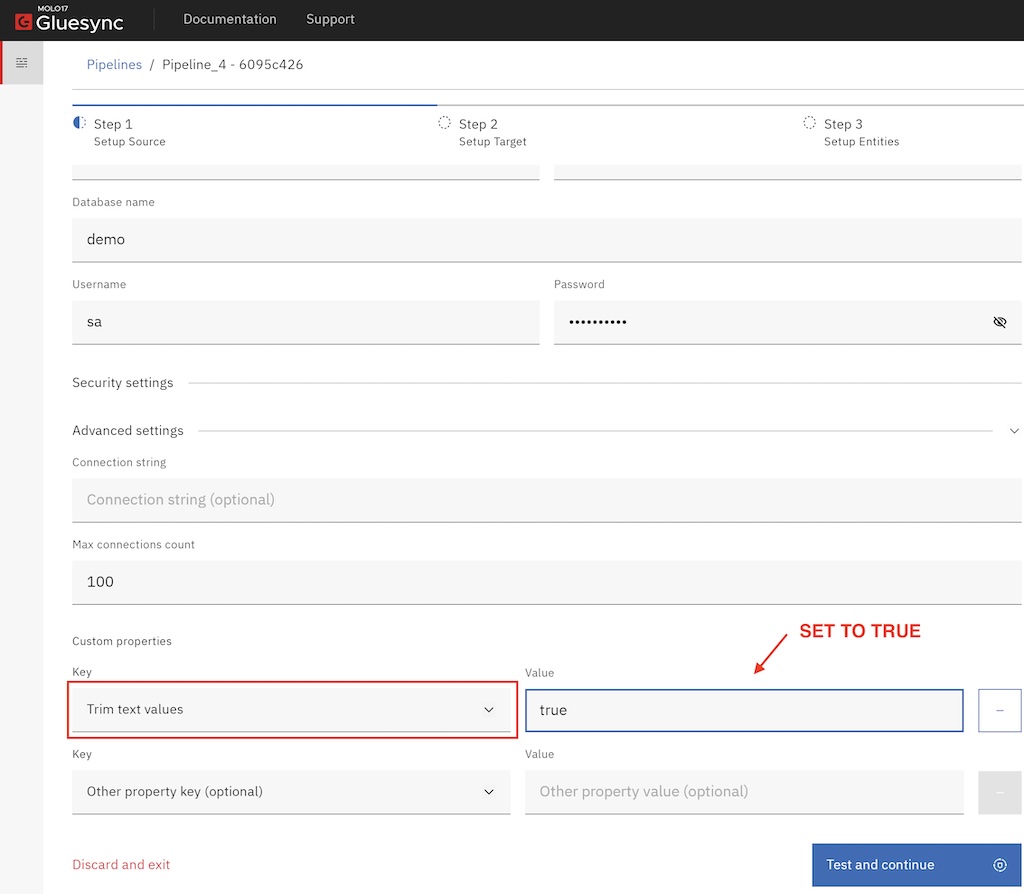
To avoid the agent to source values with trailing whitespaces there’s an option you can turn on at Agent’s settings level so every text value passes through a trim process before being set over to the target. Please refer to the below screenshot for reference.
Working with Before & After images
Before & after images are a feature that allows Gluesync to track the changes that have occurred in your database and comparing them with their previous values. This enables Gluesync to apply only the changes that have occurred, saving bandwidth and processing time.
This agent does not support Before & After images.