Setting Logical Keys for tables without primary keys
Gluesync allows you to set a logical key for tables that don’t have a primary key defined at the database level. This is essential for proper data synchronization and conflict resolution. You configure logical keys from the Fields Editor, which you can open from the Objects Browser.
Why set a logical key?
A logical key serves as a unique identifier for each row in a table when no primary key exists. This is necessary because:
-
Ensures each row can be uniquely identified;
-
Enables proper data synchronization;
-
Prevents data duplication;
-
Supports conflict resolution.
How to set a logical key
Open the Fields Editor, then follow these steps to set a logical key for a table without a primary key:
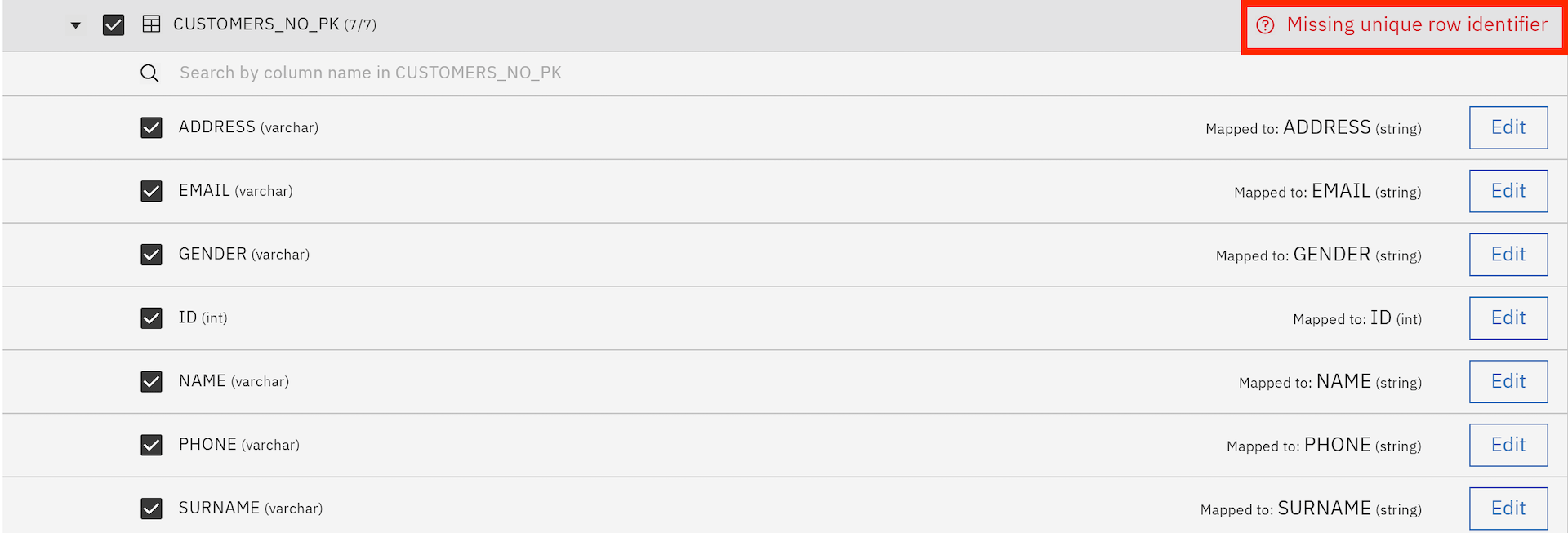
Create a new entity and select the table that doesn’t have a primary key
|
A 'Missing unique row identifier' message will appear next to the selected table to indicate that the primary key is missing. |
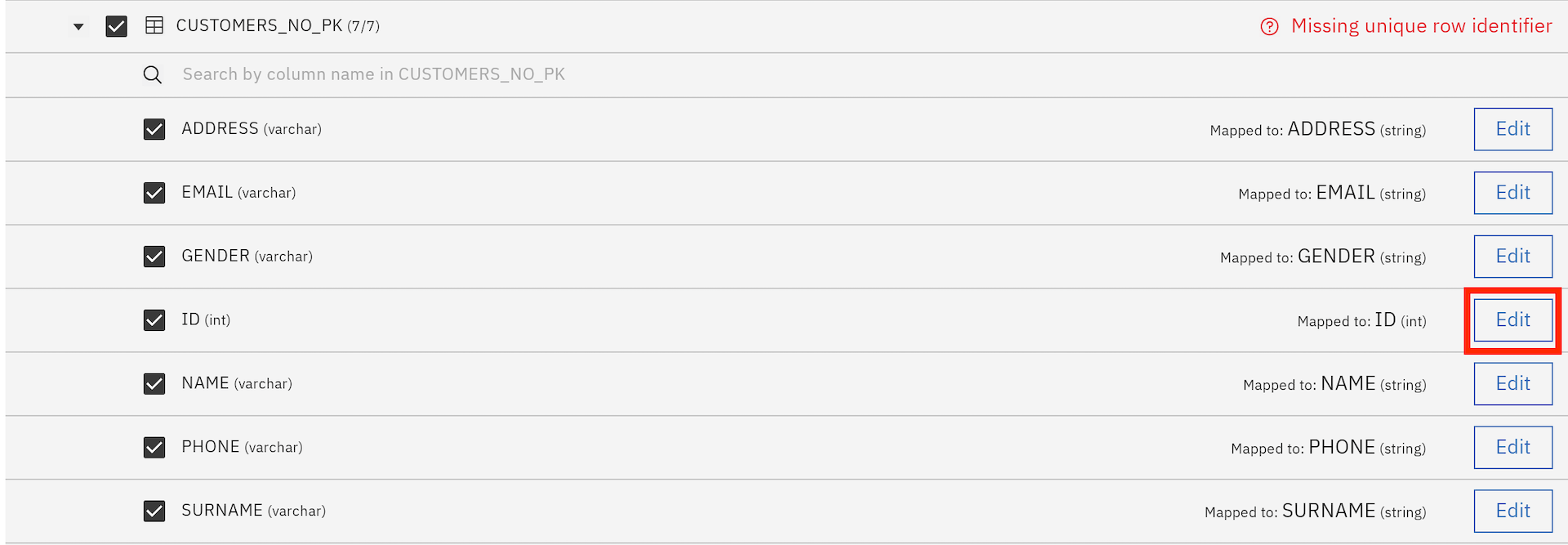
Navigate to the column you want to set as the logical key
Click the 'Edit' button (pencil icon) next to the column selection
In the column properties, find the 'Is Key' field
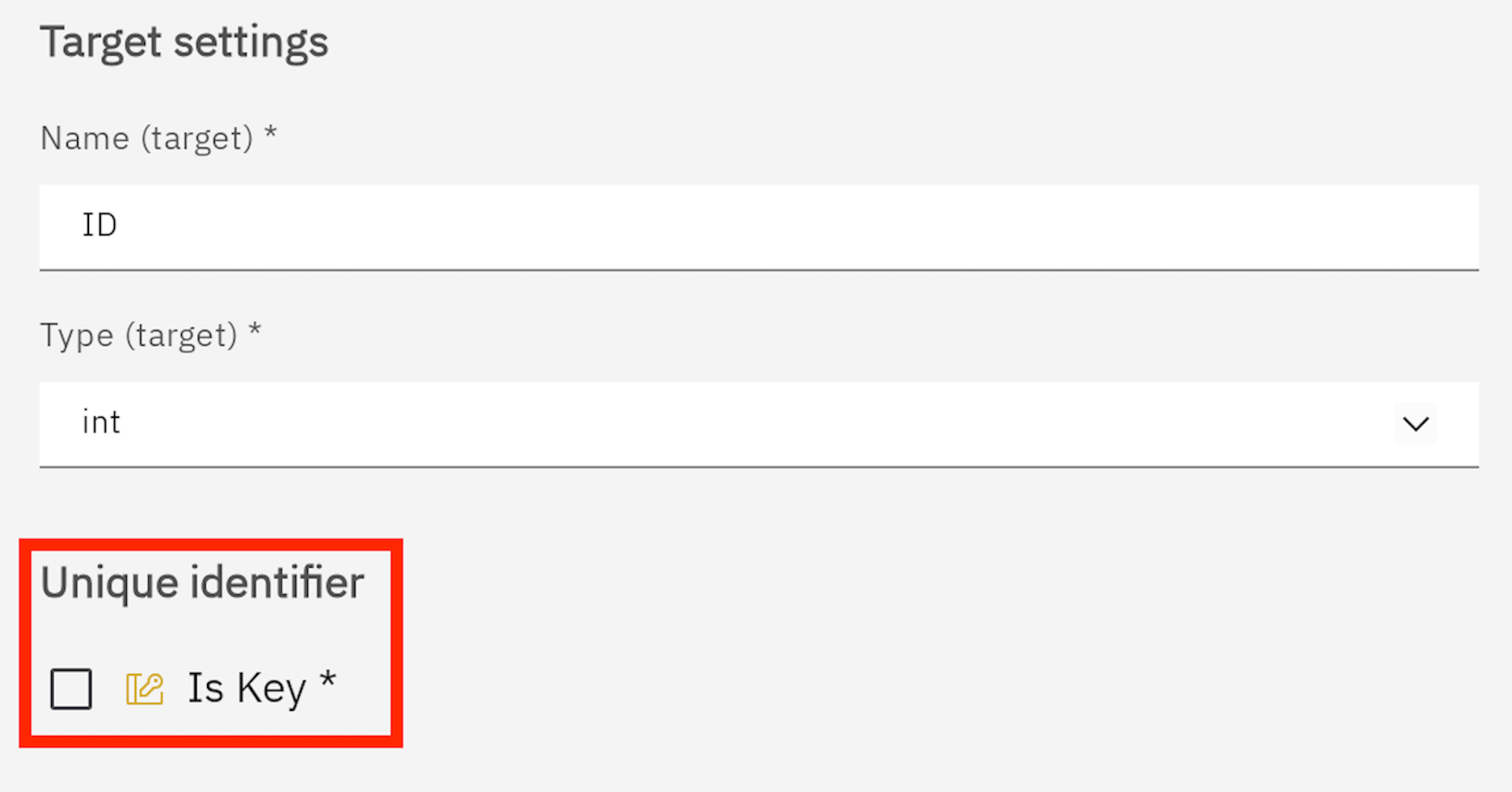
Enable the 'Is Key' option by clicking the tick button
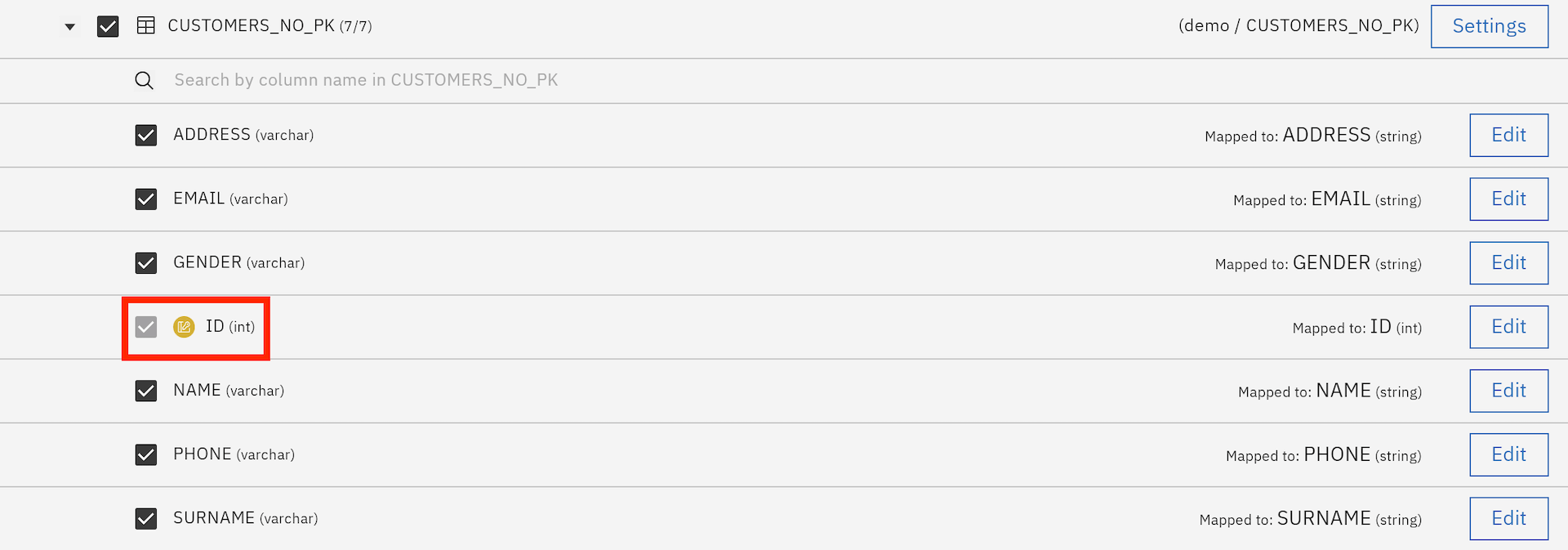
Confirm your changes to save the configuration
Best practices
-
Choose a column with unique values as your logical key;
-
Avoid using columns with NULL values as logical keys: this is not supported;
-
Consider using a combination of columns if no single column is unique;
-
Document your logical key choices for future reference.
|
The logical key you set will be used by Gluesync for synchronization purposes but won’t modify your actual database schema. |