User Management & Role-Based Access Control (RBAC)
This guide details the multi-user authentication system and Role-Based Access Control (RBAC) integrated into Gluesync CoreHub. It outlines the available roles, permissions, password policies, and API usage for user management.
Overview
Gluesync CoreHub supports a robust multi-user environment. It allows administrators to create multiple accounts, assign distinct roles for varied permission levels, and manage overall platform security through specific access controls.
|
If you are looking to integrate an external identity provider to manage your users via Single Sign-On, see Configure OIDC Authentication. |
User Roles
The system supports four distinct user roles, each catering to different levels of interaction with the CoreHub platform:
1. SUPER ADMIN (formerly "admin")
-
Full system access.
-
Can create, update, and delete other users.
-
Can perform all operational, configuration, and structural changes.
-
Cannot be deleted. (The default
adminuser retains this role.) -
Can reveal unmasked PII in Query Studio and can disable platform-wide PII masking under Settings → Global settings. See PII discovery and masking.
2. MANAGER
-
Can perform all system operations except user management.
-
Can create, modify, and delete pipelines and entities.
-
Can start, stop, and pause replications.
-
Cannot create or delete users.
-
Cannot delete the primary admin user.
-
Can reveal unmasked PII in Query Studio for a single session. Cannot change the platform-wide masking setting.
3. VIEWER
-
Read-only access to all resources.
-
Can view pipelines, entities, metrics, and logs.
-
Can run read-only queries in Query Studio and manage personal saved queries.
-
Cannot make any modifications.
-
Cannot pause, start, or stop replications.
-
Cannot create, update, or delete any resources.
-
Cannot run writable queries or share saved queries in Query Studio.
-
Cannot reveal unmasked PII in Query Studio. See PII discovery and masking.
Authentication & Security
Password Requirements
All passwords must meet the following criteria to ensure system security: * Minimum of 8 characters * At least 1 lowercase letter * At least 1 uppercase letter * At least 1 special symbol
First Login & Temporary Passwords
When a SUPER ADMIN creates a new user or resets a user’s password, the account is flagged to mandate a password change. This means the user must change their temporary password upon their very first login before accessing any other CoreHub endpoints or UI features.
Session Management
User sessions are managed through JWT (JSON Web Tokens). By default, sessions expire after 72 hours. A SUPER ADMIN can change this value from the Settings → User Management panel. See Session Configuration.
Managing Users via the Web UI
The Settings → User Management tab provides a full graphical interface for managing accounts. Only SUPER ADMIN users can access this panel.
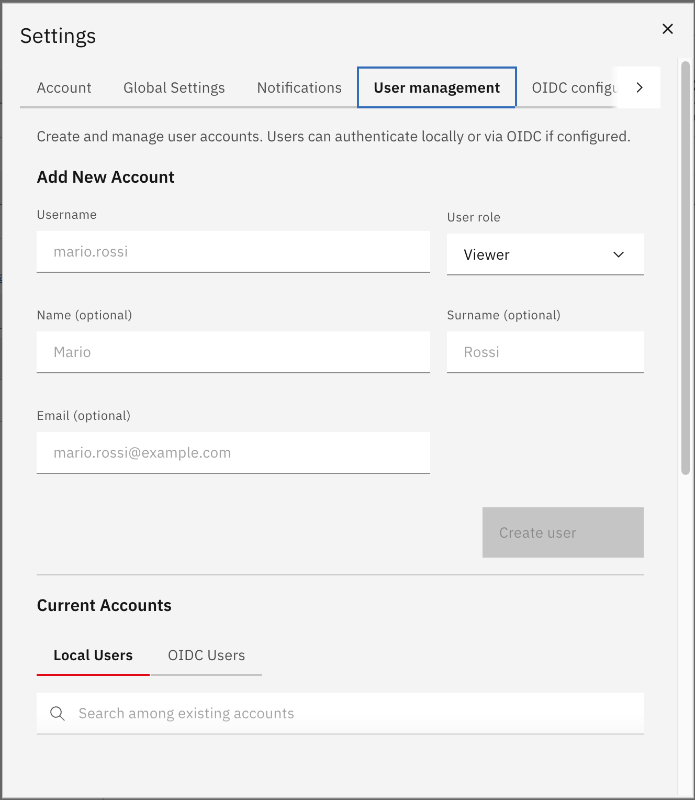
Creating a New User
-
Open Settings → User Management.
-
Fill in the Add New Account form:
-
Username (required) — must be unique; logins are case-insensitive.
-
Role — select
MANAGERorVIEWER.SUPER ADMINcan only be assigned via the REST API. -
Name, Surname, Email — optional display fields.
-
-
Click Create.
Gluesync automatically generates a secure random password and displays it once after creation. You can:
-
Copy the password to the clipboard.
-
Download a CSV file containing the username, password, role, and contact fields.
|
Save or share the password immediately — it is shown only once. The user will be required to change it on first login. |
Viewing and Searching Users
The user list is split into two tabs:
-
Local Users — accounts created directly in Gluesync.
-
OIDC Users — accounts auto-provisioned on first OIDC login.
Use the search box to filter by username across the active tab.
Each user row displays:
-
Username
-
Current role
-
OIDCbadge — if the account was provisioned by an identity provider. -
Password Change Requiredbadge — if the user has not yet changed their temporary password.
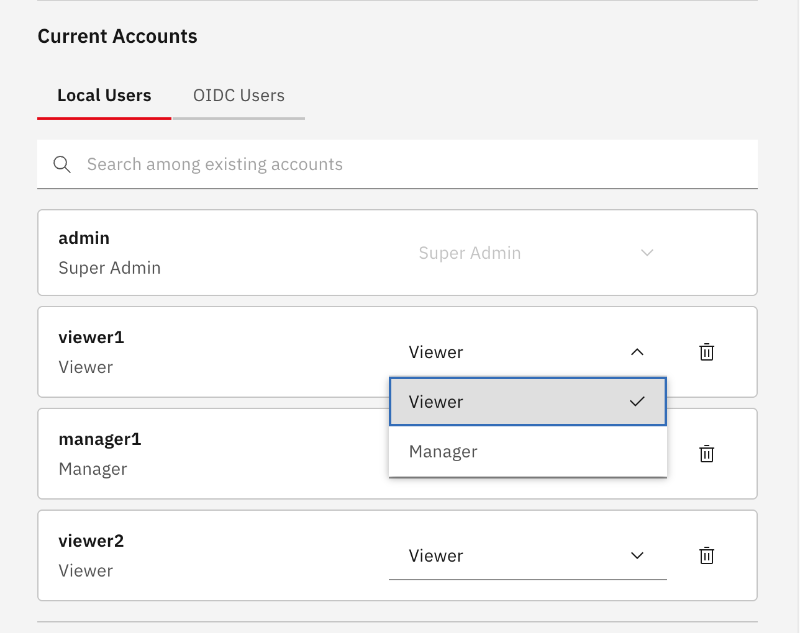
Changing a User’s Role
Select a new role from the dropdown in the user’s row. The change takes effect immediately.
|
Deleting a User
Click the trash icon in the user’s row and confirm the deletion in the dialog.
-
The default
adminaccount cannot be deleted. -
A user cannot delete their own account.
-
OIDC users cannot be deleted via the UI (they are managed by the identity provider).
Self-protection rules
To prevent administrators from accidentally locking themselves out, CoreHub enforces the following self-protection rules on user-management endpoints:
-
A user cannot delete their own account.
-
A user cannot change their own role. All other self-edits (name, surname, email, password) work normally. Requests that attempt to change the caller’s own role return HTTP
400 Bad Requestwith the messageCannot change your own role.
A SUPER ADMIN who needs to demote themselves must have another SUPER ADMIN perform the change.
Session Configuration
Session duration controls how long a login remains valid before the user must authenticate again.
Configuring via the Web UI
-
Open Settings → User Management.
-
Scroll to the Session Configuration section at the bottom of the page.
-
Enter the desired duration in the Session Duration (Hours) field (minimum: 1 hour; default: 72 hours).
-
Click Save.
The new duration applies to all future sessions. Existing sessions are not immediately invalidated.
|
Only |
API Reference (User Management)
User management APIs are restricted to users holding the SUPER ADMIN or MANAGER role. The two roles differ in scope:
-
SUPER ADMINcan create, update, and delete users with any role. -
MANAGERcan create, update, and delete users with theMANAGERorVIEWERrole only. Attempting to act on aSUPER ADMINuser returns HTTP403 Forbidden.
In addition, the self-protection rules apply to both roles: nobody can delete their own account or change their own role.
Get All Users
GET /users
Authorization: Bearer <token>
Response Example:
[
  {
    "username": "admin",
    "role": "SUPER_ADMIN",
    "changeRequired": false
  },
  {
    "username": "john.doe",
    "role": "MANAGER",
    "changeRequired": true
  }
]
Create User
Creates a new user and automatically requires them to change their password upon their first login.
POST /users
Authorization: Bearer <token>
Content-Type: application/json

{
  "username": "new.user",
  "password": "TempPass123!",
  "role": "MANAGER"
}
Update User
Both role and password are optional. If a new password is provided by the admin, the user will be forced to change it on their next login.
PUT /users/{username}
Authorization: Bearer <token>
Content-Type: application/json

{
  "role": "MANAGER",
  "password": "NewPassword123!"
}
Delete User
DELETE /users/{username}
Authorization: Bearer <token>
Note: You cannot delete the default admin user, nor can you delete your own user account. See Self-protection rules.
Integration with OIDC (OpenID Connect)
The RBAC system has been designed to work seamlessly with external identity providers. You can map groups and roles from an external Identity Provider (like Keycloak, Entra ID, or Okta) directly to the CoreHub roles (SUPER ADMIN, MANAGER, VIEWER).
To learn more about setting up external identity providers, user auto-provisioning, and role mapping, check out the OIDC Integration Guide.