Over-the-Air (OTA) Updates
Gluesync supports Over-the-Air (OTA) Updates directly through the platform interface. From the main dashboard, you can review available versions, open the update modal, and orchestrate the actual container lifecycle changes without any manual command-line intervention.
Platform Updates in the UI
Gluesync provides a seamless OTA update mechanism that allows administrators to upgrade the platform and its core components directly from the web interface. This eliminates the need to manually download packages, run installation scripts, or access the underlying operating system.
The entire flow has been streamlined into a dedicated update center within the main dashboard for better visibility and control.
Checking for updates
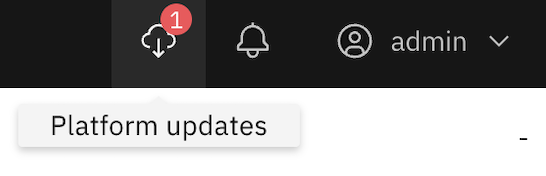
The system continuously polls for new releases and proactively notifies you when new software versions are ready to be installed. When a new version of Gluesync or its components is available, a Platform updates button will appear next to the notifications icon in the top right corner of the screen. This button features a colored counter indicating the exact number of pending updates.
Starting the update process
To review and initiate the update, follow these steps:
-
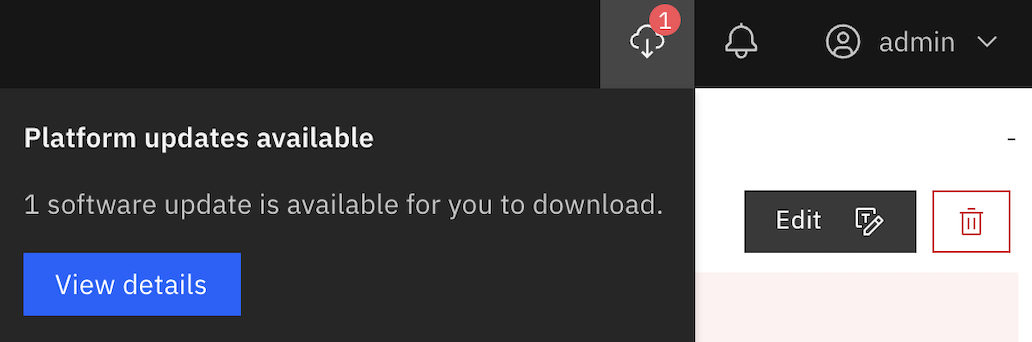
Click the Platform updates button. A quick alert tab will drop down to notify you that new software is ready to be installed.
-
Click the View details button inside this tab to proceed to the update manager.
-
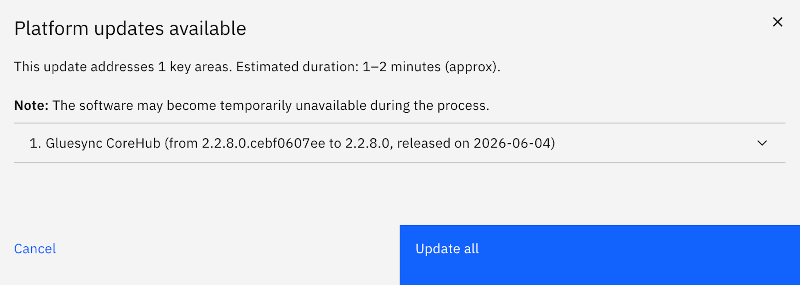
A detailed modal window will open, providing a comprehensive list of all available updates. You can click on any individual item in this list to expand its tab. Expanding the tab reveals specific details, release notes, and the changelog for that particular update.
-
Once you are ready to proceed, click the Update all button located at the bottom of the modal. The update process will commence immediately and progress will be tracked directly within that screen.
|
Critical operation instructions: To prevent system corruption or interrupted installations, you must let the process finish completely. During the update execution:
|
Upon successful completion of the installation, the interface will automatically update to display green checkmarks next to each processed component. This visual confirmation alerts you that the update was successful, the services have been restarted, and the new versions are now fully operational.
Per-service tracking and selective retries
The update list is service-oriented, not a single opaque bulk job. The system processes services one at a time, and the UI tracks each item independently.
-
Each service can be inspected on its own in the accordion.
-
If one service fails, only that item is marked as failed.
-
The retry action on a failed item reruns the sequence.
This is important operationally: the platform does not restart everything at once. It updates one service, waits for it to recover, and only then moves to the next service.
Update states
The modal reflects the update lifecycle with explicit states:
-
IDLE: no update has started yet.
-
RUNNING: the update command was issued and the sequence is in progress.
-
SUCCESS: the service finished updating successfully.
-
FAILED: the service failed and shows the error message returned by the updater.
In the running state, each service line shows a spinner. Successful items get a checkmark, and failed items show an error icon plus the backend error text.
What happens during the update
The update engine updates services sequentially:
-
It resolves the current release channel.
-
It compares the currently running version with the target version for that channel.
-
It sends an update command for one service.
-
It waits for the service to restart and stabilize.
-
It moves to the next service only after the previous one completes.
Some services need extra handling:
-
gluesync-chronos and gluesync-core-hub are treated as restartable services.
-
Core Hub has special restart detection and forces a logout once it comes back online, so the UI can reload clean state.
-
After a successful Core Hub update, the summary is saved and restored after re-login if needed.
Mandatory Updates
The version response includes a mandatoryUpdate flag. A mandatory update means the release is compatibility-driven, not optional maintenance.
Use the platform update flow as soon as a mandatory update appears. In practice, mandatory updates are the releases you need in order to stay aligned with the current platform stack and avoid version skew.
If the UI is showing an available update and the version metadata marks it as mandatory, treat that update as required rather than deferrable.
Release Channels
Release channels control which target version the system compares against.
The current release channel can be changed from the UI in Settings > Global settings, using the Release Channel form.
The form is rendered by ReleaseChannelForm and lets you choose from:
| Channel | Description |
|---|---|
ALPHA |
Fastest-moving channel. Useful for early validation and internal testing. |
BETA |
Pre-release channel for upcoming changes that are not yet on the official release line. |
GA |
Official release channel. This is the default production branch. |
The form saves the channel through the UI, so you do not need to rely only on environment configuration. Once saved, the selected channel is used by Platform Updates to determine the target version for each service.
Best Practices for OTA Updates
|
Before performing a major version update, create a backup of your Core Hub configuration with Automator. |
-
Staggered updates: Update the platform in the order surfaced by the UI. The update flow is intentionally sequential so dependent services do not restart at the same time.
-
Review changelogs: Use the modal accordion to inspect the changelog for each service before starting the update.
-
Watch the session state: For Core Hub, expect a logout after the update. Re-authenticate if the UI redirects you to the login screen.
-
Keep logs handy: If a service fails to restart, use the Web UI log collection features to gather the failure details before retrying.
-
Pruning: The platform automatically prunes old, unused images after a successful update to save disk space.
Troubleshooting OTA Updates
If an update hangs or a container fails to start:
-
Check connectivity: Ensure the host machine can reach the MOLO17 Docker Registry.
-
Verify Docker socket access: Confirm that the updater service can access /var/run/docker.sock.
-
Retry the failed service: The modal shows the service-specific error, which is usually the fastest way to confirm whether the failure is transient.
-
Use offline updates if needed: If OTA fails because of network timeouts or air-gapped constraints, use the offline installation guides for Linux or Windows.
-
Fall back to manual tooling: On Linux, use the provided CLI tools. On Windows, use the Visual Installer to apply updates manually.