Pipeline Maintenance Mode
Maintenance Mode allows you to safely put an entire pipeline on hold, suppressing unwanted errors when your source or target databases are temporarily unreachable or undergoing scheduled maintenance.
Overview
When performing scheduled maintenance on your databases or experiencing an unexpected connection outage, Gluesync will naturally try to reconnect, which might generate a high volume of connection errors in your logs and Notifications Hub. Maintenance Mode solves this by explicitly telling the Core Hub to suspend all operations for that specific pipeline.
While a pipeline is in maintenance mode, the following restrictions apply to protect your configuration and data integrity:
-
All entities within the pipeline are immediately paused.
-
Entities become strictly read-only: they cannot be edited, started, or deleted.
-
Error notifications regarding database connectivity for this pipeline are safely suppressed.
When to use Maintenance Mode
Use Maintenance Mode when:
-
Performing scheduled database maintenance (backups, updates, etc.)
-
Experiencing planned database outages
-
Conducting system upgrades or migrations
-
Debugging connection issues without wanting to see constant error notifications
When NOT to use Maintenance Mode
-
When you need to actively replicate data - use regular pipeline controls instead
-
For temporary network glitches - let Gluesync handle reconnection automatically
-
For Gluesync platform updates - use the update process instead which automatically handles everything without requiring manual intervention. Checkpoints are preserved during the update process.
| We recommend using Maintenance Mode only when necessary, stressing that it is not required before applying platform updates. |
Activating Maintenance Mode
You can activate this feature directly from the Gluesync Control Plane UI.
-
Navigate to the Pipelines overview dashboard.
-
Locate the pipeline you wish to pause.
-
Click the yellow pause icon button located on the right side of the pipeline header.
-
Verify that the pipeline status updates to reflect the maintenance state.
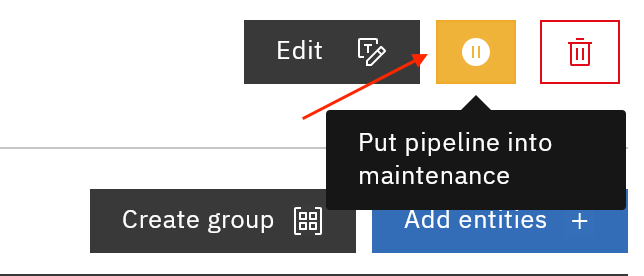
Once activated, the UI will clearly indicate that the pipeline is currently in maintenance, and all interactive controls for its underlying entities will be locked.
Deactivating Maintenance Mode
When your databases are back online and the environment is stable, you can safely resume normal operations.
-
Navigate to the Pipelines overview dashboard.
-
Locate the pipeline currently in maintenance.
-
Click the same yellow button used for activation to disable the maintenance mode.
|
Upon deactivating maintenance mode, previously active entities are automatically restarted. |
The pipeline will unlock, and you will regain full control over editing, starting, or deleting your entities. Normal error reporting and connection handling will also be restored.