Technical Fields Configuration Guide
The Technical Fields feature, allows you to automatically enrich target records with structural metadata extracted at runtime from the source database’s transaction logs or change streams. This feature provides built-in support for audit trails, data lineage, and compliance requirements without needing custom transformation logic.
Overview
When enabled, Gluesync automatically injects specific metadata columns into the target data schema. Instead of replicating only business data, the engine captures transaction-level details from the source datastore (such as MySQL binlogs, MS SQL Server transaction logs, or IBM i journals) and appends them to each record during both snapshot and continuous replication phases.
|
Technical fields are standard across all supported relational (RDBMS) and NoSQL target agents. All metadata columns are prefixed with an underscore ( |
Supported Technical Fields
The following metadata columns can be toggled on a per-pipeline basis from the Control Plane. Note that some fields are specific to the underlying source database technology:
| Target Field Name | Data Type | Description | Example Value |
|---|---|---|---|
|
VARCHAR / TEXT |
The unique global identifier (GUID, LSN, or log sequence hash) of the transaction on the source database. Useful for grouping records modified in the same commit block. |
|
|
BIGINT / DATETIME |
The exact epoch timestamp (in milliseconds) or datetime value indicating when the transaction was committed on the source system. |
|
|
CHAR(1) / VARCHAR |
The CRUD operation type that triggered the event: |
|
|
VARCHAR |
The identity of the database user or application account that executed the transaction on the source engine. |
|
|
BIGINT |
Specific to IBM i (AS400) sources. Represents the Relative Record Number of the row in the source database. |
|
|
VARCHAR |
Specific to IBM i (AS400) sources. The library containing the journal receiver. |
|
|
VARCHAR |
Specific to IBM i (AS400) sources. The name of the journal receiver. |
|
|
BIGINT |
Specific to IBM i (AS400) sources. The journal sequence number for the specific change event. |
|
|
VARCHAR |
Specific to Oracle CDC sources. The unique physical row identifier in the Oracle database. |
|
Ingestion Behavior
The behavior of technical fields depends on the execution phase of the replication entity:
-
Snapshot Phase (Initial Load): Records migrated in bulk are stamped with a conventional transaction identifier and a timestamp reflecting the ingestion execution time. The operation column is typically set to
IorS. -
Change Data Capture (CDC) Phase: During real-time streaming, Gluesync preserves transaction atomicity. If a single source transaction updates multiple rows (or multiple tables inside a
START TRANSACTIONblock), all corresponding target rows will share the exact same_TRANSACTION_IDand_TRANSACTION_TIMESTAMP.
Configuration and Activation
Setup via Web UI (Control Plane)
To enable technical fields on an existing pipeline:
-
Navigate to the Pipelines dashboard in the Gluesync Control Plane.
-
Select your pipeline and click the edit (pencil) icon.
-
Go to the Target Agent configuration step.
-
Locate the Custom properties section.
-
In the Key dropdown, select Technical fields.
-
A multi-select dropdown will appear under the Value column. Check the boxes for the desired metadata columns you want to include (e.g.,
_TRANSACTION_ID,_TRANSACTION_TIMESTAMP,_TRANSACTION_OPERATION,_TRANSACTION_USER, or database-specific fields like_RRN_COLUMNand_ROWID). -
Save and publish the pipeline configuration.
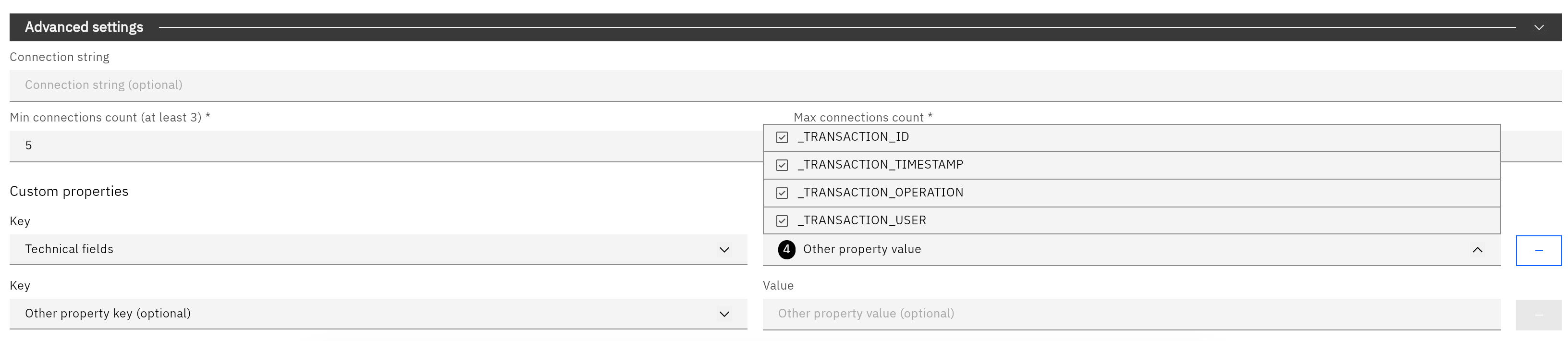
|
Mandatory Resync Rule: If you activate technical fields on a pipeline that already has active entities with running replication tasks, Gluesync will require a mandatory resync. The engine must execute DDL ( |
Target Table Creation Wizard and Fields Editor
When adding a new table via the Objects Browser, if the table does not exist on the target database, Gluesync launches the Target Table Creation Wizard. If technical fields are enabled at the pipeline level, the generated CREATE TABLE statement will automatically include the structural definitions for the enabled metadata columns, matching the target database’s data types.
If the table already exists, or when you are editing an existing entity, you will see the selected technical fields appear directly inside the Fields Editor mapped to their respective target columns. You can treat them as regular fields if you need to adjust data types by using the Unlock Schema feature.
Setup via REST API (Bootstrapper / Automator)
For infrastructure-as-code or programmatic deployments, you can activate technical fields by defining the technicalFields array inside the target agent’s specificConfiguration block within your config.json or config.yaml file:
{
  "agentType": "TARGET",
  "agentTag": "mssql-target",
  "specificConfiguration": {
    "technicalFields": [
      "_TRANSACTION_ID",
      "_TRANSACTION_TIMESTAMP",
      "_TRANSACTION_OPERATION",
      "_TRANSACTION_USER",
      "_RRN_COLUMN",
      "_ROWID"
    ]
  }
}
Troubleshooting & Defect Isolation
If you encounter issues where technical fields are not appearing in your target database or contain persistent NULL values, follow these troubleshooting steps:
1. Verify Target Schema and Permissions
If the target table already existed before you enabled technical fields, Gluesync attempts to execute ALTER TABLE ADD COLUMN statements during the mandatory resync.
-
Check: Manually inspect the target table’s DDL to see if the metadata columns were successfully created.
-
Fix: Ensure the database user account assigned to the Gluesync target agent has the necessary
ALTERprivileges. If permissions are restricted by your organization, you must add these columns manually using the appropriate data types.
2. Isolate Payload Data using a UDF
To determine whether the issue lies within the source extraction (the agent is not reading the metadata) or the target ingestion (the agent is not writing it), you can use a User Defined Function (UDF) to dump the payload in transit.
Apply this diagnostics Java UDF inside the Fields Editor:
import java.util.Map;
import kotlin.Pair;
import com.molo17.gluesync.commons.model.api.MappingFunctionOperation;
import org.slf4j.Logger;

public class UDF_Diagnostics {
    public Pair<MappingFunctionOperation, Map<String, Object>> onChange(Map<String, Object> newValues, Map<String, Object> oldValues, MappingFunctionOperation operation, Logger logger) {

        // This will print the entire payload including the injected technical fields
        logger.info("Payload data in transit: " + newValues);

        return new Pair<>(operation, newValues);
    }
}
If the logs show the fields are populated, the issue is on the target side. If they are missing, the issue originates at the source.
3. Review Source-Specific Limitations
Some technical fields, such as _RRN_COLUMN for IBM i or _ROWID for Oracle, rely on specific source database configurations.
-
Check: Ensure the source database is configured to expose this metadata. For example, verify that your AS400 journal is capturing the required entry types, or that Oracle has the appropriate supplemental logging enabled.