Modules manager
Modules manager provides a Control Plane UI, powered by Gluesync Conductor, to inspect the agents, modules and third-party services that Conductor orchestrates and to run lifecycle actions on one component at a time.
Prerequisites
To use Modules manager from the Control Plane you need:
-
Gluesync Conductor installed, configured and connected to your Control Plane
-
A Docker Compose-based Gluesync deployment managed by Conductor
The side-navigation entry is labeled Modules Manager and appears only when Conductor is connected.
Overview
Modules manager is tightly integrated with Gluesync Conductor.
The page title is Modules Manager. The UI describes it as: Inspect the agents, modules and third-party services orchestrated by the CoreHub. Run lifecycle actions on a single module at a time.
From this UI you can:
-
See which components are currently part of your deployment
-
Inspect their status and version
-
Start, Restart, Stop, or Remove a selected component (which actions appear depends on component type and status)
Modules manager does not provide Check for updates or Update actions. To update Gluesync, use Platform updates in the Control Plane header. See Update Gluesync and OTA updates.
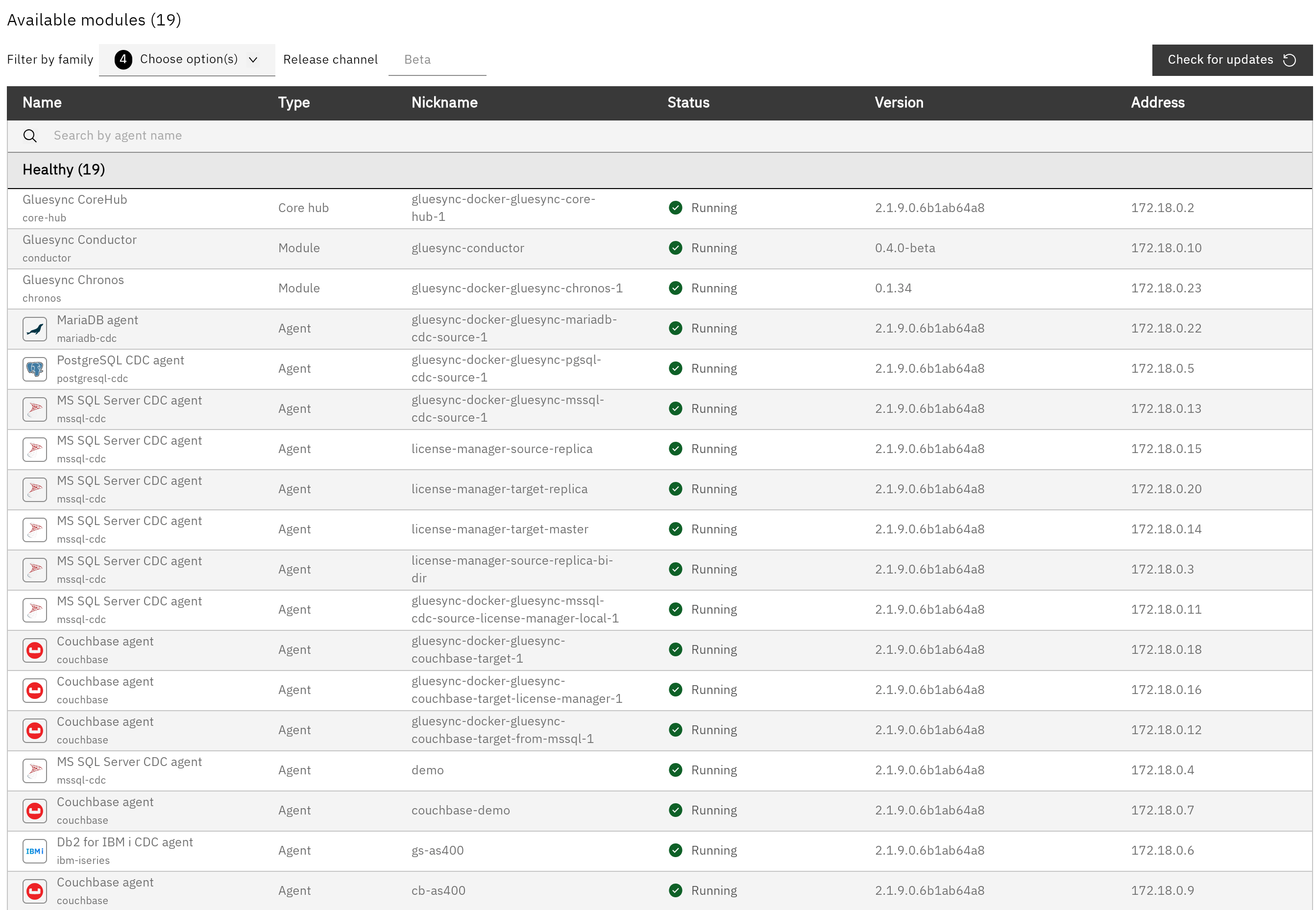
Managing platform components
The Modules manager lists Conductor-managed components (for example CoreHub, modules, agents, and third-party services). Filter the table by type (CoreHub, Module, Agent, Third-party, Unknown) and select a row to open Module detail.
Available actions on a selected component are:
-
Start
-
Restart
-
Stop
-
Remove
Not every action is shown for every component. Modules cannot be removed from this screen. CoreHub and third-party services cannot be stopped or removed here. Conductor itself cannot be opened in the detail pane.
Actions are executed through Conductor.
Updating Gluesync
Use Platform updates in the Control Plane header, not Modules manager.
-
Open Platform updates in the Control Plane header.
-
Click Check for updates if the list is empty, or View details when updates are listed.
-
In the Platform updates available modal, click Update all.
Step-by-step instructions are in Get Gluesync and OTA updates.